> ## Documentation Index
> Fetch the complete documentation index at: https://help.fieldpulse.com/llms.txt
> Use this file to discover all available pages before exploring further.
# Setting Up Engage Notifications
> Control incoming call and message tones in FieldPulse Engage, silence the ringer on a shared line, and decide how missed calls show up in conversations.
> **Who uses this:** Engage users manage their own message tone and manual ringer silencing; Admins control the company-wide auto-silence setting. **Availability:** United States and Canada. Requires the Engage add-on.
Engage notifications are the settings that control incoming call and message tones in [Engage](https://www.fieldpulse.com/features/engage) — letting you toggle the message tone, silence the ringer on your own device when a line is shared, and decide whether a missed call marks a conversation as unread. They matter most when several people share one phone line and every device rings at once.
## Overview
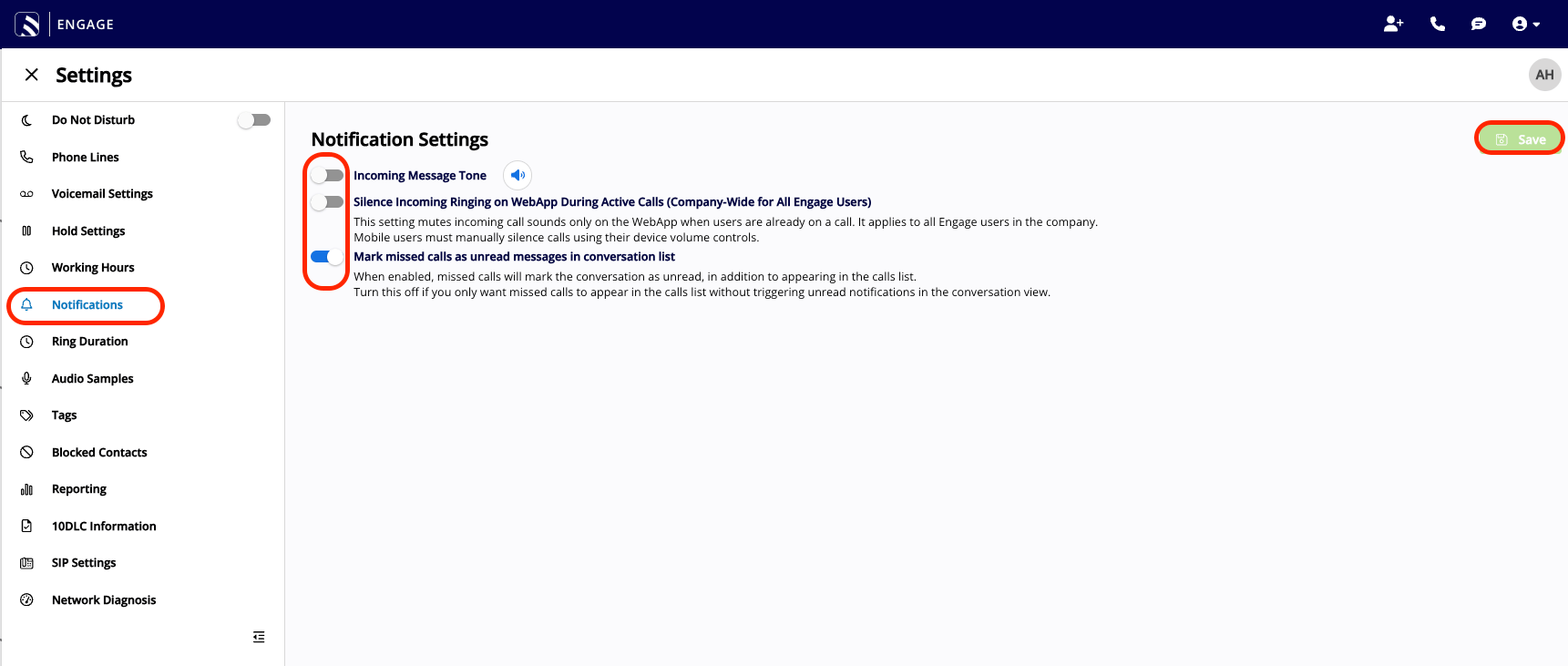
Engage notification settings let you toggle the incoming message tone on or off to match your preference. On top of that, Engage gives you two ways to manage a ringing line — silence it yourself, or have Engage silence it automatically while you're on a call — plus a setting for how missed calls show up in your conversation list. The toggles live in the Engage web app under **Settings** > **Notifications**; manual ringer silencing happens on the incoming call pop-up itself.
## Step-by-step setup
### 1. Open your notification settings
1. In the Engage web app, open **Settings**.
2. Select **Notifications** from the settings menu.
3. Toggle **Incoming Message Tone** on or off to control the message notification tone.
4. Select **Save** to apply your changes.
 ### 2. Silence the ringer manually on a shared line
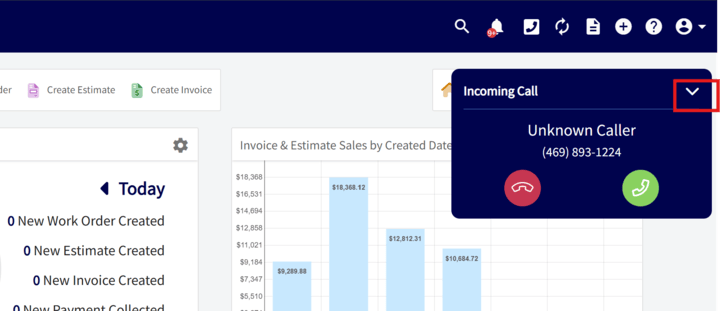
When multiple users share a line, the manual ringer silencer mutes the ringer on your specific device — the call alert continues for other line assignees and managers, so you cut your own distraction without cutting theirs.
1. Select the **arrow icon** on the incoming call pop-up to silence the ringer.
2. To respond to the silenced call, select the pop-up again to see the accept and end options.
### 2. Silence the ringer manually on a shared line
When multiple users share a line, the manual ringer silencer mutes the ringer on your specific device — the call alert continues for other line assignees and managers, so you cut your own distraction without cutting theirs.
1. Select the **arrow icon** on the incoming call pop-up to silence the ringer.
2. To respond to the silenced call, select the pop-up again to see the accept and end options.
 ### 3. Silence incoming ringing automatically during active calls
Admin users can turn on **Silence Incoming Ringing on WebApp During Active Calls** to automatically mute incoming call sounds on the web app when a user is already on a call. The setting is company-wide — it applies to all Engage users and phone lines in the company. When it's on:
* Users on an active call do not hear ringing for new incoming calls.
* Visual notifications for incoming calls still show on both the web and mobile app.
* Calls still appear in reporting and in missed-call lists.
Mobile users must still silence calls manually using their device's volume controls.
### 4. Decide how missed calls appear in your conversation list
**Mark missed calls as unread messages in conversation list** is on by default. When the setting is on, a missed call marks the conversation as unread in the conversation list, in addition to appearing in the calls list. Turn the setting off if you want missed calls to appear only in the calls list without triggering unread notifications in the conversation view.
## Settings reference
| **Setting** | **What it controls** | **Scope** |
| ------------------------------------------------------------- | -------------------------------------------------------------------------------------------------------------------------------------------- | ------------------------------ |
| **Incoming Message Tone** | Toggles the message notification tone on or off. | Per user |
| Manual ringer silence | Mutes the ringer on your device via the **arrow icon** on the incoming call pop-up; other line assignees and managers still get the alert. | Per user, per call |
| **Silence Incoming Ringing on WebApp During Active Calls** | Mutes incoming call sounds on the web app while a user is already on a call. Visual alerts, reporting, and missed-call lists are unaffected. | Company-wide, Admin-controlled |
| **Mark missed calls as unread messages in conversation list** | Marks the conversation as unread when a call is missed, in addition to listing it in the calls list. On by default. | — |
## Related articles
* [Engage Overview](/add-ons/engage/overview)
* [Setting Up Call Routing](/add-ons/engage/call-routing)
* [Engage User Roles Details](/add-ons/engage/user-roles)
* [Setting Up Voicemail](/add-ons/engage/voicemail)
Your setup is working when a shared-line call rings the way your team expects — silenced on the devices you chose, still alerting the rest, and logged in reporting either way.
## Related topics
- [Engage Overview](/add-ons/engage/overview.md)
- [Setting Up Email in Engage](/add-ons/engage/connecting-email.md)
- [How to Mark All Notifications as Read](/add-ons/engage/marking-notifications-read.md)
- [Engage User Roles Details](/add-ons/engage/user-roles.md)
### 3. Silence incoming ringing automatically during active calls
Admin users can turn on **Silence Incoming Ringing on WebApp During Active Calls** to automatically mute incoming call sounds on the web app when a user is already on a call. The setting is company-wide — it applies to all Engage users and phone lines in the company. When it's on:
* Users on an active call do not hear ringing for new incoming calls.
* Visual notifications for incoming calls still show on both the web and mobile app.
* Calls still appear in reporting and in missed-call lists.
Mobile users must still silence calls manually using their device's volume controls.
### 4. Decide how missed calls appear in your conversation list
**Mark missed calls as unread messages in conversation list** is on by default. When the setting is on, a missed call marks the conversation as unread in the conversation list, in addition to appearing in the calls list. Turn the setting off if you want missed calls to appear only in the calls list without triggering unread notifications in the conversation view.
## Settings reference
| **Setting** | **What it controls** | **Scope** |
| ------------------------------------------------------------- | -------------------------------------------------------------------------------------------------------------------------------------------- | ------------------------------ |
| **Incoming Message Tone** | Toggles the message notification tone on or off. | Per user |
| Manual ringer silence | Mutes the ringer on your device via the **arrow icon** on the incoming call pop-up; other line assignees and managers still get the alert. | Per user, per call |
| **Silence Incoming Ringing on WebApp During Active Calls** | Mutes incoming call sounds on the web app while a user is already on a call. Visual alerts, reporting, and missed-call lists are unaffected. | Company-wide, Admin-controlled |
| **Mark missed calls as unread messages in conversation list** | Marks the conversation as unread when a call is missed, in addition to listing it in the calls list. On by default. | — |
## Related articles
* [Engage Overview](/add-ons/engage/overview)
* [Setting Up Call Routing](/add-ons/engage/call-routing)
* [Engage User Roles Details](/add-ons/engage/user-roles)
* [Setting Up Voicemail](/add-ons/engage/voicemail)
Your setup is working when a shared-line call rings the way your team expects — silenced on the devices you chose, still alerting the rest, and logged in reporting either way.
## Related topics
- [Engage Overview](/add-ons/engage/overview.md)
- [Setting Up Email in Engage](/add-ons/engage/connecting-email.md)
- [How to Mark All Notifications as Read](/add-ons/engage/marking-notifications-read.md)
- [Engage User Roles Details](/add-ons/engage/user-roles.md)