> ## Documentation Index
> Fetch the complete documentation index at: https://help.fieldpulse.com/llms.txt
> Use this file to discover all available pages before exploring further.
# Engage Overview
> What is Engage? The built-in FieldPulse phone system for calls, texts, voicemails, and email — how the pieces fit and what each user role can do.
> **Who uses this:** Admins and Team Managers manage phone lines; Service Agents work their assigned line; Limited Agents have no access. **Availability:** Engage add-on · United States and Canada.
[Engage](https://www.fieldpulse.com/features/engage) is FieldPulse's built-in phone system — one place for your team to make and take customer calls, texts, voicemails, and emails, with every conversation saved to the [customer's record](https://www.fieldpulse.com/features/customer-management) instead of scattered across personal cell phones. When a technician handles a call, a manager can see the conversation and participate when the customer needs backup.
## Overview
Engage keeps customer conversations off personal phones and inside FieldPulse, where the whole team can see them. Engage does a few things at once:
* **Calls and texts** from business phone numbers you purchase through Engage or port in from another carrier.
* **Voicemail and email** captured against the same customer, so your customer call history, voicemails, emails, and text messages are all saved inside the app.
* **Managerial oversight** — managers can see conversations between customers and technicians and participate in the conversation when necessary.
* **A full record** — every call, voicemail, text, and email ties back to the customer's record in FieldPulse.
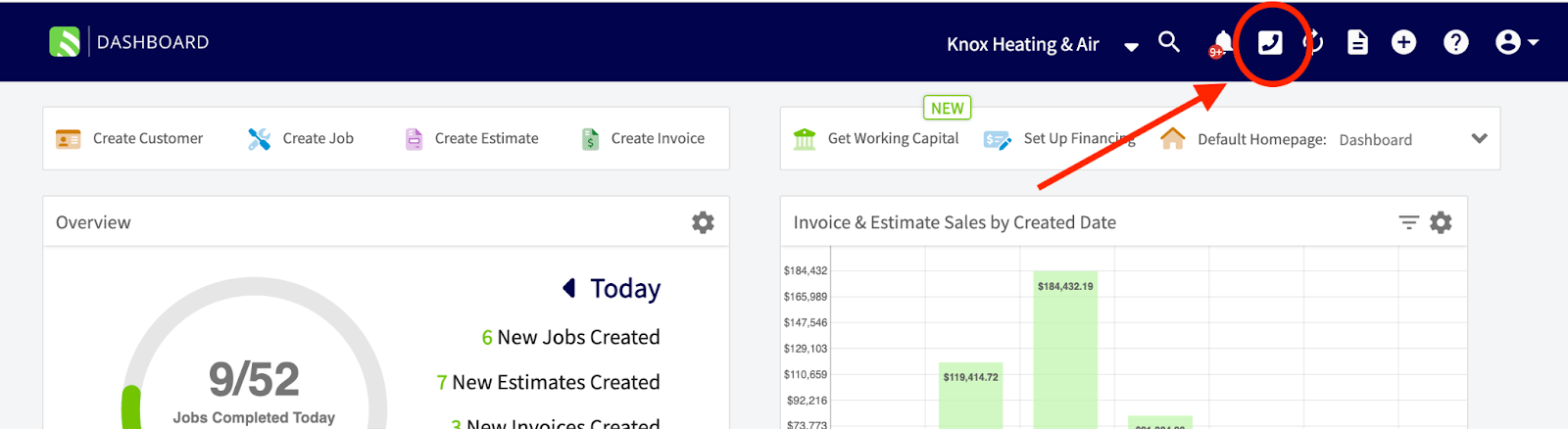
Engage works in the FieldPulse web app and in the Engage by FieldPulse mobile app for iOS and Android.
## Video walkthrough
## How it works
The workflow breakdown Engage solves is the one every growing service business hits: customer conversations live on the technician's personal phone, and the office has no record of what was said or promised. Engage moves those conversations into FieldPulse so the office and the field work from the same history.
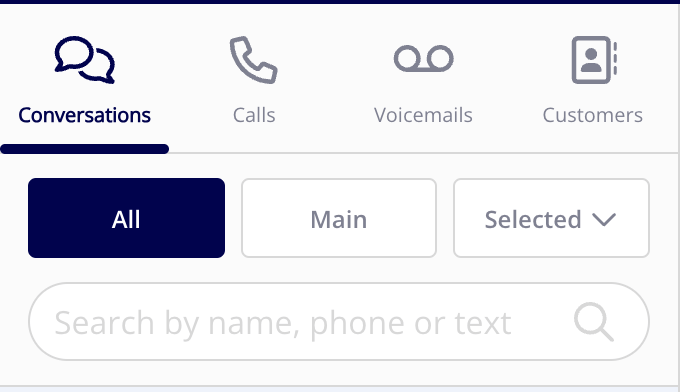
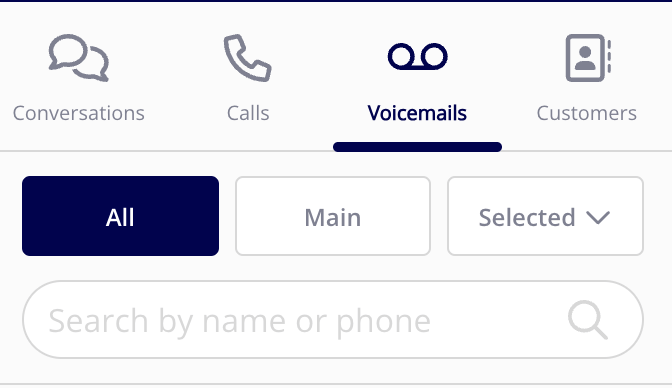
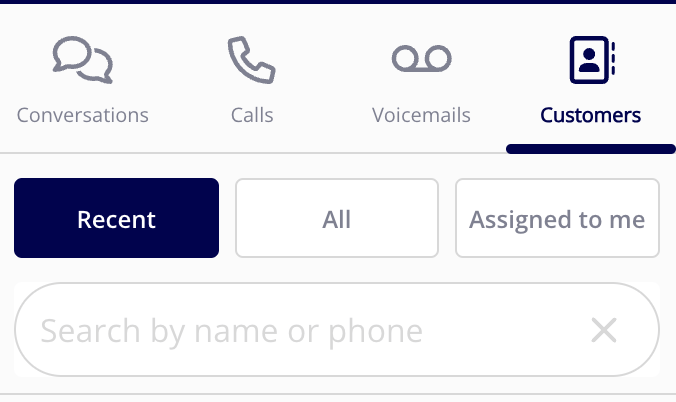
Engage organizes customer communication into four views — **Conversations**, **Calls**, **Voicemails**, and **Customers**. The first three share **All**, **Main**, and **Selected** filters, so you can look at one Engage phone number or every number at once; the Customers view filters by **Recent**, **All**, and **Assigned to Me**. In every view, the customer's FieldPulse record populates on the right side of the screen on web, or behind the person icon in the top-right corner on mobile.
### Conversations
The **Conversations** view is where you text customers and review past interactions across all communication methods. Filter by **All**, **Main**, or **Selected** phone numbers, or use the search in the web app to find a conversation by name, phone number, or keyword.
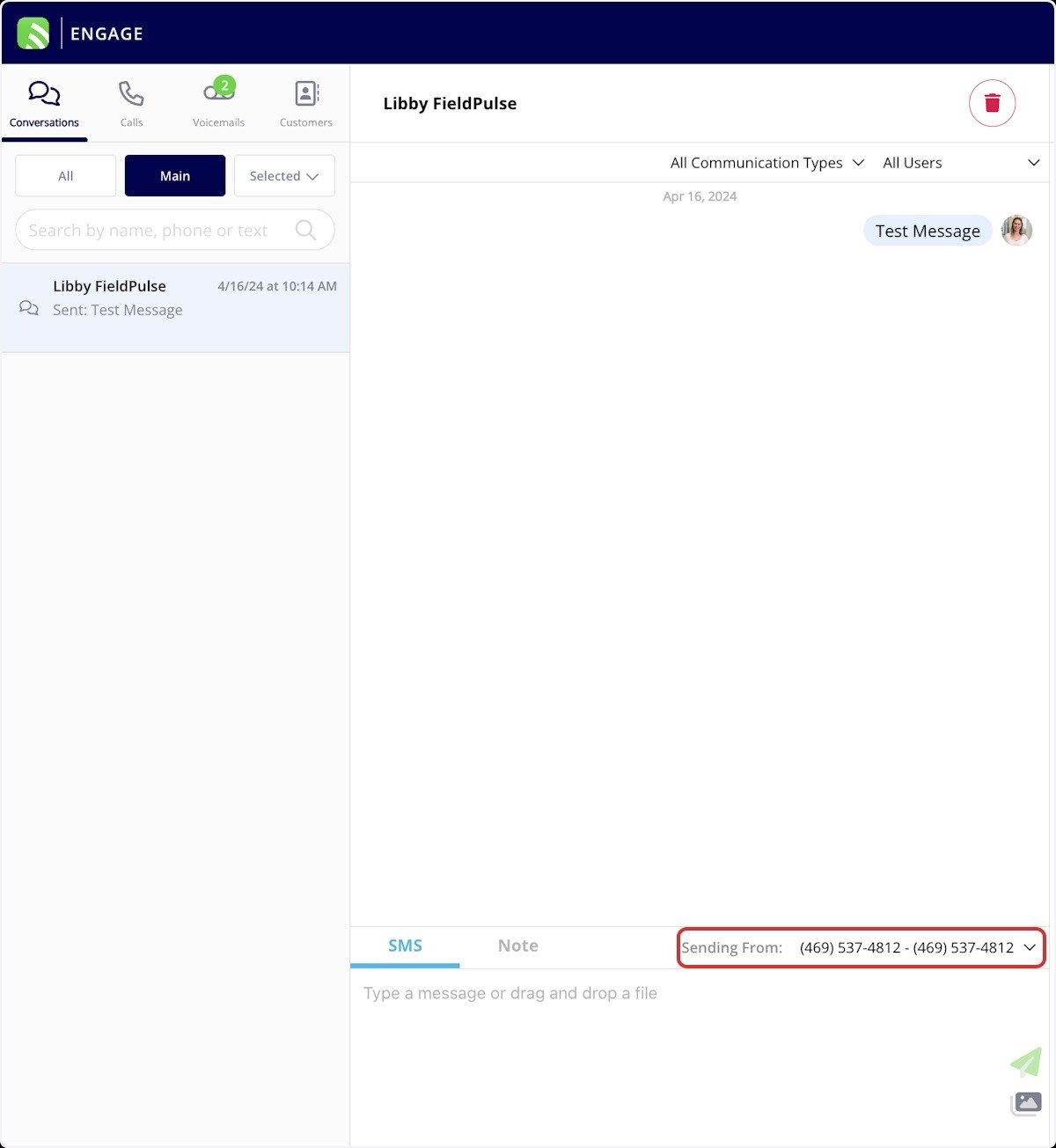
 Select a conversation to open it. From there you can filter the history by communication type or by team member, send a text message, or toggle on **Notes** to leave an internal note for yourself or your team.
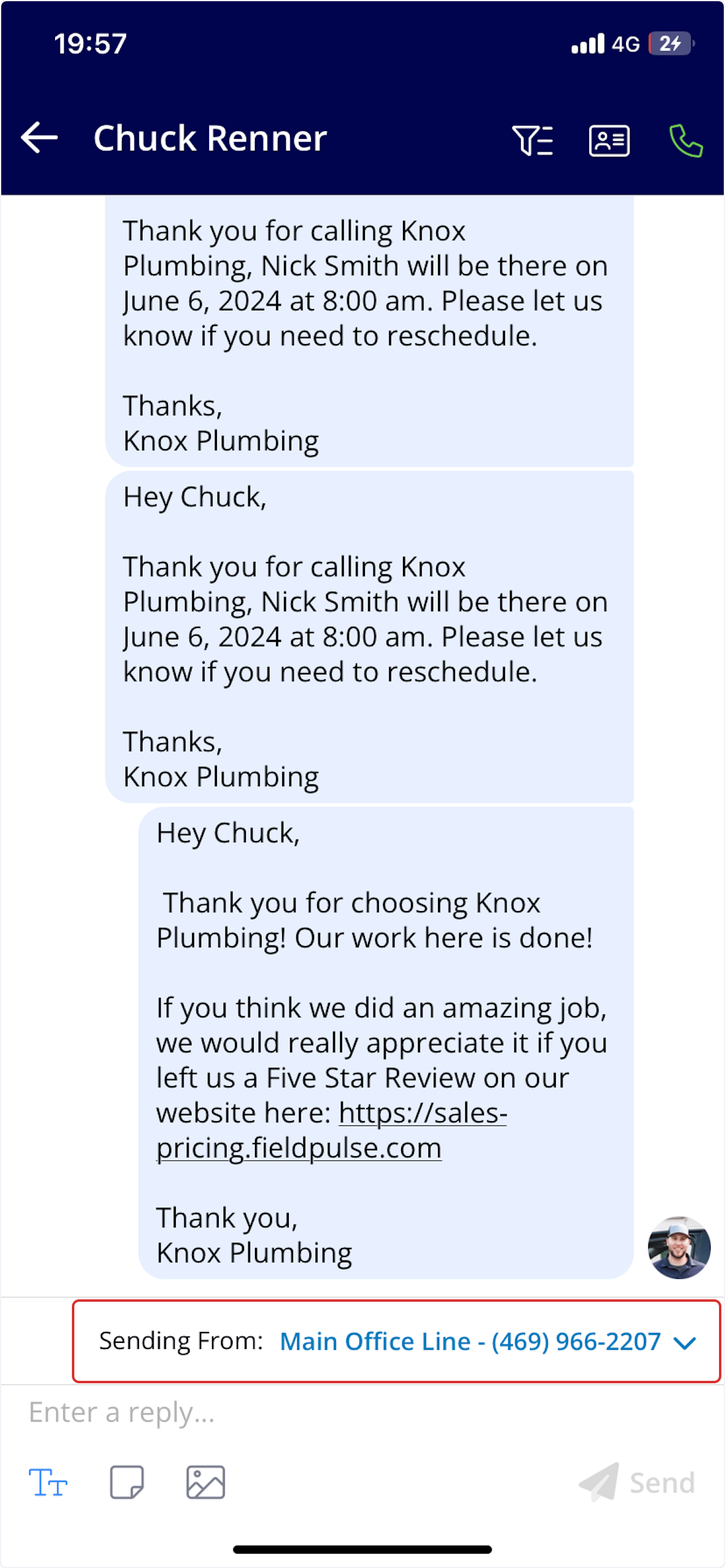
You can also switch between your assigned or managed phone lines when sending a text. In the conversation, select **Sending From** and pick the outbound phone line — the list shows each line's phone number and friendly name. **Sending From** is available in both the Engage web app and mobile app.
Select a conversation to open it. From there you can filter the history by communication type or by team member, send a text message, or toggle on **Notes** to leave an internal note for yourself or your team.
You can also switch between your assigned or managed phone lines when sending a text. In the conversation, select **Sending From** and pick the outbound phone line — the list shows each line's phone number and friendly name. **Sending From** is available in both the Engage web app and mobile app.
 ### Calls
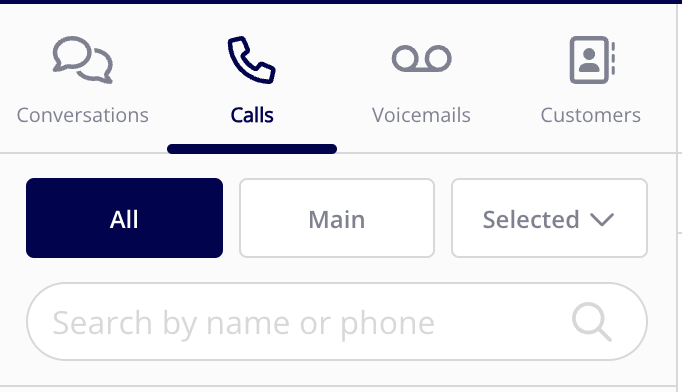
The **Calls** view is where you call customers and review past phone calls. Filter by **All**, **Main**, or **Selected** phone numbers, or search by name or phone number to find related call history. Open any call log to listen to the call or voicemail recording, view the phone numbers used, and add or view call notes. The **Call Insights** section shows the AI-generated **Call Summary** inline with a copy icon. Select **Show Call Recording & Transcript** to expand the recording player and the turn-by-turn transcript.
### Calls
The **Calls** view is where you call customers and review past phone calls. Filter by **All**, **Main**, or **Selected** phone numbers, or search by name or phone number to find related call history. Open any call log to listen to the call or voicemail recording, view the phone numbers used, and add or view call notes. The **Call Insights** section shows the AI-generated **Call Summary** inline with a copy icon. Select **Show Call Recording & Transcript** to expand the recording player and the turn-by-turn transcript.
 ### Voicemails
The **Voicemails** view lists your customer voicemails. Filter by **All**, **Main**, or **Selected** phone numbers, or search by name or phone number to find a voicemail. Open any voicemail to listen to the recording, view the phone numbers used, and add or view call notes.
### Voicemails
The **Voicemails** view lists your customer voicemails. Filter by **All**, **Main**, or **Selected** phone numbers, or search by name or phone number to find a voicemail. Open any voicemail to listen to the recording, view the phone numbers used, and add or view call notes.
 ### Customers
The **Customers** view shows your customers in an organized way. Filter by **Recent**, **All**, or **Assigned to Me**, or search by name or phone number. Select a customer to view their details, filter their communication history by type or by team member, start a text message, or toggle on **Notes** to leave an internal note.
### Customers
The **Customers** view shows your customers in an organized way. Filter by **Recent**, **All**, or **Assigned to Me**, or search by name or phone number. Select a customer to view their details, filter their communication history by type or by team member, start a text message, or toggle on **Notes** to leave an internal note.
 ### Phone numbers
You get an Engage number one of two ways: purchase a new local or toll-free number directly through FieldPulse, or port in the business number your customers already know. Engage supports porting both local and toll-free numbers, and the FieldPulse support team guides the porting process. See [How to Purchase and Port Phone Numbers](/add-ons/engage/purchasing-porting-numbers).
Before your Engage numbers can send text messages to US numbers, they must be registered for 10DLC compliance. See [Setting Up 10DLC Compliance Registration](/add-ons/engage/10dlc-compliance).
> **Important:** Engage lines do not support verification codes (OTPs).
### What you can set up
Here are the features included in Engage:
* Turn [Do Not Disturb](/add-ons/engage/do-not-disturb) on or off
* Put a caller on [hold](/add-ons/engage/caller-on-hold)
* Set up [voicemail](/add-ons/engage/voicemail)
* Add personal [audio samples](/add-ons/engage/audio-samples) for your hold or voicemail settings
* Adjust your [ring duration](/add-ons/engage/ring-duration)
* Set up [working hours](/add-ons/engage/working-hours)
* Set up [notifications](/add-ons/engage/notifications)
* Connect [email](/add-ons/engage/connecting-email) so email threads live in Engage too
* Pull [reports](/add-ons/engage/report)
* Connect a landline or desktop phone over [SIP (Session Initiation Protocol)](/add-ons/engage/sip-did)
* Get [10DLC](/add-ons/engage/10dlc-compliance) verified
* Run a [network diagnosis](/add-ons/engage/network-diagnosis)
* Set up a [caller ID](/add-ons/engage/caller-id)
* [Record calls](/add-ons/engage/phone-line-settings)
* Automatically designate a [lead source for a phone number](/add-ons/engage/assign-number-lead-source)
* [Assign users](/add-ons/engage/phone-line-settings) to a line
* Set up [call routing](/add-ons/engage/call-routing) through call forwarding, a phone tree, or sequential call ring
* Make [blind transfers](/add-ons/engage/transfers-non-sip)
* Get AI call transcripts and summaries
* Auto-insert call summaries into a customer's comments
### Who can do what
Engage access depends on the user's FieldPulse role:
| **Role** | **What it can do in Engage** |
| ----------------- | -------------------------------------------------------------------------------------------------------------------------------------------------------------------- |
| **Limited Agent** | No access to Engage. |
| **Service Agent** | Assigned to one phone line (or none). Handles incoming and outgoing calls on that line, and views incoming activity plus their own outgoing activity on it. |
| **Team Manager** | Assigned to one line or none. Can be designated manager on additional lines — making incoming and outgoing calls and viewing activity across every line they manage. |
| **Admin** | Assigned to one line or none. Can be designated manager on all lines — making incoming and outgoing calls and viewing activity across all lines. |
For the full role-to-permission mapping, see [Engage User Roles Details](/add-ons/engage/user-roles).
## Availability
Engage is available for users in the United States and Canada.
To enable Engage, [contact the FieldPulse team](https://www.fieldpulse.com/company/contact-us) at [support@fieldpulse.com](mailto:support@fieldpulse.com) or use the chat feature in the bottom-right corner of your screen. Once Engage is enabled and your phone numbers are connected, you're ready to make and take calls through the FieldPulse web app or the Engage by FieldPulse app on iOS and Android.
### Phone numbers
You get an Engage number one of two ways: purchase a new local or toll-free number directly through FieldPulse, or port in the business number your customers already know. Engage supports porting both local and toll-free numbers, and the FieldPulse support team guides the porting process. See [How to Purchase and Port Phone Numbers](/add-ons/engage/purchasing-porting-numbers).
Before your Engage numbers can send text messages to US numbers, they must be registered for 10DLC compliance. See [Setting Up 10DLC Compliance Registration](/add-ons/engage/10dlc-compliance).
> **Important:** Engage lines do not support verification codes (OTPs).
### What you can set up
Here are the features included in Engage:
* Turn [Do Not Disturb](/add-ons/engage/do-not-disturb) on or off
* Put a caller on [hold](/add-ons/engage/caller-on-hold)
* Set up [voicemail](/add-ons/engage/voicemail)
* Add personal [audio samples](/add-ons/engage/audio-samples) for your hold or voicemail settings
* Adjust your [ring duration](/add-ons/engage/ring-duration)
* Set up [working hours](/add-ons/engage/working-hours)
* Set up [notifications](/add-ons/engage/notifications)
* Connect [email](/add-ons/engage/connecting-email) so email threads live in Engage too
* Pull [reports](/add-ons/engage/report)
* Connect a landline or desktop phone over [SIP (Session Initiation Protocol)](/add-ons/engage/sip-did)
* Get [10DLC](/add-ons/engage/10dlc-compliance) verified
* Run a [network diagnosis](/add-ons/engage/network-diagnosis)
* Set up a [caller ID](/add-ons/engage/caller-id)
* [Record calls](/add-ons/engage/phone-line-settings)
* Automatically designate a [lead source for a phone number](/add-ons/engage/assign-number-lead-source)
* [Assign users](/add-ons/engage/phone-line-settings) to a line
* Set up [call routing](/add-ons/engage/call-routing) through call forwarding, a phone tree, or sequential call ring
* Make [blind transfers](/add-ons/engage/transfers-non-sip)
* Get AI call transcripts and summaries
* Auto-insert call summaries into a customer's comments
### Who can do what
Engage access depends on the user's FieldPulse role:
| **Role** | **What it can do in Engage** |
| ----------------- | -------------------------------------------------------------------------------------------------------------------------------------------------------------------- |
| **Limited Agent** | No access to Engage. |
| **Service Agent** | Assigned to one phone line (or none). Handles incoming and outgoing calls on that line, and views incoming activity plus their own outgoing activity on it. |
| **Team Manager** | Assigned to one line or none. Can be designated manager on additional lines — making incoming and outgoing calls and viewing activity across every line they manage. |
| **Admin** | Assigned to one line or none. Can be designated manager on all lines — making incoming and outgoing calls and viewing activity across all lines. |
For the full role-to-permission mapping, see [Engage User Roles Details](/add-ons/engage/user-roles).
## Availability
Engage is available for users in the United States and Canada.
To enable Engage, [contact the FieldPulse team](https://www.fieldpulse.com/company/contact-us) at [support@fieldpulse.com](mailto:support@fieldpulse.com) or use the chat feature in the bottom-right corner of your screen. Once Engage is enabled and your phone numbers are connected, you're ready to make and take calls through the FieldPulse web app or the Engage by FieldPulse app on iOS and Android.
 ## FAQs
### Can I restrict my technicians' access to our customers' contact information within Engage?
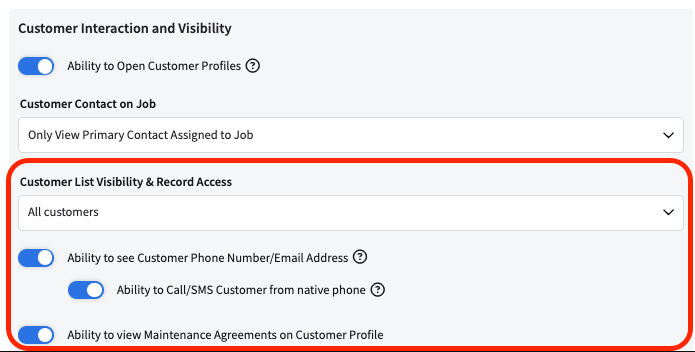
Yes. A user permission setting controls whether technicians can see customer phone numbers and email addresses — toggle **Ability to see Customer Phone Number/Email Address** on or off in the user's permission settings.
## FAQs
### Can I restrict my technicians' access to our customers' contact information within Engage?
Yes. A user permission setting controls whether technicians can see customer phone numbers and email addresses — toggle **Ability to see Customer Phone Number/Email Address** on or off in the user's permission settings.
 ### Can I answer calls from Engage using a Bluetooth headset?
You can answer incoming Engage calls directly through your headset, depending on your device — if that doesn't work at first, answer via the web or mobile app, then switch to the Bluetooth headset for the call. If you're having audio issues, make sure the headset is connected only to the device running Engage. Connections to multiple devices at the same time (like a phone and a computer) can cause unstable or patchy audio, so disconnect any extras for the best call quality.
### Do call recordings in Engage ever expire or get deleted?
No — call recordings are stored in FieldPulse indefinitely. You can download them at any time from your call history or by using [Engage reporting](/add-ons/engage/report).
### How long does it take for new or updated FieldPulse contacts to appear in Engage?
When a customer is created or updated in FieldPulse, the changes take approximately two minutes to sync into Engage. During that time you may see the customer's phone number displayed instead of their name — this is expected, and the name appears once the sync completes.
## Related articles
* [How to Purchase and Port Phone Numbers](/add-ons/engage/purchasing-porting-numbers)
* [Setting Up 10DLC Compliance Registration](/add-ons/engage/10dlc-compliance)
* [Setting Up Email in Engage](/add-ons/engage/connecting-email)
* [Engage User Roles Details](/add-ons/engage/user-roles)
* [Setting Up Engage Notifications](/add-ons/engage/notifications)
* [Setting Up Call Routing](/add-ons/engage/call-routing)
## Related topics
- [Customer Communications Overview](/customers/communications/overview.md)
- [Setting Up Operator AI](/add-ons/ai/operator-ai.md)
- [Engage Phone System](/add-ons/engage/index.md)
- [Setting Up Engage Notifications](/add-ons/engage/notifications.md)
### Can I answer calls from Engage using a Bluetooth headset?
You can answer incoming Engage calls directly through your headset, depending on your device — if that doesn't work at first, answer via the web or mobile app, then switch to the Bluetooth headset for the call. If you're having audio issues, make sure the headset is connected only to the device running Engage. Connections to multiple devices at the same time (like a phone and a computer) can cause unstable or patchy audio, so disconnect any extras for the best call quality.
### Do call recordings in Engage ever expire or get deleted?
No — call recordings are stored in FieldPulse indefinitely. You can download them at any time from your call history or by using [Engage reporting](/add-ons/engage/report).
### How long does it take for new or updated FieldPulse contacts to appear in Engage?
When a customer is created or updated in FieldPulse, the changes take approximately two minutes to sync into Engage. During that time you may see the customer's phone number displayed instead of their name — this is expected, and the name appears once the sync completes.
## Related articles
* [How to Purchase and Port Phone Numbers](/add-ons/engage/purchasing-porting-numbers)
* [Setting Up 10DLC Compliance Registration](/add-ons/engage/10dlc-compliance)
* [Setting Up Email in Engage](/add-ons/engage/connecting-email)
* [Engage User Roles Details](/add-ons/engage/user-roles)
* [Setting Up Engage Notifications](/add-ons/engage/notifications)
* [Setting Up Call Routing](/add-ons/engage/call-routing)
## Related topics
- [Customer Communications Overview](/customers/communications/overview.md)
- [Setting Up Operator AI](/add-ons/ai/operator-ai.md)
- [Engage Phone System](/add-ons/engage/index.md)
- [Setting Up Engage Notifications](/add-ons/engage/notifications.md)