> ## Documentation Index
> Fetch the complete documentation index at: https://help.fieldpulse.com/llms.txt
> Use this file to discover all available pages before exploring further.
# Setting Up Dimensional Pricebook
> Turn on dimensional pricing in FieldPulse so glass, fencing, flooring, and drywall price by unit of measure and customer dimensions — no hand calculations.
> **Who uses this:** Admins with admin-level permissions configure line items, item options, and Pricebook settings; estimators and technicians quote with it. **Availability:** The Dimensional Pricebook must be enabled on your account by the FieldPulse team.
The Dimensional Pricebook prices products by a unit of measure and the exact dimensions your customer needs, so a tech enters the size and the Pricebook does the math. It's built for trades where size drives cost — glass fabrication, fencing, flooring, drywall, and insulation — and it replaces the hand-calculating and guessing that slows down a quote and invites errors.
## Overview
The Dimensional Pricebook adds size-based pricing on top of your existing Pricebook. Instead of a fixed flat rate, a dimensional item is priced from a **unit of measure** (square feet, square inches, linear inches, or united whole inch) and the dimensions your estimator enters. **Item Options** — color, thickness, edge type, finish — flow into the line item description on the [estimate or invoice](https://www.fieldpulse.com/features/estimates-and-invoices), so your team and your customer see exactly what's being quoted. Dimensional pricing also makes edits easier after a flat rate job has been added to an estimate or invoice, and keeps calculations accurate when item options share a unit of measure with the base item.
Setting it up means turning on Item Options, creating those options, configuring your line items with a unit of measure, and enabling dimensional pricing on the Pricebook itself.
## Video walkthrough
## Before you begin
Have these in place before you configure dimensional pricing:
* The **Dimensional Pricebook feature enabled** on your account.
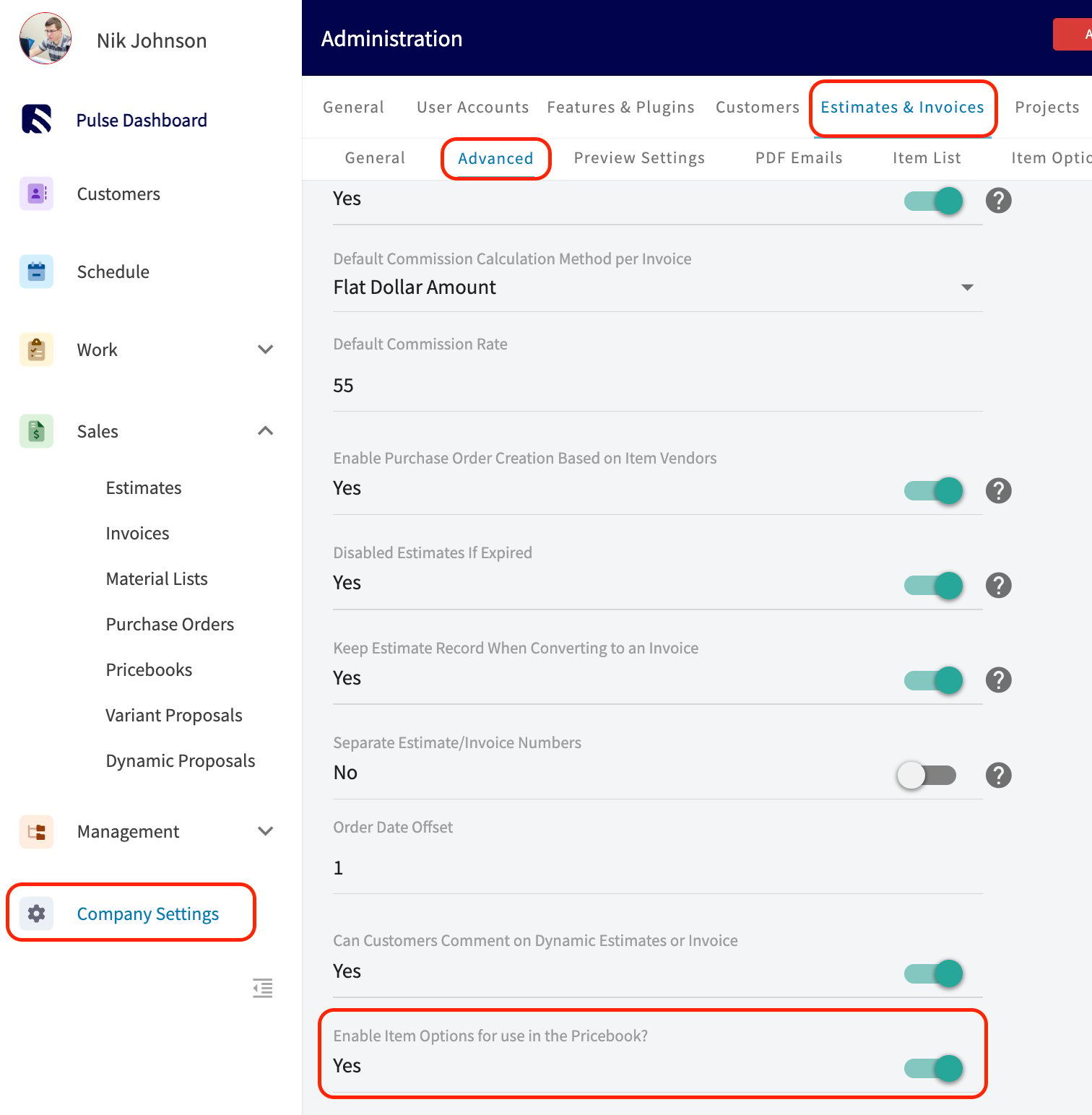
* **Item Options enabled** in **Company Settings** > **Estimates & Invoices** > **Advanced** (Step 1 below).
* At least one **Pricebook created**. New to the Pricebook? Start with [Setting Up Your Pricebook](/add-ons/sales-suite/pricebook).
* **Admin-level permissions** to configure line items, item options, and Pricebook settings.
If you'd like the Dimensional Pricebook enabled in your FieldPulse account, reach out to our team at [support@fieldpulse.com](mailto:support@fieldpulse.com) or use the chat feature in the bottom right corner of your screen.
## Step-by-step setup
### Step 1: Turn on Item Options
Item Options are how you offer product variants like color, thickness, edge type, or finish. Each option flows into the line item description on the estimate or invoice.
1. Go to **Company Settings** > **Estimates & Invoices** > **Advanced**.
2. Find the toggle **Enable Item Options for use in the Pricebook?** and switch it on.
 ### Step 2: Create your item options
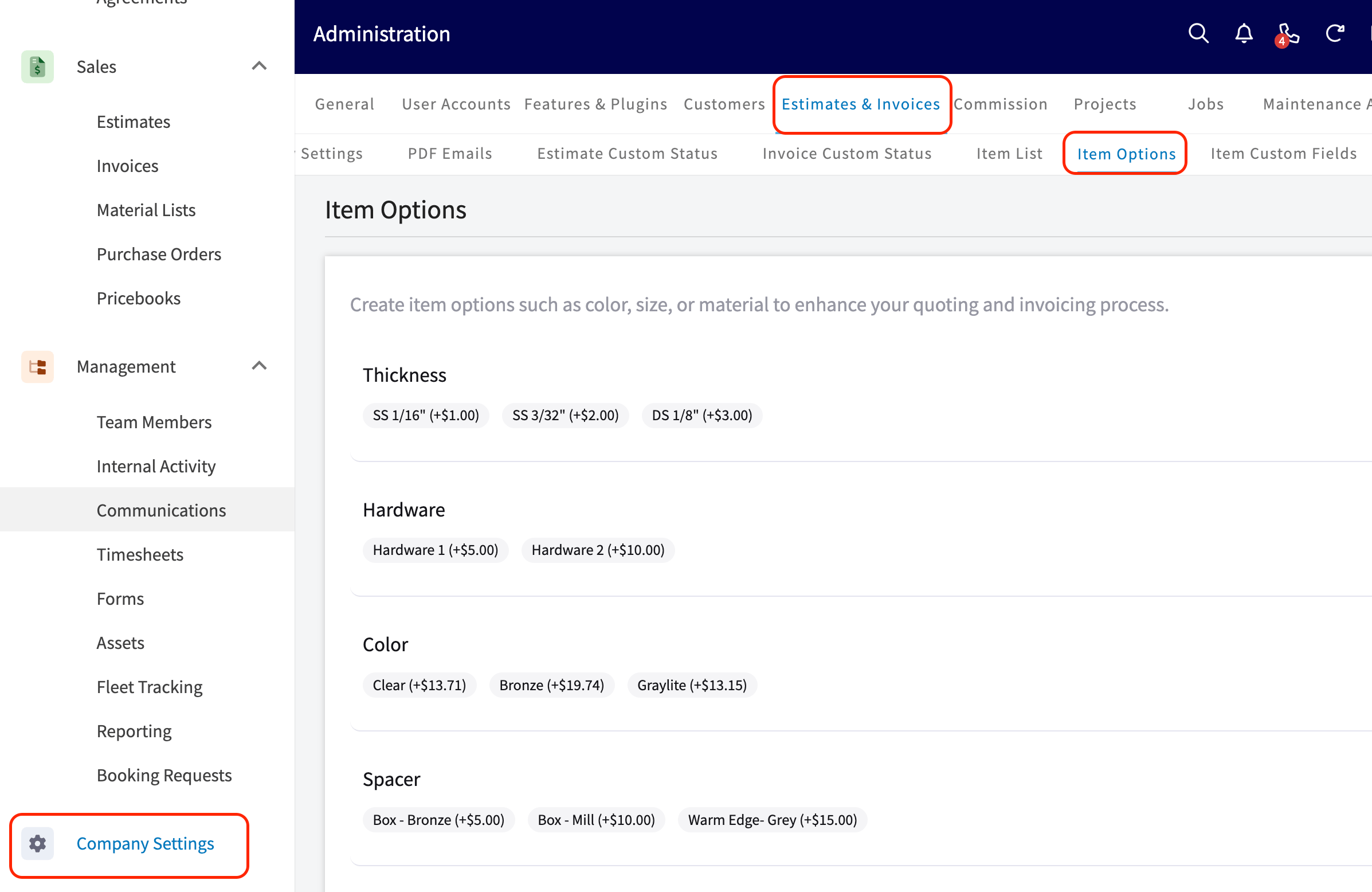
1. Go to **Company Settings** > **Estimates & Invoices** > **Item Options**.
2. Select **Add Item Option**.
### Step 2: Create your item options
1. Go to **Company Settings** > **Estimates & Invoices** > **Item Options**.
2. Select **Add Item Option**.
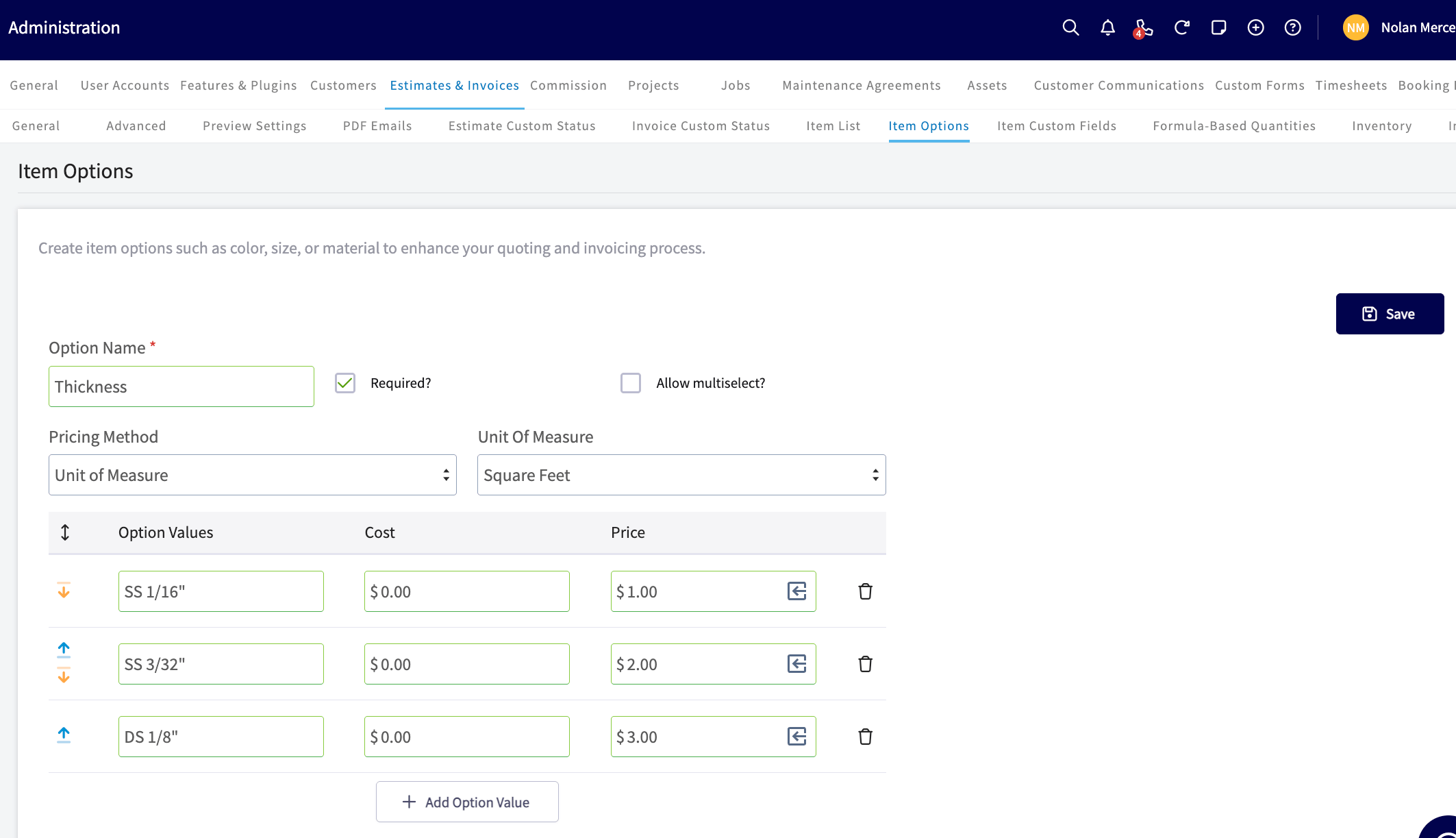
 3. Fill in the fields:
* **Option Name (required)** — the name your team and customers see, for example *Glass Color*, *Thickness*, or *Edge Type*.
* **Required** — forces a selection before the line item can be added.
* **Allow Multi-Select** — lets one option carry more than one value.
* **Pricing Method** — choose **Flat Pricing** (a fixed amount per value) or **Pricing Based on a Unit of Measure** (linear inch, united whole inch, square feet, or square inches).
* **Add Option Value** — name each value, set its additional unit cost and price, drag to reorder, and delete any you don't need. The order here controls how values appear in the Pricebook.
3. Fill in the fields:
* **Option Name (required)** — the name your team and customers see, for example *Glass Color*, *Thickness*, or *Edge Type*.
* **Required** — forces a selection before the line item can be added.
* **Allow Multi-Select** — lets one option carry more than one value.
* **Pricing Method** — choose **Flat Pricing** (a fixed amount per value) or **Pricing Based on a Unit of Measure** (linear inch, united whole inch, square feet, or square inches).
* **Add Option Value** — name each value, set its additional unit cost and price, drag to reorder, and delete any you don't need. The order here controls how values appear in the Pricebook.
 > **FieldPulse Pro Tip:** Put your most-used option values at the top. Estimators read options in that order, so ordering them here saves time on every quote.
### Step 3: Configure your line items
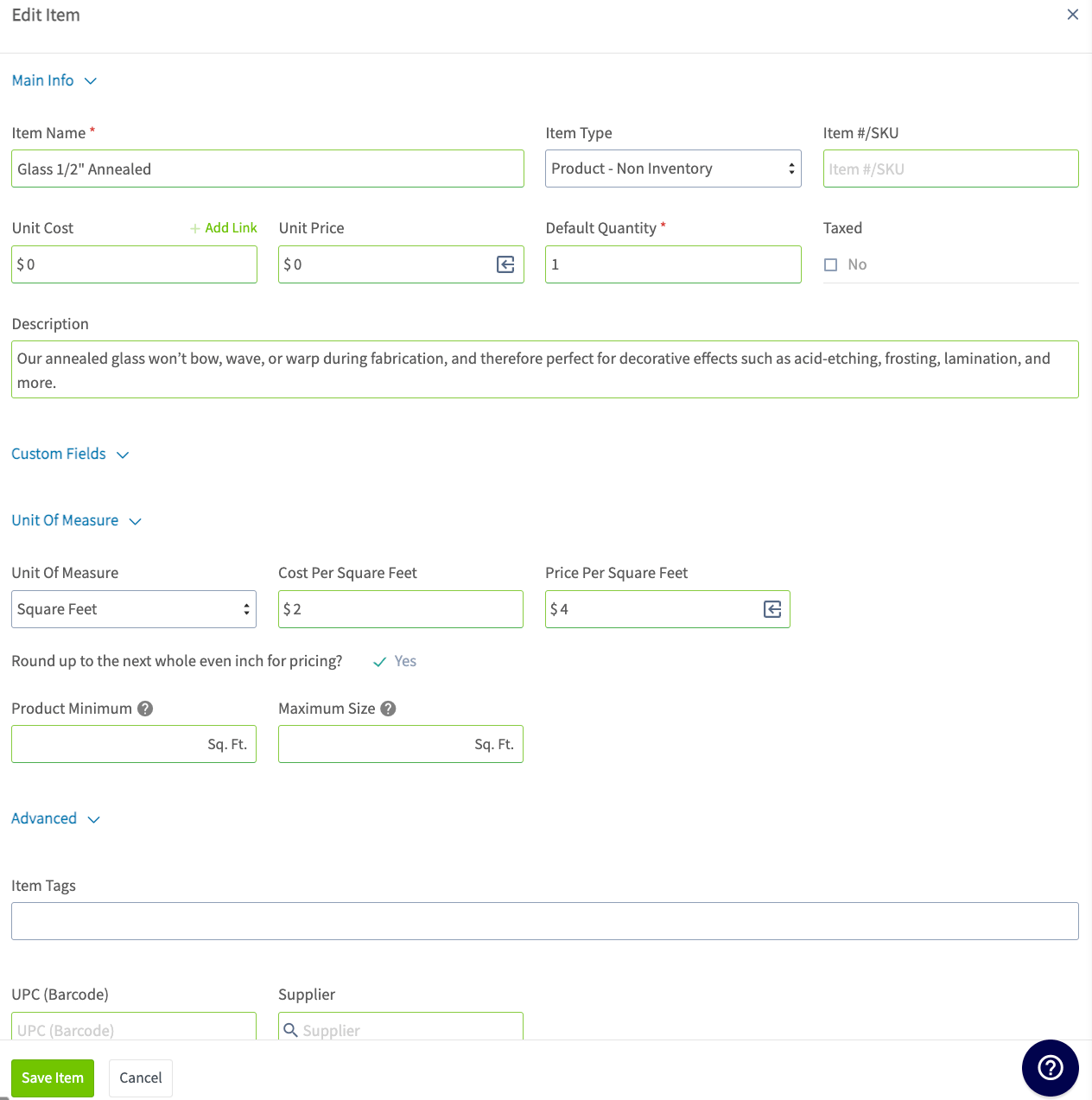
Open any item in your **Item List** to set the fields that apply when the item is used in a Dimensional Pricebook:
* **Unit of Measure** — pick one: square feet (length × width), square inches (length × width ÷ 144), linear inches (length × width × 2, common for glass perimeter), or united whole inch (length + width). When set, this overrides the item's basic unit cost and price.
* **Round Up to Next Even Inch** — orders to the precise measurement but rounds up for customer-facing pricing. An area measured at 11.3" × 12.4" prices at 12" × 14".
* **Maximum Size** — a hard ceiling for what the item can be sold at (for example, you can't sell a 1/8" glass sheet at 200 square feet).
* **Minimum Charge** — when on, sets the minimum quantity charged. If your minimum is 3 square feet and the customer's area is 2 square feet, the cost and price are calculated at 3 square feet.
> **FieldPulse Pro Tip:** Put your most-used option values at the top. Estimators read options in that order, so ordering them here saves time on every quote.
### Step 3: Configure your line items
Open any item in your **Item List** to set the fields that apply when the item is used in a Dimensional Pricebook:
* **Unit of Measure** — pick one: square feet (length × width), square inches (length × width ÷ 144), linear inches (length × width × 2, common for glass perimeter), or united whole inch (length + width). When set, this overrides the item's basic unit cost and price.
* **Round Up to Next Even Inch** — orders to the precise measurement but rounds up for customer-facing pricing. An area measured at 11.3" × 12.4" prices at 12" × 14".
* **Maximum Size** — a hard ceiling for what the item can be sold at (for example, you can't sell a 1/8" glass sheet at 200 square feet).
* **Minimum Charge** — when on, sets the minimum quantity charged. If your minimum is 3 square feet and the customer's area is 2 square feet, the cost and price are calculated at 3 square feet.
 * **Assign Dimensional Item Options** to the line item you're creating or editing.
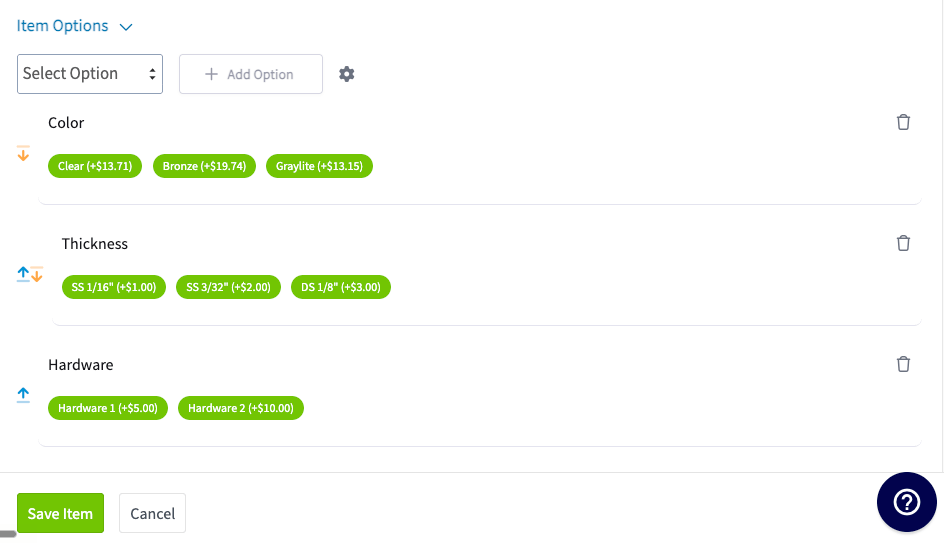 If your item option uses the same unit of measure as the base item and **Round Up to Next Even Inch** is on for the base item, that rounding applies to the option's pricing too — the base charge and the option charge use the same square footage, so your totals match what your estimators expect.
### Step 4: Enable Dimensional Pricing on a Pricebook
1. Open the Pricebook you want to update, or create a new one.
2. On the **Basic Info & Set Up** tab, scroll to the bottom.
3. Turn on **Enable Dimensional Pricing** to allow size-based pricing in this Pricebook.
4. Optionally, turn on **Enforce Product Size Limits** so items only display in the Pricebook when the calculated area fits within the size limits you set on each item.
If your item option uses the same unit of measure as the base item and **Round Up to Next Even Inch** is on for the base item, that rounding applies to the option's pricing too — the base charge and the option charge use the same square footage, so your totals match what your estimators expect.
### Step 4: Enable Dimensional Pricing on a Pricebook
1. Open the Pricebook you want to update, or create a new one.
2. On the **Basic Info & Set Up** tab, scroll to the bottom.
3. Turn on **Enable Dimensional Pricing** to allow size-based pricing in this Pricebook.
4. Optionally, turn on **Enforce Product Size Limits** so items only display in the Pricebook when the calculated area fits within the size limits you set on each item.
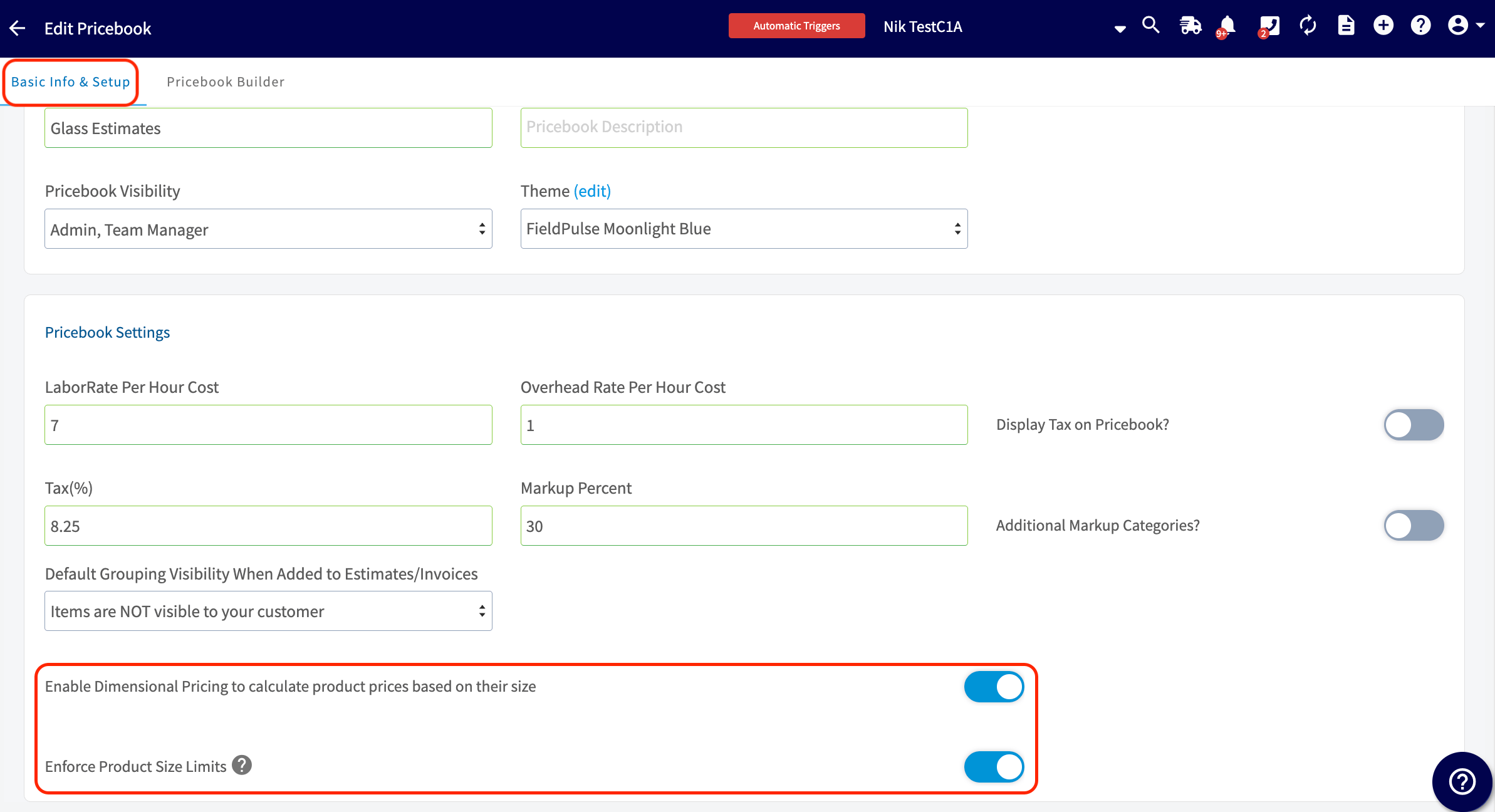 Once enabled, be sure to add your dimensional items to the flat rate jobs within your Pricebook.
## How estimators quote with it
Estimators pick the flat rate job first, then enter dimensions — it's faster, and it stops your team from bouncing back to the home screen every time they want to try a different item:
1. Open the Pricebook and search or browse categories to find the flat rate job or grouping.
2. Select the job. If any item inside uses a unit of measure, the dimensional calculator opens.
3. Enter the size (required), fractional dimensions (required), and the shape — **square** uses width × height; **circle** uses radius.
4. Select item options. If an option is required, the estimator must choose a value before continuing.
5. Confirm the total. Pricing recalculates as options are picked, and the button reads **Confirm & Add** with the calculated total for that flat rate job, so your team knows exactly what they're committing to.
Once enabled, be sure to add your dimensional items to the flat rate jobs within your Pricebook.
## How estimators quote with it
Estimators pick the flat rate job first, then enter dimensions — it's faster, and it stops your team from bouncing back to the home screen every time they want to try a different item:
1. Open the Pricebook and search or browse categories to find the flat rate job or grouping.
2. Select the job. If any item inside uses a unit of measure, the dimensional calculator opens.
3. Enter the size (required), fractional dimensions (required), and the shape — **square** uses width × height; **circle** uses radius.
4. Select item options. If an option is required, the estimator must choose a value before continuing.
5. Confirm the total. Pricing recalculates as options are picked, and the button reads **Confirm & Add** with the calculated total for that flat rate job, so your team knows exactly what they're committing to.
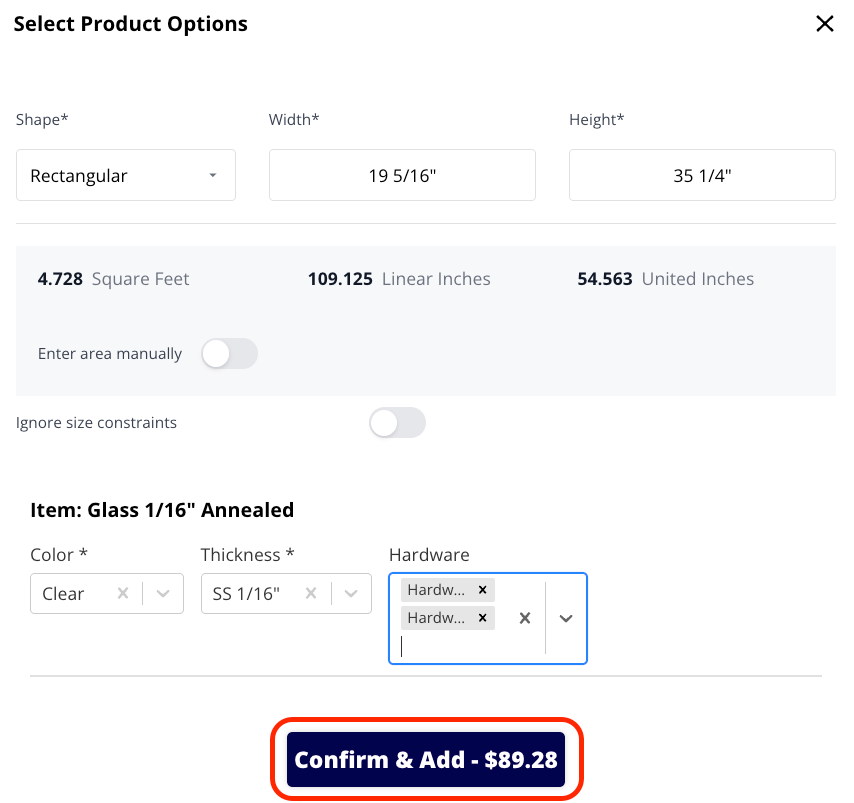 If a dimension exceeds an item's maximum size, the calculator shows an error and blocks the estimator from adding it. An estimator can turn on **Ignore Size Constraint** when the override is intentional.
 There's also a toggle to override entered dimensions and input square footage directly — useful when a customer gives you area rather than measurements.
### Edit a flat rate job without starting over
1. Find the line item on the estimate or invoice.
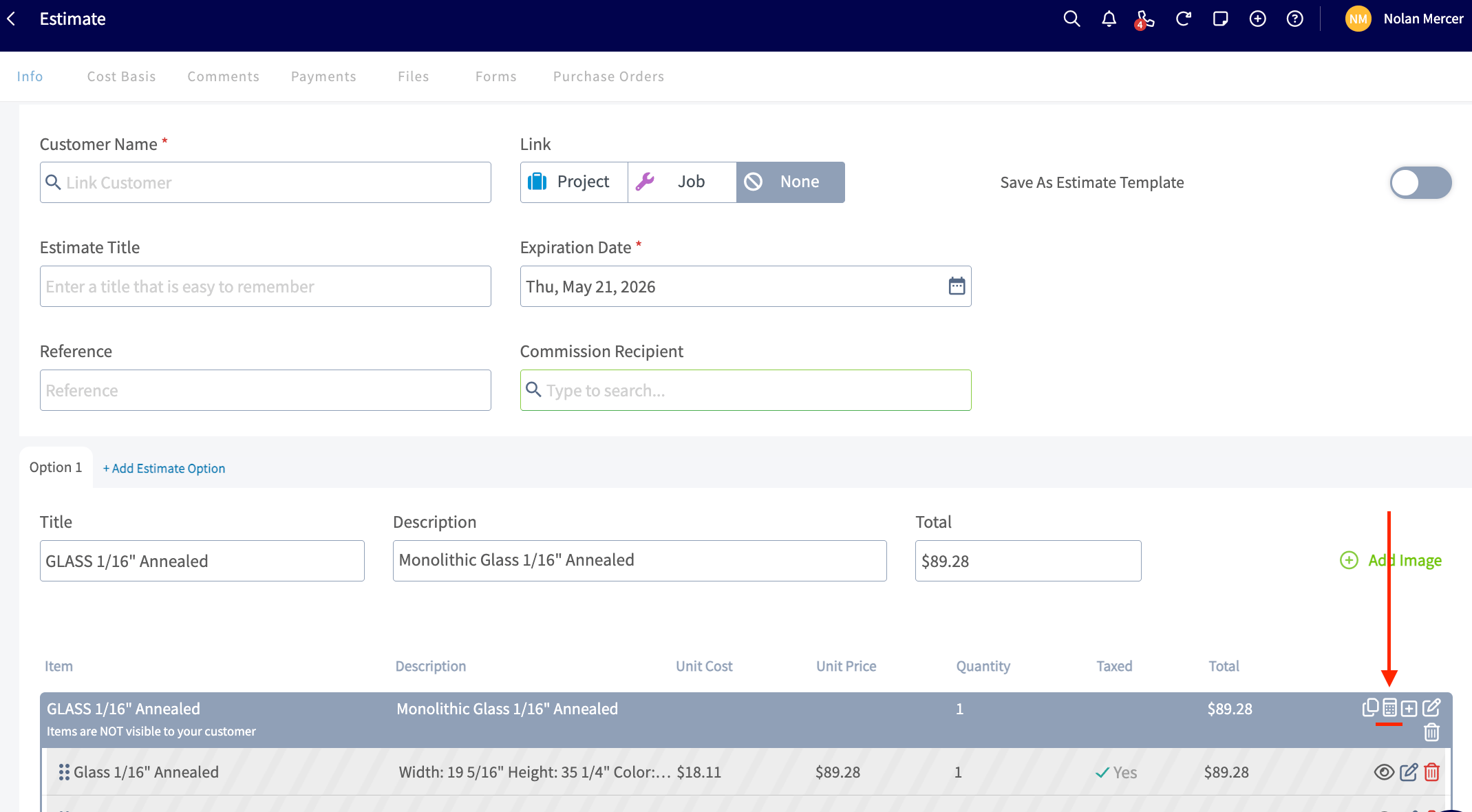
2. Select the calculator icon (**Change Options**) on the flat rate job grouping header. The Pricebook re-opens with all current selections pre-populated.
3. Adjust dimensions, options, or shape, then select **Confirm & Add**. The line item updates in place.
You can also add brand-new flat rate jobs from this same view, so your estimator doesn't need to bounce between screens to make multiple changes.
There's also a toggle to override entered dimensions and input square footage directly — useful when a customer gives you area rather than measurements.
### Edit a flat rate job without starting over
1. Find the line item on the estimate or invoice.
2. Select the calculator icon (**Change Options**) on the flat rate job grouping header. The Pricebook re-opens with all current selections pre-populated.
3. Adjust dimensions, options, or shape, then select **Confirm & Add**. The line item updates in place.
You can also add brand-new flat rate jobs from this same view, so your estimator doesn't need to bounce between screens to make multiple changes.
 ### Duplicate a flat rate job
To add the same configuration several times — for example, five matching windows at different sizes — duplicate the flat rate job directly on the estimate or invoice. Sizes, item options, and details all copy over; select the calculator icon on each copy to adjust its dimensions per piece.
### Duplicate a flat rate job
To add the same configuration several times — for example, five matching windows at different sizes — duplicate the flat rate job directly on the estimate or invoice. Sizes, item options, and details all copy over; select the calculator icon on each copy to adjust its dimensions per piece.
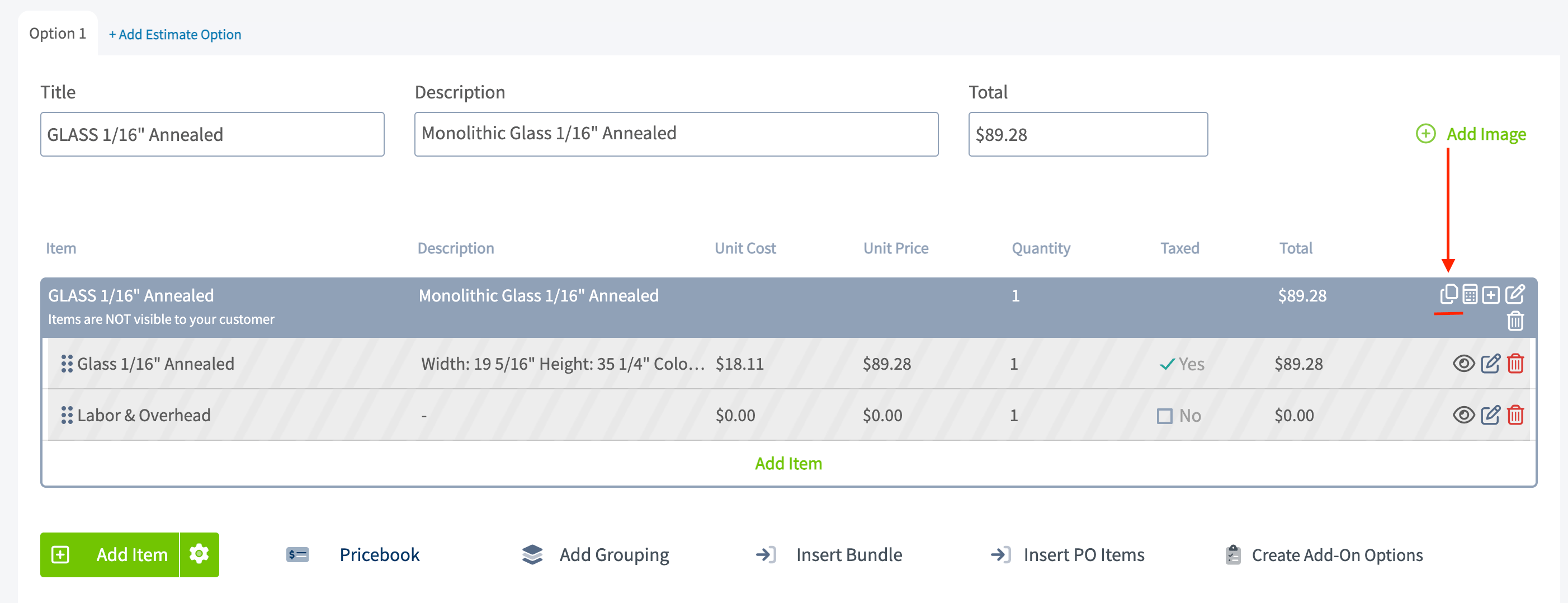 > **FieldPulse Pro Tip:** This duplicate feature works on every flat rate job, not only those that came from a Dimensional Pricebook.
## Import your dimensional items in bulk
Setting up many items at once? Once Dimensional Pricebook and Item Options are enabled, use the Mass Import tools instead of adding items one by one.
1. Go to **Company Settings** > **Estimates & Invoices** > **Item List** > **Mass Import**.
2. Choose the right import tool:
| **Import tool** | **What it brings in** |
| ---------------------------------- | ------------------------------------------------------------------------------------------------------------------------------------------------------------------------------------------------------------------ |
| **Item Import** | Standard, non-dimensional line items. |
| **Serialized Item Import** | Non-dimensional line items that need serial-number tracking. |
| **Dimensional Item Option Import** | Your item options (color, thickness, edge type) and their values, in bulk. Tab one defines each option (name, required, pricing method, unit of measure); tab two defines the selectable values and their pricing. |
| **Dimensional Item Import** | Your actual dimensional items, tied to the item options you've already imported. |
Order matters here. Import your **Dimensional Item Options** and their values first. Once those are in place, verify and upload the **Dimensional Item Import**.
## On mobile
The Dimensional Pricebook works the same on the mobile app as on the web, with a couple of field-friendly tweaks. This assumes your admin has already set everything up.
### Build an estimate or invoice from the field
1. Open the estimate or invoice record and tap **Add from Pricebook**.
2. Tap the flat rate job you need. The price reads \$0 until you've entered dimensions.
3. In the dimensional calculator, enter the size, fractional measurements, and shape.
4. Tap each item option to choose a value — the keyboard no longer pops up automatically on options.
5. Confirm the total on the **Confirm & Add** button and tap to add.
> **FieldPulse Pro Tip:** This duplicate feature works on every flat rate job, not only those that came from a Dimensional Pricebook.
## Import your dimensional items in bulk
Setting up many items at once? Once Dimensional Pricebook and Item Options are enabled, use the Mass Import tools instead of adding items one by one.
1. Go to **Company Settings** > **Estimates & Invoices** > **Item List** > **Mass Import**.
2. Choose the right import tool:
| **Import tool** | **What it brings in** |
| ---------------------------------- | ------------------------------------------------------------------------------------------------------------------------------------------------------------------------------------------------------------------ |
| **Item Import** | Standard, non-dimensional line items. |
| **Serialized Item Import** | Non-dimensional line items that need serial-number tracking. |
| **Dimensional Item Option Import** | Your item options (color, thickness, edge type) and their values, in bulk. Tab one defines each option (name, required, pricing method, unit of measure); tab two defines the selectable values and their pricing. |
| **Dimensional Item Import** | Your actual dimensional items, tied to the item options you've already imported. |
Order matters here. Import your **Dimensional Item Options** and their values first. Once those are in place, verify and upload the **Dimensional Item Import**.
## On mobile
The Dimensional Pricebook works the same on the mobile app as on the web, with a couple of field-friendly tweaks. This assumes your admin has already set everything up.
### Build an estimate or invoice from the field
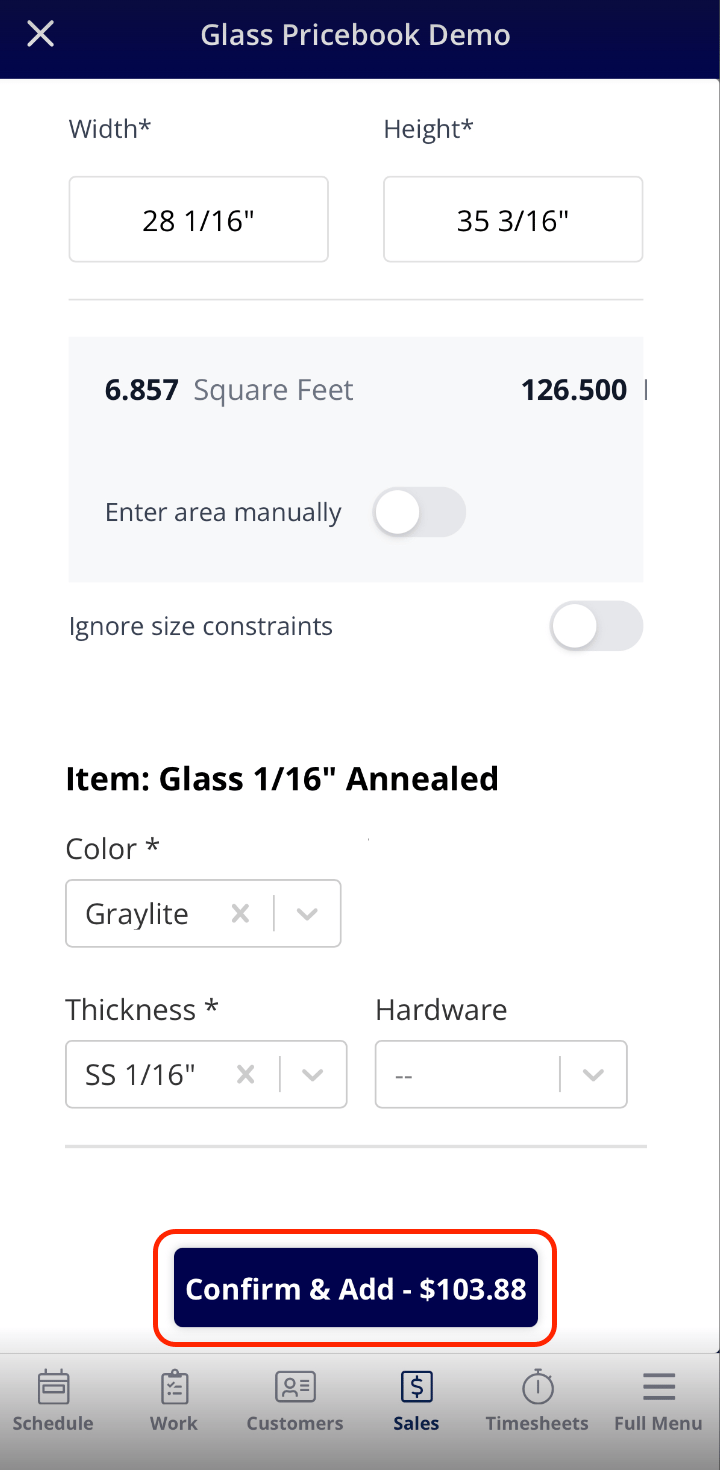
1. Open the estimate or invoice record and tap **Add from Pricebook**.
2. Tap the flat rate job you need. The price reads \$0 until you've entered dimensions.
3. In the dimensional calculator, enter the size, fractional measurements, and shape.
4. Tap each item option to choose a value — the keyboard no longer pops up automatically on options.
5. Confirm the total on the **Confirm & Add** button and tap to add.
 ### Edit a line item you already added
1. Find the line item on the estimate or invoice.
2. Tap the calculator icon next to the line.
3. Update the dimensions, options, or shape, then confirm.
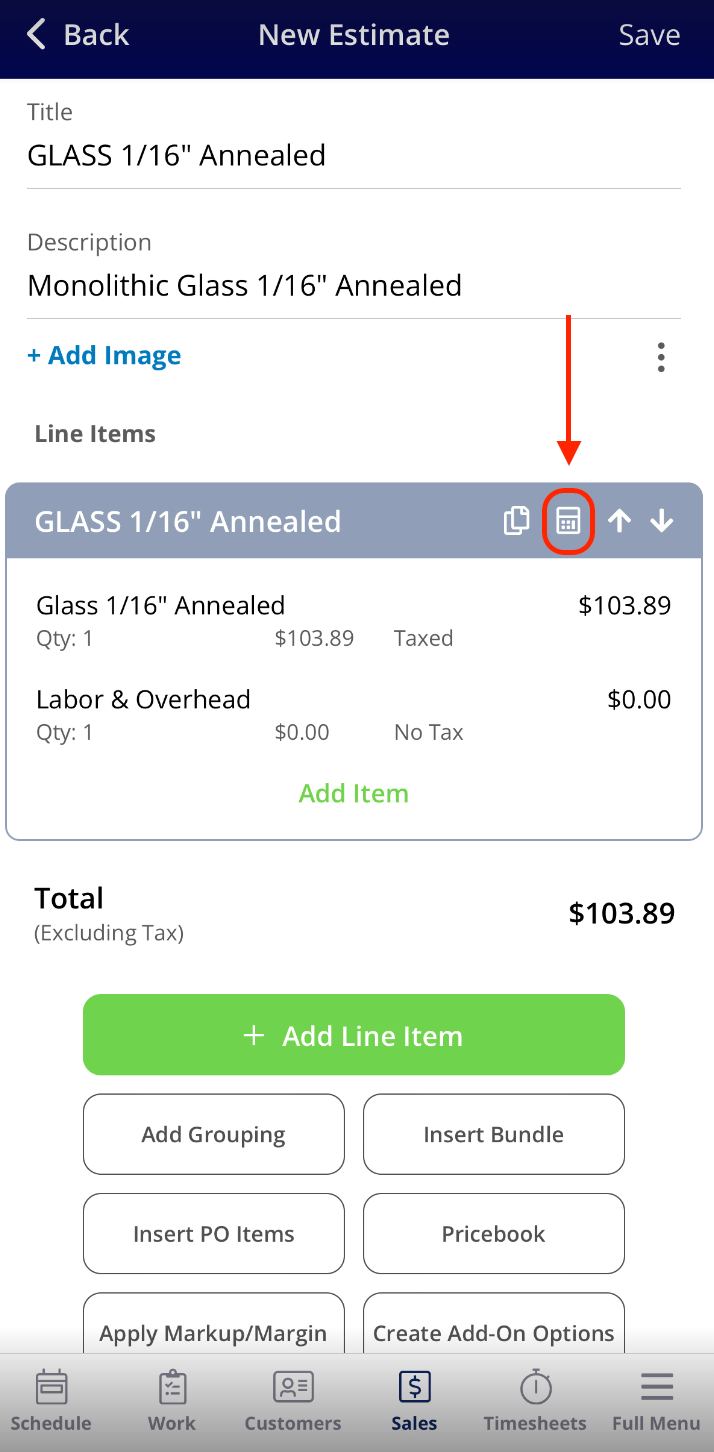
### Edit a line item you already added
1. Find the line item on the estimate or invoice.
2. Tap the calculator icon next to the line.
3. Update the dimensions, options, or shape, then confirm.
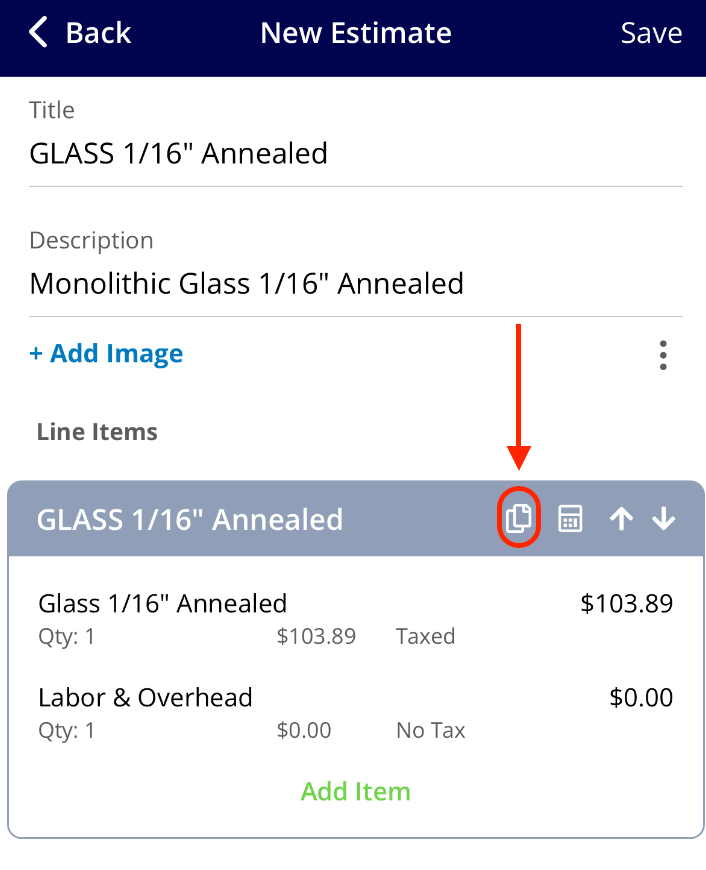
 > **FieldPulse Pro Tip:** If your customer wants multiple identical pieces with different dimensions (a common one is matching windows for a whole-house replacement), tap the duplicate icon on the line item first, then tap the calculator on each copy to set its specific size. It's faster than re-adding from the Pricebook every time.
 ## Settings reference
| **Setting** | **Where** | **What it does** |
| ------------------------------------------------- | -------------------------------------------------- | --------------------------------------------------------------------- |
| **Enable Item Options for use in the Pricebook?** | Company Settings > Estimates & Invoices > Advanced | Turns on item options across the Pricebook. |
| **Unit of Measure** | Item List > item | Sets how the item is measured and priced; overrides basic cost/price. |
| **Round Up to Next Even Inch** | Item List > item | Rounds measurements up for customer-facing pricing. |
| **Maximum Size** | Item List > item | Hard ceiling on what the item can be sold at. |
| **Minimum Charge** | Item List > item | Sets a minimum billable quantity. |
| **Enable Dimensional Pricing** | Pricebook > Basic Info & Set Up | Allows size-based pricing in that Pricebook. |
| **Enforce Product Size Limits** | Pricebook > Basic Info & Set Up | Hides items whose calculated area exceeds their size limits. |
Dimensional pricing calculates first, then any flat rate job markups apply on top, which keeps pricing accurate and markups predictable. Pricing supports two decimal values (for example, \$0.74), so you can set rates with precision.
## Related articles
* [Sales Suite Overview](/add-ons/sales-suite/overview)
* [Setting Up Your Pricebook](/add-ons/sales-suite/pricebook)
* [How to Import a Pricebook](/add-ons/sales-suite/importing-pricebook)
* [How to Create an Estimate](/estimates-invoices/creating/estimate)
Your Dimensional Pricebook is working when an estimator picks a flat rate job, enters the customer's measurements, and the price — options included — calculates on its own and lands on the estimate or invoice with the exact dimensions and options spelled out.
## Related topics
- [Setting Up Your Pricebook](/add-ons/sales-suite/pricebook.md)
- [How to Import a Pricebook](/add-ons/sales-suite/importing-pricebook.md)
- [Sales Suite](/add-ons/sales-suite/index.md)
- [Sales Suite Overview](/add-ons/sales-suite/overview.md)
## Settings reference
| **Setting** | **Where** | **What it does** |
| ------------------------------------------------- | -------------------------------------------------- | --------------------------------------------------------------------- |
| **Enable Item Options for use in the Pricebook?** | Company Settings > Estimates & Invoices > Advanced | Turns on item options across the Pricebook. |
| **Unit of Measure** | Item List > item | Sets how the item is measured and priced; overrides basic cost/price. |
| **Round Up to Next Even Inch** | Item List > item | Rounds measurements up for customer-facing pricing. |
| **Maximum Size** | Item List > item | Hard ceiling on what the item can be sold at. |
| **Minimum Charge** | Item List > item | Sets a minimum billable quantity. |
| **Enable Dimensional Pricing** | Pricebook > Basic Info & Set Up | Allows size-based pricing in that Pricebook. |
| **Enforce Product Size Limits** | Pricebook > Basic Info & Set Up | Hides items whose calculated area exceeds their size limits. |
Dimensional pricing calculates first, then any flat rate job markups apply on top, which keeps pricing accurate and markups predictable. Pricing supports two decimal values (for example, \$0.74), so you can set rates with precision.
## Related articles
* [Sales Suite Overview](/add-ons/sales-suite/overview)
* [Setting Up Your Pricebook](/add-ons/sales-suite/pricebook)
* [How to Import a Pricebook](/add-ons/sales-suite/importing-pricebook)
* [How to Create an Estimate](/estimates-invoices/creating/estimate)
Your Dimensional Pricebook is working when an estimator picks a flat rate job, enters the customer's measurements, and the price — options included — calculates on its own and lands on the estimate or invoice with the exact dimensions and options spelled out.
## Related topics
- [Setting Up Your Pricebook](/add-ons/sales-suite/pricebook.md)
- [How to Import a Pricebook](/add-ons/sales-suite/importing-pricebook.md)
- [Sales Suite](/add-ons/sales-suite/index.md)
- [Sales Suite Overview](/add-ons/sales-suite/overview.md)