> ## Documentation Index
> Fetch the complete documentation index at: https://help.fieldpulse.com/llms.txt
> Use this file to discover all available pages before exploring further.
# How to Send Communications to Customers
> Send an email or SMS template to a customer from a job or customer record in FieldPulse, attach a photo, and text a live trip tracking link on the way.
> **Who uses this:** Anyone sending a message by hand from a job record or a customer record, on the web app or in the FieldPulse mobile app. **Availability:** All regions · Customer communications must be enabled on your account.
Not every message needs an automatic trigger. When you want to send one [customer communication](https://www.fieldpulse.com/features/customer-communication) to one customer — a quick update, a photo of the finished work, an invoice link — you send it by hand from that customer's job record or customer record, on the web app or in the [FieldPulse mobile app](https://www.fieldpulse.com/features/mobile-app).
## Overview
You send a customer communication from the **Actions** menu on a job record or a customer record. Select an email or SMS template, check that the Field Values filled in with that customer's and job's details, then send the message. You can attach a file or photo before the message goes out.
A technician in the field sends the same way from the FieldPulse mobile app, and can also send a trip tracking SMS that shares a live location link and an ETA on the way to the job.
Automatic triggers cover the messages you would rather not send by hand, and which number or address a triggered message comes from depends on whether your account uses the [Engage](/add-ons/engage/overview) add-on — see [Setting Up Automatic Communication Triggers](/customers/communications/automatic-triggers).
## Before you begin
* **Confirm customer communications are enabled** on your FieldPulse account.
* **Build the email or SMS template you want to send.** The send screen lists your saved templates — see [Setting Up Email & SMS Templates](/customers/communications/message-templates).
* **For trip tracking, turn on location services** for FieldPulse on the technician's device. FieldPulse needs background location access to build the trip tracking link.
## On web
### Send an email or SMS
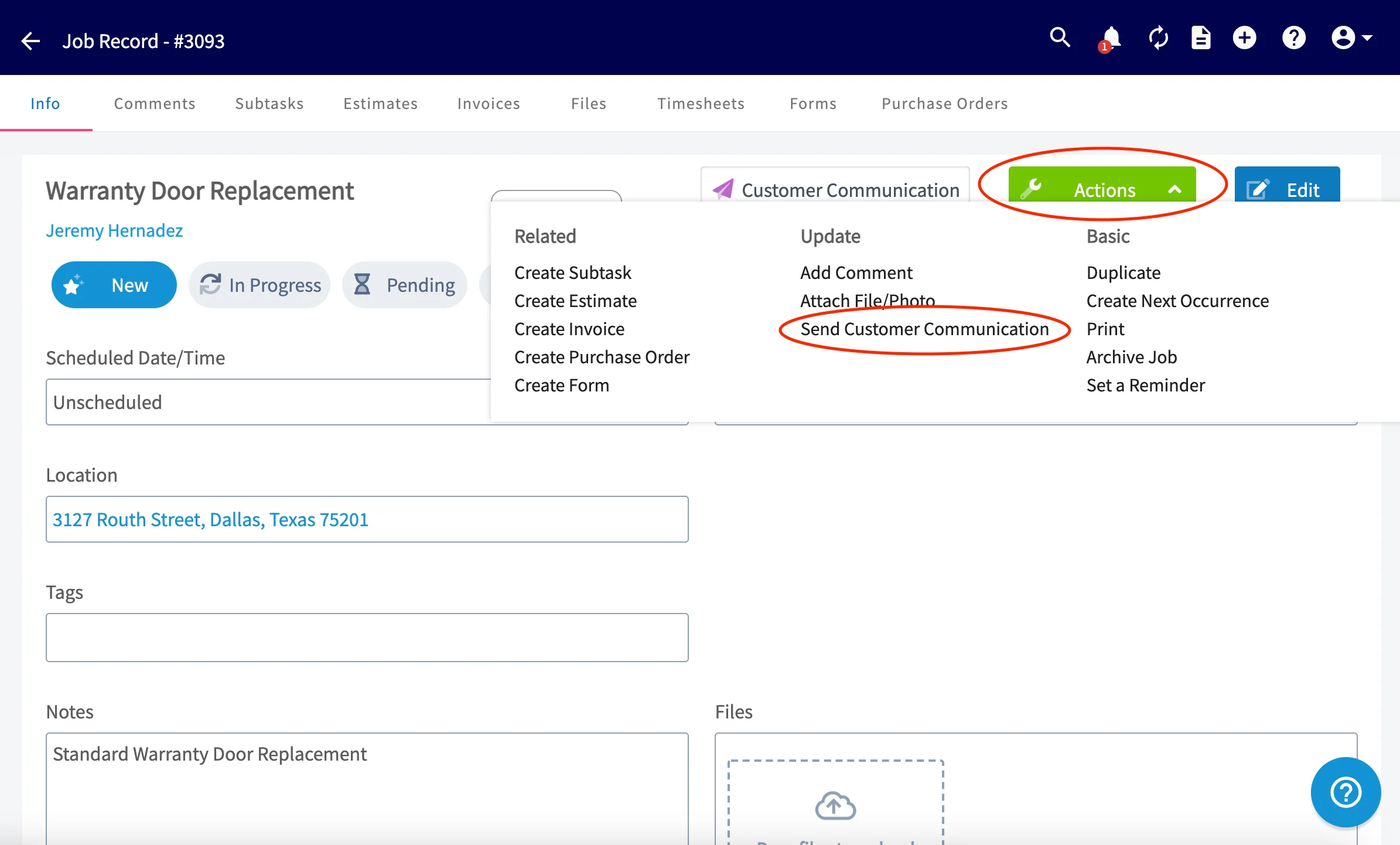
1. Open the **job record** or **customer record** you want to message about.
2. Select **Actions** at the top right.
3. Select **Send Customer Communication**.
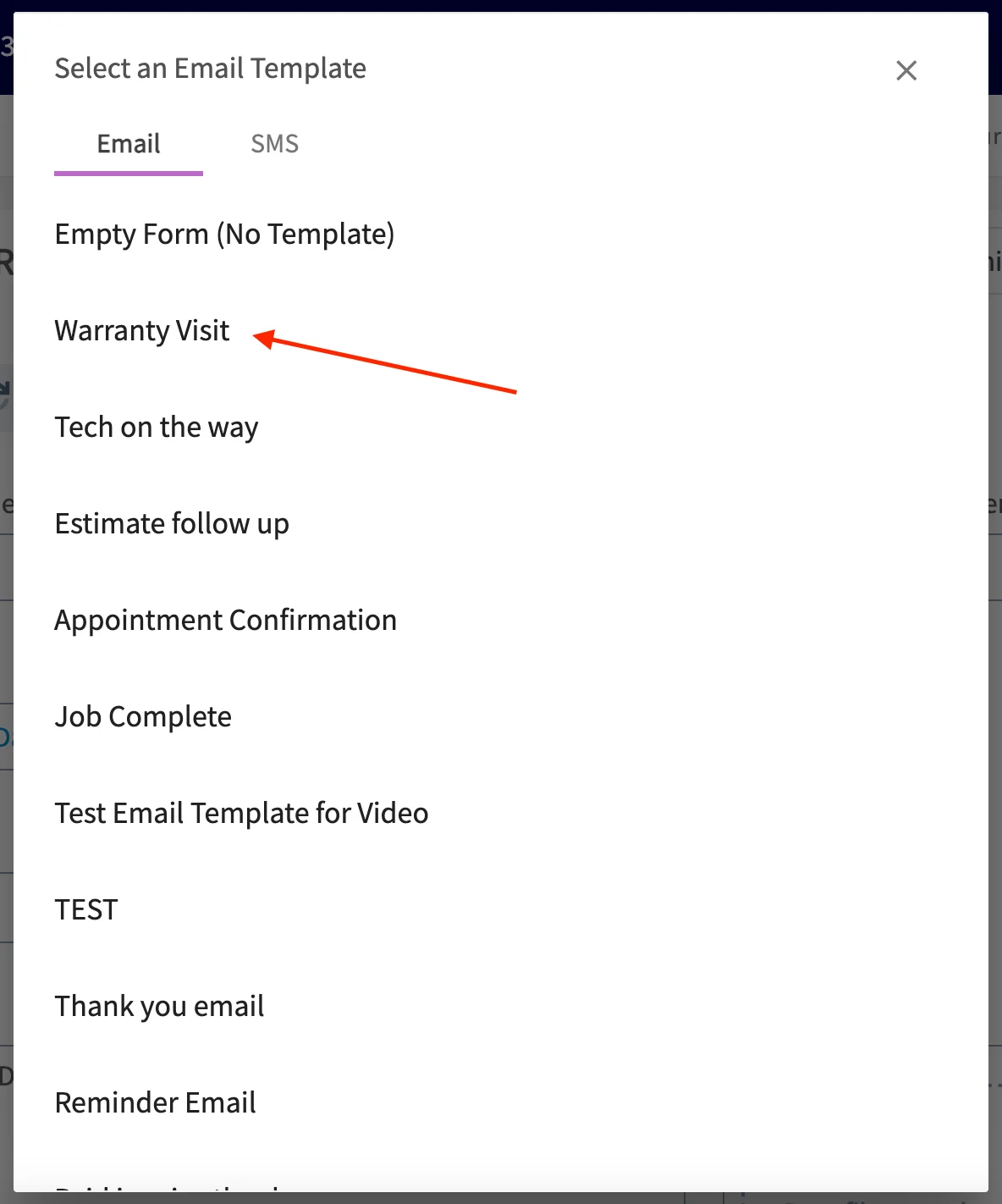
 4. Select the **Email** or **SMS** tab.
5. Select the template you want to send.
4. Select the **Email** or **SMS** tab.
5. Select the template you want to send.
 6. Check the message. The Field Values are already filled in with this customer's and job's details.
7. Select **Send Email** or **Send SMS**.
6. Check the message. The Field Values are already filled in with this customer's and job's details.
7. Select **Send Email** or **Send SMS**.
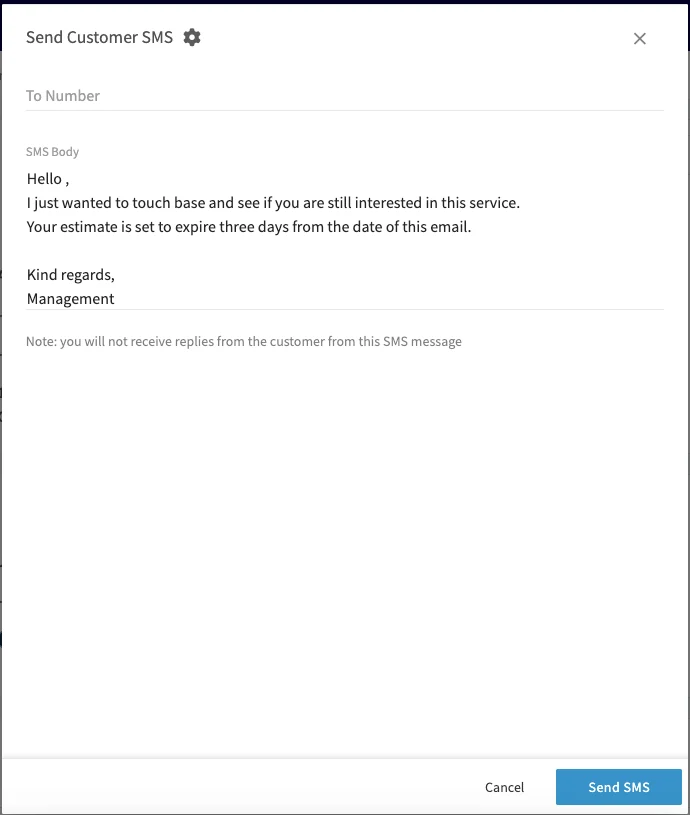 The note on the composer means what it says: an SMS sent from FieldPulse this way is one-way, and you will not receive the customer's reply — include your contact number in the template if you want the customer to get back to you.
## On mobile
### Send an email or SMS
1. Open the job record or customer record you want to message about — on the schedule, tap the job you are working.
The note on the composer means what it says: an SMS sent from FieldPulse this way is one-way, and you will not receive the customer's reply — include your contact number in the template if you want the customer to get back to you.
## On mobile
### Send an email or SMS
1. Open the job record or customer record you want to message about — on the schedule, tap the job you are working.
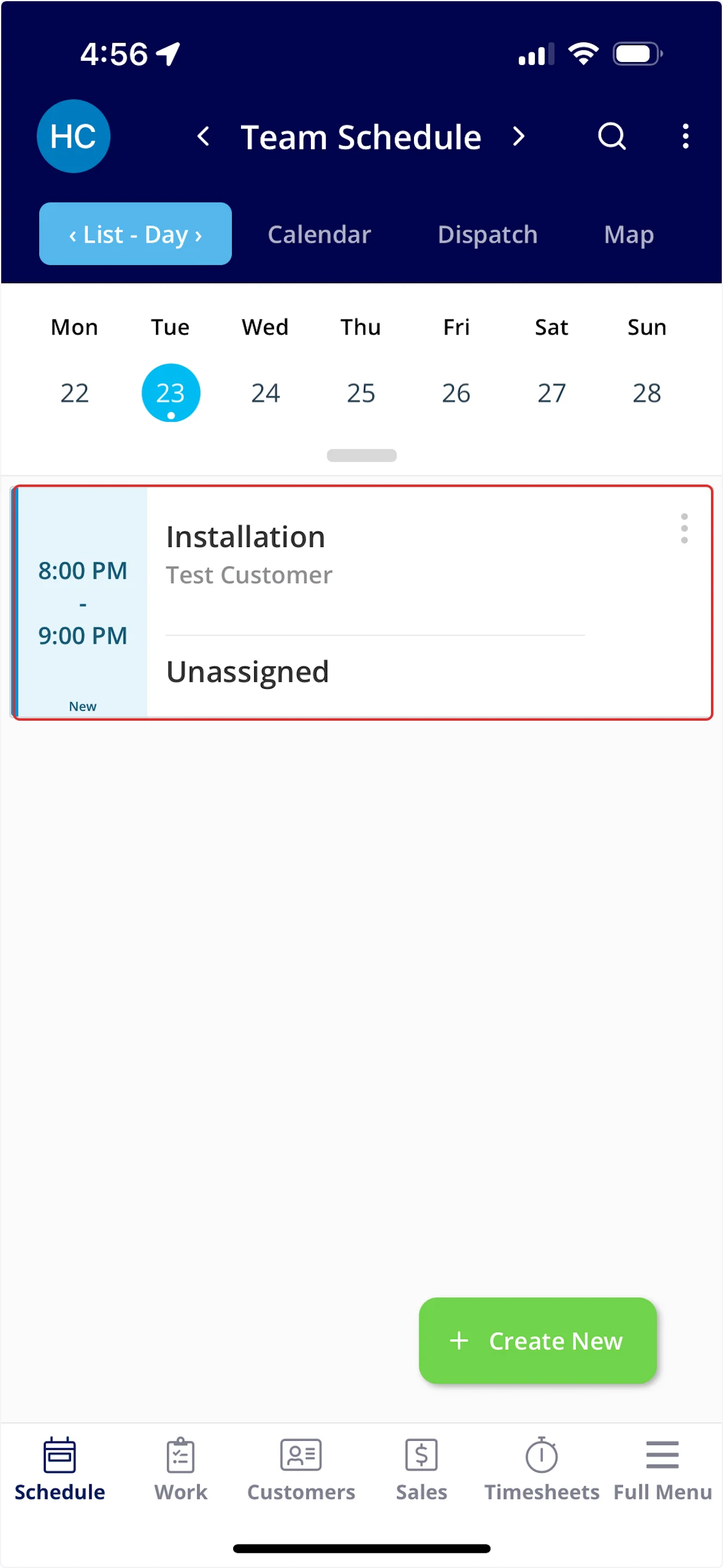 2. Select the green **Actions** button.
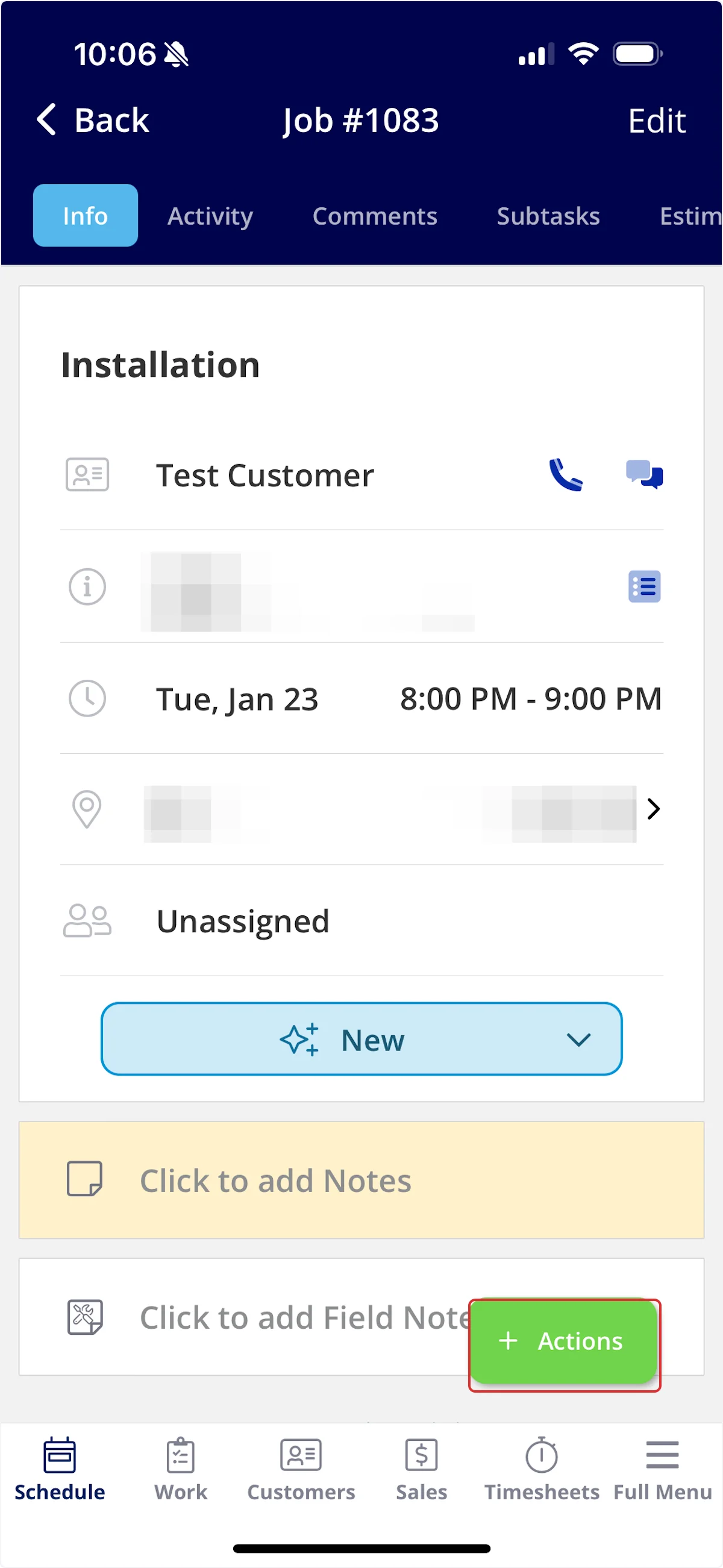 3. Select **Send Customer Communication**.
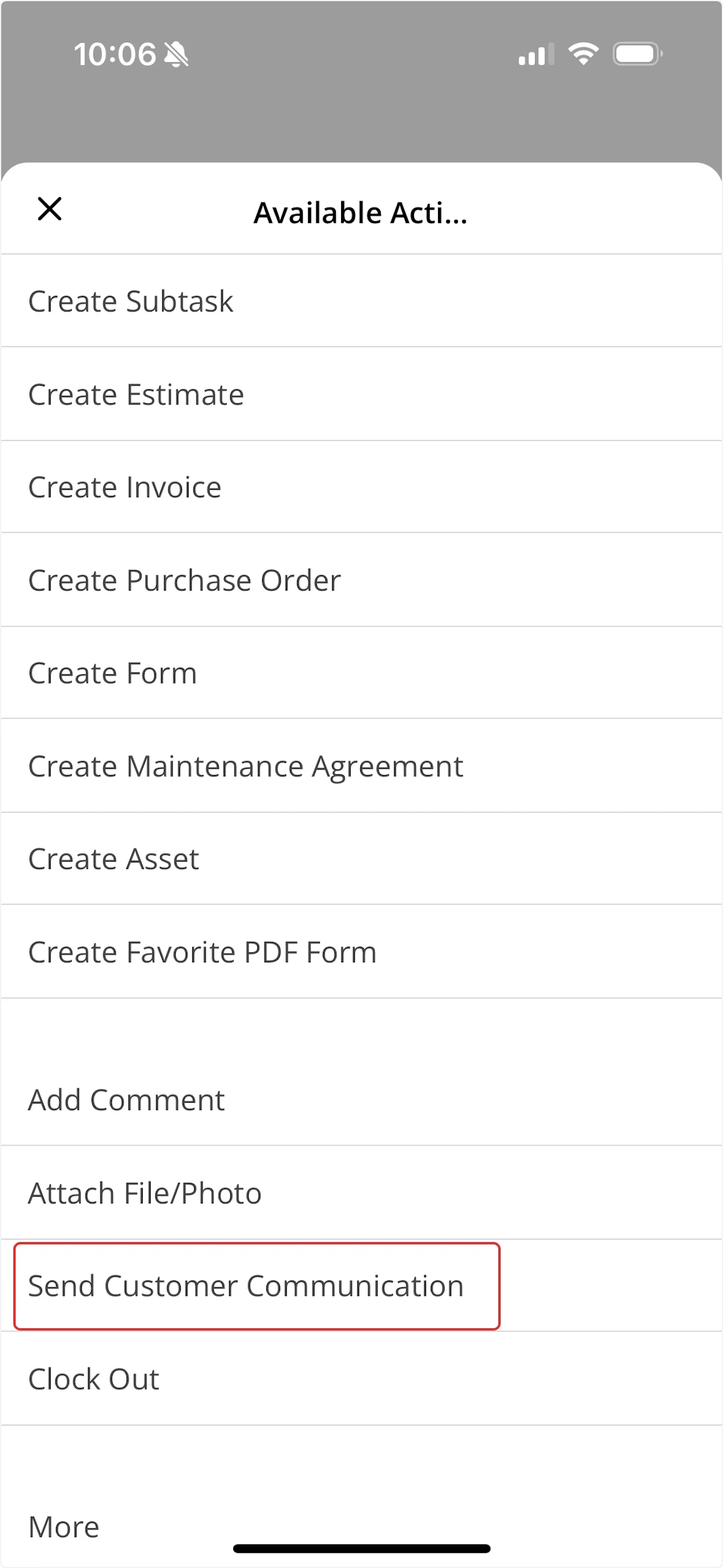 4. Select the **Email** or **SMS** tab.
5. Select the template you want to send.
6. Check the message, then select **Send**.
### Attach a photo or file
1. Before you send, select **Upload** under **Additional Files**.
4. Select the **Email** or **SMS** tab.
5. Select the template you want to send.
6. Check the message, then select **Send**.
### Attach a photo or file
1. Before you send, select **Upload** under **Additional Files**.
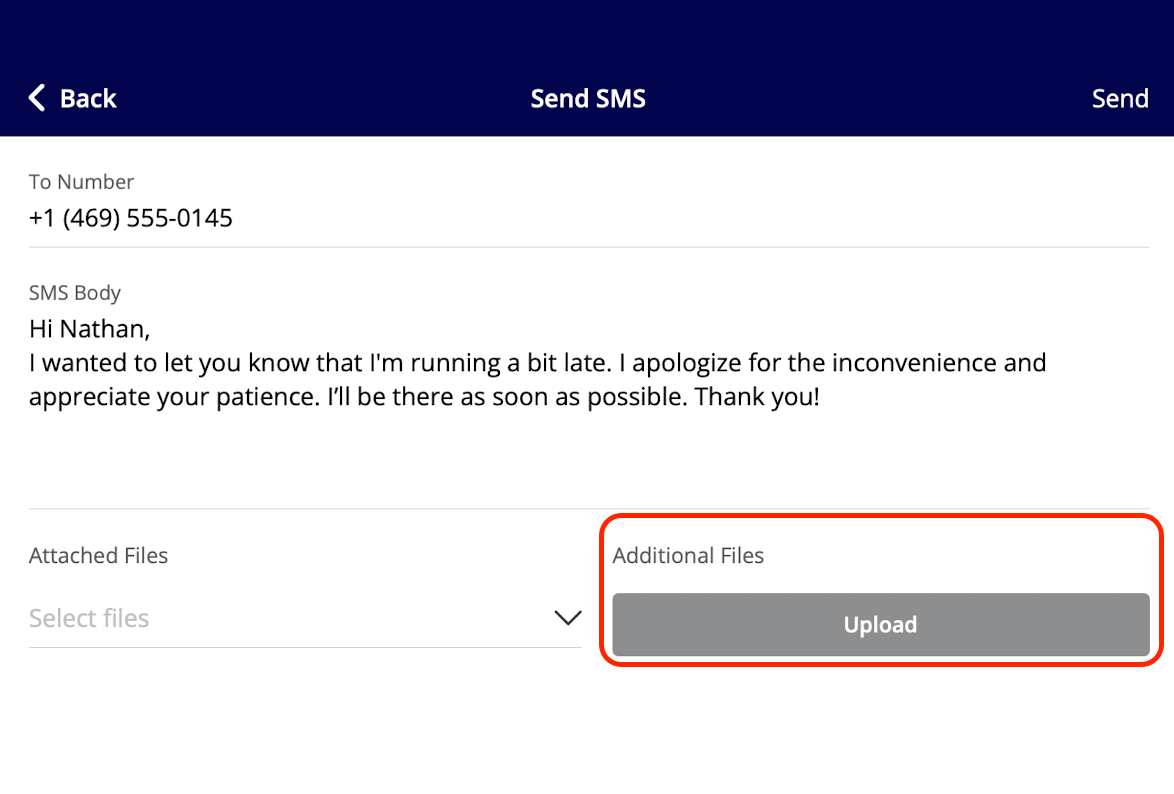 2. Choose where the file comes from — **Take Photo**, **Attach File from Phone**, **Attach File from File Library**, or **Attach File from PDF Library**.
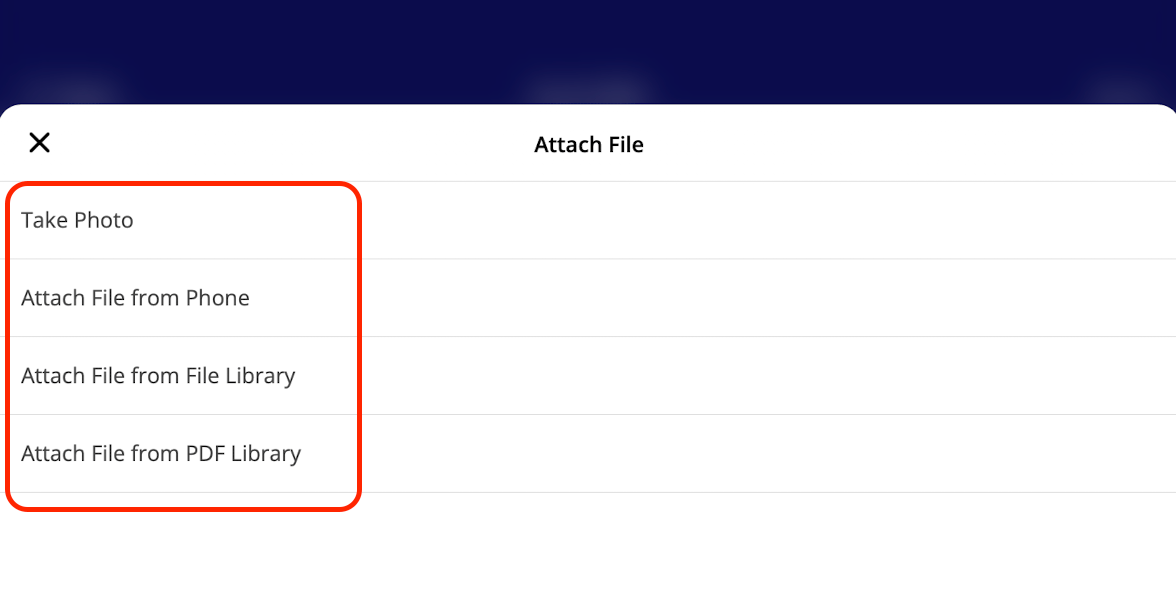 3. Repeat for each file you want to send.
4. Select **Send** when the message is ready.
### Send a trip tracking SMS
A technician on the way to a job can text the customer a live vehicle location and an ETA from the FieldPulse mobile app.
1. On the job you are heading to, select **Actions** > **Send Customer Communication**.
2. Open the **SMS** tab.
3. Select **Send Trip Tracking SMS to Customer**.
3. Repeat for each file you want to send.
4. Select **Send** when the message is ready.
### Send a trip tracking SMS
A technician on the way to a job can text the customer a live vehicle location and an ETA from the FieldPulse mobile app.
1. On the job you are heading to, select **Actions** > **Send Customer Communication**.
2. Open the **SMS** tab.
3. Select **Send Trip Tracking SMS to Customer**.
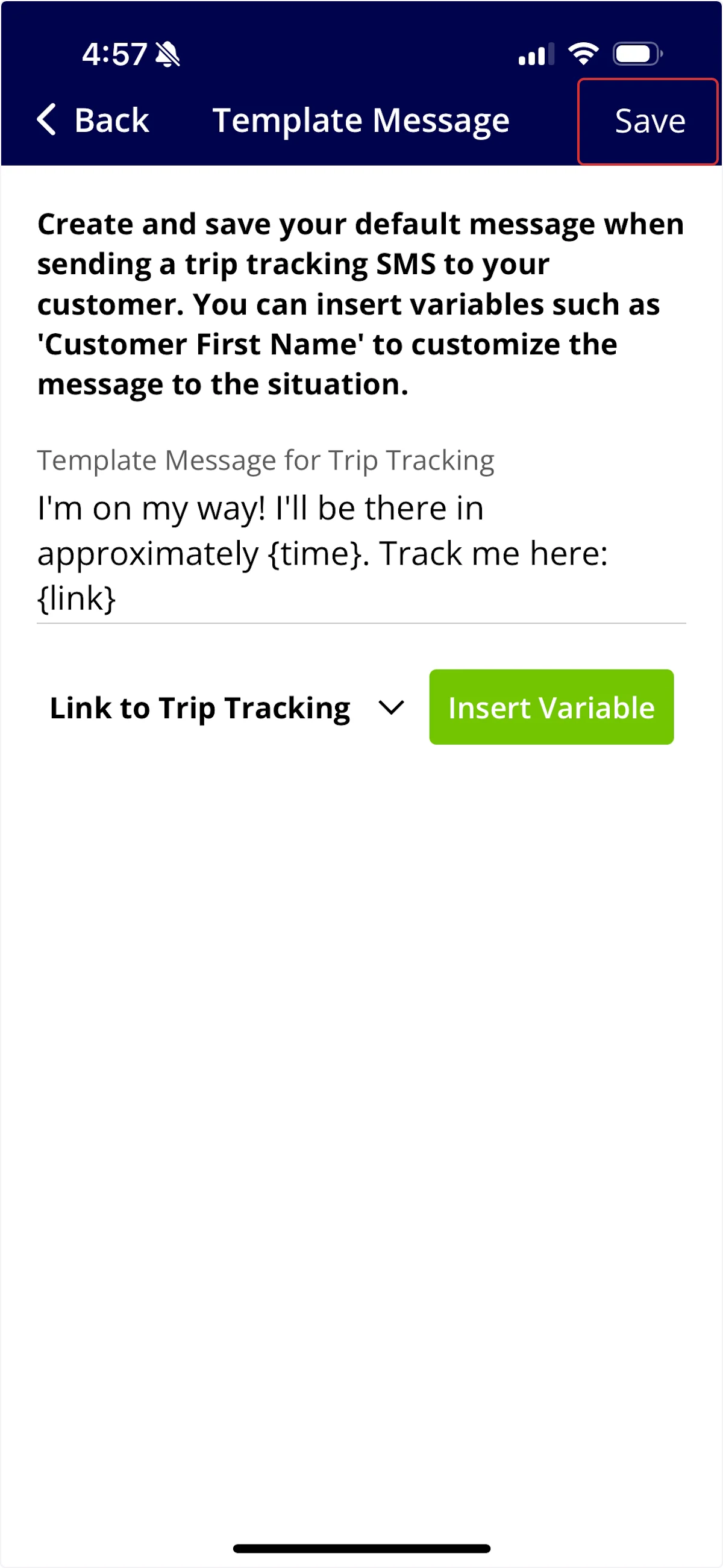
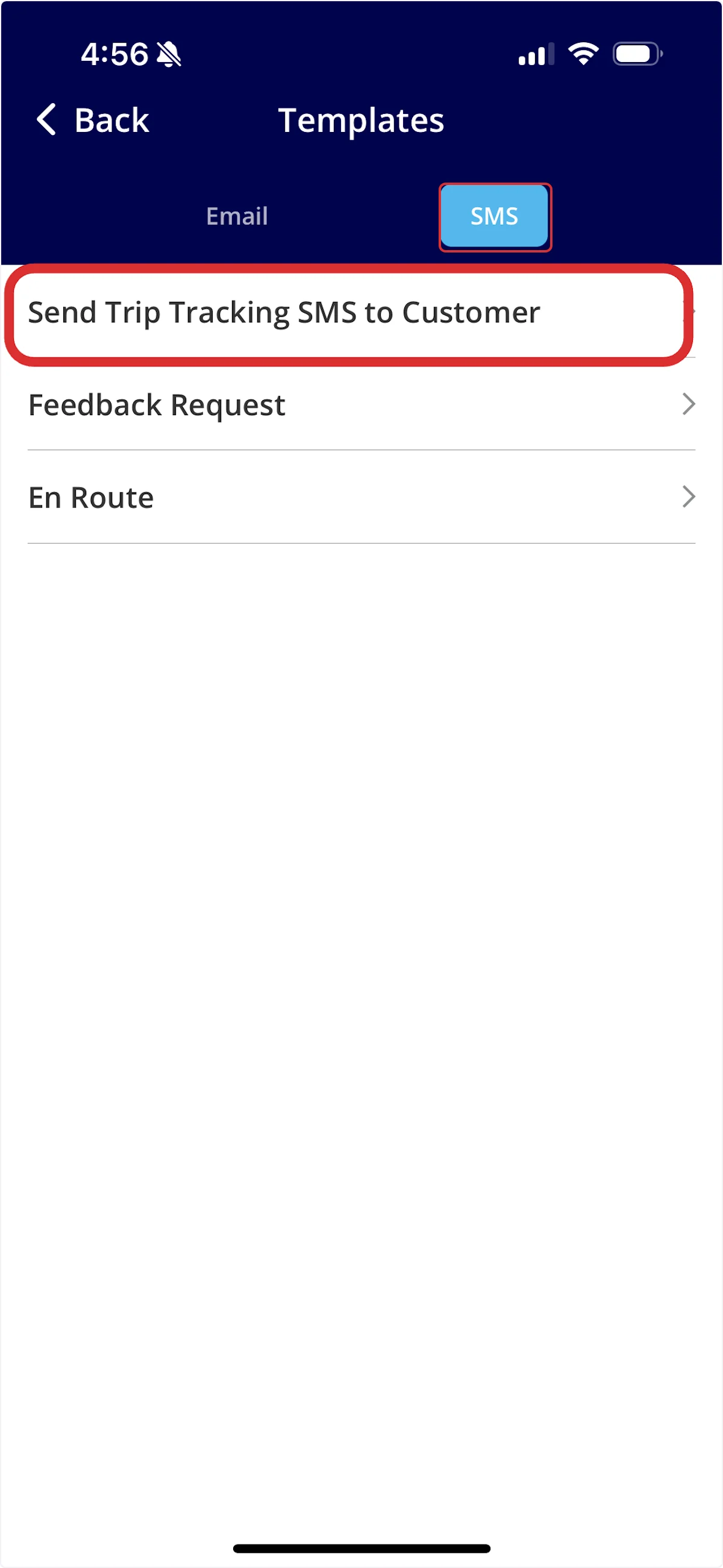 4. The first time you send one, write your default trip tracking message. Use **Insert Variable** to drop in details such as the customer's first name and the trip tracking link.
5. Select **Save**.
4. The first time you send one, write your default trip tracking message. Use **Insert Variable** to drop in details such as the customer's first name and the trip tracking link.
5. Select **Save**.
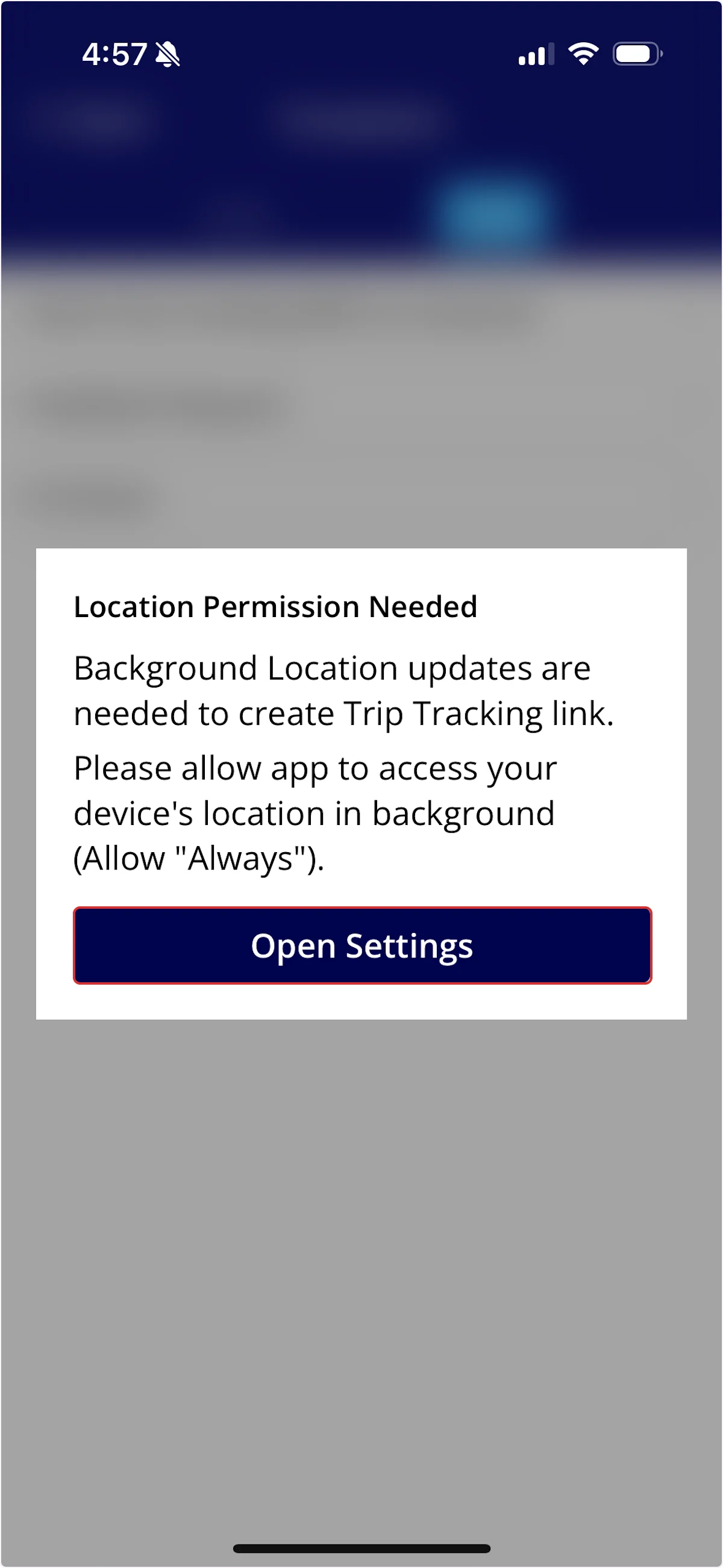
 6. If FieldPulse asks for location permission, select **Open Settings** and allow the app to use your location in the background. Without that access, FieldPulse cannot build the trip tracking link.
 7. Set **Be There In** to the number of minutes you need.
8. Check the message once more, then select **Send SMS**.
7. Set **Be There In** to the number of minutes you need.
8. Check the message once more, then select **Send SMS**.
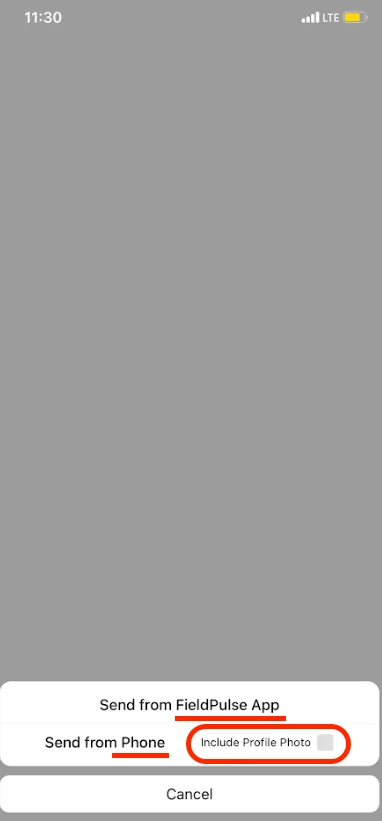
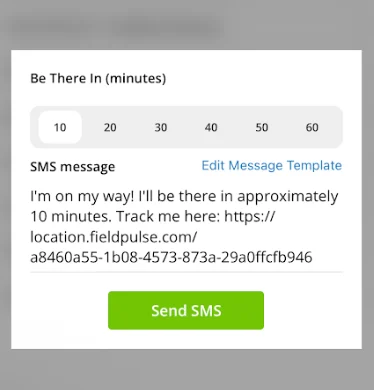 9. Select **Include Profile Photo** to send a photo of the team member with the text.
10. Select **Send from FieldPulse App** or **Send from Phone**. Sent from your phone, the text goes out from your own phone number.
9. Select **Include Profile Photo** to send a photo of the team member with the text.
10. Select **Send from FieldPulse App** or **Send from Phone**. Sent from your phone, the text goes out from your own phone number.
 The live trip tracking link stays active for one hour after it is sent, so a technician's location is shared only while they are on the move. Trip tracking messages cannot be tied to an automatic trigger — a technician sends each one by hand.
For the map and text your customer opens, see [Trip Tracking Overview](/scheduling-dispatch/dispatch/trip-tracking-customer-view).
## What you can attach
You can attach files and photos to email and SMS customer communications sent from the web app or the FieldPulse mobile app, on both one-off and templated messages. One message can carry several attachments, but you select and upload the files one at a time.
* Email attachments are capped at **10 MB per file**.
* SMS attachments have **no size limit**, because FieldPulse texts your customer a link to a file viewer instead of the files themselves.
"*Please click the link below to view all files.*" is default FieldPulse text on the SMS that carries your attachments, and it cannot be removed or edited.
Email and SMS templates carry an **Attached Files** picker and an **Upload** button under **Additional Files**, so you can build a file into the template itself — see [Setting Up Email & SMS Templates](/customers/communications/message-templates).
## Who receives the message
* **Job-related communications** go to the main customer contact, or to any additional contact on the customer record that you set as the job's designated contact.
* **All other communications** go only to the main customer contact — they do not go to additional contacts.
## FAQs
### Can I send a message without using a template?
Yes. Select **Empty Form (No Template)** in the email template list and write the message yourself.
### Where do I check whether a message reached my customer?
FieldPulse records every message your team sends under **Management** > **Communications**, with a delivery status on each one. See [Customer Communications Overview](/customers/communications/overview) for what each status means.
## Related articles
* [Setting Up Email & SMS Templates](/customers/communications/message-templates)
* [Setting Up Automatic Communication Triggers](/customers/communications/automatic-triggers)
* [Customer Communications Overview](/customers/communications/overview)
* [Customer Notification Preferences and SMS Opt-Out Details](/customers/communications/notification-preferences)
* [Trip Tracking Overview](/scheduling-dispatch/dispatch/trip-tracking-customer-view)
* [Engage Overview](/add-ons/engage/overview)
You have sent it right when your customer receives the message with their own name, job time, and location already filled in, and the send appears with a delivery status under **Management** > **Communications**.
## Related topics
- [Customer Communications Overview](/customers/communications/overview.md)
- [Communications](/customers/communications/index.md)
- [Setting Up Automatic Communication Triggers](/customers/communications/automatic-triggers.md)
- [Job Confirmations Overview](/customers/communications/job-confirmations.md)
The live trip tracking link stays active for one hour after it is sent, so a technician's location is shared only while they are on the move. Trip tracking messages cannot be tied to an automatic trigger — a technician sends each one by hand.
For the map and text your customer opens, see [Trip Tracking Overview](/scheduling-dispatch/dispatch/trip-tracking-customer-view).
## What you can attach
You can attach files and photos to email and SMS customer communications sent from the web app or the FieldPulse mobile app, on both one-off and templated messages. One message can carry several attachments, but you select and upload the files one at a time.
* Email attachments are capped at **10 MB per file**.
* SMS attachments have **no size limit**, because FieldPulse texts your customer a link to a file viewer instead of the files themselves.
"*Please click the link below to view all files.*" is default FieldPulse text on the SMS that carries your attachments, and it cannot be removed or edited.
Email and SMS templates carry an **Attached Files** picker and an **Upload** button under **Additional Files**, so you can build a file into the template itself — see [Setting Up Email & SMS Templates](/customers/communications/message-templates).
## Who receives the message
* **Job-related communications** go to the main customer contact, or to any additional contact on the customer record that you set as the job's designated contact.
* **All other communications** go only to the main customer contact — they do not go to additional contacts.
## FAQs
### Can I send a message without using a template?
Yes. Select **Empty Form (No Template)** in the email template list and write the message yourself.
### Where do I check whether a message reached my customer?
FieldPulse records every message your team sends under **Management** > **Communications**, with a delivery status on each one. See [Customer Communications Overview](/customers/communications/overview) for what each status means.
## Related articles
* [Setting Up Email & SMS Templates](/customers/communications/message-templates)
* [Setting Up Automatic Communication Triggers](/customers/communications/automatic-triggers)
* [Customer Communications Overview](/customers/communications/overview)
* [Customer Notification Preferences and SMS Opt-Out Details](/customers/communications/notification-preferences)
* [Trip Tracking Overview](/scheduling-dispatch/dispatch/trip-tracking-customer-view)
* [Engage Overview](/add-ons/engage/overview)
You have sent it right when your customer receives the message with their own name, job time, and location already filled in, and the send appears with a delivery status under **Management** > **Communications**.
## Related topics
- [Customer Communications Overview](/customers/communications/overview.md)
- [Communications](/customers/communications/index.md)
- [Setting Up Automatic Communication Triggers](/customers/communications/automatic-triggers.md)
- [Job Confirmations Overview](/customers/communications/job-confirmations.md)