> ## Documentation Index
> Fetch the complete documentation index at: https://help.fieldpulse.com/llms.txt
> Use this file to discover all available pages before exploring further.
# How to Merge Duplicate Customers
> Combine two duplicate customer records in FieldPulse into one, choosing which details to keep, while their jobs, invoices, and history are preserved.
> **Who uses this:** Merging is done from a customer record's **Actions** menu. **Availability:** All regions.
When the same [customer](https://www.fieldpulse.com/features/customer-management) has been entered twice, their work is split across two records — a job booked on one, an invoice sent from the other. Merging duplicate customers combines the two records into one and lets you decide which details the surviving record keeps.
## Overview
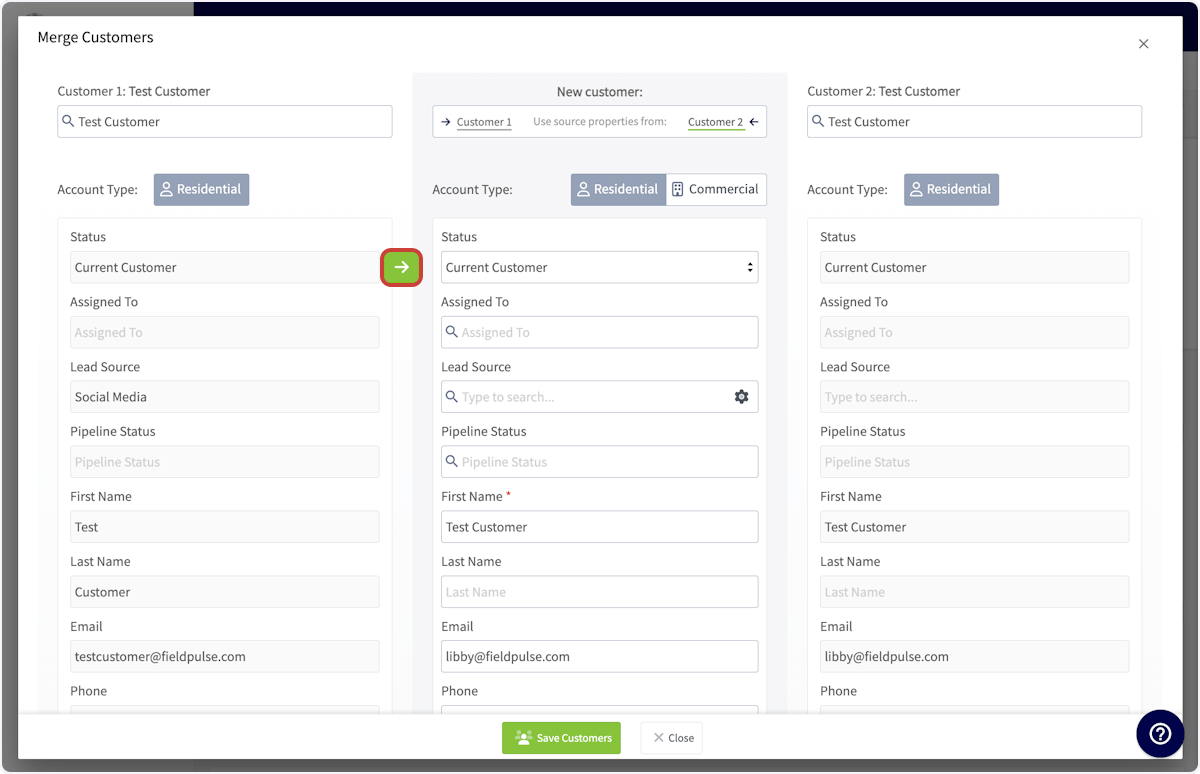
You start a merge from one of the two duplicate customer records, using **Merge Customers** on the **Actions** menu. The **Merge Customers** window puts the record you started from on the left as **Customer 1**, the record you search for on the right as **Customer 2**, and the merged record in the center column. You copy details from either side into that center column, then select **Save Customers** to combine the two records into one.
## Video walkthrough
Watch a short walkthrough of merging two customer records, then follow the written steps below.
## Before you begin
* Confirm the two records are the same customer. Merging combines them into a single customer record.
* Know which details you want to end up with. The merged record keeps only what appears in the center column of the **Merge Customers** window.
## On web
### Start the merge
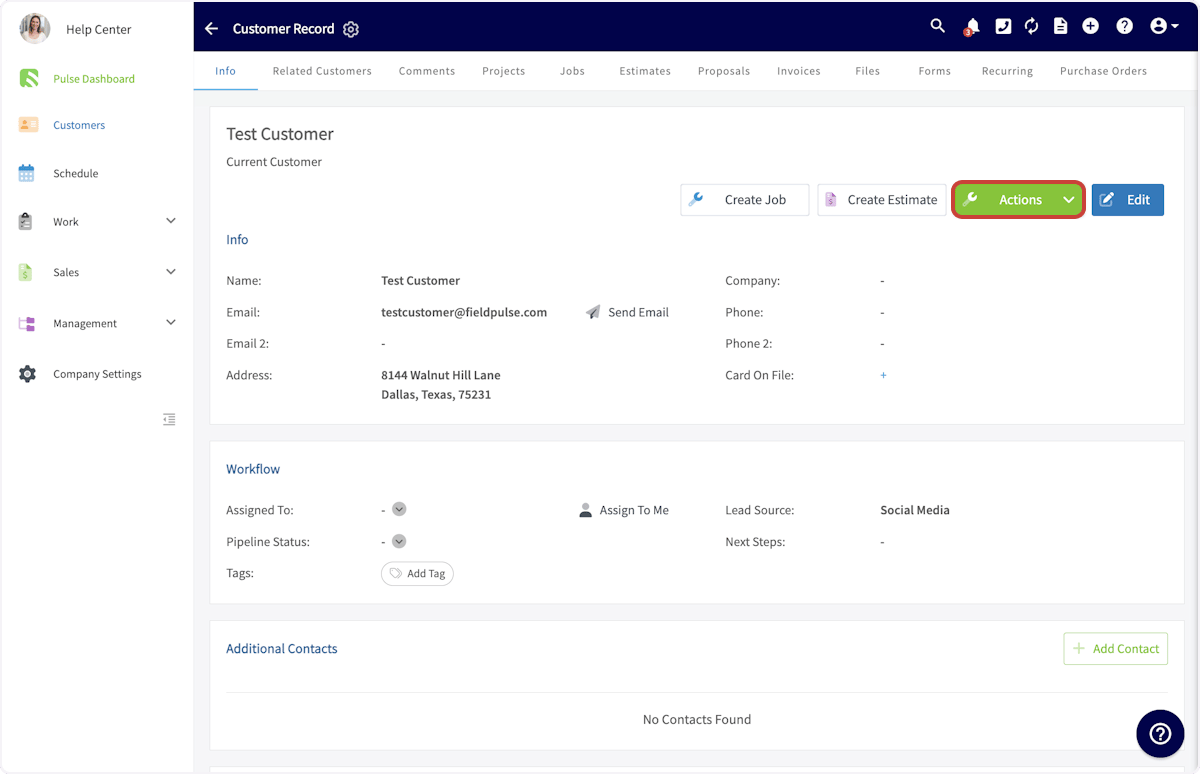
1. Open the customer record of one of the two duplicates and select **Actions**.
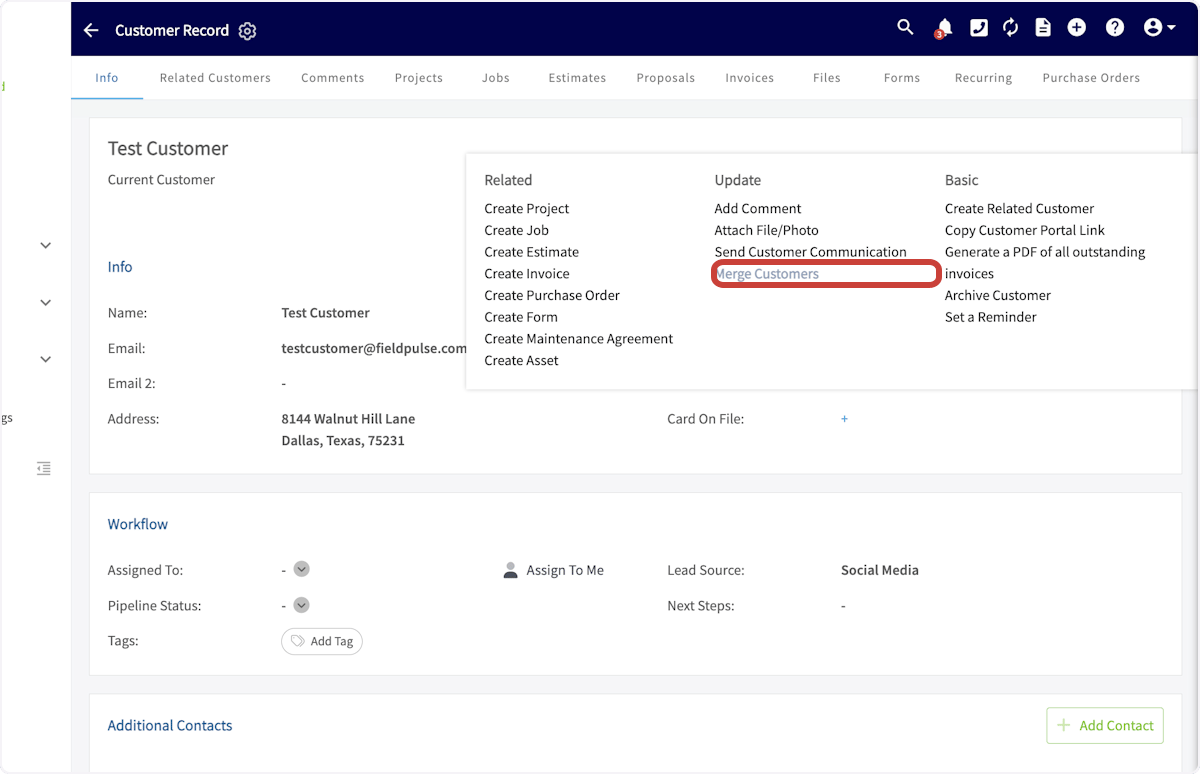
 2. Select **Merge Customers** under **Update** on the **Actions** menu.
 ### Choose which details to keep
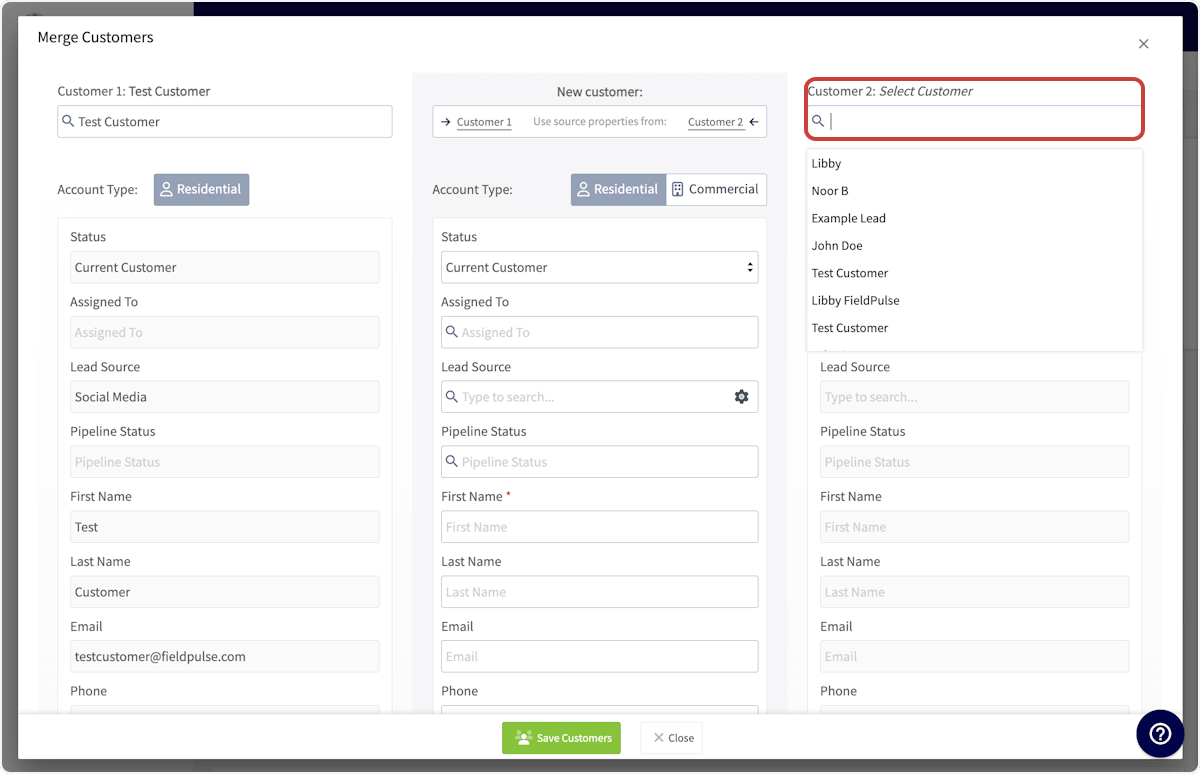
1. In the **Merge Customers** window, search the **Customer 2** field on the right and select the duplicate record you want to combine with the first.
### Choose which details to keep
1. In the **Merge Customers** window, search the **Customer 2** field on the right and select the duplicate record you want to combine with the first.
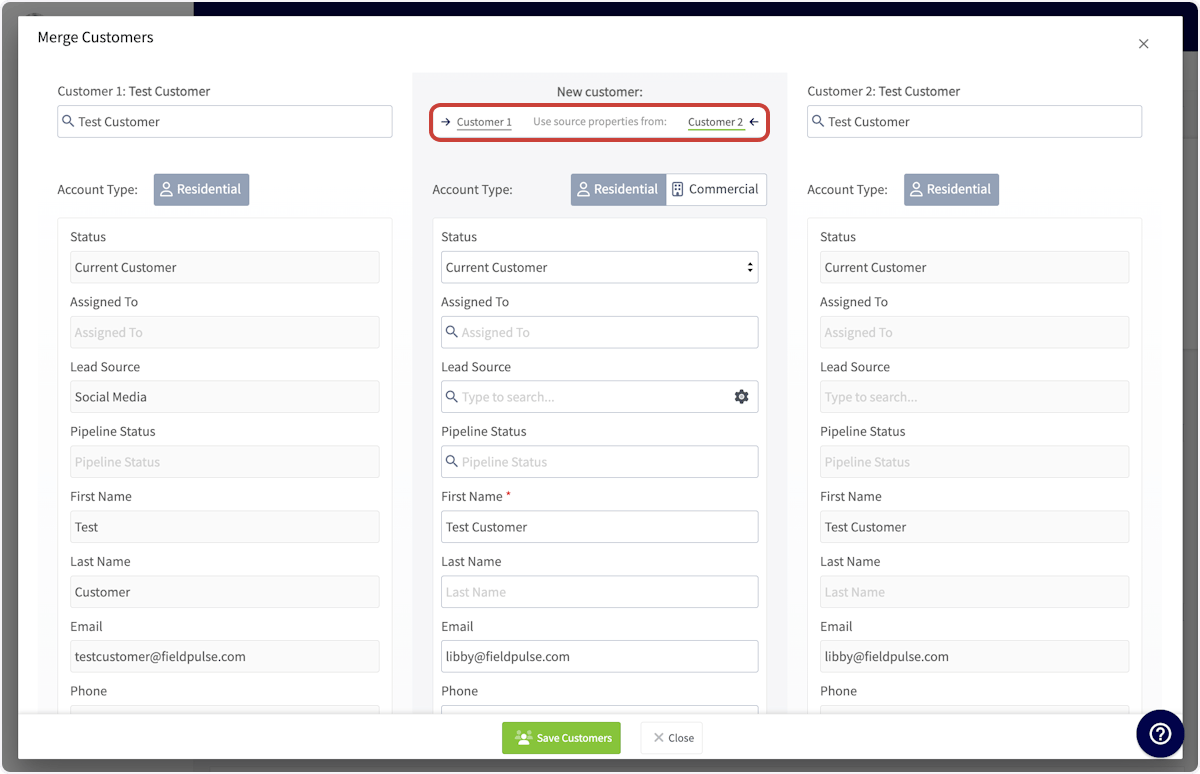
 2. To take every detail from one record, select **Customer 1** or **Customer 2** next to **Use source properties from** at the top of the **New customer** column.
 3. To take one detail on its own, hover over that field on the record you want it from and select the green arrow icon to copy it into the **New customer** column.
 ### Save the merged record
1. Review the **New customer** column in the center. The merged record keeps only the details shown there.
2. Select **Save Customers**.
## What the merged record keeps
The two records become one customer record, displaying the details you copied into the center column. The jobs, invoices, and history from both records stay with that single merged record.
## FAQs
### What happens to jobs and invoices when I merge two customers?
Merging combines two records into one customer, and the jobs, invoices, and history attached to both records stay with the merged customer. During the merge you choose which details end up on the surviving record — take every detail from **Customer 1** or **Customer 2**, or copy individual details one at a time into the **New customer** column. See [How to Merge Duplicate Customers](/customers/managing-customers/merging-duplicates) for the full process.
## Related articles
* [How to Create a Customer](/customers/managing-customers/creating-a-customer)
* [Customer Record Field Details](/customers/managing-customers/record-fields)
* [How to Create Related Customers](/customers/managing-customers/creating-related-customers)
* [Customer FAQs](/customers/managing-customers/creating-a-customer)
Your merge is working when the two duplicates appear in your customer list as one record, showing exactly the details you copied into the center column.
## Related topics
- [How to Create a Customer](/customers/managing-customers/creating-a-customer.md)
- [Setting Up the Thumbtack Integration](/integrations/marketing/thumbtack.md)
- [Setting Up the XAPPAI Integration](/integrations/marketing/xappai.md)
- [Setting Up the Angi Integration](/integrations/marketing/angi.md)
### Save the merged record
1. Review the **New customer** column in the center. The merged record keeps only the details shown there.
2. Select **Save Customers**.
## What the merged record keeps
The two records become one customer record, displaying the details you copied into the center column. The jobs, invoices, and history from both records stay with that single merged record.
## FAQs
### What happens to jobs and invoices when I merge two customers?
Merging combines two records into one customer, and the jobs, invoices, and history attached to both records stay with the merged customer. During the merge you choose which details end up on the surviving record — take every detail from **Customer 1** or **Customer 2**, or copy individual details one at a time into the **New customer** column. See [How to Merge Duplicate Customers](/customers/managing-customers/merging-duplicates) for the full process.
## Related articles
* [How to Create a Customer](/customers/managing-customers/creating-a-customer)
* [Customer Record Field Details](/customers/managing-customers/record-fields)
* [How to Create Related Customers](/customers/managing-customers/creating-related-customers)
* [Customer FAQs](/customers/managing-customers/creating-a-customer)
Your merge is working when the two duplicates appear in your customer list as one record, showing exactly the details you copied into the center column.
## Related topics
- [How to Create a Customer](/customers/managing-customers/creating-a-customer.md)
- [Setting Up the Thumbtack Integration](/integrations/marketing/thumbtack.md)
- [Setting Up the XAPPAI Integration](/integrations/marketing/xappai.md)
- [Setting Up the Angi Integration](/integrations/marketing/angi.md)