> ## Documentation Index
> Fetch the complete documentation index at: https://help.fieldpulse.com/llms.txt
> Use this file to discover all available pages before exploring further.
# Setting Up Default Estimate & Invoice Settings
> Set account-wide defaults in FieldPulse Company Settings for wording, currency, tax rate, due dates, your logo, and customer-facing PDF fields.
> **Who uses this:** Admins — these defaults live in **Company Settings**, which only the Admin role can view. **Availability:** All regions.
Default estimate and invoice settings control the content and appearance of every new [estimate and invoice](https://www.fieldpulse.com/features/estimates-and-invoices) your team creates, so records come out consistent without anyone setting them by hand each time. You set them once in **Company Settings**, and new estimates and invoices pick them up from there.
## Overview
The defaults on this page live in three tabs under **Company Settings** > **Estimates & Invoices**.
| **Tab** | **What it holds** |
| -------------------- | -------------------------------------------------------------------------------------------------------------------- |
| **General** | The wording, currency, tax label, default tax rate, due date behavior, numbering, company logo, and PDF font size. |
| **Advanced** | Cost basis, markup, commission, purchase order, estimate retention, parent billing, and estimate expiration options. |
| **Preview Settings** | The company information printed on customer PDFs and the fields that appear on estimate and invoice PDFs. |
Two of these defaults can be changed on a single record when one estimate or invoice needs something different: the default tax rate and the due date method can both be changed on an individual invoice. The PDF display fields can also be overridden from the **Preview** screen of an individual estimate or invoice.
## Before you begin
* Confirm your user role is **Admin**. Only the Admin role can view **Company Settings**, where all of these defaults are set.
* Decide on your company-wide standards first. The settings on the **Preview Settings** tab apply to **all** new estimates and invoices moving forward.
* Have your logo file ready if you plan to add one. FieldPulse accepts jpg, png, and bmp files under 3 MB, and compresses the file to an appropriate size after upload.
* Confirm the term your company uses for estimates — **Estimate**, **Proposal**, **Quote**, or **Bid**. The term you pick also appears on customer-facing PDFs.
## Step-by-step setup
### 1. Set your general defaults
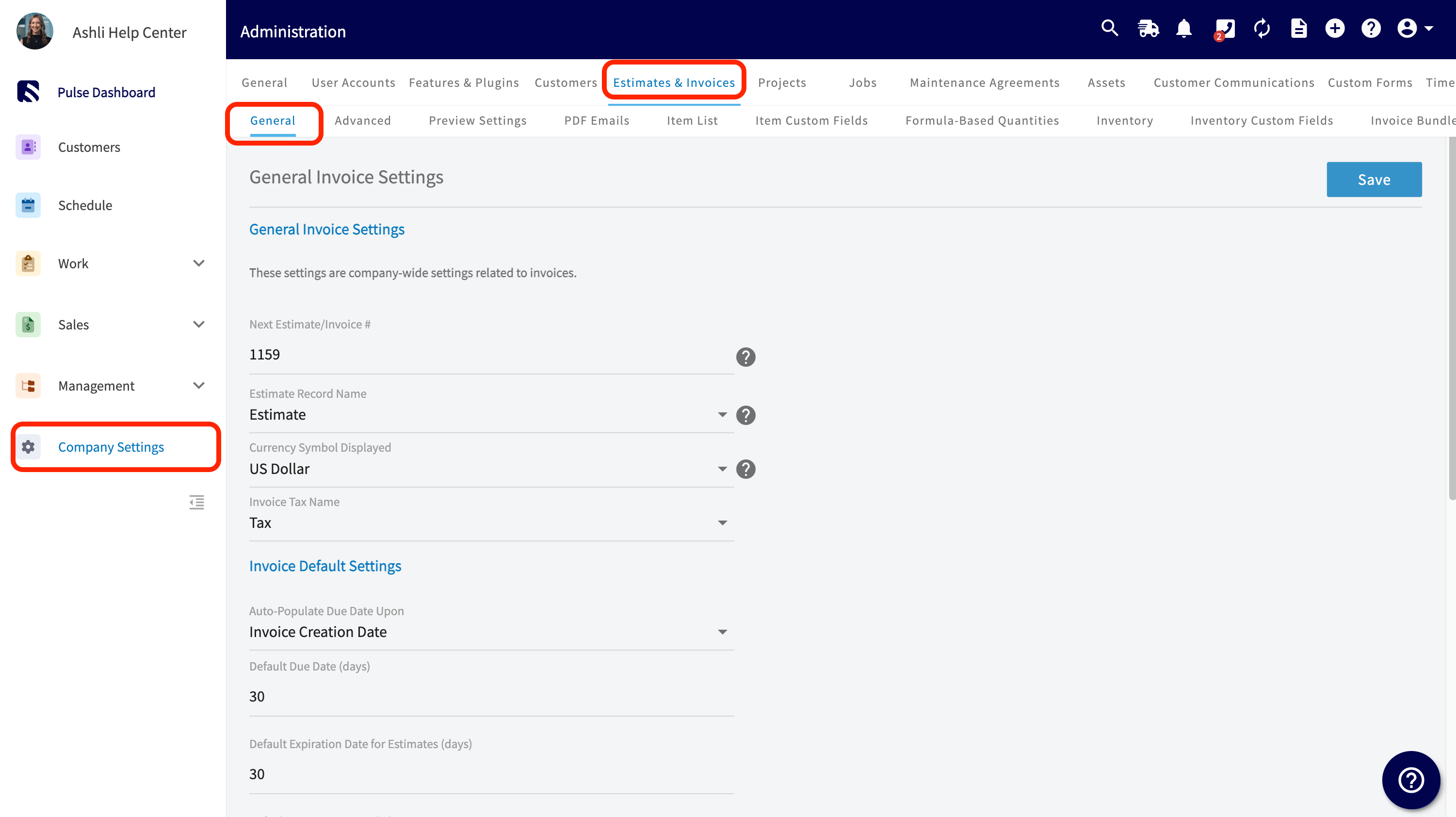
1. Select **Company Settings** in the left-side menu.
2. Select **Estimates & Invoices** in the header. The **General** tab opens to **General Invoice Settings**.
3. Set the fields under **General Invoice Settings** — **Estimate Record Name**, **Currency Symbol Displayed**, and **Invoice Tax Name** (Tax, HST, GST, or VAT).
4. Set the fields under **Invoice Default Settings** — **Auto-Populate Due Date Upon**, **Default Due Date (days)**, **Default Invoice Tax Rate (%)**, and **Default Expiration Date for Estimates (days)**.
5. Scroll up and select **Save**.
 ### 2. Add your company logo
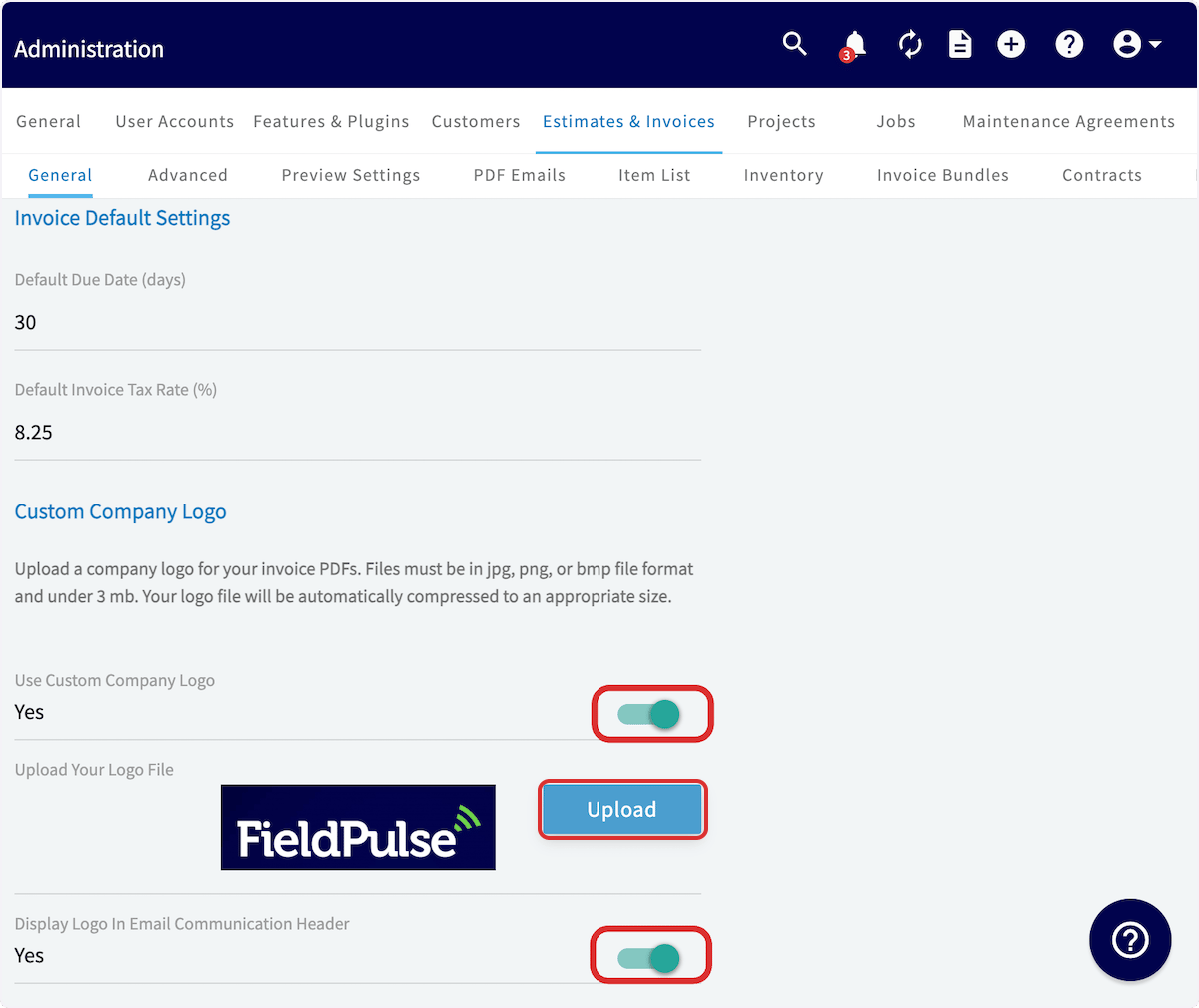
1. On the **General** tab, scroll down to **Custom Company Logo** and turn **Use Custom Company Logo** on.
2. Select **Upload**, then choose your logo file. The logo you pick appears next to the upload button.
3. Scroll up and select **Save**.
### 2. Add your company logo
1. On the **General** tab, scroll down to **Custom Company Logo** and turn **Use Custom Company Logo** on.
2. Select **Upload**, then choose your logo file. The logo you pick appears next to the upload button.
3. Scroll up and select **Save**.
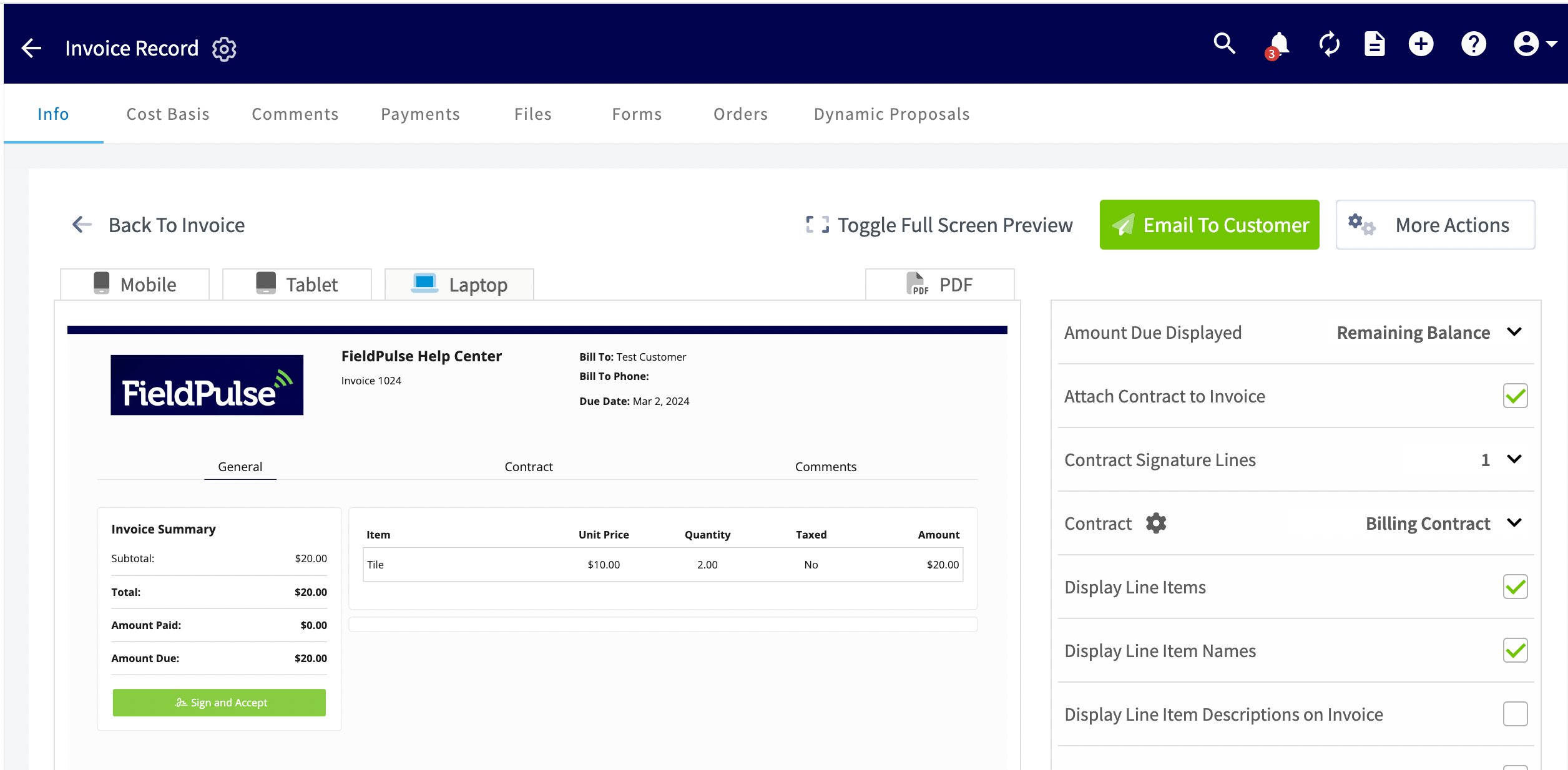
 4. To see the logo in place, open an estimate or invoice record and select **Preview**. The logo prints in the document header.
 ### 3. Set the PDF font size
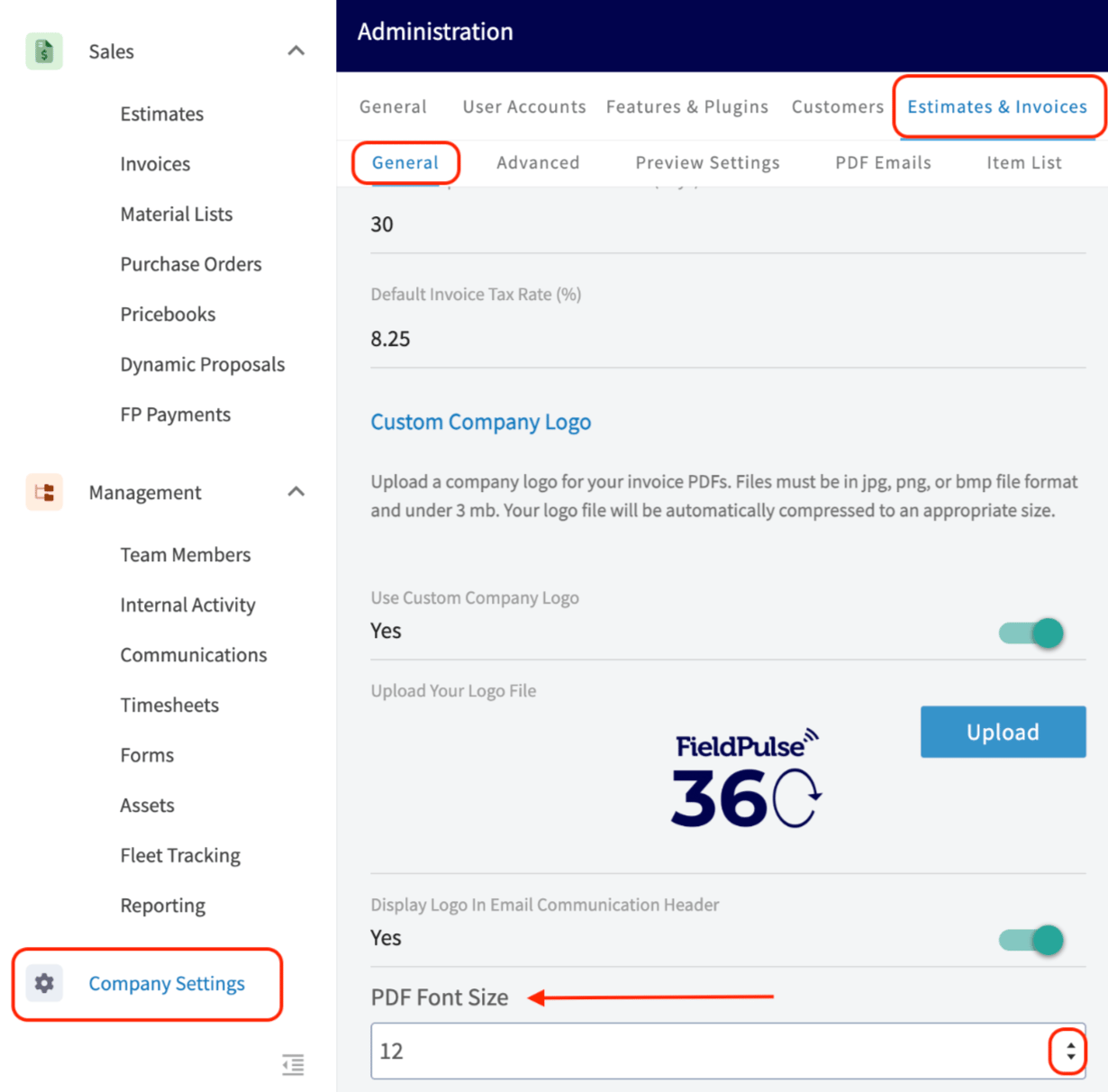
1. On the **General** tab, set **PDF Font Size** to 8, 10, 12, 14, or 16 pt. The FieldPulse system default is 8 pt.
2. Scroll up and select **Save**.
### 3. Set the PDF font size
1. On the **General** tab, set **PDF Font Size** to 8, 10, 12, 14, or 16 pt. The FieldPulse system default is 8 pt.
2. Scroll up and select **Save**.
 ### 4. Set your advanced defaults
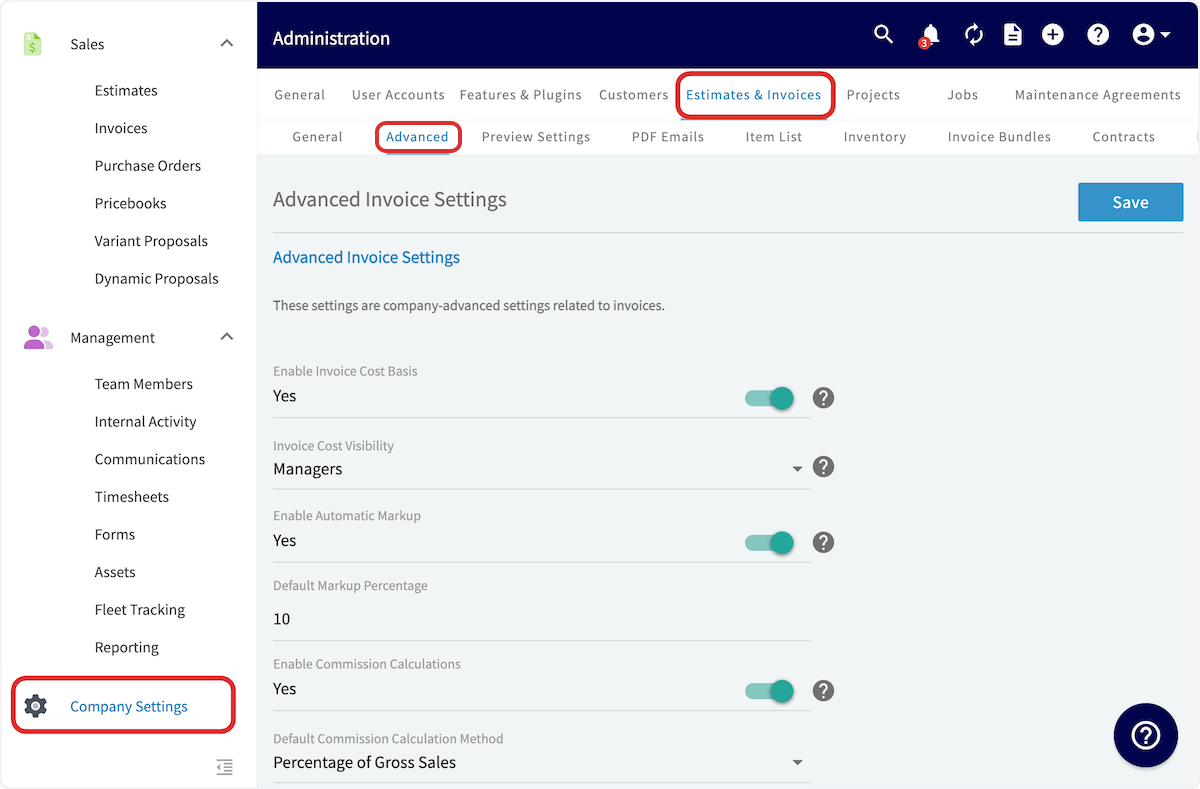
1. Select the **Advanced** tab under **Estimates & Invoices**.
2. Turn on the options your company uses and set the values that go with them. See the **Advanced tab** table below for what each option does.
3. Scroll up and select **Save**.
### 4. Set your advanced defaults
1. Select the **Advanced** tab under **Estimates & Invoices**.
2. Turn on the options your company uses and set the values that go with them. See the **Advanced tab** table below for what each option does.
3. Scroll up and select **Save**.
 ### 5. Set your preview and PDF defaults
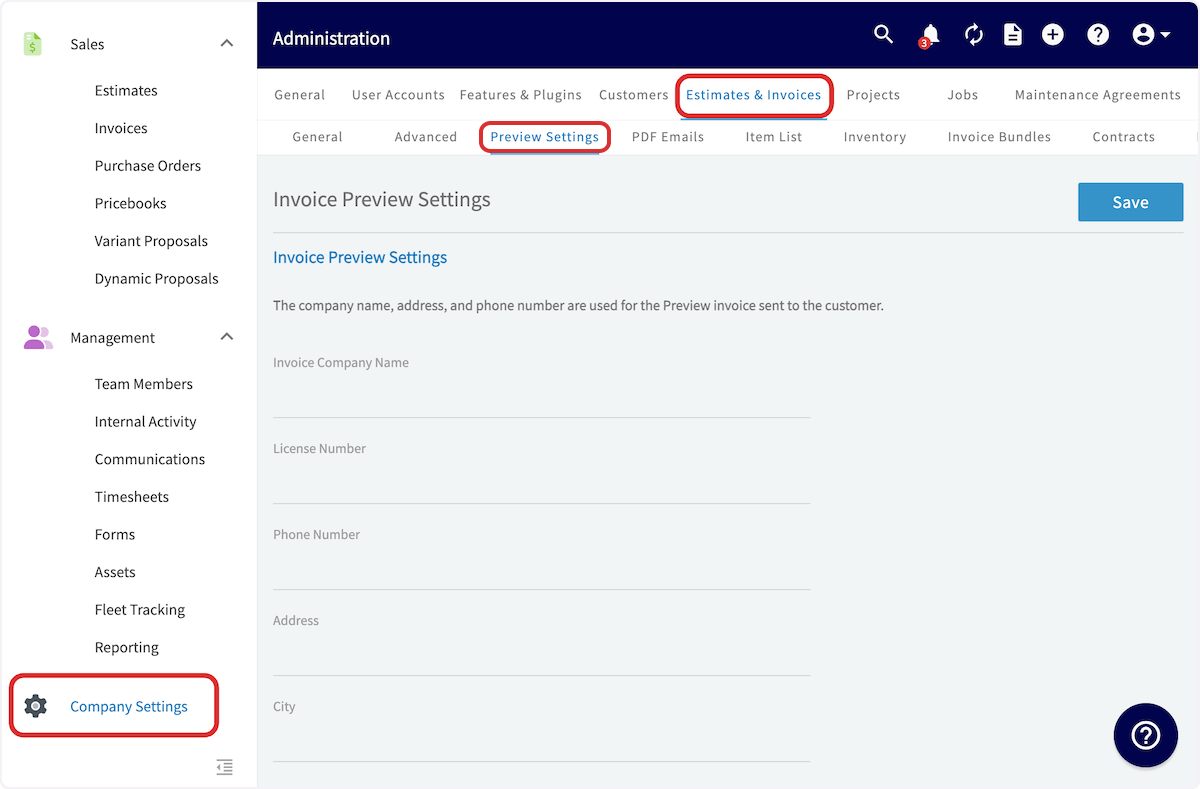
1. Select the **Preview Settings** tab under **Estimates & Invoices**.
2. Fill in the **Invoice Preview Settings** fields — **Invoice Company Name**, **License Number**, **Phone Number**, **Address**, and **City** — as you want your company information displayed on the PDFs you send to customers.
### 5. Set your preview and PDF defaults
1. Select the **Preview Settings** tab under **Estimates & Invoices**.
2. Fill in the **Invoice Preview Settings** fields — **Invoice Company Name**, **License Number**, **Phone Number**, **Address**, and **City** — as you want your company information displayed on the PDFs you send to customers.
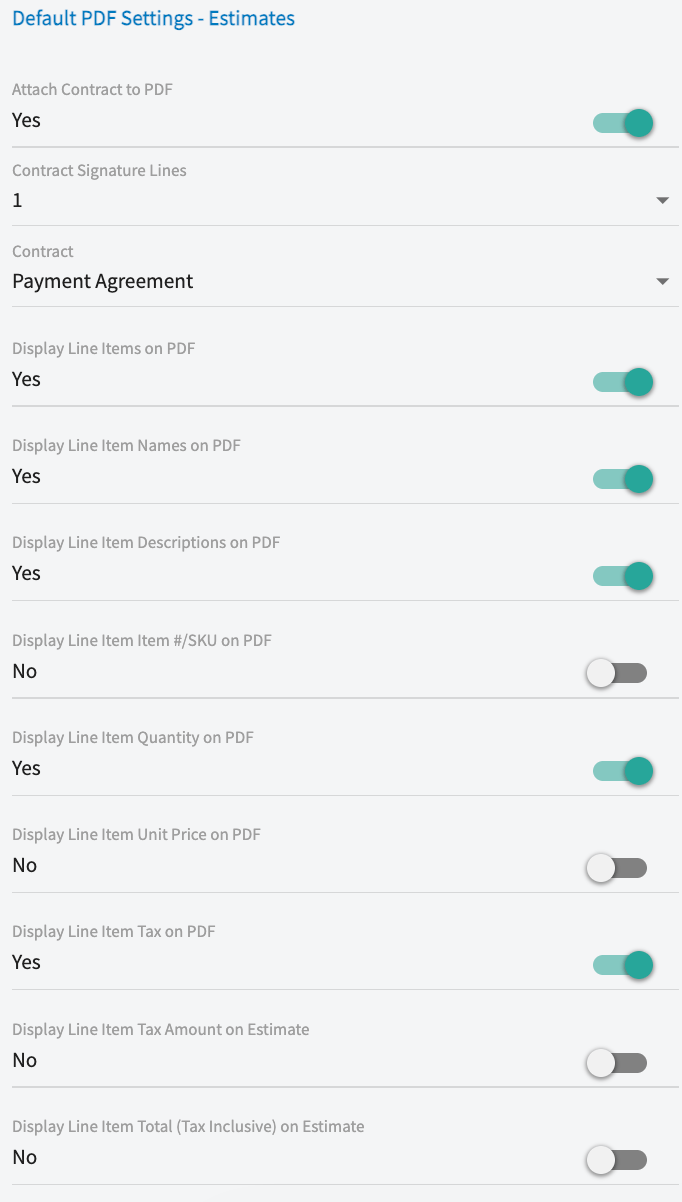
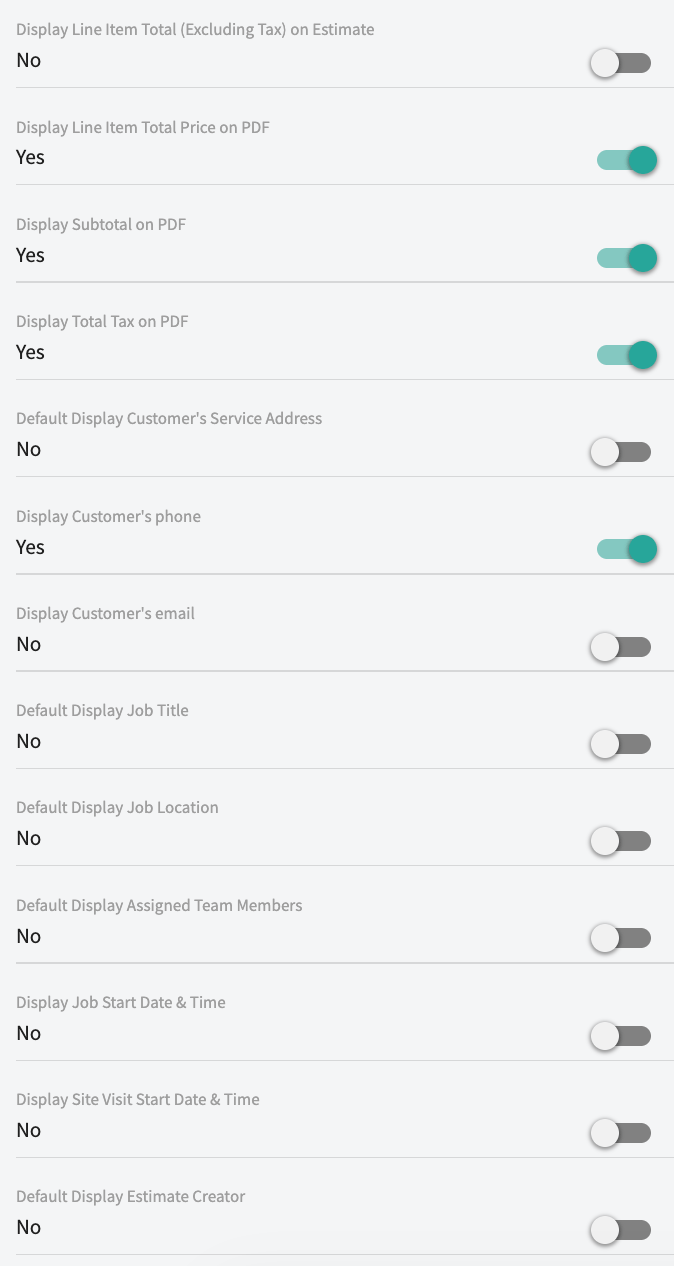
 3. Work through **Default PDF Settings - Estimates**, **Default PDF Settings - Invoices**, and **Additional PDF Items**, turning on only the fields you want customers to see.
4. Scroll up and select **Save**.
## Settings reference
Each tab under **Company Settings** > **Estimates & Invoices** holds a different group of defaults.
### General tab
| **Setting** | **What it does** |
| ------------------------------------------------ | ---------------------------------------------------------------------------------------------------------- |
| **Next Estimate/Invoice #** | Sets the number your next estimate or invoice is created with. |
| **Estimate Record Name** | Changes the term *Estimate* to *Proposal*, *Quote*, or *Bid*, including on customer-facing PDFs. |
| **Currency Symbol Displayed** | Sets the currency symbol shown on estimates and invoices. |
| **Invoice Tax Name** | Displays tax as Tax, HST, GST, or VAT. |
| **Auto-Populate Due Date Upon** | Controls when an invoice due date is set automatically. See the table below. |
| **Default Due Date (days)** | Sets the default due date length on new invoices, in days. |
| **Default Invoice Tax Rate (%)** | Sets the tax rate applied to new invoices. Can be changed on an individual invoice. |
| **Default Expiration Date for Estimates (days)** | Sets the default expiration length on new estimates, in days. |
| **Use Custom Company Logo** | Turns on the company logo upload for your estimate and invoice PDFs. |
| **Display Logo In Email Communication Header** | Prints your logo in the header of email communications. |
| **PDF Font Size** | Sets the font size on new estimate and invoice PDFs — 8, 10, 12, 14, or 16 pt. The system default is 8 pt. |
### Auto-Populate Due Date Upon
| **Option** | **When the due date is set** |
| ------------------------------ | ---------------------------------------------------------------------------------------------------------------------------- |
| **Creation Date** | When the invoice is first created. |
| **Finalization Date** | When the invoice is finalized. Recommended for most users, because it accounts for the time it takes to prepare the invoice. |
| **No Auto-Populated Due Date** | Never set automatically — add a due date to each invoice by hand. |
Both the default tax rate and the due date method can be changed on individual invoices when needed.
### Advanced tab
| **Setting** | **What it does** |
| --------------------------------------------------------- | ---------------------------------------------------------------------------------------------------------------------------------------------------------------------------------------------------------------------------------------------- |
| **Enable Invoice Cost Basis** | Records the unit cost of line items so you can determine your profit on a job. The line item cost is displayed internally only. See [Setting Up Cost Basis and Invoice Profitability](/payments/commissions/cost-basis-invoice-profitability). |
| **Invoice Cost Visibility** | Sets who can see line item unit costs — Managers only, or Managers and Service Agents. |
| **Enable Automatic Markup** | Applies a consistent markup to line items from unit cost and markup percentage to set the unit price automatically. See [How to Use Markups & Margins](/payments/commissions/markups-margins). |
| **Default Markup Percentage** | Sets the markup percentage Automatic Markup applies. |
| **Enable Commission Calculations** | Calculates and stores commissions from a fixed amount, a percentage of gross sales, or a percentage of gross margin. See [Setting Up Invoice-Level Commission](/payments/commissions/invoice-level-commission). |
| **Default Commission Calculation Method** | Sets the commission method used on each invoice. The method and rate can be modified on an individual invoice. |
| **Purchase Order Creation Based on Item Vendors** | Set under **Company Settings > Orders > General** — see [How to Manage Purchase Orders](/inventory-materials/purchase-orders/managing). |
| **Keep an Estimate Record when Converting to an Invoice** | Retains the original estimate record after it is converted to an invoice. If QuickBooks Online or QuickBooks Desktop is connected, this setting is on by default and does not appear on the **Advanced** tab. |
| **Bill to Parent** | Designates a parent customer as the billing party on a child customer's estimates and invoices, and charges the parent's card on file. See [Setting Up Bill to Parent](/estimates-invoices/creating/bill-to-parent). |
| **Disable Estimates if Expired** | When on, a customer's dynamic estimate link stops working once the estimate expires. When off, the link stays accessible. |
### Preview Settings tab
The settings on the **Preview Settings** tab apply to **all** new estimates and invoices moving forward.
| **Section** | **What you set there** |
| ------------------------------------ | --------------------------------------------------------------------------------------------------------------------------------------------------------------------- |
| **Invoice Preview Settings** | Your company name, license number, phone number, address, and city. The company name, address, and phone number are used on the preview invoice sent to the customer. |
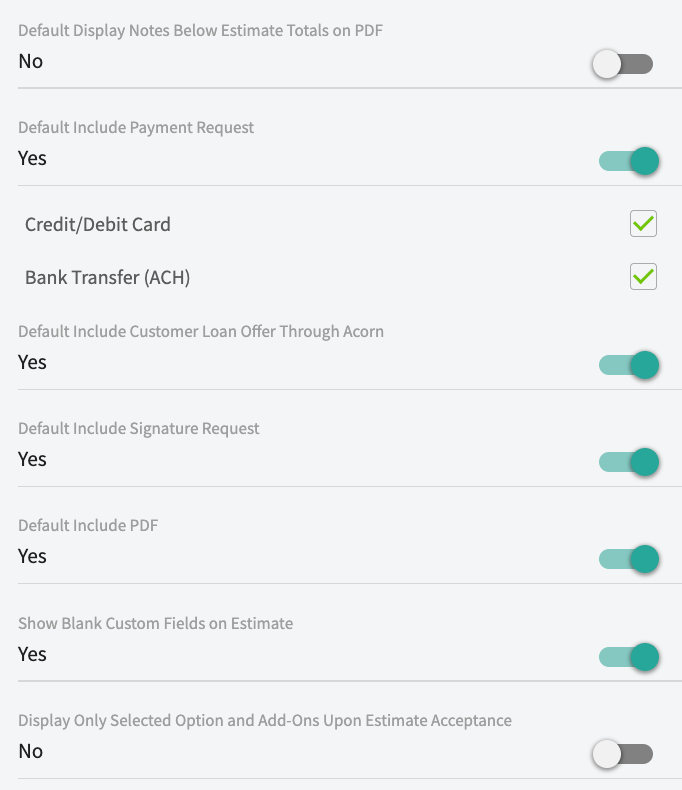
| **Default PDF Settings - Estimates** | Which contract, line item, totals, customer, job, notes, payment request, and signature fields appear on estimate PDFs. |
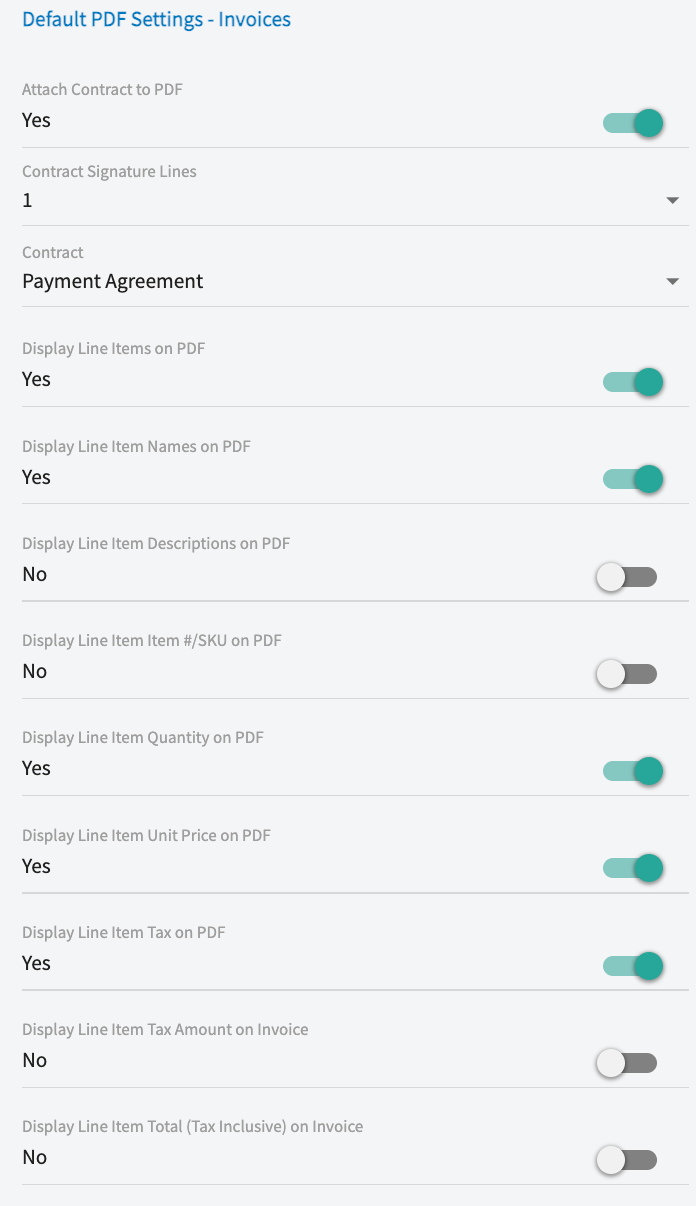
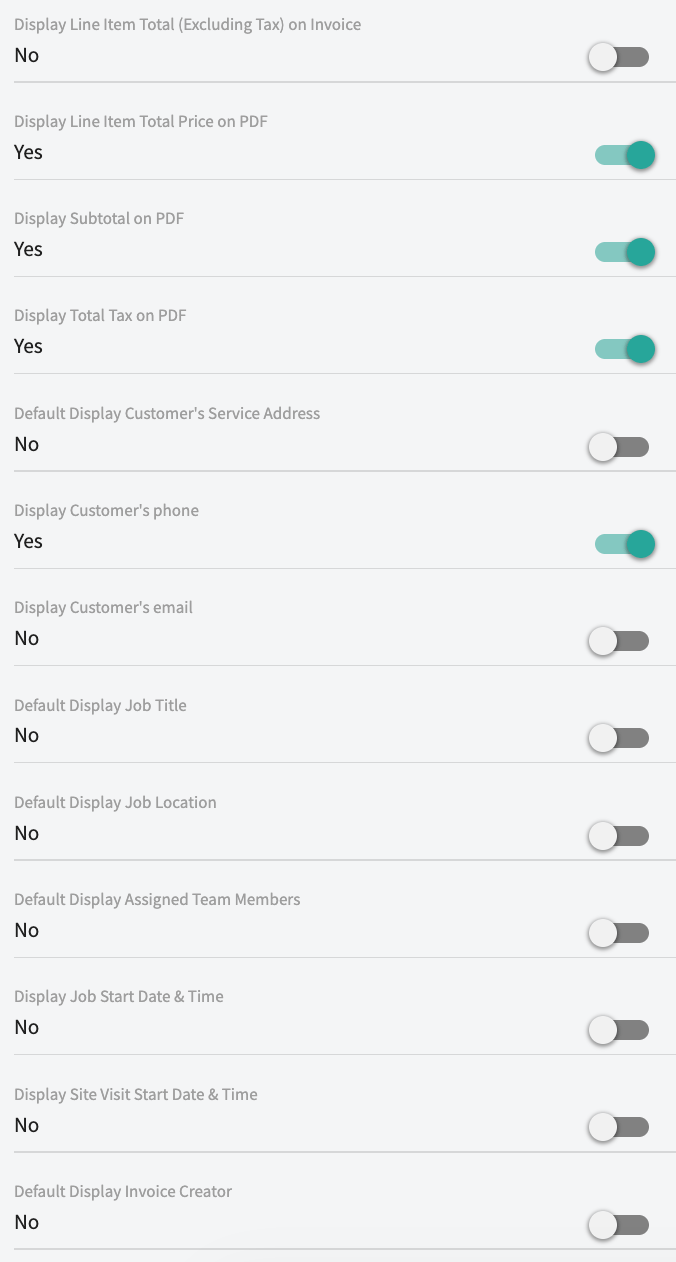
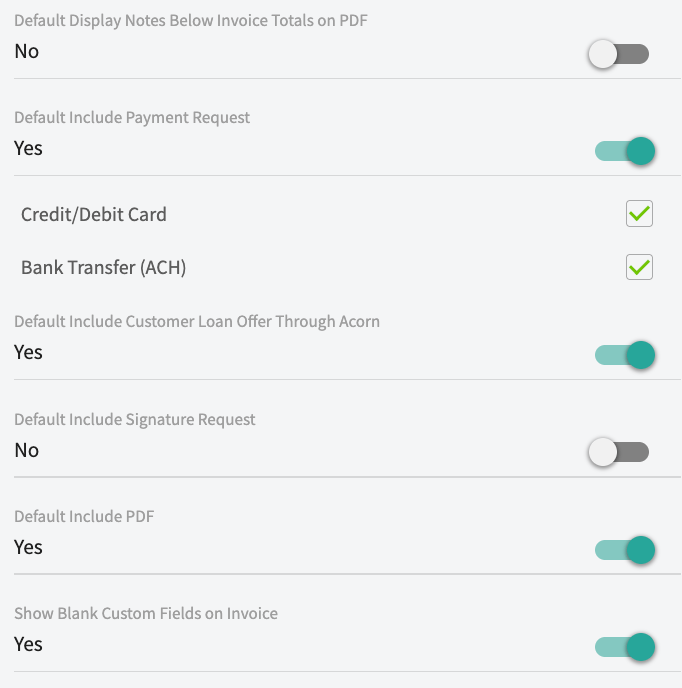
| **Default PDF Settings - Invoices** | Which contract, line item, totals, customer, job, notes, payment request, and signature fields appear on invoice PDFs. |
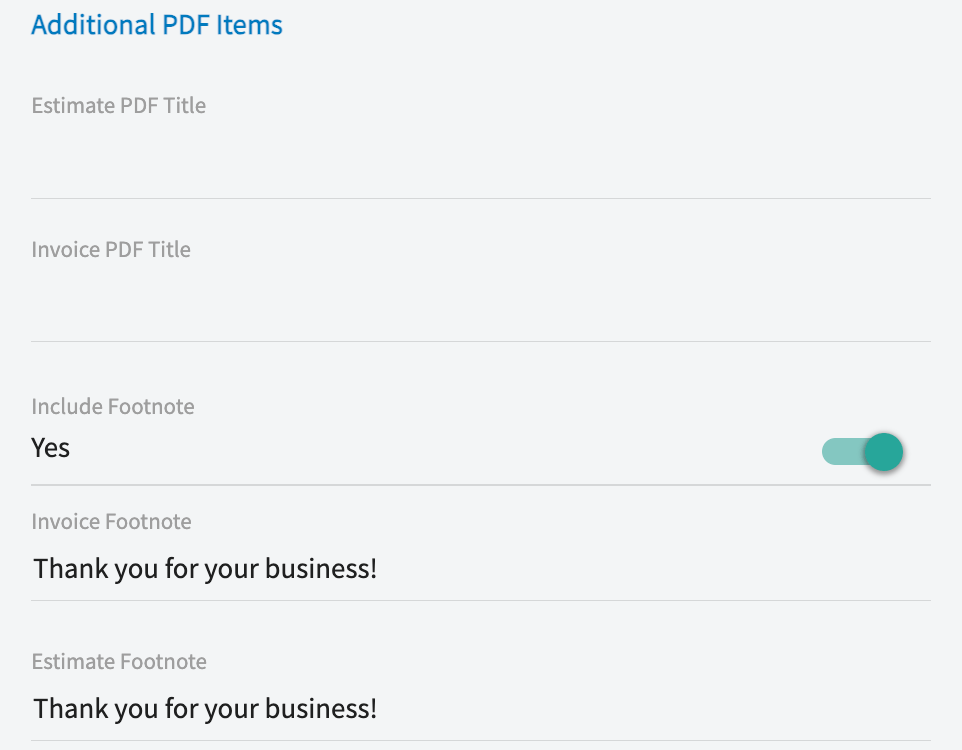
| **Additional PDF Items** | The estimate PDF title, the invoice PDF title, and the footnote printed on each document. |
**Default PDF Settings - Estimates**
3. Work through **Default PDF Settings - Estimates**, **Default PDF Settings - Invoices**, and **Additional PDF Items**, turning on only the fields you want customers to see.
4. Scroll up and select **Save**.
## Settings reference
Each tab under **Company Settings** > **Estimates & Invoices** holds a different group of defaults.
### General tab
| **Setting** | **What it does** |
| ------------------------------------------------ | ---------------------------------------------------------------------------------------------------------- |
| **Next Estimate/Invoice #** | Sets the number your next estimate or invoice is created with. |
| **Estimate Record Name** | Changes the term *Estimate* to *Proposal*, *Quote*, or *Bid*, including on customer-facing PDFs. |
| **Currency Symbol Displayed** | Sets the currency symbol shown on estimates and invoices. |
| **Invoice Tax Name** | Displays tax as Tax, HST, GST, or VAT. |
| **Auto-Populate Due Date Upon** | Controls when an invoice due date is set automatically. See the table below. |
| **Default Due Date (days)** | Sets the default due date length on new invoices, in days. |
| **Default Invoice Tax Rate (%)** | Sets the tax rate applied to new invoices. Can be changed on an individual invoice. |
| **Default Expiration Date for Estimates (days)** | Sets the default expiration length on new estimates, in days. |
| **Use Custom Company Logo** | Turns on the company logo upload for your estimate and invoice PDFs. |
| **Display Logo In Email Communication Header** | Prints your logo in the header of email communications. |
| **PDF Font Size** | Sets the font size on new estimate and invoice PDFs — 8, 10, 12, 14, or 16 pt. The system default is 8 pt. |
### Auto-Populate Due Date Upon
| **Option** | **When the due date is set** |
| ------------------------------ | ---------------------------------------------------------------------------------------------------------------------------- |
| **Creation Date** | When the invoice is first created. |
| **Finalization Date** | When the invoice is finalized. Recommended for most users, because it accounts for the time it takes to prepare the invoice. |
| **No Auto-Populated Due Date** | Never set automatically — add a due date to each invoice by hand. |
Both the default tax rate and the due date method can be changed on individual invoices when needed.
### Advanced tab
| **Setting** | **What it does** |
| --------------------------------------------------------- | ---------------------------------------------------------------------------------------------------------------------------------------------------------------------------------------------------------------------------------------------- |
| **Enable Invoice Cost Basis** | Records the unit cost of line items so you can determine your profit on a job. The line item cost is displayed internally only. See [Setting Up Cost Basis and Invoice Profitability](/payments/commissions/cost-basis-invoice-profitability). |
| **Invoice Cost Visibility** | Sets who can see line item unit costs — Managers only, or Managers and Service Agents. |
| **Enable Automatic Markup** | Applies a consistent markup to line items from unit cost and markup percentage to set the unit price automatically. See [How to Use Markups & Margins](/payments/commissions/markups-margins). |
| **Default Markup Percentage** | Sets the markup percentage Automatic Markup applies. |
| **Enable Commission Calculations** | Calculates and stores commissions from a fixed amount, a percentage of gross sales, or a percentage of gross margin. See [Setting Up Invoice-Level Commission](/payments/commissions/invoice-level-commission). |
| **Default Commission Calculation Method** | Sets the commission method used on each invoice. The method and rate can be modified on an individual invoice. |
| **Purchase Order Creation Based on Item Vendors** | Set under **Company Settings > Orders > General** — see [How to Manage Purchase Orders](/inventory-materials/purchase-orders/managing). |
| **Keep an Estimate Record when Converting to an Invoice** | Retains the original estimate record after it is converted to an invoice. If QuickBooks Online or QuickBooks Desktop is connected, this setting is on by default and does not appear on the **Advanced** tab. |
| **Bill to Parent** | Designates a parent customer as the billing party on a child customer's estimates and invoices, and charges the parent's card on file. See [Setting Up Bill to Parent](/estimates-invoices/creating/bill-to-parent). |
| **Disable Estimates if Expired** | When on, a customer's dynamic estimate link stops working once the estimate expires. When off, the link stays accessible. |
### Preview Settings tab
The settings on the **Preview Settings** tab apply to **all** new estimates and invoices moving forward.
| **Section** | **What you set there** |
| ------------------------------------ | --------------------------------------------------------------------------------------------------------------------------------------------------------------------- |
| **Invoice Preview Settings** | Your company name, license number, phone number, address, and city. The company name, address, and phone number are used on the preview invoice sent to the customer. |
| **Default PDF Settings - Estimates** | Which contract, line item, totals, customer, job, notes, payment request, and signature fields appear on estimate PDFs. |
| **Default PDF Settings - Invoices** | Which contract, line item, totals, customer, job, notes, payment request, and signature fields appear on invoice PDFs. |
| **Additional PDF Items** | The estimate PDF title, the invoice PDF title, and the footnote printed on each document. |
**Default PDF Settings - Estimates**
 **Default PDF Settings - Invoices**
 **Additional PDF Items**
 ## FAQs
### Can I show both the per-item tax amount and the post-tax line total?
Yes. On the **Preview Settings** tab, turn on **Display Line Item Tax Amount** and **Display Line Item Total (Tax Inclusive)** under the default PDF settings for estimates, invoices, or both. You can also override both toggles on a single record from its **Preview** screen.
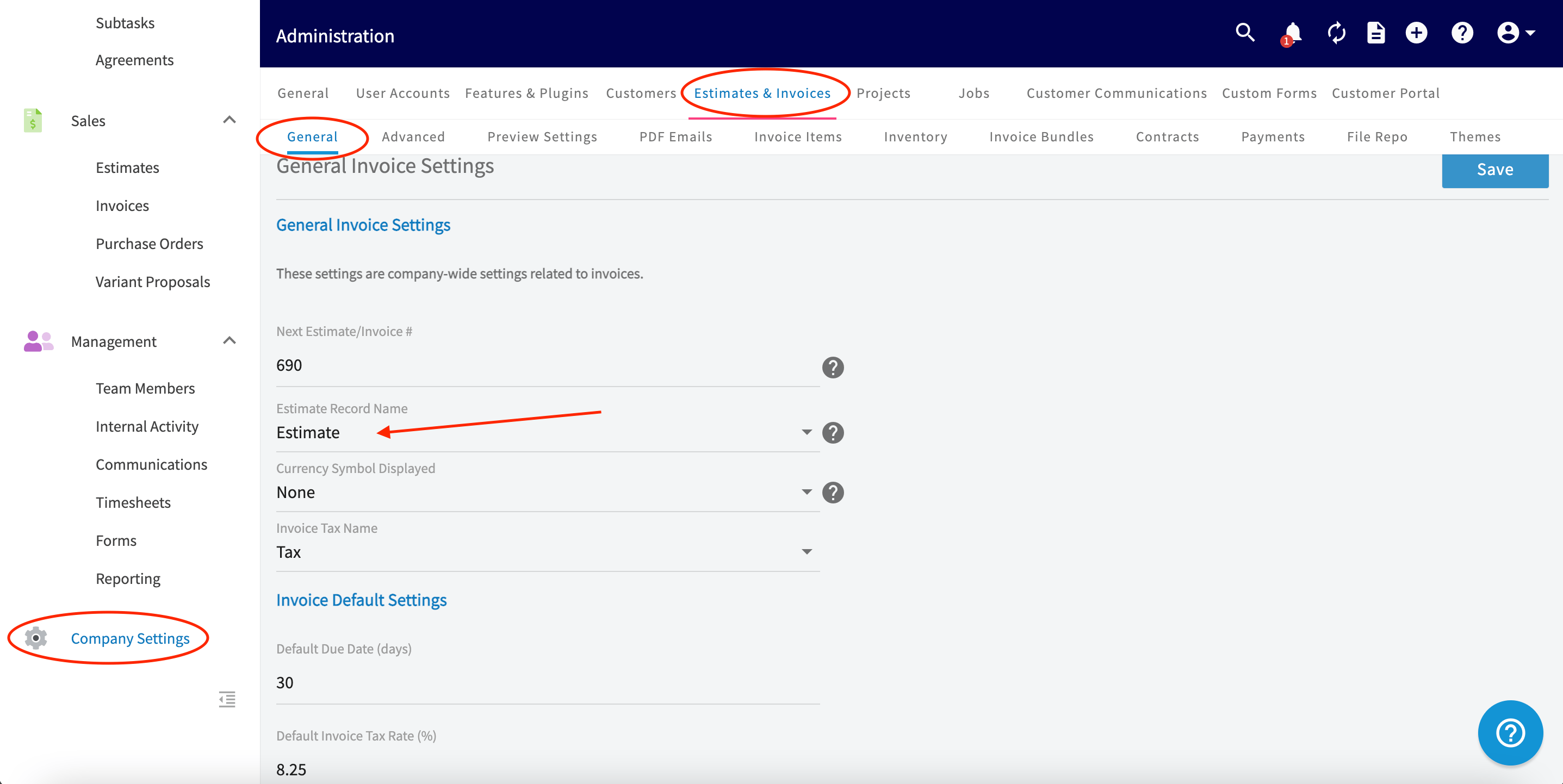
### Can I change the term "Estimate" to something else?
Yes. On the **General** tab, set **Estimate Record Name** to **Proposal**, **Quote**, or **Bid**, then select **Save** — the term you pick also appears on your customer-facing PDFs.
## FAQs
### Can I show both the per-item tax amount and the post-tax line total?
Yes. On the **Preview Settings** tab, turn on **Display Line Item Tax Amount** and **Display Line Item Total (Tax Inclusive)** under the default PDF settings for estimates, invoices, or both. You can also override both toggles on a single record from its **Preview** screen.
### Can I change the term "Estimate" to something else?
Yes. On the **General** tab, set **Estimate Record Name** to **Proposal**, **Quote**, or **Bid**, then select **Save** — the term you pick also appears on your customer-facing PDFs.
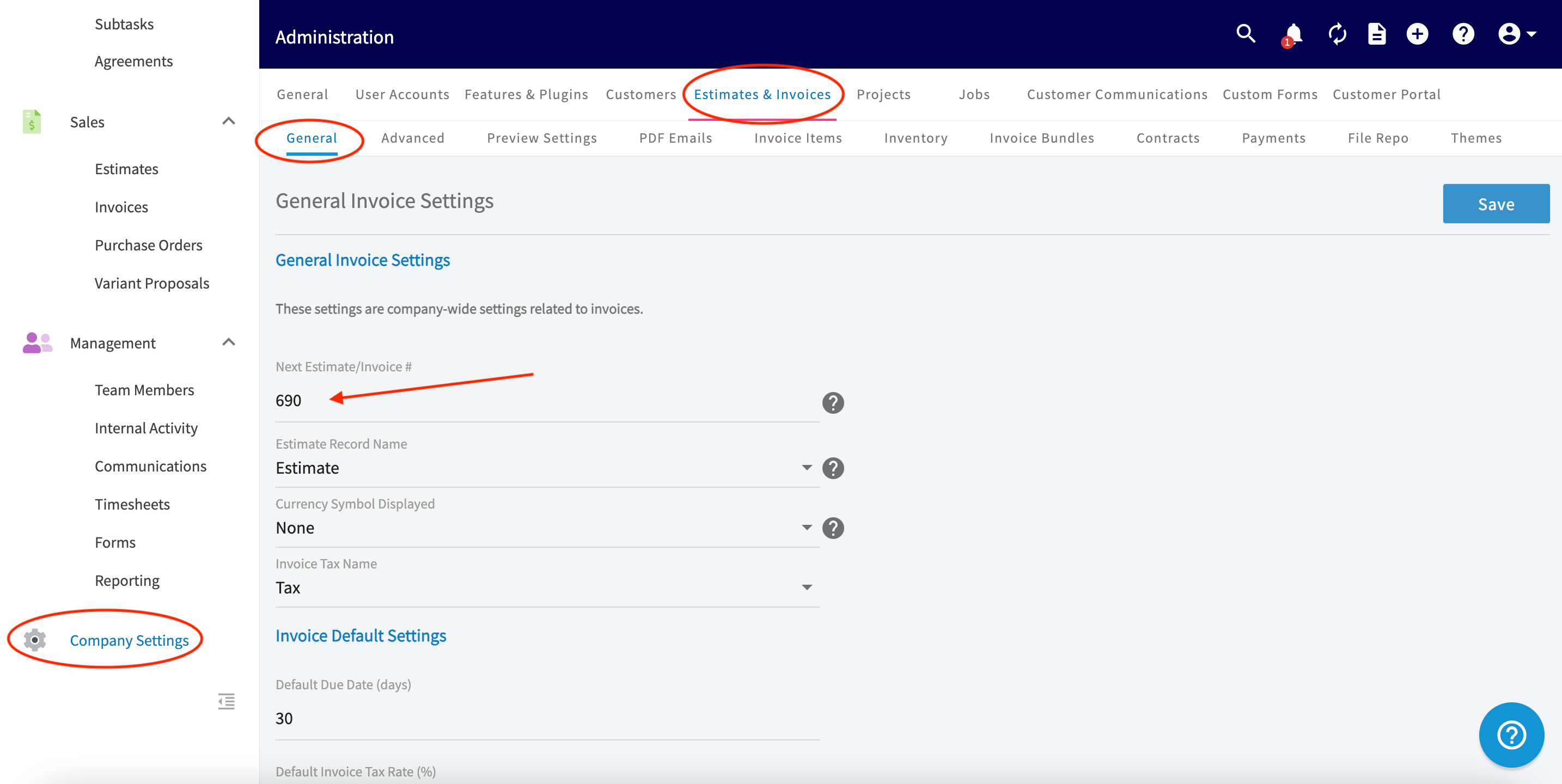
 ### Can I start my estimate and invoice numbering at a specific number?
Yes. On the **General** tab, enter the number you want your estimates and invoices to start at in **Next Estimate/Invoice #**, then select **Save**.
### Can I start my estimate and invoice numbering at a specific number?
Yes. On the **General** tab, enter the number you want your estimates and invoices to start at in **Next Estimate/Invoice #**, then select **Save**.
 ### How do I remove the quantity display from invoices?
Go to the invoice preview screen and turn the **Display Line Item Quantities** toggle off. The quantity then stops showing on both the dynamic invoice preview and the final PDF, for every line item and grouping on the invoice.
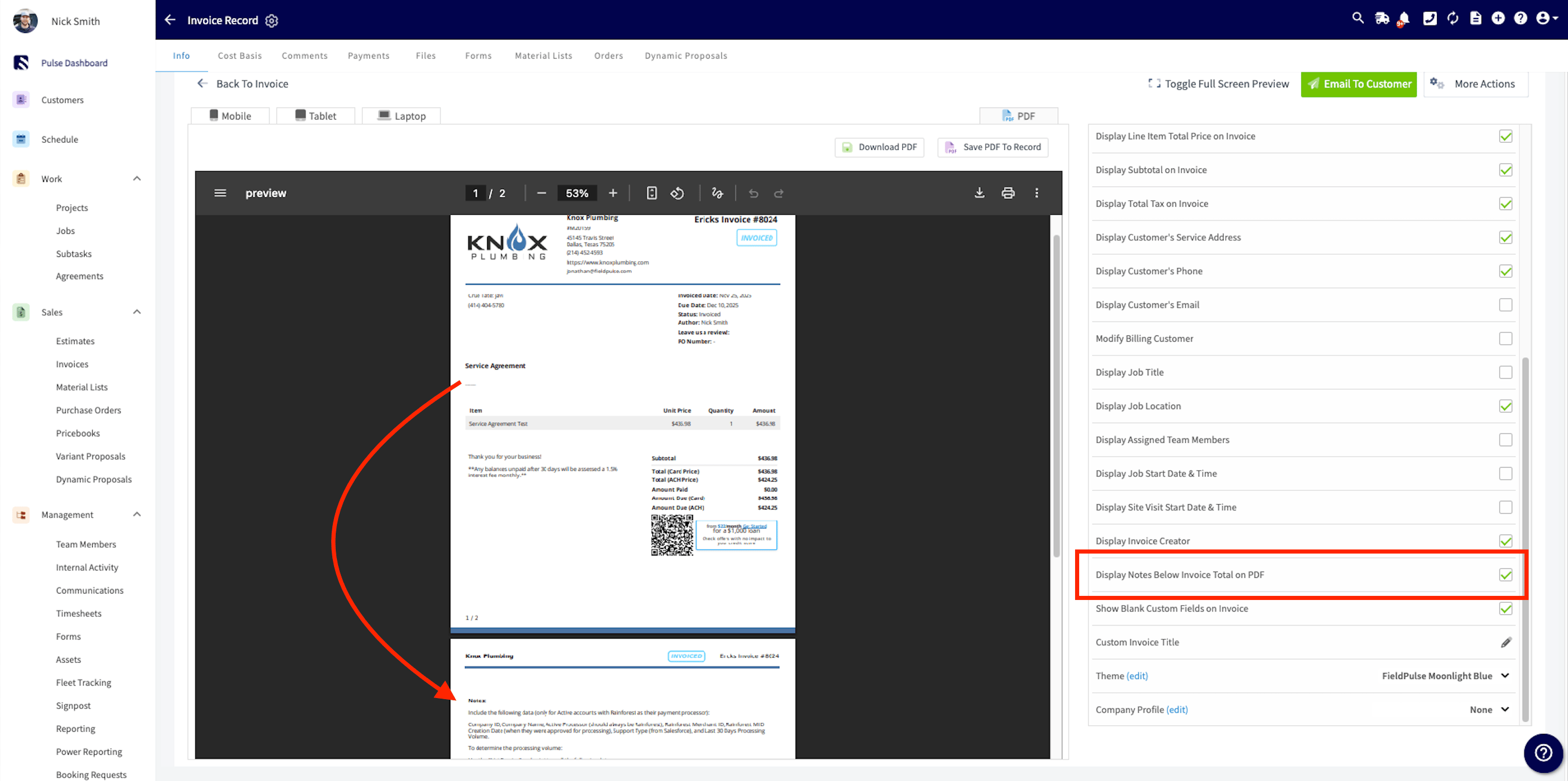
### Can I reposition my notes on the estimate or invoice PDF?
Yes. Select the **Display Notes Below Invoice Total on PDF** checkbox and the notes print below the invoice totals, which keeps the most relevant pieces of the invoice — such as line items and pricing — prominent, especially on invoices with large notes sections.
### How do I remove the quantity display from invoices?
Go to the invoice preview screen and turn the **Display Line Item Quantities** toggle off. The quantity then stops showing on both the dynamic invoice preview and the final PDF, for every line item and grouping on the invoice.
### Can I reposition my notes on the estimate or invoice PDF?
Yes. Select the **Display Notes Below Invoice Total on PDF** checkbox and the notes print below the invoice totals, which keeps the most relevant pieces of the invoice — such as line items and pricing — prominent, especially on invoices with large notes sections.
 ### Will a dynamic estimate link still work after the estimate expires?
It depends on the **Disable Estimates if Expired** toggle on the **Advanced** tab. When the toggle is on, the dynamic link becomes inaccessible once the estimate expires and the customer cannot open it. When it is off, the link remains accessible.
## Still need help?
Reach the [FieldPulse support team](https://www.fieldpulse.com/company/contact-us) at [support@fieldpulse.com](mailto:support@fieldpulse.com) or through the chat feature in the bottom-right corner of your screen.
## Related articles
* [Setting Up Automatic Tax Rates & Tax Override](/estimates-invoices/creating/auto-tax-rates)
* [Setting Up Custom Estimate & Invoice Status Workflows](/estimates-invoices/creating/status-workflows)
* [Setting Up Record Locking on Estimates & Invoices](/estimates-invoices/creating/locking-edits)
* [Setting Up Custom Estimate & Invoice Themes](/estimates-invoices/templates/themes)
* [Setting Up Alternative Company Profiles](/estimates-invoices/templates/company-profiles)
* [Estimate & Invoice Customer Experience Overview](/estimates-invoices/creating/customer-view)
Your defaults are set correctly when a team member creates a new estimate or invoice and the wording, currency, tax label, logo, and PDF fields all match your company standards without anyone adjusting the record.
## Related topics
- [How to Create an Invoice](/estimates-invoices/creating/invoice.md)
- [How to Create an Estimate](/estimates-invoices/creating/estimate.md)
- [Setting Up Custom Estimate & Invoice Themes](/estimates-invoices/templates/themes.md)
- [Setting Up Custom Estimate & Invoice Status Workflows](/estimates-invoices/creating/status-workflows.md)
### Will a dynamic estimate link still work after the estimate expires?
It depends on the **Disable Estimates if Expired** toggle on the **Advanced** tab. When the toggle is on, the dynamic link becomes inaccessible once the estimate expires and the customer cannot open it. When it is off, the link remains accessible.
## Still need help?
Reach the [FieldPulse support team](https://www.fieldpulse.com/company/contact-us) at [support@fieldpulse.com](mailto:support@fieldpulse.com) or through the chat feature in the bottom-right corner of your screen.
## Related articles
* [Setting Up Automatic Tax Rates & Tax Override](/estimates-invoices/creating/auto-tax-rates)
* [Setting Up Custom Estimate & Invoice Status Workflows](/estimates-invoices/creating/status-workflows)
* [Setting Up Record Locking on Estimates & Invoices](/estimates-invoices/creating/locking-edits)
* [Setting Up Custom Estimate & Invoice Themes](/estimates-invoices/templates/themes)
* [Setting Up Alternative Company Profiles](/estimates-invoices/templates/company-profiles)
* [Estimate & Invoice Customer Experience Overview](/estimates-invoices/creating/customer-view)
Your defaults are set correctly when a team member creates a new estimate or invoice and the wording, currency, tax label, logo, and PDF fields all match your company standards without anyone adjusting the record.
## Related topics
- [How to Create an Invoice](/estimates-invoices/creating/invoice.md)
- [How to Create an Estimate](/estimates-invoices/creating/estimate.md)
- [Setting Up Custom Estimate & Invoice Themes](/estimates-invoices/templates/themes.md)
- [Setting Up Custom Estimate & Invoice Status Workflows](/estimates-invoices/creating/status-workflows.md)