> ## Documentation Index
> Fetch the complete documentation index at: https://help.fieldpulse.com/llms.txt
> Use this file to discover all available pages before exploring further.
# Setting Up Record Locking on Estimates & Invoices
> Turn on record locking in FieldPulse so converted estimates and finalized or paid invoices stop accepting edits, and give chosen users override access.
> **Who uses this:** Administrators set record locking up — the locking toggles and the override permission both live in **Company Settings**, which only Administrators can view. Record locking itself applies to Team Managers and Service Agents. **Availability:** All regions.
Record locking restricts edits to an [estimate or invoice](https://www.fieldpulse.com/features/estimates-and-invoices) once the record reaches a milestone you choose — an estimate that has been converted to an invoice, an invoice that has been finalized, or an invoice that has been fully paid. An Administrator turns locking on once in **Company Settings**, and can give chosen users the ability to keep editing after a record locks.
## Overview
Record locking automatically restricts edits to an estimate or invoice once the record hits a key milestone, which protects the integrity of your financial data by preventing accidental changes.
Record locking is configurable in three ways — an estimate that is converted to an invoice, an invoice that is finalized, and an invoice that is fully paid — and you can use any combination of the three depending on the workflow you want to enforce. All three toggles are off by default.
Record locking applies to **Team Managers** and **Service Agents**. Administrators are never restricted by the lock settings.
## Before you begin
* Confirm your user role is **Administrator**. Only Administrators can view **Company Settings**, where both the locking toggles and the override permission are set.
* Decide which milestones should lock a record — a converted estimate, a finalized invoice, a fully paid invoice, or any combination of the three.
* Decide whether anyone needs to keep editing records after they lock, so you can grant that person override access in the same sitting.
## Step-by-step setup
### Turn on record locking
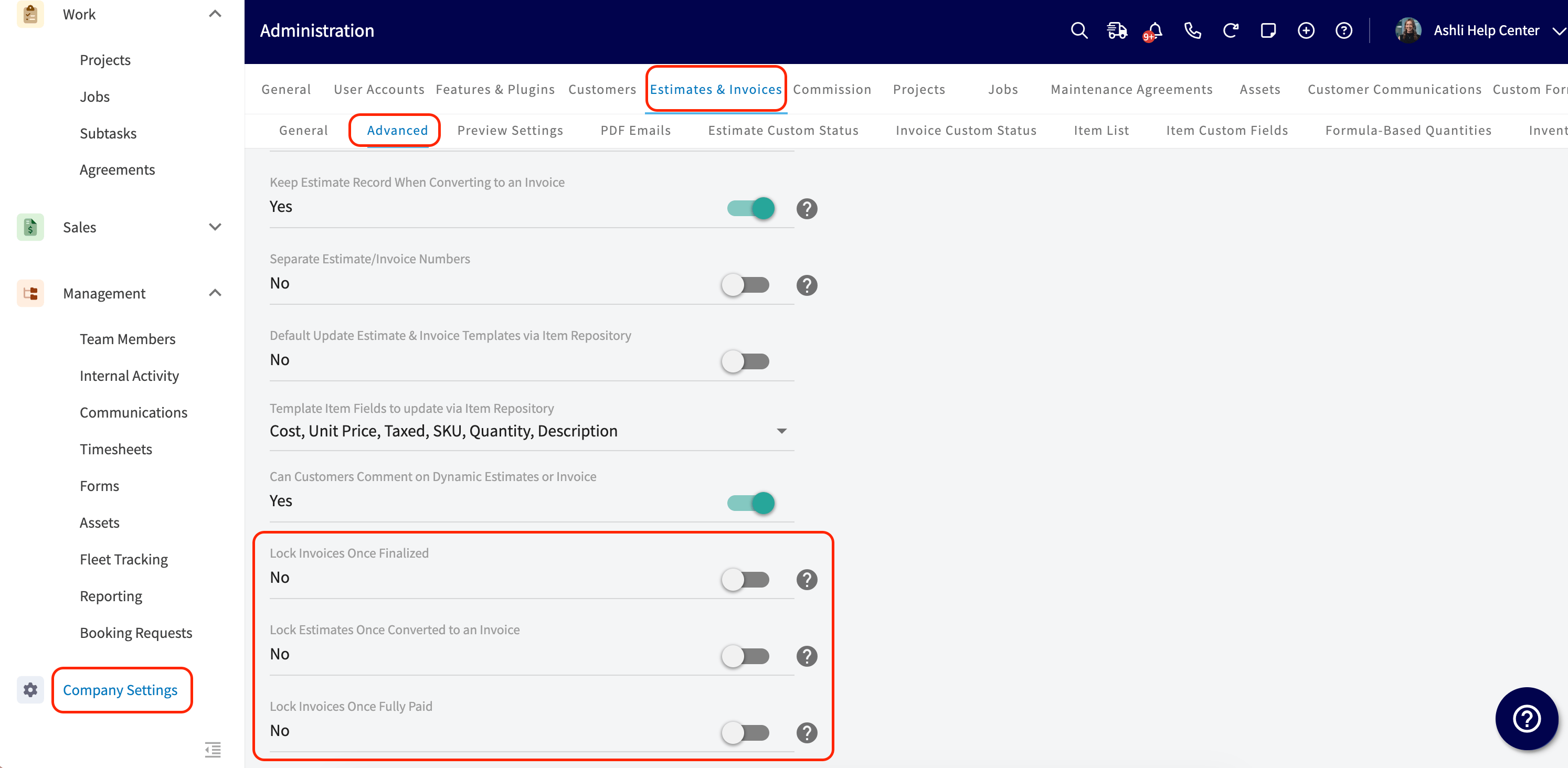
1. Select **Company Settings** in the left-side menu.
2. Select **Estimates & Invoices** in the header.
3. Select the **Advanced** tab.
4. Turn on the locking toggles you want to use — **Lock Estimates Once Converted to an Invoice**, **Lock Invoices Once Finalized**, **Lock Invoices Once Fully Paid**, or any combination. See the **Settings reference** below for what each toggle locks.
 ### Give a user override access
Most teams want at least one person who can still make edits after a record locks, such as a manager who needs to fix a typo after a payment posts. Grant that person the locked-record permissions on their user account.
1. Select **Company Settings** in the left-side menu.
2. Select **User Accounts**, then open the **Team Manager** or **Service Agent** you want to give override access to.
3. Select **Edit**, then select **User Feature Permissions**.
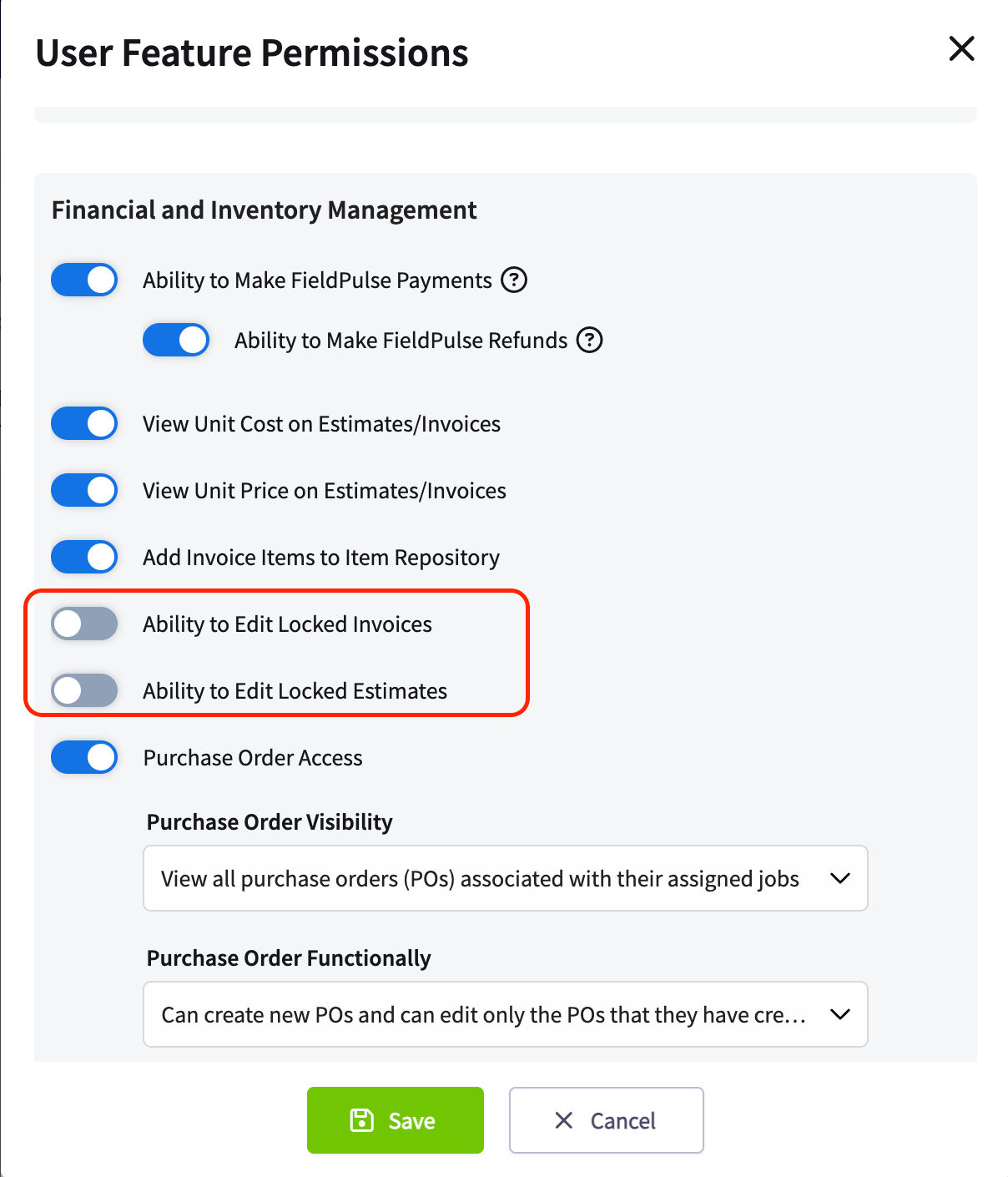
4. Under **Financial and Inventory Management**, turn on **Ability to Edit Locked Invoices**, **Ability to Edit Locked Estimates**, or both.
5. Select **Save**.
### Give a user override access
Most teams want at least one person who can still make edits after a record locks, such as a manager who needs to fix a typo after a payment posts. Grant that person the locked-record permissions on their user account.
1. Select **Company Settings** in the left-side menu.
2. Select **User Accounts**, then open the **Team Manager** or **Service Agent** you want to give override access to.
3. Select **Edit**, then select **User Feature Permissions**.
4. Under **Financial and Inventory Management**, turn on **Ability to Edit Locked Invoices**, **Ability to Edit Locked Estimates**, or both.
5. Select **Save**.
 Record locking only applies to **Team Managers** and **Service Agents**. Administrators are never restricted by the lock settings, so they do not need these permissions.
## Settings reference
The three locking toggles sit together on the **Advanced** tab under **Company Settings** > **Estimates & Invoices**, and all three are off by default.
| **Toggle** | **What it locks** |
| ----------------------------------------------- | ---------------------------------------------------------------------------------------------------------------------------------------------------------------------------------------------- |
| **Lock Estimates Once Converted to an Invoice** | Locks the estimate the moment it is converted into an invoice. The **Edit** button on the estimate is disabled on both web and mobile right after the invoice is created. |
| **Lock Invoices Once Finalized** | Locks the invoice once it is finalized. This disables both the **Edit** button and customer-facing invoice notes on web and mobile. |
| **Lock Invoices Once Fully Paid** | Locks the invoice once it is fully paid, regardless of payment method — manual, online, or synced. This disables both the **Edit** button and customer-facing invoice notes on web and mobile. |
## What happens on a locked record
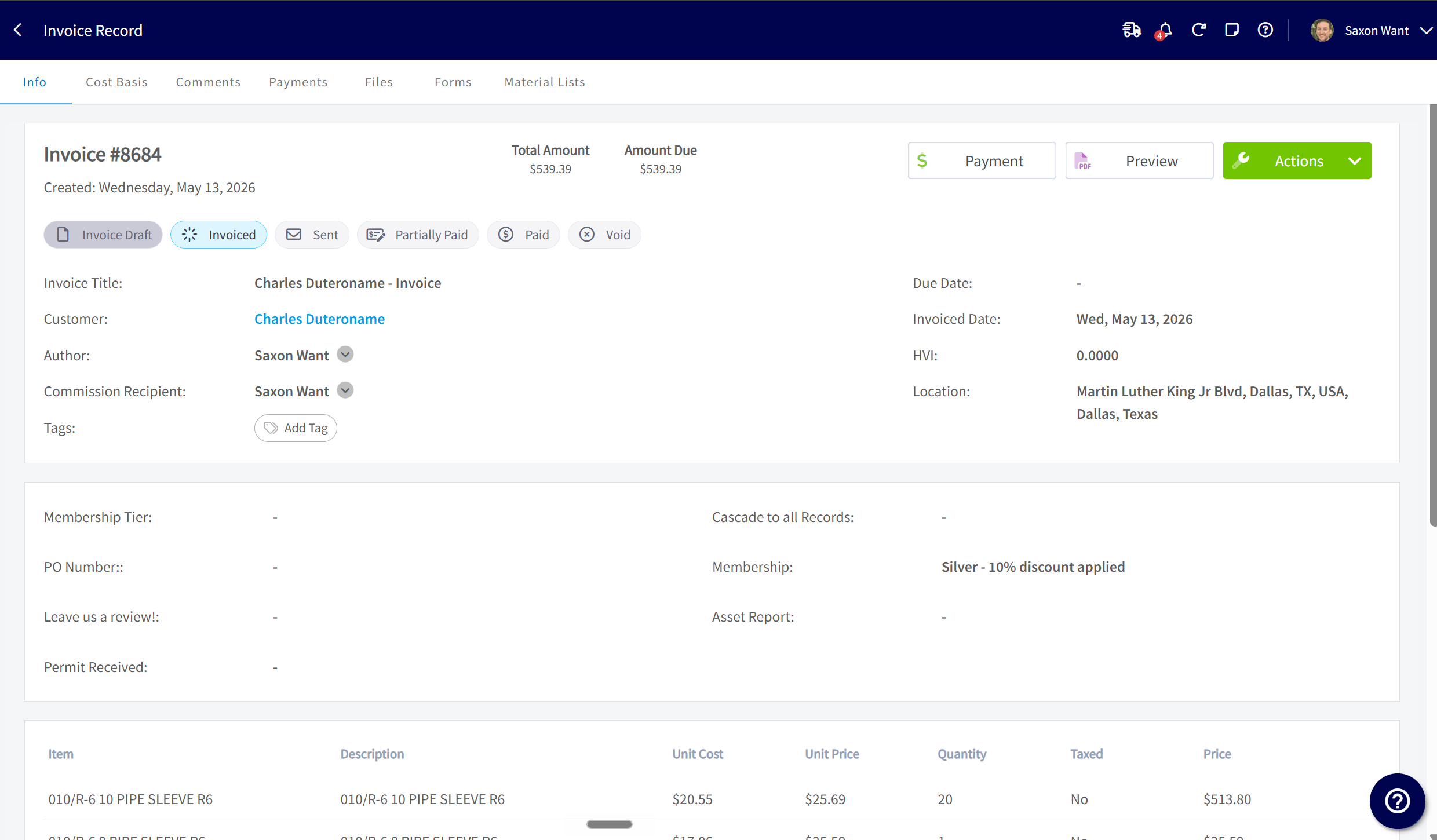
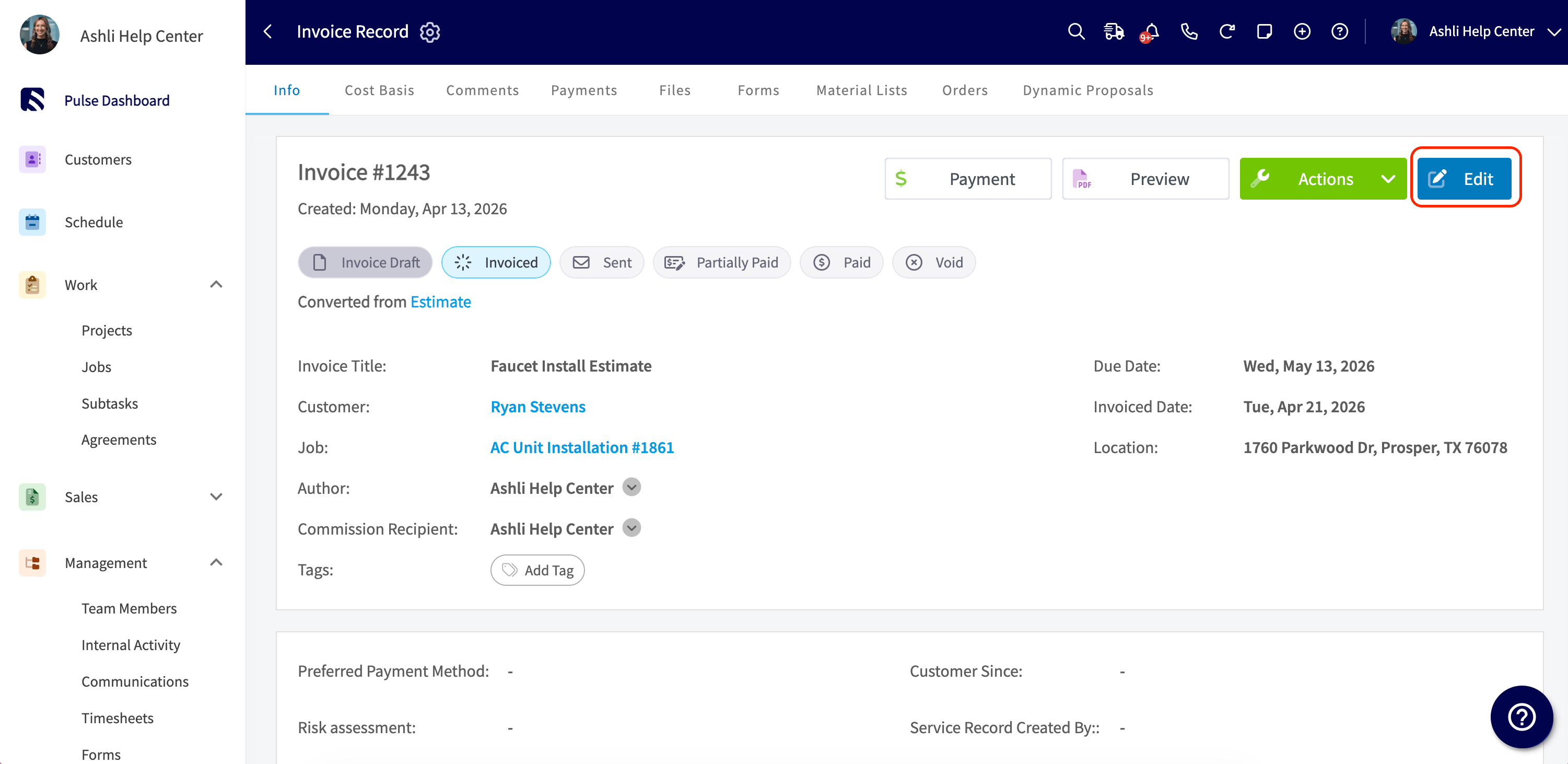
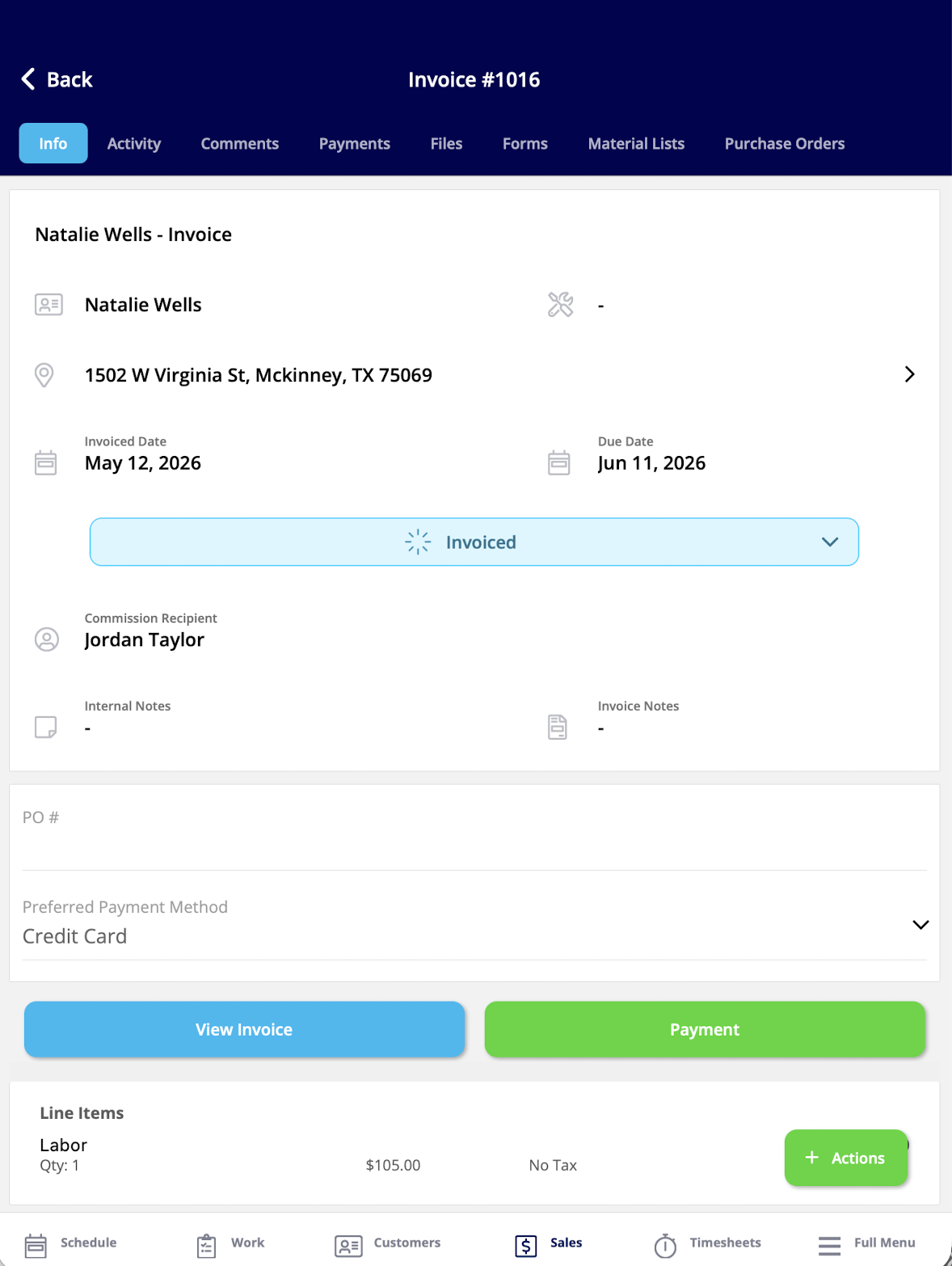
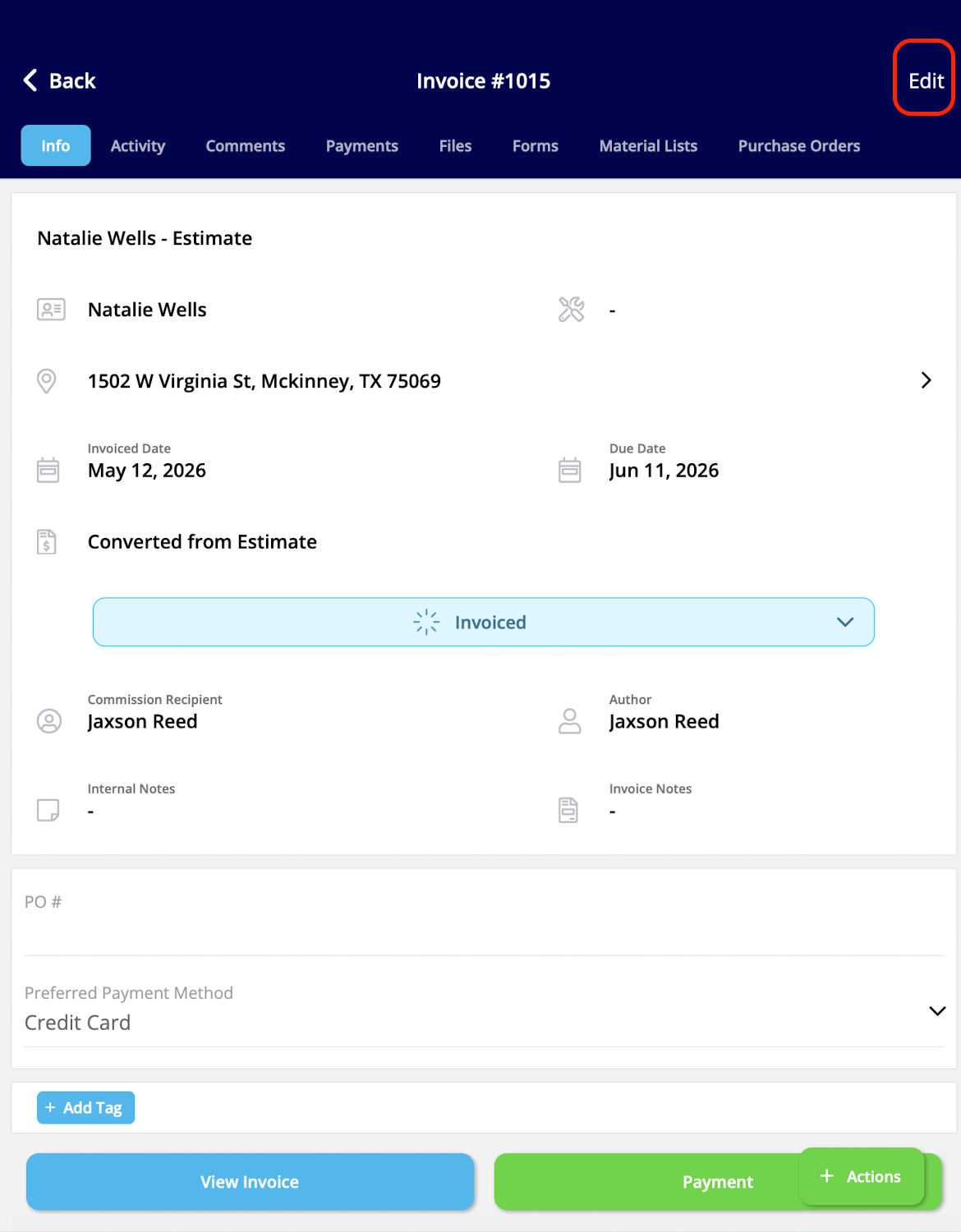
A locked estimate or invoice has no **Edit** button on the web app or on the mobile app.
**Web app — locked record on the left, unlocked record on the right**
Record locking only applies to **Team Managers** and **Service Agents**. Administrators are never restricted by the lock settings, so they do not need these permissions.
## Settings reference
The three locking toggles sit together on the **Advanced** tab under **Company Settings** > **Estimates & Invoices**, and all three are off by default.
| **Toggle** | **What it locks** |
| ----------------------------------------------- | ---------------------------------------------------------------------------------------------------------------------------------------------------------------------------------------------- |
| **Lock Estimates Once Converted to an Invoice** | Locks the estimate the moment it is converted into an invoice. The **Edit** button on the estimate is disabled on both web and mobile right after the invoice is created. |
| **Lock Invoices Once Finalized** | Locks the invoice once it is finalized. This disables both the **Edit** button and customer-facing invoice notes on web and mobile. |
| **Lock Invoices Once Fully Paid** | Locks the invoice once it is fully paid, regardless of payment method — manual, online, or synced. This disables both the **Edit** button and customer-facing invoice notes on web and mobile. |
## What happens on a locked record
A locked estimate or invoice has no **Edit** button on the web app or on the mobile app.
**Web app — locked record on the left, unlocked record on the right**
 **Mobile app — locked record on the left, unlocked record on the right**
 ### What locking turns off
* The **Edit** button (top right of the record) is disabled.
* For invoices, customer-facing invoice notes are also locked.
* Line items, pricing, taxes, discounts, notes, and customer details cannot be changed.
* Material lists cannot be added to a locked estimate or invoice.
### What stays available
* Editing tags and related customer fields from the view-only record.
* Attaching internal notes and files.
* Adding comments.
* Updating record status and custom fields.
* Viewing the full record, history, and activity.
Locking only affects edit mode on the record. Sending the record to a customer, previewing, capturing signatures, and generating PDFs all continue to work as normal.
## Still need help?
Reach the [FieldPulse support team](https://www.fieldpulse.com/company/contact-us) at [support@fieldpulse.com](mailto:support@fieldpulse.com) or through the chat feature in the bottom-right corner of your screen.
## Related articles
* [Setting Up Default Estimate & Invoice Settings](/estimates-invoices/creating/default-settings)
* [Setting Up Custom Estimate & Invoice Status Workflows](/estimates-invoices/creating/status-workflows)
* [User Roles and Permissions Details](/settings/users-teams/user-roles)
* [How to Add New Users](/settings/users-teams/adding-users)
* [How to Create an Estimate](/estimates-invoices/creating/estimate)
* [How to Create an Invoice](/estimates-invoices/creating/invoice)
Your setup is working when a Team Manager or Service Agent opens a converted, finalized, or fully paid record and finds no **Edit** button, while an Administrator and anyone you granted override access can still edit that record.
## Related topics
- [Setting Up Default Estimate & Invoice Settings](/estimates-invoices/creating/default-settings.md)
- [Setting Up Custom Estimate & Invoice Status Workflows](/estimates-invoices/creating/status-workflows.md)
- [Creating Estimates & Invoices](/estimates-invoices/creating/index.md)
- [Setting Up Custom Estimate & Invoice Themes](/estimates-invoices/templates/themes.md)
### What locking turns off
* The **Edit** button (top right of the record) is disabled.
* For invoices, customer-facing invoice notes are also locked.
* Line items, pricing, taxes, discounts, notes, and customer details cannot be changed.
* Material lists cannot be added to a locked estimate or invoice.
### What stays available
* Editing tags and related customer fields from the view-only record.
* Attaching internal notes and files.
* Adding comments.
* Updating record status and custom fields.
* Viewing the full record, history, and activity.
Locking only affects edit mode on the record. Sending the record to a customer, previewing, capturing signatures, and generating PDFs all continue to work as normal.
## Still need help?
Reach the [FieldPulse support team](https://www.fieldpulse.com/company/contact-us) at [support@fieldpulse.com](mailto:support@fieldpulse.com) or through the chat feature in the bottom-right corner of your screen.
## Related articles
* [Setting Up Default Estimate & Invoice Settings](/estimates-invoices/creating/default-settings)
* [Setting Up Custom Estimate & Invoice Status Workflows](/estimates-invoices/creating/status-workflows)
* [User Roles and Permissions Details](/settings/users-teams/user-roles)
* [How to Add New Users](/settings/users-teams/adding-users)
* [How to Create an Estimate](/estimates-invoices/creating/estimate)
* [How to Create an Invoice](/estimates-invoices/creating/invoice)
Your setup is working when a Team Manager or Service Agent opens a converted, finalized, or fully paid record and finds no **Edit** button, while an Administrator and anyone you granted override access can still edit that record.
## Related topics
- [Setting Up Default Estimate & Invoice Settings](/estimates-invoices/creating/default-settings.md)
- [Setting Up Custom Estimate & Invoice Status Workflows](/estimates-invoices/creating/status-workflows.md)
- [Creating Estimates & Invoices](/estimates-invoices/creating/index.md)
- [Setting Up Custom Estimate & Invoice Themes](/estimates-invoices/templates/themes.md)