> ## Documentation Index
> Fetch the complete documentation index at: https://help.fieldpulse.com/llms.txt
> Use this file to discover all available pages before exploring further.
# How to Use Estimate Options & Add-Ons
> Build Good, Better, Best options and optional add-ons on a single FieldPulse estimate so the customer picks their own combination and accepts the total.
> **Who uses this:** Admins and Team Managers hold the **Create & send Estimates/Invoices** permission by default, and an Admin can enable it for a Service Agent. **Availability:** All regions.
Estimate options let you put several priced choices on one [estimate](https://www.fieldpulse.com/features/estimates-and-invoices) — a Good, Better, Best layout, a Repair, Replace, Upgrade layout, or whatever set of choices you want to present. Add-on options are extras the customer can add on top of the option they choose, such as a maintenance agreement or an upgraded part. The customer makes both selections themselves on the estimate you send.
## Overview
You build estimate options and add-on options in the line item area of the estimate, and both live on the same estimate record. Each estimate option holds its own line items and its own total, and every new estimate opens with **Option 1** already in place. Add-on options are listed separately under **Add-On Options**, so the customer can add any of them on top of whichever estimate option they pick.
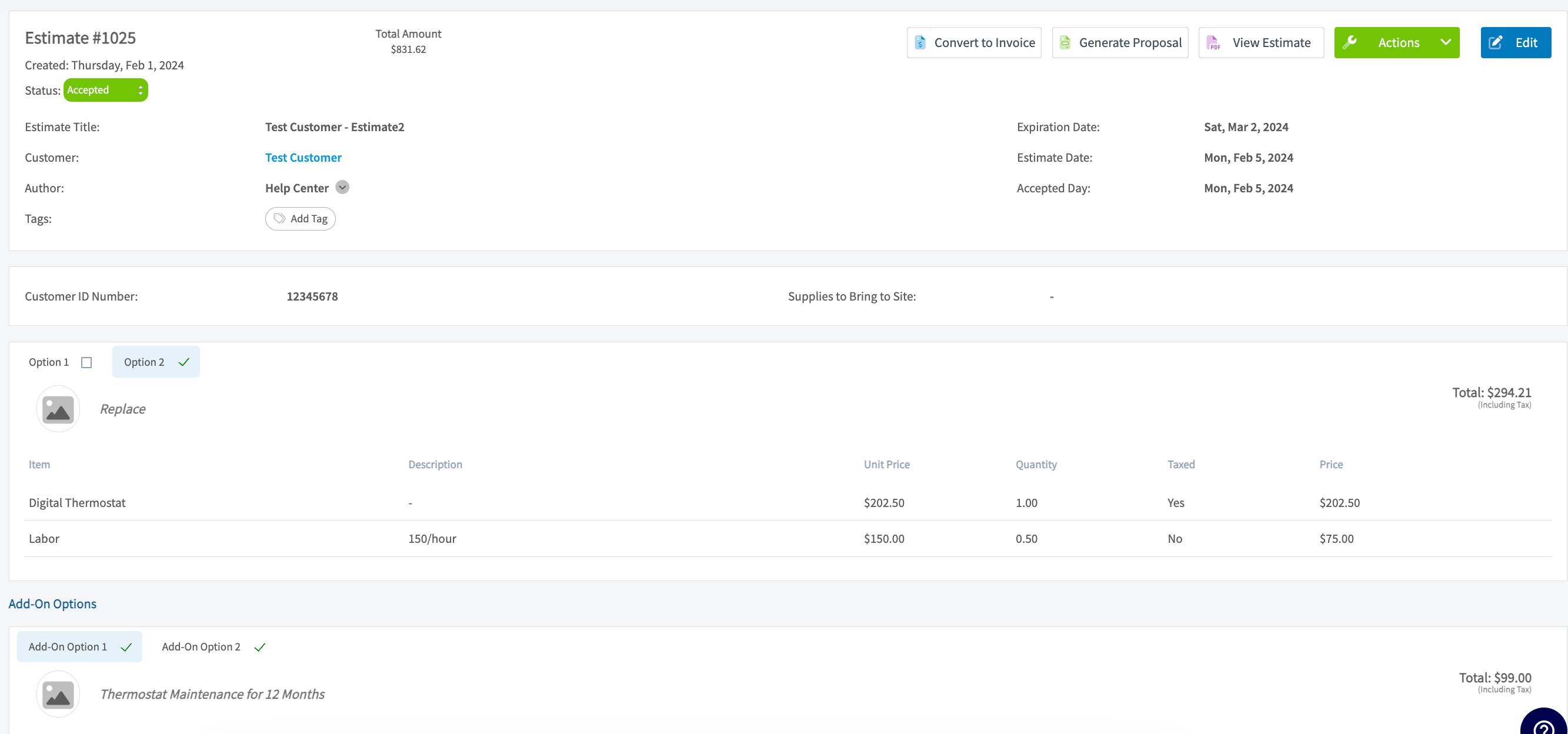
When you send the estimate, the customer selects one option, adds the add-ons they want, and confirms. The estimate status in FieldPulse then reads **Accepted**, and the option and add-ons the customer chose are checked off on the estimate record.
## Video walkthrough
Watch the [estimate options and add-ons walkthrough](https://www.loom.com/share/d29d1fa5ad074e4fb9cf592e55157c88), then follow the written steps below.
## Before you begin
* Create the estimate you want to build options on. See [How to Create an Estimate](/estimates-invoices/creating/estimate).
* Confirm your role can create estimates. Admins and Team Managers hold the **Create & send Estimates/Invoices** permission by default, and an Admin can enable it for a Service Agent — see [User Roles and Permissions Details](/settings/users-teams/user-roles).
## Build estimate options
1. Open the estimate and scroll to the line item area. **Option 1** appears there by default.
2. Add the line items for **Option 1**.
3. Select **+ Add Estimate Option** to create the next option, then add its line items.
4. Repeat for each option you want to offer.
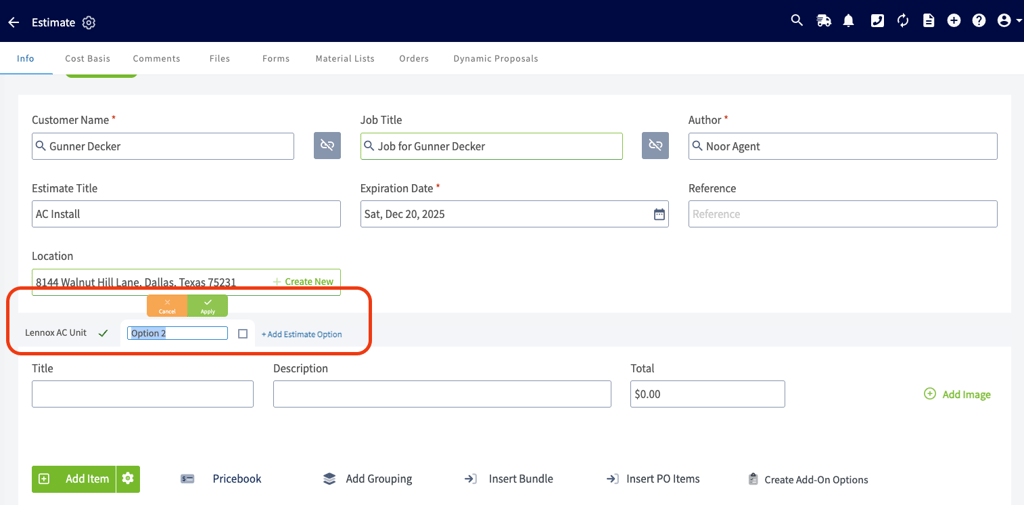
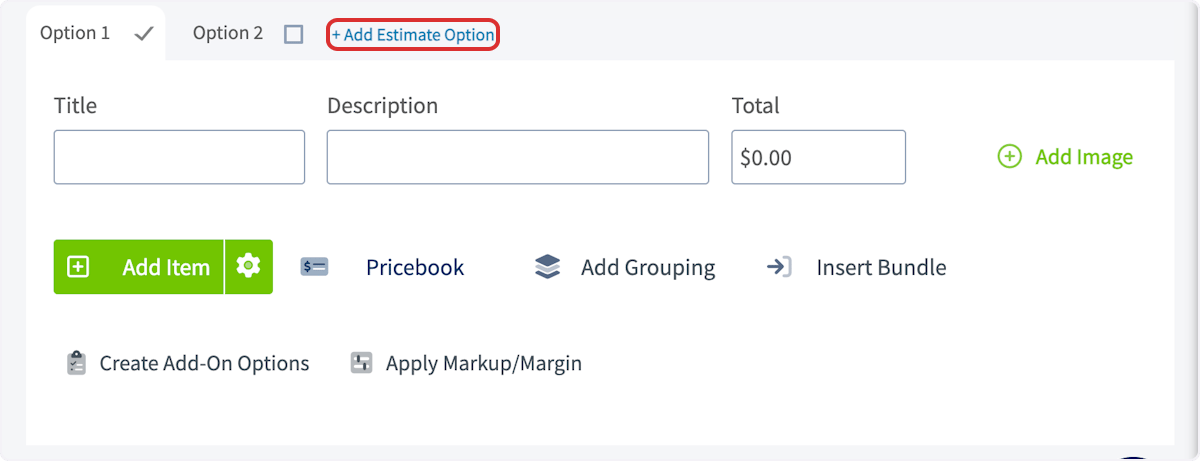 5. To rename an option, select the option tab name, type the title you want, and select **Apply**. Option titles can be up to 30 characters, and the text wraps as needed so the full title stays visible.
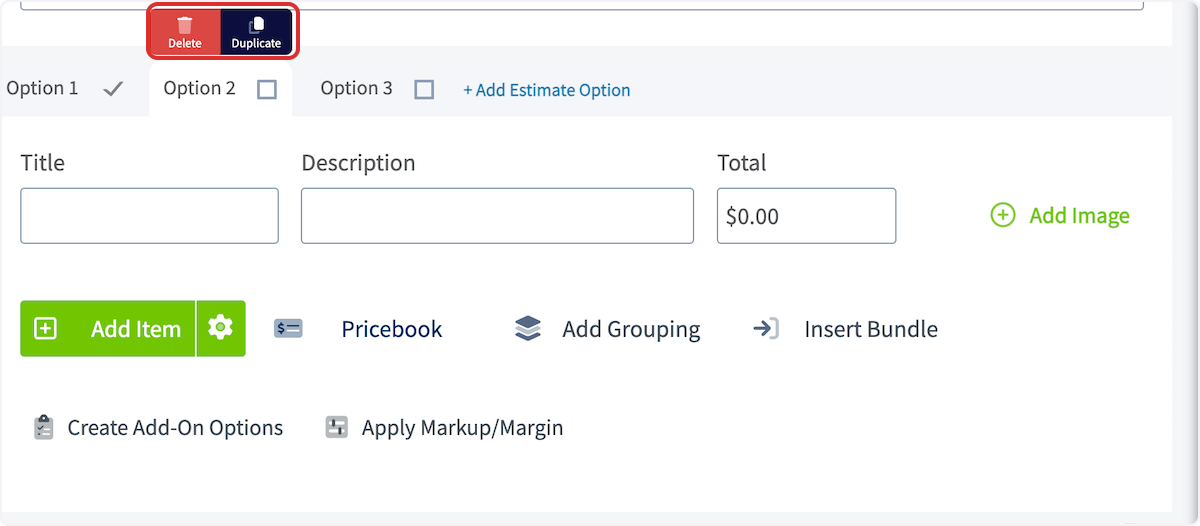
 6. To delete or duplicate an option, hover over the option title and select **Delete** or **Duplicate**.
 The option titles you set appear consistently across:
* Estimate View
* Estimate Preview
* Dynamic Estimate (web and mobile)
* PDF exports
## Build add-on options
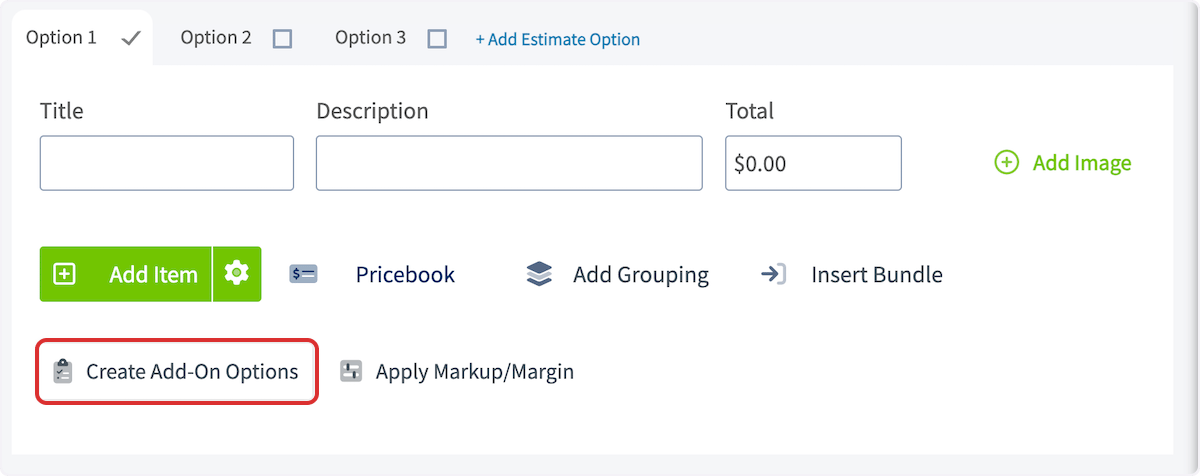
1. On the same estimate, select **Create Add-On Options**.
The option titles you set appear consistently across:
* Estimate View
* Estimate Preview
* Dynamic Estimate (web and mobile)
* PDF exports
## Build add-on options
1. On the same estimate, select **Create Add-On Options**.
 2. Add the line items for **Add-On Option 1**.
3. Select **+ Add Add-On Option** to create another add-on option, then add its line items.
2. Add the line items for **Add-On Option 1**.
3. Select **+ Add Add-On Option** to create another add-on option, then add its line items.
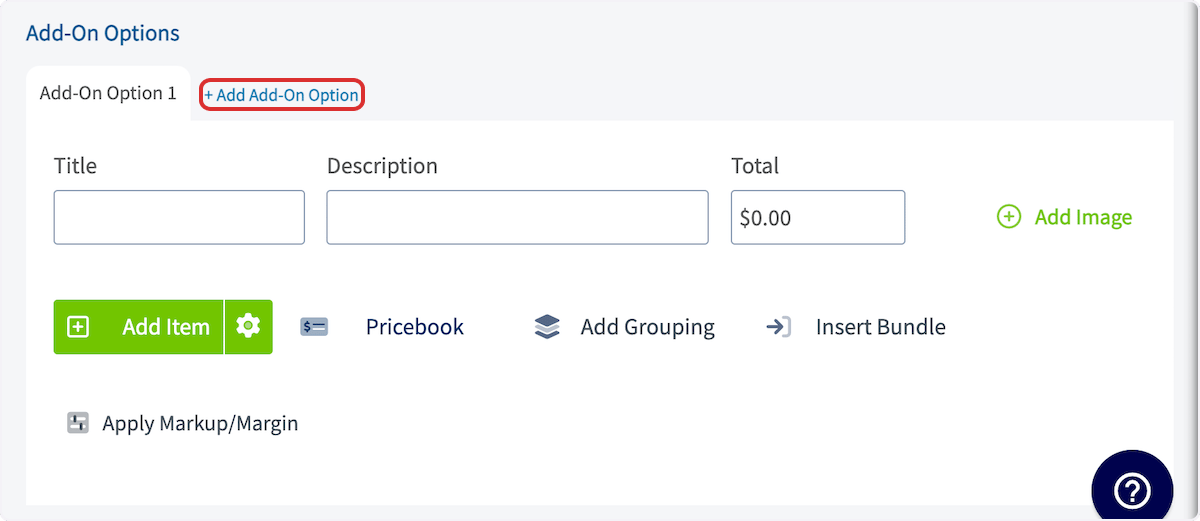 4. To delete or duplicate an add-on option, hover over its title and select **Delete** or **Duplicate**.
## What the customer sees
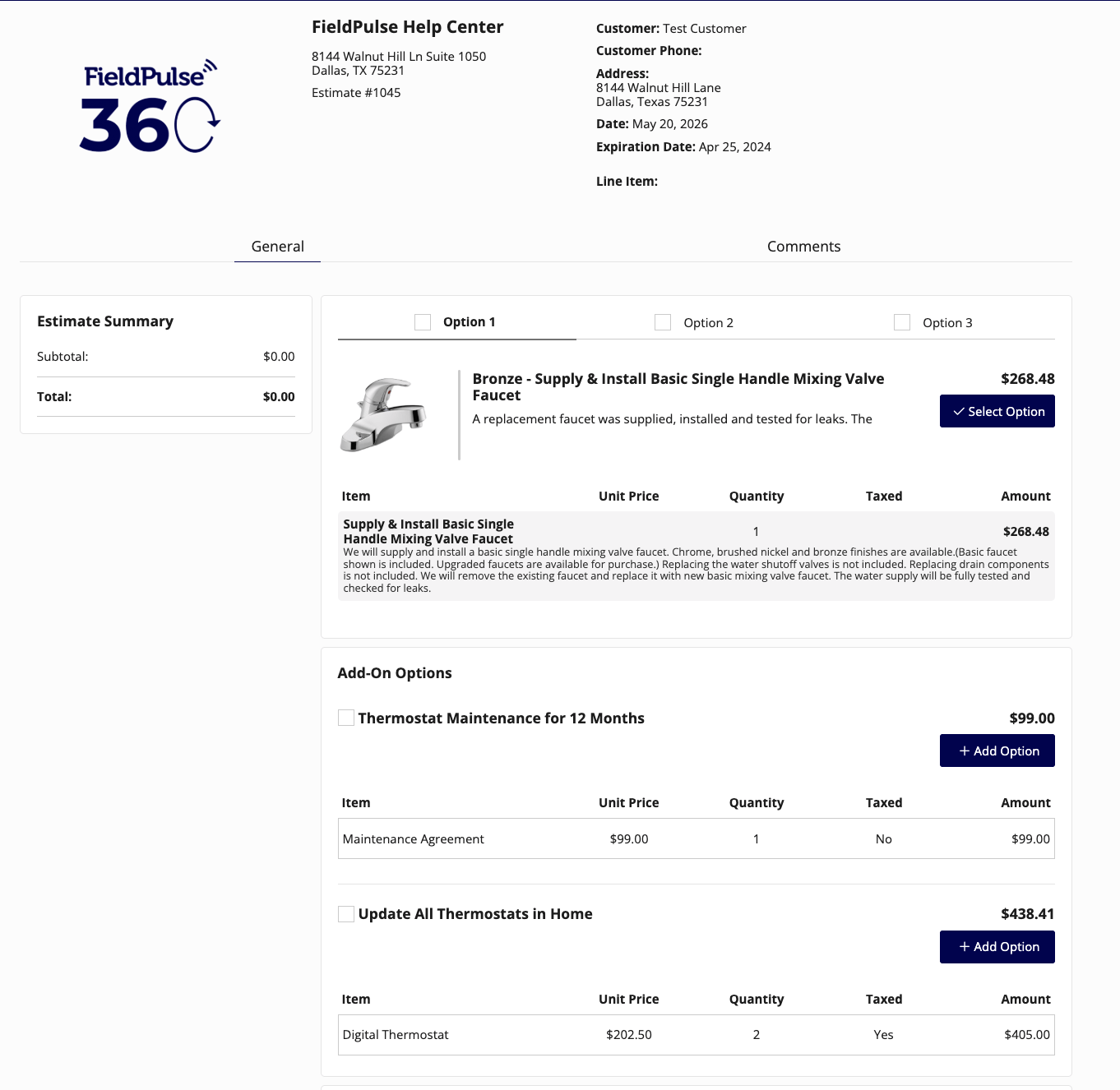
The customer opens the estimate and sees each option on its own tab with an **Add-On Options** list underneath, and the **Total** reads \$0.00 until they make a selection.
4. To delete or duplicate an add-on option, hover over its title and select **Delete** or **Duplicate**.
## What the customer sees
The customer opens the estimate and sees each option on its own tab with an **Add-On Options** list underneath, and the **Total** reads \$0.00 until they make a selection.
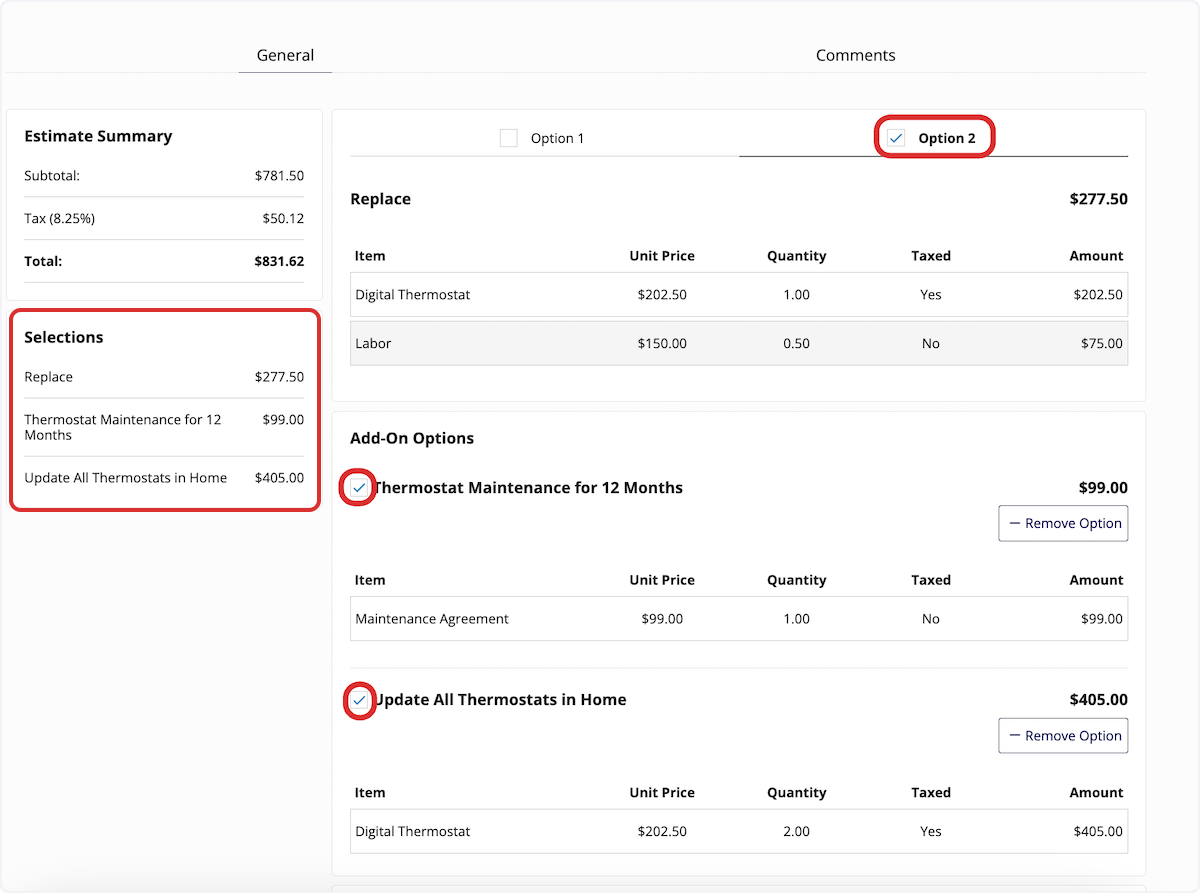
 The customer selects their preferred option and any add-ons they want. Their running total and a **Selections** list appear on the left side of the estimate.
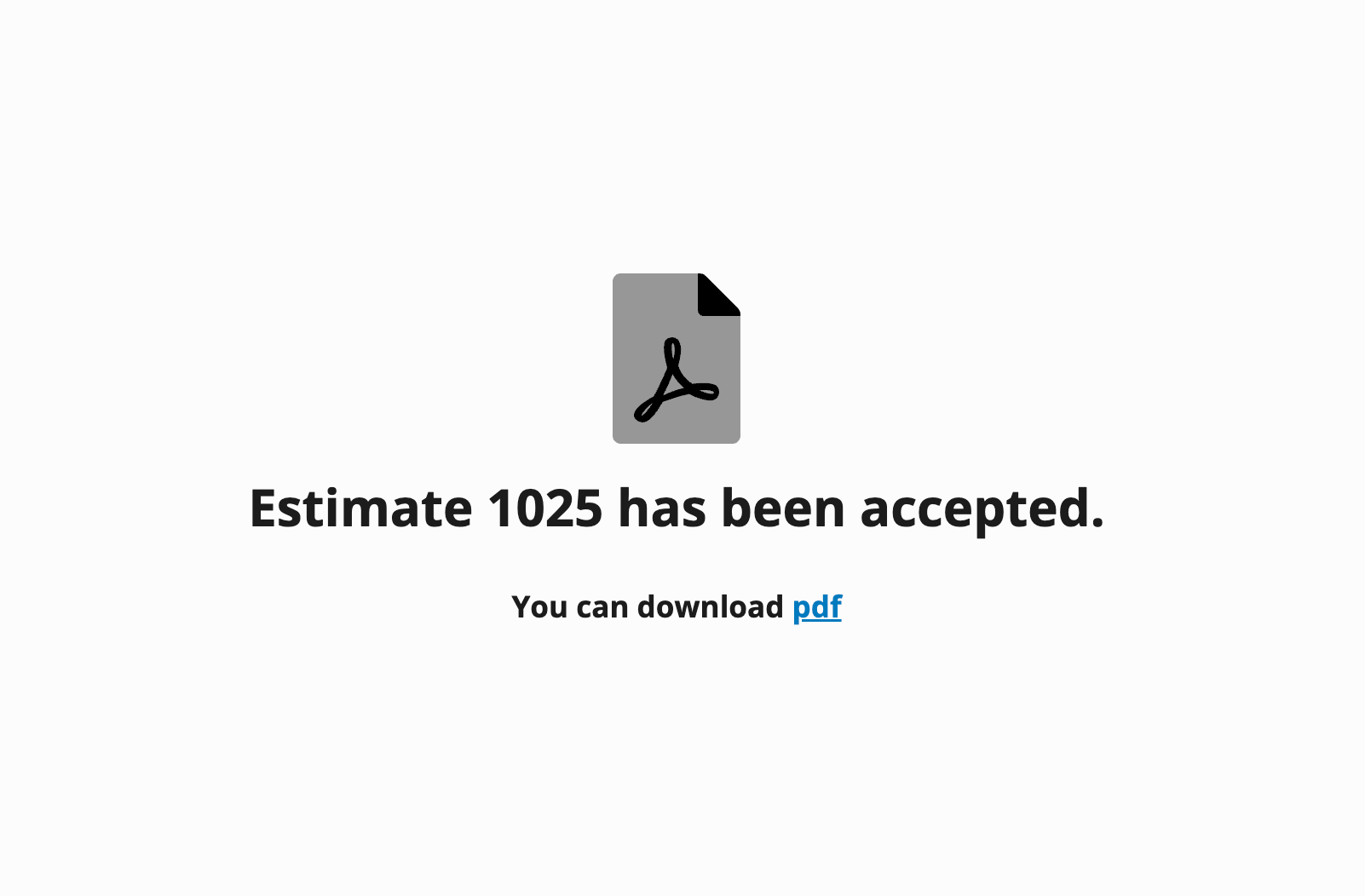
 After the customer confirms their selections, a message tells them the estimate has been accepted and offers the estimate as a PDF download.
 In FieldPulse, the status on the estimate reads **Accepted**, and the option and add-on options the customer selected are checked off on the record.
 For everything else your customer receives with an estimate, see [Estimate & Invoice Customer Experience Overview](/estimates-invoices/creating/customer-view).
## FAQs
### What happens if I email an estimate with options and the customer does not select one?
An error message tells the customer they must select an option before they can sign and accept the estimate.
## Still need help?
Reach the [FieldPulse support team](https://www.fieldpulse.com/company/contact-us) at [support@fieldpulse.com](mailto:support@fieldpulse.com) or through the chat feature in the bottom-right corner of your screen.
## Related articles
* [How to Create an Estimate](/estimates-invoices/creating/estimate)
* [How to Request a Customer Signature](/estimates-invoices/options/customer-signature)
* [How to Use Line Item Bundles & Groupings](/estimates-invoices/creating/line-item-bundles)
* [Estimate & Invoice Customer Experience Overview](/estimates-invoices/creating/customer-view)
* [Dynamic Proposals Overview](/add-ons/sales-suite/dynamic-proposals)
Your estimate is set up right when the customer opens it, picks one option and the add-ons they want, and the estimate comes back marked **Accepted** with their exact selections and total already recorded.
## Related topics
- [How to Create an Estimate](/estimates-invoices/creating/estimate.md)
- [How to Create an Invoice](/estimates-invoices/creating/invoice.md)
- [Options, Add-Ons & Signatures](/estimates-invoices/options/index.md)
- [How to Request a Customer Signature](/estimates-invoices/options/customer-signature.md)
For everything else your customer receives with an estimate, see [Estimate & Invoice Customer Experience Overview](/estimates-invoices/creating/customer-view).
## FAQs
### What happens if I email an estimate with options and the customer does not select one?
An error message tells the customer they must select an option before they can sign and accept the estimate.
## Still need help?
Reach the [FieldPulse support team](https://www.fieldpulse.com/company/contact-us) at [support@fieldpulse.com](mailto:support@fieldpulse.com) or through the chat feature in the bottom-right corner of your screen.
## Related articles
* [How to Create an Estimate](/estimates-invoices/creating/estimate)
* [How to Request a Customer Signature](/estimates-invoices/options/customer-signature)
* [How to Use Line Item Bundles & Groupings](/estimates-invoices/creating/line-item-bundles)
* [Estimate & Invoice Customer Experience Overview](/estimates-invoices/creating/customer-view)
* [Dynamic Proposals Overview](/add-ons/sales-suite/dynamic-proposals)
Your estimate is set up right when the customer opens it, picks one option and the add-ons they want, and the estimate comes back marked **Accepted** with their exact selections and total already recorded.
## Related topics
- [How to Create an Estimate](/estimates-invoices/creating/estimate.md)
- [How to Create an Invoice](/estimates-invoices/creating/invoice.md)
- [Options, Add-Ons & Signatures](/estimates-invoices/options/index.md)
- [How to Request a Customer Signature](/estimates-invoices/options/customer-signature.md)