> ## Documentation Index
> Fetch the complete documentation index at: https://help.fieldpulse.com/llms.txt
> Use this file to discover all available pages before exploring further.
# Setting Up Alternative Company Profiles
> Add a second company profile in FieldPulse with its own logo and contact details, then switch an estimate or invoice to that brand before you send it.
> **Who uses this:** An Admin creates alternative company profiles, because Company Settings is Admin-only. Admins and Team Managers can then switch a document to a different profile, as can Service Agents when an Admin enables the create-and-send estimates and invoices permission for their role. **Availability:** All regions and plans.
An alternative company profile is a second set of business branding — logo, business name, and contact details — that you can apply to an [estimate or invoice](https://www.fieldpulse.com/features/estimates-and-invoices) in place of your default company profile. Set one up when you send documents under more than one brand or from more than one location out of the same FieldPulse account.
## Overview
An alternative company profile lets a single FieldPulse account send estimates and invoices under more than one brand. You might run an HVAC business with its own logo alongside a separate plumbing business, or represent a second location of the same business. The alternative company profile holds that other set of details, so the estimate or invoice your customer receives carries the right brand.
You create alternative company profiles once in Company Settings, and you pick the profile on the individual estimate or invoice before you send it. Every document you don't switch keeps your default company profile. You can create more than one alternative company profile — for example, one per brand or location.
## Before you begin
* Have the logo, business name, and contact details ready for the alternative profile.
* Confirm your role can open Company Settings. Only Admins can view Company Settings — see [User Roles and Permissions Details](/settings/users-teams/user-roles).
## Step-by-step setup
### Create an alternative company profile
1. Go to **Company Settings**.
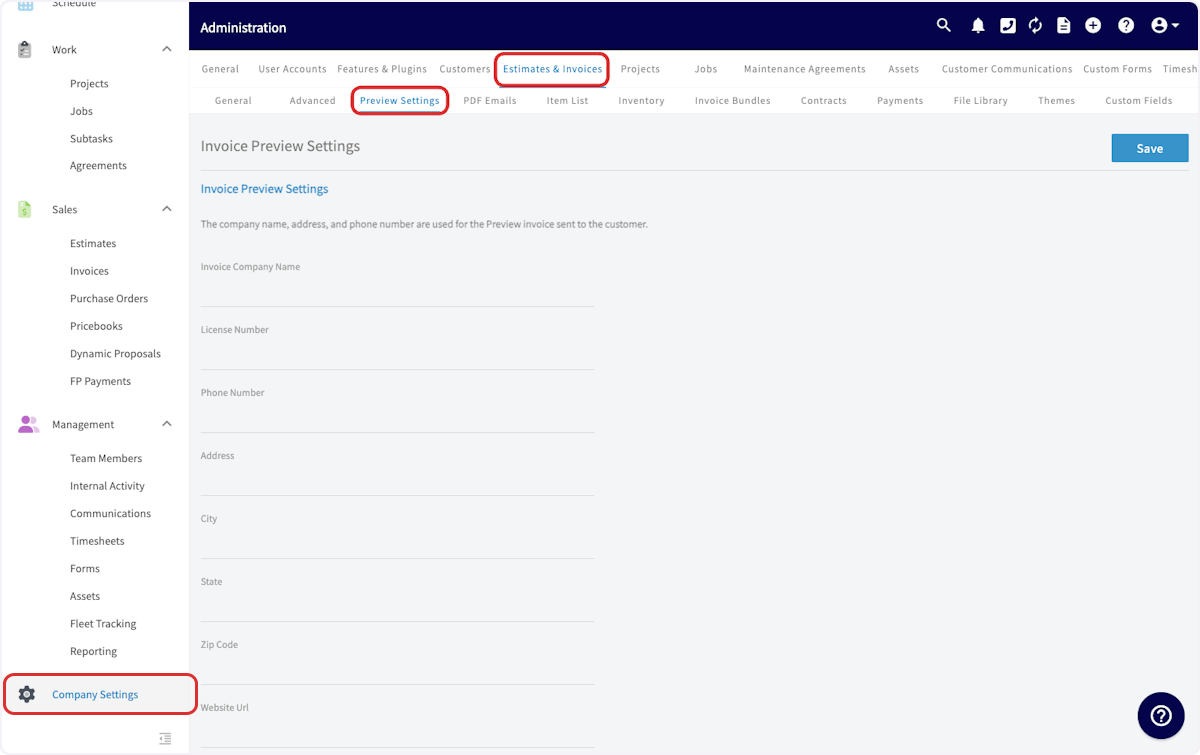 2. Select **Estimates & Invoices**, then **Preview Settings**.
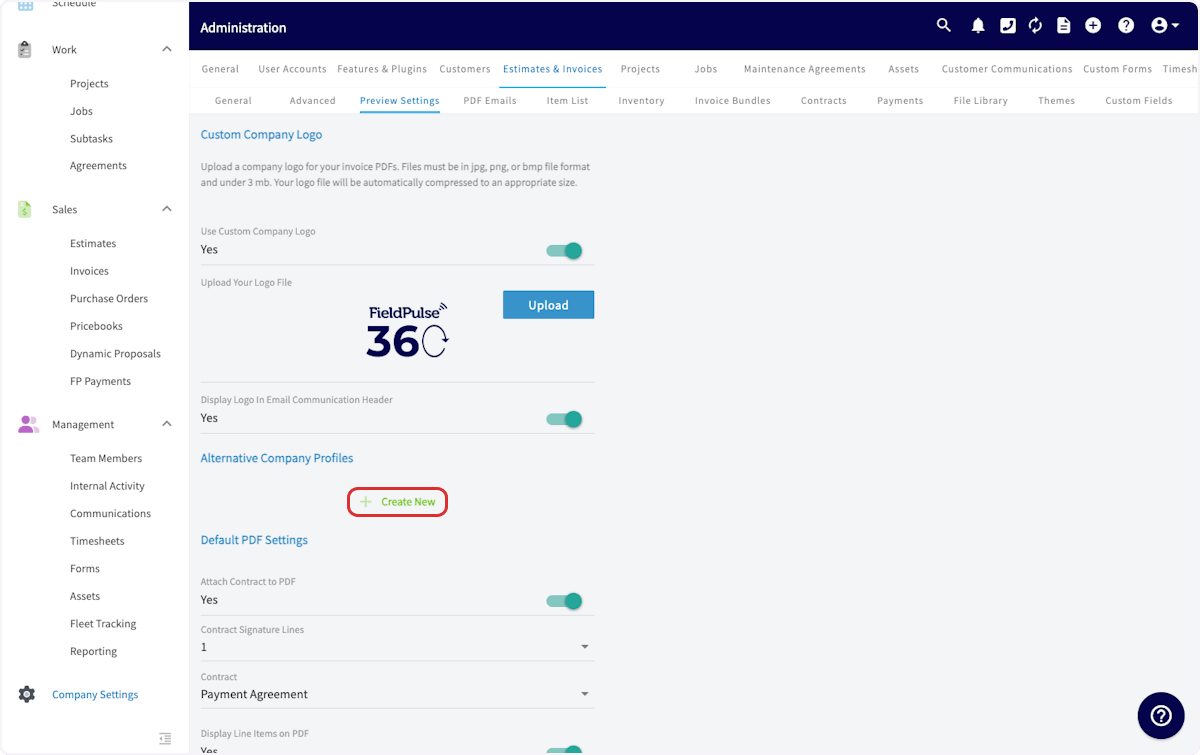
3. Scroll to **Alternative Company Profile** and select **Create New**.
2. Select **Estimates & Invoices**, then **Preview Settings**.
3. Scroll to **Alternative Company Profile** and select **Create New**.
 4. Enter the details for the alternative profile, including a logo.
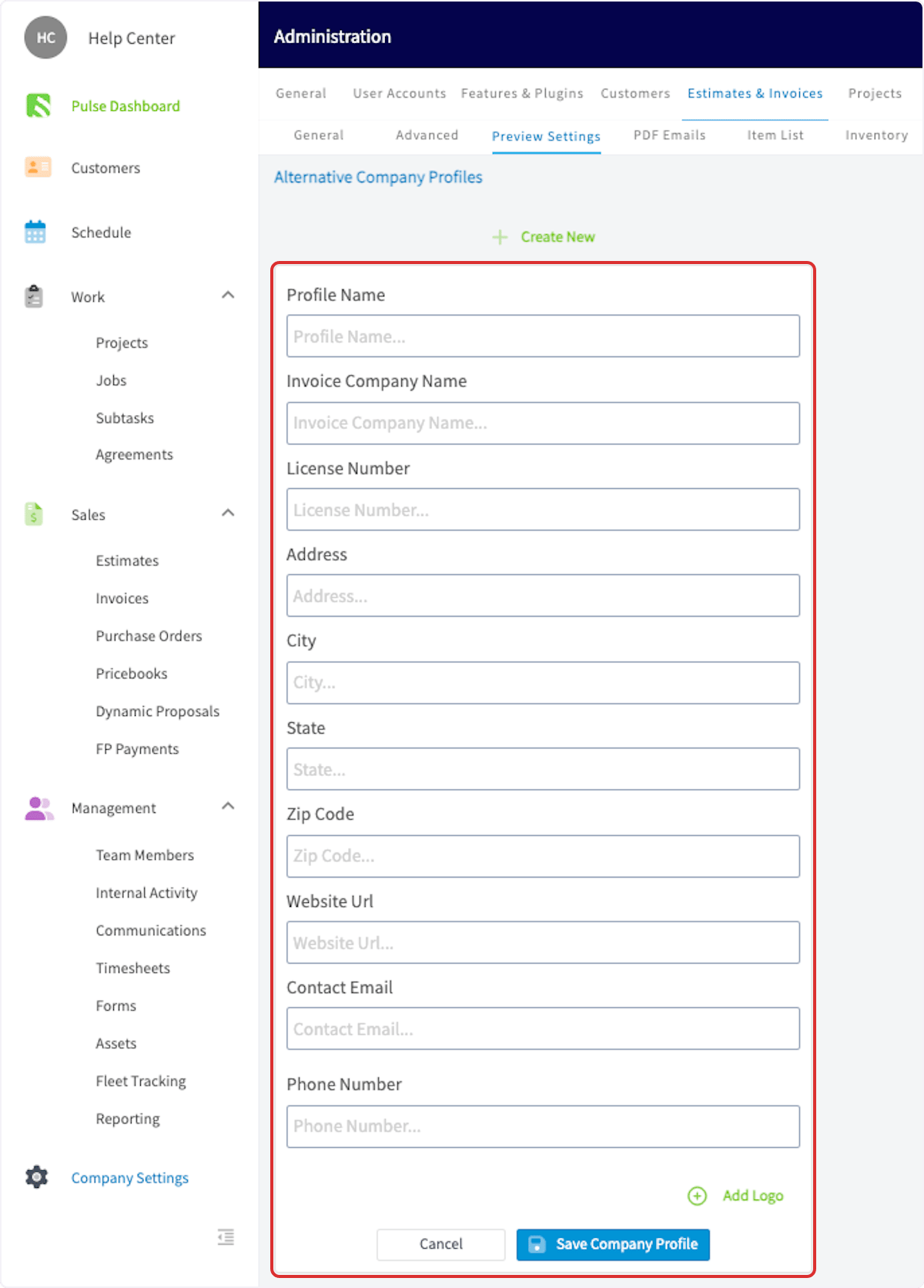 5. Select **Save Company Profile**.
### Apply an alternative company profile to an estimate or invoice
1. Open the estimate or invoice record, then select **View Estimate**.
5. Select **Save Company Profile**.
### Apply an alternative company profile to an estimate or invoice
1. Open the estimate or invoice record, then select **View Estimate**.
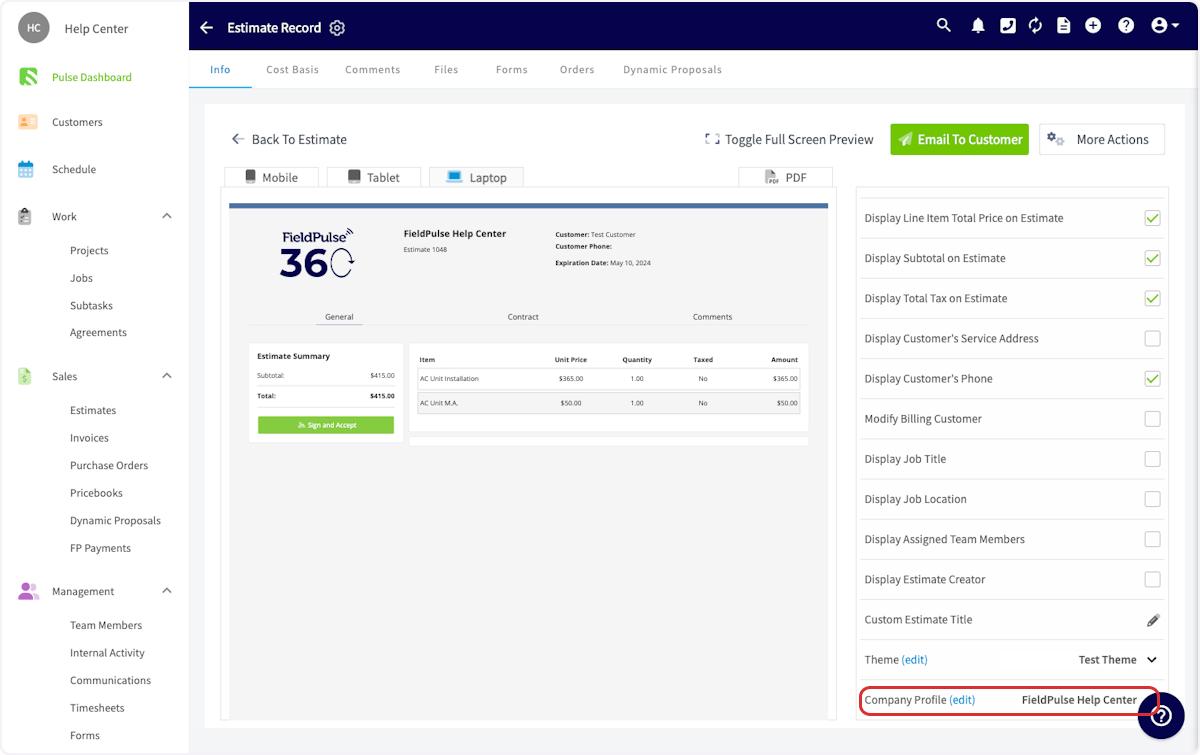
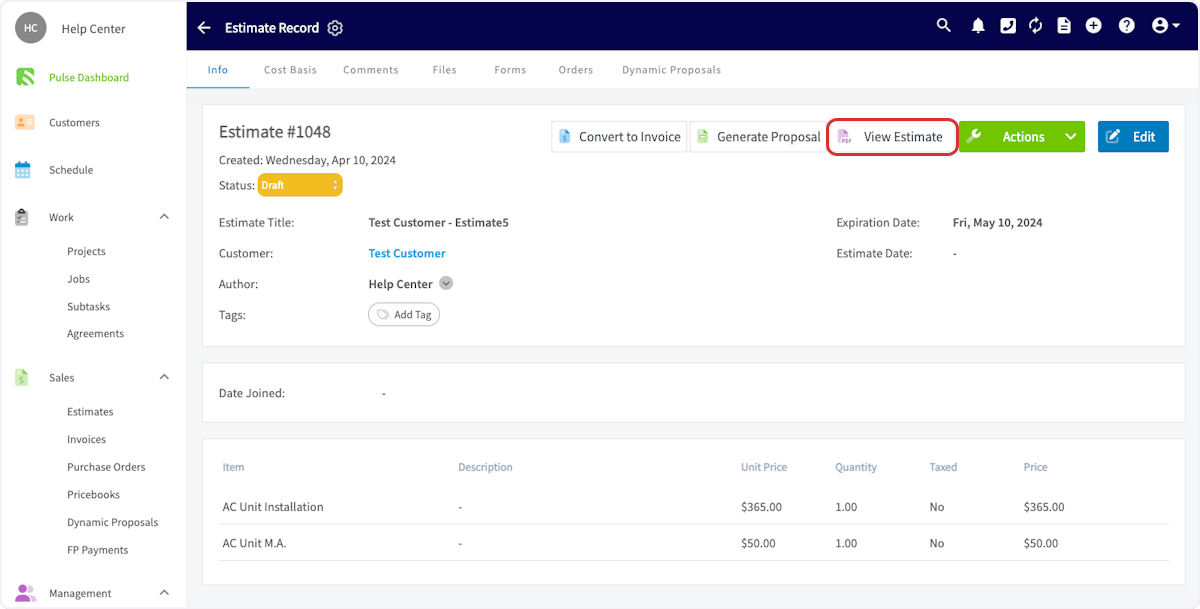 2. Scroll down in the right-side menu and select the company profile you want to use.
 3. Confirm the logo and business details on the document match the alternative profile.
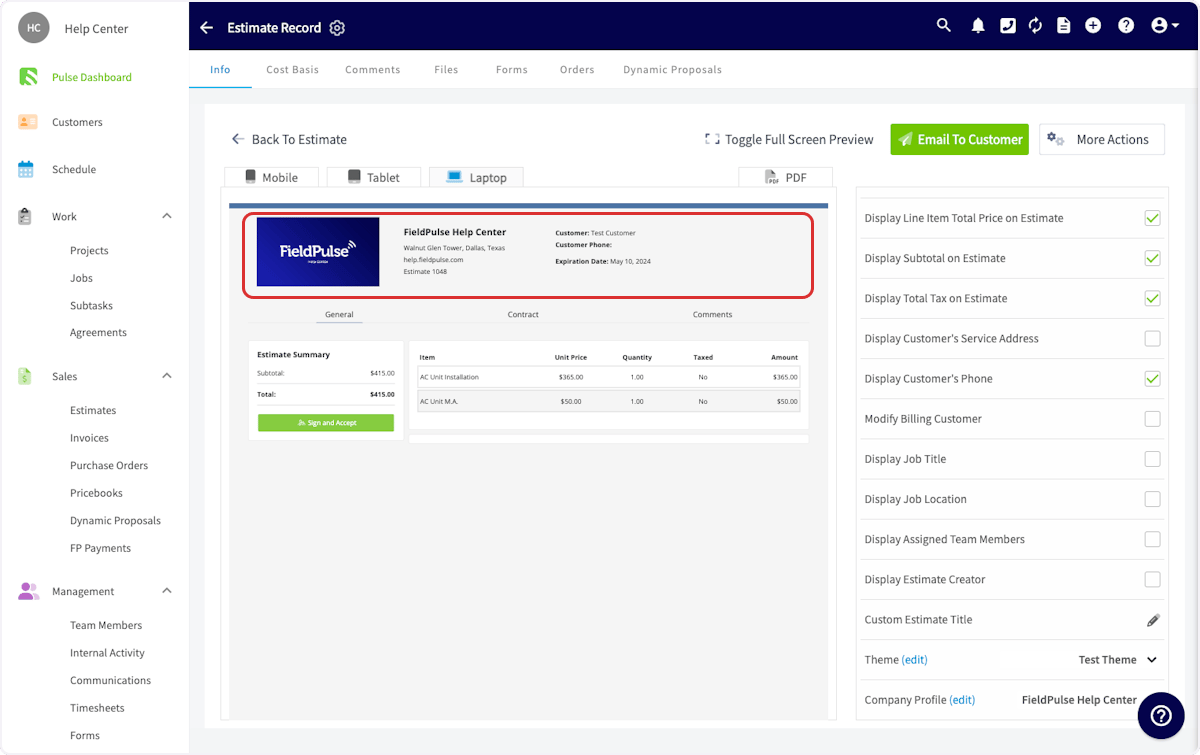 The estimate or invoice now carries the alternative branding and is ready to [send to your customer](/estimates-invoices/creating/sending).
## FAQs
### Does switching the company profile change my other estimates and invoices?
No. The company profile you pick applies to that one estimate or invoice, and every other document keeps your default company profile.
### Can I create more than one alternative company profile?
Yes. Create a separate profile for each brand or location you send documents under, then pick the right profile on each estimate or invoice.
### Where does the alternative company profile appear?
The alternative company profile replaces the logo, business name, and contact details on the estimate or invoice your customer opens. Your line items, pricing, and notes stay exactly as you built them.
## Related articles
* [Setting Up Custom Estimate & Invoice Themes](/estimates-invoices/templates/themes)
* [How to Send Estimates & Invoices to Customers](/estimates-invoices/creating/sending)
* [Setting Up Default Estimate & Invoice Settings](/estimates-invoices/creating/default-settings)
* [Estimate & Invoice Customer Experience Overview](/estimates-invoices/creating/customer-view)
* [User Roles and Permissions Details](/settings/users-teams/user-roles)
Your alternative company profile is ready when a customer receives an estimate or invoice showing the right logo, business name, and contact details without you rebuilding those details each time.
## Related topics
- [Templates & Themes](/estimates-invoices/templates/index.md)
- [Setting Up Default Estimate & Invoice Settings](/estimates-invoices/creating/default-settings.md)
- [Setting Up Custom Estimate & Invoice Themes](/estimates-invoices/templates/themes.md)
- [Setting Up the CompanyCam Integration](/integrations/partner-apps/companycam.md)
The estimate or invoice now carries the alternative branding and is ready to [send to your customer](/estimates-invoices/creating/sending).
## FAQs
### Does switching the company profile change my other estimates and invoices?
No. The company profile you pick applies to that one estimate or invoice, and every other document keeps your default company profile.
### Can I create more than one alternative company profile?
Yes. Create a separate profile for each brand or location you send documents under, then pick the right profile on each estimate or invoice.
### Where does the alternative company profile appear?
The alternative company profile replaces the logo, business name, and contact details on the estimate or invoice your customer opens. Your line items, pricing, and notes stay exactly as you built them.
## Related articles
* [Setting Up Custom Estimate & Invoice Themes](/estimates-invoices/templates/themes)
* [How to Send Estimates & Invoices to Customers](/estimates-invoices/creating/sending)
* [Setting Up Default Estimate & Invoice Settings](/estimates-invoices/creating/default-settings)
* [Estimate & Invoice Customer Experience Overview](/estimates-invoices/creating/customer-view)
* [User Roles and Permissions Details](/settings/users-teams/user-roles)
Your alternative company profile is ready when a customer receives an estimate or invoice showing the right logo, business name, and contact details without you rebuilding those details each time.
## Related topics
- [Templates & Themes](/estimates-invoices/templates/index.md)
- [Setting Up Default Estimate & Invoice Settings](/estimates-invoices/creating/default-settings.md)
- [Setting Up Custom Estimate & Invoice Themes](/estimates-invoices/templates/themes.md)
- [Setting Up the CompanyCam Integration](/integrations/partner-apps/companycam.md)