> ## Documentation Index
> Fetch the complete documentation index at: https://help.fieldpulse.com/llms.txt
> Use this file to discover all available pages before exploring further.
# Import and Export Custom Form Templates
> Export a finished form and import it into another account in one click instead of rebuilding 50-plus fields by hand.
# Overview
Building a great Custom Form takes time. Once you've nailed the fields, sections, and conditional logic, you shouldn't have to rebuild it from scratch every time you want to use it somewhere else. You don't have to, with one click you can export or import.
***
# Why this matters
Whether you run multiple locations, manage a franchise, or just want to share a working template outside of FieldPulse, this saves you from rebuilding 50+ fields by hand. Use it to:
* Replicate a single source-of-truth template across child accounts
* Import a pre-built Custom Form template
* Back up your most important forms before making big changes
We built this for the same reason your team builds a checklist: do the work once, then reuse it.
***
# Who can use this
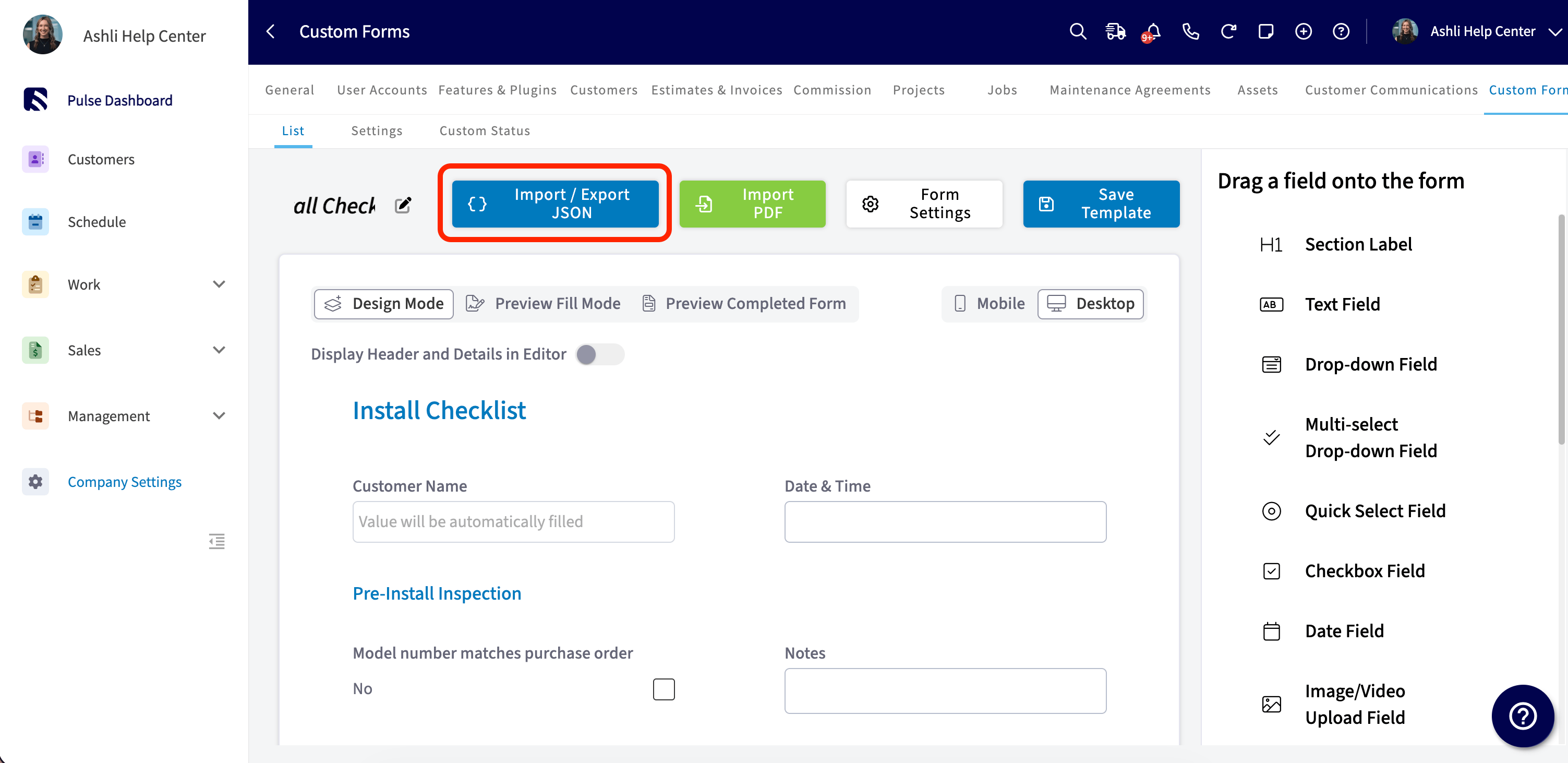
Import / Export JSON is admin-only and lives in Company Settings under Custom Forms. It's available on web only. You'll see the dropdown inside the Custom Form Template editor, right next to Import PDF, Form Settings, and Save Template.
***
# How to export a template
**Step 1:** Open Company Settings and click Custom Forms.
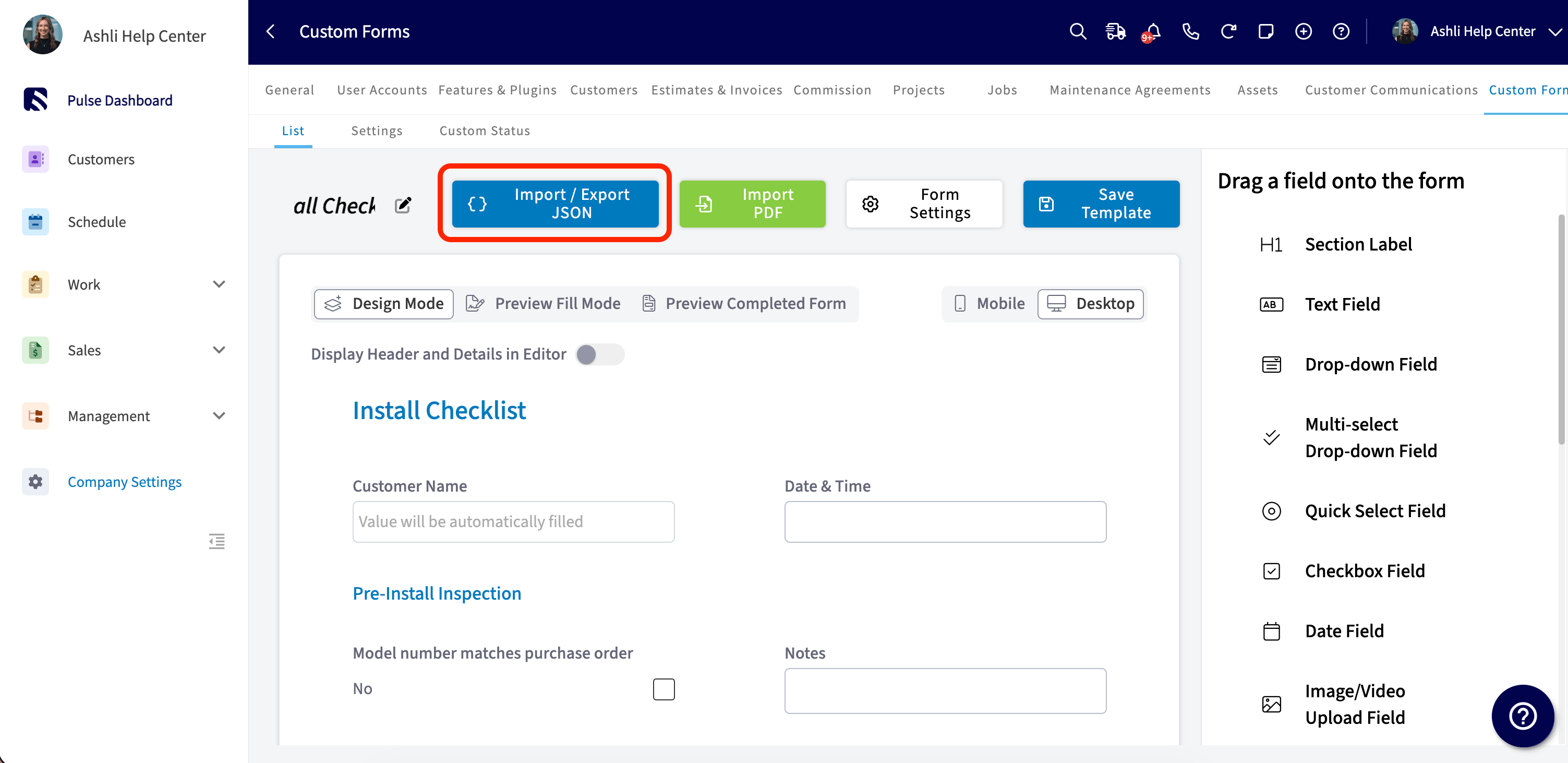
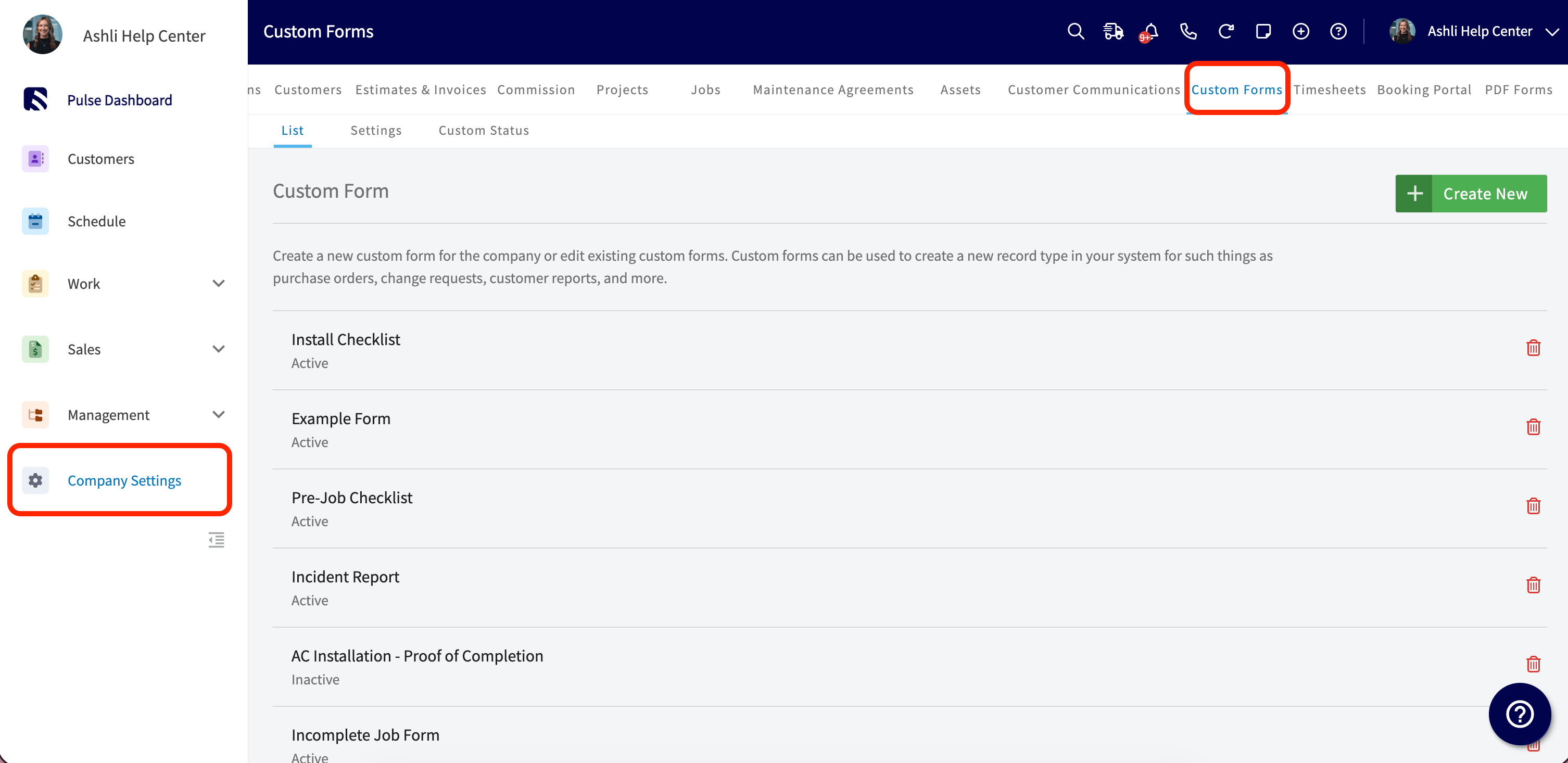 **Step 2:** Open the template you want to export and click Import / Export JSON.
 **Step 3:** Choose Export JSON.
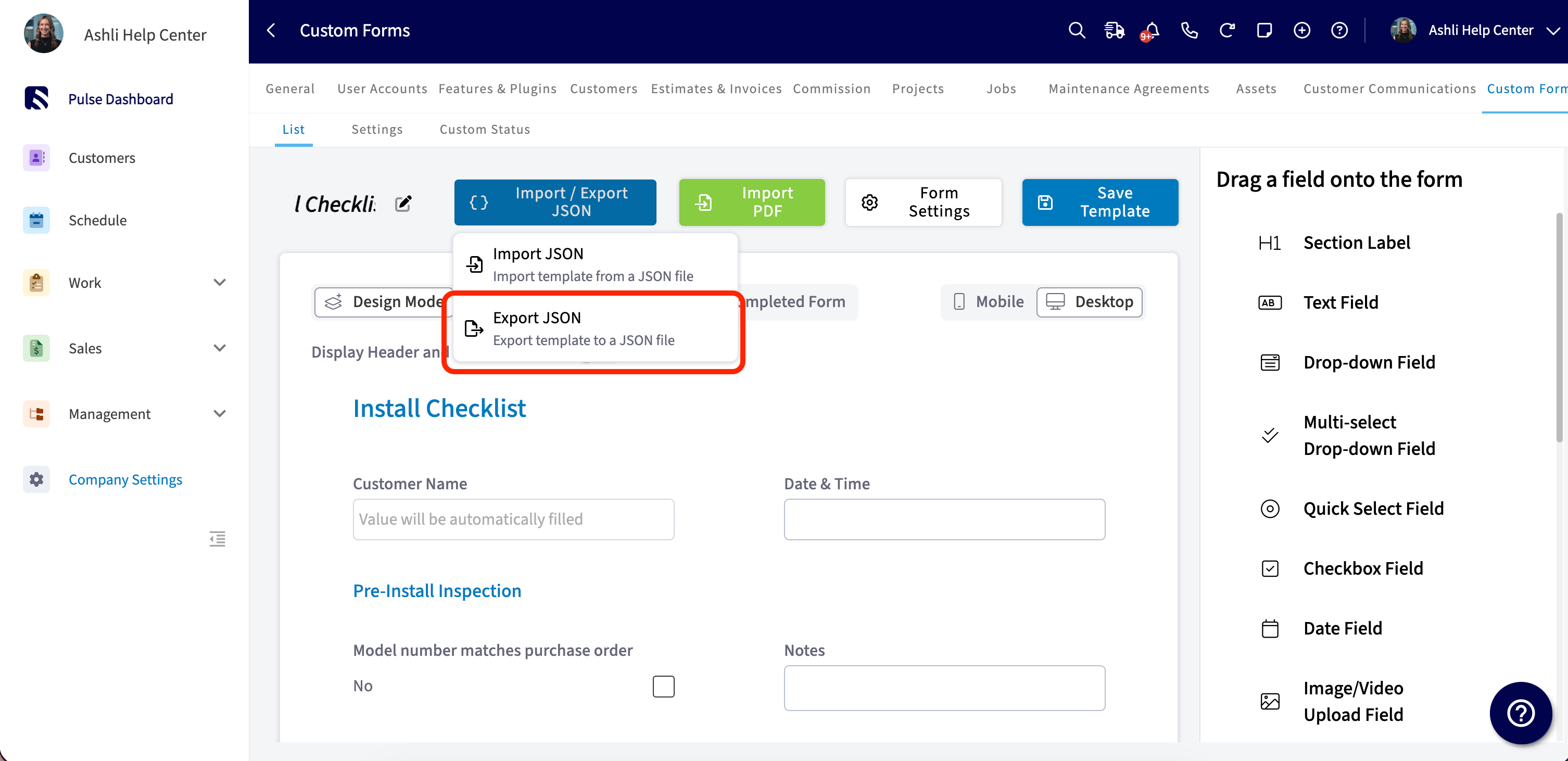 That's it. Your browser downloads a `.json` file named after your template. Save the file somewhere safe or send it to whoever needs it.
***
# How to import a template
**Step 1:** Open Company Settings and click Custom Forms.
That's it. Your browser downloads a `.json` file named after your template. Save the file somewhere safe or send it to whoever needs it.
***
# How to import a template
**Step 1:** Open Company Settings and click Custom Forms.
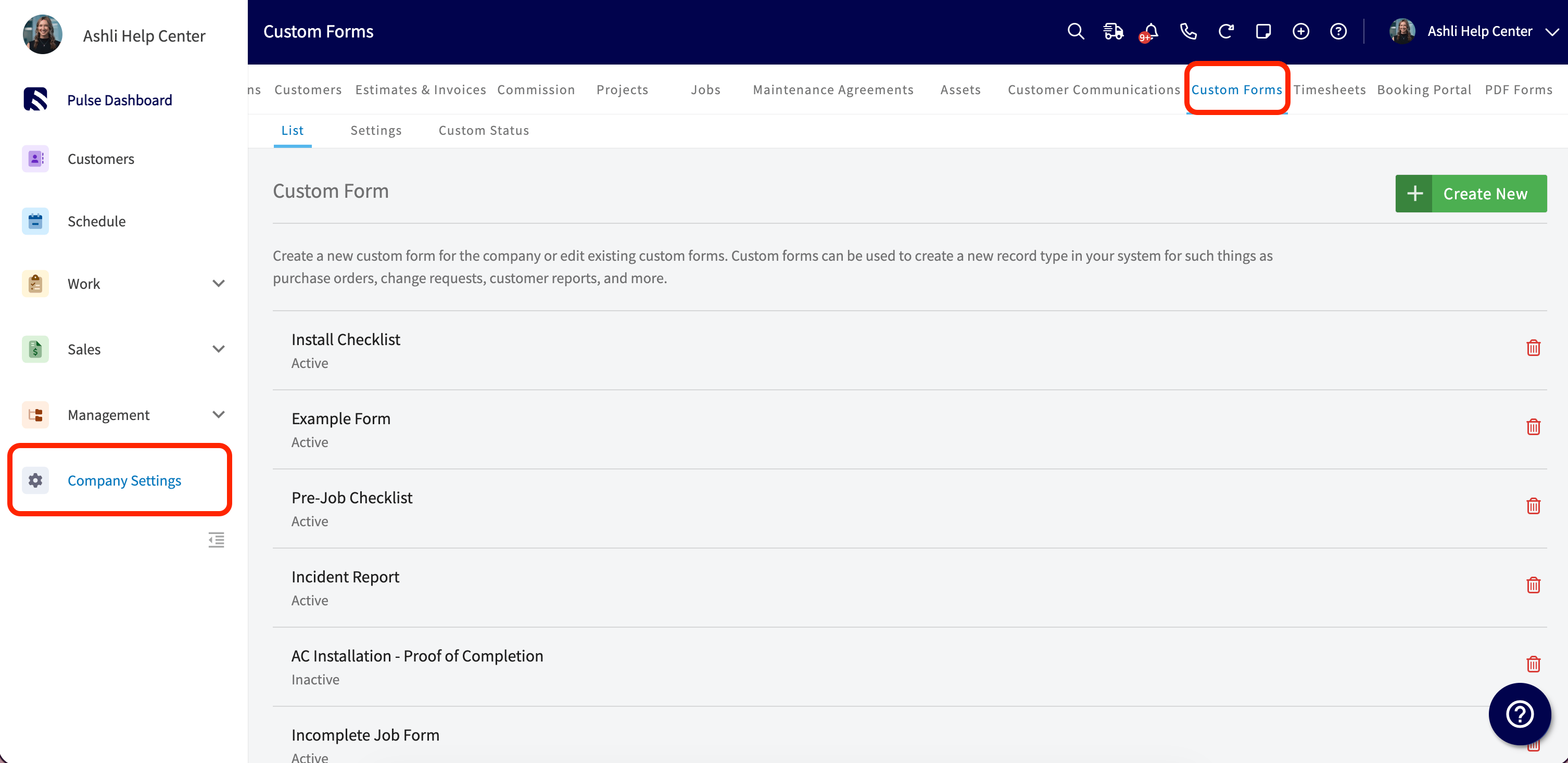 **Step 2:** Click New Custom Form to start fresh, or open an existing template you want to replace. Click Import / Export JSON.
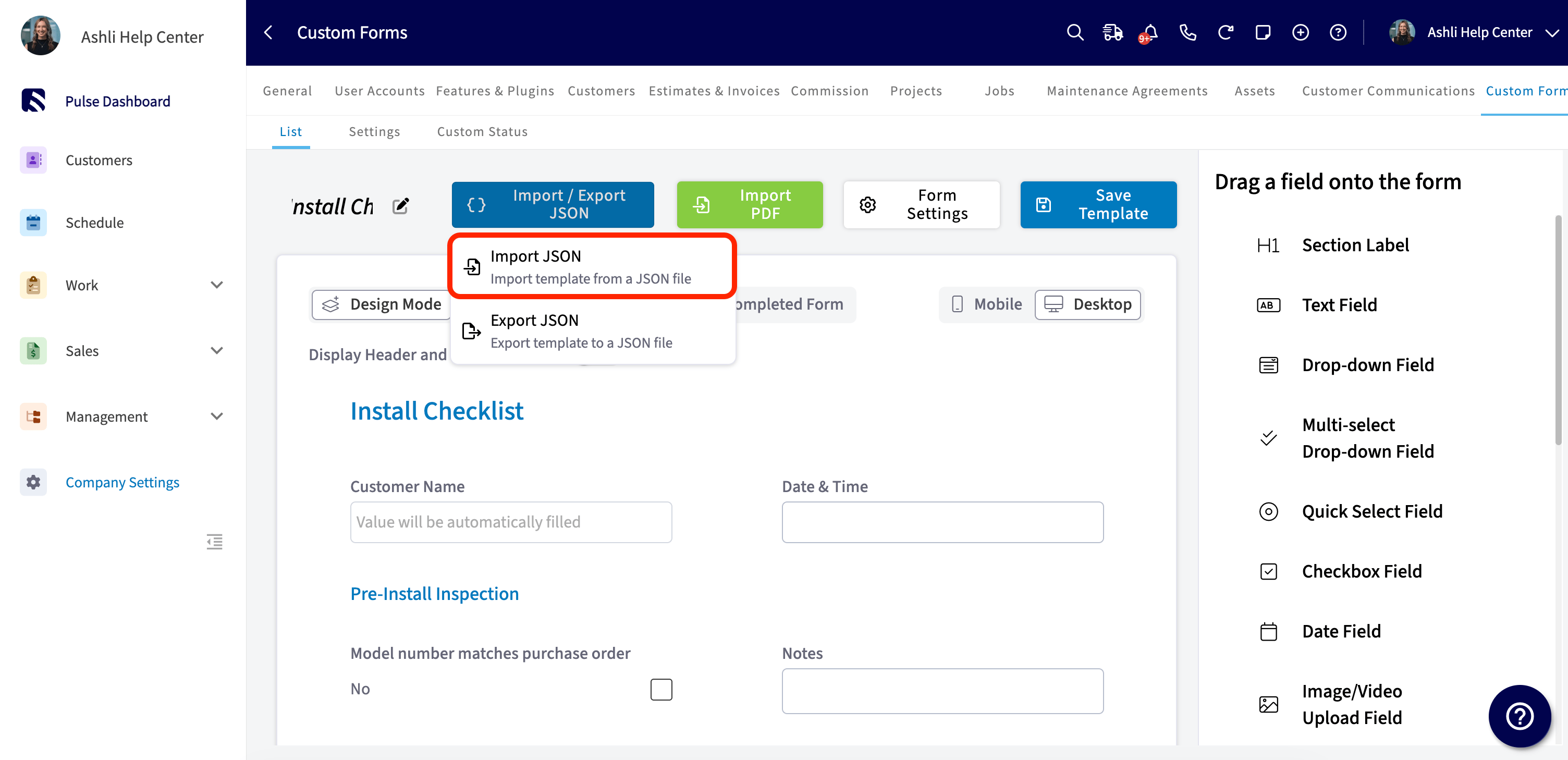
 **Step 3:** Choose Import JSON and pick the file you want to import from your computer.
 Review everything, then click Save Template to make it official.
***
# What's included (and What's Not)
To keep imports clean, account-specific settings don't travel with the file. Here's what comes along:
* Fields and field-level settings
* Sections and layout
* Conditional logic
* PDF mappings
And here's what you'll set up again in the destination account:
* Status Workflow
* View and Edit Permissions for teams and users
* Page Settings, including Page Background
***
# Troubleshooting
| **Issue** | **Likely cause** | **Fix** |
| ---------------------------------------------------------------- | --------------------------------------------------------------- | ------------------------------------------------------------------------------------------------- |
| Import shows an error after picking a file | The JSON file is corrupted or doesn't match the expected schema | Re-export from the source account and try again. Avoid editing the JSON file by hand. |
| Imported template doesn't appear in the Custom Forms list | You didn't click *Save Template* after the import loaded | Re-open the editor and click *Save Template* to persist your changes. |
| Permissions, status workflow, or page background didn't transfer | These settings are excluded from import/export by design | Reconfigure them in *Form Settings* on the destination account. |
| You don't see the *Import / Export JSON* button | You're not signed in as an admin, or you're on mobile | Sign in as an admin on web, then open the template through *Company Settings* and *Custom Forms*. |
***
# FAQs
**Will my form submissions (customer responses, signatures, photos) come along?**
No. Import / Export JSON moves the template structure only, not any data your customers or technicians have submitted. Past form responses stay in the original account.
**Is there a limit on how many templates I can import?**
No hard limit. If you're adding a long list of templates to your account, import them one at a time and save each one before starting the next.
Review everything, then click Save Template to make it official.
***
# What's included (and What's Not)
To keep imports clean, account-specific settings don't travel with the file. Here's what comes along:
* Fields and field-level settings
* Sections and layout
* Conditional logic
* PDF mappings
And here's what you'll set up again in the destination account:
* Status Workflow
* View and Edit Permissions for teams and users
* Page Settings, including Page Background
***
# Troubleshooting
| **Issue** | **Likely cause** | **Fix** |
| ---------------------------------------------------------------- | --------------------------------------------------------------- | ------------------------------------------------------------------------------------------------- |
| Import shows an error after picking a file | The JSON file is corrupted or doesn't match the expected schema | Re-export from the source account and try again. Avoid editing the JSON file by hand. |
| Imported template doesn't appear in the Custom Forms list | You didn't click *Save Template* after the import loaded | Re-open the editor and click *Save Template* to persist your changes. |
| Permissions, status workflow, or page background didn't transfer | These settings are excluded from import/export by design | Reconfigure them in *Form Settings* on the destination account. |
| You don't see the *Import / Export JSON* button | You're not signed in as an admin, or you're on mobile | Sign in as an admin on web, then open the template through *Company Settings* and *Custom Forms*. |
***
# FAQs
**Will my form submissions (customer responses, signatures, photos) come along?**
No. Import / Export JSON moves the template structure only, not any data your customers or technicians have submitted. Past form responses stay in the original account.
**Is there a limit on how many templates I can import?**
No hard limit. If you're adding a long list of templates to your account, import them one at a time and save each one before starting the next.