> ## Documentation Index
> Fetch the complete documentation index at: https://help.fieldpulse.com/llms.txt
> Use this file to discover all available pages before exploring further.
# Operator AI
> Put an AI phone agent on your inbound line that answers in a natural voice and books callers onto your schedule before they hang up.
# **Overview**
Missed calls are missed jobs. The average field service business misses 27% of inbound calls, and 85% of those callers never try back. They call whoever picks up next.
*Operator AI* is FieldPulse's AI phone agent, built so your business is the one that picks up first. It answers inbound calls in a natural voice, holds a real conversation with the caller, and books the job directly onto your schedule before the call ends. Because it lives inside FieldPulse, it already knows your services, your schedule, your service area, and your customer history, so callers hang up with a real appointment instead of a callback promise.
**The result for your business:** fewer missed leads, less time tied to your phone, and a schedule that keeps filling itself, even after hours and on weekends.
***
# Prerequisites
Before you can use Operator AI, make sure the following is in place:
* Operator AI is an add on product. If you don't see it in your account, reach out to [support@fieldpulse.com](mailto:support@fieldpulse.com) or use the chat icon in the bottom right of your screen to enable it today.
* *Engage* is enabled in your account, with at least one phone number connected. *Operator AI* plugs into your existing *Engage* call flow, so this is the foundation. See *[Engage Overview](/features-add-ons/engage-phone-system/engage-overview)*.
* Your *Booking Portal* is set up with the services you want callers to be able to book, including service name, description, duration, lead time, and price. *Operator AI* reads from this catalog when matching a caller's request to a real service. See *[Booking Portal](/using-fieldpulse/work/booking-portal)*.
* *Working Hours* are configured in *Engage*, including your company time zone. *Operator AI* operates in your local time zone and uses these hours to handle after-hours calls correctly. See *[Setting Up Working Hours](/features-add-ons/engage-phone-system/set-up-configuration/setting-up-working-hours)*.
* *Call Routing* is set up the way you want callers handled before they reach *Operator AI* (phone tree, sequential ring, or direct forwarding). See *[Call Routing](/features-add-ons/engage-phone-system/set-up-configuration/setting-up-call-routing)*.
* You have *Admin* permissions in FieldPulse. *Operator AI* configuration is admin-only.
***
# On Web: Admin Experience
## Login
In your inbox, lookout for an email with the subject line: "Your Operator AI account". This email will contain your username and temporary password to login to your [Operator AI Portal](https://webai.fieldpulse.com). Sign in using the temporary password and you'll be prompted to create a new password. Be sure to store the new password somewhere secure.
## Dashboard
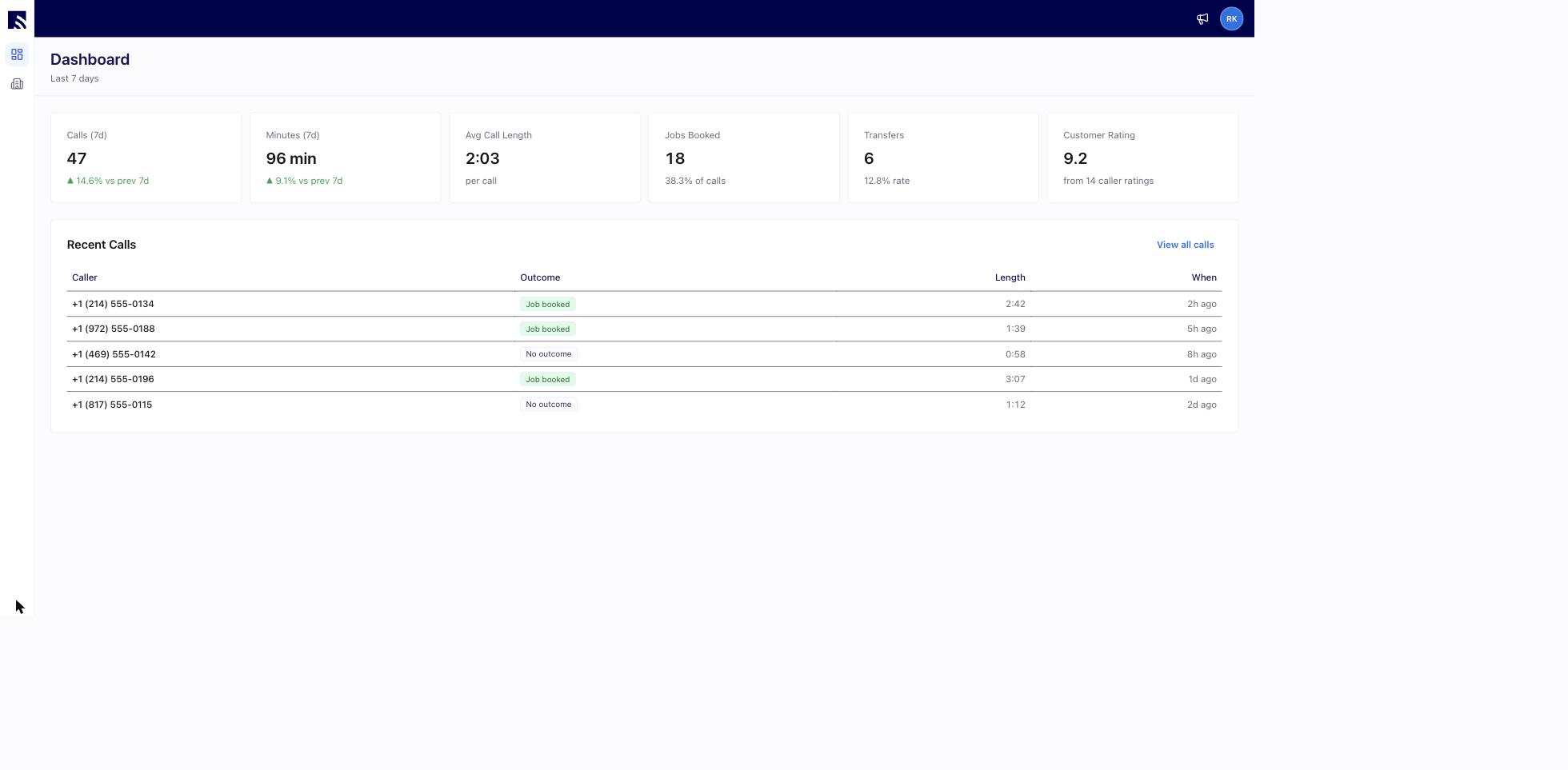
The Dashboard provides a real-time summary of the last 7 days:
* **Calls** and **Minutes** — total volume, with the change vs. the previous 7 days.
* **Avg Call Length** — per call.
* **Jobs Booked** — as a percentage of calls.
* **Transfers** — the rate of calls transferred to an employee or other designated destination.
* **Customer Rating** — from caller feedback collected at call end.
Below the cards, the *Recent Calls* log shows each caller, the call outcome, length, and when it happened.
 ## Company Configuration
This is where your operator learns the facts about your business.
### Step 1
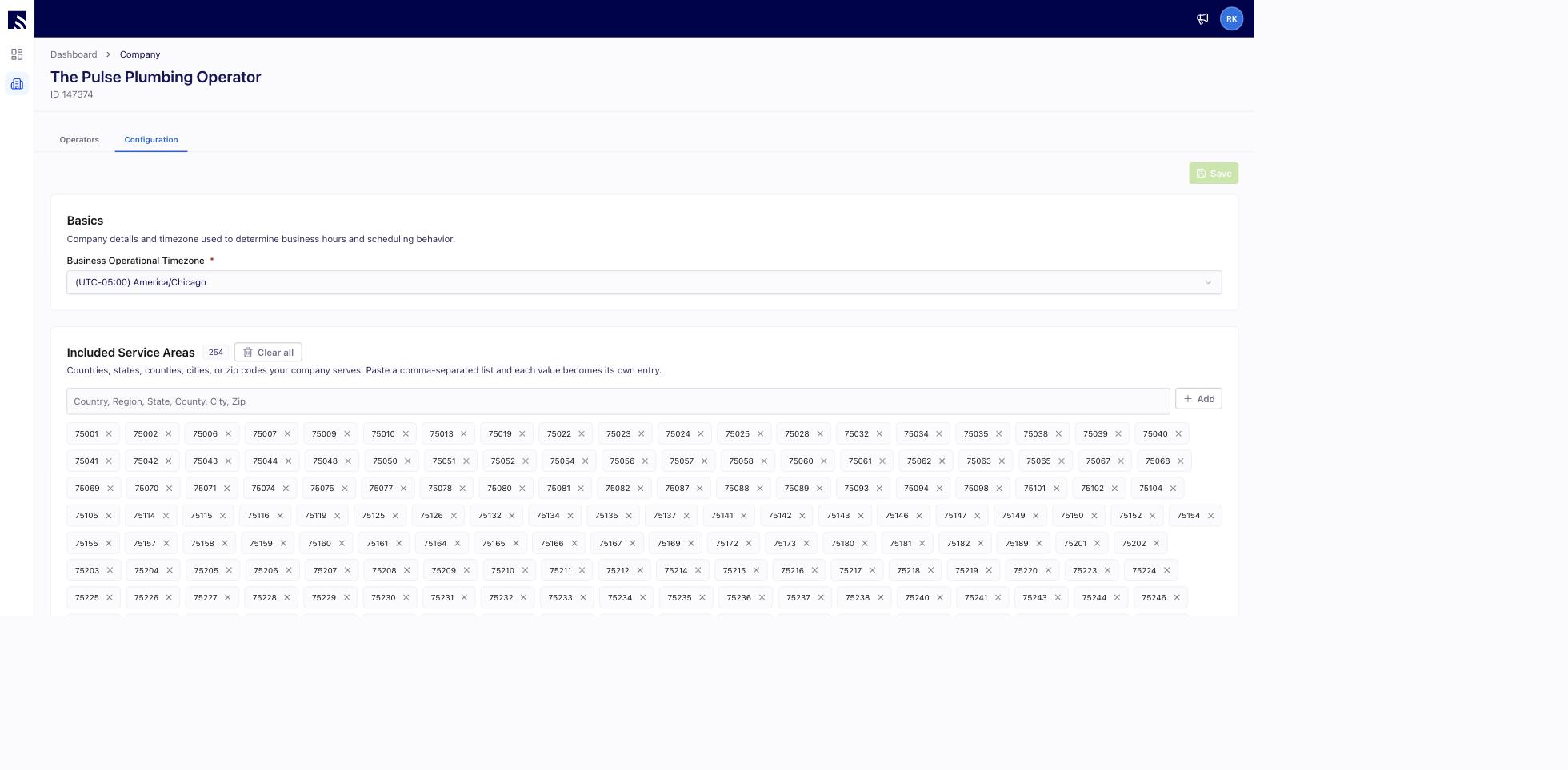
Click *My Company* from the menu on the left hand side of your screen, then click into the *Configuration* tab. Be sure to press *Save* after making changes.
## Company Configuration
This is where your operator learns the facts about your business.
### Step 1
Click *My Company* from the menu on the left hand side of your screen, then click into the *Configuration* tab. Be sure to press *Save* after making changes.
 ### Step 2
Set your *Business Operational Timezone* — your operator uses this to determine business hours and scheduling behavior.
### Step 3
Add your *Included Service Areas*: the countries, states, counties, cities, or zip codes your company serves. You can paste a comma-separated list and each value becomes its own entry. Optionally add *Excluded Service Areas* — areas your company does not serve, where the operator politely declines jobs.
### Step 4
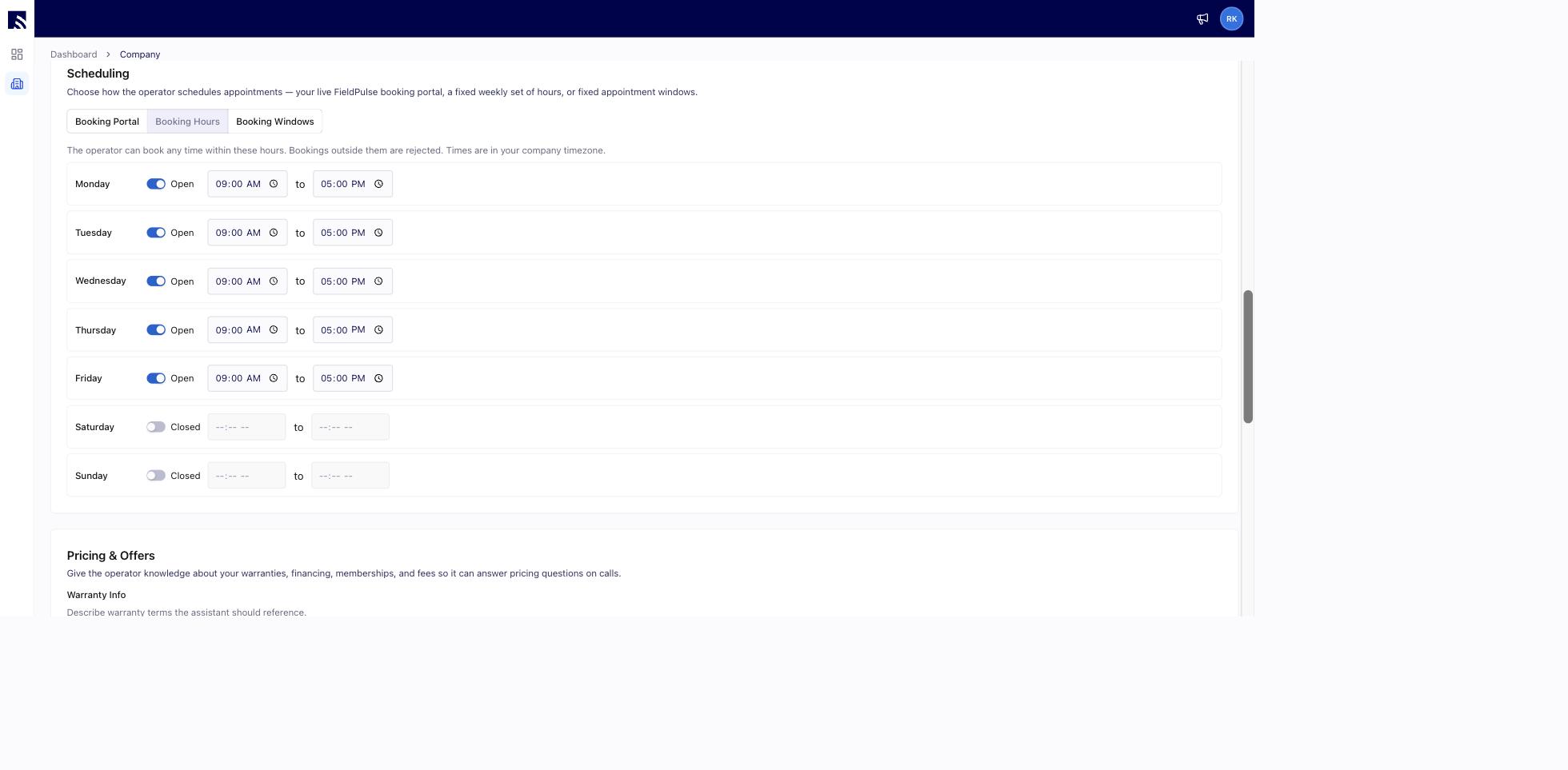
Choose your *Scheduling* mode. This controls how the operator schedules appointments:
* **Booking Portal:** uses your live FieldPulse booking portal availability — no extra setup needed here. We recommend this option if your Booking Portal is configured.
* **Booking Hours:** set weekly open/close hours per day. The operator can book any time within these hours; bookings outside them are rejected.
* **Booking Windows:** define fixed appointment windows. The operator books the exact window the caller picks; a day with no window isn't bookable.
### Step 2
Set your *Business Operational Timezone* — your operator uses this to determine business hours and scheduling behavior.
### Step 3
Add your *Included Service Areas*: the countries, states, counties, cities, or zip codes your company serves. You can paste a comma-separated list and each value becomes its own entry. Optionally add *Excluded Service Areas* — areas your company does not serve, where the operator politely declines jobs.
### Step 4
Choose your *Scheduling* mode. This controls how the operator schedules appointments:
* **Booking Portal:** uses your live FieldPulse booking portal availability — no extra setup needed here. We recommend this option if your Booking Portal is configured.
* **Booking Hours:** set weekly open/close hours per day. The operator can book any time within these hours; bookings outside them are rejected.
* **Booking Windows:** define fixed appointment windows. The operator books the exact window the caller picks; a day with no window isn't bookable.
 ### Step 5
Fill in *Pricing & Offers* — free-text fields for *Warranty Info*, *Financing Options*, *Maintenance Membership Details*, and *Holiday Fee Info*. Your operator references these to answer pricing questions on calls.
### Step 5
Fill in *Pricing & Offers* — free-text fields for *Warranty Info*, *Financing Options*, *Maintenance Membership Details*, and *Holiday Fee Info*. Your operator references these to answer pricing questions on calls.
 ### Step 6
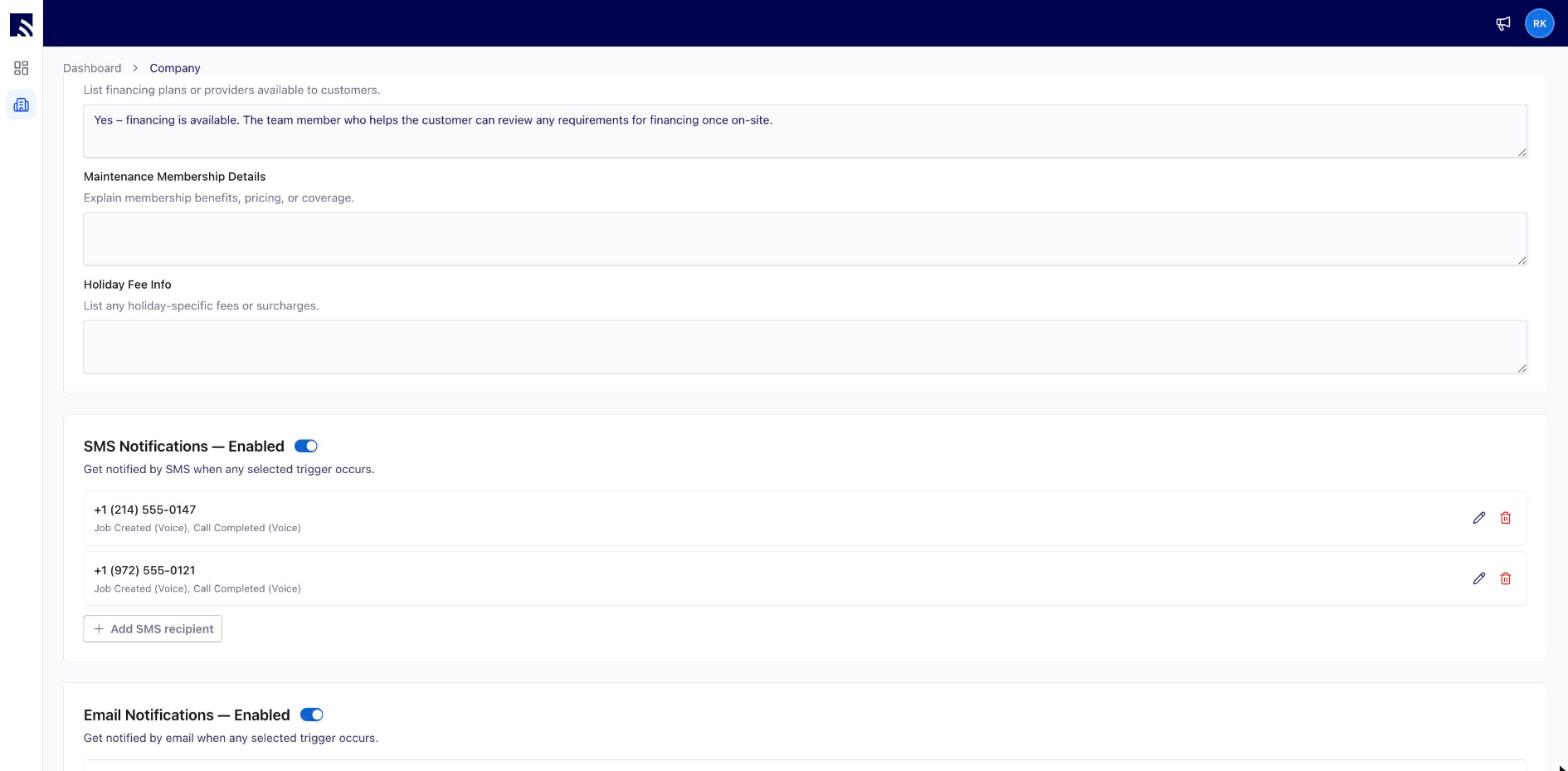
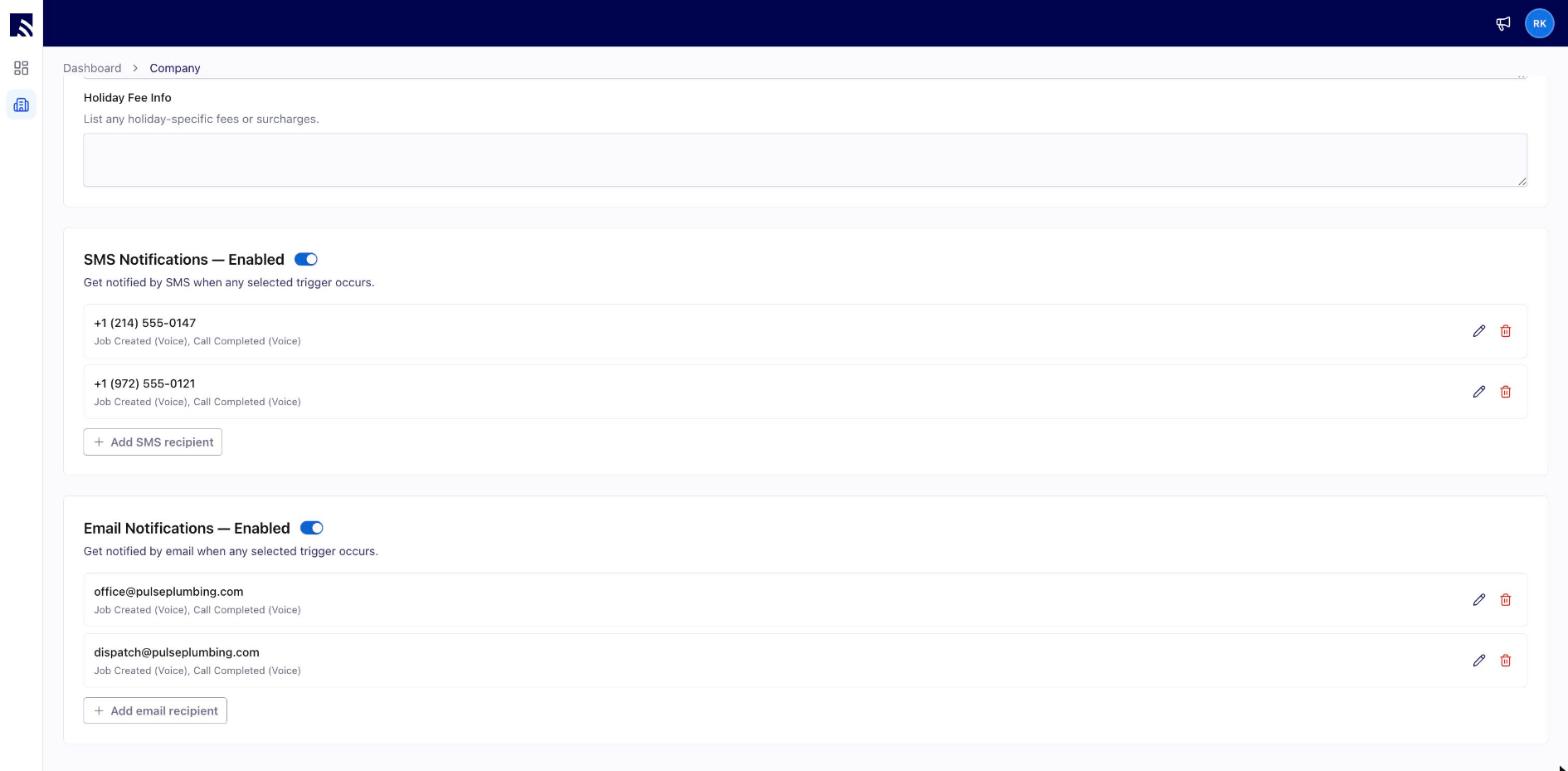
Add *SMS Notifications* and *Email Notifications* recipients and choose their triggers (such as *Job Created* and *Call Completed*) so your team hears the moment your operator books a job or finishes a call.
### Step 6
Add *SMS Notifications* and *Email Notifications* recipients and choose their triggers (such as *Job Created* and *Call Completed*) so your team hears the moment your operator books a job or finishes a call.
 ## Setting Up Your Voice Operator
### Step 1
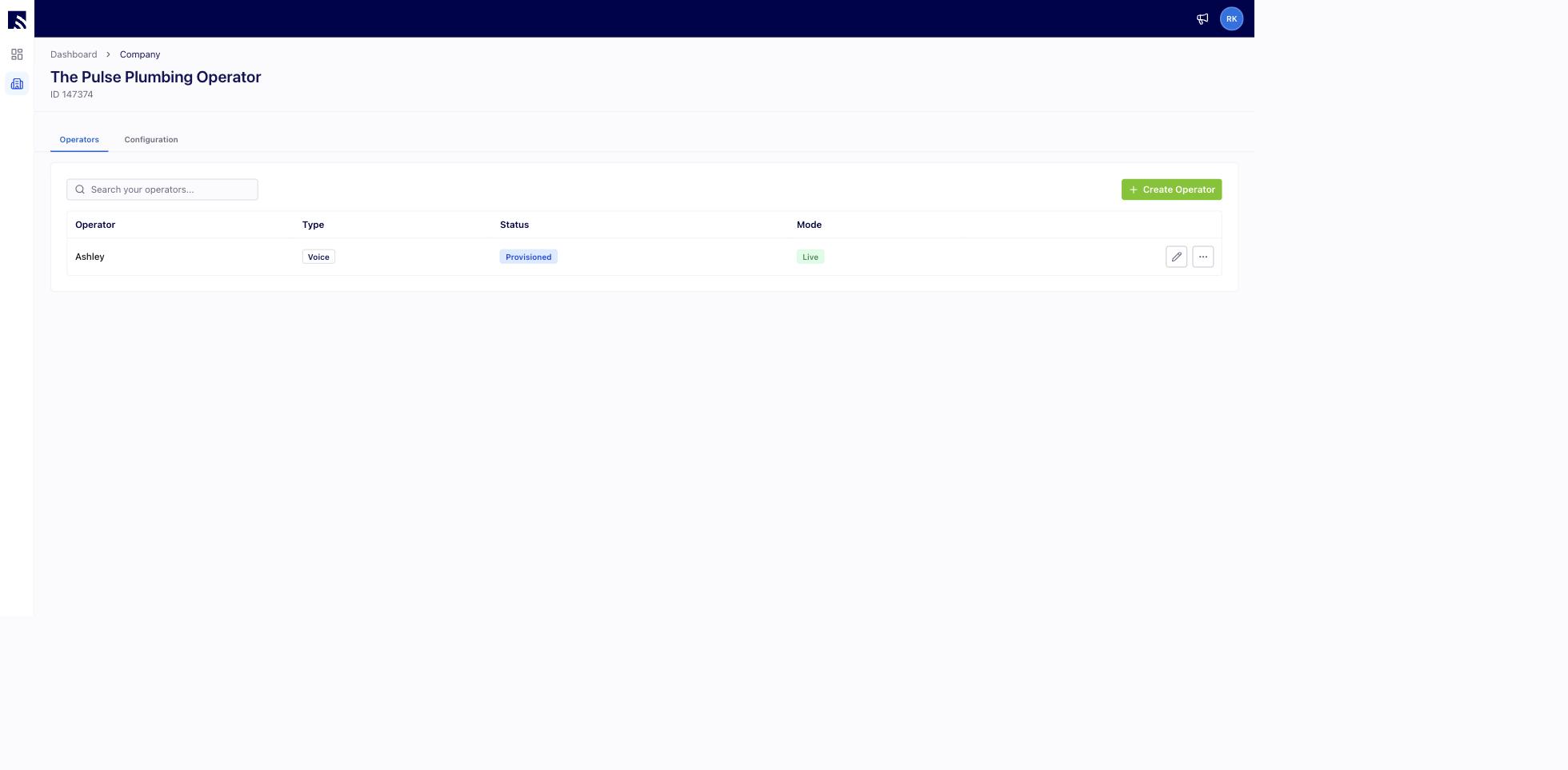
From *My Company*, in the *Operators* tab, click the edit icon next to your operator. The *Test Mode* toggle at the top of the editor lets you try your operator without creating real records or sending notifications.
## Setting Up Your Voice Operator
### Step 1
From *My Company*, in the *Operators* tab, click the edit icon next to your operator. The *Test Mode* toggle at the top of the editor lets you try your operator without creating real records or sending notifications.
 ### Step 2
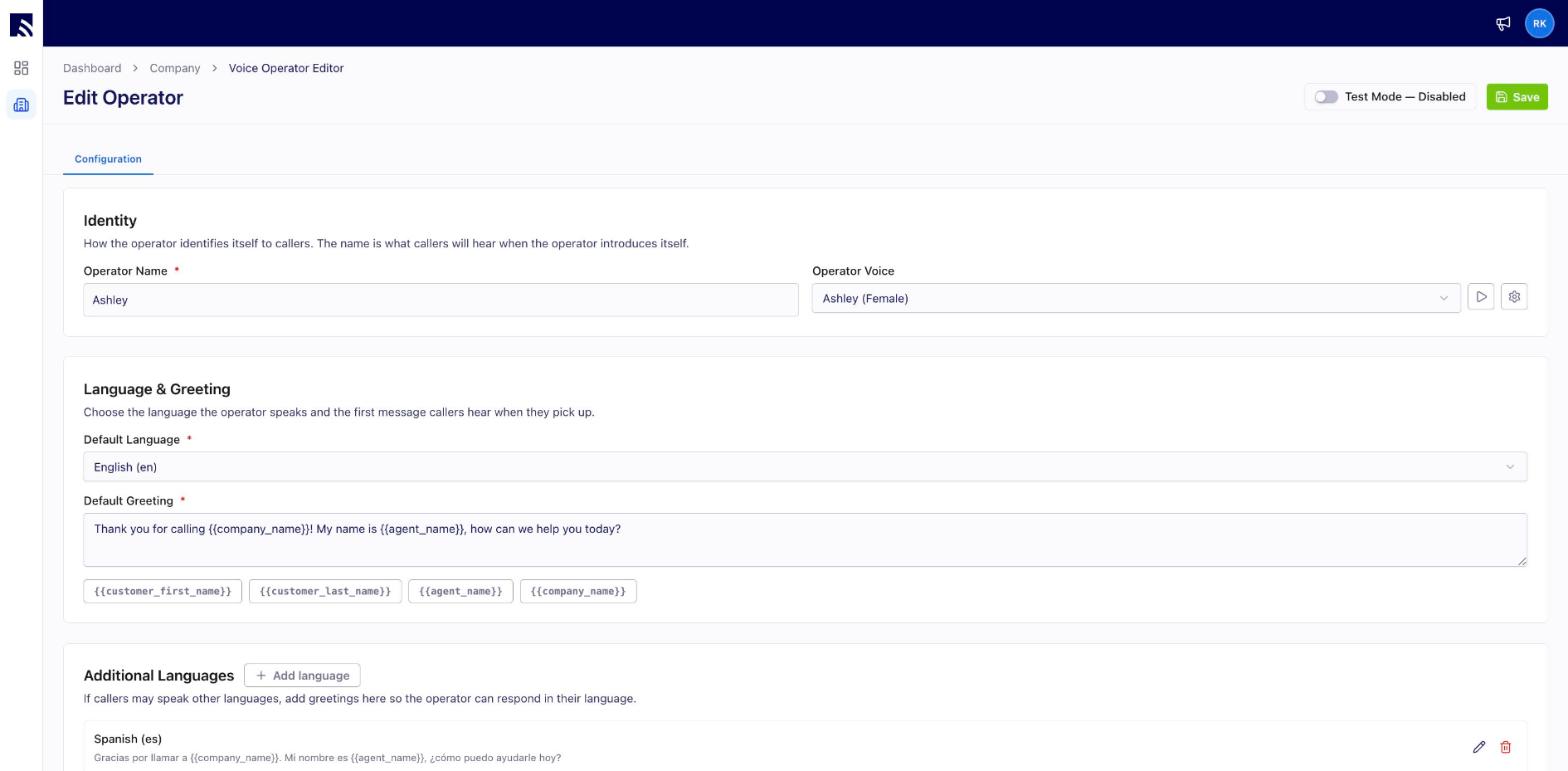
Under *Identity*, set the *Operator Name* — this is what callers hear when the operator introduces itself — and pick an *Operator Voice*. Use the play button to preview it.
### Step 3
Under *Language & Greeting*, choose the default language and write the first message callers hear. Use the variable chips — `{{agent_name}}`, `{{company_name}}`, `{{customer_first_name}}`, `{{customer_last_name}}` — to personalize it. Add *Additional Languages* so the operator can respond in the caller's language.
### Step 4
Review your *Call Settings*:
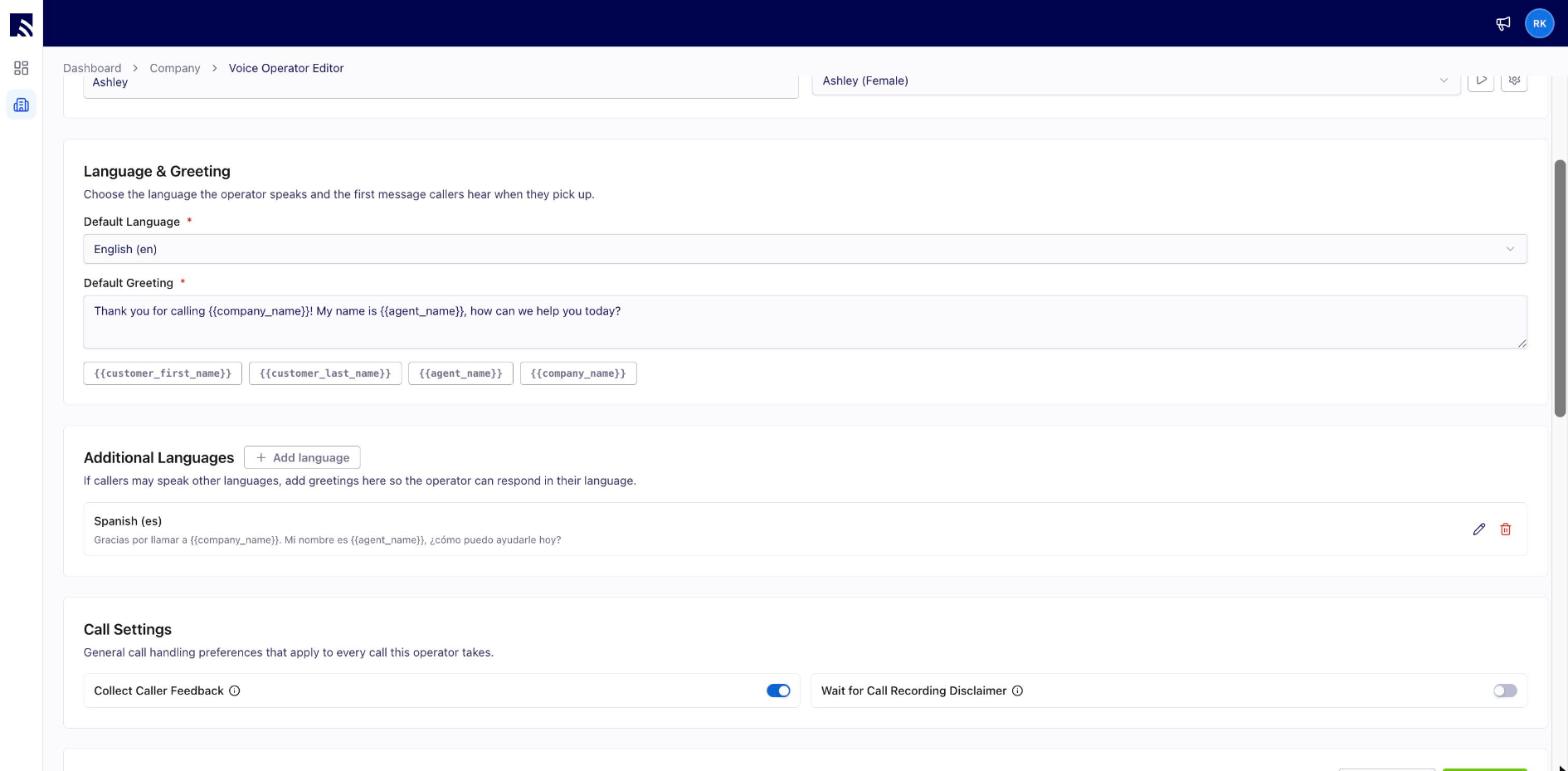
* **Collect Caller Feedback:** before ending a call, the operator asks the caller to rate their experience and leave optional comments.
* **Wait for Call Recording Disclaimer:** adds a brief pause before the greeting so a "this call may be recorded" disclaimer can finish playing.
### Step 2
Under *Identity*, set the *Operator Name* — this is what callers hear when the operator introduces itself — and pick an *Operator Voice*. Use the play button to preview it.
### Step 3
Under *Language & Greeting*, choose the default language and write the first message callers hear. Use the variable chips — `{{agent_name}}`, `{{company_name}}`, `{{customer_first_name}}`, `{{customer_last_name}}` — to personalize it. Add *Additional Languages* so the operator can respond in the caller's language.
### Step 4
Review your *Call Settings*:
* **Collect Caller Feedback:** before ending a call, the operator asks the caller to rate their experience and leave optional comments.
* **Wait for Call Recording Disclaimer:** adds a brief pause before the greeting so a "this call may be recorded" disclaimer can finish playing.
 ## Configure Your Rules
Rules let you extend or override the default Operator AI behavior. Each rule you configure will fire when its condition is met during a call. **The rules you configure will always take precedence over the default onboarding flow, so if you write a rule that conflicts with the default behavior, your rule wins.**
Each operator supports **up to 20** rules. Instruction and tag rules count toward the limit; *Transfer to Number* rules don't.
## Configure Your Rules
Rules let you extend or override the default Operator AI behavior. Each rule you configure will fire when its condition is met during a call. **The rules you configure will always take precedence over the default onboarding flow, so if you write a rule that conflicts with the default behavior, your rule wins.**
Each operator supports **up to 20** rules. Instruction and tag rules count toward the limit; *Transfer to Number* rules don't.
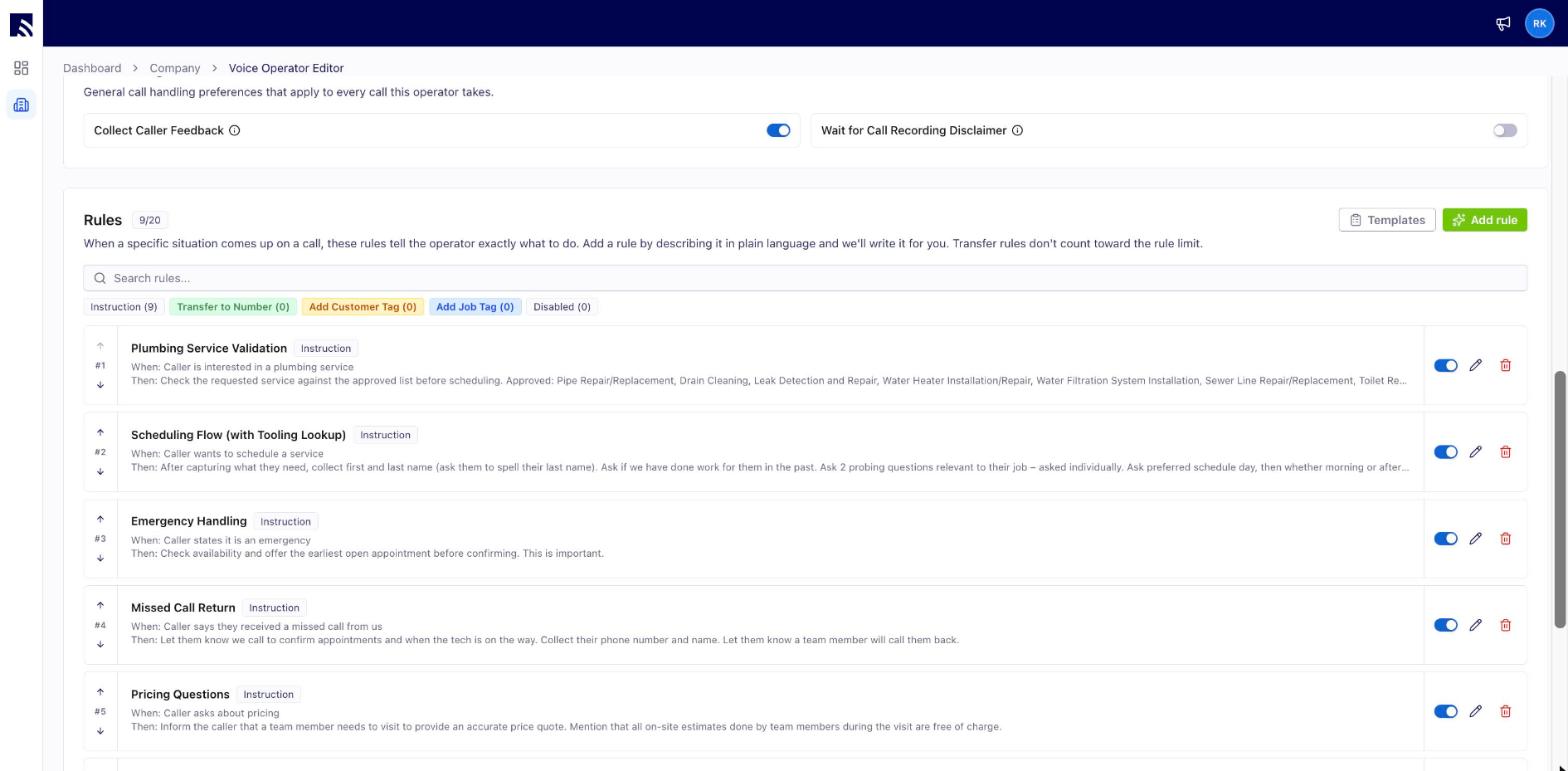 ### Rule types
* **Instruction:** any behavior expressed in plain language — e.g., "Always confirm the service area zip code before collecting any other intake information."
* **Transfer to Number:** transfer the call to a specific phone number when a condition is met.
* **Add Customer Tag / Add Job Tag:** apply a FieldPulse tag based on call content. The tag dropdown pulls live from your FieldPulse Tag list — useful for routing, follow-up automations, and reporting.
### Adding a rule
There are two ways to add a rule:
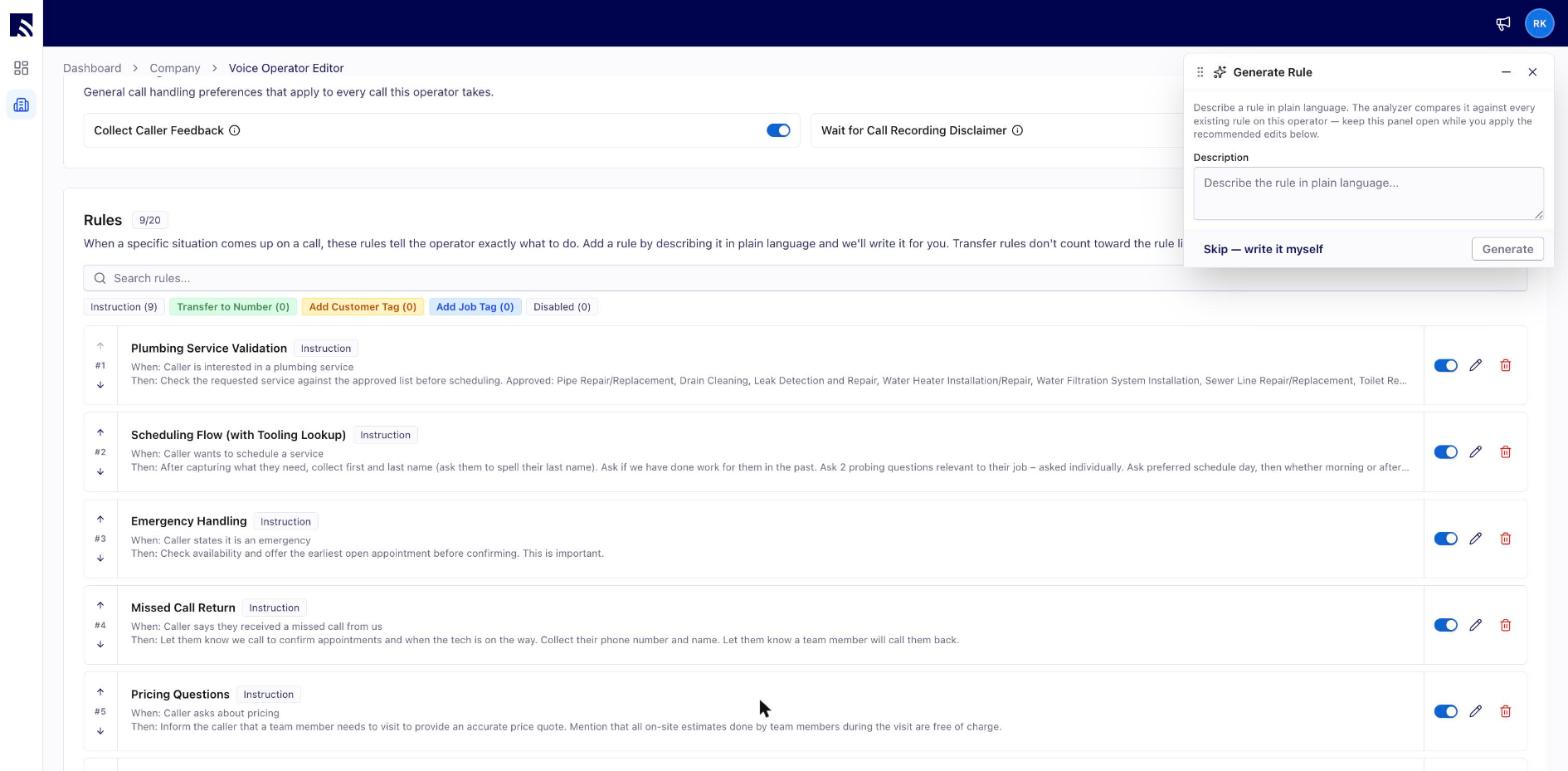
Click *Add rule* and describe the rule in plain language — Operator AI writes it for you and checks it against every existing rule on your operator for conflicts and duplicates. Prefer to write it word-for-word yourself? Use *Skip — write it myself*.
### Rule types
* **Instruction:** any behavior expressed in plain language — e.g., "Always confirm the service area zip code before collecting any other intake information."
* **Transfer to Number:** transfer the call to a specific phone number when a condition is met.
* **Add Customer Tag / Add Job Tag:** apply a FieldPulse tag based on call content. The tag dropdown pulls live from your FieldPulse Tag list — useful for routing, follow-up automations, and reporting.
### Adding a rule
There are two ways to add a rule:
Click *Add rule* and describe the rule in plain language — Operator AI writes it for you and checks it against every existing rule on your operator for conflicts and duplicates. Prefer to write it word-for-word yourself? Use *Skip — write it myself*.
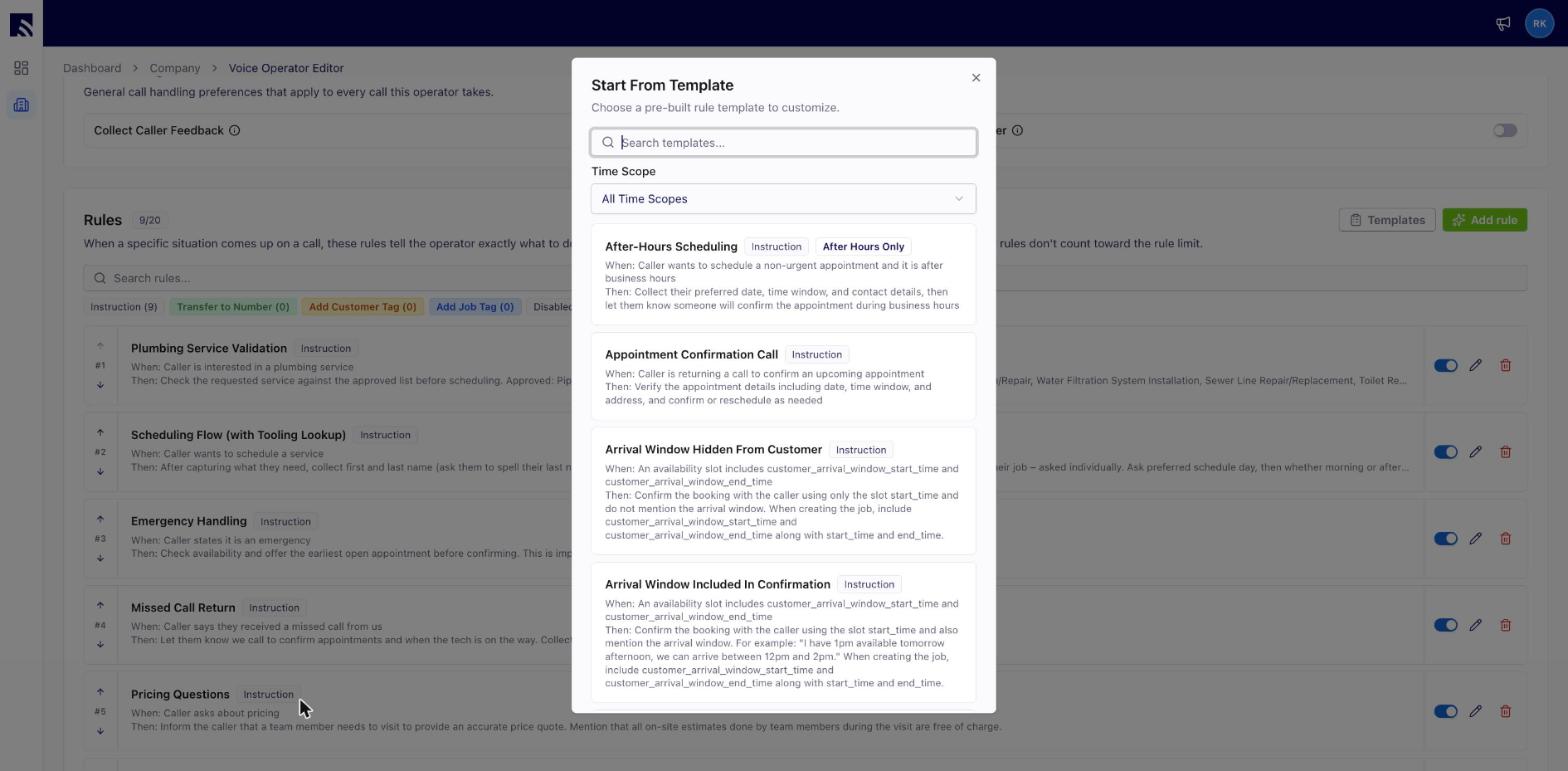
 Or click *Templates* to choose from roughly 45 pre-built rules covering the most common situations — emergency escalation, cancellation requests, service-area inquiries, callback requests, and more. Templates are searchable, filterable by time scope (some run after-hours or business-hours only), and added with one click, then customized.
 You can reorder rules, toggle them on and off, edit, or delete them at any time.
### Auto-Generated Tags (Post Call Processing)
Independent of any of your configured Tag rules, every AI agent gets three tags created in FieldPulse from the very beginning:
* *Operator AI Generated* — applied to every Customer record the agent creates.
* *Operator AI Generated* — applied to every Job record the agent creates.
* *Emergency* — applied when the agent identifies the call as an emergency (only created if it doesn't already exist in your Tag list).
These tags are added in post-processing after the call ends, **so they don't count against the rule limit and don't need to be configured by you.**
### Personality customization
Agent personality can be customized today by adding a configured Rule.
Example: 'Act like a cheerful, upbeat receptionist who uses casual language and occasionally cracks a friendly joke.' The agent applies the personality across the conversation.
## Reviewing Calls
### Step 1
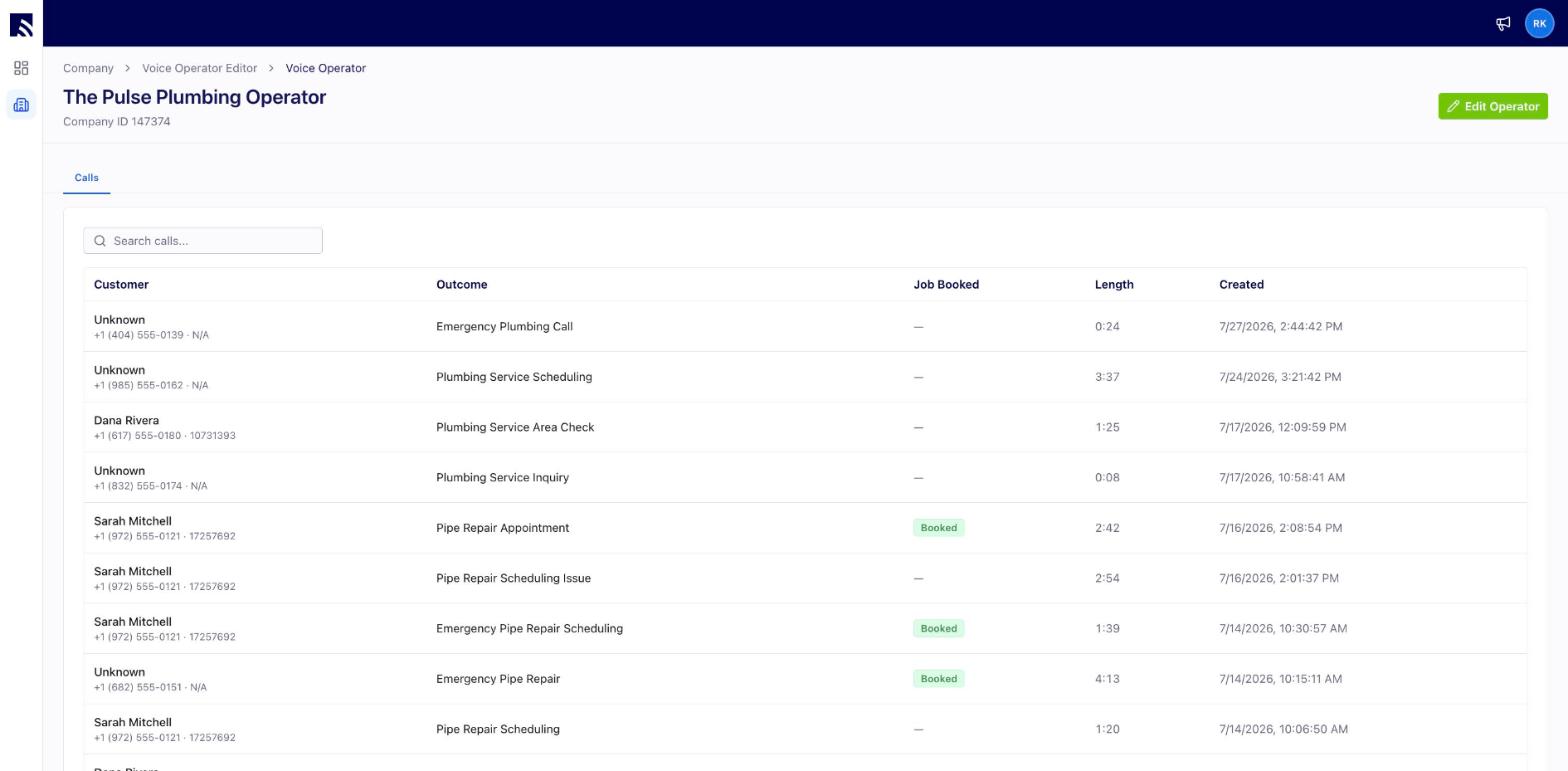
Click into any call from your *Recent Call* log or click the *View All Calls* button. The call log shows the customer's name and ID, an auto-generated outcome summary, whether a job was booked, the length, and the time.
You can reorder rules, toggle them on and off, edit, or delete them at any time.
### Auto-Generated Tags (Post Call Processing)
Independent of any of your configured Tag rules, every AI agent gets three tags created in FieldPulse from the very beginning:
* *Operator AI Generated* — applied to every Customer record the agent creates.
* *Operator AI Generated* — applied to every Job record the agent creates.
* *Emergency* — applied when the agent identifies the call as an emergency (only created if it doesn't already exist in your Tag list).
These tags are added in post-processing after the call ends, **so they don't count against the rule limit and don't need to be configured by you.**
### Personality customization
Agent personality can be customized today by adding a configured Rule.
Example: 'Act like a cheerful, upbeat receptionist who uses casual language and occasionally cracks a friendly joke.' The agent applies the personality across the conversation.
## Reviewing Calls
### Step 1
Click into any call from your *Recent Call* log or click the *View All Calls* button. The call log shows the customer's name and ID, an auto-generated outcome summary, whether a job was booked, the length, and the time.
 ### Step 2
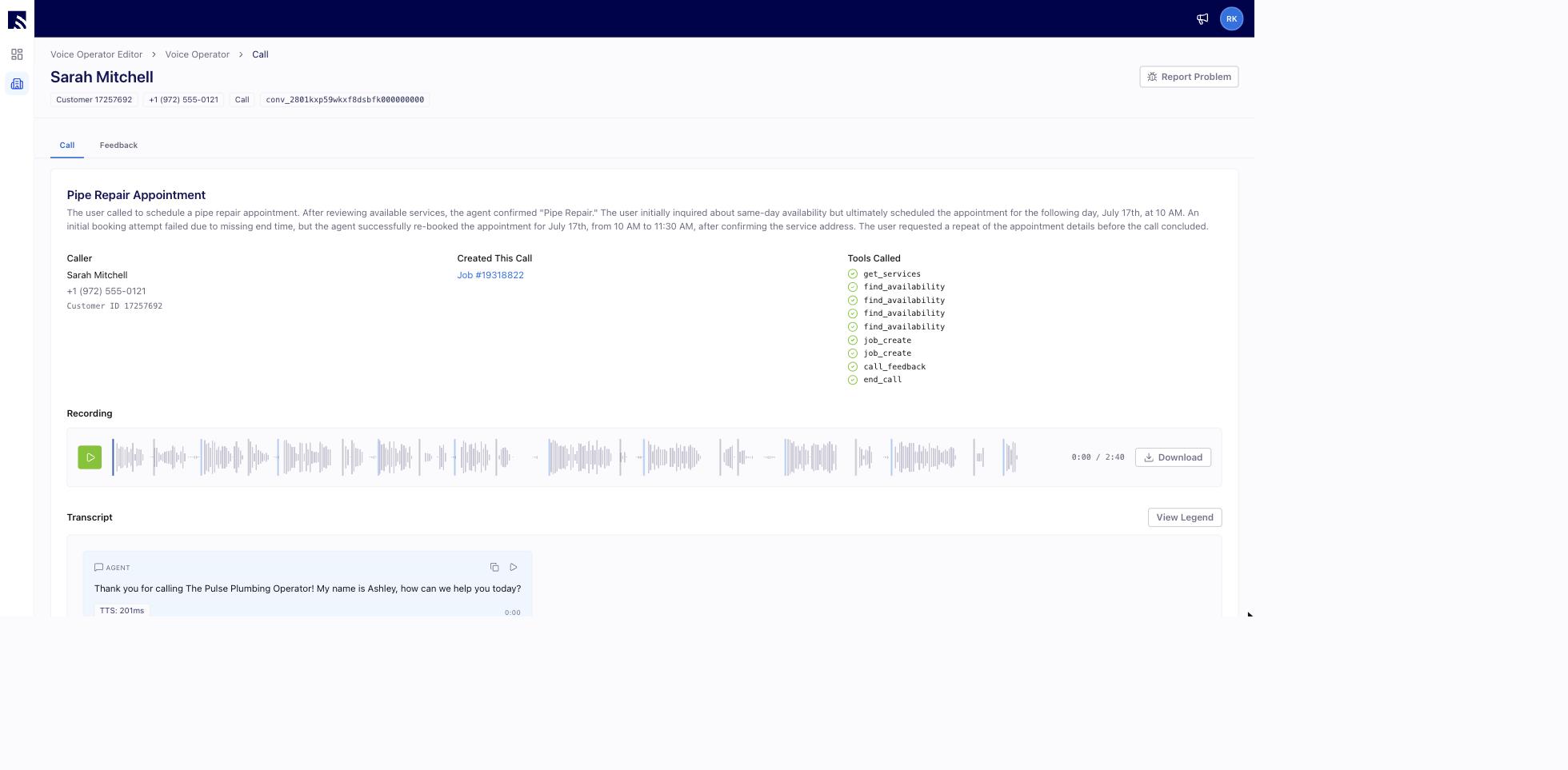
In the *Call* tab you'll find a plain-English summary of the call, the caller's details, and *Created This Call* — a direct link to the job created in FieldPulse. Click it to jump straight to the job record. *Tools Called* lists every action the operator took during the call (service lookup, availability checks, job creation, and so on).
### Step 2
In the *Call* tab you'll find a plain-English summary of the call, the caller's details, and *Created This Call* — a direct link to the job created in FieldPulse. Click it to jump straight to the job record. *Tools Called* lists every action the operator took during the call (service lookup, availability checks, job creation, and so on).
 ### Step 3
Listen to or download the call recording, and read the full transcript of the conversation between your Operator AI agent and your customer.
### Step 4
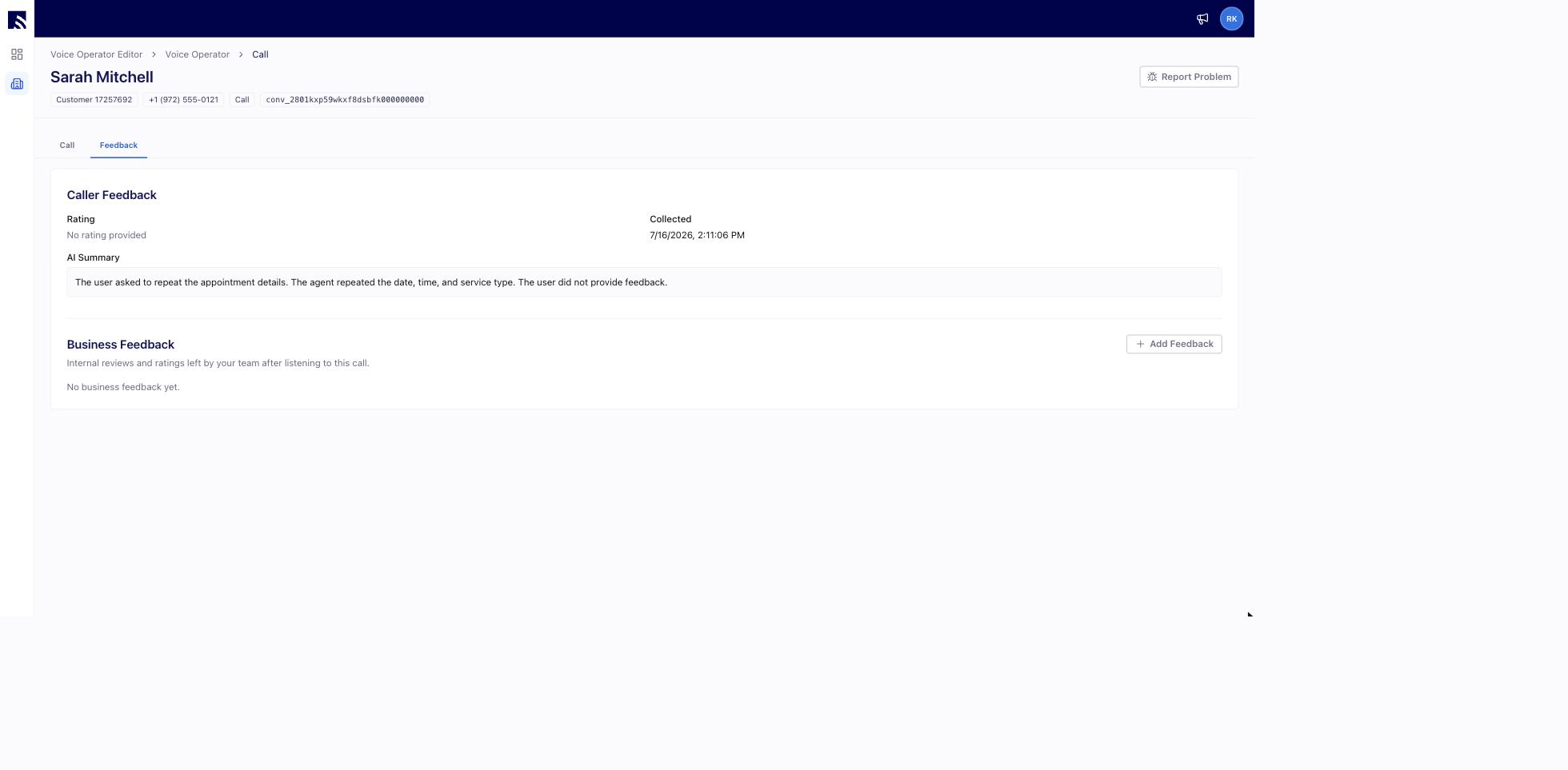
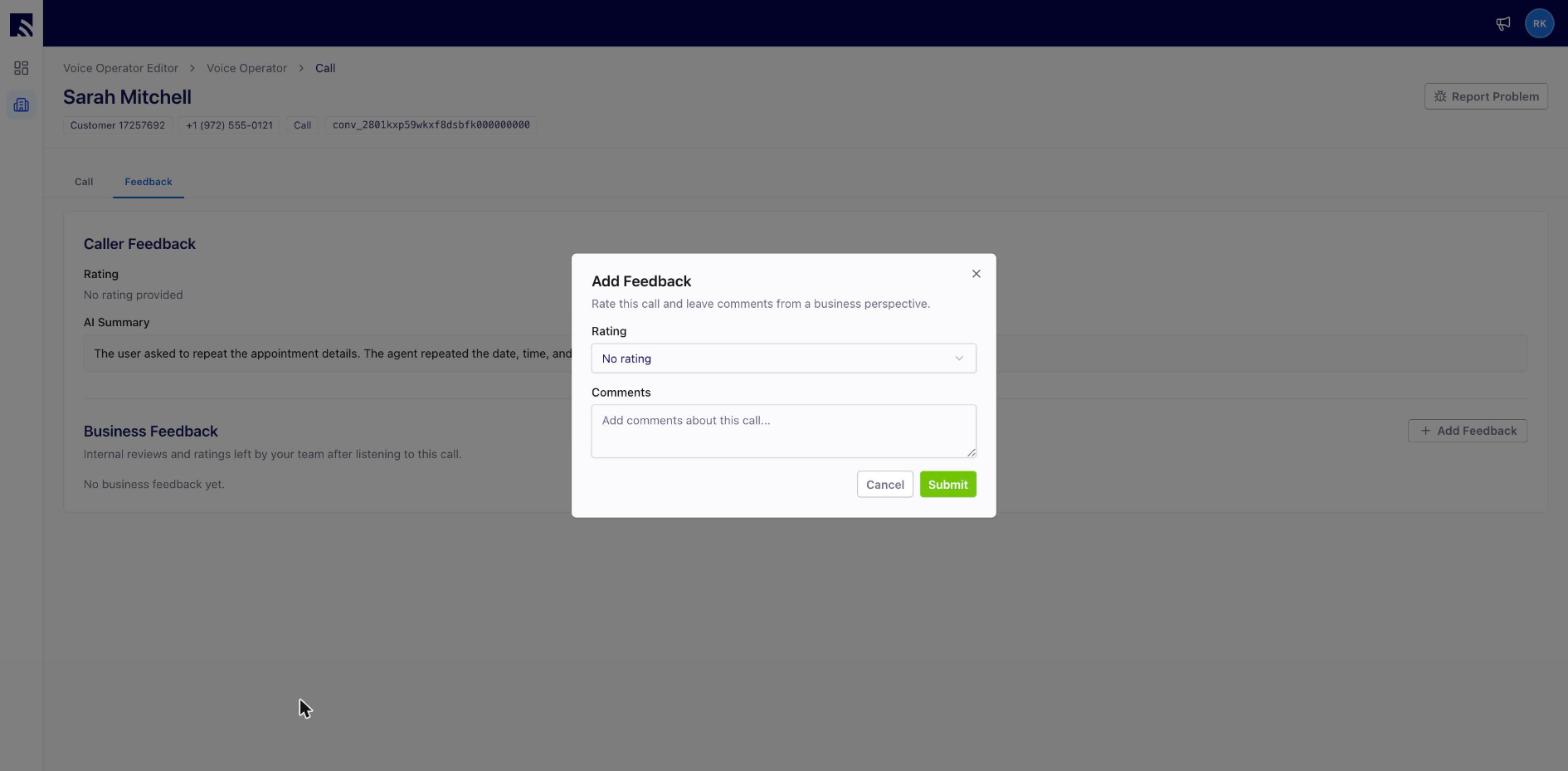
In the *Feedback* tab you'll see the caller's rating and any comments captured by your AI agent at call end, plus *Business Feedback* — internal reviews and ratings your team leaves after listening to the call. Click *Add Feedback* to rate the call from a business perspective.
### Step 3
Listen to or download the call recording, and read the full transcript of the conversation between your Operator AI agent and your customer.
### Step 4
In the *Feedback* tab you'll see the caller's rating and any comments captured by your AI agent at call end, plus *Business Feedback* — internal reviews and ratings your team leaves after listening to the call. Click *Add Feedback* to rate the call from a business perspective.
 ## Reporting a Problem
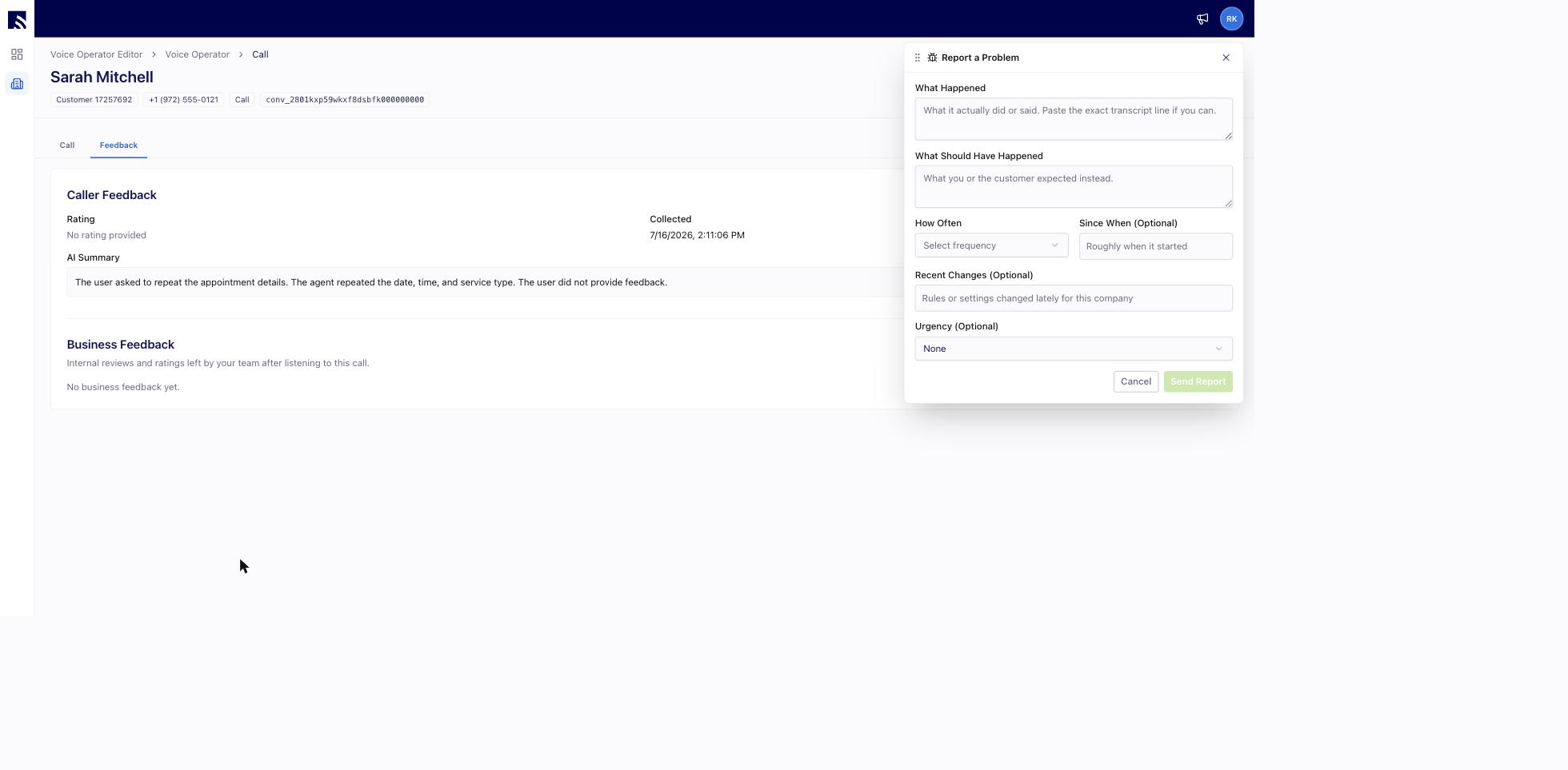
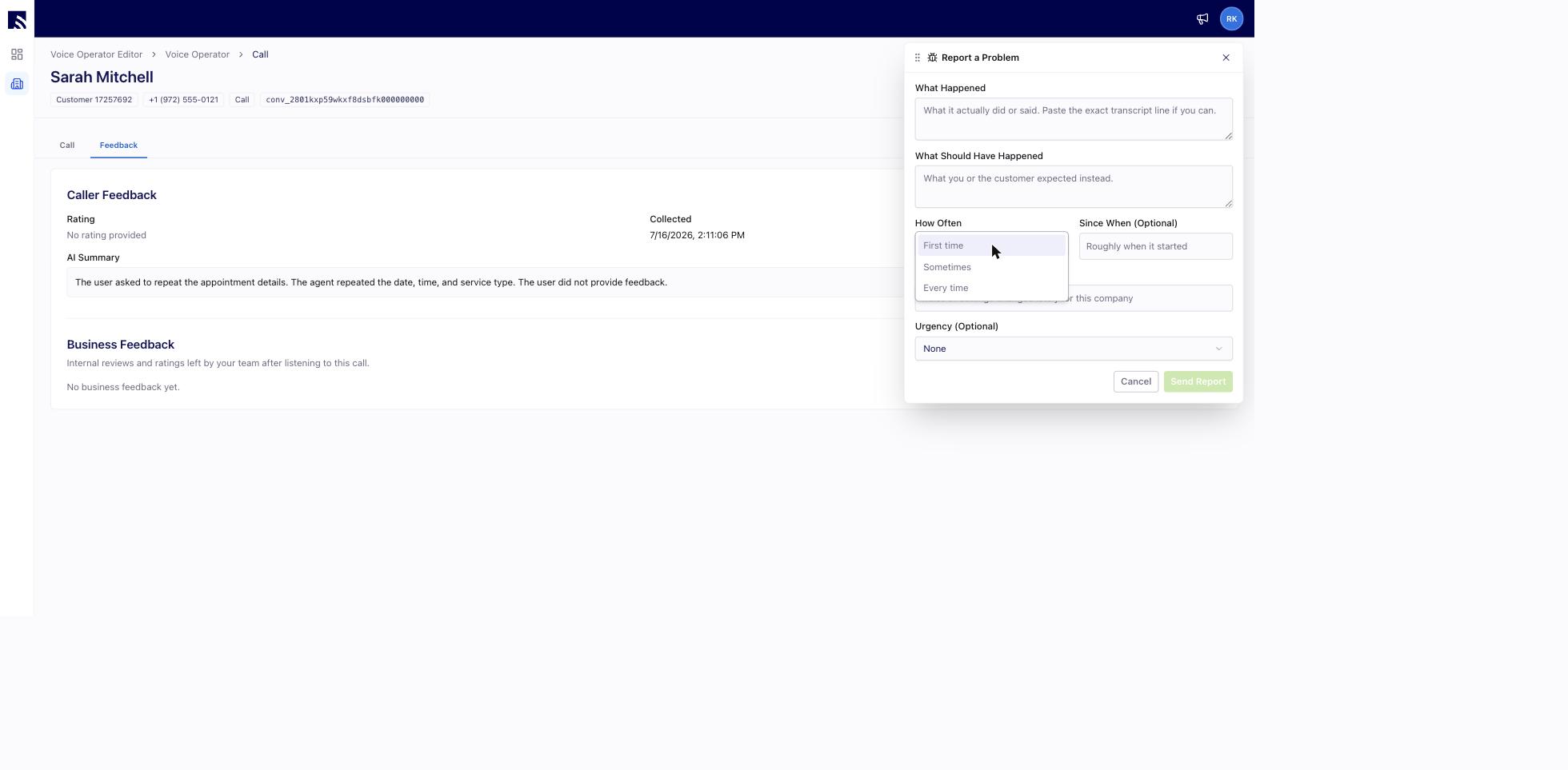
Something went wrong on a specific call? Click *Report Problem* at the top of the call detail page and describe what happened, what should have happened, and how often you're seeing it. The call's details are attached automatically — exactly what our team needs to fix it fast.
## Reporting a Problem
Something went wrong on a specific call? Click *Report Problem* at the top of the call detail page and describe what happened, what should have happened, and how often you're seeing it. The call's details are attached automatically — exactly what our team needs to fix it fast.
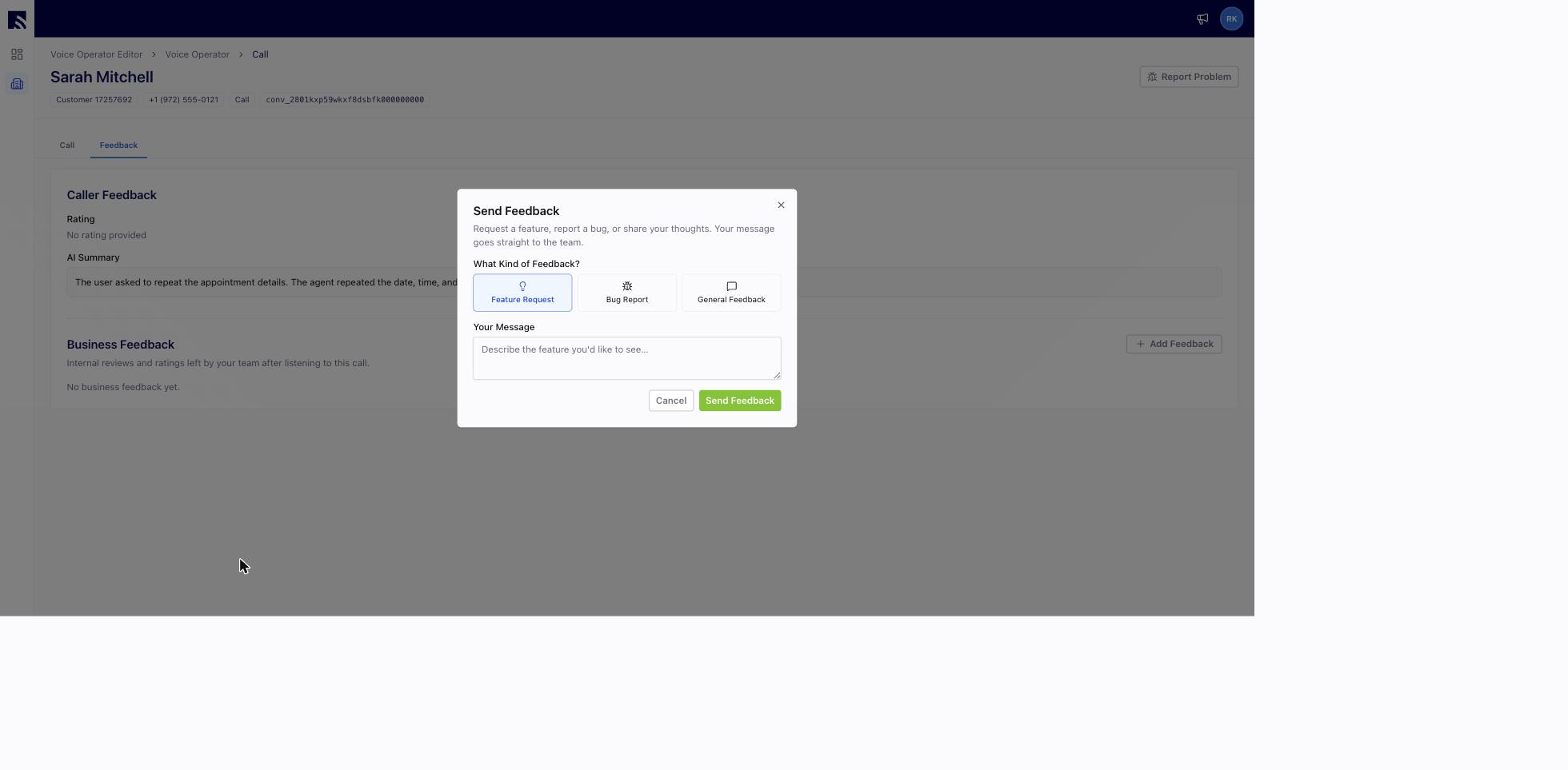
 For feature requests or general feedback, use the megaphone icon in the top bar — it goes straight to the FieldPulse team.
 ***
# What Does This Look Like in FieldPulse?
## Getting Started
Utilize Engage and configure your [working hours](/features-add-ons/engage-phone-system/set-up-configuration/setting-up-working-hours) and one of our [call routing options](/features-add-ons/engage-phone-system/set-up-configuration/setting-up-call-routing) (phone tree, sequential call ring, or direct call forwarding per line) to forward potentially missed calls to Operator AI.
***
# What Does This Look Like in FieldPulse?
## Getting Started
Utilize Engage and configure your [working hours](/features-add-ons/engage-phone-system/set-up-configuration/setting-up-working-hours) and one of our [call routing options](/features-add-ons/engage-phone-system/set-up-configuration/setting-up-call-routing) (phone tree, sequential call ring, or direct call forwarding per line) to forward potentially missed calls to Operator AI.
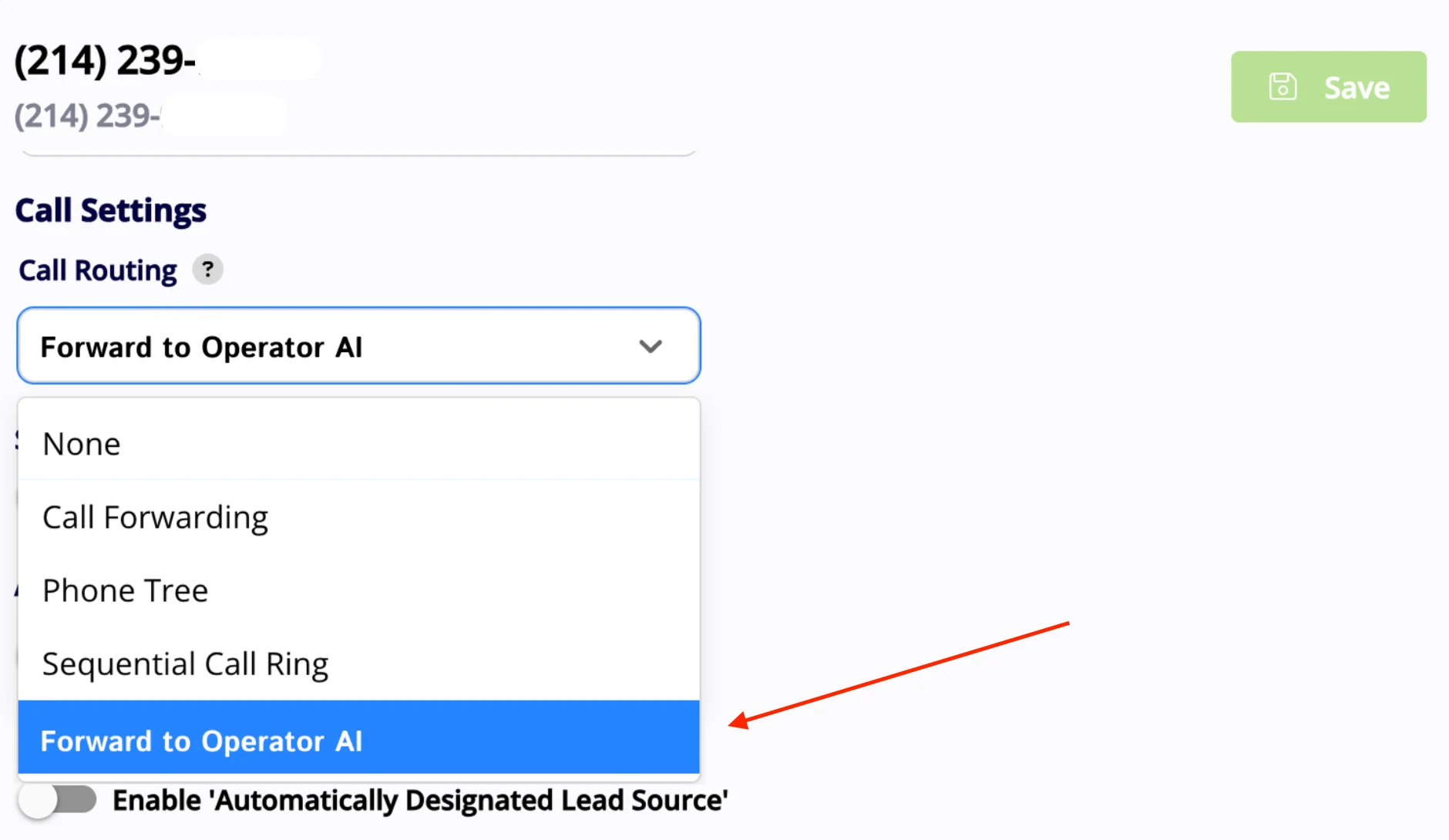 ## *Direct Call Forwarding Example*
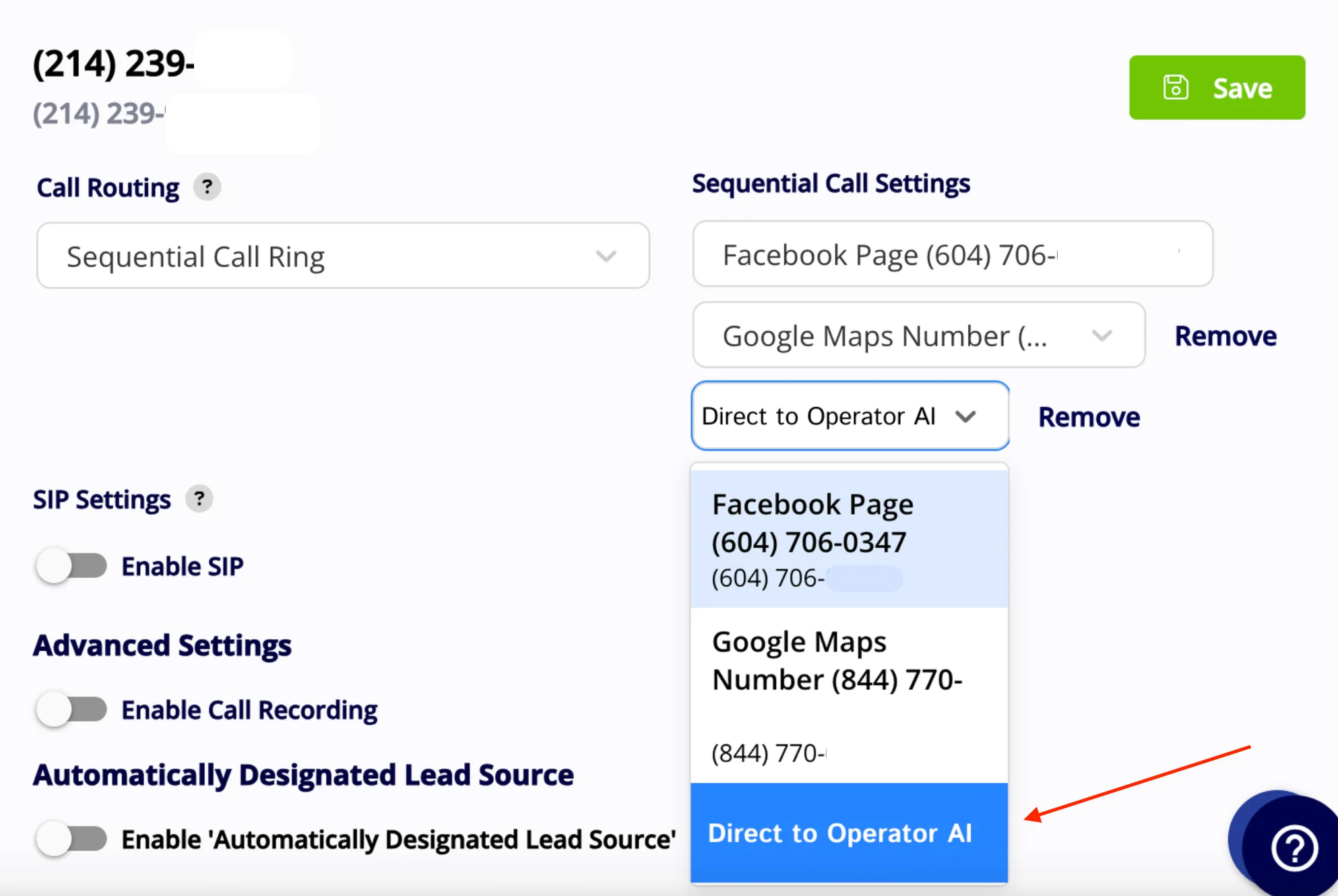 ## *Sequential Call Ring Example*
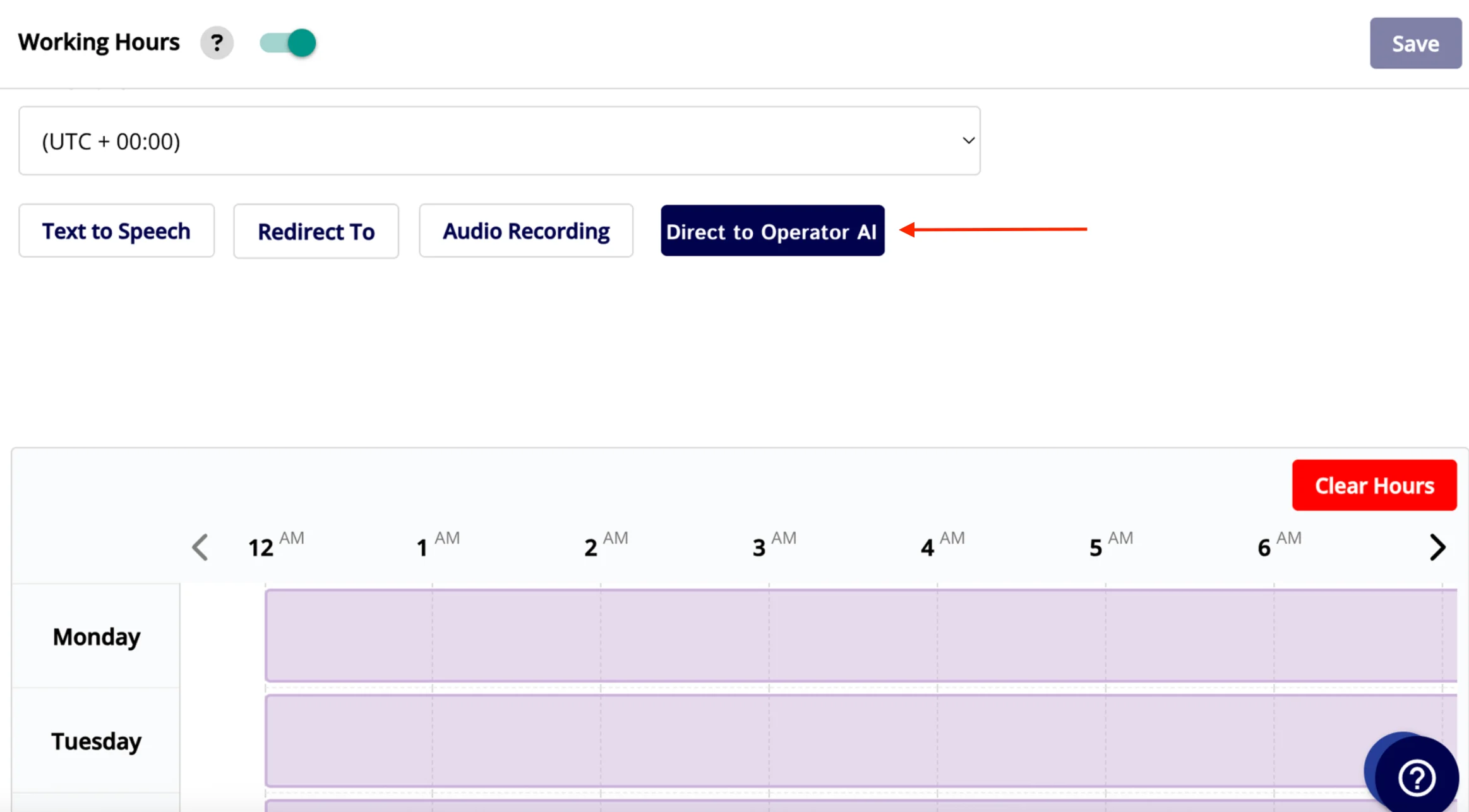 ## *Working Hours Example*
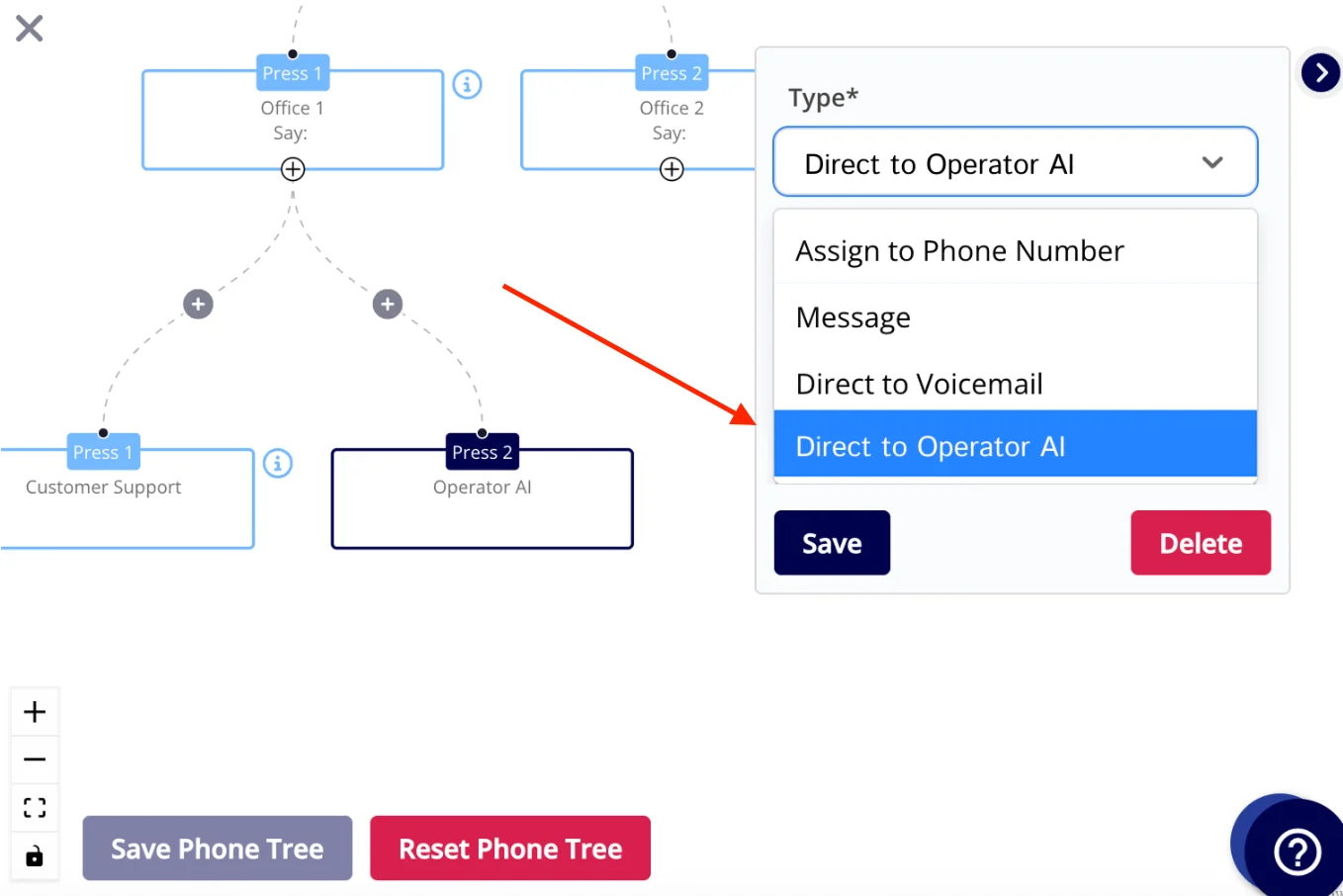 ## *Phone Tree Example*
### From Engage to Operator AI
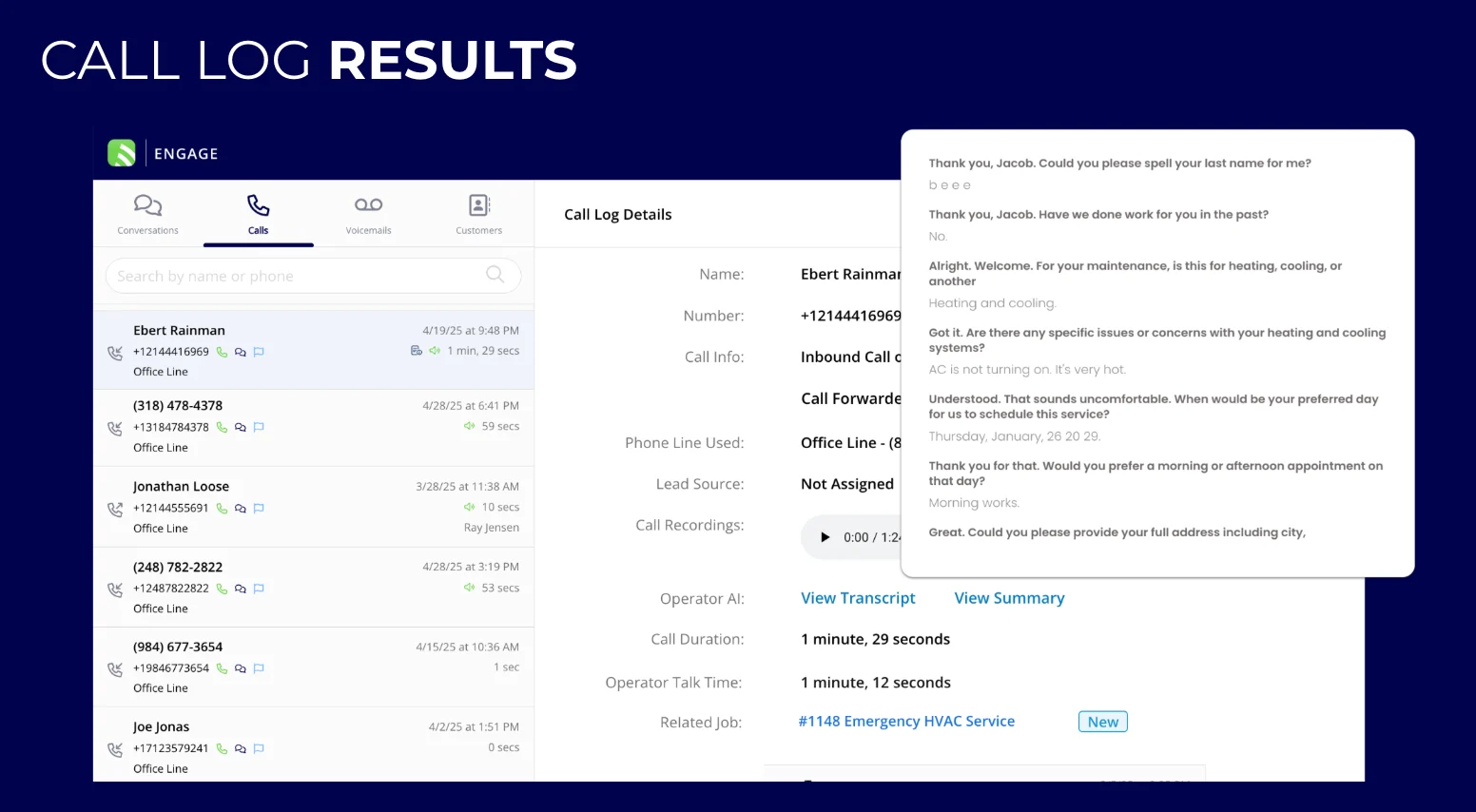
When a call is forwarded from Engage to Operator AI, the Operator will conduct the call and collect all relevant information, such as the requested service and desired customer availability. During the call the Operator will get a list of your company's available services from your booking portal and then match the closest service to the service being requested by your customer. The Operator will then reference the *Booking Portal Find Availability* for the requested service and find a time that matches your customers availability. You can create your own custom configurations for skillsets, teams sizes, and hours available for each service you offer in your booking portal. [the booking portal services setup](/using-fieldpulse/work/booking-portal#h_dded394439) to learn how.
### **Creating a Customer Record:**
Operator AI will create a new customer record as needed within FieldPulse. Operator AI will collect the following information to create a new customer record:
* Name
* Phone number
* Email address
* Address
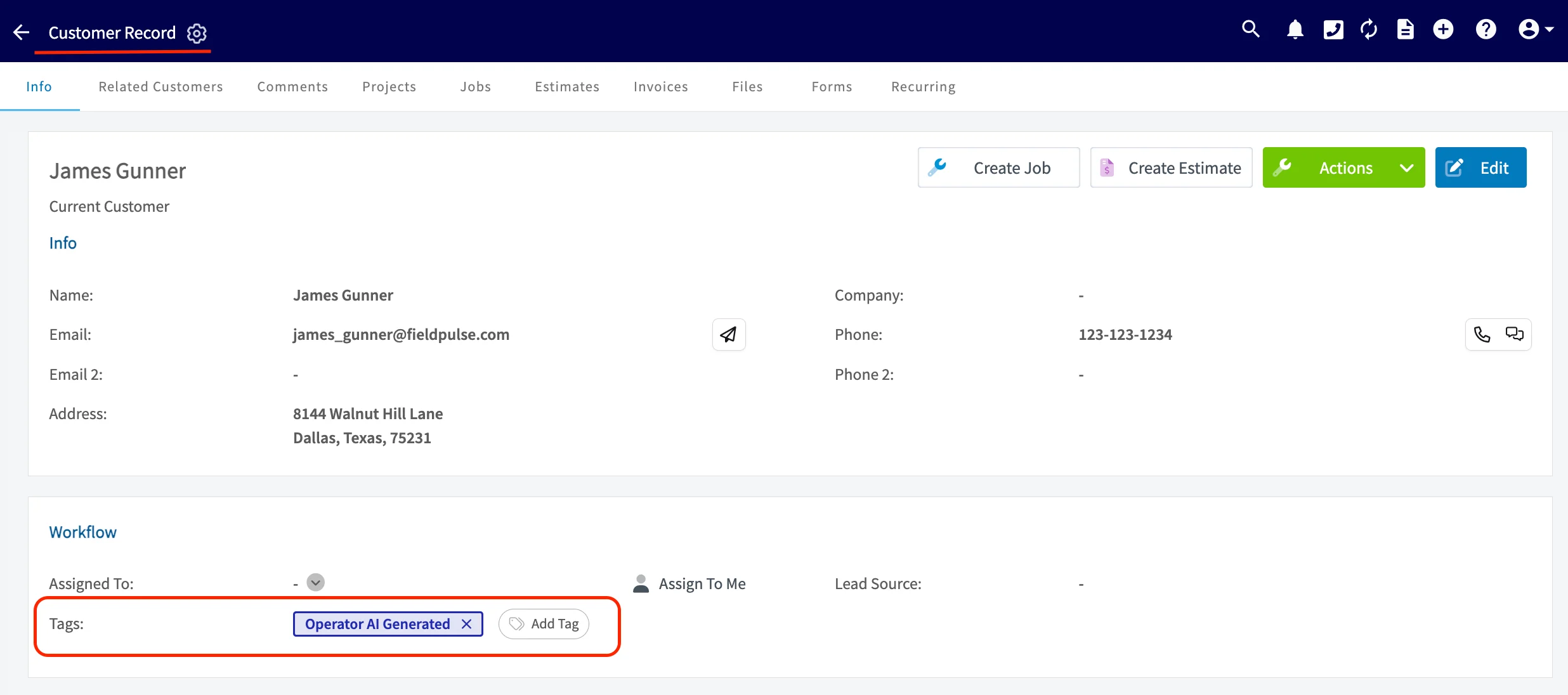
The newly created customer record will then have the following tag attached to it: *Operator AI Generated*. You an run reports and/or filter by this tag. This will allow you to easily distinguish who became a customer of yours thanks to the help of Operator AI!
## *Phone Tree Example*
### From Engage to Operator AI
When a call is forwarded from Engage to Operator AI, the Operator will conduct the call and collect all relevant information, such as the requested service and desired customer availability. During the call the Operator will get a list of your company's available services from your booking portal and then match the closest service to the service being requested by your customer. The Operator will then reference the *Booking Portal Find Availability* for the requested service and find a time that matches your customers availability. You can create your own custom configurations for skillsets, teams sizes, and hours available for each service you offer in your booking portal. [the booking portal services setup](/using-fieldpulse/work/booking-portal#h_dded394439) to learn how.
### **Creating a Customer Record:**
Operator AI will create a new customer record as needed within FieldPulse. Operator AI will collect the following information to create a new customer record:
* Name
* Phone number
* Email address
* Address
The newly created customer record will then have the following tag attached to it: *Operator AI Generated*. You an run reports and/or filter by this tag. This will allow you to easily distinguish who became a customer of yours thanks to the help of Operator AI!
 ### Creating a Job Record
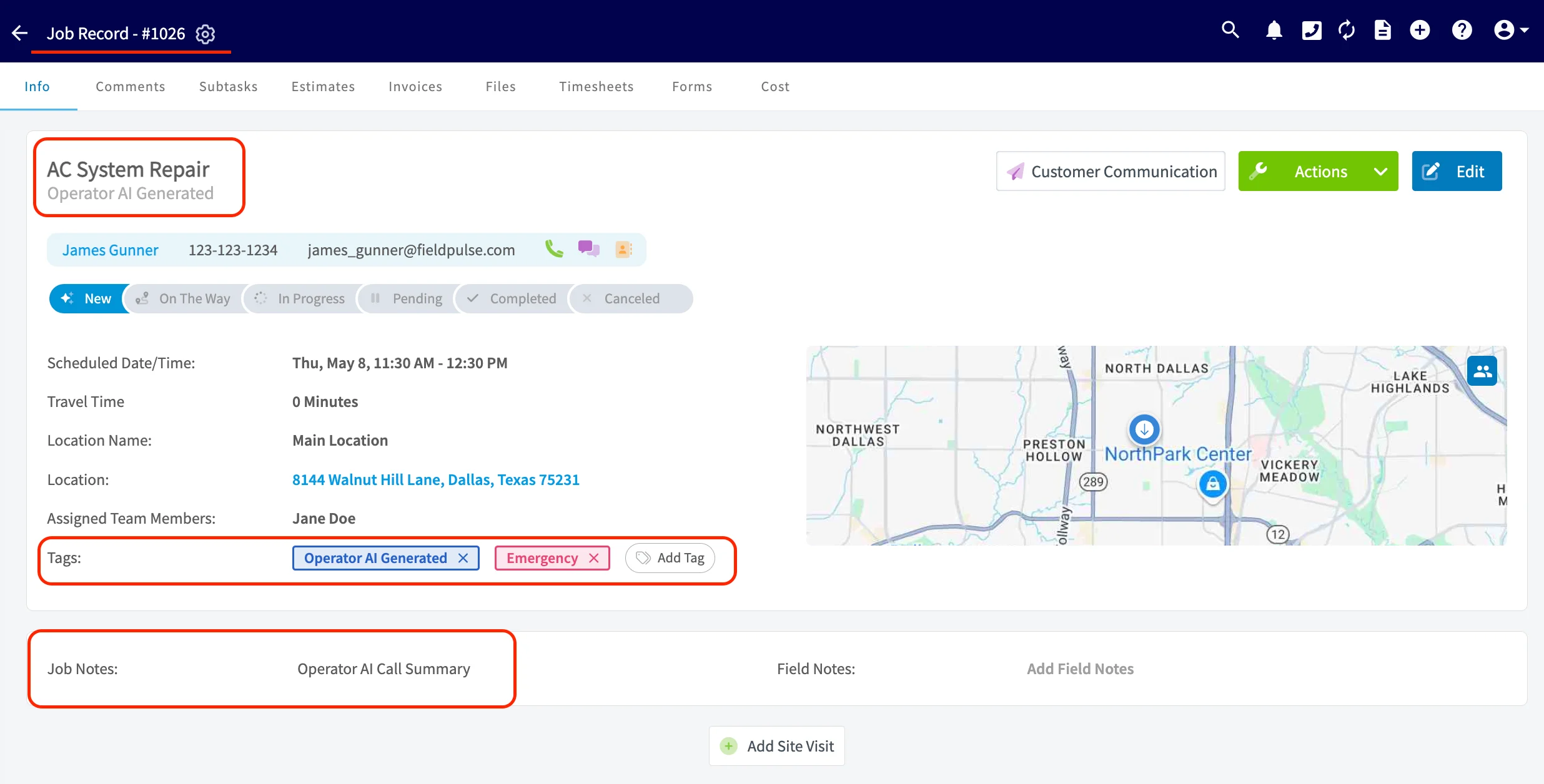
Operator AI will also create a new job record in FieldPulse using the information collected during the customer call as well as the customer record. The job record will contain the following information:
* **Service Title/Description:** This will be the **exact name** of the service you offer and entered in your booking portal.
* **Job Subtitle:** The subtitle will always be *Operator AI Generated*.
* **Job Tag:** A tag will **always** be created that says *Operator AI Generated*. If an emergency service was requested an *Emergency* tag will also be created and added to the job record.
* **Job Notes:** A transcript outlining the summary of the call taken by Operator AI will populate here.
### Creating a Job Record
Operator AI will also create a new job record in FieldPulse using the information collected during the customer call as well as the customer record. The job record will contain the following information:
* **Service Title/Description:** This will be the **exact name** of the service you offer and entered in your booking portal.
* **Job Subtitle:** The subtitle will always be *Operator AI Generated*.
* **Job Tag:** A tag will **always** be created that says *Operator AI Generated*. If an emergency service was requested an *Emergency* tag will also be created and added to the job record.
* **Job Notes:** A transcript outlining the summary of the call taken by Operator AI will populate here.
 ***
# Video Tutorial: Operator AI Portal
# FAQs
**What happens if the person calling in is not a current customer of mine?**
No worries! Operator AI will create a new customer record for you within FieldPulse. The record will the be tagged with the following tag in our system: *Operator AI Generated.* This will allow you to easily distinguish who became a customer of yours thanks to the help of Operator AI!
**What if a customer calls in wanting to reschedule their service?**
Operator AI can help with that! Utilizing the available time slots you set up in your booking portal, Operator AI will be able to successfully reschedule the service.
**What is the average length of a call taken by Operator AI?**
This will obviously vary by customer and questions asked, but the average length is 1 minutes and 5 seconds. Operator AI aims to quickly answer inquiries or forward the call to another source (available office admin, on call service technician, etc.) designated by you that might know the correct answer. Your Operator AI will learn at a tenfold rate in live environments, gaining valuable insights with each interaction it has with customers. This accelerated learning will help keep call durations short and concise while still ensuring high quality.
***
**What if I use a Google Voice phone number? Can I use that to forward my calls to Operator AI?**
If you currently use a Google Voice number, you will need to port that number into Engage in order for the transfer to successfully route to Operator AI.
**Have additional questions?**
*Contact us at [support@fieldpulse.com](mailto:support@fieldpulse.com) or use the chat feature in the bottom right corner of your screen.*
## Related topics
- [Chat AI](/features-add-ons/field-intelligence/chat-ai.md)
- [Field Intelligence](/features-add-ons/field-intelligence/index.md)
- [Pulse Fleet Tracking](/features-add-ons/pulse-fleet-tracking/pulse-fleet-tracking.md)
- [Free2Grow Integration](/integrations-partners/marketing-lead-generation/free2grow-integration.md)
- [Inventory Reports](/using-fieldpulse/reporting/raw-data-reporting-tutorials/inventory-reports.md)
***
# Video Tutorial: Operator AI Portal
# FAQs
**What happens if the person calling in is not a current customer of mine?**
No worries! Operator AI will create a new customer record for you within FieldPulse. The record will the be tagged with the following tag in our system: *Operator AI Generated.* This will allow you to easily distinguish who became a customer of yours thanks to the help of Operator AI!
**What if a customer calls in wanting to reschedule their service?**
Operator AI can help with that! Utilizing the available time slots you set up in your booking portal, Operator AI will be able to successfully reschedule the service.
**What is the average length of a call taken by Operator AI?**
This will obviously vary by customer and questions asked, but the average length is 1 minutes and 5 seconds. Operator AI aims to quickly answer inquiries or forward the call to another source (available office admin, on call service technician, etc.) designated by you that might know the correct answer. Your Operator AI will learn at a tenfold rate in live environments, gaining valuable insights with each interaction it has with customers. This accelerated learning will help keep call durations short and concise while still ensuring high quality.
***
**What if I use a Google Voice phone number? Can I use that to forward my calls to Operator AI?**
If you currently use a Google Voice number, you will need to port that number into Engage in order for the transfer to successfully route to Operator AI.
**Have additional questions?**
*Contact us at [support@fieldpulse.com](mailto:support@fieldpulse.com) or use the chat feature in the bottom right corner of your screen.*
## Related topics
- [Chat AI](/features-add-ons/field-intelligence/chat-ai.md)
- [Field Intelligence](/features-add-ons/field-intelligence/index.md)
- [Pulse Fleet Tracking](/features-add-ons/pulse-fleet-tracking/pulse-fleet-tracking.md)
- [Free2Grow Integration](/integrations-partners/marketing-lead-generation/free2grow-integration.md)
- [Inventory Reports](/using-fieldpulse/reporting/raw-data-reporting-tutorials/inventory-reports.md)