> ## Documentation Index
> Fetch the complete documentation index at: https://help.fieldpulse.com/llms.txt
> Use this file to discover all available pages before exploring further.
# Customers & Scheduling Quick Start
> Add your first customers to FieldPulse three ways, create a job, and get it on the schedule — a guided first-task walkthrough for new accounts.
> **Who uses this:** Administrators create customers, jobs, and schedules; a Team Manager creates jobs, works their own team's schedule, and can create customers when an Administrator enables that permission. **Availability:** All regions.
This quick start covers the first three things a new FieldPulse account does: add your customers, create a job for the work, and put that job on the schedule. Each step below links to the full article when you want the complete detail.
## Overview
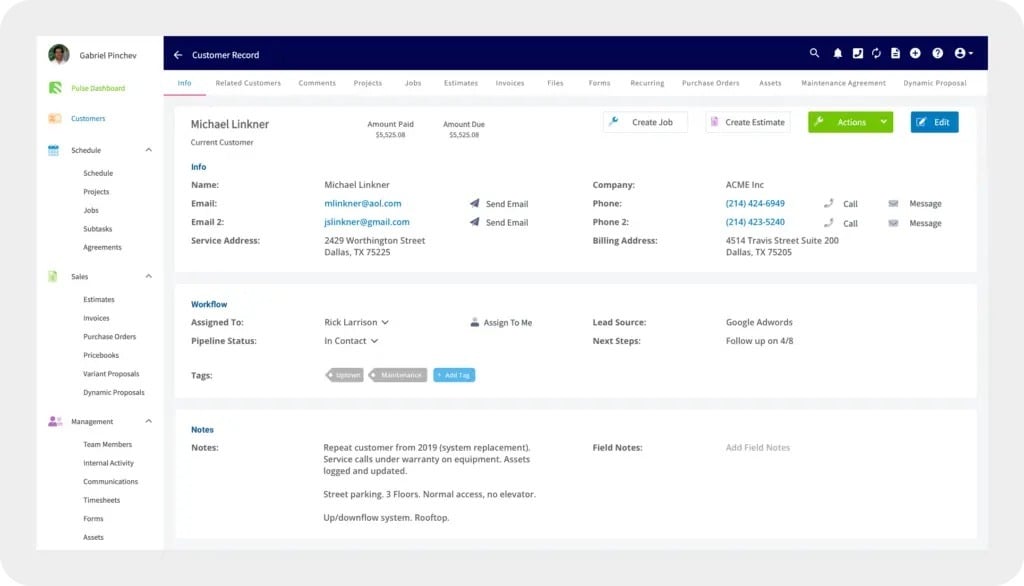
[Customers](https://www.fieldpulse.com/features/customer-management), [jobs](https://www.fieldpulse.com/features/job-management), and [scheduling](https://www.fieldpulse.com/features/scheduling-and-dispatching) are the backbone of day-to-day work in FieldPulse. A customer record stores that customer's contact details and notes along with their related records — jobs, estimates, invoices, files, assets, and maintenance agreements — so everything tied to the customer lives in one place. Once the customer record exists, you create a job for the work, then schedule that job so a tech knows where to be and when.
 ## Video walkthrough
Watch the video walkthrough for this quick start, then follow the written steps below.
## Before you begin
* **Finish your company settings.** Add your company information and logo and set your defaults before you start adding customers — see [Setting Up Your Account](/getting-started/welcome/account-setup).
* **Turn on the features and plugins your business uses.** Do this before you start adding customers — see [Features & Plugins Overview](/getting-started/next-steps/features-plugins-overview).
## Add your customers
FieldPulse gives you three ways to add customers to your account. Pick the one that matches where your customer data lives now.
* **Add a customer manually.** Enter one customer at a time — use this for new customers as they come in. See [How to Create a Customer](/customers/managing-customers/creating-a-customer).
* **Import a customer list.** Move an existing customer base in at once with the mass import tool in Company Settings, using an Excel, Google Sheets, or CSV file. See [How to Import Customers](/settings/data/importing-customers).
* **Import from a QuickBooks sync.** If you keep your books in QuickBooks, connecting the sync brings your existing QuickBooks customers and items into FieldPulse. See [QuickBooks Online Overview](/integrations/accounting/quickbooks-online/overview) or [QuickBooks Desktop Overview](/integrations/accounting/quickbooks-desktop/overview). Accounts in Australia and New Zealand can sync their customers from Xero the same way — see [Xero Overview](/integrations/accounting/xero/overview).
For more on what a customer record holds and how to organize your list, see [Customer Record Field Details](/customers/managing-customers/record-fields) and [How to Tag and Sort Customers](/customers/managing-customers/tagging-sorting).
## Create a job
With customers in FieldPulse, create a job for the work you are doing for one of them. Every job record links to a customer, so the work, notes, and any estimates or invoices stay tied to that customer record. You can create a job from the web app or the mobile app, give it a title, assign team members, and save it. For the full walkthrough on both web and mobile, see [How to Create a Job](/jobs/jobs-tasks/creating-a-job).
## Video walkthrough
Watch the video walkthrough for this quick start, then follow the written steps below.
## Before you begin
* **Finish your company settings.** Add your company information and logo and set your defaults before you start adding customers — see [Setting Up Your Account](/getting-started/welcome/account-setup).
* **Turn on the features and plugins your business uses.** Do this before you start adding customers — see [Features & Plugins Overview](/getting-started/next-steps/features-plugins-overview).
## Add your customers
FieldPulse gives you three ways to add customers to your account. Pick the one that matches where your customer data lives now.
* **Add a customer manually.** Enter one customer at a time — use this for new customers as they come in. See [How to Create a Customer](/customers/managing-customers/creating-a-customer).
* **Import a customer list.** Move an existing customer base in at once with the mass import tool in Company Settings, using an Excel, Google Sheets, or CSV file. See [How to Import Customers](/settings/data/importing-customers).
* **Import from a QuickBooks sync.** If you keep your books in QuickBooks, connecting the sync brings your existing QuickBooks customers and items into FieldPulse. See [QuickBooks Online Overview](/integrations/accounting/quickbooks-online/overview) or [QuickBooks Desktop Overview](/integrations/accounting/quickbooks-desktop/overview). Accounts in Australia and New Zealand can sync their customers from Xero the same way — see [Xero Overview](/integrations/accounting/xero/overview).
For more on what a customer record holds and how to organize your list, see [Customer Record Field Details](/customers/managing-customers/record-fields) and [How to Tag and Sort Customers](/customers/managing-customers/tagging-sorting).
## Create a job
With customers in FieldPulse, create a job for the work you are doing for one of them. Every job record links to a customer, so the work, notes, and any estimates or invoices stay tied to that customer record. You can create a job from the web app or the mobile app, give it a title, assign team members, and save it. For the full walkthrough on both web and mobile, see [How to Create a Job](/jobs/jobs-tasks/creating-a-job).
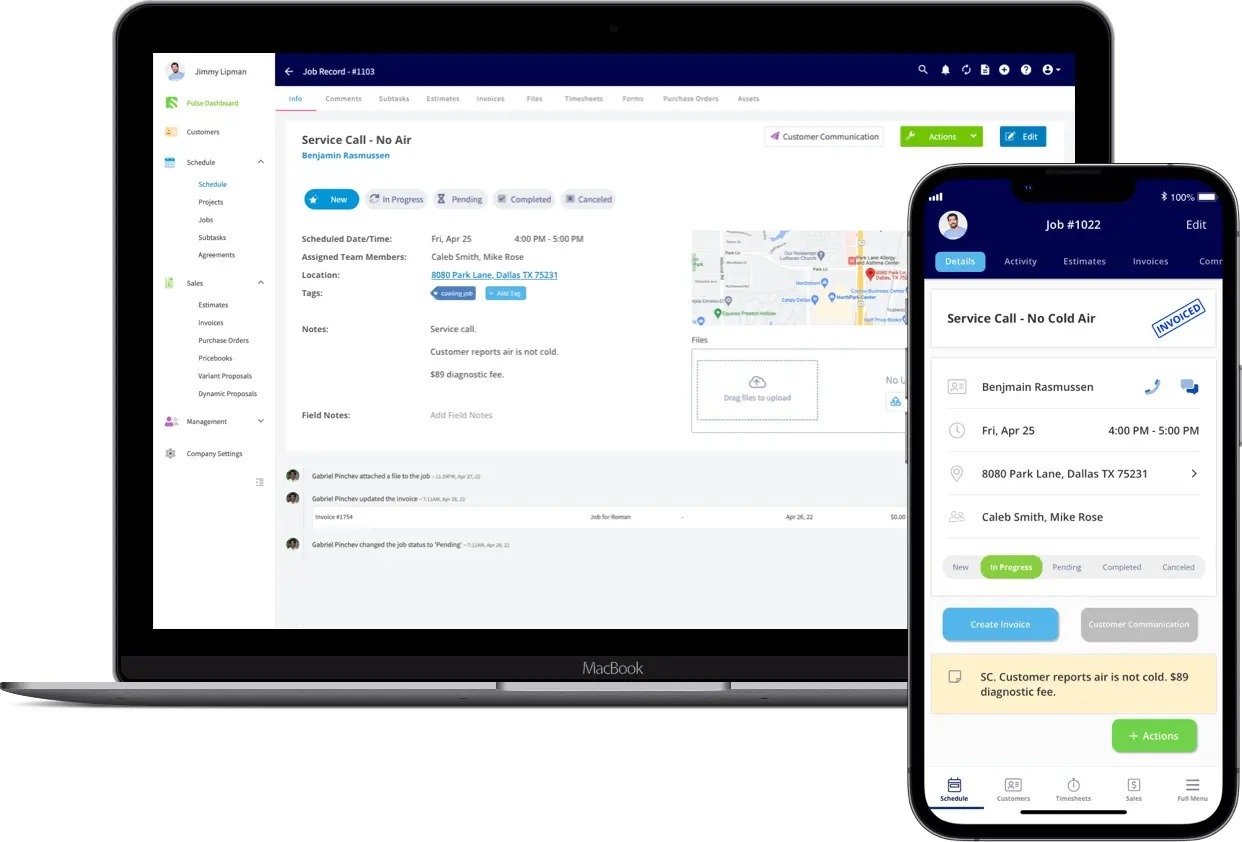 For more on what a job record can hold and how to organize your jobs, see [Setting Up Custom Fields on Job Records](/jobs/jobs-tasks/custom-fields) and [How to Create Custom Tags for Jobs](/jobs/jobs-tasks/custom-tags).
## Schedule the job
Put the job on the schedule so a tech knows where to be and when. You can schedule a job two ways:
* **From the job record.** Set the date and time on the job itself, or select **Find Availability** to have FieldPulse suggest open time slots for the team members you need.
* **From the schedule.** Open **Schedule** in the left-side menu, switch to **Dispatch View**, pick the team members and the time slot you want, then select **Create Job**.
For the full detail on finding availability, dispatching, and working the team schedule, see [Availability & Scheduling Overview](/scheduling-dispatch/availability/overview).
For more on what a job record can hold and how to organize your jobs, see [Setting Up Custom Fields on Job Records](/jobs/jobs-tasks/custom-fields) and [How to Create Custom Tags for Jobs](/jobs/jobs-tasks/custom-tags).
## Schedule the job
Put the job on the schedule so a tech knows where to be and when. You can schedule a job two ways:
* **From the job record.** Set the date and time on the job itself, or select **Find Availability** to have FieldPulse suggest open time slots for the team members you need.
* **From the schedule.** Open **Schedule** in the left-side menu, switch to **Dispatch View**, pick the team members and the time slot you want, then select **Create Job**.
For the full detail on finding availability, dispatching, and working the team schedule, see [Availability & Scheduling Overview](/scheduling-dispatch/availability/overview).
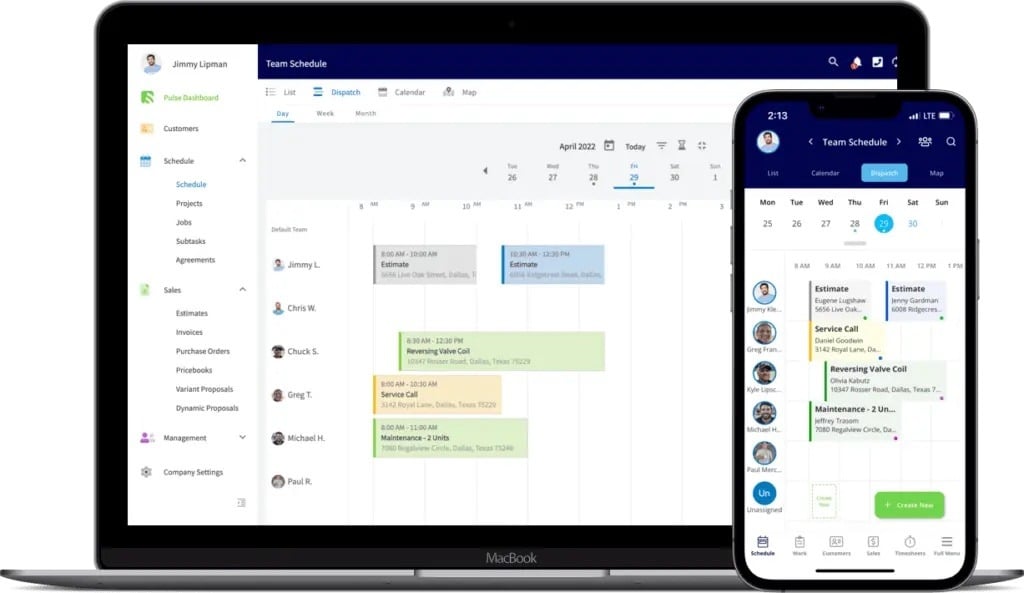 Your first workflow is complete when your customers are in FieldPulse, a job is created and linked to one of them, and that job is scheduled with a tech assigned — the assigned team members are notified of the new work and the job appears on their schedule.
## FAQs
### Can I create a job without linking a customer?
No. When you build the job you can select an existing customer or create a new customer in the moment. If the work has no customer to link at all, create a task instead — see [How to Create a Task](/jobs/jobs-tasks/creating-a-task).
### How do I bring customers over from another field service platform?
FieldPulse has a migration guide for each platform it commonly replaces — [ServiceTitan](/getting-started/migrating/servicetitan), [Housecall Pro](/getting-started/migrating/housecall-pro), [Jobber](/getting-started/migrating/jobber), [Service Fusion](/getting-started/migrating/service-fusion), and [FieldEdge](/getting-started/migrating/fieldedge). Each guide covers exporting your customer list from your old platform and importing it into FieldPulse.
## Still need help?
Browse the [FieldPulse Help Center](/) for the full set of articles on customers, jobs, and scheduling, or contact the FieldPulse support team at [support@fieldpulse.com](mailto:support@fieldpulse.com) or through the chat feature in the bottom-right corner of your screen.
## Related articles
* [How to Create a Customer](/customers/managing-customers/creating-a-customer)
* [How to Import Customers](/settings/data/importing-customers)
* [How to Create a Job](/jobs/jobs-tasks/creating-a-job)
* [Availability & Scheduling Overview](/scheduling-dispatch/availability/overview)
* [How to Create Your First Estimate or Invoice](/getting-started/quick-start/estimates-invoices)
* [Features & Plugins Overview](/getting-started/next-steps/features-plugins-overview)
* [Customer Record Field Details](/customers/managing-customers/record-fields)
## Related topics
- [Quick-Start Guides](/getting-started/quick-start/index.md)
- [FieldPulse360: Customers & Scheduling](/training-resources/fieldpulse360/fieldpulse360-archives/fieldpulse360-customers-scheduling.md)
- [How to Create Your First Estimate or Invoice](/getting-started/quick-start/estimates-invoices.md)
- [FieldPulse360: Job Management](/training-resources/fieldpulse360/fieldpulse360-archives/fieldpulse360-job-management.md)
Your first workflow is complete when your customers are in FieldPulse, a job is created and linked to one of them, and that job is scheduled with a tech assigned — the assigned team members are notified of the new work and the job appears on their schedule.
## FAQs
### Can I create a job without linking a customer?
No. When you build the job you can select an existing customer or create a new customer in the moment. If the work has no customer to link at all, create a task instead — see [How to Create a Task](/jobs/jobs-tasks/creating-a-task).
### How do I bring customers over from another field service platform?
FieldPulse has a migration guide for each platform it commonly replaces — [ServiceTitan](/getting-started/migrating/servicetitan), [Housecall Pro](/getting-started/migrating/housecall-pro), [Jobber](/getting-started/migrating/jobber), [Service Fusion](/getting-started/migrating/service-fusion), and [FieldEdge](/getting-started/migrating/fieldedge). Each guide covers exporting your customer list from your old platform and importing it into FieldPulse.
## Still need help?
Browse the [FieldPulse Help Center](/) for the full set of articles on customers, jobs, and scheduling, or contact the FieldPulse support team at [support@fieldpulse.com](mailto:support@fieldpulse.com) or through the chat feature in the bottom-right corner of your screen.
## Related articles
* [How to Create a Customer](/customers/managing-customers/creating-a-customer)
* [How to Import Customers](/settings/data/importing-customers)
* [How to Create a Job](/jobs/jobs-tasks/creating-a-job)
* [Availability & Scheduling Overview](/scheduling-dispatch/availability/overview)
* [How to Create Your First Estimate or Invoice](/getting-started/quick-start/estimates-invoices)
* [Features & Plugins Overview](/getting-started/next-steps/features-plugins-overview)
* [Customer Record Field Details](/customers/managing-customers/record-fields)
## Related topics
- [Quick-Start Guides](/getting-started/quick-start/index.md)
- [FieldPulse360: Customers & Scheduling](/training-resources/fieldpulse360/fieldpulse360-archives/fieldpulse360-customers-scheduling.md)
- [How to Create Your First Estimate or Invoice](/getting-started/quick-start/estimates-invoices.md)
- [FieldPulse360: Job Management](/training-resources/fieldpulse360/fieldpulse360-archives/fieldpulse360-job-management.md)