> ## Documentation Index
> Fetch the complete documentation index at: https://help.fieldpulse.com/llms.txt
> Use this file to discover all available pages before exploring further.
# Setting Up QuickBooks Online Before Syncing
> What to check before connecting FieldPulse to QuickBooks Online — plan requirements, what does and doesn't sync, and the settings to change first.
Who uses this: Admins prepare and configure the integration — verify against role permissions. Availability: Requires the customer's own QuickBooks Online subscription (Essentials, Plus, or Advanced) — available in the United States, Canada, and Australia.
Preparing to [sync with QuickBooks Online](https://www.fieldpulse.com/company/partners/quickbooks) means confirming your plan qualifies, knowing what data will and won't come over, and changing a few QuickBooks Online settings before you connect. Getting this right up front prevents duplicate records and \$0 line items out of your books.
## Overview
When you connect FieldPulse to QuickBooks Online, all of your existing QuickBooks Online data is imported into FieldPulse automatically, and from then on [customers](https://www.fieldpulse.com/features/customer-management), line items, [estimates](https://www.fieldpulse.com/features/estimates-and-invoices), invoices, and [payments](https://www.fieldpulse.com/features/fieldpulse-payments) created or edited in either system flow to the other. This page covers the preparation you do before connecting. For the connection steps themselves, see [How to Sync With QuickBooks Online](/integrations/accounting/quickbooks-online/sync).
## Before you begin
* **Confirm your QuickBooks Online plan**. The Essentials, Plus, and Advanced plans sync. Plus or Advanced is recommended — Essentials does not support inventory tracking, so on Essentials you can only use Service and Product Non-Inventory line items in FieldPulse.
* **Confirm your region.** The QuickBooks Online integration is available for customers in the United States, Canada, and Australia only.
* **Set up tax rates in QuickBooks Online.** FieldPulse pulls tax rates from QuickBooks Online. If no tax rate is set up, tax will not apply in FieldPulse.
* **Add a quantity and price to every line item in QuickBooks Online.** Any line item with both missing comes into FieldPulse as \$0.
* **Enable Discounts in QuickBooks Online** if you want to use discounts on FieldPulse estimates and invoices.
### Do not sync if
[Contact the FieldPulse team](https://www.fieldpulse.com/company/contact-us) through in-app chat or at [support@fieldpulse.com](mailto:support@fieldpulse.com) before connecting if any of these apply:
* Your QuickBooks Online company is already synced with another field service management system.
* You have been using QuickBooks Online and FieldPulse at the same time and duplicating effort (creating estimates or invoices in both before syncing).
* You are using projects in QuickBooks Online.
## What syncs and what doesn't
The QuickBooks Online integration syncs the fields below two ways (FieldPulse ↔ QuickBooks Online).
| **Record** | **Syncs** | **Does not sync** |
| ---------- | ------------------------------------------------------------------------------------------------------------------------------ | -------------------------------------------------------------------------------------------------------------------------------------- |
| Customers | Primary contact (full name, company name, phone, email), notes (“Note to Customer”), service address, billing address | Additional contacts, additional locations, custom fields, files, tags |
| Line items | Item name, description, SKU/item #, quantities, unit cost/price, related sales/purchase accounts, total inventory, tax/non-tax | Custom fields, links, tags, UPC barcode |
| Estimates | Estimate date, expiration date, line items, estimate notes, business class | Custom fields, un-selected estimate options |
| Invoices | Invoice date, expiration date, line items, internal notes (sync as “Memo on Statement”), invoice number, message on statement | Contracts, custom fields, groupings, Shipping and Deposit fields that contain values (surcharges become unavailable after integrating) |
| Payments | Payment method (cash, check, card, bank transfer, other), payment total, payment notes | Credits (unless applied to an invoice), custom fields, journal entries, refunds, voided payments |
| Other | — | Custom fields, FieldPulse Jobs and Projects, groupings, QuickBooks receipts |
For estimates and invoices originally created in QuickBooks Online, the QuickBooks author does not carry into FieldPulse — the FieldPulse founding admin user is listed as the author instead.
## Estimate status mapping
Estimates sync to QuickBooks Online regardless of status. FieldPulse maps its estimate statuses to QuickBooks Online statuses as follows:
| **FieldPulse status** | **QuickBooks Online status** |
| ------------------------------------- | ---------------------------- |
| Draft, Estimate, Sent | Pending |
| Accepted, Scheduled, Ready, Completed | Accepted |
| Rejected | Declined |
| Lost | Closed |
## Purchase orders and QuickBooks Online projects
[Purchase orders](/inventory-materials/purchase-orders/managing) and QuickBooks Online projects are handled separately:
* Purchase orders can be synced on request. See [How to Sync Purchase Orders With QuickBooks Online](/integrations/accounting/quickbooks-online/purchase-orders).
* [QuickBooks Online](/integrations/accounting/quickbooks-online/overview) projects sync to FieldPulse as related customers. If you joined FieldPulse before 7/16/2024, the project sync is on and can be disabled on request. If you joined after 7/16/2024, the project sync is off and can be enabled on request. Disabling the project sync also stops the estimates and invoices within that project from syncing.
## Step-by-step setup
Before you connect, change these settings so the sync behaves correctly.
1. **Turn off Automatically apply credits in QuickBooks Online.** In QuickBooks Online, select the **Gear** icon, then **Account and Settings**. Select **Advanced**, open the **Automation** section, and disable **Automatically apply credits**. Select **Save**, then **Done**.
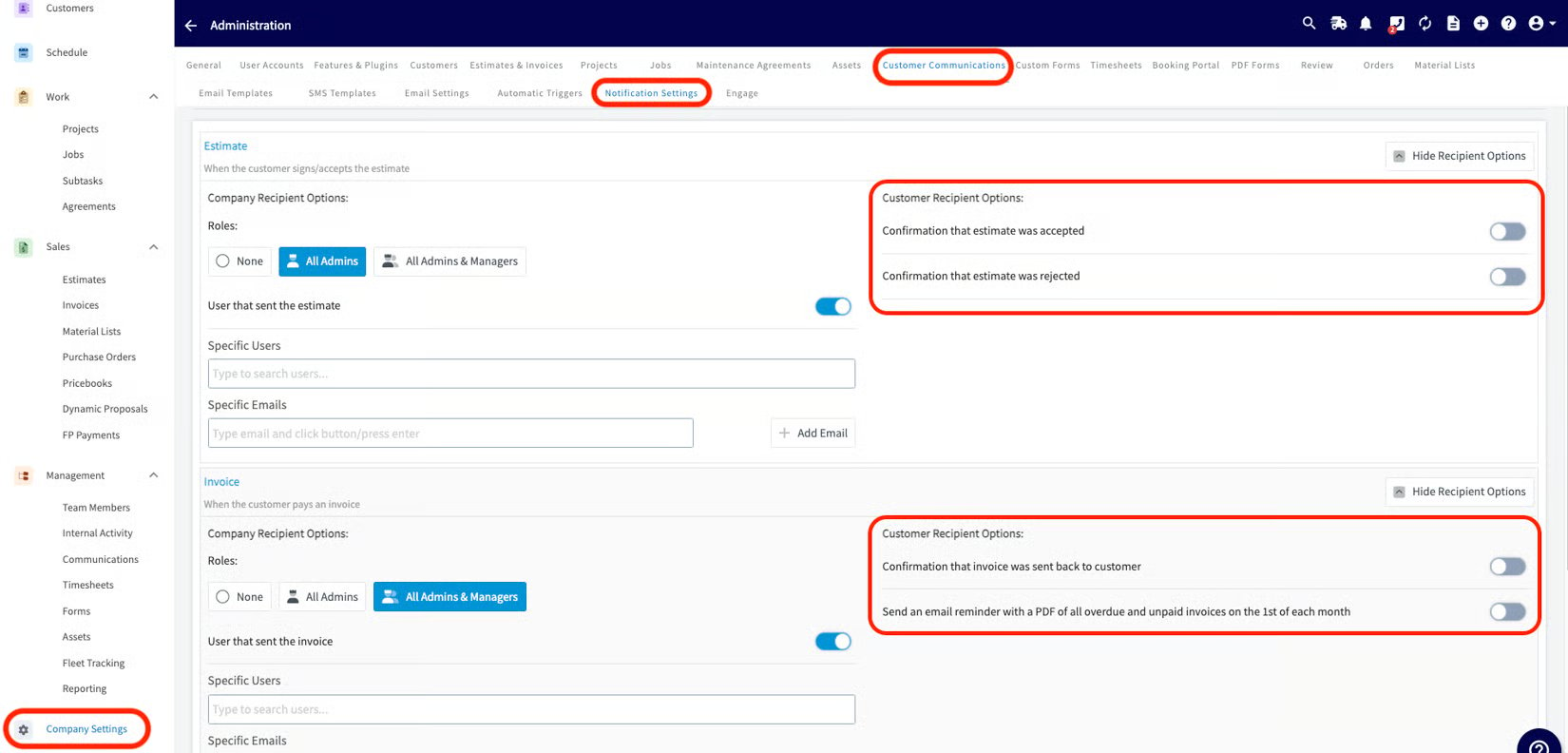
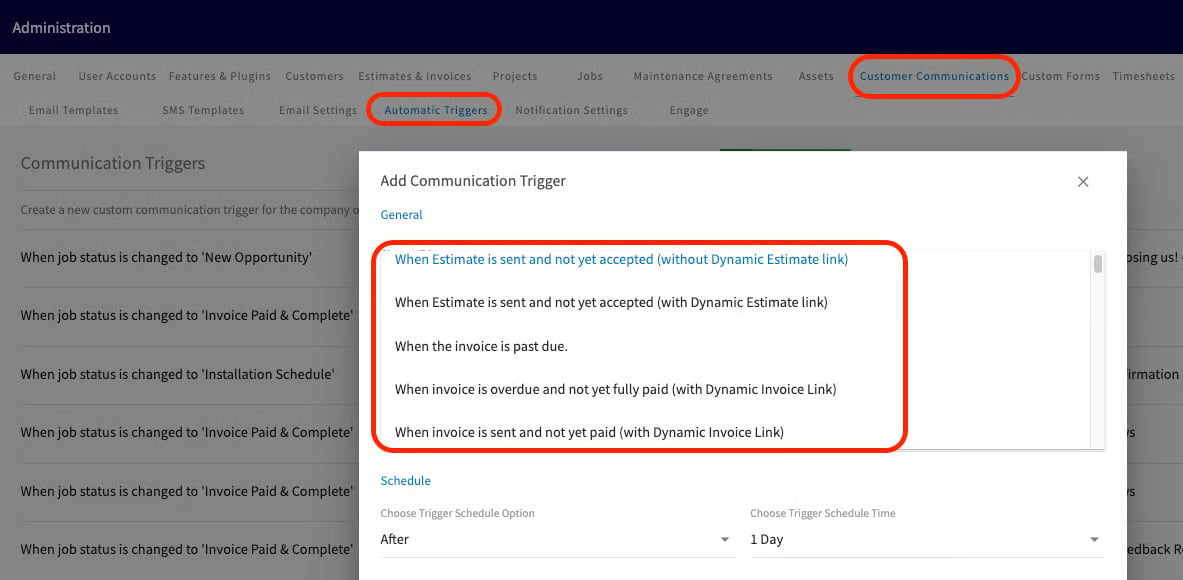
2. **Pause FieldPulse automatic communications during the initial sync.** If you use Customer Communications, turn off the automatic triggers linked to estimate and invoice records, and disable notification settings, so customers don't receive updates about every record as it comes over.
 3. **Decide how invoice and estimate numbers should be assigned.** With Custom Transaction Numbers turned **on** in QuickBooks Online, invoice numbers follow the FieldPulse sequence; turned **off**, they follow QuickBooks Online's sequence.
## Settings reference
| **Setting or behavior** | **What to know** |
| ----------------------------- | ------------------------------------------------------------------------------------------------------------------------------------------------------------------------------ |
| Custom Transaction Numbers | On = FieldPulse numbering; off = QuickBooks Online numbering. |
| Shipping Address | FieldPulse uses the QuickBooks Online “Shipping Address” as the service address. If only the Billing Address is filled in, no address shows on the FieldPulse customer record. |
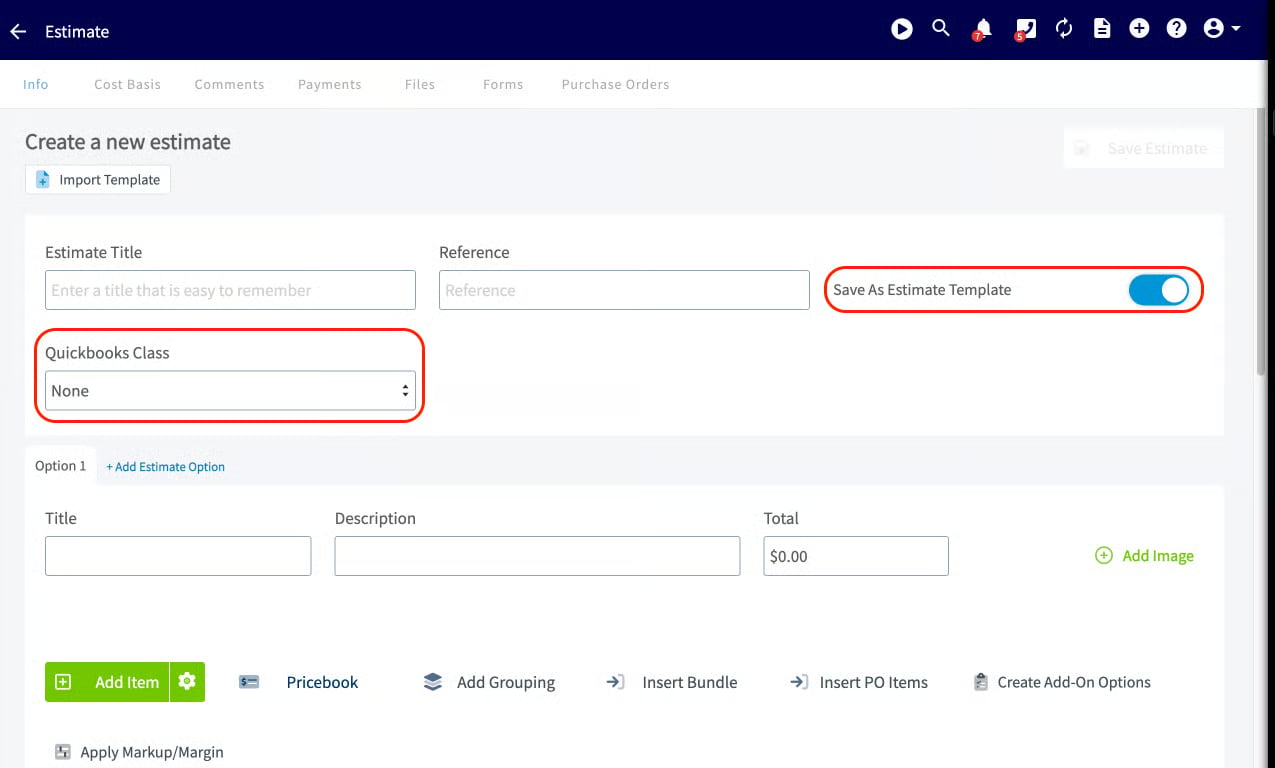
| Classes | Classes sync on estimates and invoices, not on individual line items. |
| Tips | Tips do not sync. A payment that exceeds the invoice total (because of a tip) can create a negative balance in QuickBooks Online — track tips separately. |
| Intuit Enterprise Suite (IES) | Supported. |
| Accounting flow | A collected payment flows Invoice → Payment → Undeposited Funds in QuickBooks Online, matching a standard QuickBooks workflow. |
3. **Decide how invoice and estimate numbers should be assigned.** With Custom Transaction Numbers turned **on** in QuickBooks Online, invoice numbers follow the FieldPulse sequence; turned **off**, they follow QuickBooks Online's sequence.
## Settings reference
| **Setting or behavior** | **What to know** |
| ----------------------------- | ------------------------------------------------------------------------------------------------------------------------------------------------------------------------------ |
| Custom Transaction Numbers | On = FieldPulse numbering; off = QuickBooks Online numbering. |
| Shipping Address | FieldPulse uses the QuickBooks Online “Shipping Address” as the service address. If only the Billing Address is filled in, no address shows on the FieldPulse customer record. |
| Classes | Classes sync on estimates and invoices, not on individual line items. |
| Tips | Tips do not sync. A payment that exceeds the invoice total (because of a tip) can create a negative balance in QuickBooks Online — track tips separately. |
| Intuit Enterprise Suite (IES) | Supported. |
| Accounting flow | A collected payment flows Invoice → Payment → Undeposited Funds in QuickBooks Online, matching a standard QuickBooks workflow. |
 ## Related articles
* [QuickBooks Online Overview](/integrations/accounting/quickbooks-online/overview)
* [How to Sync With QuickBooks Online](/integrations/accounting/quickbooks-online/sync)
* [How to Manage QuickBooks Online After Syncing](/integrations/accounting/quickbooks-online/post-sync)
* [Troubleshooting QuickBooks Online Sync Errors](/integrations/accounting/quickbooks-online/sync-errors)
You are ready to sync when your QuickBooks Online plan is confirmed, every line item has a quantity and price, tax rates are set up, and Automatically apply credits is turned off — next, connect the two systems in [How to Sync With QuickBooks Online](/integrations/accounting/quickbooks-online/sync).
## Related topics
- [QuickBooks Online Overview](/integrations/accounting/quickbooks-online/overview.md)
- [QuickBooks Online](/integrations/accounting/quickbooks-online/index.md)
- [How to Manage QuickBooks Online After Syncing](/integrations/accounting/quickbooks-online/post-sync.md)
- [QuickBooks Online Sync Examples and Details](/integrations/accounting/quickbooks-online/sync-examples.md)
## Related articles
* [QuickBooks Online Overview](/integrations/accounting/quickbooks-online/overview)
* [How to Sync With QuickBooks Online](/integrations/accounting/quickbooks-online/sync)
* [How to Manage QuickBooks Online After Syncing](/integrations/accounting/quickbooks-online/post-sync)
* [Troubleshooting QuickBooks Online Sync Errors](/integrations/accounting/quickbooks-online/sync-errors)
You are ready to sync when your QuickBooks Online plan is confirmed, every line item has a quantity and price, tax rates are set up, and Automatically apply credits is turned off — next, connect the two systems in [How to Sync With QuickBooks Online](/integrations/accounting/quickbooks-online/sync).
## Related topics
- [QuickBooks Online Overview](/integrations/accounting/quickbooks-online/overview.md)
- [QuickBooks Online](/integrations/accounting/quickbooks-online/index.md)
- [How to Manage QuickBooks Online After Syncing](/integrations/accounting/quickbooks-online/post-sync.md)
- [QuickBooks Online Sync Examples and Details](/integrations/accounting/quickbooks-online/sync-examples.md)