> ## Documentation Index
> Fetch the complete documentation index at: https://help.fieldpulse.com/llms.txt
> Use this file to discover all available pages before exploring further.
# How to Use Zapier With FieldPulse
> A Zapier walkthrough to build a Zap that pulls new rows from a Google Sheet into FieldPulse as leads, including the connection order that makes it work.
> **Who uses this:** Admins building their first Zap with FieldPulse. **Availability:** All regions; requires a Zapier account.
This walkthrough builds one Zap end to end: a new row in a Google Sheet creates a lead in [FieldPulse](https://www.fieldpulse.com/). It's a common lead-capture setup — a "Contact Us" form on your website, Facebook, or Instagram writes to a Google Sheet, and the Zap turns each new row into a FieldPulse lead automatically. The order you connect the apps in matters: the source app (Google Sheets) has to come first, then FieldPulse.
## Overview
Zapier connects two apps so an event in one triggers an action in the other. In this example, FieldPulse is the receiving app: it pulls in customer records as **leads**, which land under **Company Settings > Customers > Leads**. Google Sheets is the trigger app, and its trigger event is a new spreadsheet row. Once you've built this Zap, you can repeat the same pattern with any app Zapier supports.
New to Zaps? Start with the [Zapier Overview](/integrations/developer-api/zapier-overview) for what triggers and actions are.
## Before you begin
* You need a Zapier account. If you don't have one, create one at [zapier.com](http://zapier.com).
* Have the source app ready — in this example, a Google Sheet where new rows represent new leads.
* Know which Google Sheet columns map to which FieldPulse lead fields (for example, which column holds the first name).
## Build the Zap
1. Log in to your Zapier account and start a new Zap.
2. Search for and select the app you're connecting to FieldPulse **first** — in this example, **Google Sheets** — then FieldPulse as the second app. Connect them in this order: the source app first, FieldPulse second.
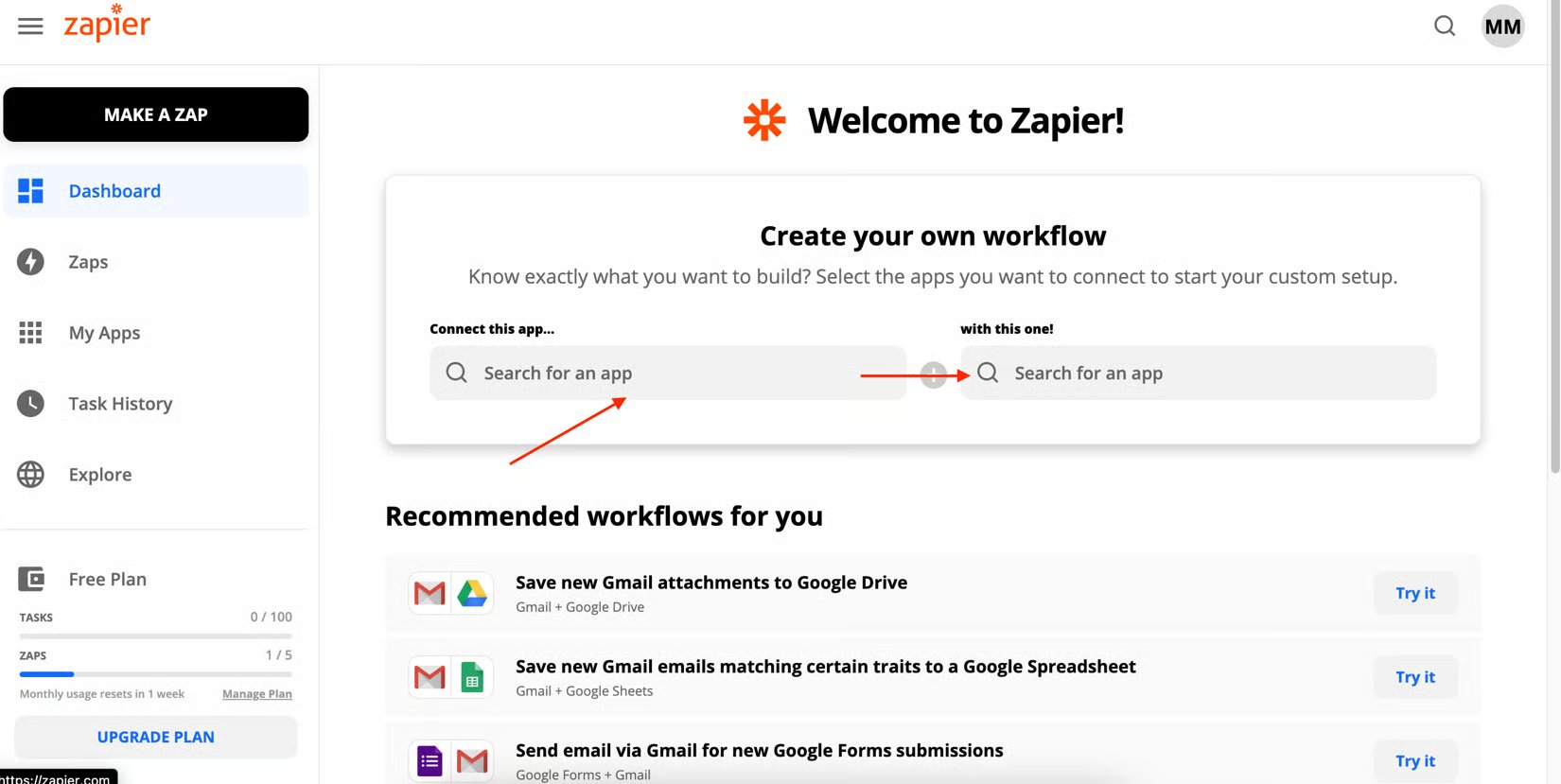 3. Choose the **trigger** — the event in Google Sheets that starts the Zap. For this example, select **New Spreadsheet Row**.
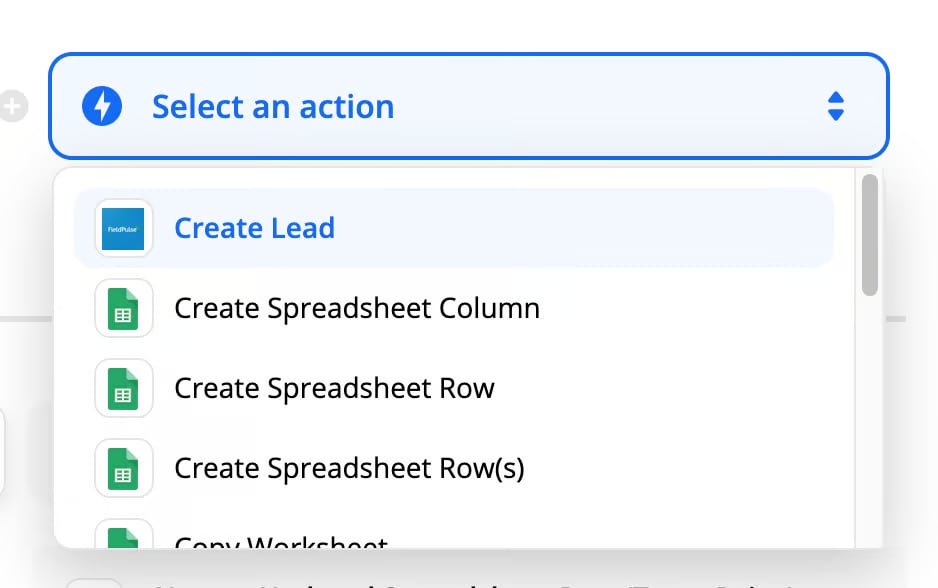
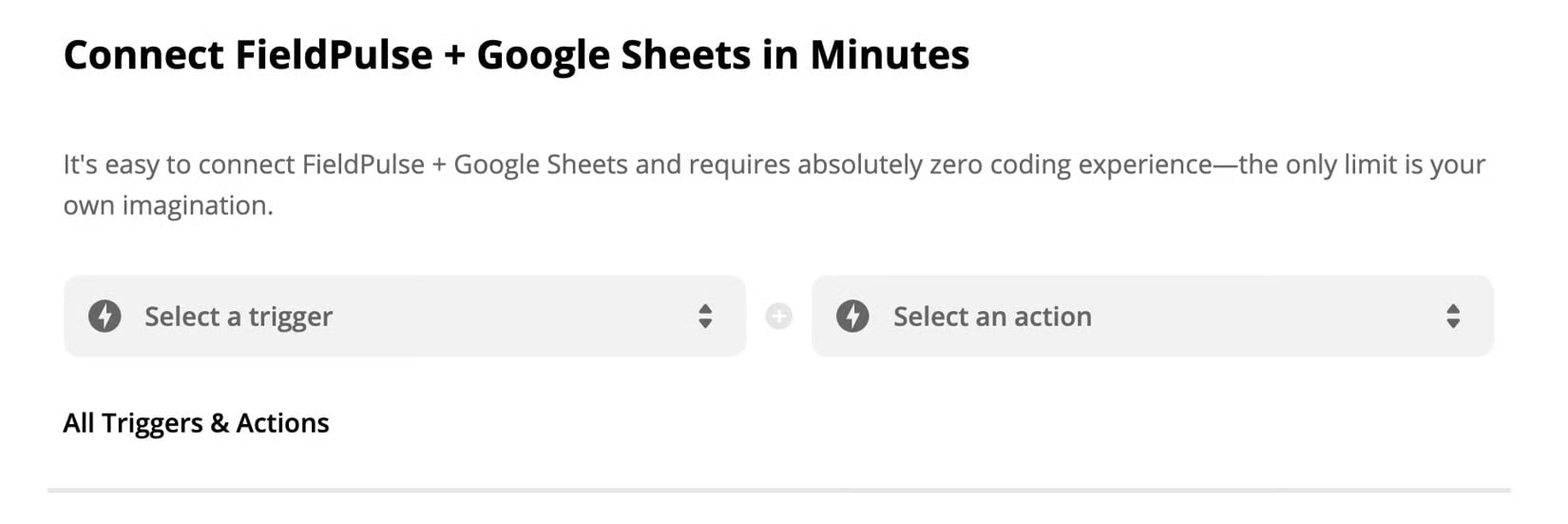 4. Choose the **action** — what FieldPulse does in response. Because FieldPulse is the receiving app, select **Create Lead**.
 5. Select **Connect Google Sheets + FieldPulse** to link the two apps.
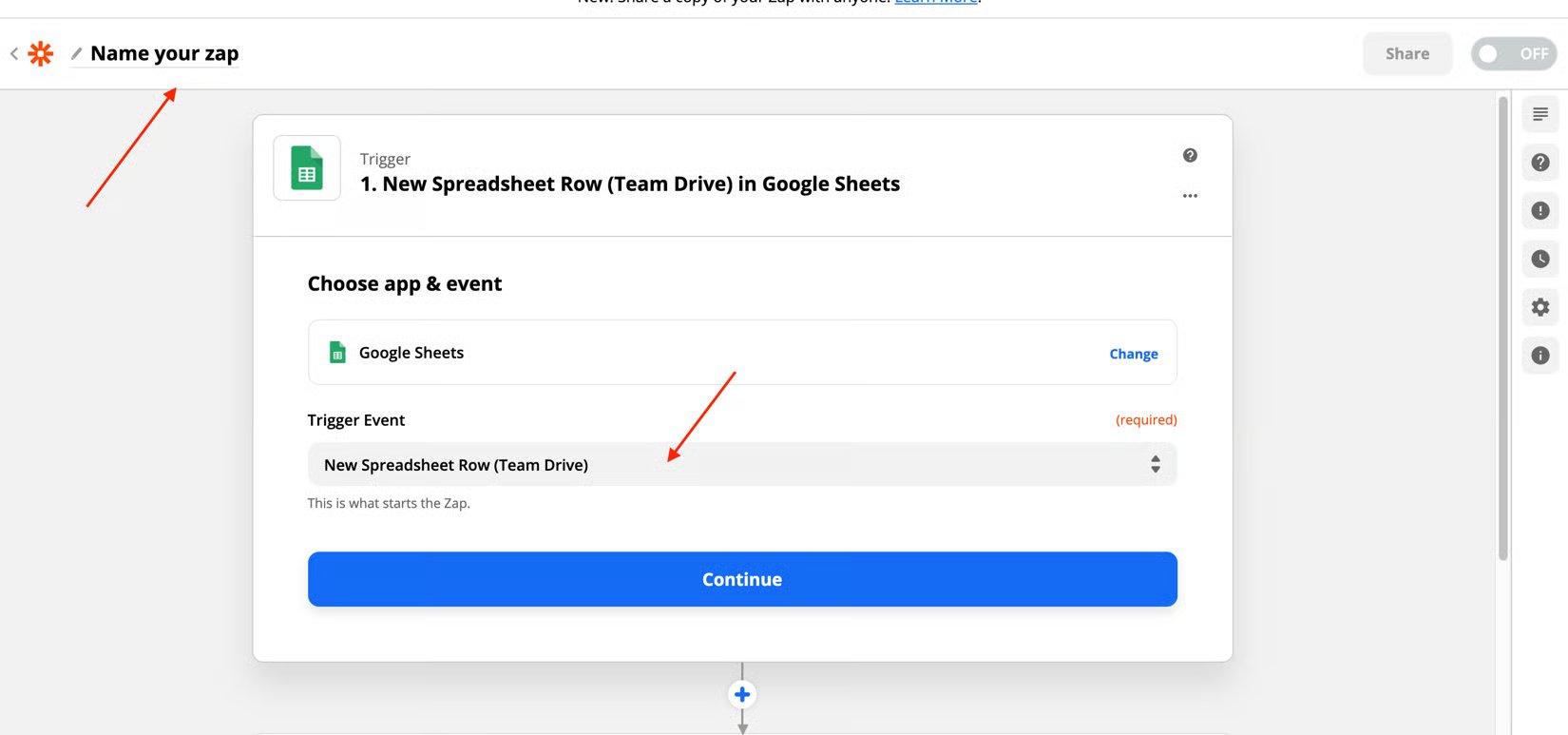
 6. Name your Zap so you can find it later, confirm the trigger event is **New Spreadsheet Row**, and select **Continue**.
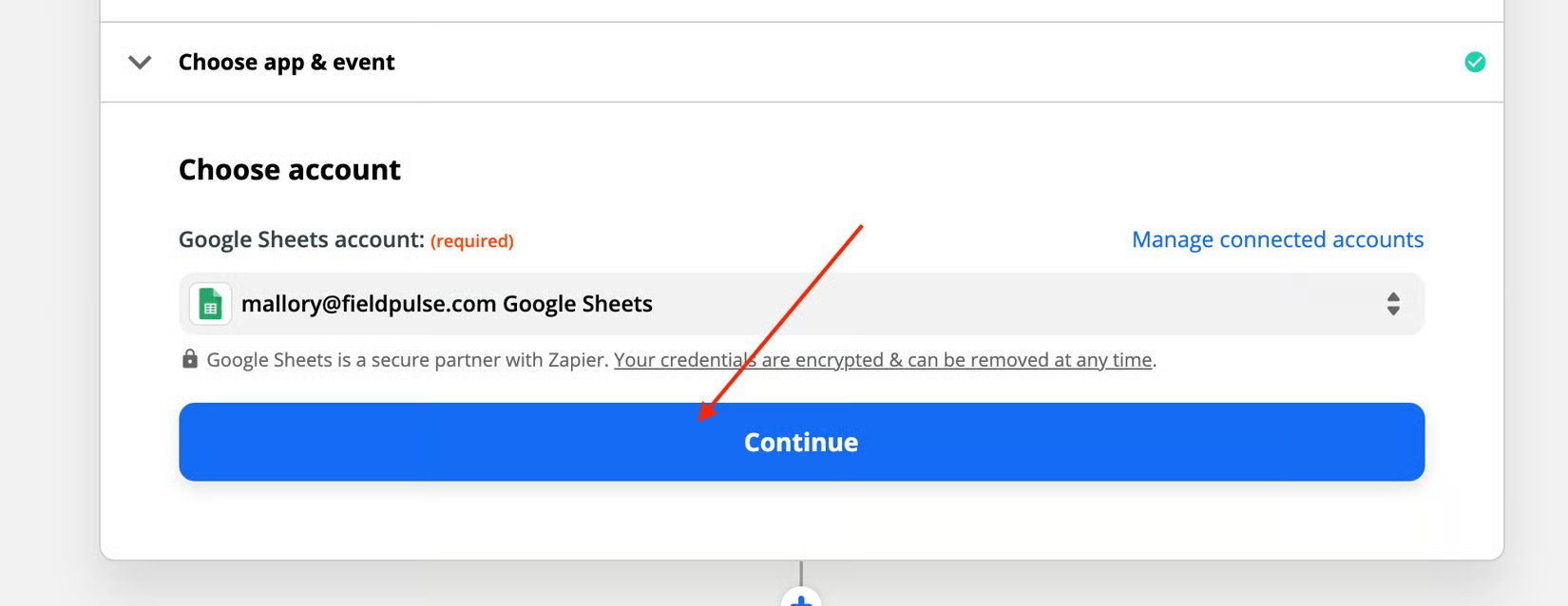
 7. Choose the Google account to connect (or **+ Connect a New Account**), then select **Continue**.
 8. Fill in the remaining trigger options for Google Sheets, then select **To Continue, Finish Required Fields**.
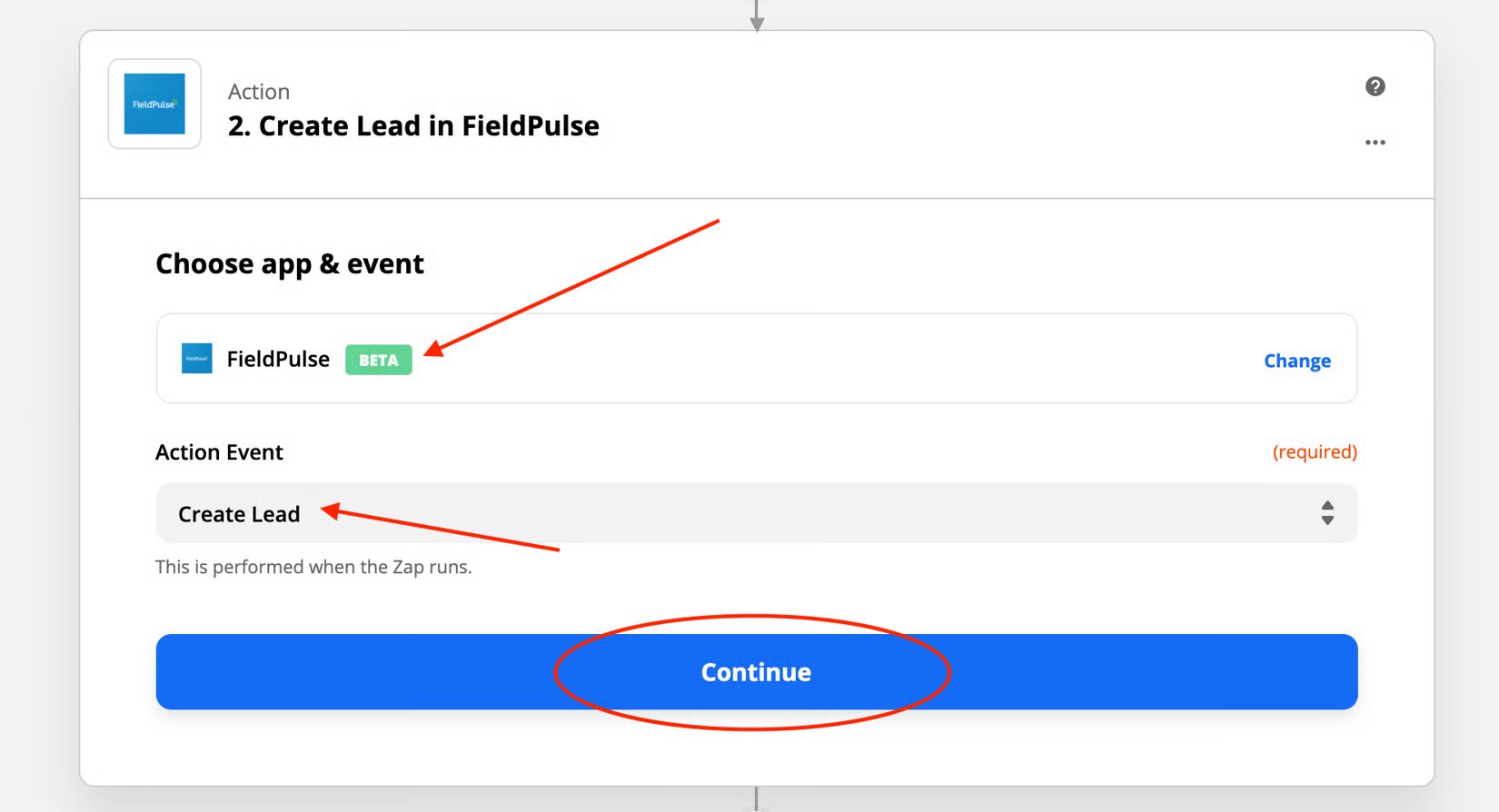
9. Select the FieldPulse account to connect and confirm the **Action Event** is **Create Lead**, then select **Continue**.
8. Fill in the remaining trigger options for Google Sheets, then select **To Continue, Finish Required Fields**.
9. Select the FieldPulse account to connect and confirm the **Action Event** is **Create Lead**, then select **Continue**.
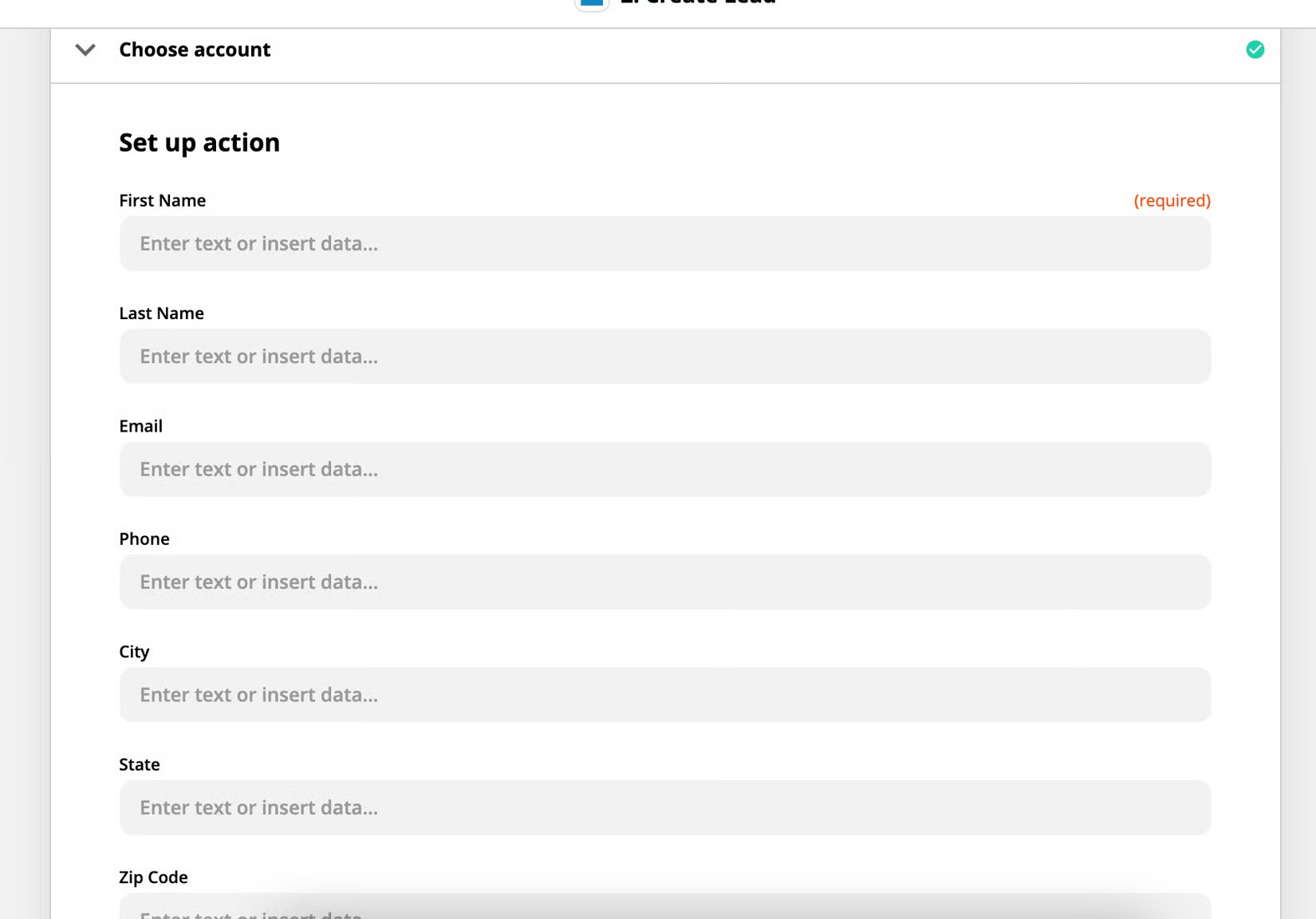
 10. Map the fields: for each FieldPulse lead field, pick the Google Sheet column that fills it. For example, select First Name, then choose the spreadsheet column whose values should populate the FieldPulse First Name field.
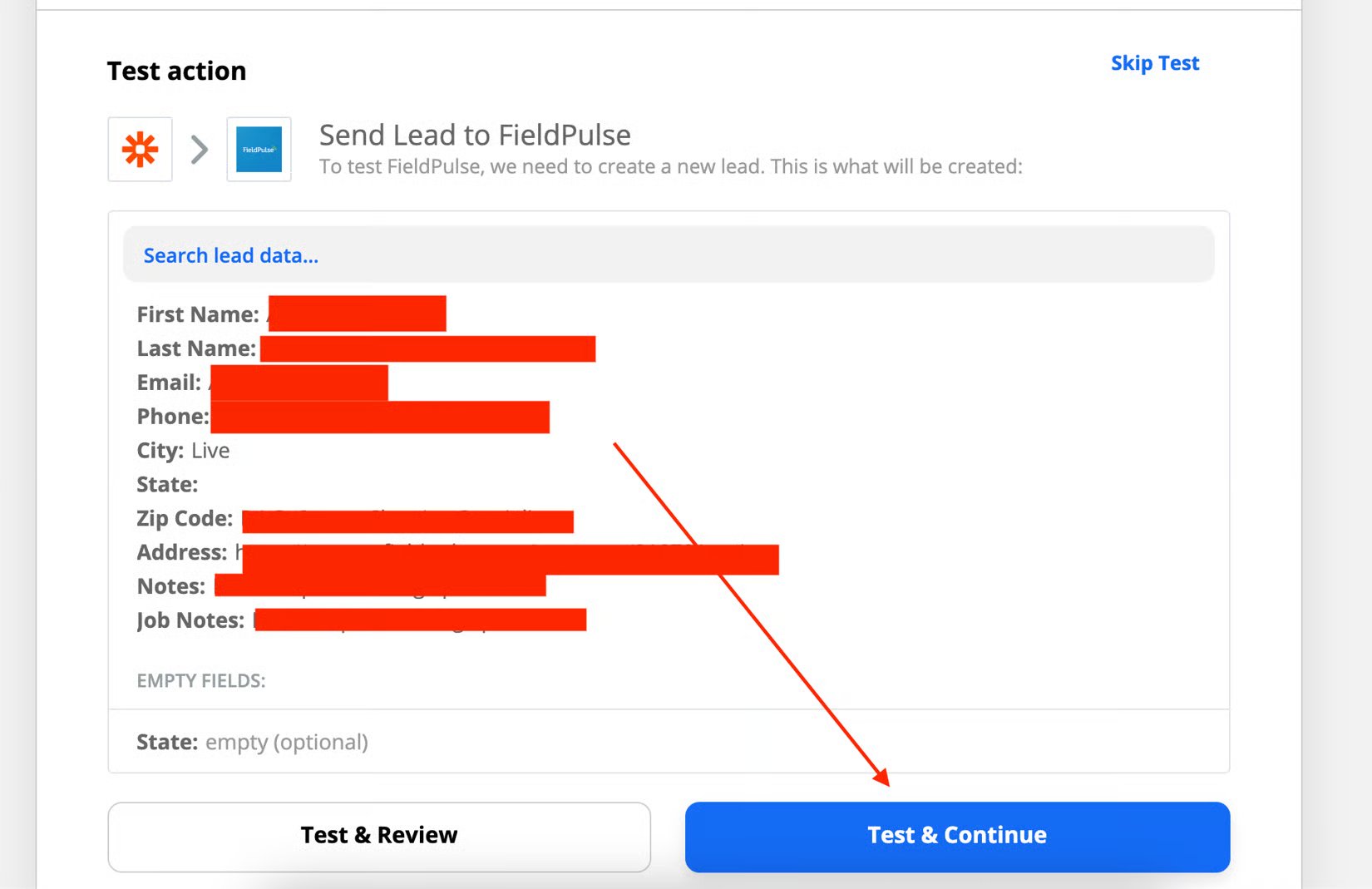
 11. On the **Test Action** screen, run the test to confirm the data flows from the Google Sheet into FieldPulse the way you want.
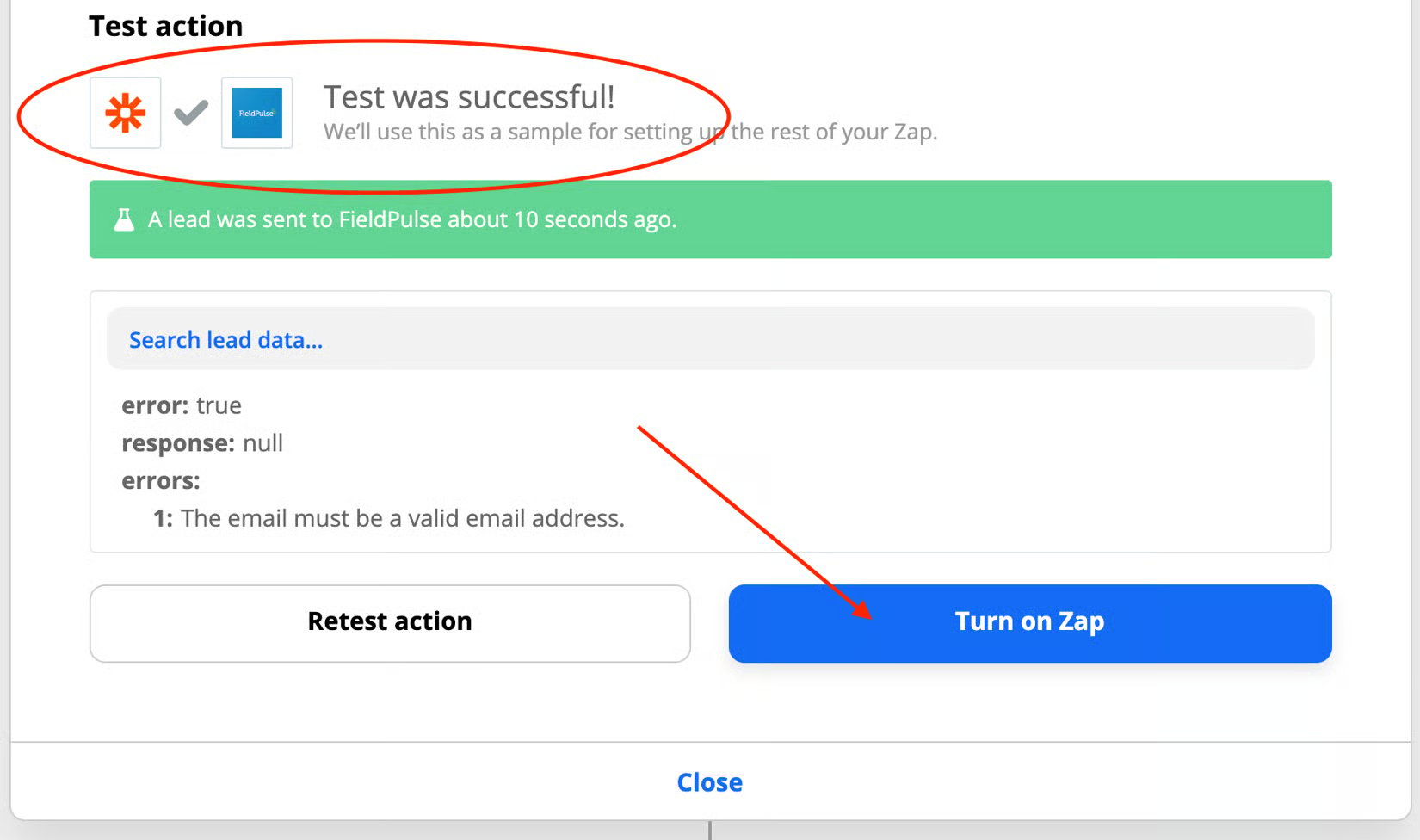
 12. When the screen reads **Test was Successful!**, select **Turn on Zap**. The connection is now live.
 ## Related articles
* [Zapier Overview](/integrations/developer-api/zapier-overview)
* [FieldPulse API Overview](/integrations/developer-api/fieldpulse-api-overview)
Your Zap is working when you add a new row to the Google Sheet and the new lead appears in FieldPulse under **Company Settings > Customers > Leads**. To bring in leads from another app, repeat these steps with that app in place of Google Sheets.
## Related topics
- [FieldPulse API Overview](/integrations/developer-api/fieldpulse-api-overview.md)
- [Zapier Overview](/integrations/developer-api/zapier-overview.md)
- [Developer API & Zapier](/integrations/developer-api/index.md)
- [How to Migrate from Service Fusion to FieldPulse](/getting-started/migrating/service-fusion.md)
## Related articles
* [Zapier Overview](/integrations/developer-api/zapier-overview)
* [FieldPulse API Overview](/integrations/developer-api/fieldpulse-api-overview)
Your Zap is working when you add a new row to the Google Sheet and the new lead appears in FieldPulse under **Company Settings > Customers > Leads**. To bring in leads from another app, repeat these steps with that app in place of Google Sheets.
## Related topics
- [FieldPulse API Overview](/integrations/developer-api/fieldpulse-api-overview.md)
- [Zapier Overview](/integrations/developer-api/zapier-overview.md)
- [Developer API & Zapier](/integrations/developer-api/index.md)
- [How to Migrate from Service Fusion to FieldPulse](/getting-started/migrating/service-fusion.md)