> ## Documentation Index
> Fetch the complete documentation index at: https://help.fieldpulse.com/llms.txt
> Use this file to discover all available pages before exploring further.
# Setting Up the CHIIRP Integration
> Connect CHIIRP to automate text, email, and ringless voicemail follow-up on your FieldPulse leads and customers so no lead goes cold.
> **Who uses this:** Admins can enable it. **Availability:** Requires a CHIIRP account (booked through a CHIIRP demo).
The [CHIIRP integration](https://www.fieldpulse.com/company/partners/chiirp) connects CHIIRP's automated follow-up to your [FieldPulse leads and customers](https://www.fieldpulse.com/features/customer-management), so every new lead, open [estimate](https://www.fieldpulse.com/features/estimates-and-invoices), and dormant customer gets a text, email, or ringless voicemail sequence without anyone in the office chasing it by hand. This is the workflow breakdown CHIIRP is built for: as you grow, lead follow-up gets harder to keep up with, and the leads you already paid for slip through the cracks.
## Overview
[CHIIRP is follow-up automation](https://www.fieldpulse.com/resources/blog/integration-announcement-chiirp) for home service businesses. [Connected to FieldPulse](https://www.fieldpulse.com/company/partners), it runs text message, email, and ringless voicemail campaigns against your contacts — new leads, open estimates, canceled jobs, referral requests, cross-sell offers, review requests, and more. You control the flow, volume, and length of each campaign. CHIIRP also connects to lead sources like Facebook Lead Ads, Thumbtack, and Angi, so leads from those channels can enter a follow-up sequence too.
 ## Before you begin
* You need a **CHIIRP account**. If you do not have one, [schedule a CHIIRP demo](https://chiirp.com/bookdemo) to get set up with their team.
## Connect CHIIRP
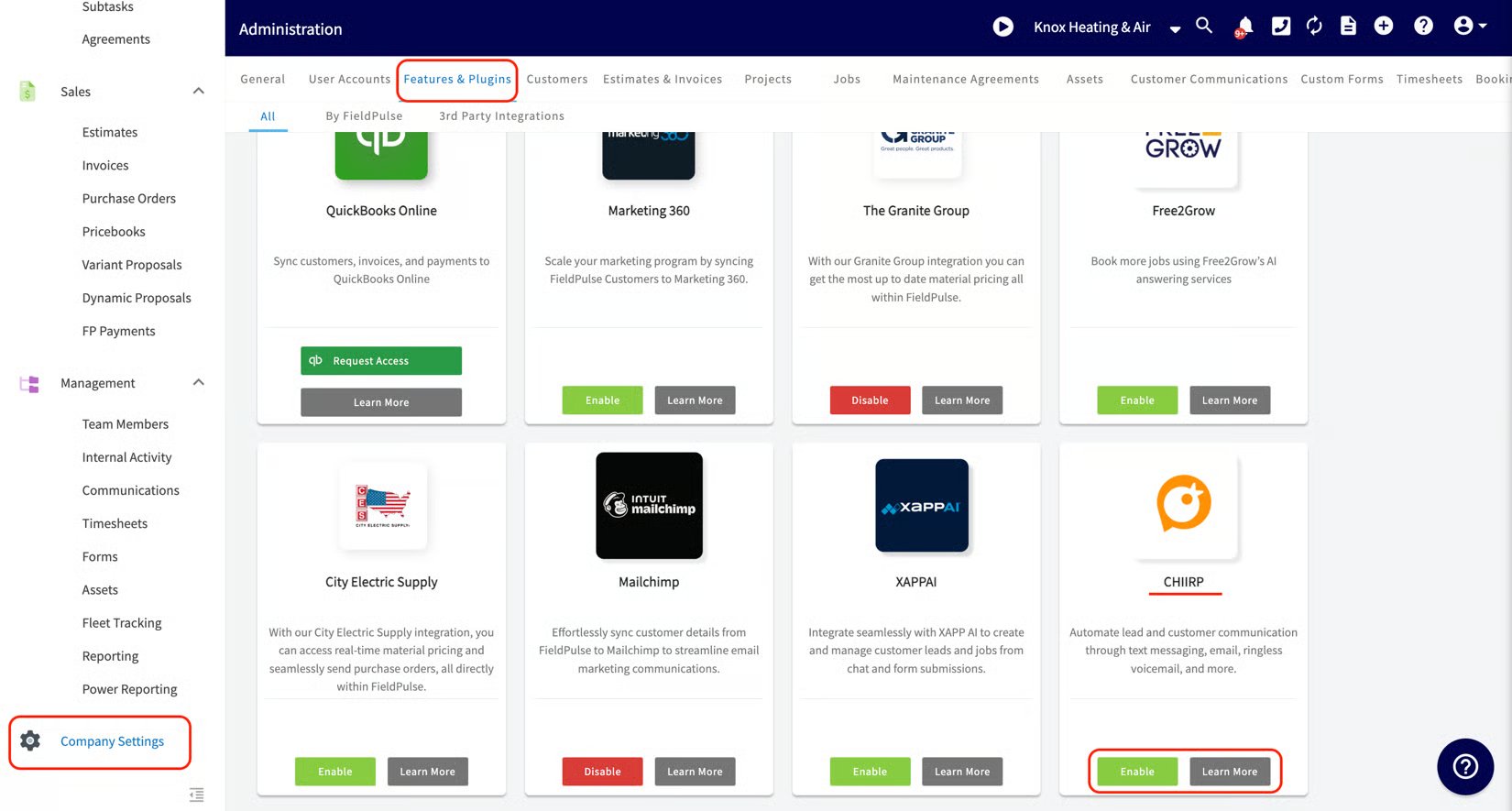
1. In FieldPulse, go to **Company Settings** > **Features & Plugins**.
2. Scroll to the **CHIIRP** tile near the bottom and select **Enable**.
## Before you begin
* You need a **CHIIRP account**. If you do not have one, [schedule a CHIIRP demo](https://chiirp.com/bookdemo) to get set up with their team.
## Connect CHIIRP
1. In FieldPulse, go to **Company Settings** > **Features & Plugins**.
2. Scroll to the **CHIIRP** tile near the bottom and select **Enable**.
 3. [Sign in to CHIIRP](https://app.chiirp.com/users/sign_in) and follow the on-screen instructions to finish connecting your accounts.
Once connected, you can build and send text, email, and ringless voicemail drip sequences, and customize each campaign to fit how you follow up.
## Related articles
* [Customer Communications Overview](/customers/communications/overview)
* [Setting Up Automatic Communication Triggers](/customers/communications/automatic-triggers)
* [How to Track Lead Sources](/customers/leads-pipeline/sources)
* [Setting Up the Angi Integration](/integrations/marketing/angi)
* [Setting Up the Thumbtack Integration](/integrations/marketing/thumbtack)
Your setup is working when the CHIIRP tile shows as enabled, you are signed in to CHIIRP, and your first follow-up sequence begins reaching your FieldPulse contacts.
## Related topics
- [Marketing & Lead Gen](/integrations/marketing/index.md)
- [Setting Up the Signpost Integration](/integrations/marketing/signpost.md)
- [Setting Up The Seal Integration](/integrations/partner-apps/the-seal.md)
- [Setting Up the Angi Integration](/integrations/marketing/angi.md)
3. [Sign in to CHIIRP](https://app.chiirp.com/users/sign_in) and follow the on-screen instructions to finish connecting your accounts.
Once connected, you can build and send text, email, and ringless voicemail drip sequences, and customize each campaign to fit how you follow up.
## Related articles
* [Customer Communications Overview](/customers/communications/overview)
* [Setting Up Automatic Communication Triggers](/customers/communications/automatic-triggers)
* [How to Track Lead Sources](/customers/leads-pipeline/sources)
* [Setting Up the Angi Integration](/integrations/marketing/angi)
* [Setting Up the Thumbtack Integration](/integrations/marketing/thumbtack)
Your setup is working when the CHIIRP tile shows as enabled, you are signed in to CHIIRP, and your first follow-up sequence begins reaching your FieldPulse contacts.
## Related topics
- [Marketing & Lead Gen](/integrations/marketing/index.md)
- [Setting Up the Signpost Integration](/integrations/marketing/signpost.md)
- [Setting Up The Seal Integration](/integrations/partner-apps/the-seal.md)
- [Setting Up the Angi Integration](/integrations/marketing/angi.md)