> ## Documentation Index
> Fetch the complete documentation index at: https://help.fieldpulse.com/llms.txt
> Use this file to discover all available pages before exploring further.
# Setting Up the CompanyCam Integration
> Connect CompanyCam to sync geotagged job-site photos and videos into FieldPulse records and attach them to estimates and invoices.
> **Who uses this:** Admins can enable it. **Availability:** Requires an active CompanyCam account/subscription.
Connecting the [CompanyCam integration](https://www.fieldpulse.com/company/partners/companycam) brings your job-site photos and videos into FieldPulse automatically, so the proof of work lives on the [customer record](https://www.fieldpulse.com/features/customer-management) instead of scattered across a tech's phone.
## Overview
The CompanyCam integration links photos and videos captured in CompanyCam to the matching FieldPulse records, so your office and field see the same documented job without switching apps. [CompanyCam](https://companycam.com/integrations/fieldpulse?eid=YGxQGL) is a photo-and-video documentation tool built for contractors; the integration connects it to FieldPulse and keeps the two in step.
 Data flows between FieldPulse and CompanyCam like this:
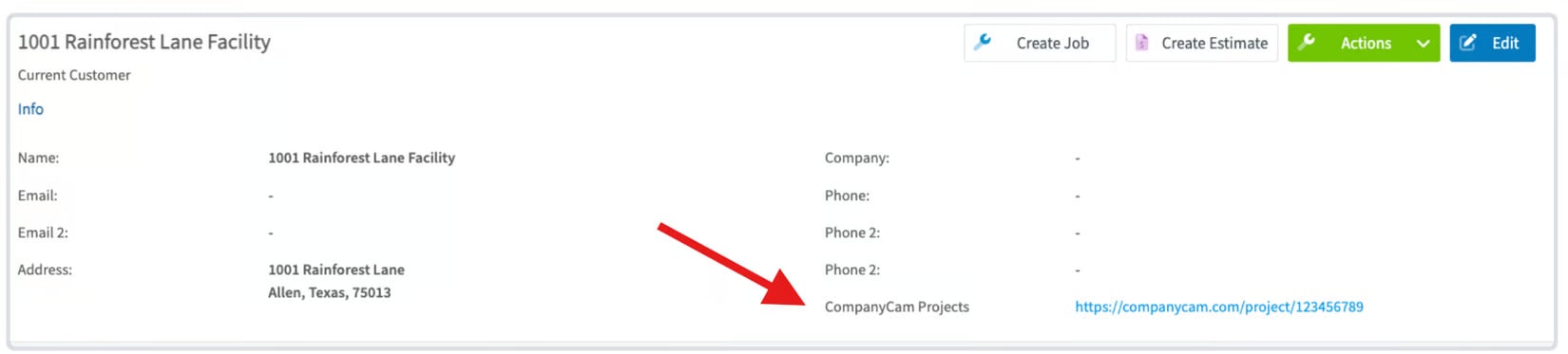
* **Photos and videos** taken in CompanyCam appear on the matching FieldPulse customer record, linked by the CompanyCam Project address.
* **File access** — synced files are available directly from FieldPulse Jobs, Projects, Estimates, and Invoices.
* **Customer contact information** syncs two-way between FieldPulse customers and CompanyCam Projects.
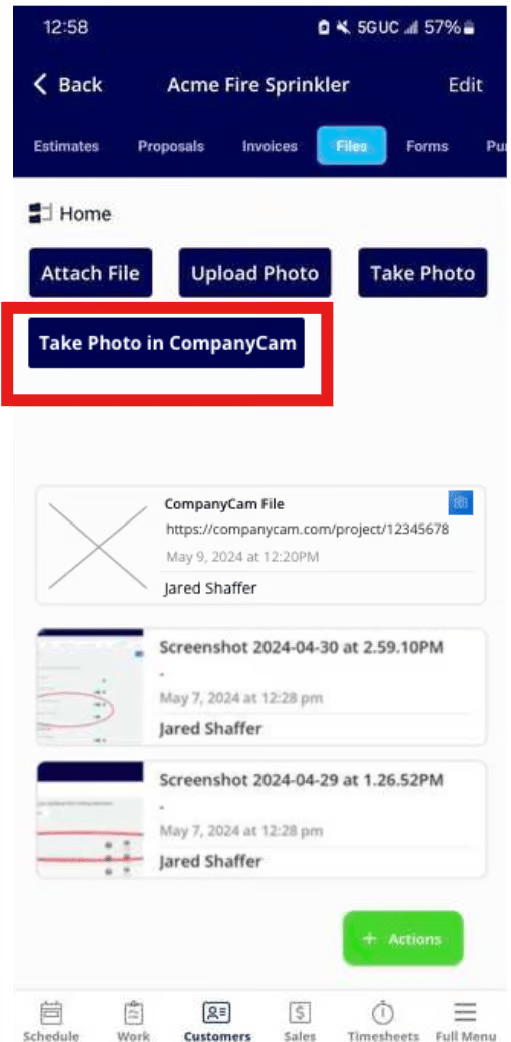
* **New photos** captured with the **Take Photo in CompanyCam** button in FieldPulse sync back to your records.
The sync only carries **Project Name** and **Project Address** from CompanyCam. Any FieldPulse customer created from a CompanyCam Project uses these defaults, with all other fields left blank for you to fill in:
| **Field** | **Default from CompanyCam** |
| -------------------- | --------------------------- |
| **Customer status** | Current Customer |
| **Account type** | Residential |
| **Customer name** | CompanyCam Project Name |
| **Customer address** | CompanyCam Project Address |
## Before you begin
* You need an active **CompanyCam** account to connect.
* File syncing starts from the moment you connect — **historical CompanyCam files are not imported**.
* FieldPulse does not store CompanyCam files. It shows a preview linked to the original file, which stays hosted in CompanyCam. The integration is **not** a file-migration tool — deleting a file in CompanyCam breaks its preview in FieldPulse.
## Connect CompanyCam
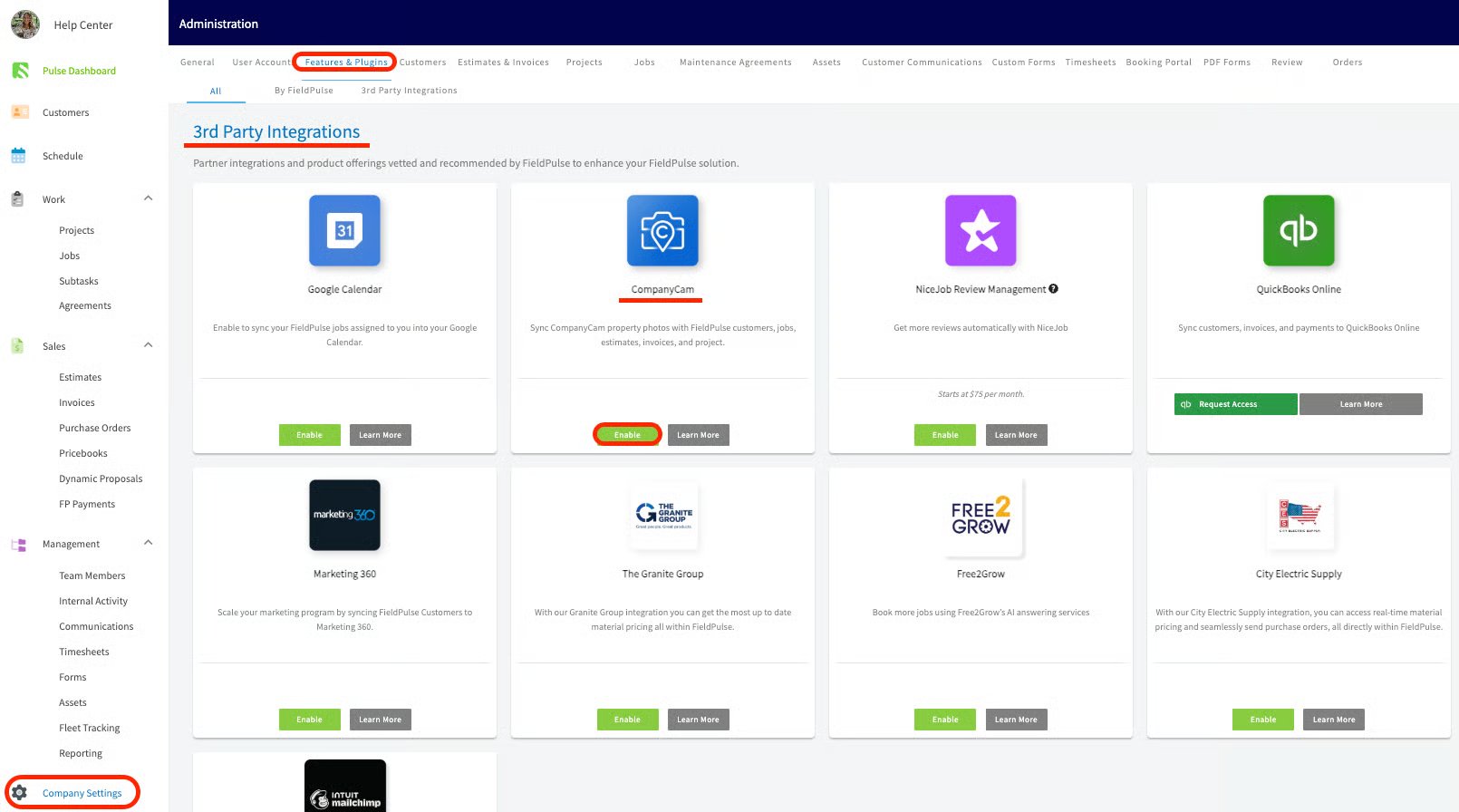
1. Go to **Company Settings**.
2. Select **Features & Plugins**.
3. Find **CompanyCam Integration** and select **Enable**.
Data flows between FieldPulse and CompanyCam like this:
* **Photos and videos** taken in CompanyCam appear on the matching FieldPulse customer record, linked by the CompanyCam Project address.
* **File access** — synced files are available directly from FieldPulse Jobs, Projects, Estimates, and Invoices.
* **Customer contact information** syncs two-way between FieldPulse customers and CompanyCam Projects.
* **New photos** captured with the **Take Photo in CompanyCam** button in FieldPulse sync back to your records.
The sync only carries **Project Name** and **Project Address** from CompanyCam. Any FieldPulse customer created from a CompanyCam Project uses these defaults, with all other fields left blank for you to fill in:
| **Field** | **Default from CompanyCam** |
| -------------------- | --------------------------- |
| **Customer status** | Current Customer |
| **Account type** | Residential |
| **Customer name** | CompanyCam Project Name |
| **Customer address** | CompanyCam Project Address |
## Before you begin
* You need an active **CompanyCam** account to connect.
* File syncing starts from the moment you connect — **historical CompanyCam files are not imported**.
* FieldPulse does not store CompanyCam files. It shows a preview linked to the original file, which stays hosted in CompanyCam. The integration is **not** a file-migration tool — deleting a file in CompanyCam breaks its preview in FieldPulse.
## Connect CompanyCam
1. Go to **Company Settings**.
2. Select **Features & Plugins**.
3. Find **CompanyCam Integration** and select **Enable**.
 4. Log in to your **CompanyCam** account to authenticate the connection.
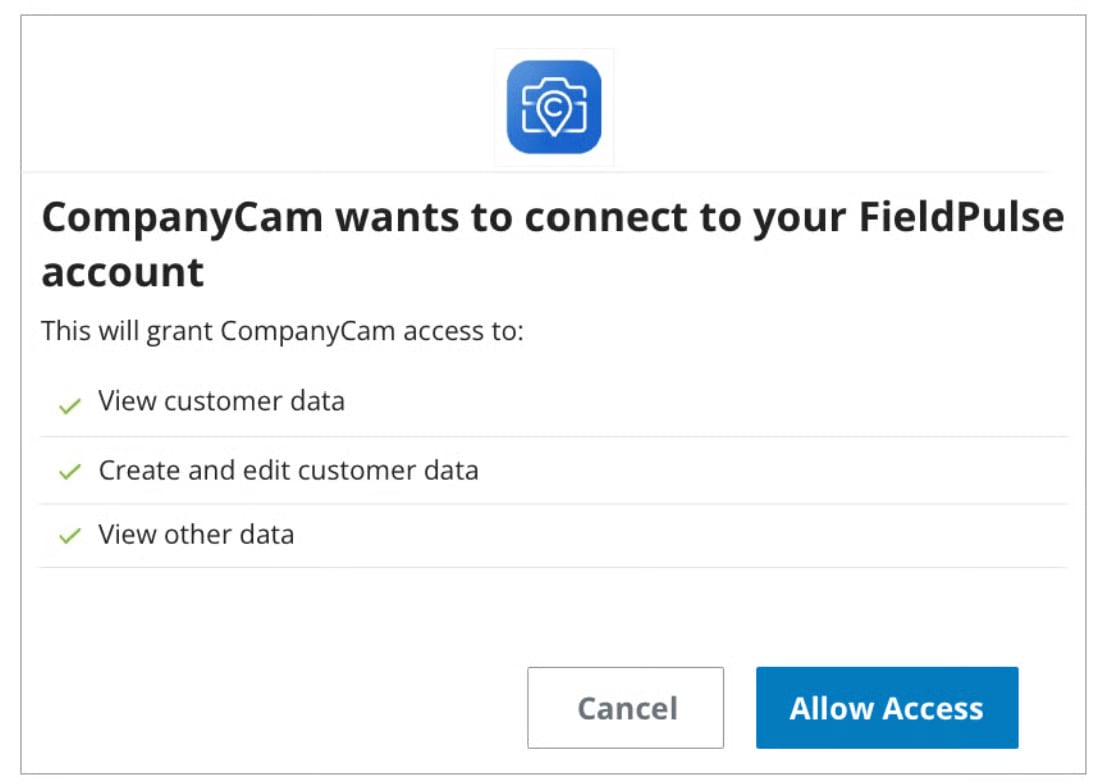 5. Enable the option to **sync customer contact information**.
Once connected, FieldPulse creates a new CompanyCam Project for each new customer address, or links to an existing Project when the address matches.
5. Enable the option to **sync customer contact information**.
Once connected, FieldPulse creates a new CompanyCam Project for each new customer address, or links to an existing Project when the address matches.
 ## What syncs and how
| **Direction** | **What moves** |
| --------------------------- | --------------------------------------------------------------------------------------------------------------------------------------------------------------------------------------- |
| **CompanyCam → FieldPulse** | Photos and videos, plus Project Name and Project Address. If a FieldPulse customer already has the same address, the Project links to that customer; if not, a new customer is created. |
| **FieldPulse → CompanyCam** | Customer contact information; photos captured with the **Take Photo in CompanyCam** button. |
To use synced files:
* Open the **Files** tab on a FieldPulse record to see thumbnails, timestamps, and links to the originals in CompanyCam.
## What syncs and how
| **Direction** | **What moves** |
| --------------------------- | --------------------------------------------------------------------------------------------------------------------------------------------------------------------------------------- |
| **CompanyCam → FieldPulse** | Photos and videos, plus Project Name and Project Address. If a FieldPulse customer already has the same address, the Project links to that customer; if not, a new customer is created. |
| **FieldPulse → CompanyCam** | Customer contact information; photos captured with the **Take Photo in CompanyCam** button. |
To use synced files:
* Open the **Files** tab on a FieldPulse record to see thumbnails, timestamps, and links to the originals in CompanyCam.
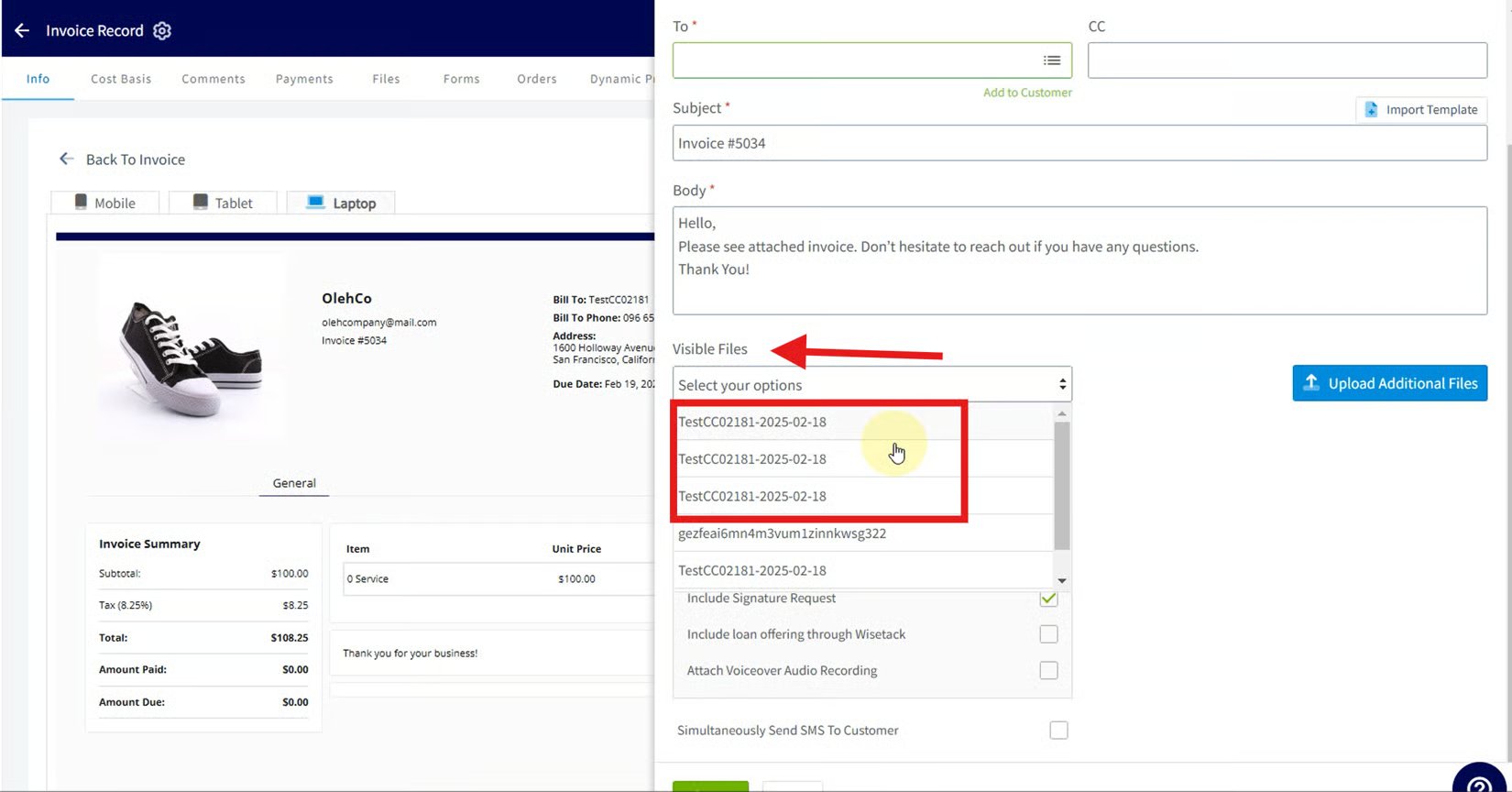
 * To send photos to a customer, select them from the **Visible Files** dropdown when you send an [estimate or invoice](https://www.fieldpulse.com/features/estimates-and-invoices).
 ## FAQs
### **Are historical CompanyCam files imported when I connect?**
No. Syncing begins at the point of connection — earlier files are not brought in.
### **Are the files stored inside FieldPulse?**
No. FieldPulse shows a preview linked to the original, which stays hosted in CompanyCam.
### **Can I use this to migrate files off CompanyCam?**
No. The previews in FieldPulse depend on the original files in CompanyCam, so deleting them there breaks the previews.
## Related articles
* [How to Manage Purchase Orders](/inventory-materials/purchase-orders/managing)
* [Setting Up Customer Custom Fields](/customers/managing-customers/custom-fields)
Your setup is working when a photo taken in CompanyCam appears under the Files tab on the matching FieldPulse customer record, and you can attach it to an estimate from the Visible Files dropdown.
## Related topics
- [Partner Apps](/integrations/partner-apps/index.md)
- [Setting Up the Thumbtack Integration](/integrations/marketing/thumbtack.md)
- [Setting Up the Signpost Integration](/integrations/marketing/signpost.md)
- [Setting Up the CHIIRP Integration](/integrations/marketing/chiirp.md)
## FAQs
### **Are historical CompanyCam files imported when I connect?**
No. Syncing begins at the point of connection — earlier files are not brought in.
### **Are the files stored inside FieldPulse?**
No. FieldPulse shows a preview linked to the original, which stays hosted in CompanyCam.
### **Can I use this to migrate files off CompanyCam?**
No. The previews in FieldPulse depend on the original files in CompanyCam, so deleting them there breaks the previews.
## Related articles
* [How to Manage Purchase Orders](/inventory-materials/purchase-orders/managing)
* [Setting Up Customer Custom Fields](/customers/managing-customers/custom-fields)
Your setup is working when a photo taken in CompanyCam appears under the Files tab on the matching FieldPulse customer record, and you can attach it to an estimate from the Visible Files dropdown.
## Related topics
- [Partner Apps](/integrations/partner-apps/index.md)
- [Setting Up the Thumbtack Integration](/integrations/marketing/thumbtack.md)
- [Setting Up the Signpost Integration](/integrations/marketing/signpost.md)
- [Setting Up the CHIIRP Integration](/integrations/marketing/chiirp.md)