> ## Documentation Index
> Fetch the complete documentation index at: https://help.fieldpulse.com/llms.txt
> Use this file to discover all available pages before exploring further.
# Setting Up the Google Calendar Integration
> Connect Google Calendar so FieldPulse jobs post automatically as calendar events and your whole schedule lives in one view.
> **Who uses this:** Admins can enable this integration. **Availability:** Requires a Google account.
Connecting the Google Calendar integration posts every new [FieldPulse job](https://www.fieldpulse.com/features/job-management) to your Google Calendar automatically, so your jobs and the rest of your day sit in one schedule.
## Overview
The Google Calendar integration is a **one-way sync**: jobs created in FieldPulse are added to your Google Calendar as events. Events created in Google Calendar are **not** added to FieldPulse. Only jobs created **after** you connect sync over — existing jobs are not backfilled.
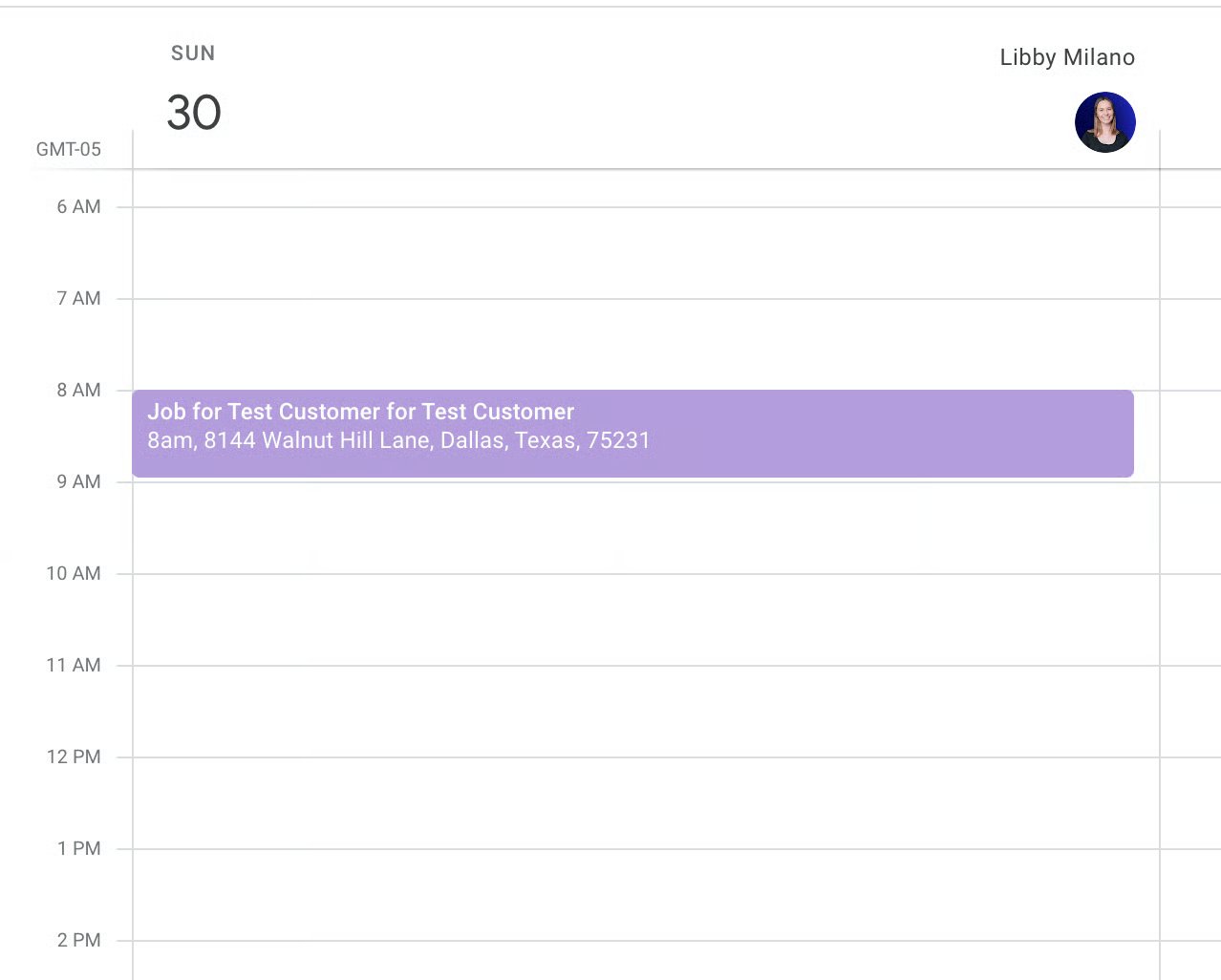
Each synced event carries these details from the FieldPulse job record:
* Job Title
* Date/Time
* Customer Name
* Location
* Assigned Team Members
* Notes
The event title combines the job title and the customer name.
## Before you begin
* You need a **Google account** with the calendar you want jobs to post to.
* Decide which Google Calendar should receive the jobs — you choose it during setup.
## Connect Google Calendar
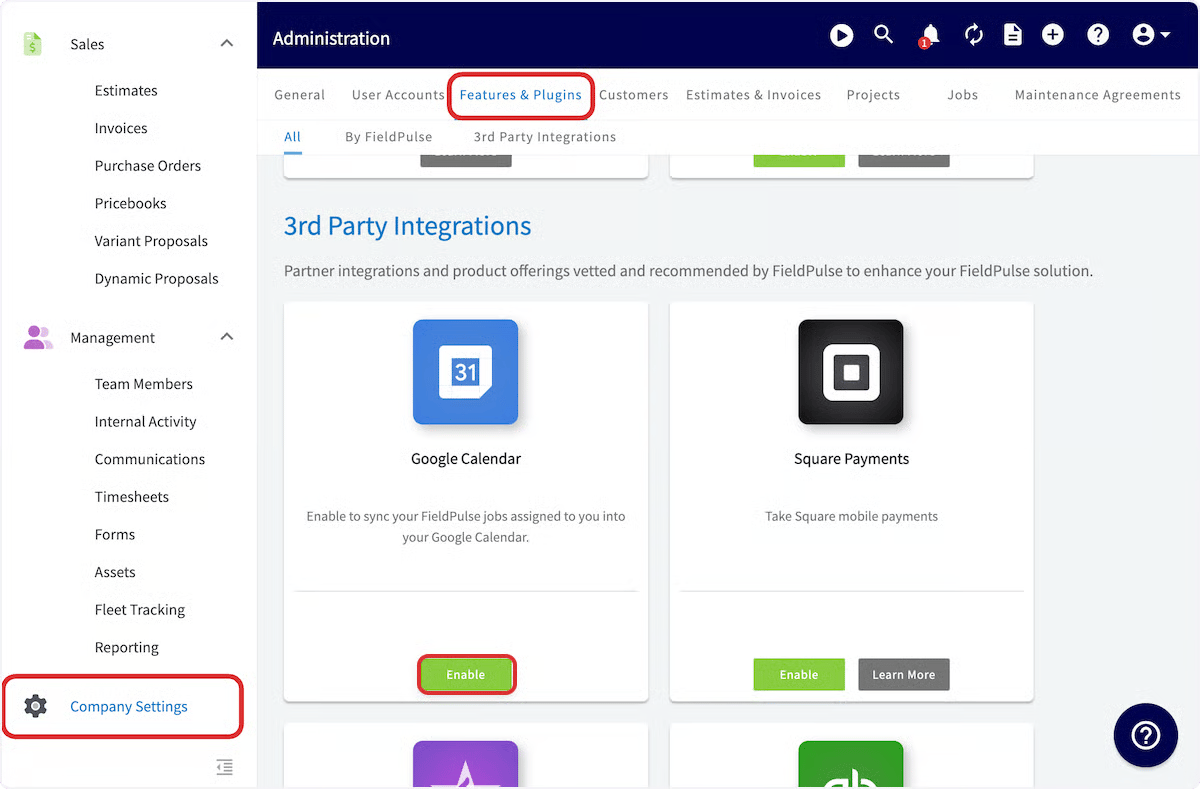
1. Go to **Company Settings**.
2. Select **Features & Plugins**.
3. Find **Google Calendar** and select **Enable**.
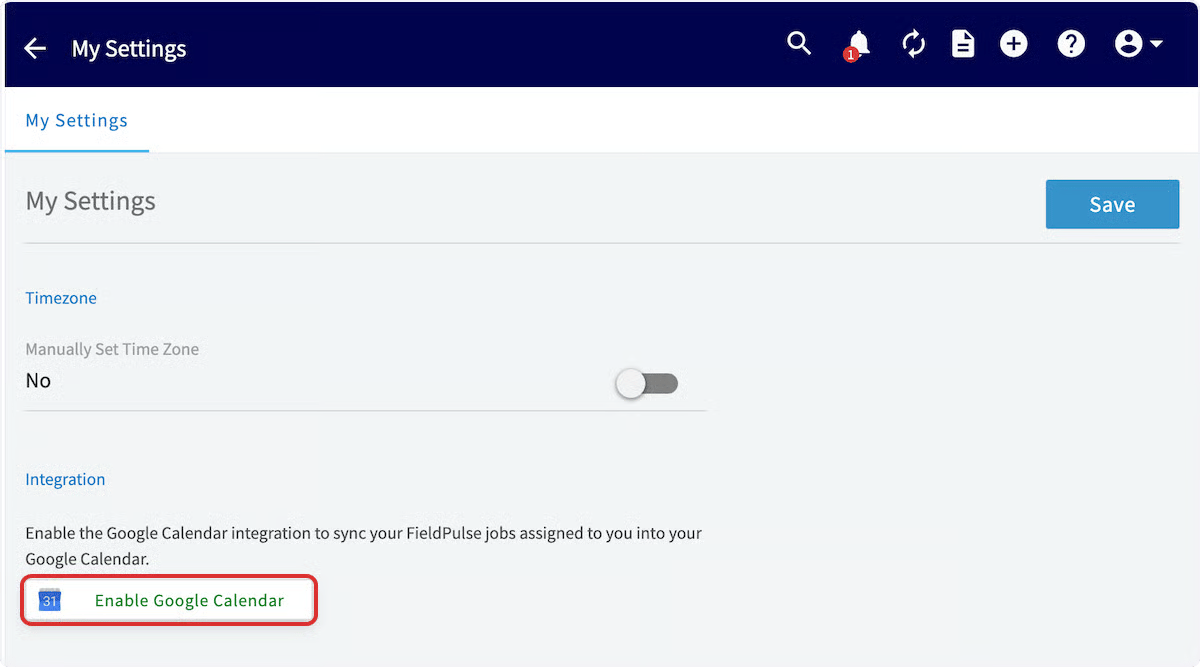
 4. On the **My Settings** page, select **Enable Google Calendar**.
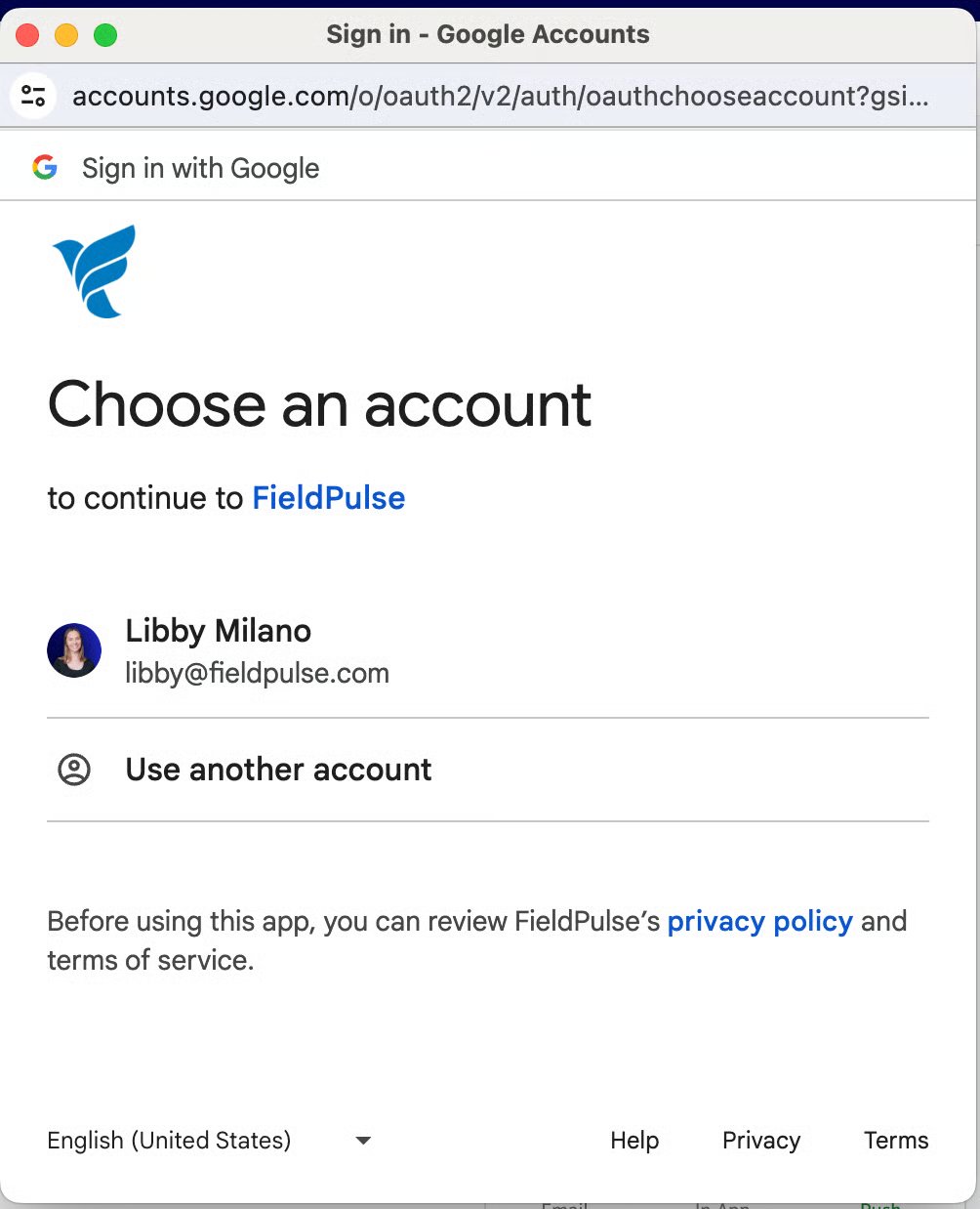
 5. In the pop-up window, select the **Google Account** you want to connect. If you are not already signed in, sign in to your Google account to continue.
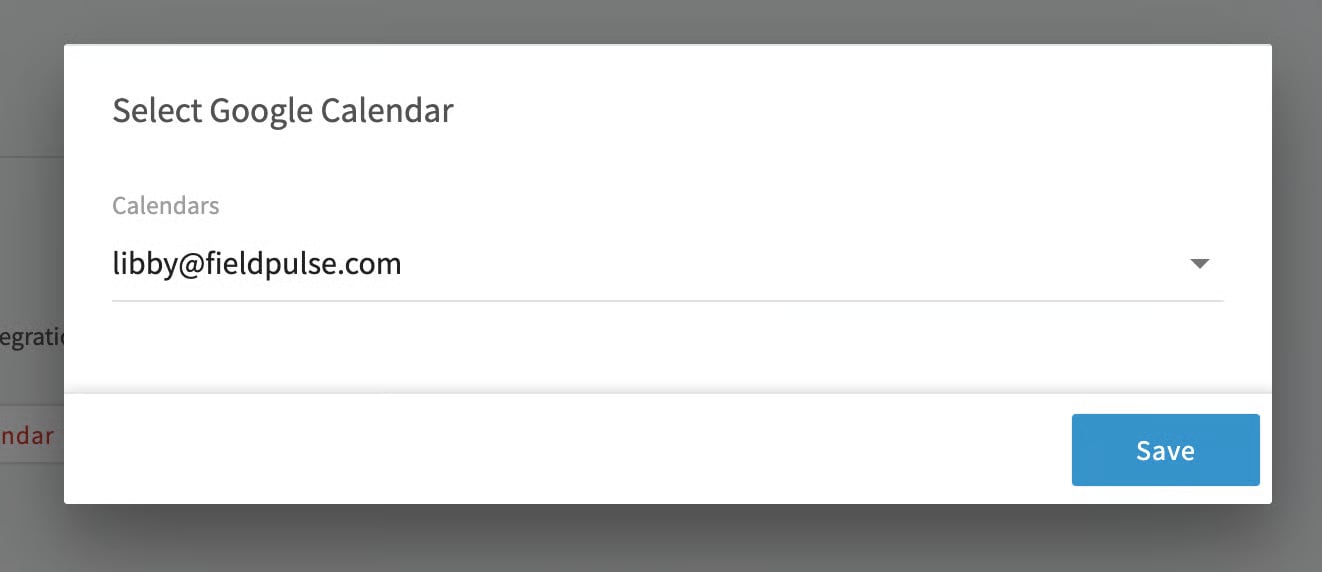
 6. Choose which **Google Calendar** to sync your FieldPulse jobs to.
 Create a job as usual in FieldPulse and it appears on the calendar you selected.
 ## Turn off the sync
To stop syncing at any time, go to **Company Settings, Features & Plugins**, Scroll down to **Google Calendar** and click **My Settings** and select **Disable Google Calendar**.
## FAQs
### **What records sync to Google Calendar?**
Jobs and site visits both sync from FieldPulse to Google Calendar - the Overview above only mentions jobs, but site visits sync too.
### **I'm an admin or team manager - will my team's jobs sync to my calendar?**
No. Even though admins and team managers can see all jobs in FieldPulse, only jobs assigned directly to you sync to your Google Calendar. A job assigned to someone else will not appear on your calendar.
## Related articles
* [Availability & Scheduling Overview](/scheduling-dispatch/availability/overview)
Your setup is working when you create a new FieldPulse job and it shows up on your chosen Google Calendar with the job title, customer name, time, and location on the event.
## Related topics
- [Setting Up Your Account](/getting-started/welcome/account-setup.md)
- [Partner Apps](/integrations/partner-apps/index.md)
- [Setting Up the NiceJob Integration](/integrations/partner-apps/nicejob.md)
- [Setting Up Google Single Sign-On](/getting-started/welcome/google-sso.md)
## Turn off the sync
To stop syncing at any time, go to **Company Settings, Features & Plugins**, Scroll down to **Google Calendar** and click **My Settings** and select **Disable Google Calendar**.
## FAQs
### **What records sync to Google Calendar?**
Jobs and site visits both sync from FieldPulse to Google Calendar - the Overview above only mentions jobs, but site visits sync too.
### **I'm an admin or team manager - will my team's jobs sync to my calendar?**
No. Even though admins and team managers can see all jobs in FieldPulse, only jobs assigned directly to you sync to your Google Calendar. A job assigned to someone else will not appear on your calendar.
## Related articles
* [Availability & Scheduling Overview](/scheduling-dispatch/availability/overview)
Your setup is working when you create a new FieldPulse job and it shows up on your chosen Google Calendar with the job title, customer name, time, and location on the event.
## Related topics
- [Setting Up Your Account](/getting-started/welcome/account-setup.md)
- [Partner Apps](/integrations/partner-apps/index.md)
- [Setting Up the NiceJob Integration](/integrations/partner-apps/nicejob.md)
- [Setting Up Google Single Sign-On](/getting-started/welcome/google-sso.md)