> ## Documentation Index
> Fetch the complete documentation index at: https://help.fieldpulse.com/llms.txt
> Use this file to discover all available pages before exploring further.
# Setting Up the QuickBooks Time Integration
> Connect QuickBooks Time to push FieldPulse timesheet clock-in and clock-out data into QuickBooks Time for payroll and overtime.
> **Who uses this:** Admins can set this up with help from FieldPulse Support. **Availability:** US, Canada, Australia, and New Zealand; requires a separate QuickBooks Time subscription from Intuit.
Connecting the QuickBooks Time integration pushes your FieldPulse timesheets into QuickBooks Time, so employee clock-in and clock-out data flows into payroll and job costs without re-entry.
## Overview
The QuickBooks Time integration syncs FieldPulse timesheet data into QuickBooks Time, a time-tracking product from Intuit for tracking employee hours, running payroll, and keeping accurate job costs. QuickBooks Time is a **separate application** from the [QuickBooks accounting products](https://www.fieldpulse.com/company/partners/quickbooks) — it is not [QuickBooks Online](/integrations/accounting/quickbooks-online/overview) or [QuickBooks Desktop](/integrations/accounting/quickbooks-desktop/overview), and it requires its own subscription from Intuit. QuickBooks Time can run on its own or feed timesheets into QuickBooks Online or QuickBooks Desktop.
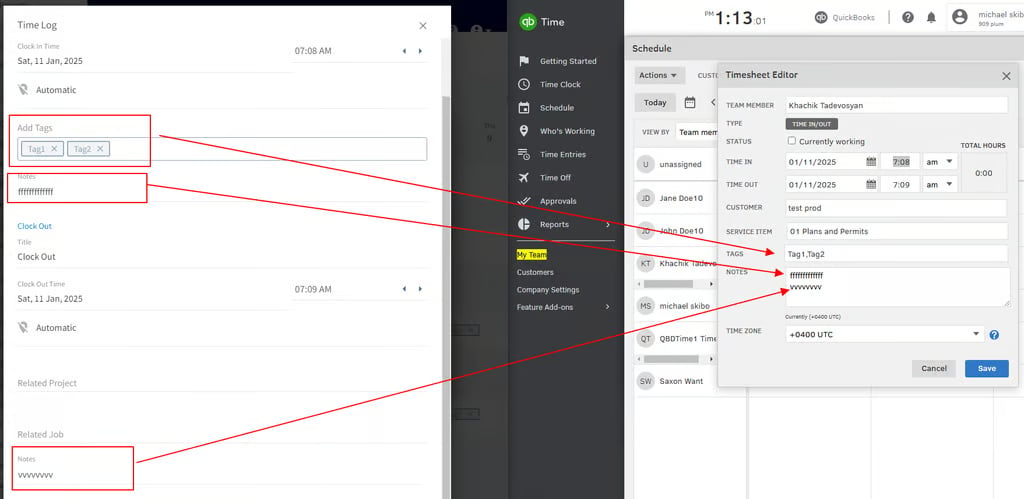
 When a timesheet is created or updated in FieldPulse, FieldPulse pushes the **clock-in and clock-out dates, times, tags, and notes** into QuickBooks Time. The sync keeps the two aligned:
| **In FieldPulse** | **In QuickBooks Time** |
| --------------------------- | ---------------------------------------- |
| Timesheet created or edited | The entry is created or updated to match |
| Timesheet deleted | The matching entry is deleted |
QuickBooks Time calculates total duration and applies its built-in overtime rules from the clock-in and clock-out times you sync.
## Before you begin
* You need a **QuickBooks Time** subscription from Intuit. QuickBooks Time is available in the **United States, Canada, Australia, and New Zealand**.
* Log time using **either** general timesheets **or** job-based timesheets — not both — when syncing to QuickBooks Time. QuickBooks Time rejects overlapping timesheets, which causes sync errors and failed overtime calculations. (For example, clocking into a general timesheet from 8 AM to 5 PM and also logging time against individual jobs that day creates overlaps.)
* Know what **does not sync**: timesheet locations and related job/project information. Total duration is not pushed directly — QuickBooks Time calculates it from the clock-in and clock-out times.
## Connect QuickBooks Time
Setup for this integration is handled by the FieldPulse team, not a self-serve toggle.
1. **Contact Support.** Reach out to chat support or your Customer Success Manager to request integration setup.
2. **Receive your integration link.** The team generates a customized link and shares it with you.
3. **Authenticate your account.** Open the link and enter your **QuickBooks Time** credentials to authenticate the connection.
4. **Flag user-mapping needs.** If specific user mapping is required, tell the FieldPulse team before proceeding.
5. **Connection setup.** FieldPulse developers set up the connection between QuickBooks Time (TSheets) and FieldPulse. This may take several days depending on workload.
6. **Confirmation.** FieldPulse notifies you when setup is complete and the integration is ready to use.
When a timesheet is created or updated in FieldPulse, FieldPulse pushes the **clock-in and clock-out dates, times, tags, and notes** into QuickBooks Time. The sync keeps the two aligned:
| **In FieldPulse** | **In QuickBooks Time** |
| --------------------------- | ---------------------------------------- |
| Timesheet created or edited | The entry is created or updated to match |
| Timesheet deleted | The matching entry is deleted |
QuickBooks Time calculates total duration and applies its built-in overtime rules from the clock-in and clock-out times you sync.
## Before you begin
* You need a **QuickBooks Time** subscription from Intuit. QuickBooks Time is available in the **United States, Canada, Australia, and New Zealand**.
* Log time using **either** general timesheets **or** job-based timesheets — not both — when syncing to QuickBooks Time. QuickBooks Time rejects overlapping timesheets, which causes sync errors and failed overtime calculations. (For example, clocking into a general timesheet from 8 AM to 5 PM and also logging time against individual jobs that day creates overlaps.)
* Know what **does not sync**: timesheet locations and related job/project information. Total duration is not pushed directly — QuickBooks Time calculates it from the clock-in and clock-out times.
## Connect QuickBooks Time
Setup for this integration is handled by the FieldPulse team, not a self-serve toggle.
1. **Contact Support.** Reach out to chat support or your Customer Success Manager to request integration setup.
2. **Receive your integration link.** The team generates a customized link and shares it with you.
3. **Authenticate your account.** Open the link and enter your **QuickBooks Time** credentials to authenticate the connection.
4. **Flag user-mapping needs.** If specific user mapping is required, tell the FieldPulse team before proceeding.
5. **Connection setup.** FieldPulse developers set up the connection between QuickBooks Time (TSheets) and FieldPulse. This may take several days depending on workload.
6. **Confirmation.** FieldPulse notifies you when setup is complete and the integration is ready to use.
 ## FAQs
### **Does the sync work with QuickBooks Time's overtime functionality?**
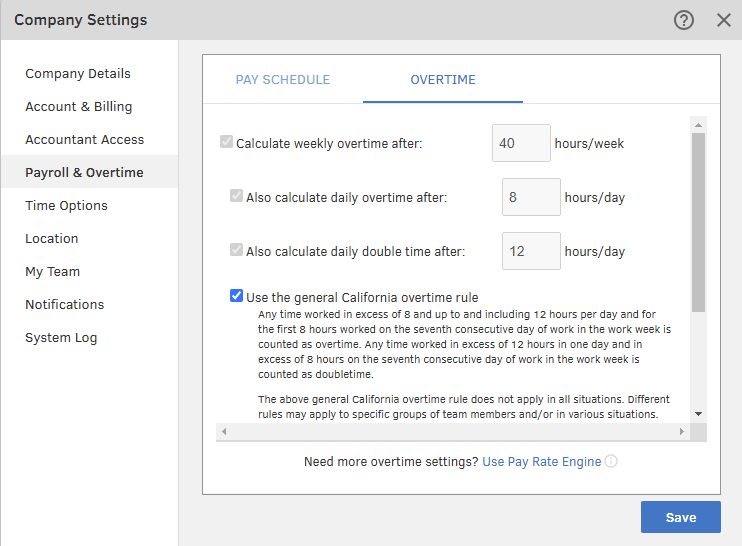
Yes. When clock-in and clock-out times sync from FieldPulse, QuickBooks Time automatically applies its built-in overtime rules, which are managed inside QuickBooks Time.
## FAQs
### **Does the sync work with QuickBooks Time's overtime functionality?**
Yes. When clock-in and clock-out times sync from FieldPulse, QuickBooks Time automatically applies its built-in overtime rules, which are managed inside QuickBooks Time.
 ### **Can I use both general and job-based timesheets?**
Not when syncing to QuickBooks Time. Overlapping entries cause sync errors. Use one method, or disconnect from QuickBooks Time and use the QuickBooks Time mobile app as a standalone time clock.
## Related articles
* [How to Use Employee Timesheets](/jobs/timesheets/employee-timesheets)
* [QuickBooks Online Overview](/integrations/accounting/quickbooks-online/overview)
Your setup is working when you create a timesheet in FieldPulse and its clock-in and clock-out times appear on the matching entry in QuickBooks Time.
## Related topics
- [Partner Apps](/integrations/partner-apps/index.md)
- [Setting Up QuickBooks Desktop Before Syncing](/integrations/accounting/quickbooks-desktop/pre-sync.md)
- [Setting Up QuickBooks Online Before Syncing](/integrations/accounting/quickbooks-online/pre-sync.md)
- [Setting Up Default Customer Name Preference for QuickBooks](/integrations/accounting/quickbooks/default-customer-name.md)
### **Can I use both general and job-based timesheets?**
Not when syncing to QuickBooks Time. Overlapping entries cause sync errors. Use one method, or disconnect from QuickBooks Time and use the QuickBooks Time mobile app as a standalone time clock.
## Related articles
* [How to Use Employee Timesheets](/jobs/timesheets/employee-timesheets)
* [QuickBooks Online Overview](/integrations/accounting/quickbooks-online/overview)
Your setup is working when you create a timesheet in FieldPulse and its clock-in and clock-out times appear on the matching entry in QuickBooks Time.
## Related topics
- [Partner Apps](/integrations/partner-apps/index.md)
- [Setting Up QuickBooks Desktop Before Syncing](/integrations/accounting/quickbooks-desktop/pre-sync.md)
- [Setting Up QuickBooks Online Before Syncing](/integrations/accounting/quickbooks-online/pre-sync.md)
- [Setting Up Default Customer Name Preference for QuickBooks](/integrations/accounting/quickbooks/default-customer-name.md)