> ## Documentation Index
> Fetch the complete documentation index at: https://help.fieldpulse.com/llms.txt
> Use this file to discover all available pages before exploring further.
# How to Create a Task
> Block off non-billable time like PTO, drive time, and meetings on the FieldPulse calendar with color-coded task categories your team can see at a glance.
> **Who uses this:** Task categories are set up in **Company Settings**, which only the Admin role can view; Admins, Team Managers, Service Agents, and Limited Agents can all be assigned to a task. **Availability:** All regions.
A task blocks off non-billable time on your team's [calendar](https://www.fieldpulse.com/features/scheduling-and-dispatching) — PTO, drive time, meetings, and anything else that isn't customer work. Tasks don't need a customer attached, and you can color-code them by category so the schedule shows at a glance where the day is going.
## Overview
Creating a task works much like [How to Create a Job](/jobs/jobs-tasks/creating-a-job), but instead of linking the work to a customer you assign the task a task category. Set up your task categories first, then create the task from the schedule or the Jobs tab — or from the customer record, if the task is linked to a customer. Common task categories include PTO, drive time, errands, lunch, internal team meetings, admin time, and on-site estimates.
## Before you begin
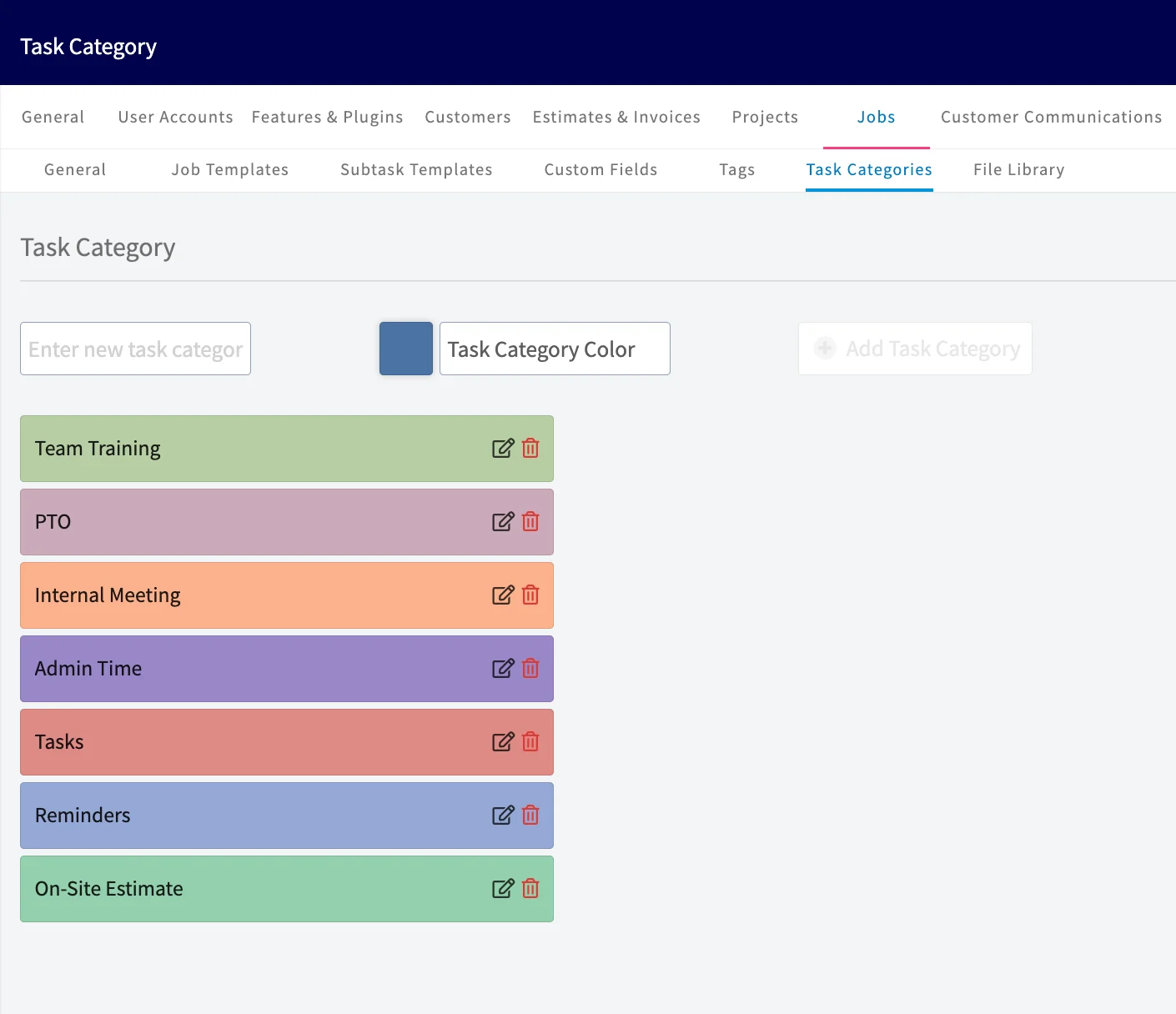
Set up your task categories so you have something to assign. FieldPulse includes preset task categories, and you can adjust them to fit your business. Go to **Company Settings** > **Jobs** > **Task Categories**. From there you can:
* **Add a task category** — enter the category name, select a color, then select **Add Task Category**.
* **Edit a task category** — select the pencil icon next to the category name.
* **Delete a task category** — select the trash can icon next to the category name.
 ## Open the task form
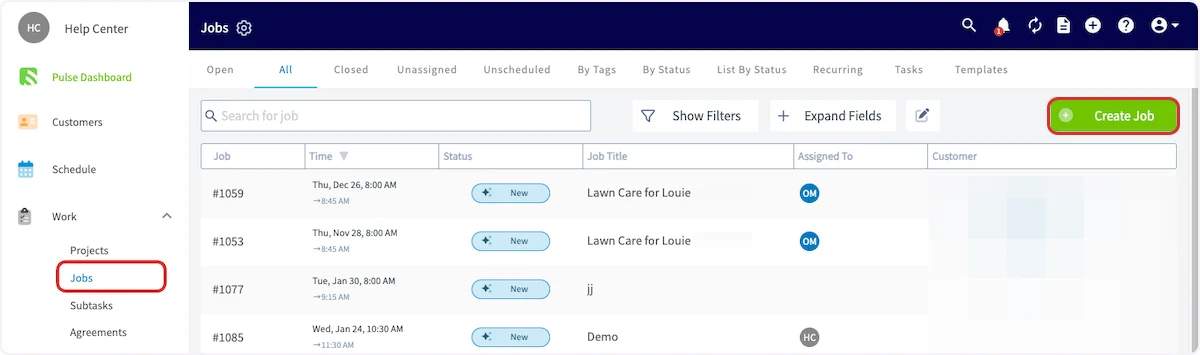
1. Select **Create Job**.
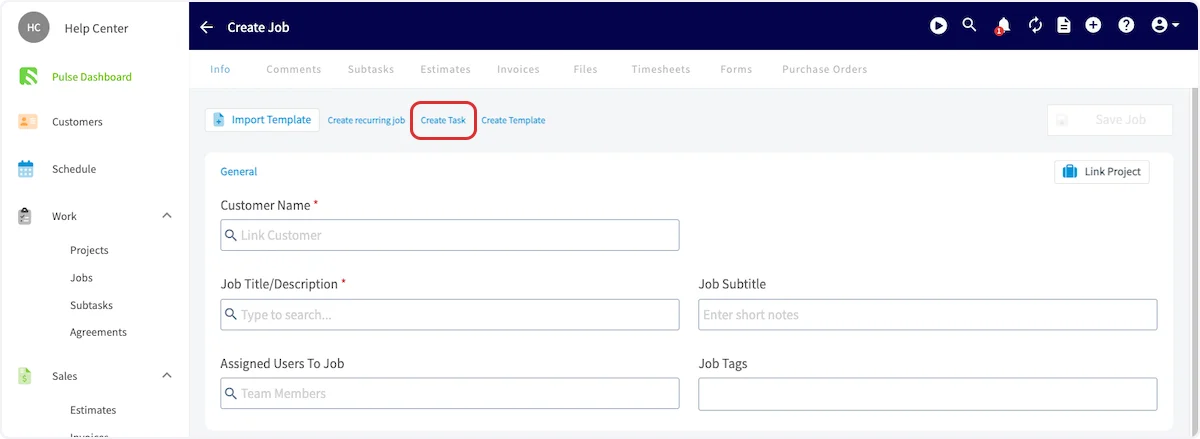
2. Select **Create Task** at the top of the new job record.
## Open the task form
1. Select **Create Job**.
2. Select **Create Task** at the top of the new job record.
 ## Fill in the task details
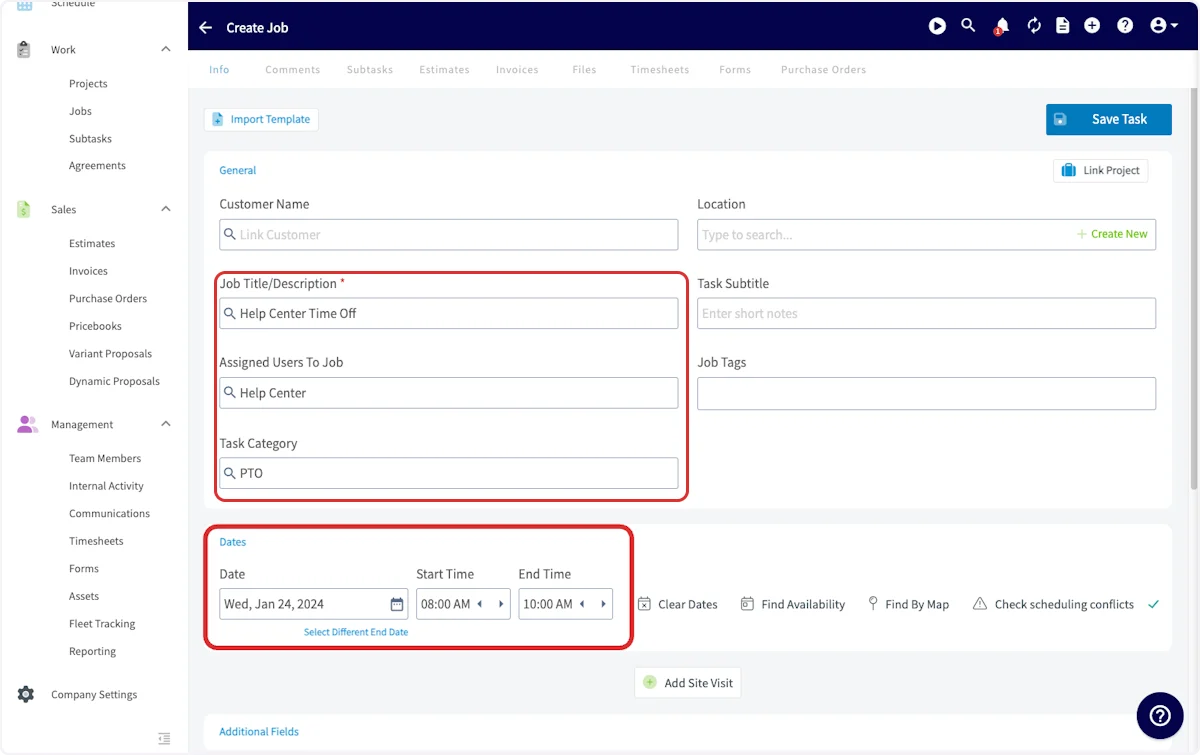
1. Link a **customer** if you want to. A task doesn't require one.
2. Enter a descriptive **Job Title/Description**.
3. Select **Assigned Users to Job** and choose the team members working the task.
4. Select a **Task Category**, such as PTO, drive time, or meetings.
5. Set the dates and times the task takes place.
## Fill in the task details
1. Link a **customer** if you want to. A task doesn't require one.
2. Enter a descriptive **Job Title/Description**.
3. Select **Assigned Users to Job** and choose the team members working the task.
4. Select a **Task Category**, such as PTO, drive time, or meetings.
5. Set the dates and times the task takes place.
 ## Save the task
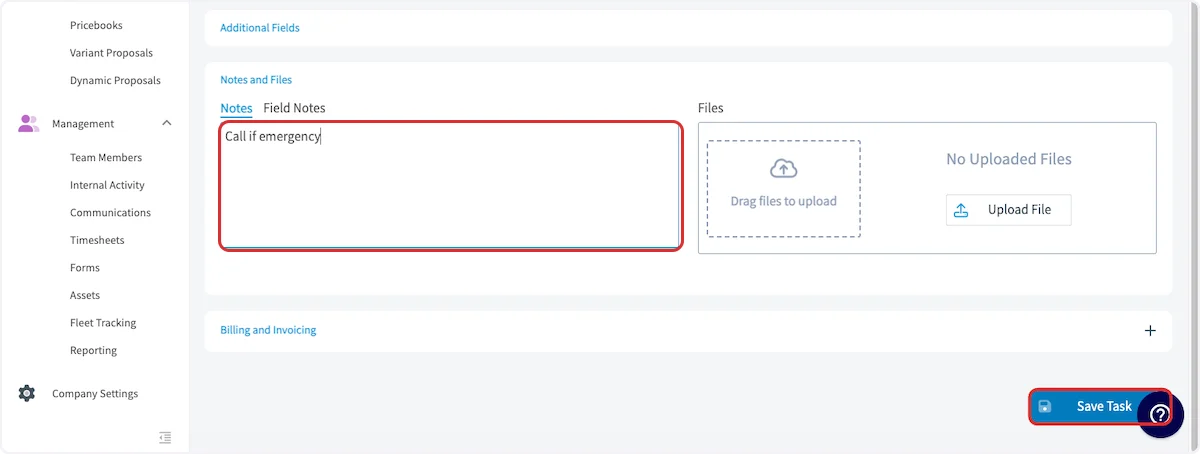
1. Add **notes** if the task needs them.
2. Select **Save Task**.
## Save the task
1. Add **notes** if the task needs them.
2. Select **Save Task**.
 The saved task appears on the schedule in the color you assigned to its category.
## Still need help?
Reach the [FieldPulse support team](https://www.fieldpulse.com/company/contact-us) at [support@fieldpulse.com](mailto:support@fieldpulse.com) or through the chat feature in the bottom-right corner of your screen.
## Related articles
* [How to Create a Job](/jobs/jobs-tasks/creating-a-job)
* [How to Create Recurring Jobs](/jobs/jobs-tasks/recurring-jobs)
Your setup is working when the task shows on the calendar in its category color and your team's non-billable time is visible alongside their jobs — no separate calendar to check.
## Related topics
- [How to Create a Job](/jobs/jobs-tasks/creating-a-job.md)
- [How to Create Task Reports](/reporting/raw-data/task-reports.md)
- [Jobs & Tasks](/jobs/jobs-tasks/index.md)
- [How to Create Recurring Jobs](/jobs/jobs-tasks/recurring-jobs.md)
The saved task appears on the schedule in the color you assigned to its category.
## Still need help?
Reach the [FieldPulse support team](https://www.fieldpulse.com/company/contact-us) at [support@fieldpulse.com](mailto:support@fieldpulse.com) or through the chat feature in the bottom-right corner of your screen.
## Related articles
* [How to Create a Job](/jobs/jobs-tasks/creating-a-job)
* [How to Create Recurring Jobs](/jobs/jobs-tasks/recurring-jobs)
Your setup is working when the task shows on the calendar in its category color and your team's non-billable time is visible alongside their jobs — no separate calendar to check.
## Related topics
- [How to Create a Job](/jobs/jobs-tasks/creating-a-job.md)
- [How to Create Task Reports](/reporting/raw-data/task-reports.md)
- [Jobs & Tasks](/jobs/jobs-tasks/index.md)
- [How to Create Recurring Jobs](/jobs/jobs-tasks/recurring-jobs.md)