> ## Documentation Index
> Fetch the complete documentation index at: https://help.fieldpulse.com/llms.txt
> Use this file to discover all available pages before exploring further.
# How to Use Subtasks
> Divide a FieldPulse job into an ordered task list, save a subtask series as a reusable template, and require key steps before a job status changes.
> **Who uses this:** Admins, Team Managers, and Service Agents create subtasks (Service Agents on their assigned jobs); Limited Agents cannot. Subtask templates are built in **Company Settings**, which only Admins can view. In the mobile app, Admins and Managers can switch between **Team Subtasks** and **My Subtasks**. **Availability:** All regions.
A subtask divides a [job](https://www.fieldpulse.com/features/job-management) into a task list so your team can work through the steps in order. Subtasks usually sit under a job record, though a subtask can also stand on its own.
## Overview
FieldPulse organizes work through two record types. A **Job** is the main record — a job requires a customer and a title, and it commonly includes a start and end date/time and assigned team members. A **Subtask** is the secondary record. A subtask can exist independently, but it typically attaches under a job record to divide the work into a task list — for example, to track the status of each step separately, or to assign different steps to different team members instead of having a single job record carry everything.
Subtasks, unlike jobs, do not appear on the schedule. Use a subtask to track a step inside a job rather than to book time on the calendar.
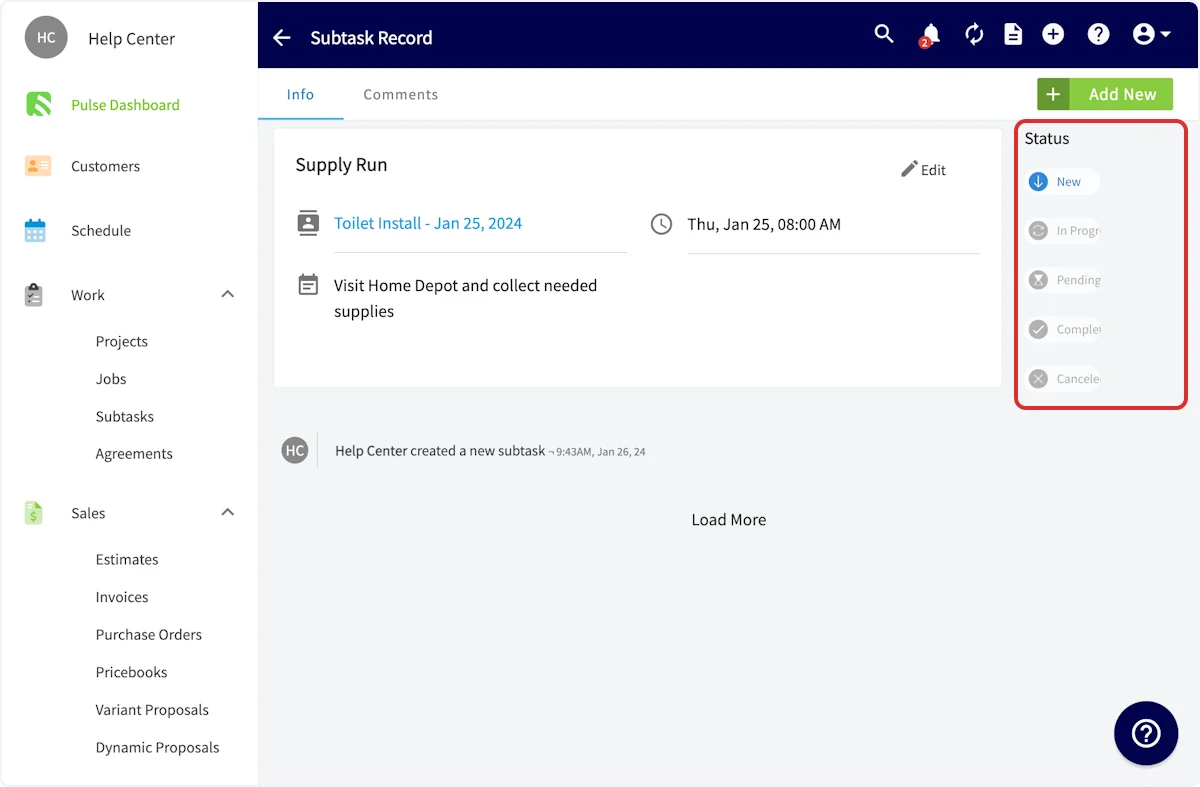
Every subtask carries its own status: **New**, **In Progress**, **Pending**, **Completed**, or **Canceled**.
## Before you begin
* Create the job record you want to divide into steps. See [How to Create a Job](/jobs/jobs-tasks/creating-a-job).
* Decide which steps you repeat across jobs — those are the ones worth saving as a subtask template.
## On web
### Create a subtask template
A subtask template pre-defines a subtask, or a series of subtasks, that your team uses often, so anyone can insert the whole series into a job in one step. A standard service call template might run: Diagnose Issue, Plan Repair, Provide estimate to customer and receive sign-off, Repair Issue, Inspect unit for quality and functioning, and Invoice.
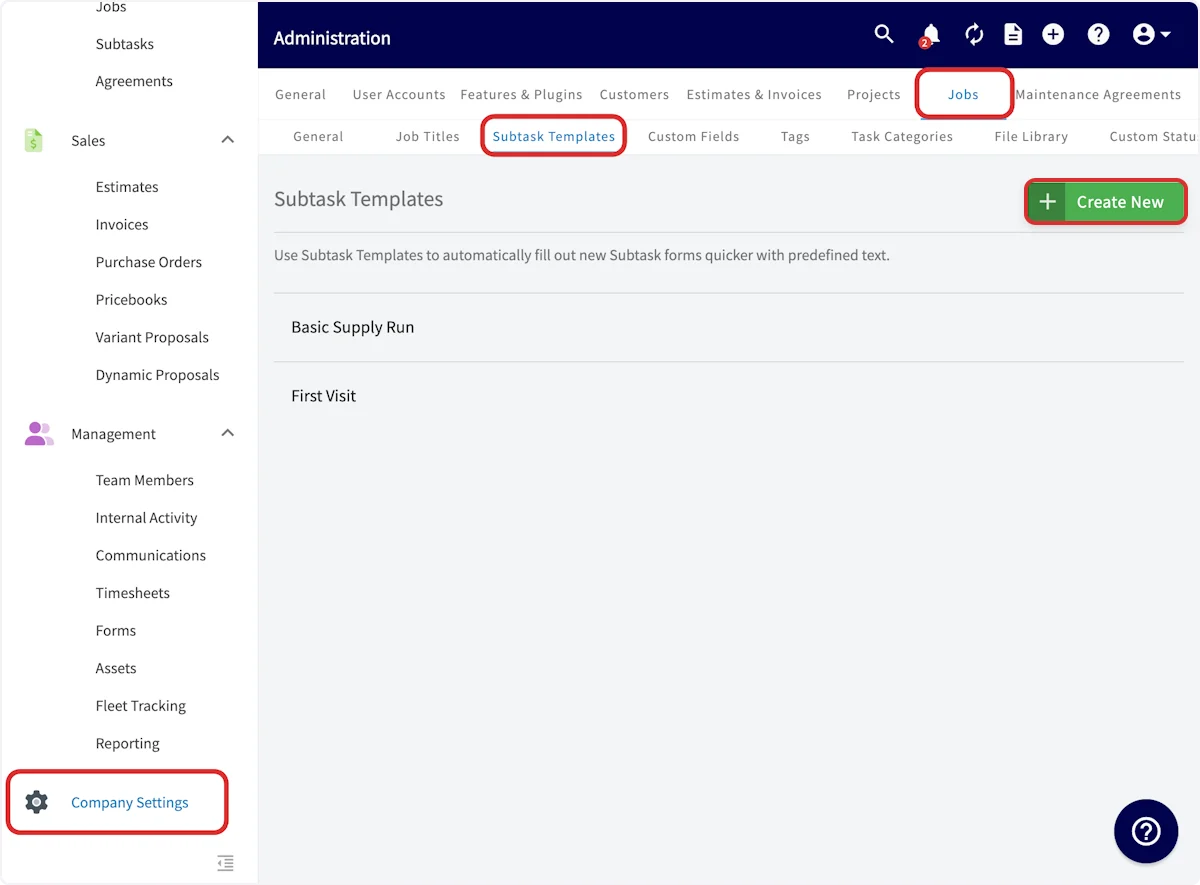
1. Go to **Company Settings** in the left-side menu, select the **Jobs** tab, then select the **Subtask Templates** subtab.
2. Select **Create New**.
 3. Enter the **Template Name**, the subtask **Title**, and an optional **Description**.
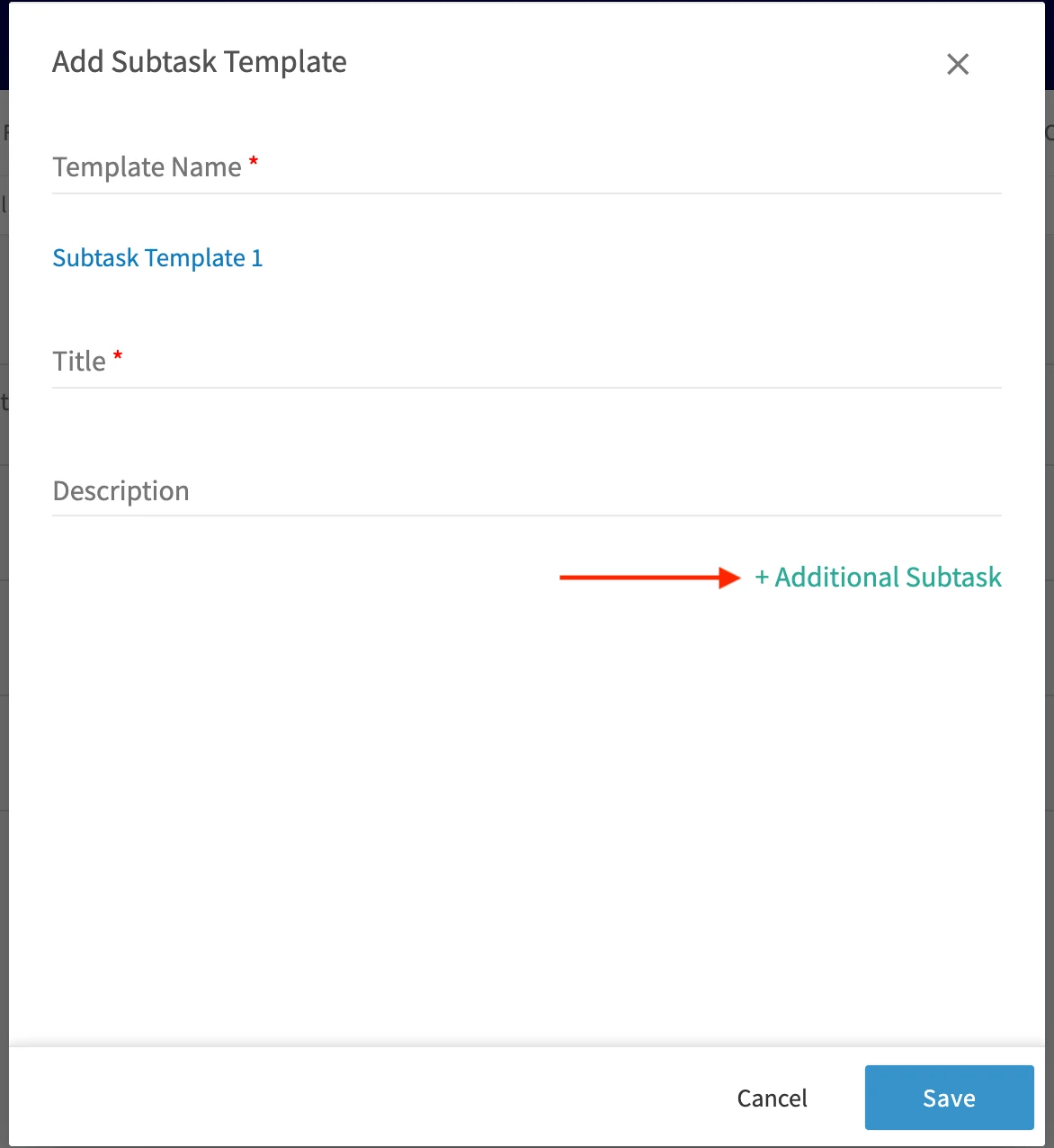 4. Select **+ Additional Subtask** to add the next subtask in the series, and repeat until the series is complete.
5. Select **Save**. The template appears in your Subtask Templates list.
### Attach subtasks to a job
1. Open the job record and select the **Subtasks** tab.
4. Select **+ Additional Subtask** to add the next subtask in the series, and repeat until the series is complete.
5. Select **Save**. The template appears in your Subtask Templates list.
### Attach subtasks to a job
1. Open the job record and select the **Subtasks** tab.
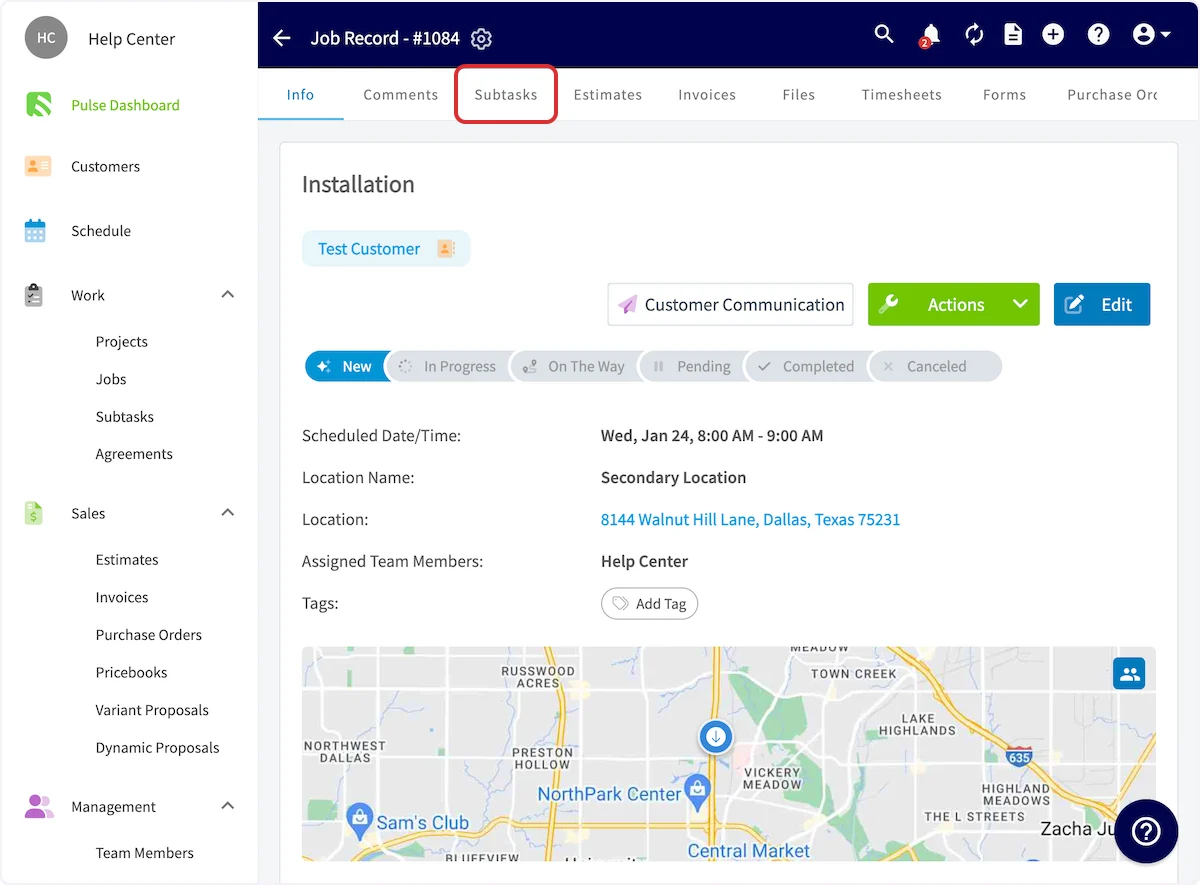 2. Select **Create New Series**.
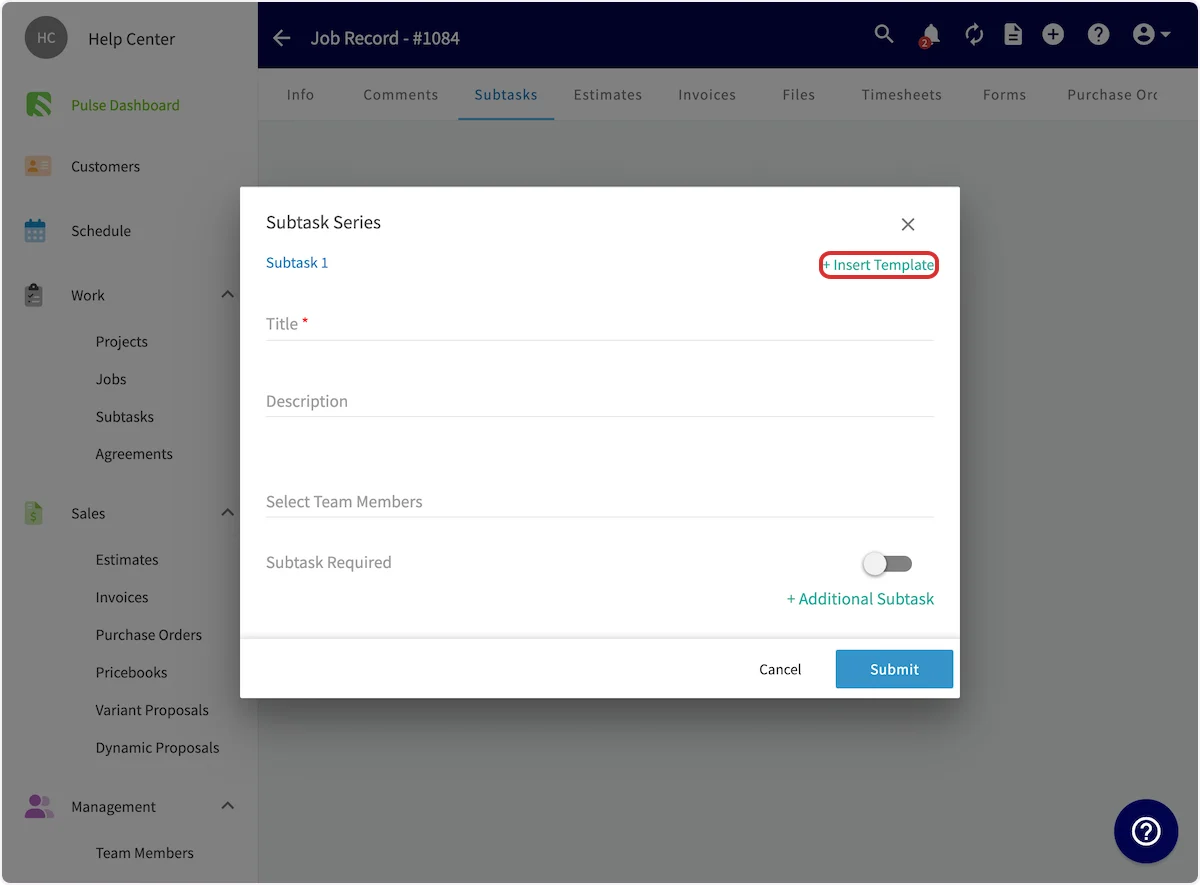
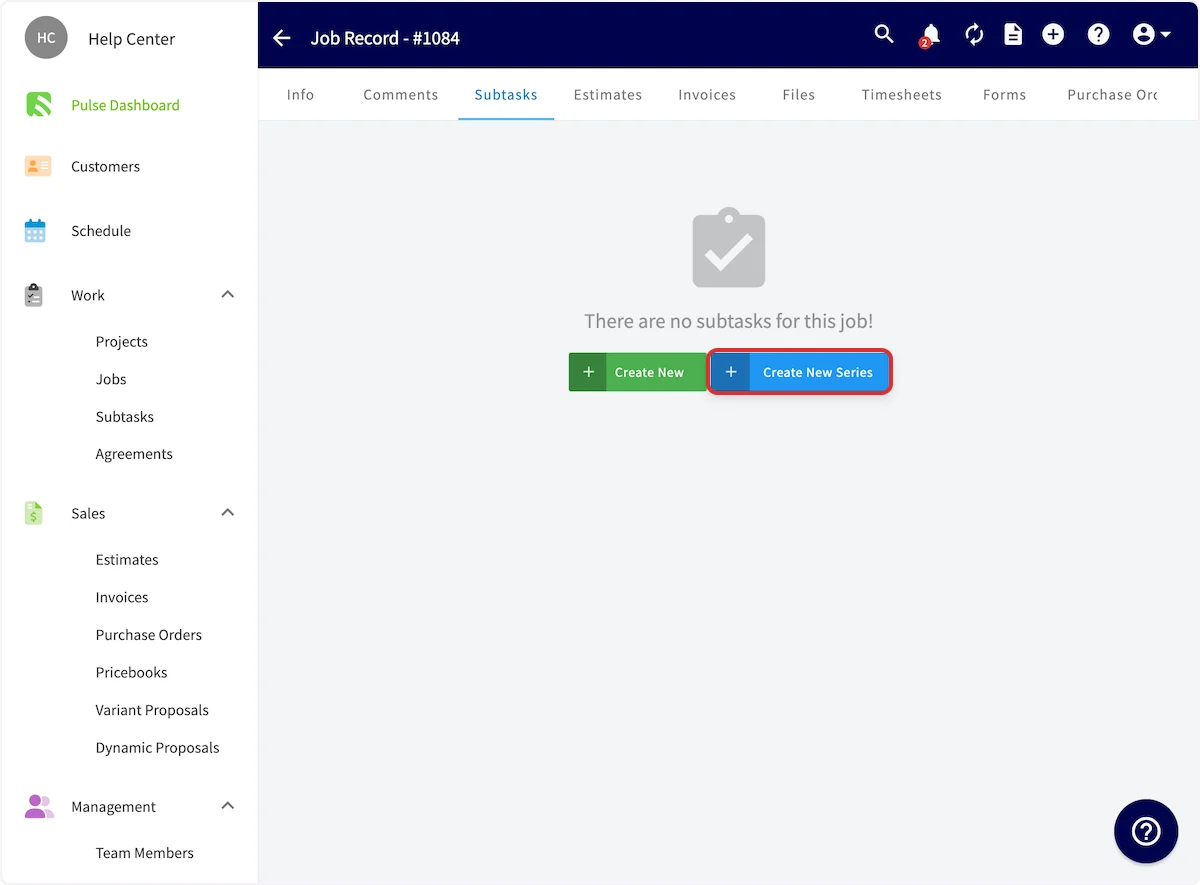 3. Fill in the subtask details, or select **+ Insert Template** to pull in a template you built earlier.
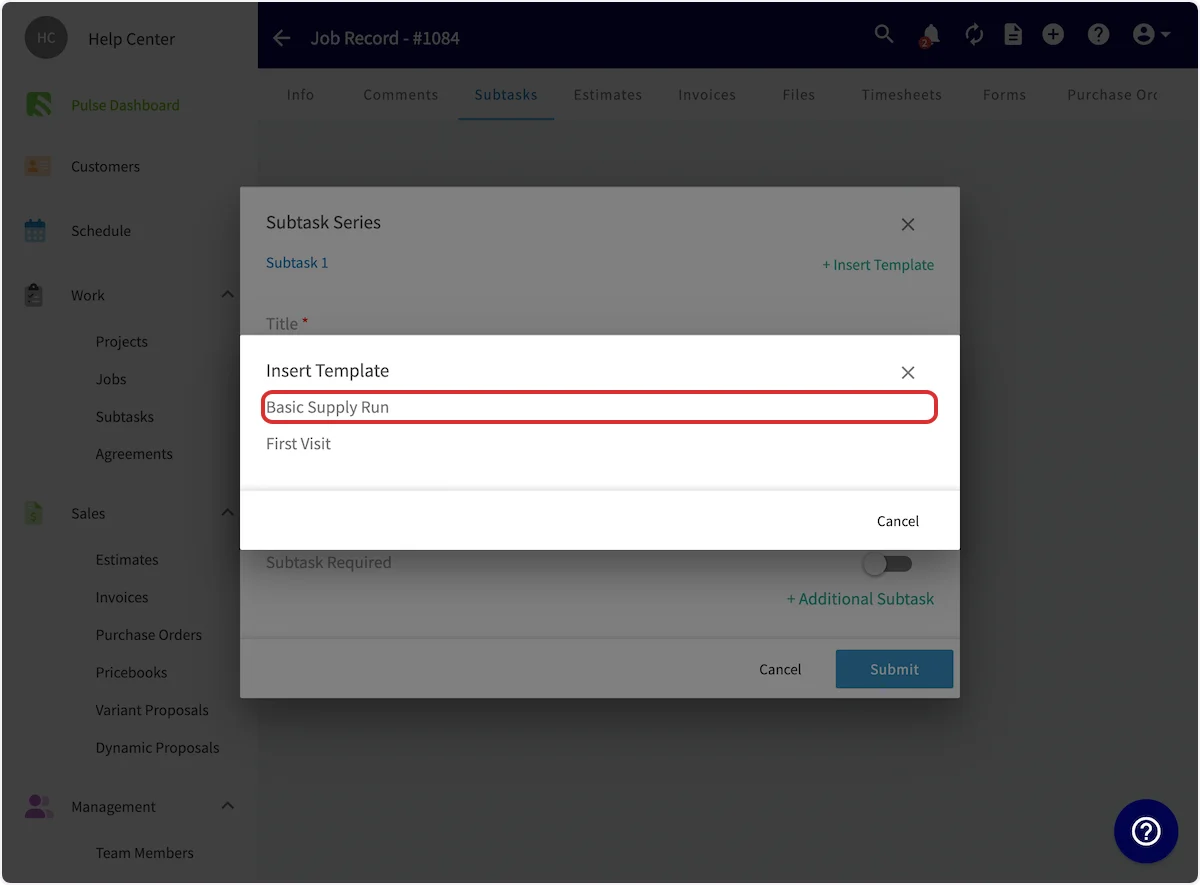
 4. Choose which subtask template to insert.
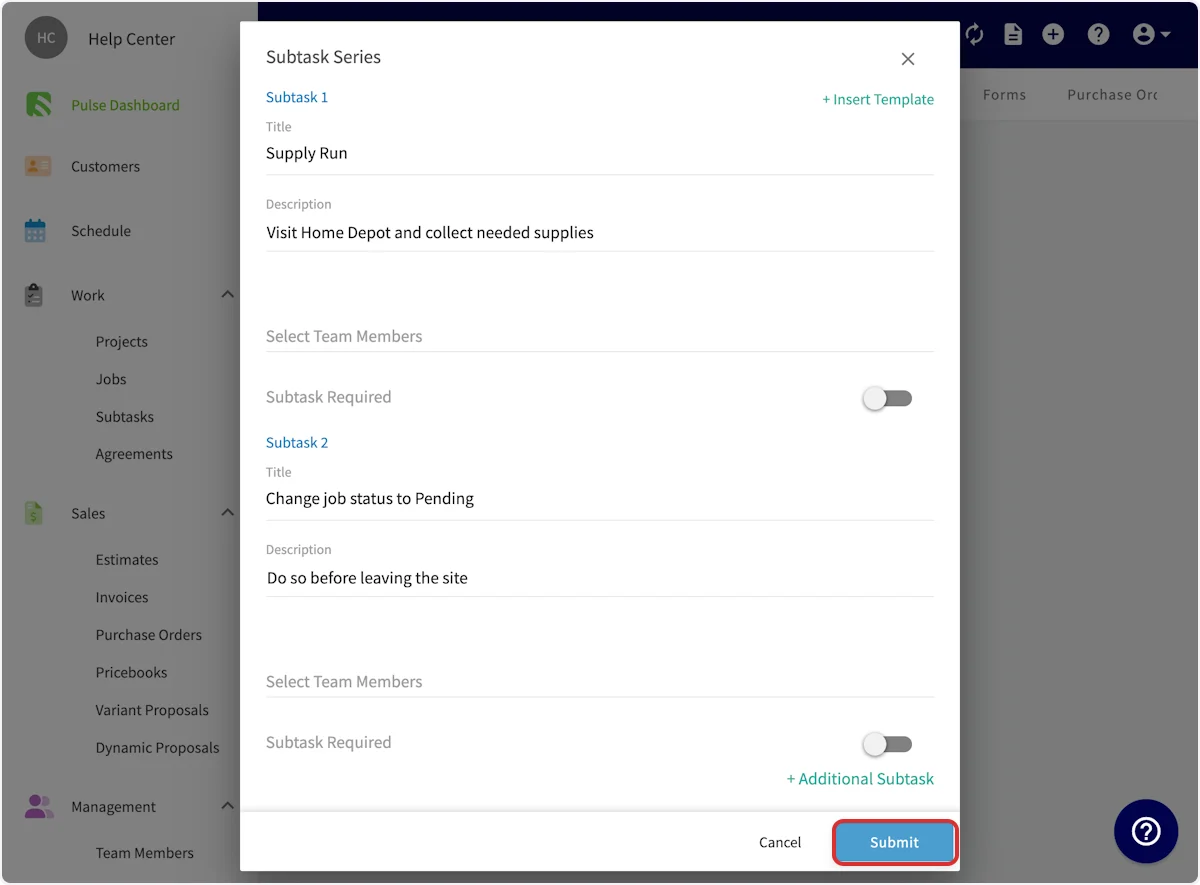
 5. Edit the text and add more steps with **+ Additional Subtask**.
6. Assign team members, and turn on **Subtask Required** for any step that has to be finished first.
7. Select **Submit**.
5. Edit the text and add more steps with **+ Additional Subtask**.
6. Assign team members, and turn on **Subtask Required** for any step that has to be finished first.
7. Select **Submit**.
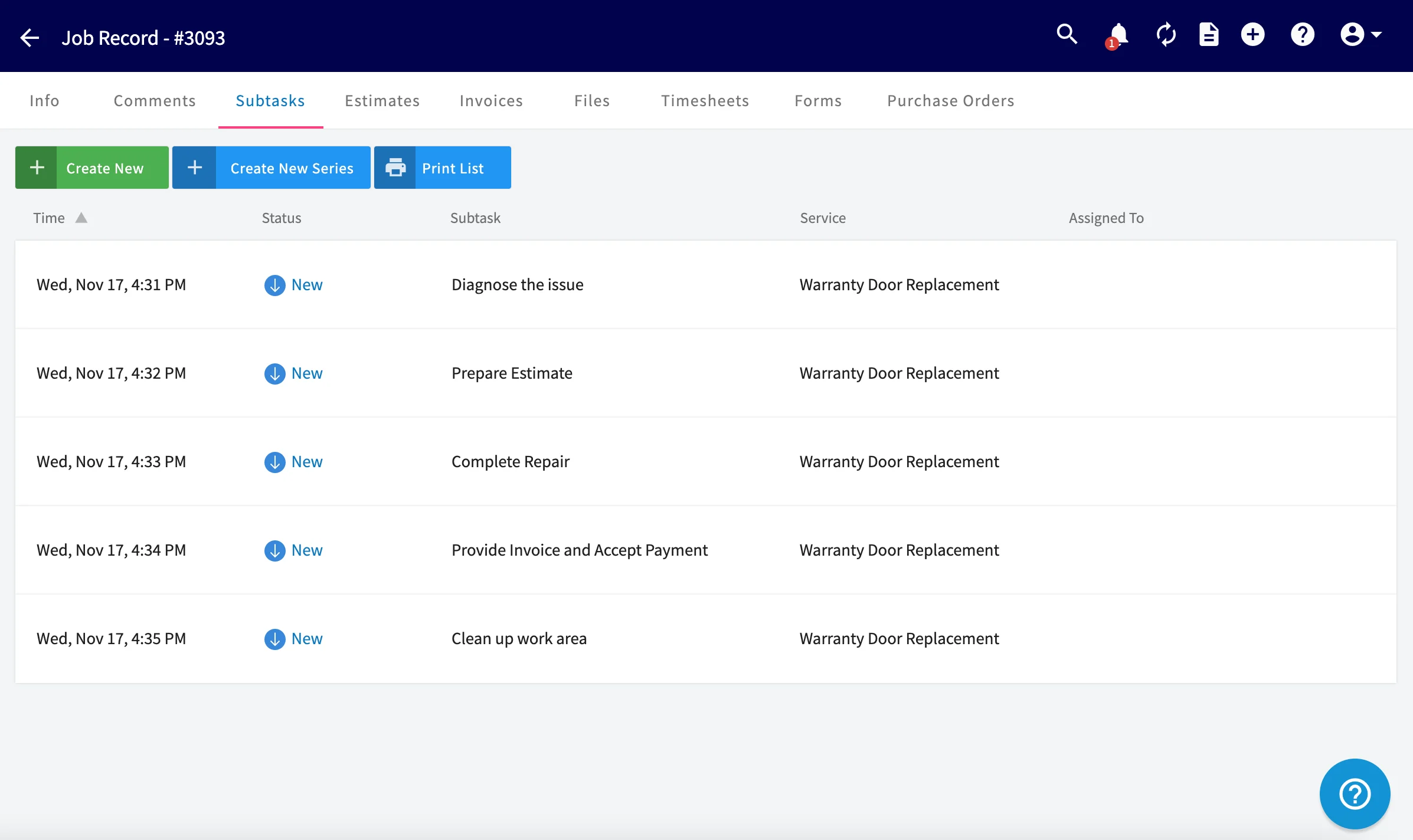
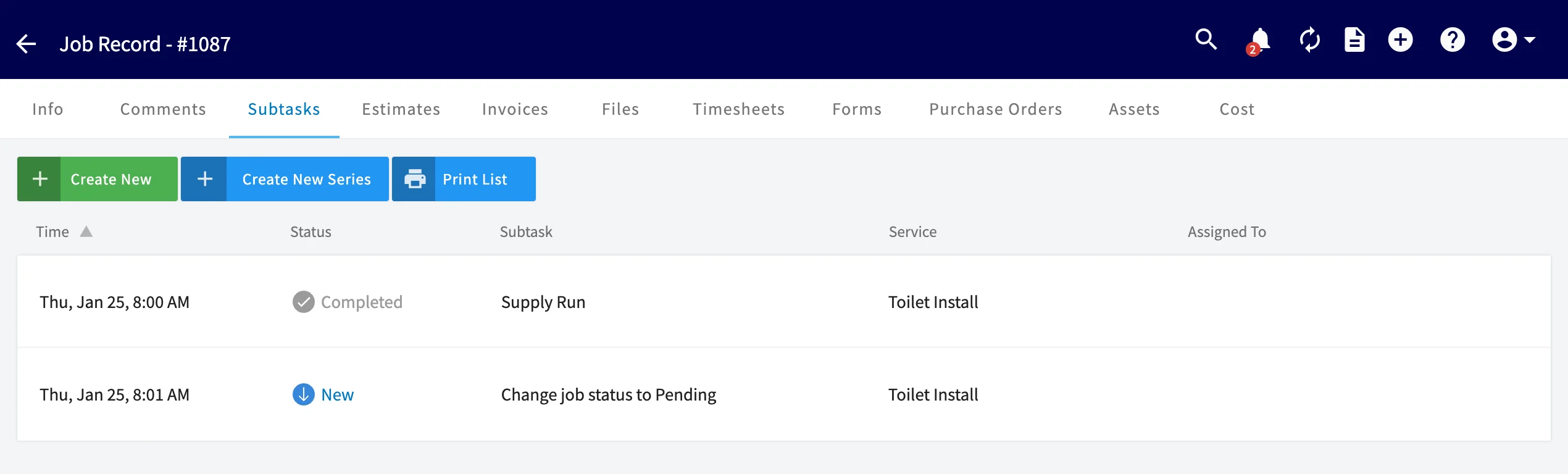
 The subtasks now sit under the job record's **Subtasks** tab, listed by time with each subtask's status, name, service, and assigned team member.
 ### Create a subtask without a job
1. Select **Subtasks** in the left-side menu.
2. Select **Add Subtask**.
### Create a subtask without a job
1. Select **Subtasks** in the left-side menu.
2. Select **Add Subtask**.
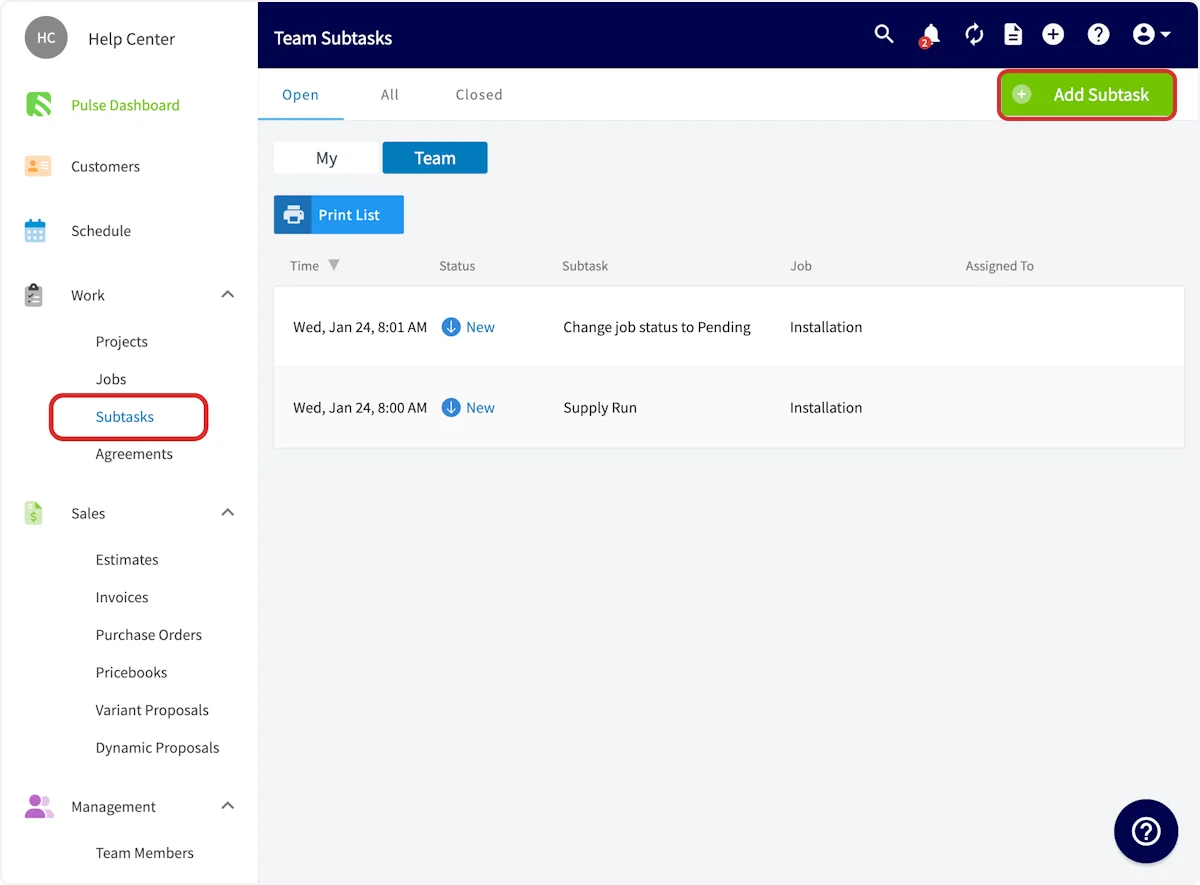 3. Add the **Subtask Title**, the due date and time, assigned team members, and a description.
4. Select **Save**.
3. Add the **Subtask Title**, the due date and time, assigned team members, and a description.
4. Select **Save**.
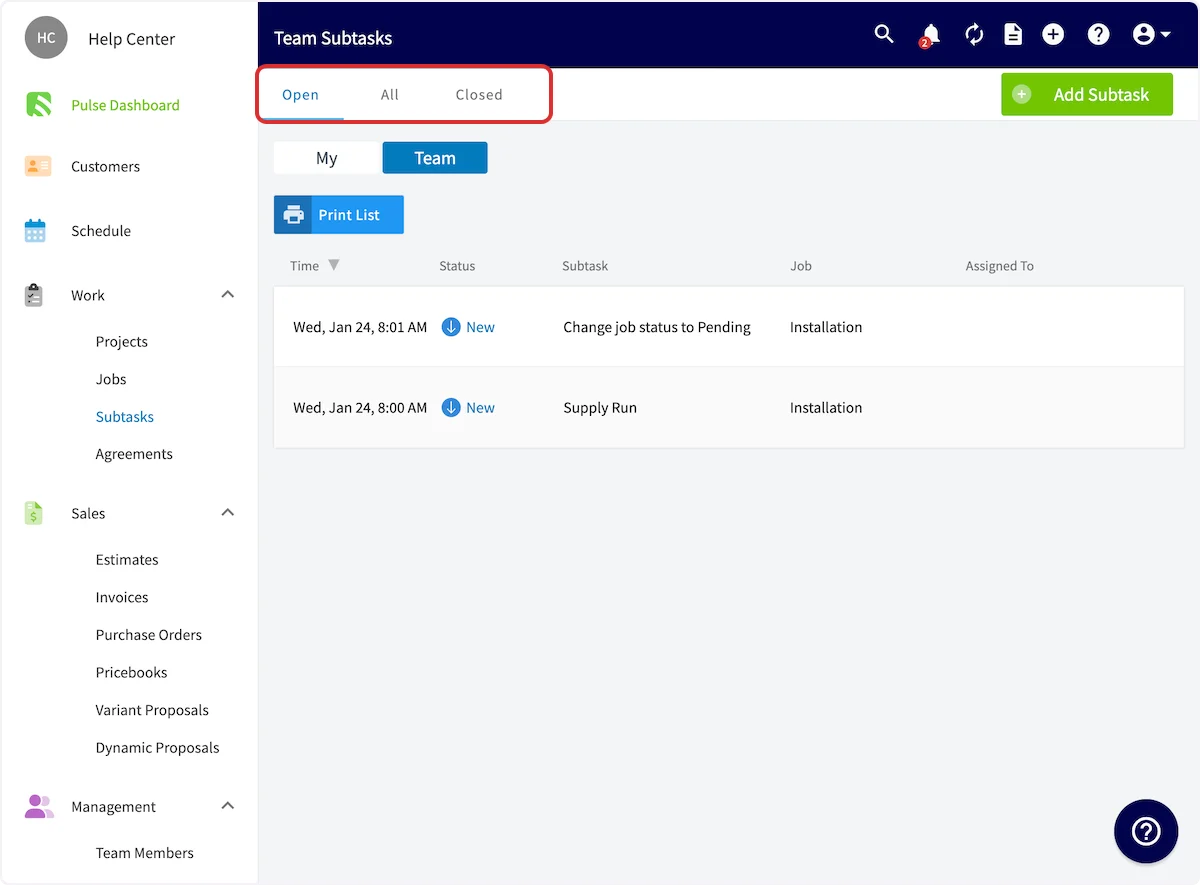
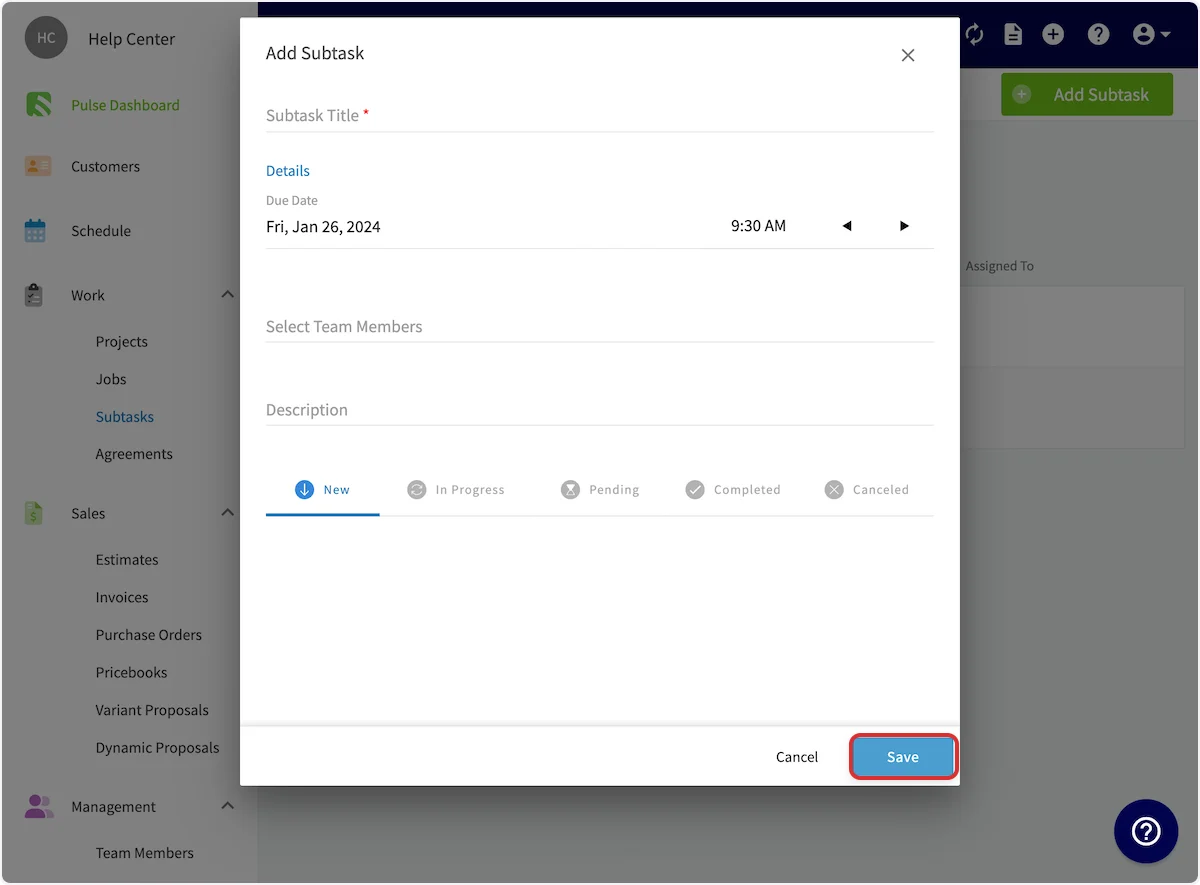 Sort your subtasks with the **Open**, **All**, and **Closed** tabs, whether or not a subtask is linked to a job.
 ### Require a subtask before a job status changes
Mark a subtask as required to hold a job in place until that step is done. Required subtasks have to be completed before job statuses are selected or bypassed. If someone tries to change the job status while a required subtask is still open, FieldPulse displays an error and prompts them to complete it — which keeps a job from moving forward while a critical step, such as an inspection or a sign-off, is unfinished.
The option to require a subtask appears both when you create subtask templates in **Company Settings** and when you create subtasks on a job. In the subtask series window on the web, it is the **Subtask Required** toggle.
### Complete a subtask
1. Open the job record's **Subtasks** tab and select the subtask.
### Require a subtask before a job status changes
Mark a subtask as required to hold a job in place until that step is done. Required subtasks have to be completed before job statuses are selected or bypassed. If someone tries to change the job status while a required subtask is still open, FieldPulse displays an error and prompts them to complete it — which keeps a job from moving forward while a critical step, such as an inspection or a sign-off, is unfinished.
The option to require a subtask appears both when you create subtask templates in **Company Settings** and when you create subtasks on a job. In the subtask series window on the web, it is the **Subtask Required** toggle.
### Complete a subtask
1. Open the job record's **Subtasks** tab and select the subtask.
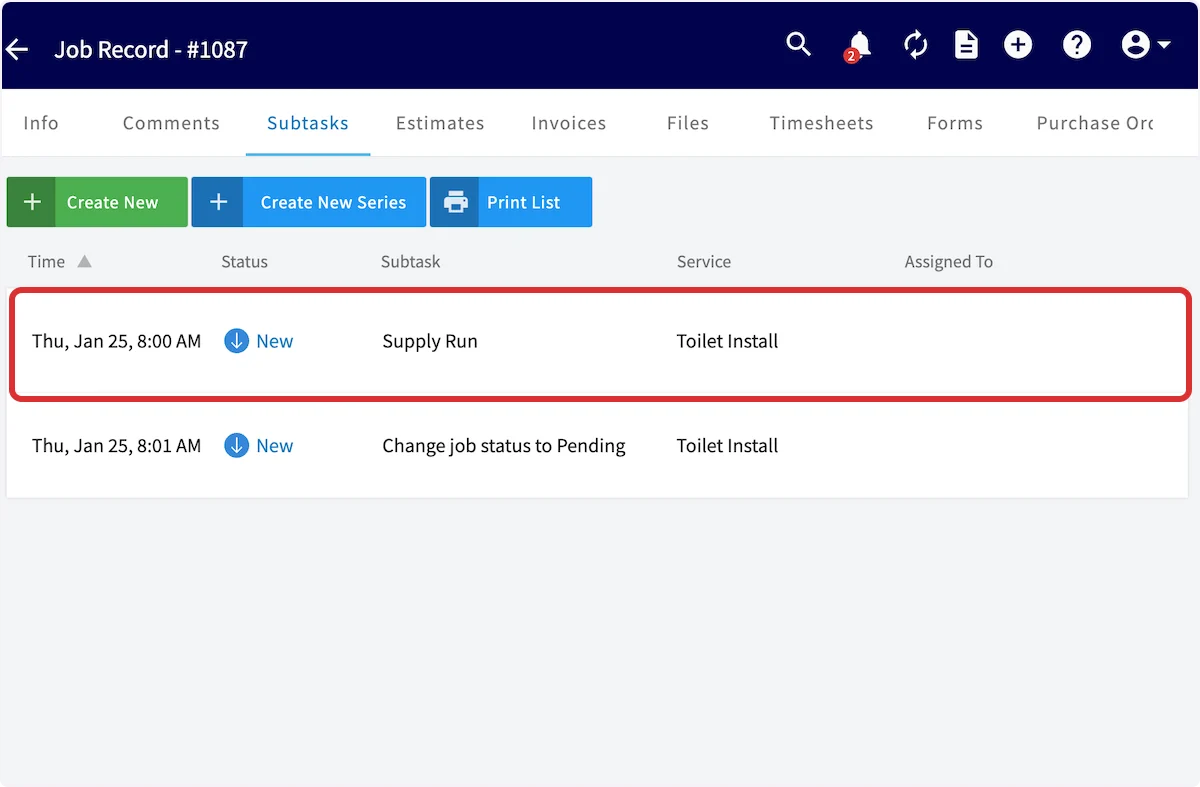 2. Set the **Status** as the work moves through its stages.
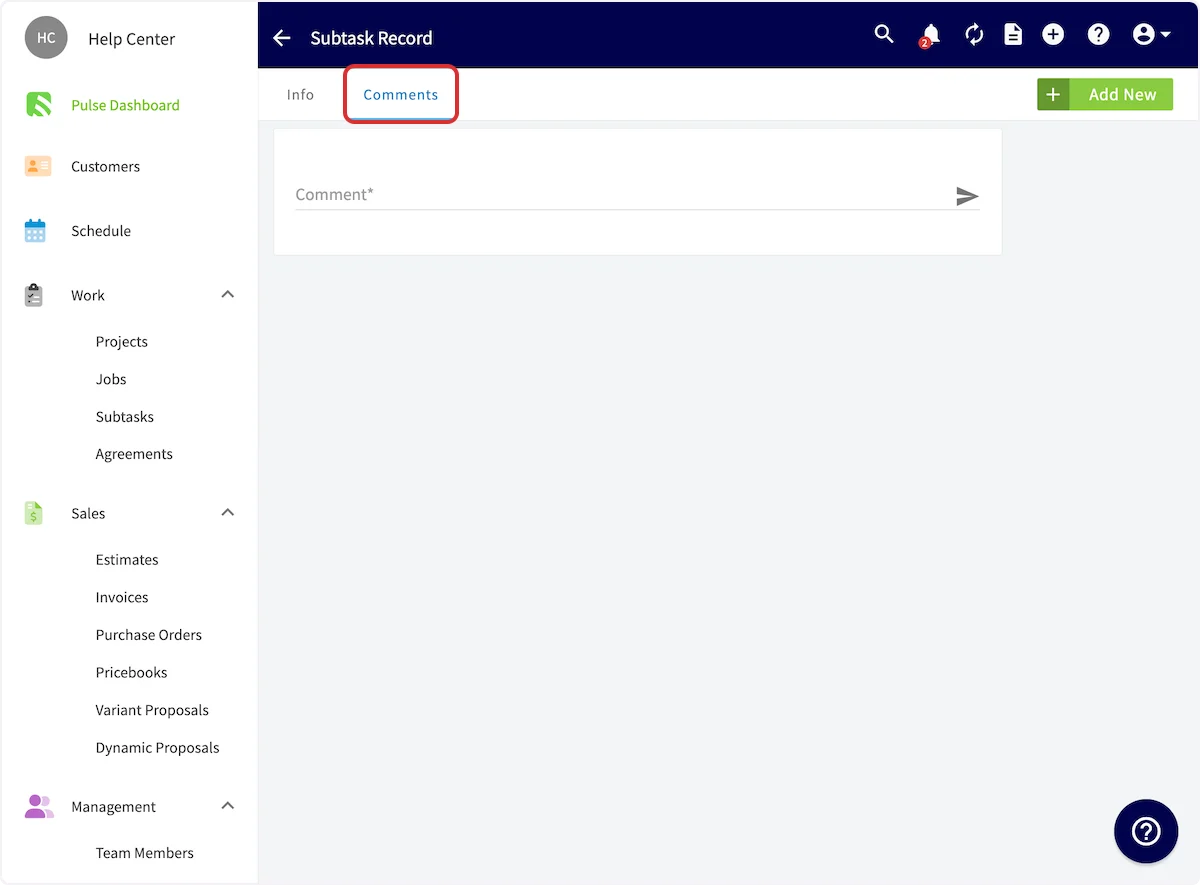
 3. Select **Comments** to add notes to the subtask.
 Once you mark the subtask complete, the status is updated across FieldPulse.
 ## On mobile
### Create a subtask on a job
1. Open the job record and select the **Subtasks** tab.
## On mobile
### Create a subtask on a job
1. Open the job record and select the **Subtasks** tab.
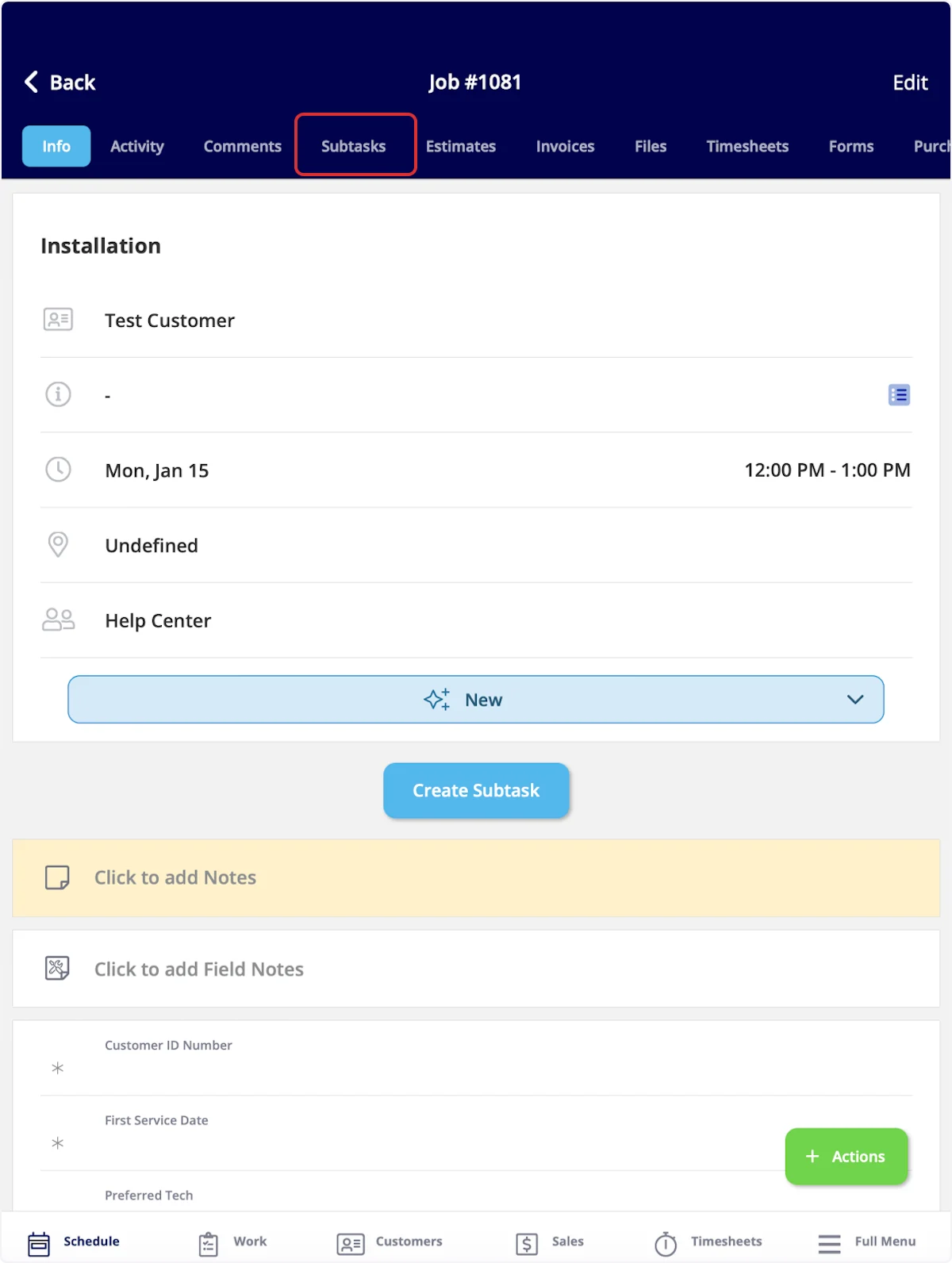 2. Select **Create Subtask**.
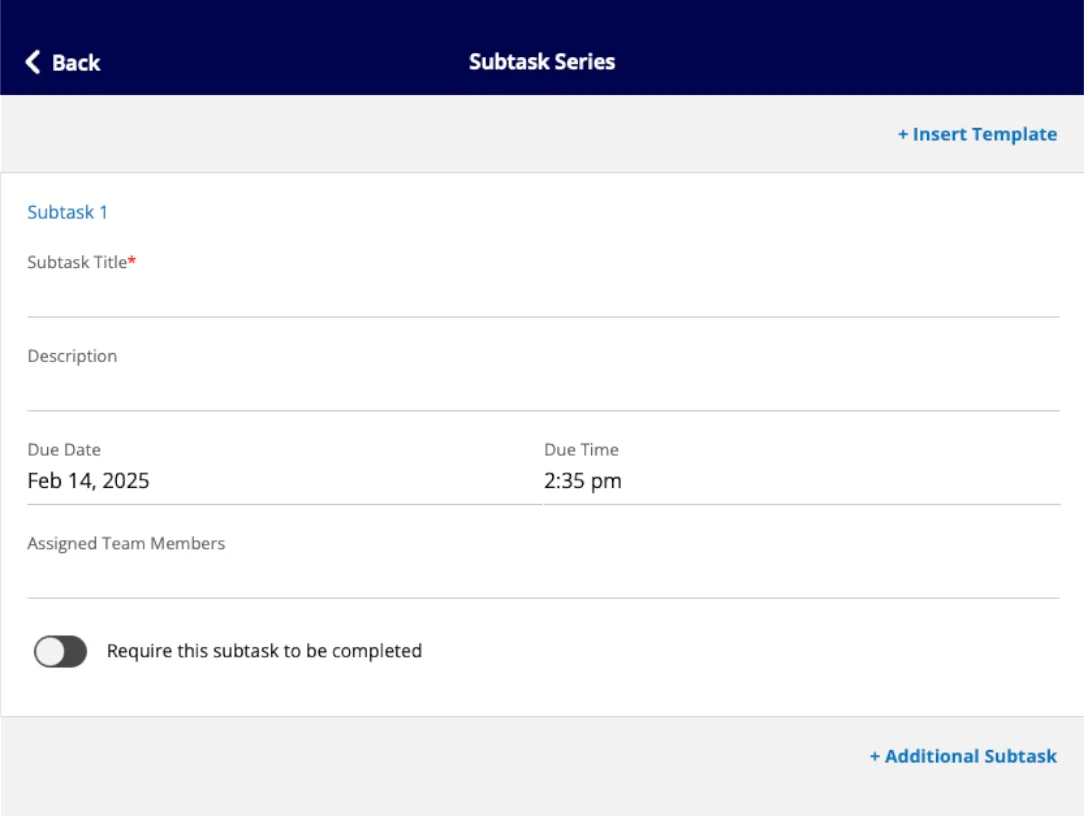
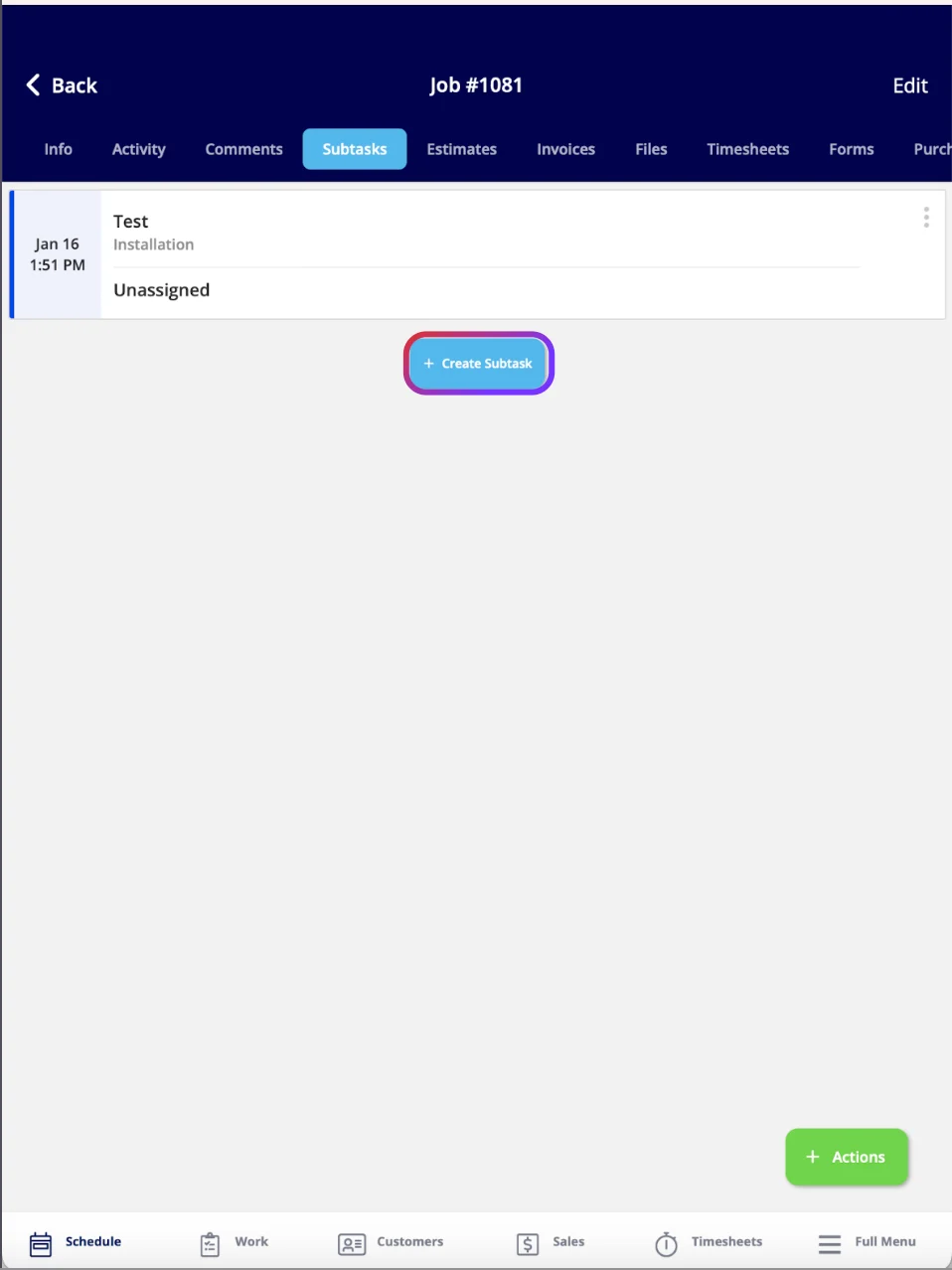 3. Enter the **Subtask Title**, a description, and the due date and time.
4. Assign team members, or select **+ Insert Template** to pull in a subtask template.
3. Enter the **Subtask Title**, a description, and the due date and time.
4. Assign team members, or select **+ Insert Template** to pull in a subtask template.
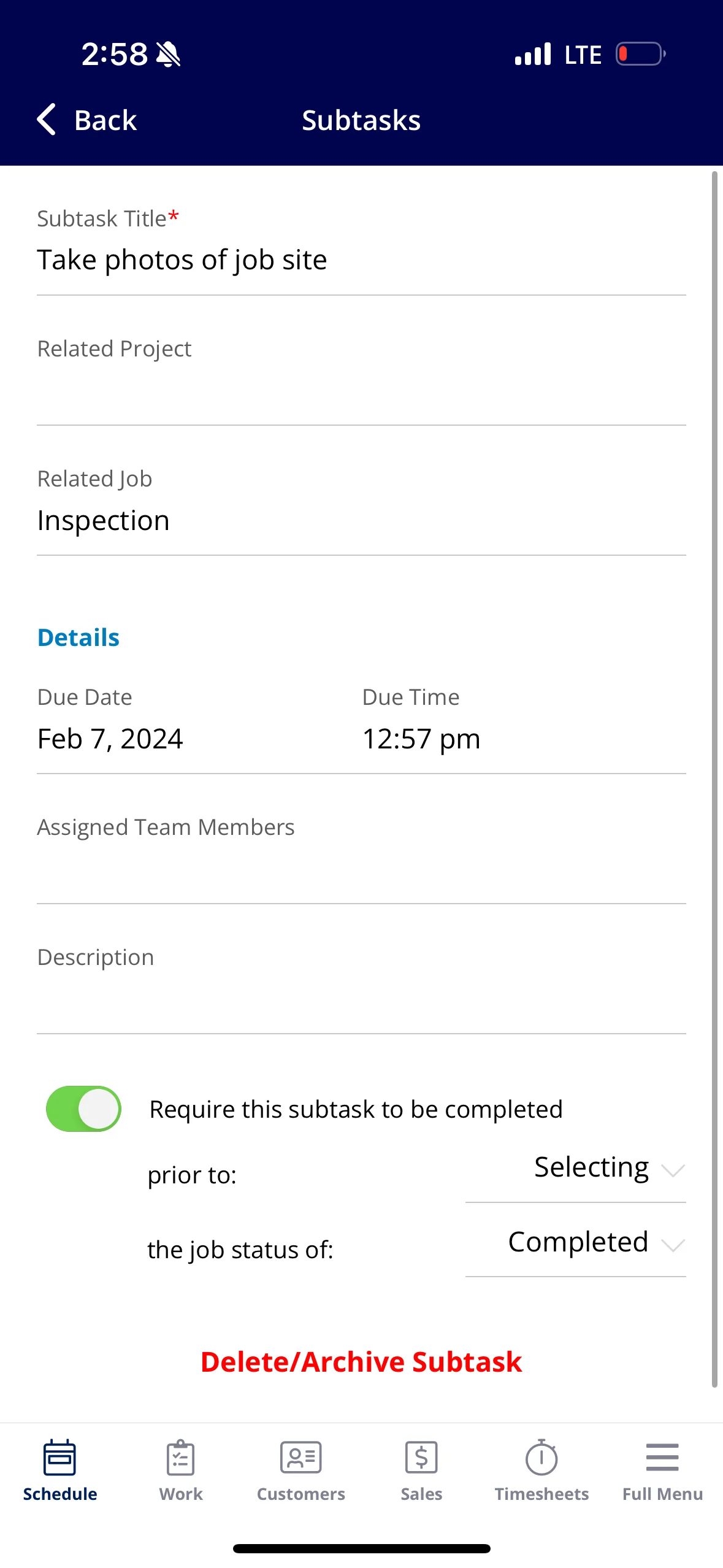
 The saved subtask lists the job it belongs to under **Related Job**, and you can attach a **Related Project** as well.
 ### Require a subtask before a job status changes
Turn on **Require this subtask to be completed** on the subtask, then choose the status the subtask has to be finished before. The option appears both when you create subtask templates in **Company Settings** and when you create subtasks on a job.
### Require a subtask before a job status changes
Turn on **Require this subtask to be completed** on the subtask, then choose the status the subtask has to be finished before. The option appears both when you create subtask templates in **Company Settings** and when you create subtasks on a job.
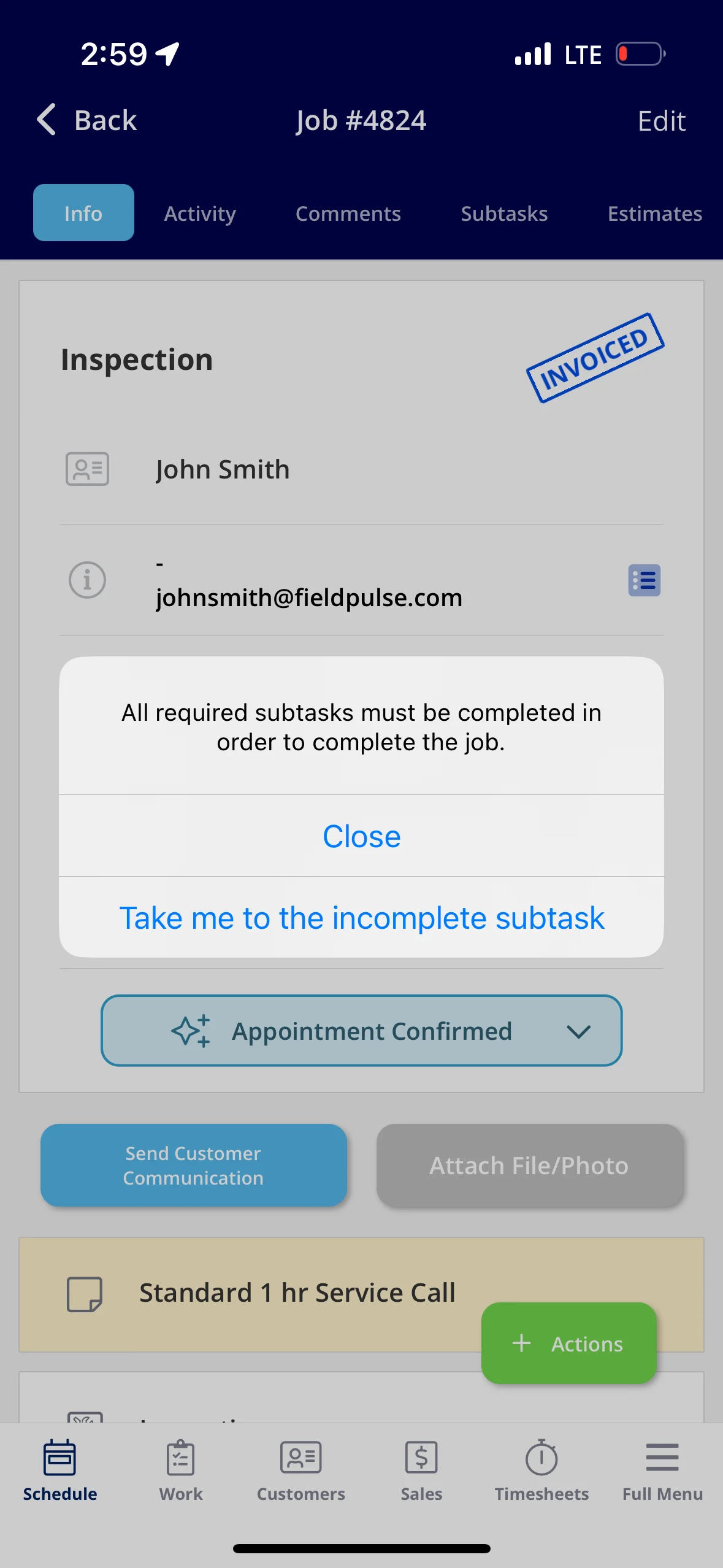
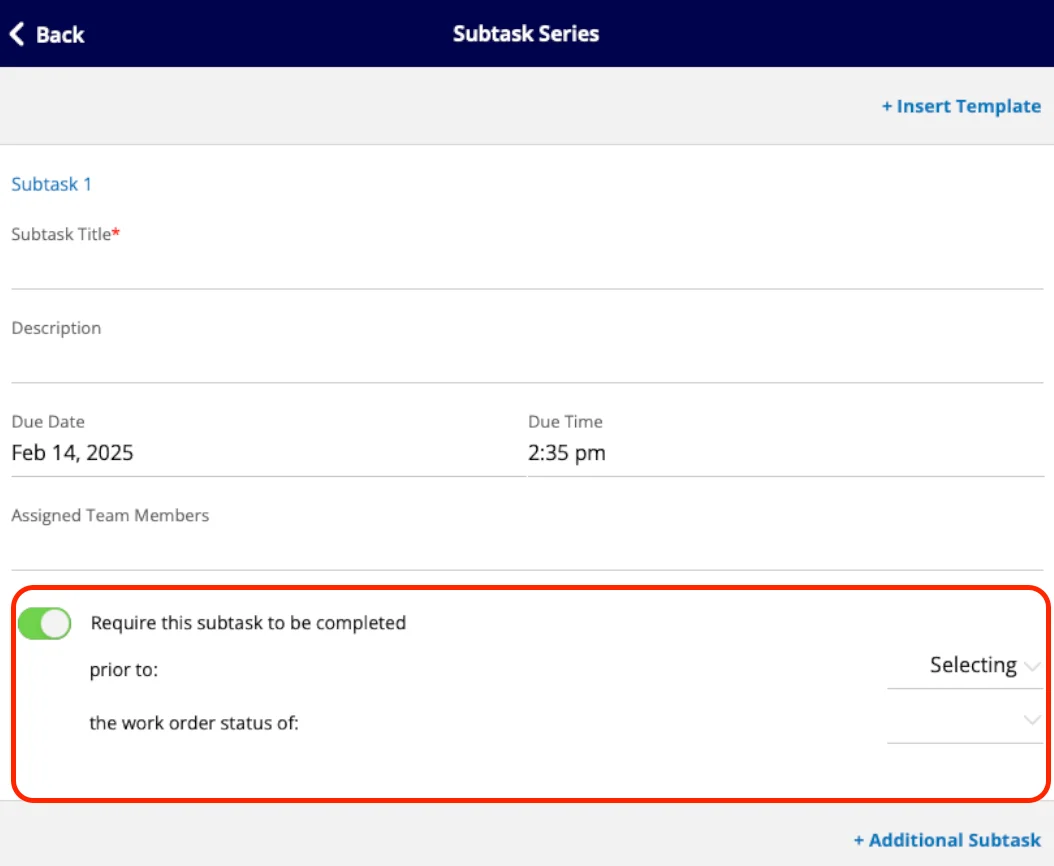 If someone tries to change the job status while a required subtask is still open, FieldPulse displays an error and prompts them to complete it, with an option to open the incomplete subtask.
 ### Create a subtask without a job
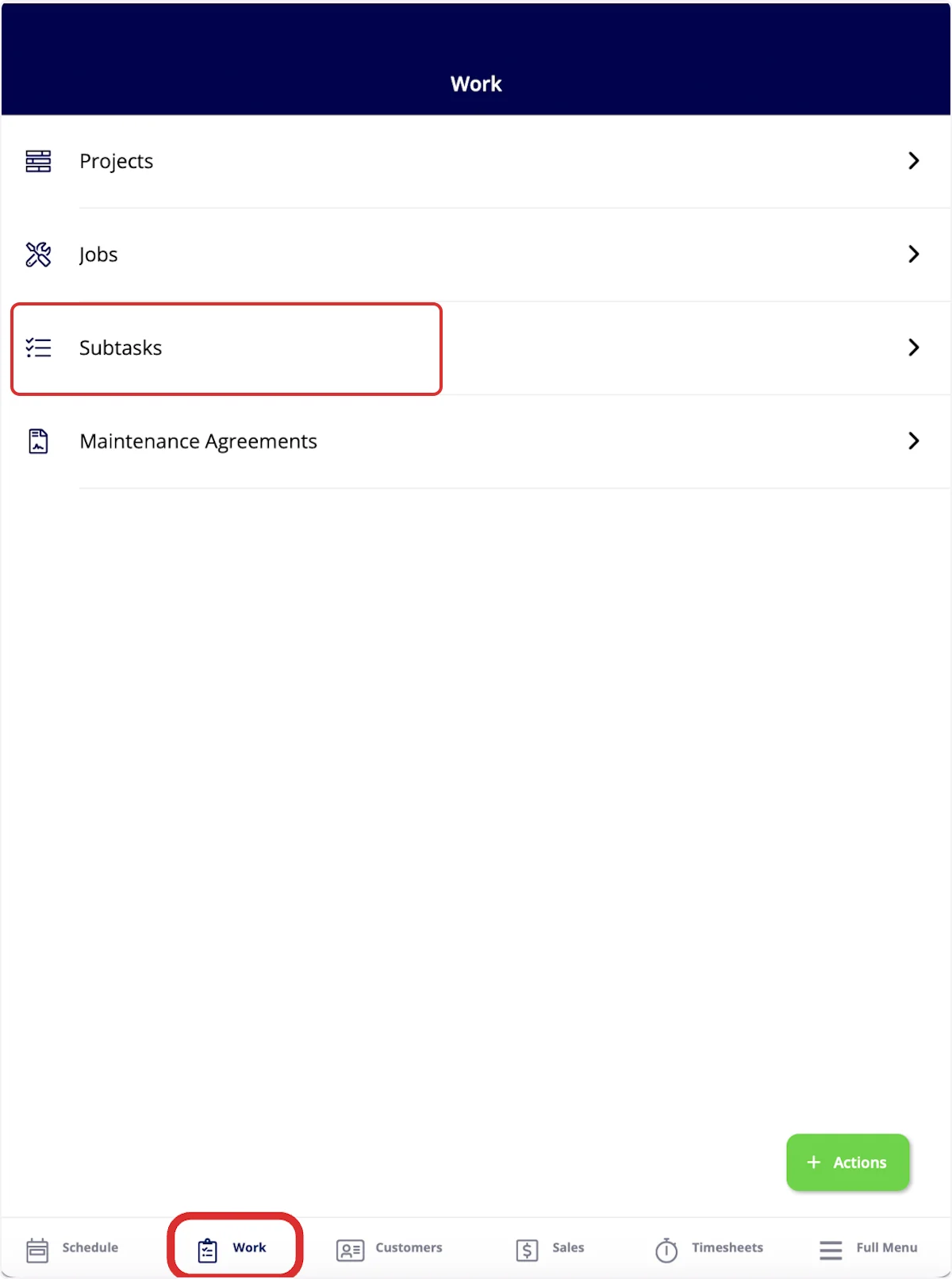
1. Select **Work** in the bottom menu.
2. Select **Subtasks**.
### Create a subtask without a job
1. Select **Work** in the bottom menu.
2. Select **Subtasks**.
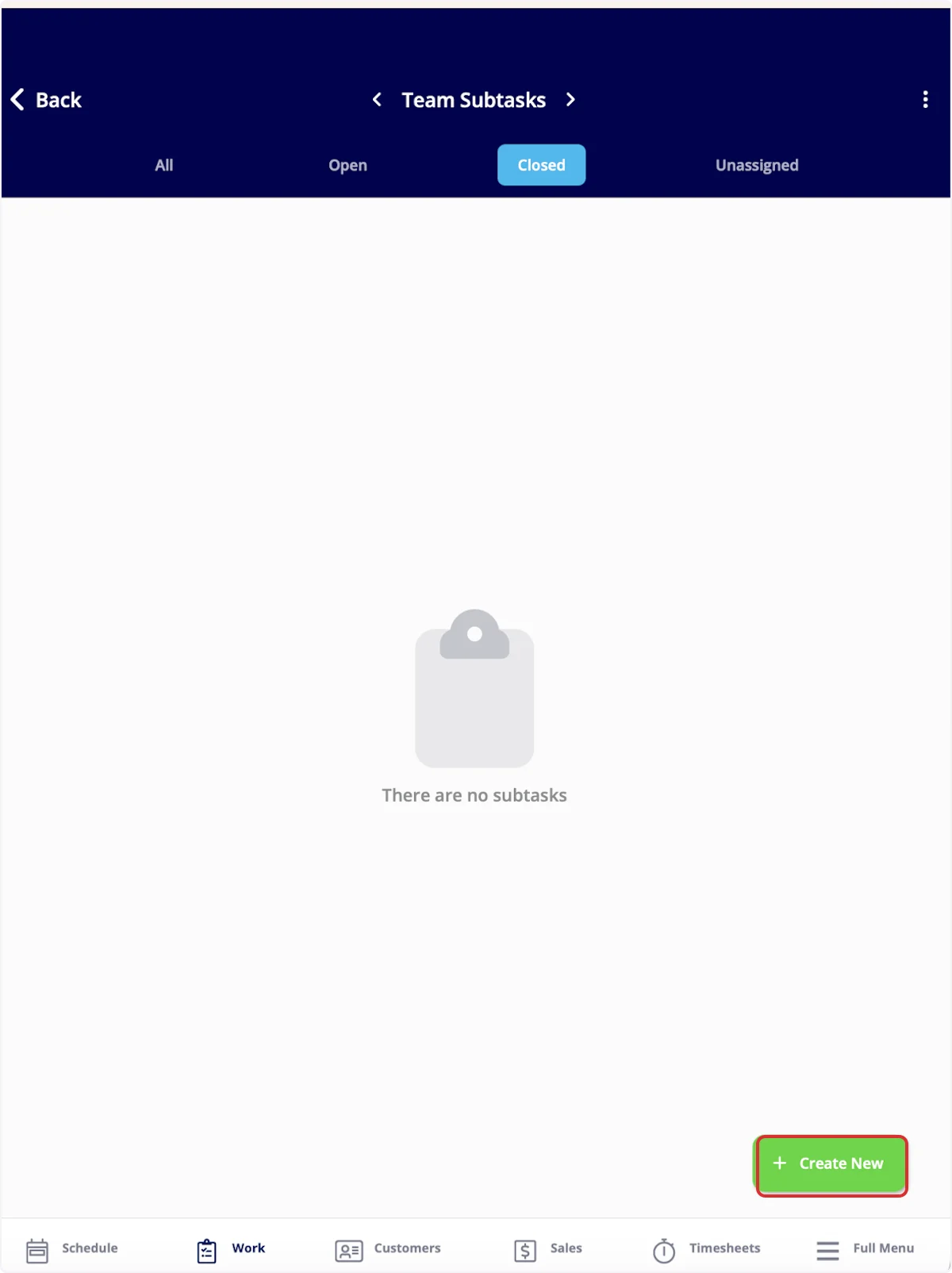
 3. Select **Create New**.
 4. Complete the subtask details as above, leaving **Related Project** and **Related Job** empty.
The subtask list filters by **All**, **Open**, **Closed**, and **Unassigned**. Managers and Admins can switch between **Team Subtasks** and **My Subtasks** using the arrows at the top of the screen.
### Update a subtask
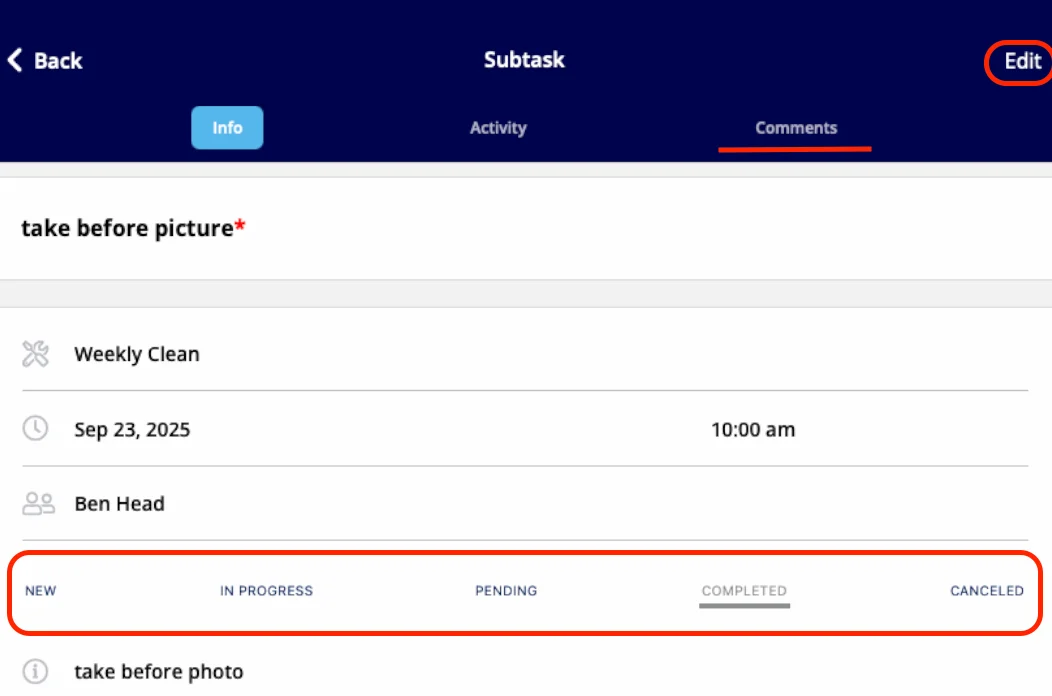
Open the subtask to view its details. Move the subtask along with the status bar, and select **Comments** in the top menu to add a note.
4. Complete the subtask details as above, leaving **Related Project** and **Related Job** empty.
The subtask list filters by **All**, **Open**, **Closed**, and **Unassigned**. Managers and Admins can switch between **Team Subtasks** and **My Subtasks** using the arrows at the top of the screen.
### Update a subtask
Open the subtask to view its details. Move the subtask along with the status bar, and select **Comments** in the top menu to add a note.
 ## FAQs
### Can I print a list of subtasks?
Yes. The job record's **Subtasks** tab and the **Subtasks** page in the left-side menu both include a **Print List** button.
### How do I delete a subtask?
Open the subtask in the FieldPulse mobile app and select **Delete/Archive Subtask** at the bottom of the subtask details.
## Related articles
* [How to Create a Job](/jobs/jobs-tasks/creating-a-job)
* [How to Use a Job Template](/jobs/jobs-tasks/using-job-templates)
* [How to Add Site Visits](/jobs/jobs-tasks/site-visits)
* [How to Create a Task](/jobs/jobs-tasks/creating-a-task)
* [How to Use Comments](/jobs/jobs-tasks/comments)
Your subtasks are working when the job record's Subtasks tab lists every step in order, each subtask carries its own status and assigned team member, and a required subtask holds the job status in place until it is marked complete.
## Related topics
- [How to Create Subtask Reports](/reporting/raw-data/subtask-reports.md)
- [How to Add Site Visits](/jobs/jobs-tasks/site-visits.md)
- [How to Use a Job Template](/jobs/jobs-tasks/using-job-templates.md)
- [Setting Up Job Templates](/jobs/jobs-tasks/creating-job-templates.md)
## FAQs
### Can I print a list of subtasks?
Yes. The job record's **Subtasks** tab and the **Subtasks** page in the left-side menu both include a **Print List** button.
### How do I delete a subtask?
Open the subtask in the FieldPulse mobile app and select **Delete/Archive Subtask** at the bottom of the subtask details.
## Related articles
* [How to Create a Job](/jobs/jobs-tasks/creating-a-job)
* [How to Use a Job Template](/jobs/jobs-tasks/using-job-templates)
* [How to Add Site Visits](/jobs/jobs-tasks/site-visits)
* [How to Create a Task](/jobs/jobs-tasks/creating-a-task)
* [How to Use Comments](/jobs/jobs-tasks/comments)
Your subtasks are working when the job record's Subtasks tab lists every step in order, each subtask carries its own status and assigned team member, and a required subtask holds the job status in place until it is marked complete.
## Related topics
- [How to Create Subtask Reports](/reporting/raw-data/subtask-reports.md)
- [How to Add Site Visits](/jobs/jobs-tasks/site-visits.md)
- [How to Use a Job Template](/jobs/jobs-tasks/using-job-templates.md)
- [Setting Up Job Templates](/jobs/jobs-tasks/creating-job-templates.md)