> ## Documentation Index
> Fetch the complete documentation index at: https://help.fieldpulse.com/llms.txt
> Use this file to discover all available pages before exploring further.
# Setting Up Custom Fields on Project Records
> Capture details like a lead installer or risk rating on FieldPulse project records, then cascade each one to related jobs, invoices, and purchase orders.
> **Who uses this:** Admins create project custom fields in **Company Settings** and choose which roles see each field. **Availability:** All regions. Requires **Project Management**, which is included in the FieldPulse subscription and is enabled in **Company Settings > Features & Plugins**.
Every project carries a detail the standard project fields have no spot for — the original expected completion date, the installer requested to lead the work, a risk assessment for the site. A custom field gives that detail a permanent home on the project record instead of leaving it in someone's head or a side spreadsheet. You create the field once in Company Settings, choose the kind of data it holds, decide which roles can see it, and choose whether its information also appears on the related [jobs](https://www.fieldpulse.com/features/job-management), [estimates and invoices](https://www.fieldpulse.com/features/estimates-and-invoices), and purchase orders.
## Overview
A project custom field is a field you define in **Company Settings** and add to your project records, so you can store and display data that is not part of the standard project fields. You manage these fields on the **Custom Fields for Project Records** page, under **Company Settings > Projects > Custom Fields**.
Each field carries a name, a data type, the roles that can see it, and the related records that also show its information. Settings reference below covers each of those settings.
Common uses include an original expected completion date, a requested primary project lead or installer, and a risk assessment.
## Before you begin
* Decide which roles should see the field. You set visibility on each field, for **Managers** and **Service Agent**.
* Name the field for the data it holds rather than for one project, since you define the field once in **Company Settings** for your project records.
* Plan the choices for a **Drop-down** field in advance. You add, name, and save each option while the field is open.
* Decide which related records should carry the field's information — **Job**, **Estimate/Invoice**, or **Order**.
## Step-by-step setup
### Enable Project Management
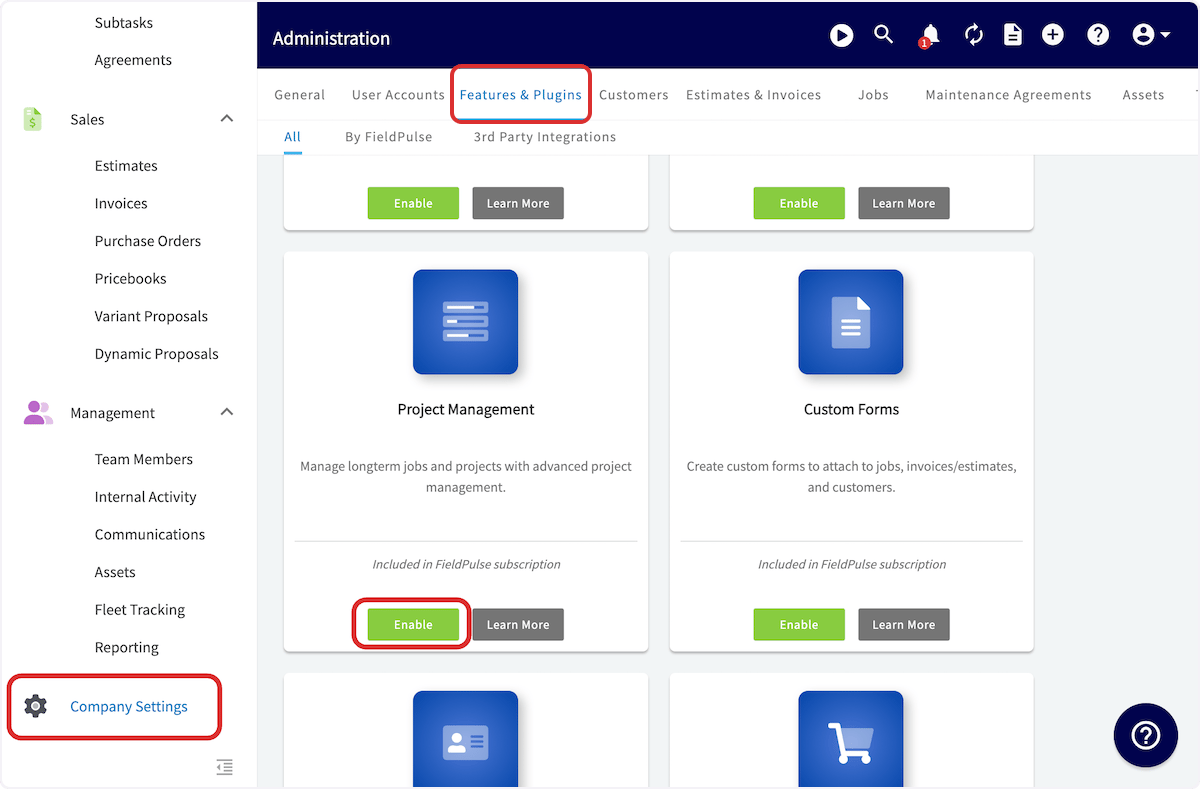
Turn on **Project Management** first. Enabling it lets you create and track projects, along with custom fields that can cascade to your jobs, estimates and invoices, and purchase orders.
1. Go to **Company Settings**.
2. Select the **Features & Plugins** tab.
3. Find **Project Management** and select **Enable**.
 ### Create a custom field
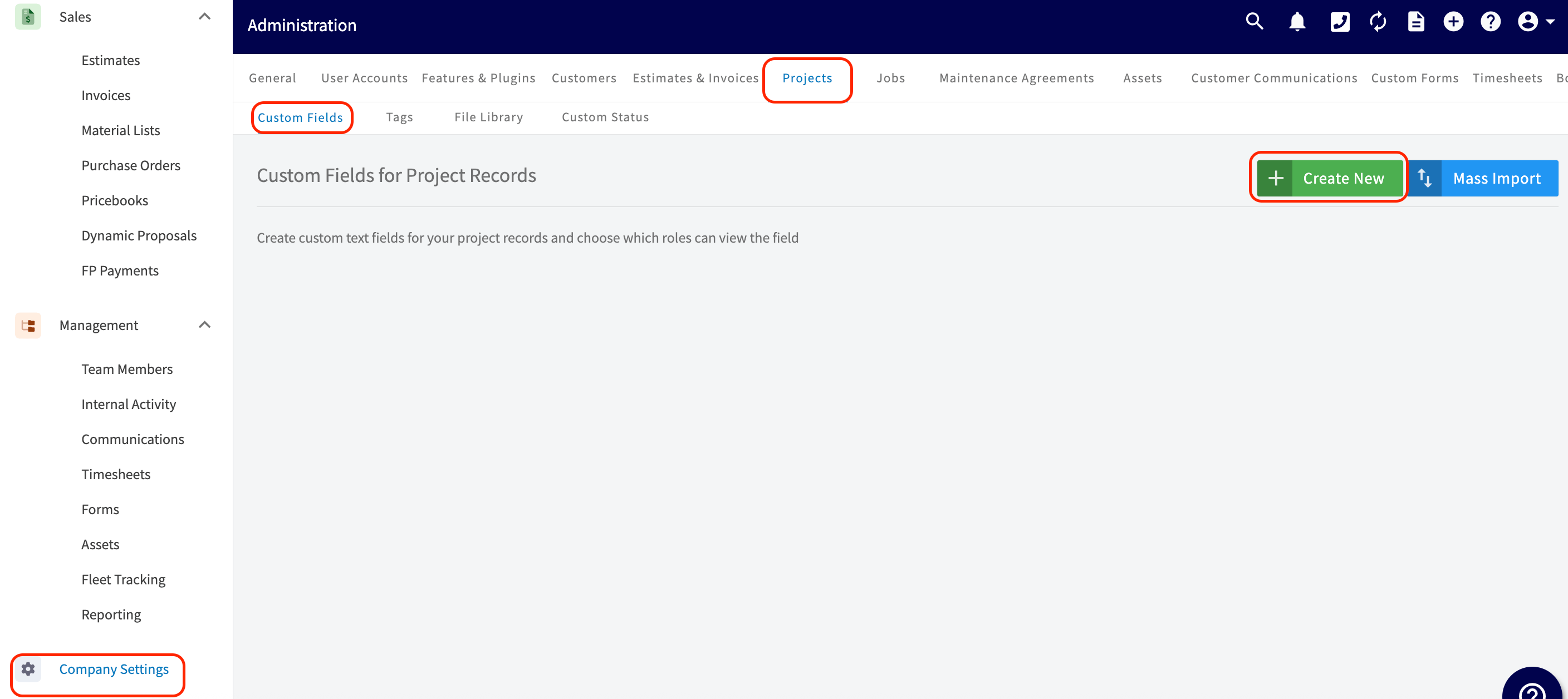
1. Go to **Company Settings**.
2. Select the **Projects** tab, then the **Custom Fields** tab.
3. On the **Custom Fields for Project Records** page, select **Create New**.
### Create a custom field
1. Go to **Company Settings**.
2. Select the **Projects** tab, then the **Custom Fields** tab.
3. On the **Custom Fields for Project Records** page, select **Create New**.
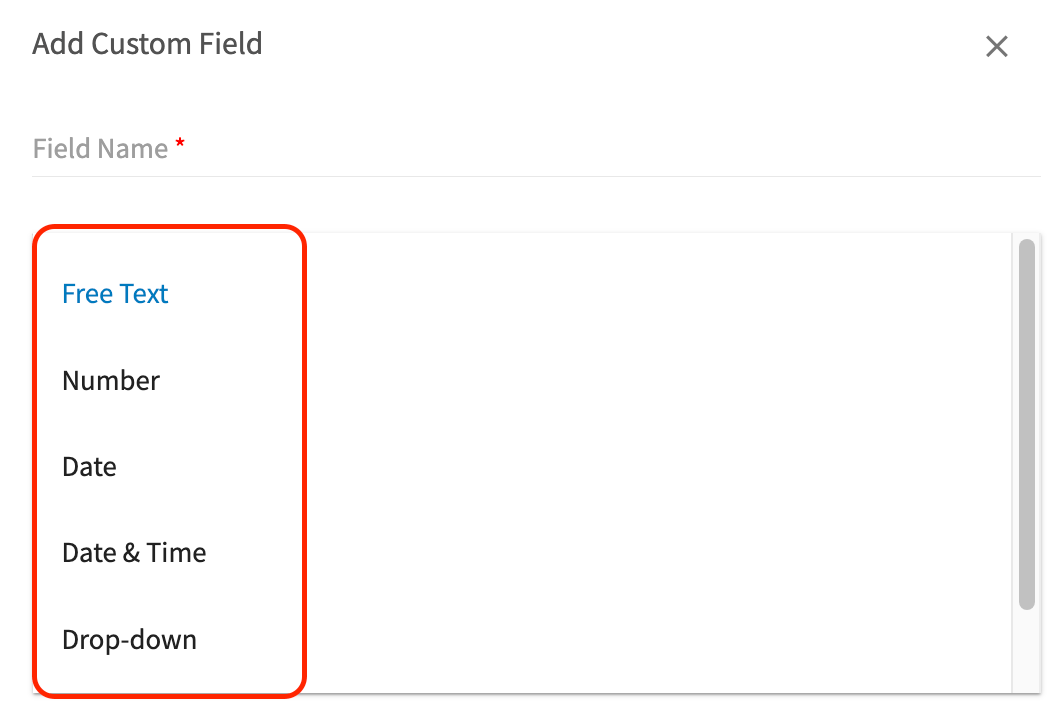
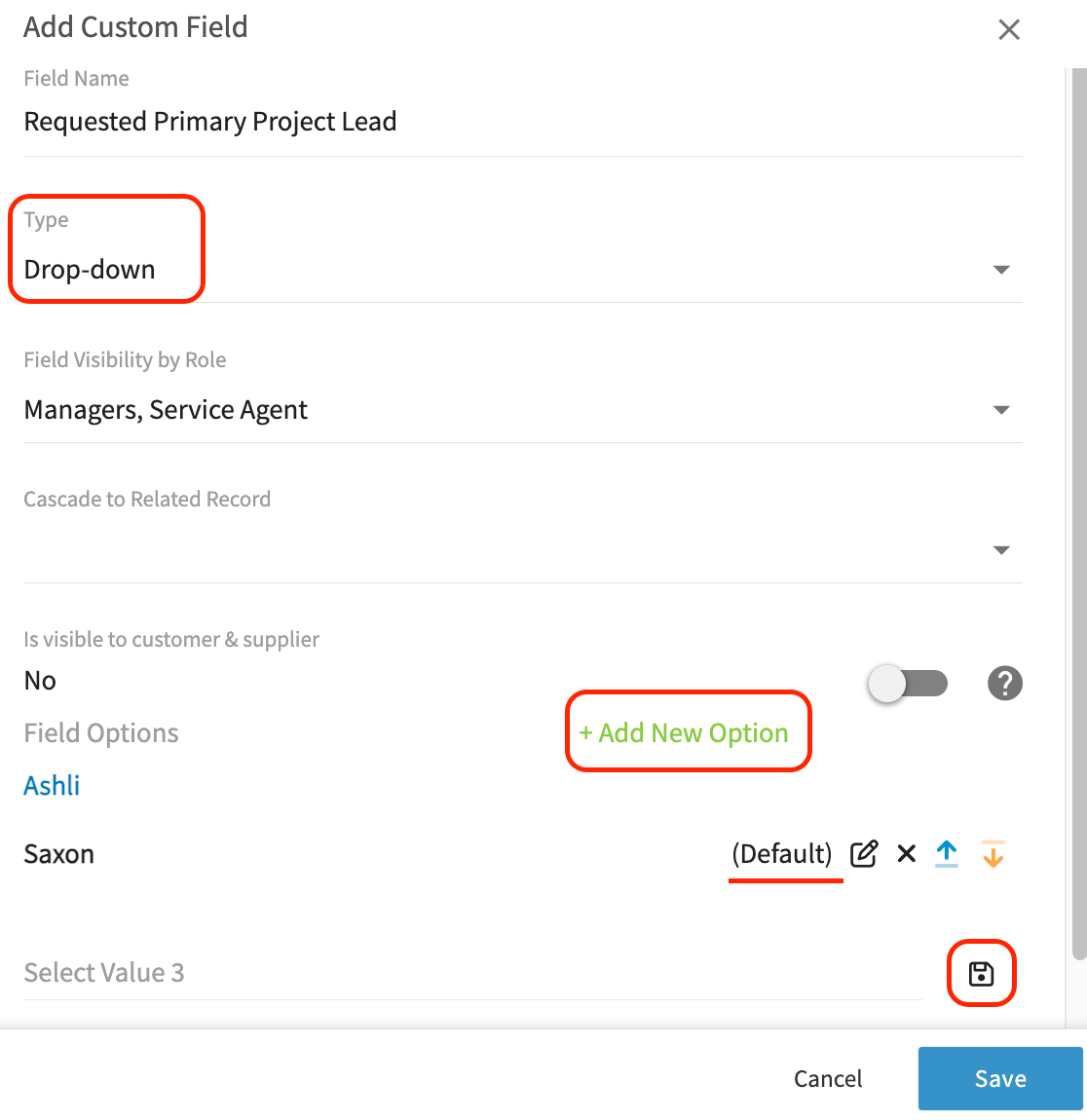
 4. In the **Add Custom Field** window, enter the **Field Name**. This is the label your team sees on the project record.
 5. Select the **Type** of data the field holds — **Free Text**, **Number**, **Date**, **Date & Time**, or **Drop-down**.
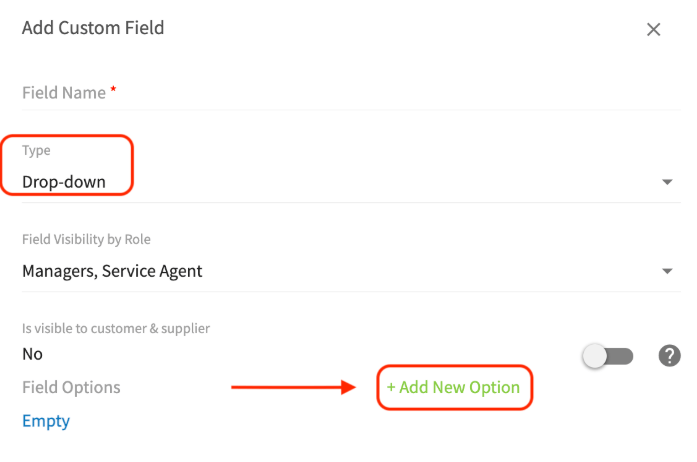
 6. For a **Drop-down** field, select **+ Add New Option**.
7. Name the option, then select the save icon beside it. Repeat for every choice you want in the list — your team then picks a single option from that list on the project record.
6. For a **Drop-down** field, select **+ Add New Option**.
7. Name the option, then select the save icon beside it. Repeat for every choice you want in the list — your team then picks a single option from that list on the project record.
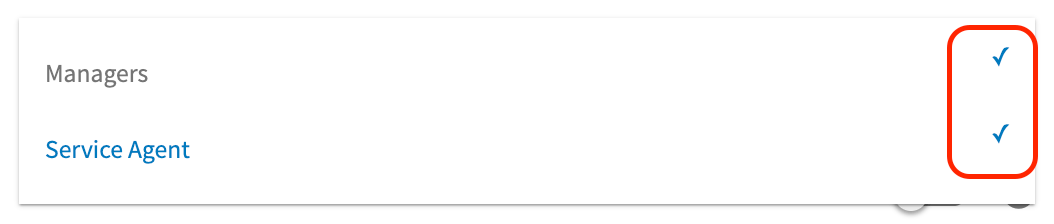
 8. Set **Field Visibility by Role**. Check or uncheck **Managers** and **Service Agent** to control who sees the field.
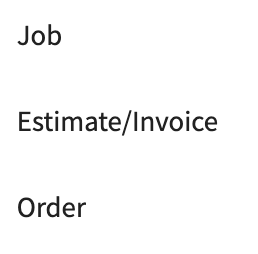
 9. Use **Cascade to Related Record** to pick the additional records where this field's information should also appear. Choose some or all of the options — **Job**, **Estimate/Invoice**, and **Order** (purchase orders).
 10. Select **Save**.
## Settings reference
### Field types
| **Field type** | **What it holds** |
| --------------- | ------------------------------------------------------------------------------------------------------------------------------ |
| **Free Text** | Text you type in your own words |
| **Number** | A number or quantity |
| **Date** | A date you fill in from the calendar icon |
| **Date & Time** | A date and time you fill in from the calendar icon. The time defaults to today's date at 8 AM, and you can adjust it manually. |
| **Drop-down** | One option your team picks from the list of options you define |
### Field settings
| **Setting** | **What it controls** |
| ----------------------------- | ----------------------------------------------------------------------------------------------------------------------------------------------- |
| **Field Name** | The label your team sees on the project record. Required. |
| **Type** | The kind of data the field holds — see the Field types table above. |
| **Field Options** | The choices available in a **Drop-down** field. Add, name, and save each one while the field is open. |
| **Field Visibility by Role** | Which roles can see the field — **Managers** and **Service Agent**. |
| **Cascade to Related Record** | The additional FieldPulse records where this field's information also appears — **Job**, **Estimate/Invoice**, and **Order** (purchase orders). |
## Related articles
* [Project Management Overview](/jobs/projects/overview)
* [Projects vs. Jobs vs. Site Visits Details](/jobs/projects/projects-vs-jobs-vs-site-visits)
* [Setting Up Custom Fields on Job Records](/jobs/jobs-tasks/custom-fields)
* [How to Use Mass Import for Custom Fields](/settings/data/mass-import-custom-fields)
Your setup is working when you open a project record, see your custom field on it, and — if you turned on cascading — find the field's information on the related records you selected.
## Related topics
- [Projects](/jobs/projects/index.md)
- [Setting Up Custom Fields on Job Records](/jobs/jobs-tasks/custom-fields.md)
- [Project Management Overview](/jobs/projects/overview.md)
- [Projects vs. Jobs vs. Site Visits Details](/jobs/projects/projects-vs-jobs-vs-site-visits.md)
10. Select **Save**.
## Settings reference
### Field types
| **Field type** | **What it holds** |
| --------------- | ------------------------------------------------------------------------------------------------------------------------------ |
| **Free Text** | Text you type in your own words |
| **Number** | A number or quantity |
| **Date** | A date you fill in from the calendar icon |
| **Date & Time** | A date and time you fill in from the calendar icon. The time defaults to today's date at 8 AM, and you can adjust it manually. |
| **Drop-down** | One option your team picks from the list of options you define |
### Field settings
| **Setting** | **What it controls** |
| ----------------------------- | ----------------------------------------------------------------------------------------------------------------------------------------------- |
| **Field Name** | The label your team sees on the project record. Required. |
| **Type** | The kind of data the field holds — see the Field types table above. |
| **Field Options** | The choices available in a **Drop-down** field. Add, name, and save each one while the field is open. |
| **Field Visibility by Role** | Which roles can see the field — **Managers** and **Service Agent**. |
| **Cascade to Related Record** | The additional FieldPulse records where this field's information also appears — **Job**, **Estimate/Invoice**, and **Order** (purchase orders). |
## Related articles
* [Project Management Overview](/jobs/projects/overview)
* [Projects vs. Jobs vs. Site Visits Details](/jobs/projects/projects-vs-jobs-vs-site-visits)
* [Setting Up Custom Fields on Job Records](/jobs/jobs-tasks/custom-fields)
* [How to Use Mass Import for Custom Fields](/settings/data/mass-import-custom-fields)
Your setup is working when you open a project record, see your custom field on it, and — if you turned on cascading — find the field's information on the related records you selected.
## Related topics
- [Projects](/jobs/projects/index.md)
- [Setting Up Custom Fields on Job Records](/jobs/jobs-tasks/custom-fields.md)
- [Project Management Overview](/jobs/projects/overview.md)
- [Projects vs. Jobs vs. Site Visits Details](/jobs/projects/projects-vs-jobs-vs-site-visits.md)