> ## Documentation Index
> Fetch the complete documentation index at: https://help.fieldpulse.com/llms.txt
> Use this file to discover all available pages before exploring further.
# How to Collect Payments: 3 Methods
> Take card and ACH payments three ways in FieldPulse — email a payment link, charge a card in the field, or process the payment on the web app.
> **Who uses this:** Users with FieldPulse Payments access — set per user under **Company Settings** > **User Accounts**. **Availability:** FieldPulse Payments is available to businesses located in the United States.
[FieldPulse Payments](https://www.fieldpulse.com/features/fieldpulse-payments) collects and tracks a customer's card or ACH payment on the invoice record itself, so the money and the paperwork stay together. You can collect a payment three ways: email the customer an online payment request, process the payment on the mobile app in the field, or process the payment on the web app.
## Overview
You can collect a payment three ways:
* **Email an online payment request** from the web app or the mobile app, so the customer pays online by credit/debit card or bank transfer.
* **Process the payment on the mobile app** in the field, by typing or scanning the customer's card.
* **Process the payment on the web app**, by entering the card on the invoice record.
Whichever method you use, the payment posts to the invoice, the invoice status moves to **Paid** or **Partially Paid**, and a payment record is added under the invoice's **Payments** tab.
## Before you begin
* Collecting card payments, collecting ACH payments, and sending payment requests require FieldPulse Payments on your account. See [Setting Up FieldPulse Payments](/payments/getting-started/applying), or email [support@fieldpulse.com](mailto:support@fieldpulse.com) or use the chat feature in the bottom-right corner of your screen.
* To record a payment your customer already made another way, see [How to Mark a Payment](/payments/collecting/marking-payments) instead.
## On web
### Process a card payment on the web app
Charge a customer's card from the invoice record you want to collect on.
1. Open the invoice record you want to collect on.
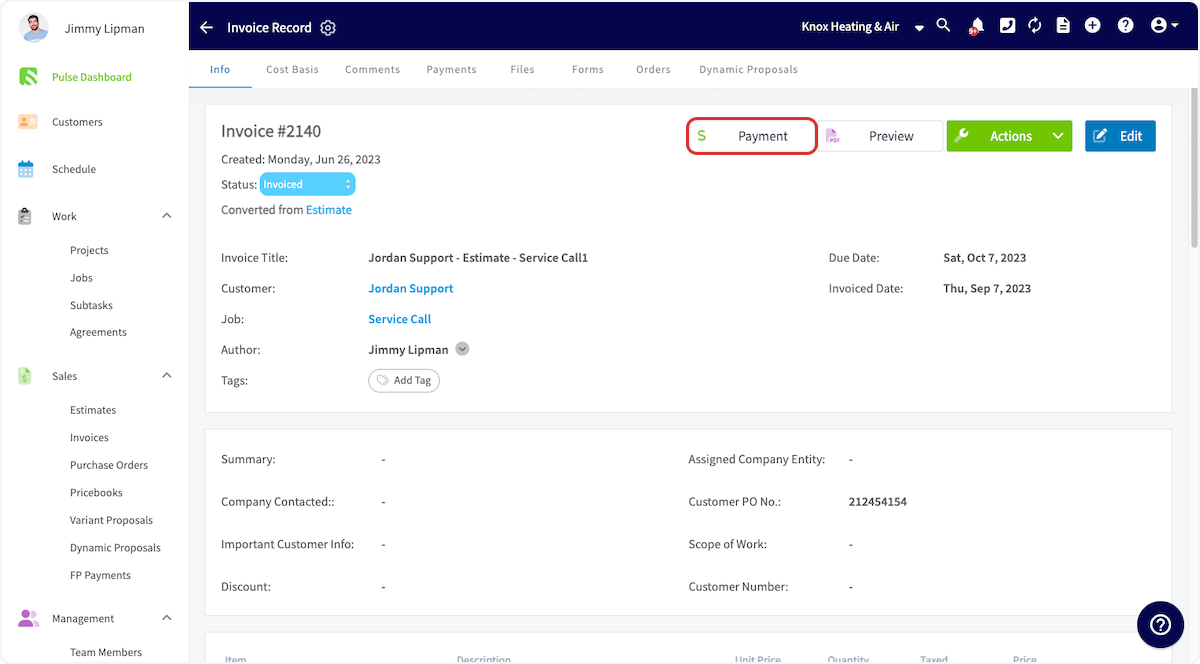
2. Select **Payment**.
 3. In the window that opens, select **Take Payment**.
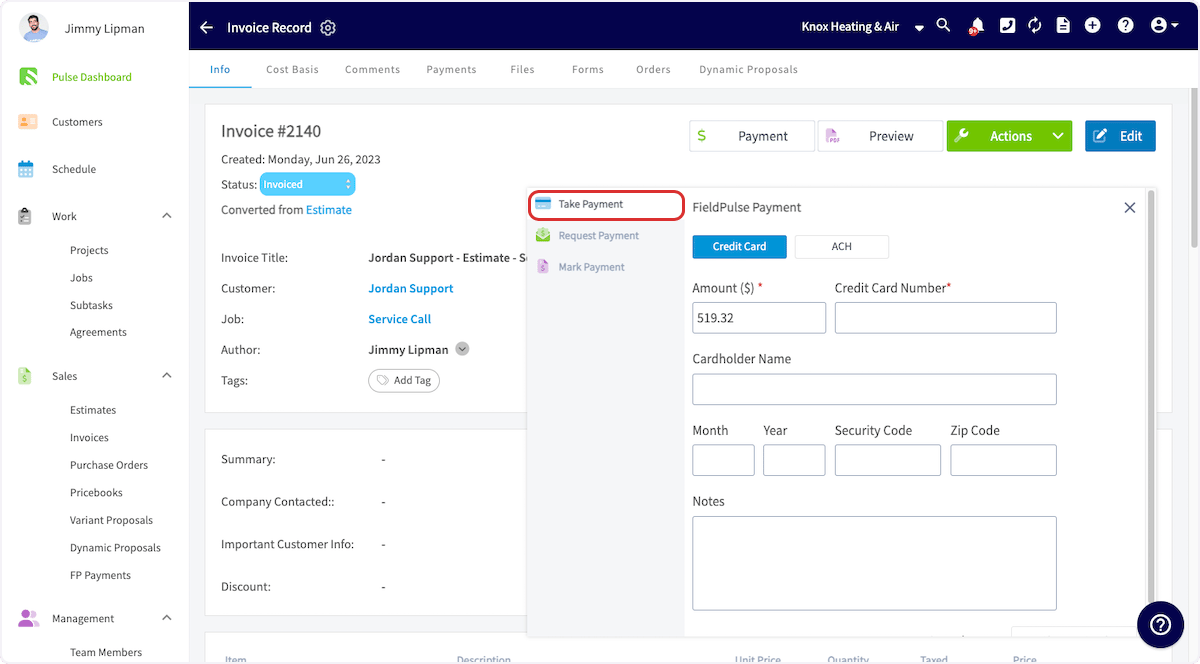 4. Enter the card details. The **Charge Card** button in the lower-right corner becomes available once the details are complete.
5. Select **Charge Card**.
FieldPulse collects the payment, marks the invoice **Paid** or **Partially Paid** depending on the amount you collected, and adds a payment record under **Payments**.
### Email a payment request from a preview
Attach an online payment request to the estimate or invoice you email the customer, so they can pay by credit/debit card or ACH.
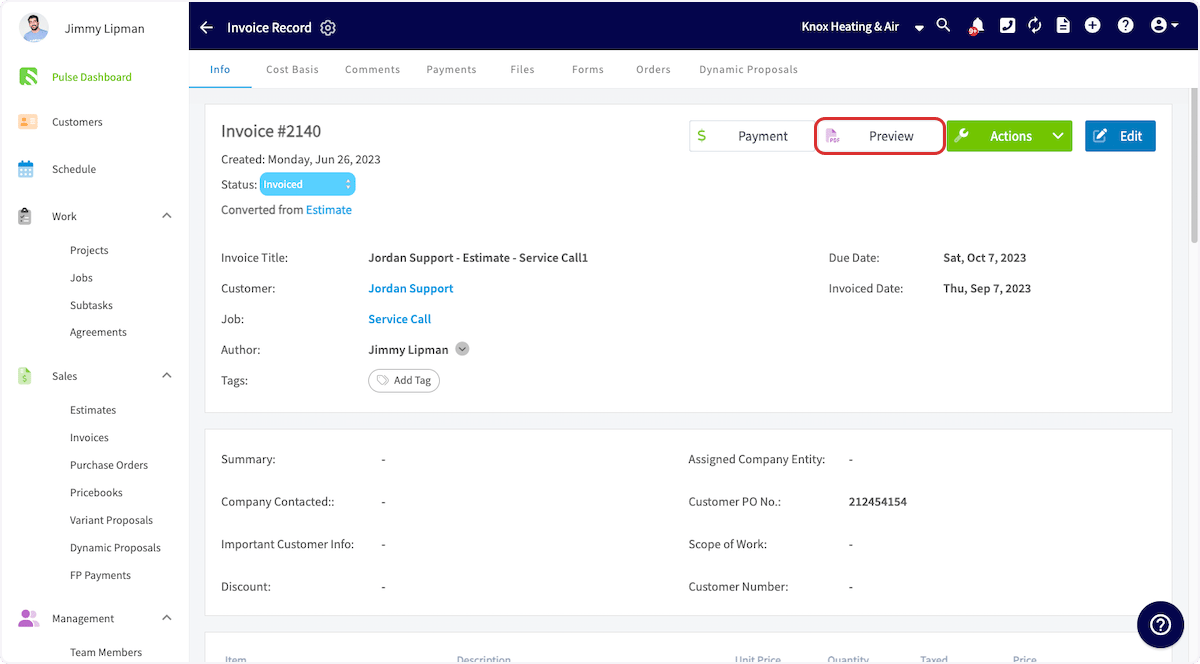
1. Open or create the estimate or invoice you want to collect on, then select **Preview** to generate it.
4. Enter the card details. The **Charge Card** button in the lower-right corner becomes available once the details are complete.
5. Select **Charge Card**.
FieldPulse collects the payment, marks the invoice **Paid** or **Partially Paid** depending on the amount you collected, and adds a payment record under **Payments**.
### Email a payment request from a preview
Attach an online payment request to the estimate or invoice you email the customer, so they can pay by credit/debit card or ACH.
1. Open or create the estimate or invoice you want to collect on, then select **Preview** to generate it.
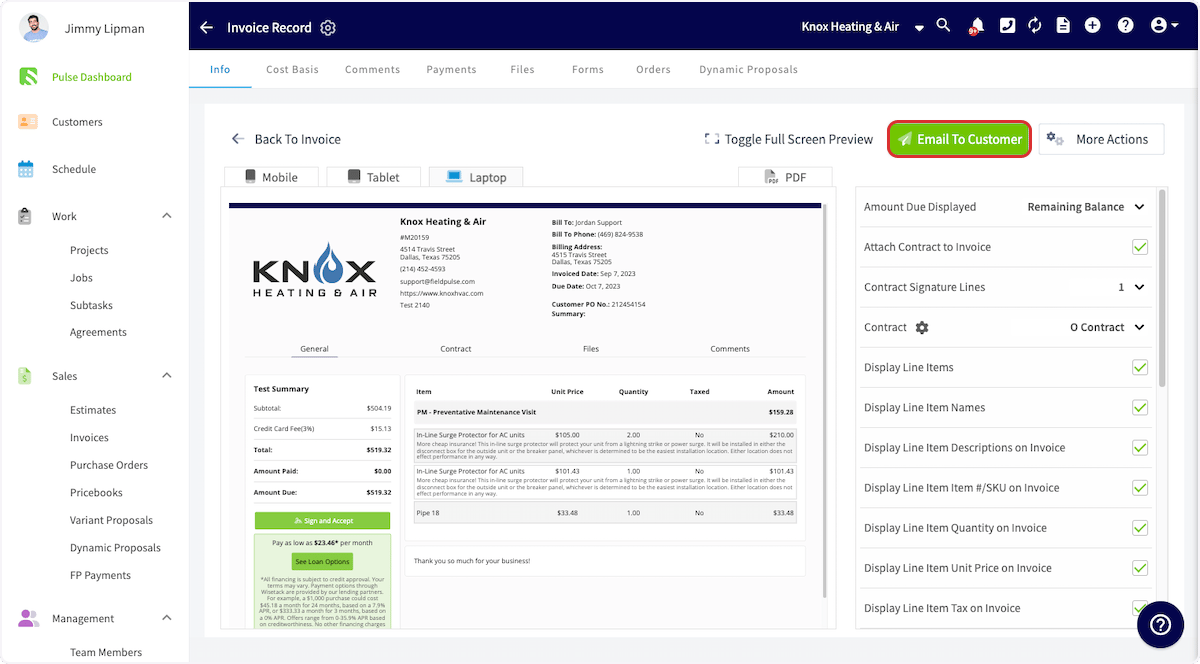
 2. Select **Email To Customer**.
 3. Adjust the email message, then toggle on **Include Payment Request** and enter the payment request amount.
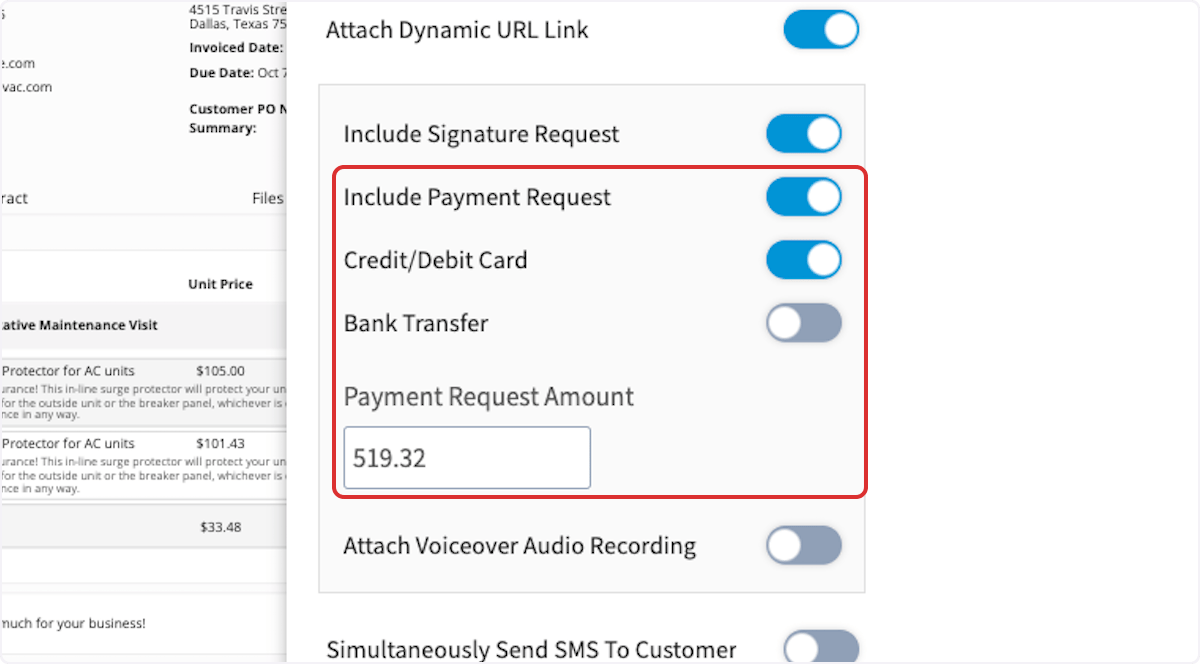 4. On an estimate, request a specific dollar amount or a percentage of the total.
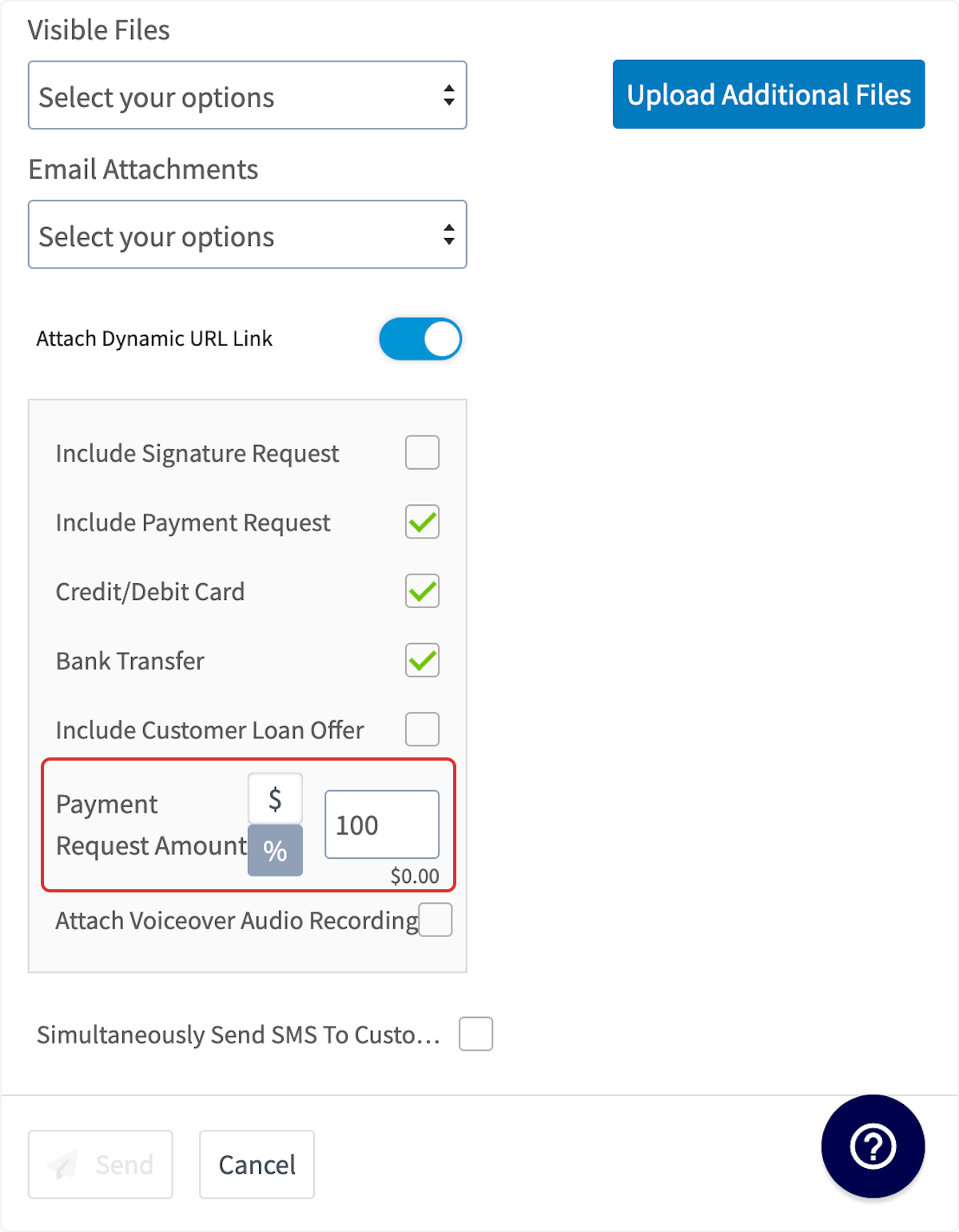 5. Send the estimate or invoice with the payment request to the customer.
Once the payment is processed, the invoice status reads **Paid** and the payment appears under **Payments**.
### Email a payment request from the invoice record
Insert a payment link into an email straight from the invoice record.
1. Open the invoice record and select **Payment**.
2. Choose **Request Payment** to insert a payment link.
5. Send the estimate or invoice with the payment request to the customer.
Once the payment is processed, the invoice status reads **Paid** and the payment appears under **Payments**.
### Email a payment request from the invoice record
Insert a payment link into an email straight from the invoice record.
1. Open the invoice record and select **Payment**.
2. Choose **Request Payment** to insert a payment link.
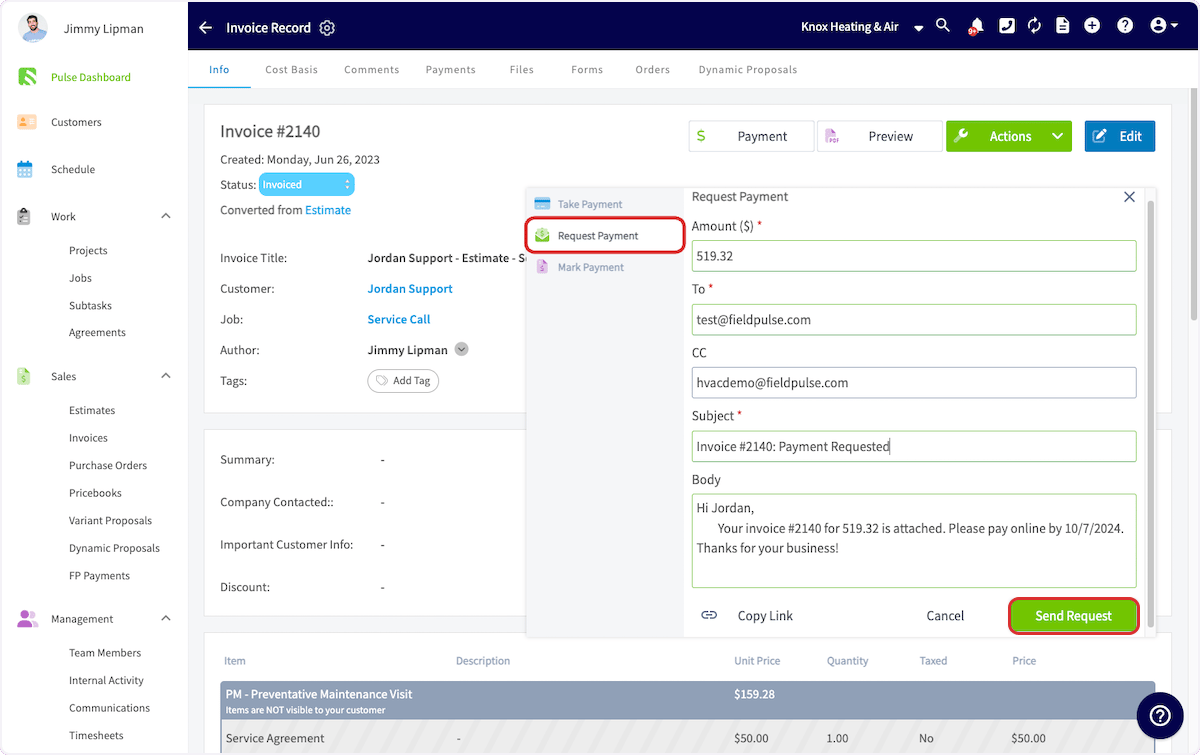
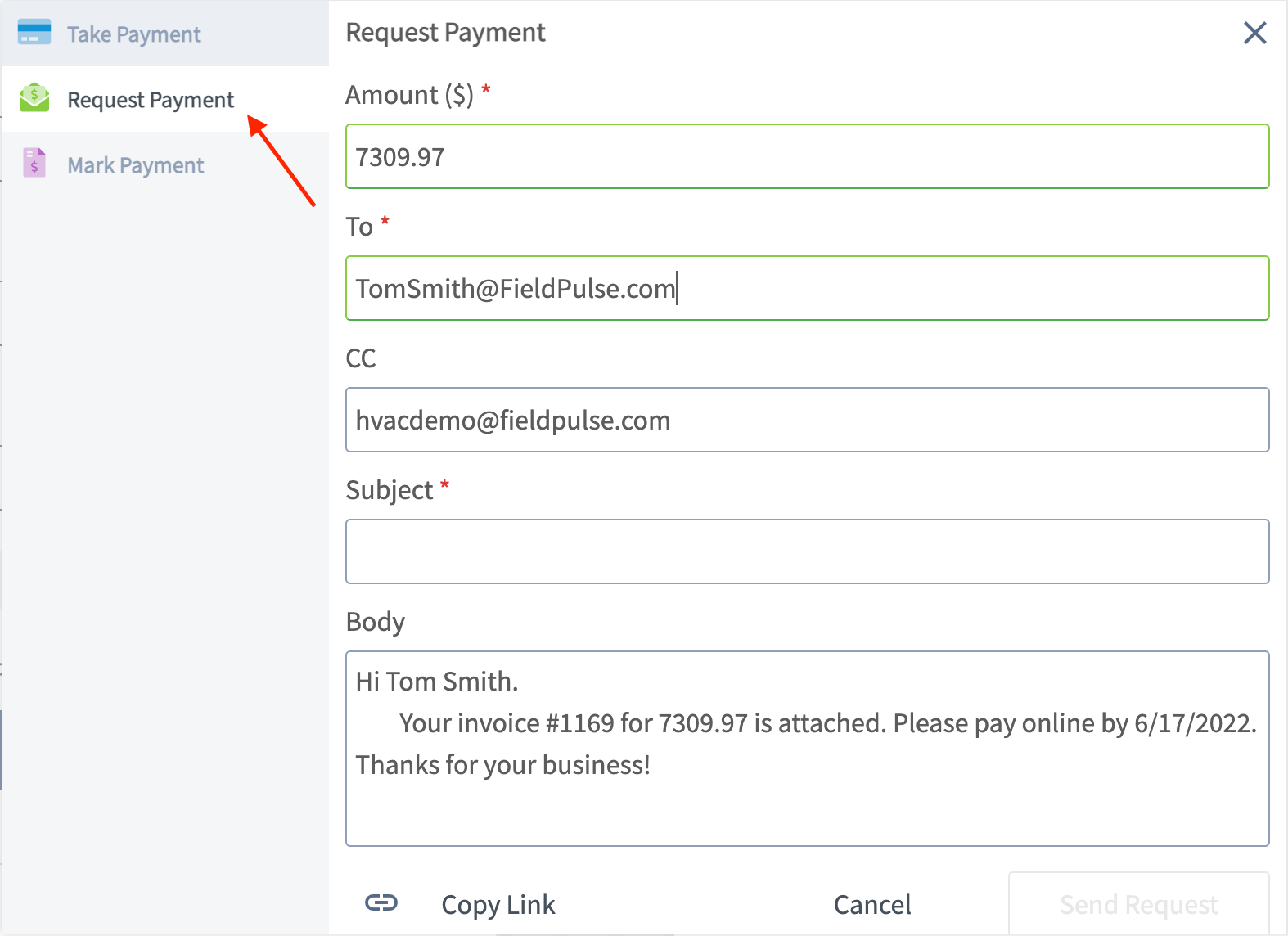 3. Check the amount, recipient, subject, and message, then select **Send Request** to email the invoice and payment request to the customer.
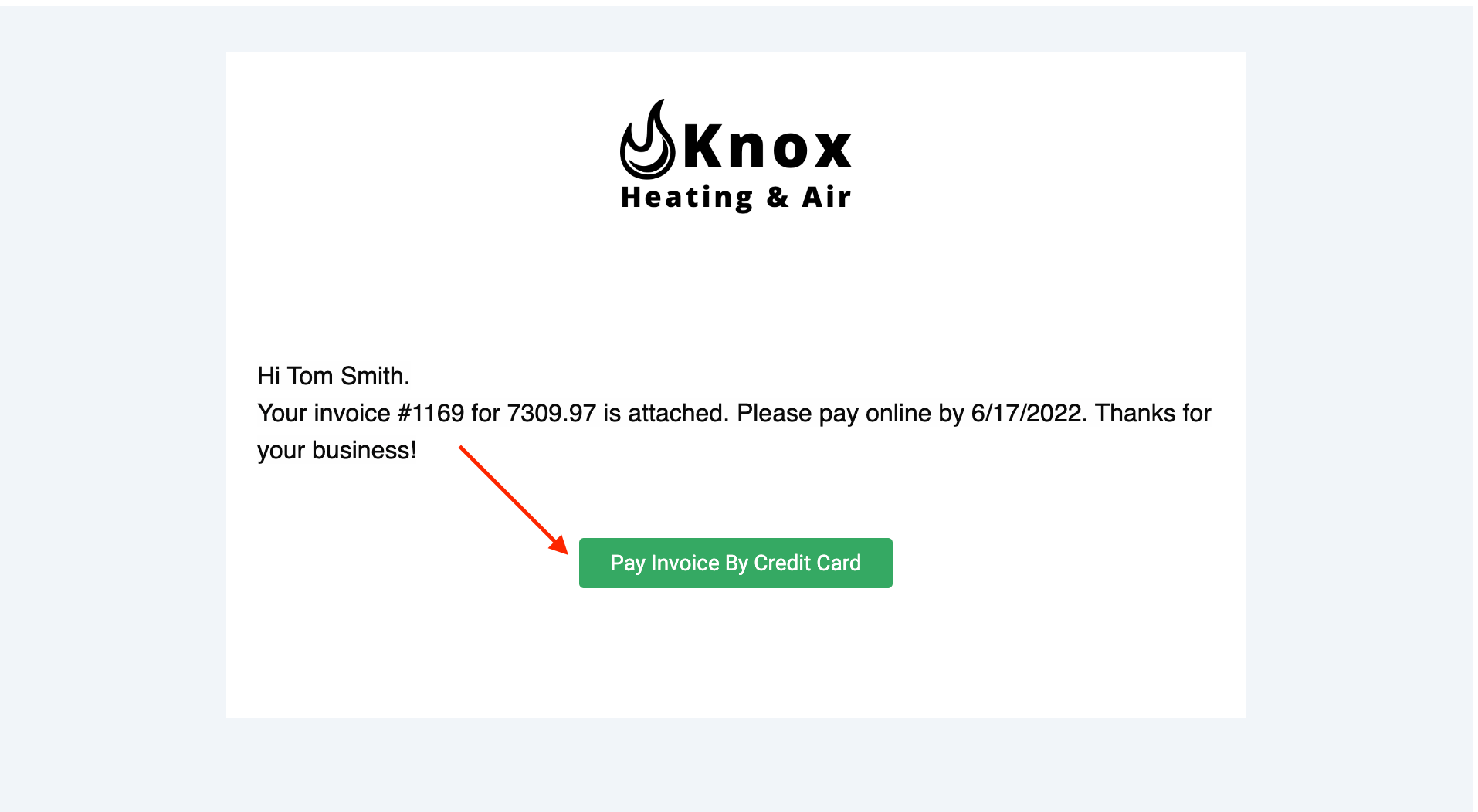
The customer receives an email with a **Pay Invoice By Credit Card** button, which opens a page where they enter credit/debit card details or set up a bank transfer.
3. Check the amount, recipient, subject, and message, then select **Send Request** to email the invoice and payment request to the customer.
The customer receives an email with a **Pay Invoice By Credit Card** button, which opens a page where they enter credit/debit card details or set up a bank transfer.
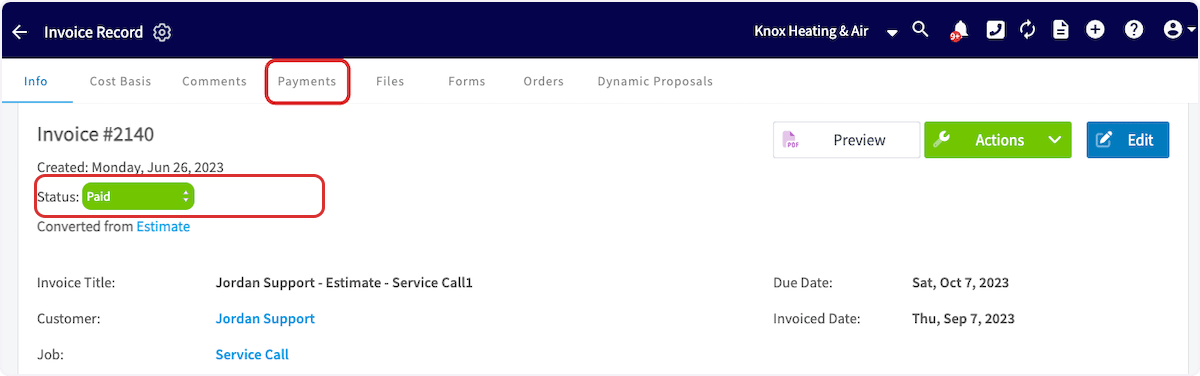
 Once the payment is processed, the invoice status reads **Paid**, and the payment history is under the **Payments** tab at the top of the invoice record.
 ## On mobile
### Open the invoice
Every mobile payment method starts from the invoice record.
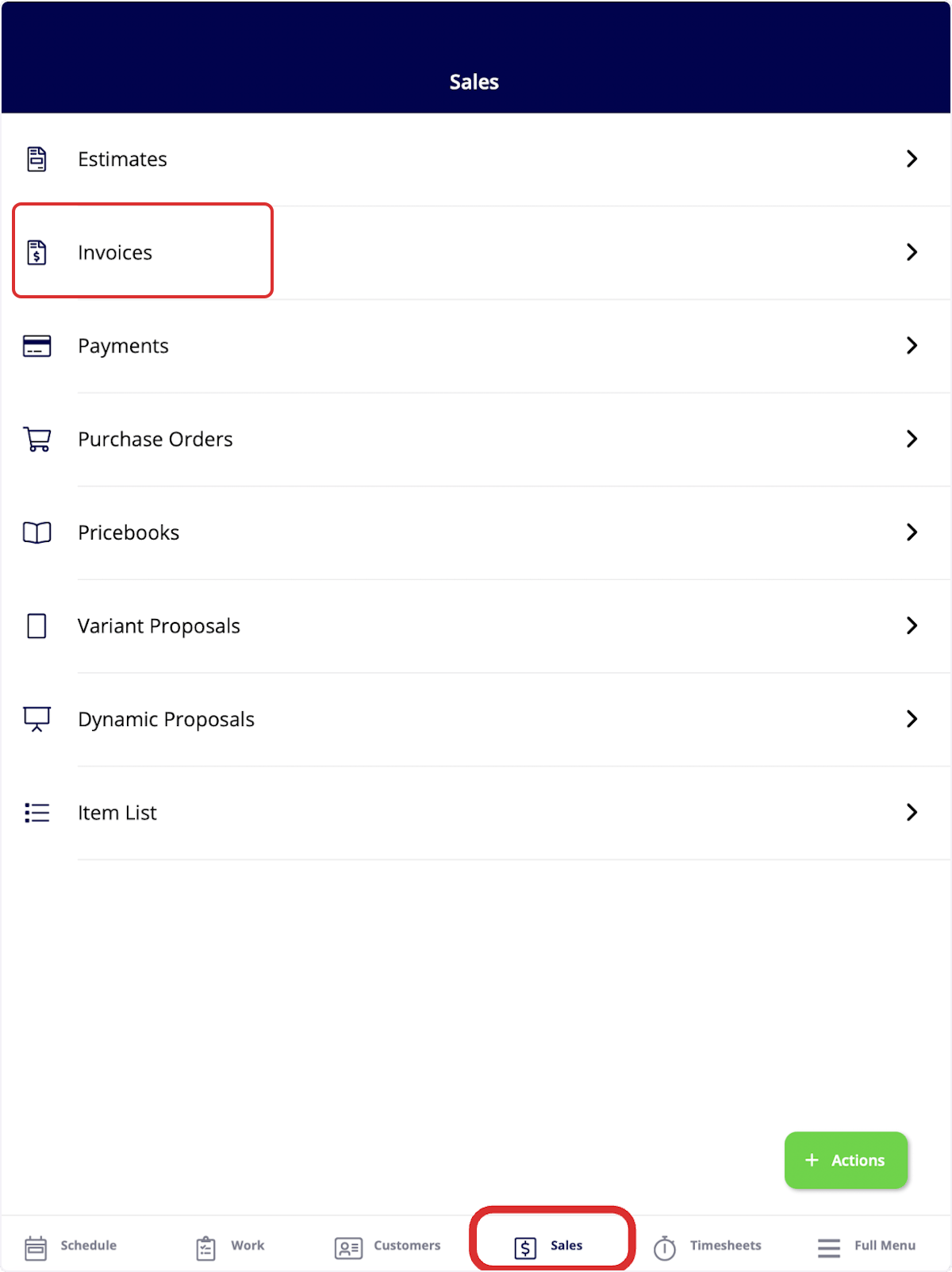
1. Select the **Sales** tab at the bottom of your screen, then select **Invoices**.
## On mobile
### Open the invoice
Every mobile payment method starts from the invoice record.
1. Select the **Sales** tab at the bottom of your screen, then select **Invoices**.
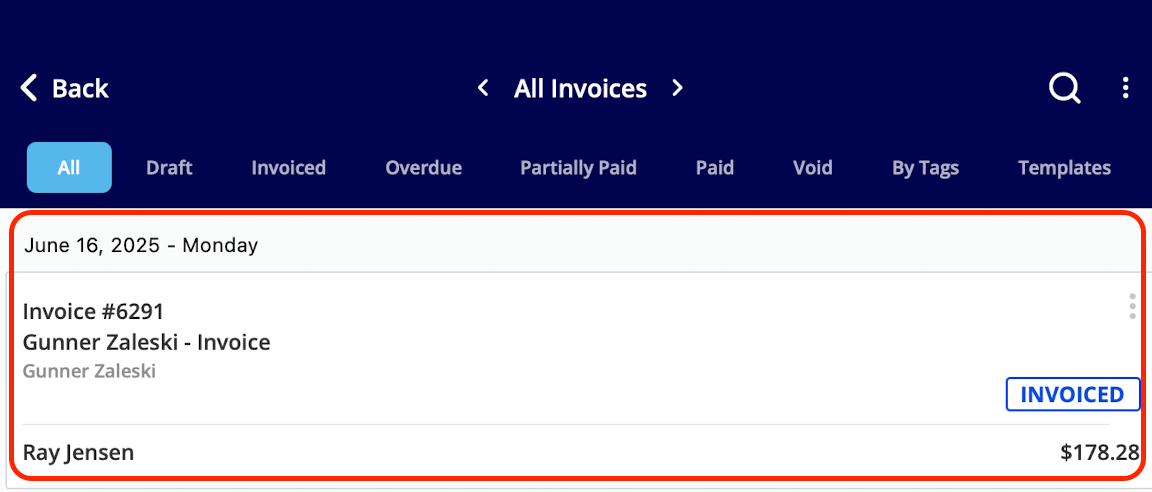
 2. Select the invoice record you want to apply payment to.
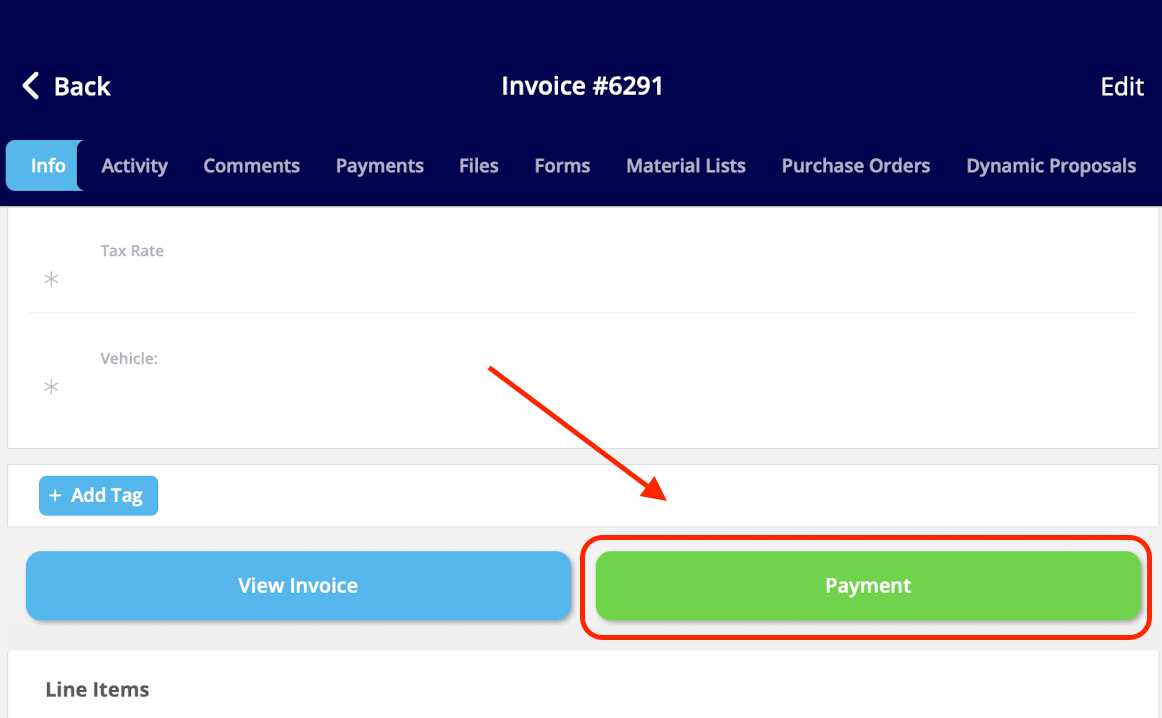
 3. Select **Payment**.
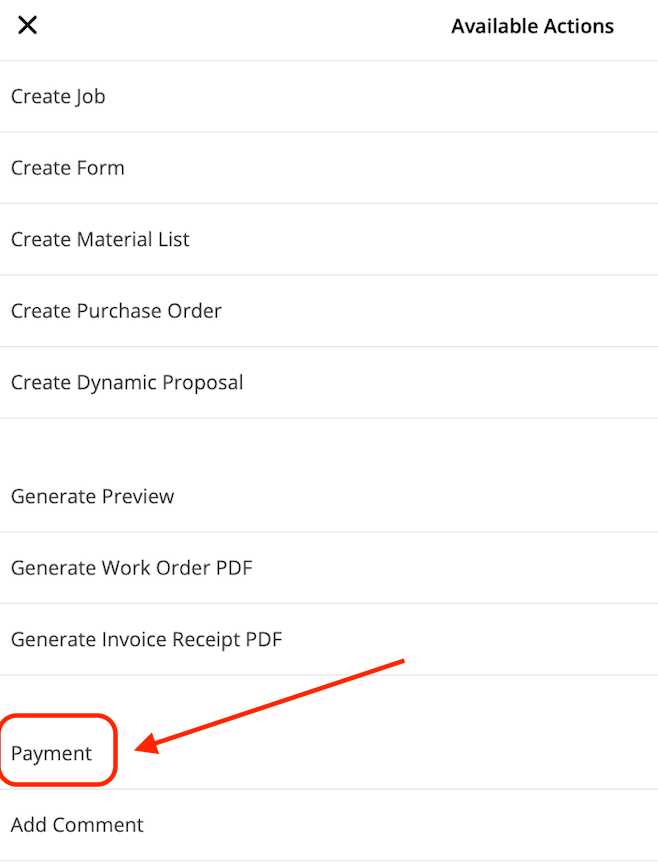
 Or select the green **Actions** button and choose **Payment** from **Available Actions**.
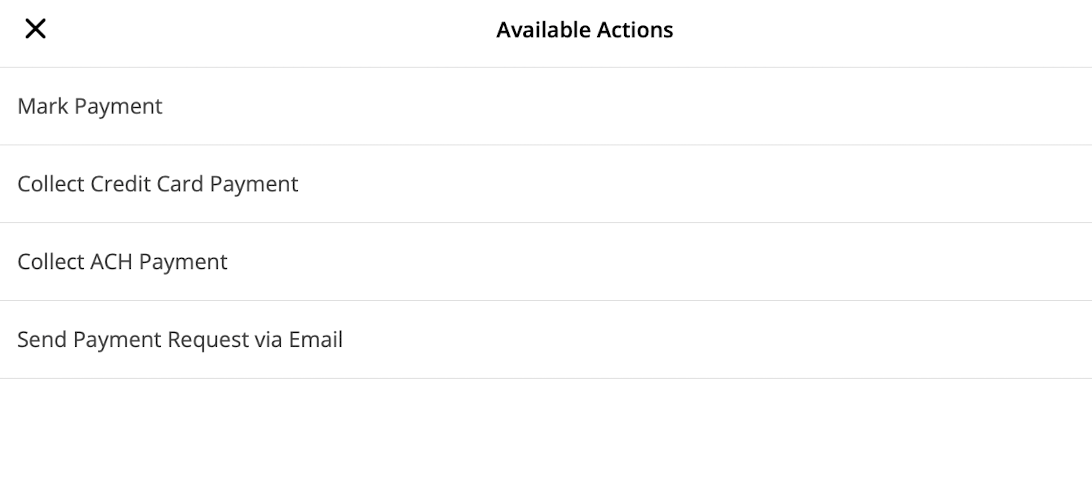
 You can then choose **Mark Payment**, **Collect Credit Card Payment**, **Collect ACH Payment**, or **Send Payment Request via Email**. Collecting credit card payments, collecting ACH payments, and sending a payment request require FieldPulse Payments.
 ### Collect a credit card payment in the field
Take the card in person and charge it from the invoice record.
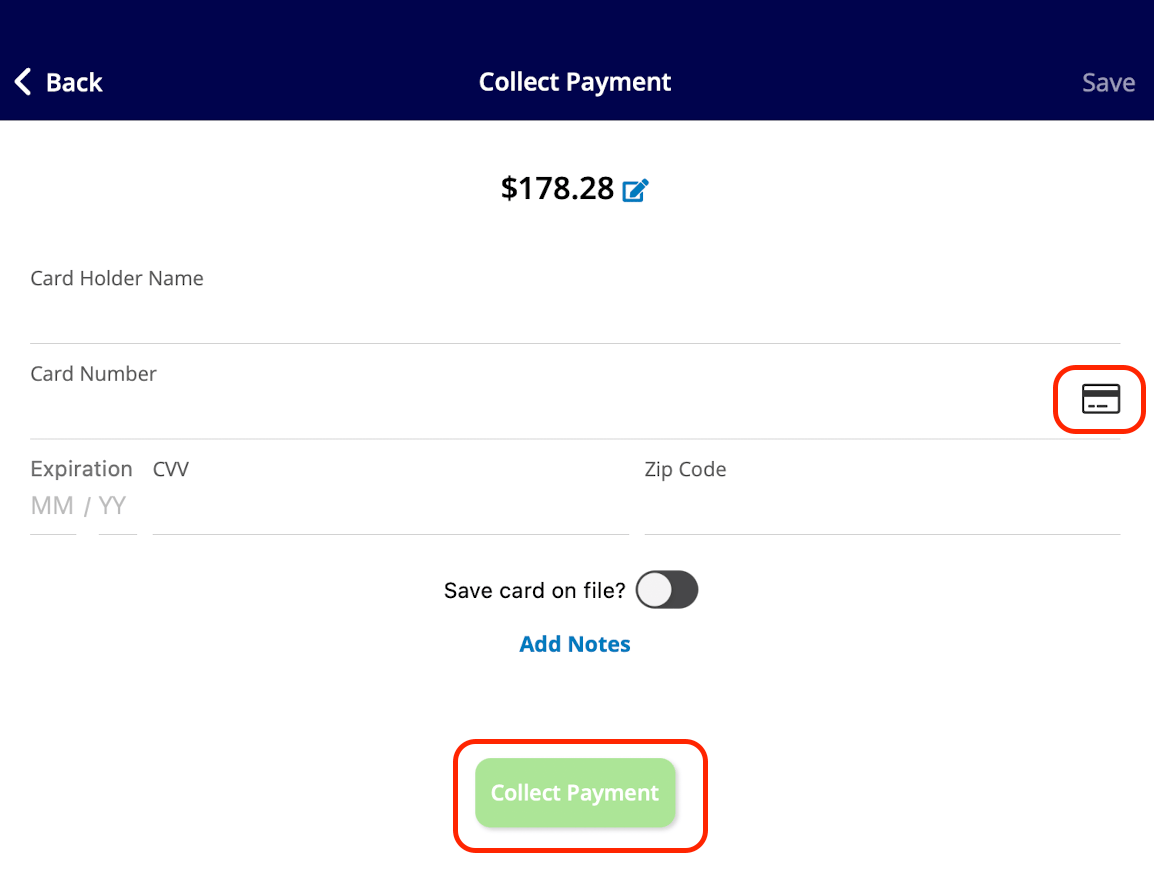
1. Select **Collect Credit Card Payment**.
2. Adjust the payment amount and add any notes.
3. Type the card details, or select the credit card icon to scan the card with your device's camera.
4. Select **Collect Payment**.
### Collect a credit card payment in the field
Take the card in person and charge it from the invoice record.
1. Select **Collect Credit Card Payment**.
2. Adjust the payment amount and add any notes.
3. Type the card details, or select the credit card icon to scan the card with your device's camera.
4. Select **Collect Payment**.
 ### Collect an ACH payment
Take payment straight from the customer's bank account on the mobile app.
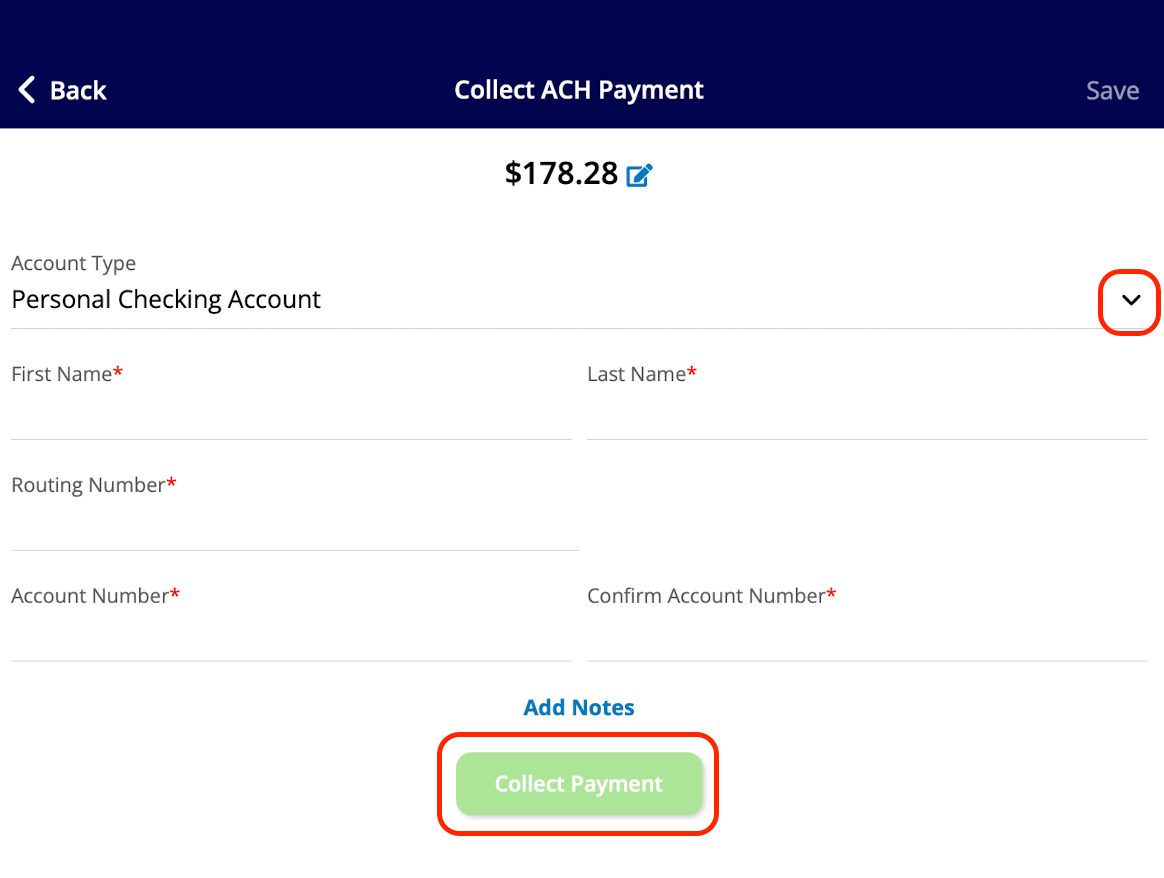
1. Select **Collect ACH Payment**.
2. Select the account type — personal or business checking or savings.
3. Enter the account holder's first and last name, routing number, and account number.
4. Select **Collect Payment**.
### Collect an ACH payment
Take payment straight from the customer's bank account on the mobile app.
1. Select **Collect ACH Payment**.
2. Select the account type — personal or business checking or savings.
3. Enter the account holder's first and last name, routing number, and account number.
4. Select **Collect Payment**.
 ### Send a payment request by email
Email the customer a payment link from the invoice record on your phone.
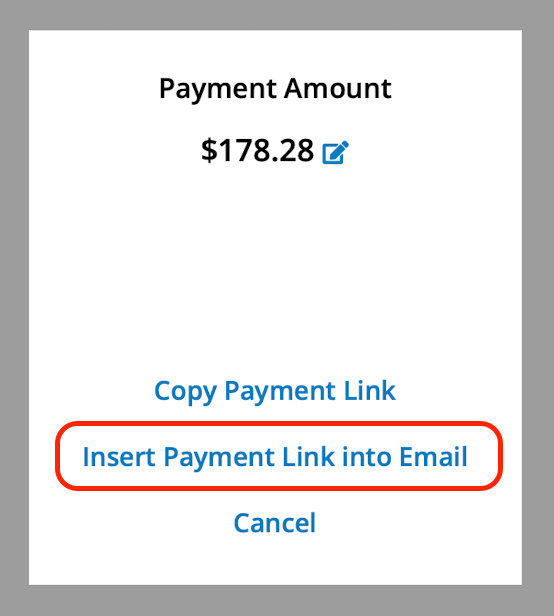
1. Select **Send Payment Request via Email**.
2. Adjust the requested payment amount, then select **Copy Payment Link** or **Insert Payment Link into Email**.
### Send a payment request by email
Email the customer a payment link from the invoice record on your phone.
1. Select **Send Payment Request via Email**.
2. Adjust the requested payment amount, then select **Copy Payment Link** or **Insert Payment Link into Email**.
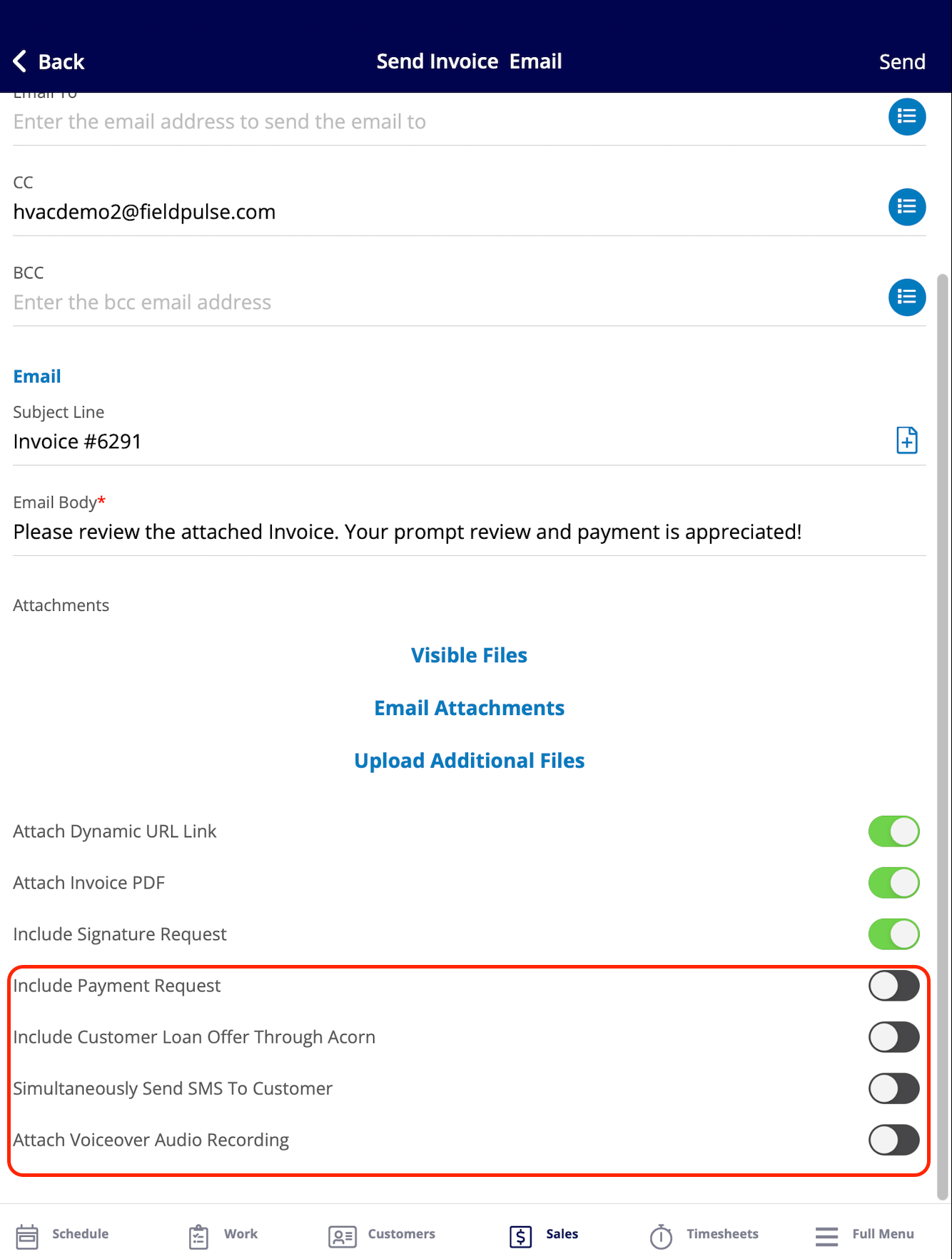
 3. Adjust the email with the toggles at the bottom before sending:
* **Include Payment Request** — accept credit/debit card and bank transfer payments, and set the amount due as a dollar figure or a percentage.
* **Include Customer Loan Offer Through Acorn** — give the customer access to financing options, pending approval of their application. See [Setting Up Acorn Finance](/payments/financing/acorn-finance).
* **Simultaneously Send SMS To Customer** — send a text message at the same time as the email. You can personalize the message and attach an audio recording to it.
* **Attach Voiceover Audio Recording** — include a personalized audio message, which is useful for walking the customer through the invoice and answering questions in advance.
4. Select **Send**.
3. Adjust the email with the toggles at the bottom before sending:
* **Include Payment Request** — accept credit/debit card and bank transfer payments, and set the amount due as a dollar figure or a percentage.
* **Include Customer Loan Offer Through Acorn** — give the customer access to financing options, pending approval of their application. See [Setting Up Acorn Finance](/payments/financing/acorn-finance).
* **Simultaneously Send SMS To Customer** — send a text message at the same time as the email. You can personalize the message and attach an audio recording to it.
* **Attach Voiceover Audio Recording** — include a personalized audio message, which is useful for walking the customer through the invoice and answering questions in advance.
4. Select **Send**.
 ## Invoice statuses
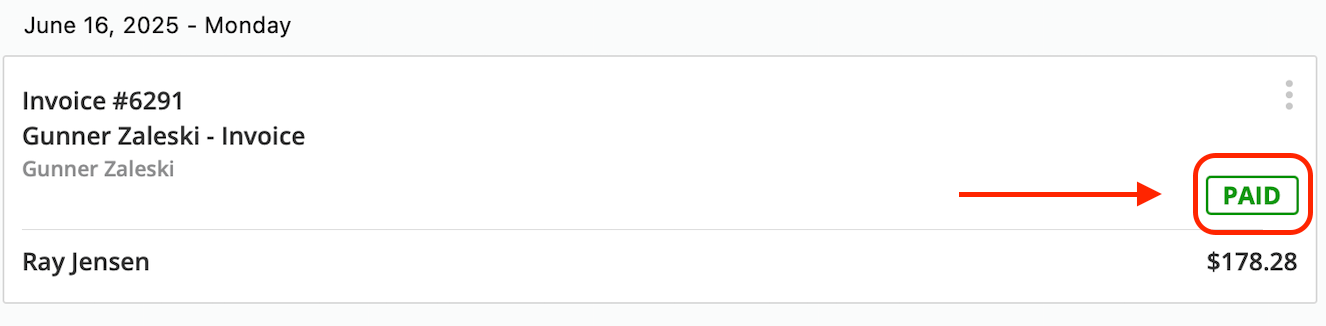
After you mark a payment, collect a payment, or receive payment from a request email, the invoice status reads **Paid**. If you accepted only part of the balance, the status reads **Partially Paid** instead. See [FieldPulse Deposit and Payment Status Details](/payments/getting-started/deposits-payment-statuses) for how each status behaves.
## Invoice statuses
After you mark a payment, collect a payment, or receive payment from a request email, the invoice status reads **Paid**. If you accepted only part of the balance, the status reads **Partially Paid** instead. See [FieldPulse Deposit and Payment Status Details](/payments/getting-started/deposits-payment-statuses) for how each status behaves.
 ## Still need help?
Reach the [FieldPulse support team](https://www.fieldpulse.com/company/contact-us) at [support@fieldpulse.com](mailto:support@fieldpulse.com) or through the chat feature in the bottom-right corner of your screen.
## Related articles
* [FieldPulse Payments Overview](/payments/getting-started/fieldpulse-payments)
* [How to Mark a Payment](/payments/collecting/marking-payments)
* [How to Take Partial and Progress Payments](/payments/collecting/partial-progress-payments)
* [How to Collect Payments With Tap to Pay on iPhone](/payments/collecting/tap-to-pay-iphone)
* [How to Save a Payment Method on File](/payments/collecting/saving-payment-method)
* [FieldPulse Deposit and Payment Status Details](/payments/getting-started/deposits-payment-statuses)
* [Setting Up Card Fee Recovery](/payments/getting-started/card-fee-recovery)
You have collected the payment when it posts to the invoice, the status reads **Paid** or **Partially Paid**, and a matching payment record appears under the invoice's **Payments** tab.
## Related topics
- [FieldPulse Payments Overview](/payments/getting-started/fieldpulse-payments.md)
- [Payment Provider Options Overview](/payments/getting-started/payment-provider-options.md)
- [How to Create an Invoice](/estimates-invoices/creating/invoice.md)
- [How to Save a Payment Method on File](/payments/collecting/saving-payment-method.md)
## Still need help?
Reach the [FieldPulse support team](https://www.fieldpulse.com/company/contact-us) at [support@fieldpulse.com](mailto:support@fieldpulse.com) or through the chat feature in the bottom-right corner of your screen.
## Related articles
* [FieldPulse Payments Overview](/payments/getting-started/fieldpulse-payments)
* [How to Mark a Payment](/payments/collecting/marking-payments)
* [How to Take Partial and Progress Payments](/payments/collecting/partial-progress-payments)
* [How to Collect Payments With Tap to Pay on iPhone](/payments/collecting/tap-to-pay-iphone)
* [How to Save a Payment Method on File](/payments/collecting/saving-payment-method)
* [FieldPulse Deposit and Payment Status Details](/payments/getting-started/deposits-payment-statuses)
* [Setting Up Card Fee Recovery](/payments/getting-started/card-fee-recovery)
You have collected the payment when it posts to the invoice, the status reads **Paid** or **Partially Paid**, and a matching payment record appears under the invoice's **Payments** tab.
## Related topics
- [FieldPulse Payments Overview](/payments/getting-started/fieldpulse-payments.md)
- [Payment Provider Options Overview](/payments/getting-started/payment-provider-options.md)
- [How to Create an Invoice](/estimates-invoices/creating/invoice.md)
- [How to Save a Payment Method on File](/payments/collecting/saving-payment-method.md)