> ## Documentation Index
> Fetch the complete documentation index at: https://help.fieldpulse.com/llms.txt
> Use this file to discover all available pages before exploring further.
# Payment Receipts Overview
> See the payment confirmation email your customer gets after any recorded payment in FieldPulse, what the receipt PDF shows, and which parts you control.
> **Who uses this:** An Admin builds the payment receipt template and the payment trigger in **Company Settings** > **Customer Communications**. **Availability:** All regions.
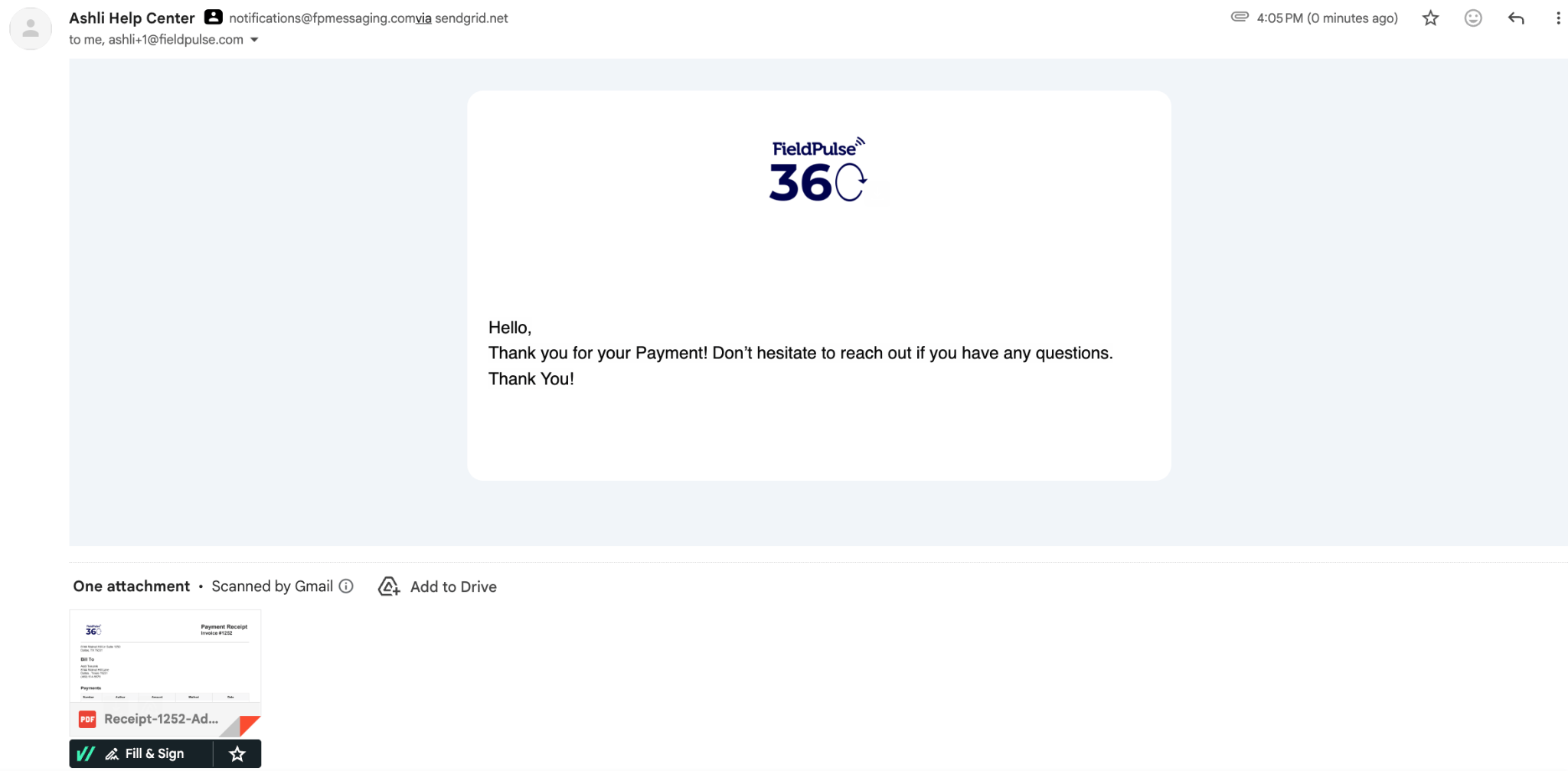
A payment receipt is the confirmation message your customer receives after a [payment](https://www.fieldpulse.com/features/fieldpulse-payments) is recorded in FieldPulse. The receipt is a [Customer Communications](https://www.fieldpulse.com/features/customer-communication) template you design, sent by a trigger that fires when a payment record is created. This page shows the payment receipt from the customer's side — what lands in their inbox, what is on the receipt itself, and which parts of it you control.
## Overview
Once your payment receipt template is attached to the payment trigger, FieldPulse sends the receipt when a payment record is created — immediately, after a confirmation prompt, or on a schedule, depending on the trigger action you choose. A payment record is created in three ways:
* **Automatically** — a payment taken or submitted through FieldPulse Payments.
* **Via sync** — a payment received from QuickBooks or another connected accounting system.
* **Manually** — a payment logged by hand in FieldPulse through the web app or the mobile app.
The receipt itself is a Customer Communications template: you write the subject line and the message body, and FieldPulse includes a copy of the receipt — a PDF attachment in the email version. Attaching that template to the **When a payment record is created** trigger is what makes it send.
## Before you begin
A payment receipt is built from two pieces, both in **Company Settings** > **Customer Communications**:
* **The template** — the email or SMS message your customer reads. You name the template for your own reference (for example, "Payment Template"); the name is internal and your customer never sees it. See [Setting Up Email & SMS Templates](/customers/communications/message-templates).
* **The trigger** — the rule that sends the template. Create an automatic trigger, choose **When a payment record is created**, and pick your payment template. See [Setting Up Automatic Communication Triggers](/customers/communications/automatic-triggers).
Customer Communications must be enabled on your account before you can build either piece.
## How it works
### What the customer receives
The customer receives the message you wrote in the template. In the email version, FieldPulse attaches a copy of the receipt as a PDF. You design what the message says — the greeting, the thank-you, and any instructions are the text you saved in the template.
 ### What is on the receipt
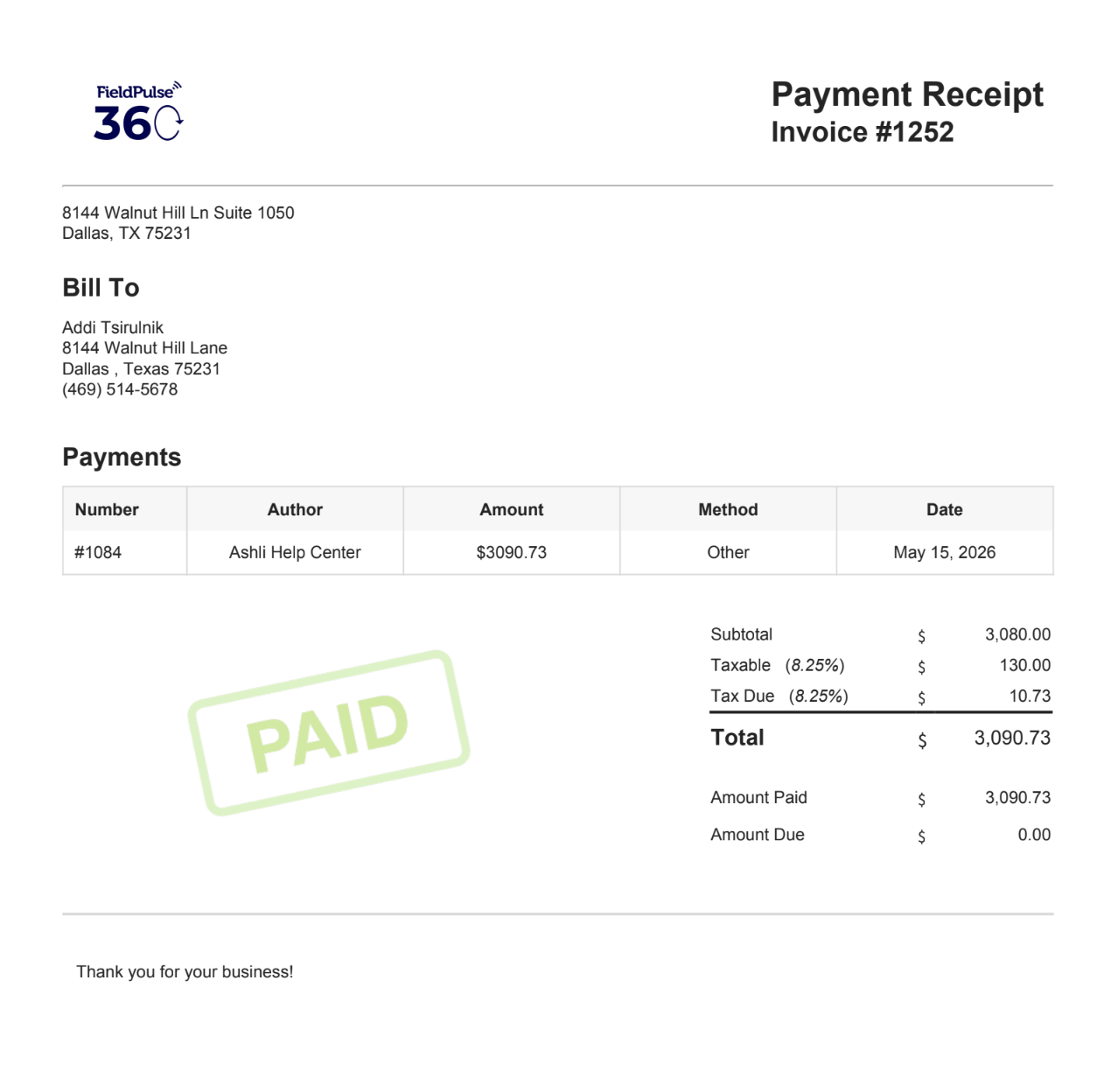
The attached PDF is headed **Payment Receipt** and carries the number of the invoice the payment applies to. It holds:
* **Your business details** — your company logo and address across the top of the page.
* **Bill To** — the customer's name, billing address, and phone number.
* **Payments** — a table listing the payment number, the author, the amount, the payment method, and the date.
* **Totals** — subtotal, taxable amount, tax due, total, amount paid, and amount due.
* **A closing line** — "Thank you for your business!" at the foot of the page.
### What is on the receipt
The attached PDF is headed **Payment Receipt** and carries the number of the invoice the payment applies to. It holds:
* **Your business details** — your company logo and address across the top of the page.
* **Bill To** — the customer's name, billing address, and phone number.
* **Payments** — a table listing the payment number, the author, the amount, the payment method, and the date.
* **Totals** — subtotal, taxable amount, tax due, total, amount paid, and amount due.
* **A closing line** — "Thank you for your business!" at the foot of the page.
 ### What you can configure
| **Setting** | **What it controls** |
| ------------------ | -------------------------------------------------------------------------------------------------------------------------------------------------------------------------------- |
| **Subject line** | The subject line the customer sees on the receipt email. |
| **Message body** | The full email or SMS body of the receipt. |
| **Trigger action** | How the receipt goes out — sent automatically, held for a confirmation prompt first, or scheduled on a timing you set. You set this on the payment trigger, not on the template. |
To learn more about sending Customer Communications, see [Customer Communications Overview](/customers/communications/overview).
## FAQs
### Can a technician send a receipt from the field?
After a Tap to Pay on iPhone payment, the confirmation screen has an option to send a receipt to the customer by email or SMS. Or, if this is already configured in your FieldPulse account, a receipt is sent to your customer automatically. See [How to Collect Payments With Tap to Pay on iPhone](/payments/collecting/tap-to-pay-iphone).
## Related articles
* [Setting Up Email & SMS Templates](/customers/communications/message-templates)
* [Setting Up Automatic Communication Triggers](/customers/communications/automatic-triggers)
* [Customer Communications Overview](/customers/communications/overview)
* [How to Collect Payments: 3 Methods](/payments/collecting/collecting-payments-3-methods)
* [How to Mark a Payment](/payments/collecting/marking-payments)
* [FieldPulse Payments Overview](/payments/getting-started/fieldpulse-payments)
## Related topics
- [Collecting & Managing Payments](/payments/collecting/index.md)
- [How to Collect Payments With Tap to Pay on iPhone](/payments/collecting/tap-to-pay-iphone.md)
- [FieldPulse Payments Overview](/payments/getting-started/fieldpulse-payments.md)
- [Payment Provider Options Overview](/payments/getting-started/payment-provider-options.md)
### What you can configure
| **Setting** | **What it controls** |
| ------------------ | -------------------------------------------------------------------------------------------------------------------------------------------------------------------------------- |
| **Subject line** | The subject line the customer sees on the receipt email. |
| **Message body** | The full email or SMS body of the receipt. |
| **Trigger action** | How the receipt goes out — sent automatically, held for a confirmation prompt first, or scheduled on a timing you set. You set this on the payment trigger, not on the template. |
To learn more about sending Customer Communications, see [Customer Communications Overview](/customers/communications/overview).
## FAQs
### Can a technician send a receipt from the field?
After a Tap to Pay on iPhone payment, the confirmation screen has an option to send a receipt to the customer by email or SMS. Or, if this is already configured in your FieldPulse account, a receipt is sent to your customer automatically. See [How to Collect Payments With Tap to Pay on iPhone](/payments/collecting/tap-to-pay-iphone).
## Related articles
* [Setting Up Email & SMS Templates](/customers/communications/message-templates)
* [Setting Up Automatic Communication Triggers](/customers/communications/automatic-triggers)
* [Customer Communications Overview](/customers/communications/overview)
* [How to Collect Payments: 3 Methods](/payments/collecting/collecting-payments-3-methods)
* [How to Mark a Payment](/payments/collecting/marking-payments)
* [FieldPulse Payments Overview](/payments/getting-started/fieldpulse-payments)
## Related topics
- [Collecting & Managing Payments](/payments/collecting/index.md)
- [How to Collect Payments With Tap to Pay on iPhone](/payments/collecting/tap-to-pay-iphone.md)
- [FieldPulse Payments Overview](/payments/getting-started/fieldpulse-payments.md)
- [Payment Provider Options Overview](/payments/getting-started/payment-provider-options.md)