> ## Documentation Index
> Fetch the complete documentation index at: https://help.fieldpulse.com/llms.txt
> Use this file to discover all available pages before exploring further.
# Reminders Overview
> Attach a reminder to a job, customer, estimate, or invoice in FieldPulse so a follow-up pops up at the time you choose and nothing falls off your radar.
> **Who uses this:** You set a reminder on a record from that record's **Actions** menu, and the reminder alerts you — the person who set it. **Availability:** All regions.
A reminder is a follow-up you attach to a record in FieldPulse — a job, customer, estimate, invoice, and more — that alerts you at the time you pick. You set a reminder from the record's **Actions** menu, and your reminders are housed under the bell icon in the FieldPulse header. The process is the same on every record type.
## Overview
The workflow breakdown reminders solve is the follow-up that lives only in someone's memory. A customer asks you to circle back next week; an estimate needs a nudge in three days. A reminder pins that follow-up to the record it belongs to and surfaces it at the time you set, so the record and the reminder stay together.
Reminders work the same way on [jobs](https://www.fieldpulse.com/features/job-management), [customers](https://www.fieldpulse.com/features/customer-management), [estimates and invoices](https://www.fieldpulse.com/features/estimates-and-invoices), and other records. This page uses a job as the example.
## How it works
You create a reminder in one pass through the record's **Actions** menu — choose when the reminder should reach you, give it a title, and submit it. The reminder then appears under the bell icon in the FieldPulse header alongside your other reminders.
### Set a reminder
1. Open the record you want to be reminded about — for this example, a job.
2. Select **Actions**.
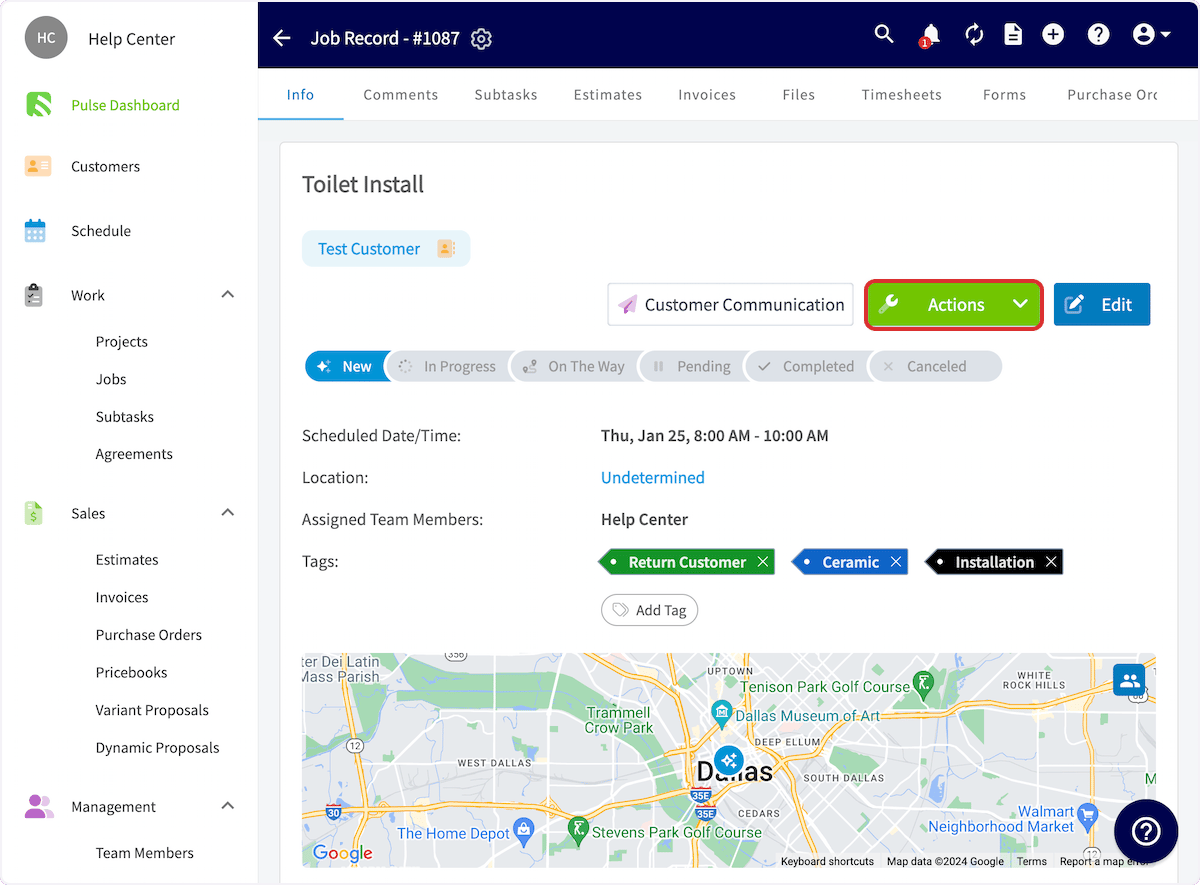 3. In the dropdown, select **Set a Reminder**.
4. Select when you want to receive the reminder.
3. In the dropdown, select **Set a Reminder**.
4. Select when you want to receive the reminder.
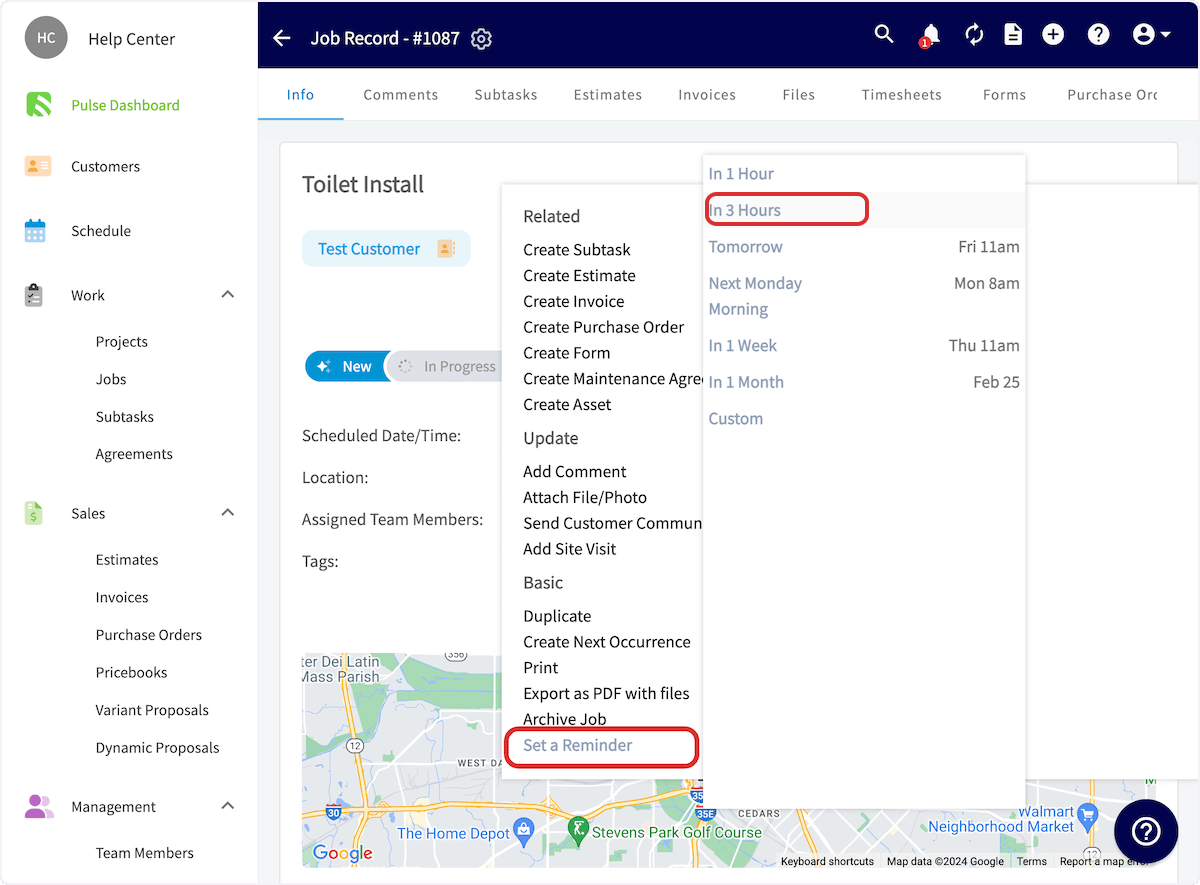 The timing menu offers **In 1 Hour**, **In 3 Hours**, **Tomorrow**, **Next Monday Morning**, **In 1 Week**, **In 1 Month**, and **Custom**.
5. Enter the text of the reminder in **Reminder Title**.
6. Select **Submit**.
The timing menu offers **In 1 Hour**, **In 3 Hours**, **Tomorrow**, **Next Monday Morning**, **In 1 Week**, **In 1 Month**, and **Custom**.
5. Enter the text of the reminder in **Reminder Title**.
6. Select **Submit**.
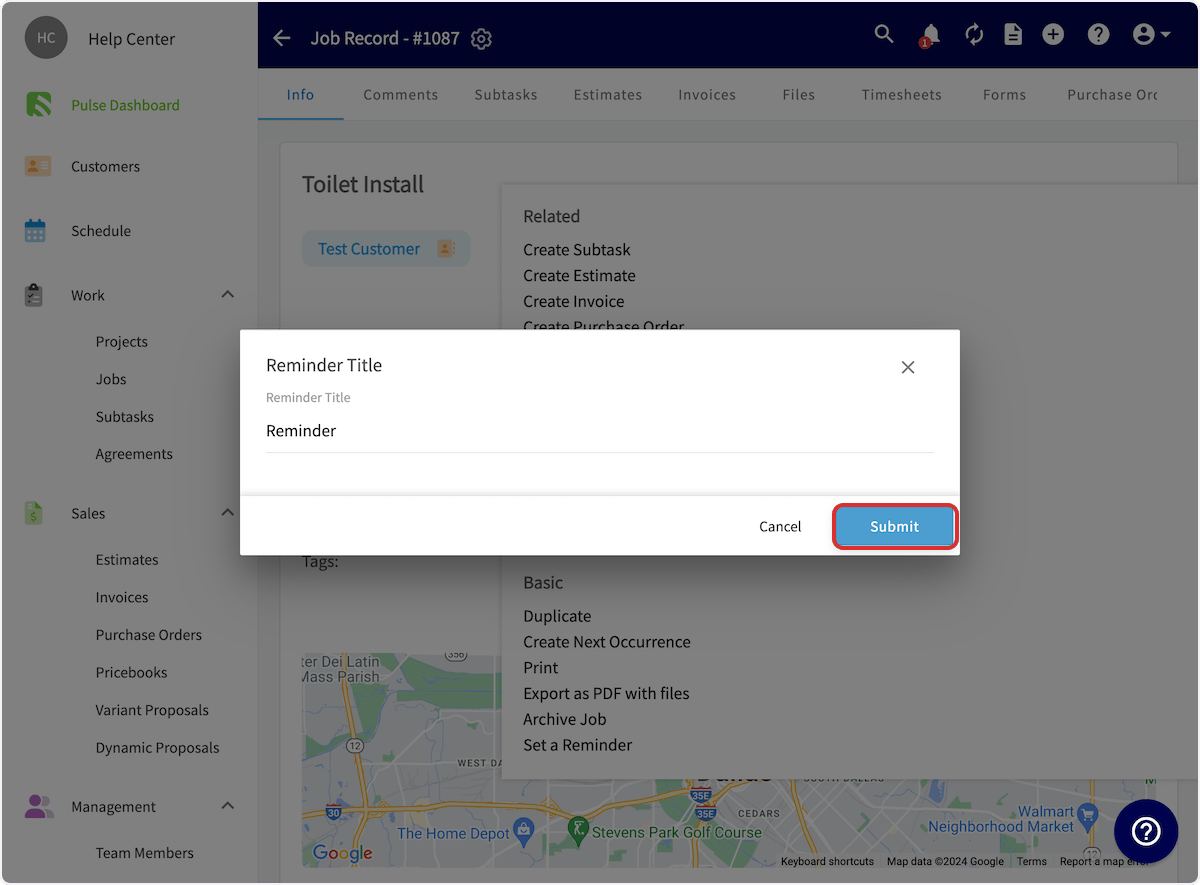 A pop-up confirms the reminder is set, and the reminder reaches you at the time you selected.
### Find your reminders
Your reminders are housed under the **bell icon** in the FieldPulse header. Select the bell icon, then select the **Reminders** tab to see everything you have been reminded about in one place. The **Notifications** tab sits beside it in the same panel.
Reminders are also delivered to the FieldPulse mobile app — tap your photo or initials in the top-right corner and select **Notifications/Reminders** to view them.
A pop-up confirms the reminder is set, and the reminder reaches you at the time you selected.
### Find your reminders
Your reminders are housed under the **bell icon** in the FieldPulse header. Select the bell icon, then select the **Reminders** tab to see everything you have been reminded about in one place. The **Notifications** tab sits beside it in the same panel.
Reminders are also delivered to the FieldPulse mobile app — tap your photo or initials in the top-right corner and select **Notifications/Reminders** to view them.
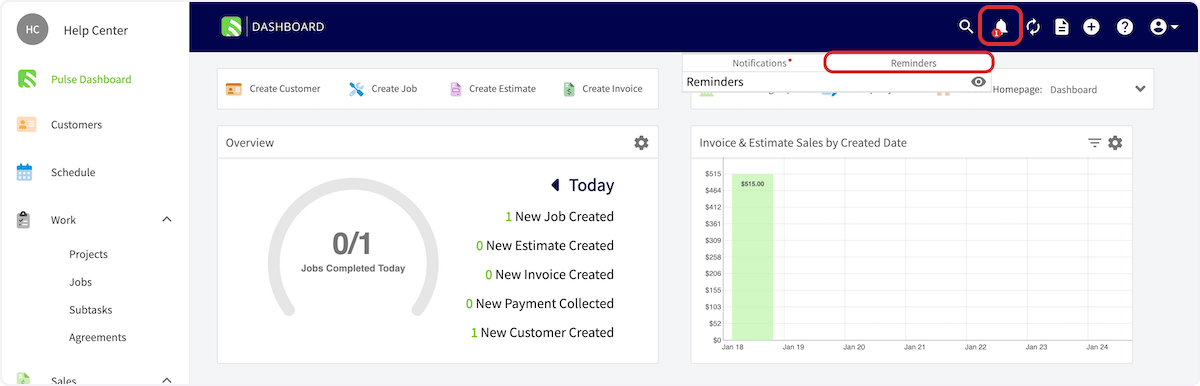 Your reminder is working when the confirmation pop-up appears after you submit and the reminder shows up on the **Reminders** tab under the bell icon, waiting to surface the follow-up at the time you set, on the record it belongs to.
## FAQs
### Can I report on the reminders my team has set?
Yes. Raw data reporting has a **Reminders** tab whose default columns are Title, Created At, Read At, Related Entity, and Related Entity Name. See [How to Create Reminder Reports](/reporting/raw-data/reminder-reports).
## Related articles
* [How to Create Reminder Reports](/reporting/raw-data/reminder-reports)
* [How to Use Notes](/settings/app-preferences/notes)
* [Notifications Overview](/settings/notifications/notifications-master-guide)
* [Internal Activity Overview](/settings/app-preferences/internal-activity)
## Related topics
- [How to Create a Maintenance Agreement](/jobs/assets/maintenance-agreements.md)
- [Maintenance Agreement Reminders Overview](/jobs/assets/maintenance-customer-view.md)
- [How to Create Reminder Reports](/reporting/raw-data/reminder-reports.md)
- [Notifications Overview](/settings/notifications/notifications-master-guide.md)
Your reminder is working when the confirmation pop-up appears after you submit and the reminder shows up on the **Reminders** tab under the bell icon, waiting to surface the follow-up at the time you set, on the record it belongs to.
## FAQs
### Can I report on the reminders my team has set?
Yes. Raw data reporting has a **Reminders** tab whose default columns are Title, Created At, Read At, Related Entity, and Related Entity Name. See [How to Create Reminder Reports](/reporting/raw-data/reminder-reports).
## Related articles
* [How to Create Reminder Reports](/reporting/raw-data/reminder-reports)
* [How to Use Notes](/settings/app-preferences/notes)
* [Notifications Overview](/settings/notifications/notifications-master-guide)
* [Internal Activity Overview](/settings/app-preferences/internal-activity)
## Related topics
- [How to Create a Maintenance Agreement](/jobs/assets/maintenance-agreements.md)
- [Maintenance Agreement Reminders Overview](/jobs/assets/maintenance-customer-view.md)
- [How to Create Reminder Reports](/reporting/raw-data/reminder-reports.md)
- [Notifications Overview](/settings/notifications/notifications-master-guide.md)