> ## Documentation Index
> Fetch the complete documentation index at: https://help.fieldpulse.com/llms.txt
> Use this file to discover all available pages before exploring further.
# How to Add New Users
> Give a new technician or office manager a FieldPulse login from Company Settings, set their rates, assign a role, and add them to a team.
> **Who uses this:** Administrators only — creating a user account requires access to Company Settings, and only administrators have it. **Availability:** All regions.
Adding a new user creates a login for one person and sets what that person can reach in FieldPulse. When the office and the field disagree about who can see what, work stalls — giving each person the right role from the start prevents that. [User Roles and Permissions Details](/settings/users-teams/user-roles) covers what each role can do.
## Overview
A user account uses the person's email address as their login ID. You create the account in **Company Settings** > **User Accounts**, enter the person's details, assign a role, and add the person to one or more teams. The role dropdown offers four choices — Team Manager, Service Agent, Limited Agent, and Assignment User — and you grant Administrator access by selecting **Team Manager** and turning on the **Assign as Company Admin** toggle.
## Video walkthrough
Watch the [adding new users walkthrough](https://www.loom.com/share/83d65d97e38848109c03aae384b6714d) for a full run-through. The written steps below stand on their own.
## Before you begin
* Confirm you are an administrator. No other role can create a user account.
* Have the person's first name, last name, and email address ready — all three are required. Each user needs their own name, email address, and password, and FieldPulse ties an email address to only one user account.
* Decide which role fits the person before you start, since the role sets what they can access. See [User Roles and Permissions Details](/settings/users-teams/user-roles).
* If you want the person on a specific team, create that team first — see [How to Create a Team](/settings/users-teams/creating-a-team). Every user joins the default team automatically.
## On web
### Open the new user form
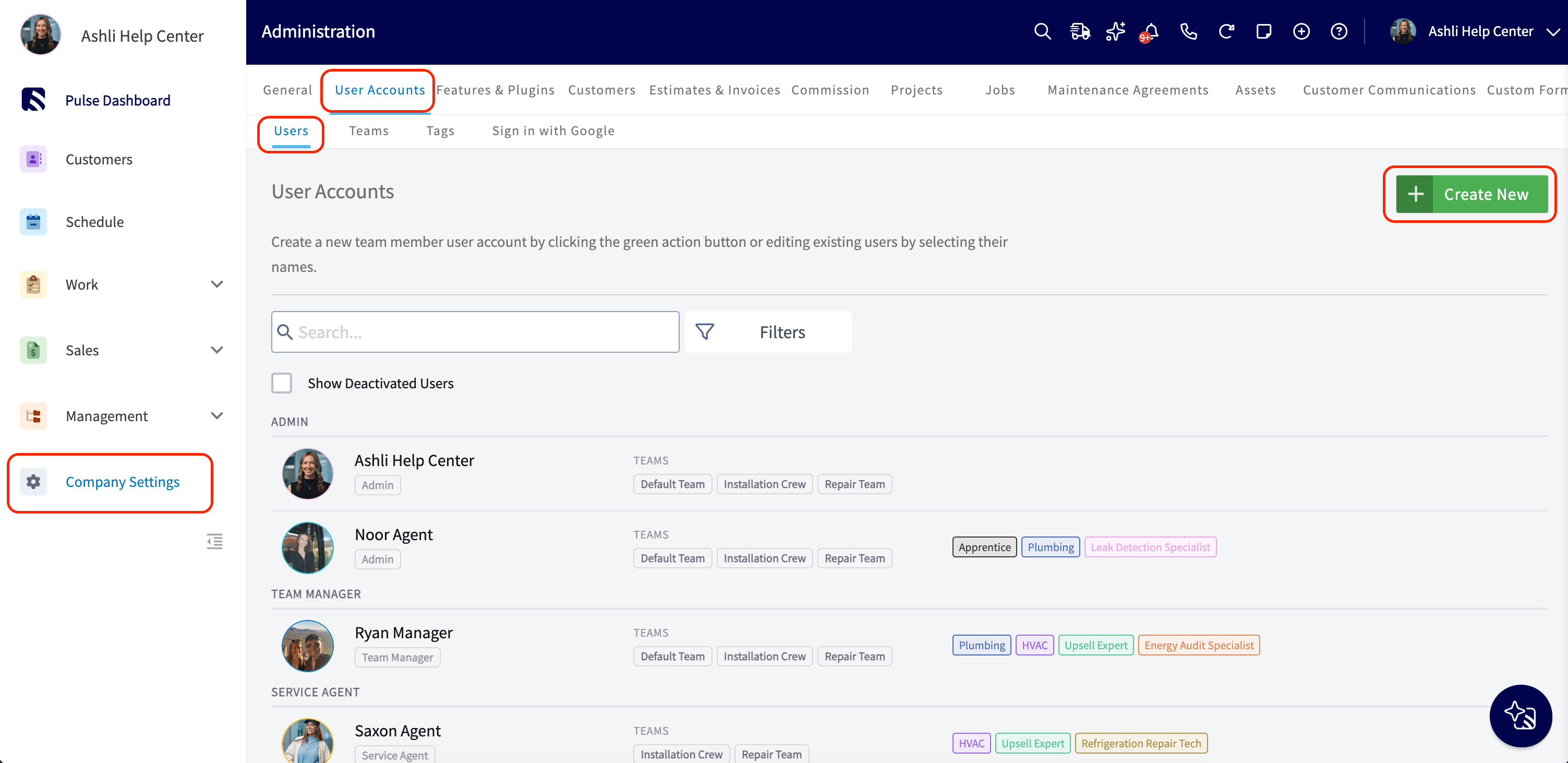
1. Select **Company Settings** from the left-side menu.
2. Select **User Accounts**.
3. Select **Create New**.
 ### Fill in the user's details
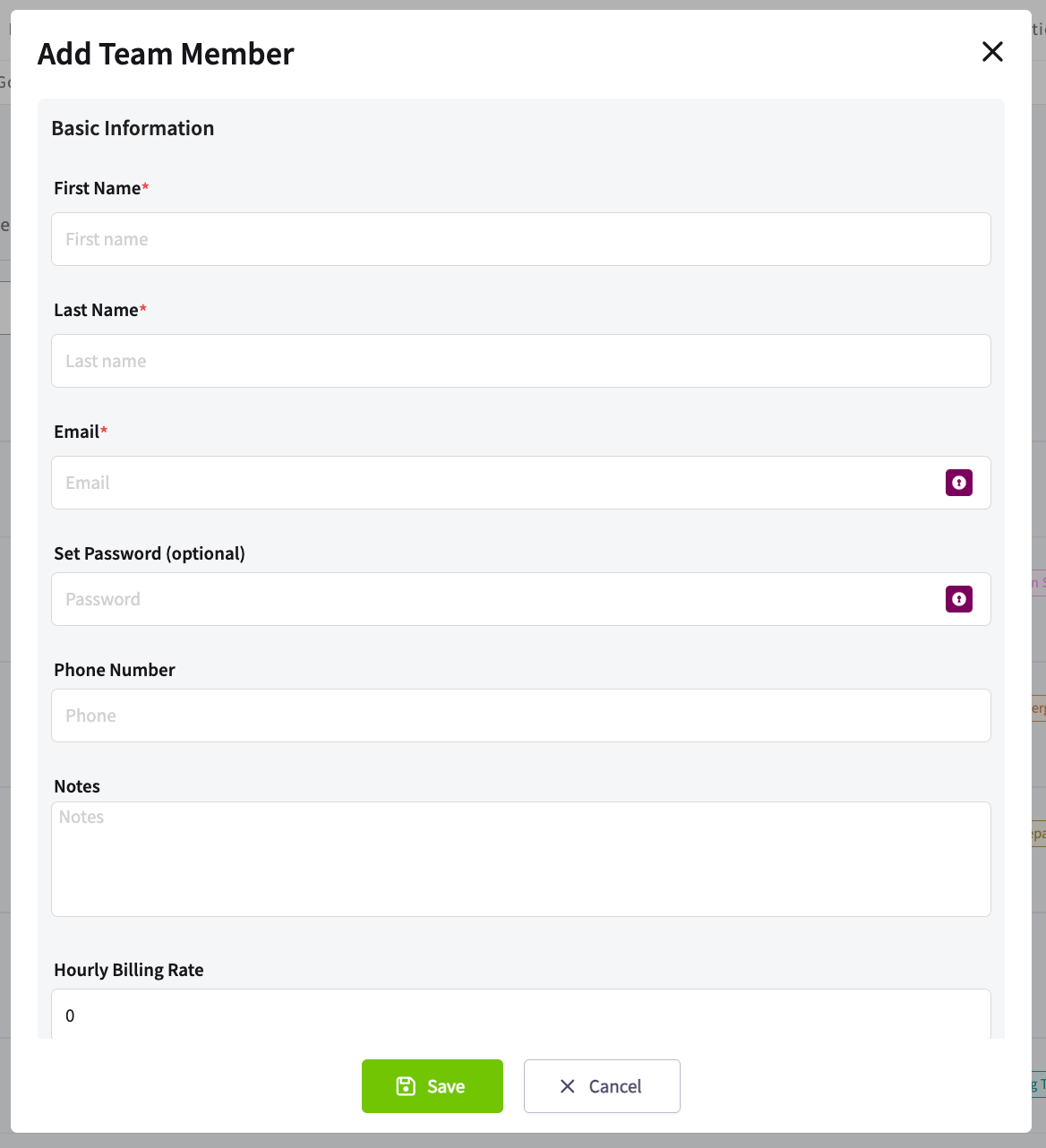
Enter the basic information for the new user:
| **Field** | **What to enter** |
| -------------------------------------------- | ------------------------------------------------------------------------------------------------------------------------------------- |
| **First Name**, **Last Name**, and **Email** | Required. The email address becomes the user's login ID. |
| **Set Password** | Leave this blank to send a password reset link to the user's email automatically, or set a standard password for the person yourself. |
| **Phone Number** | Optional. A contact number for the user. |
| **Notes** | Any details you want to keep on this user, such as availability, restrictions, license numbers, or expiration dates. |
| **Hourly Billing Rate** | How much your company charges the customer when this user works. |
| **Hourly Cost Rate** | How much this user costs your company when they work. |
### Fill in the user's details
Enter the basic information for the new user:
| **Field** | **What to enter** |
| -------------------------------------------- | ------------------------------------------------------------------------------------------------------------------------------------- |
| **First Name**, **Last Name**, and **Email** | Required. The email address becomes the user's login ID. |
| **Set Password** | Leave this blank to send a password reset link to the user's email automatically, or set a standard password for the person yourself. |
| **Phone Number** | Optional. A contact number for the user. |
| **Notes** | Any details you want to keep on this user, such as availability, restrictions, license numbers, or expiration dates. |
| **Hourly Billing Rate** | How much your company charges the customer when this user works. |
| **Hourly Cost Rate** | How much this user costs your company when they work. |
 ### Set commission eligibility
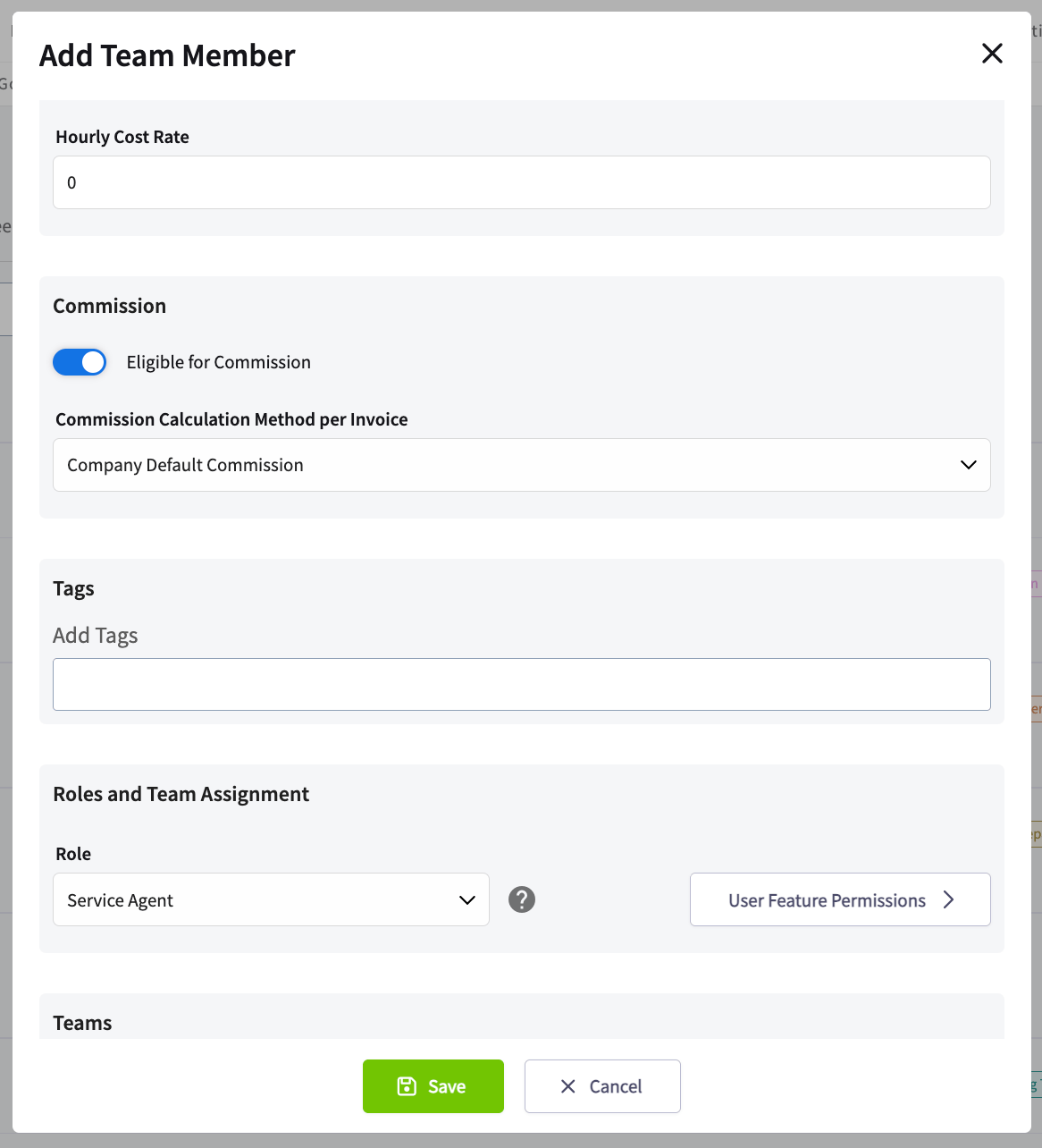
1. Turn on **Eligible for Commission** if this user earns commission on invoices.
2. Choose a **Commission Calculation Method per Invoice**, or leave it set to **Company Default Commission**.
See [Commission Structures Overview](/payments/commissions/commission-structures) for how each method calculates.
### Add tags (optional)
1. Select **Add Tags**.
2. Select the skills and certifications this person carries.
Tags make the user findable when you assign work — see [Where tags show up](#where-tags-show-up) below.
### Set commission eligibility
1. Turn on **Eligible for Commission** if this user earns commission on invoices.
2. Choose a **Commission Calculation Method per Invoice**, or leave it set to **Company Default Commission**.
See [Commission Structures Overview](/payments/commissions/commission-structures) for how each method calculates.
### Add tags (optional)
1. Select **Add Tags**.
2. Select the skills and certifications this person carries.
Tags make the user findable when you assign work — see [Where tags show up](#where-tags-show-up) below.
 ### Assign a role
Select the person's role. The role sets the person's baseline access to features and company data:
| **Role** | **Who it fits** |
| ------------------- | ------------------------------------------------------------------------------------------------------------------------------------------- |
| **Team Manager** | A team lead. Turn on the **Assign as Company Admin** toggle that appears with this role to give the person administrator access. |
| **Service Agent** | A field technician. |
| **Limited Agent** | Someone who only needs the work assigned to them, through the [FieldPulse mobile app](https://www.fieldpulse.com/features/mobile-app) only. |
| **Assignment User** | A subcontractor or other helper who receives job details by email only, with no app access. |
There is no standalone **Administrator** option in the role dropdown. To make someone an administrator, select **Team Manager**, then turn on **Assign as Company Admin**. See [User Roles and Permissions Details](/settings/users-teams/user-roles) for exactly what each role can do.
### Fine-tune permissions (optional)
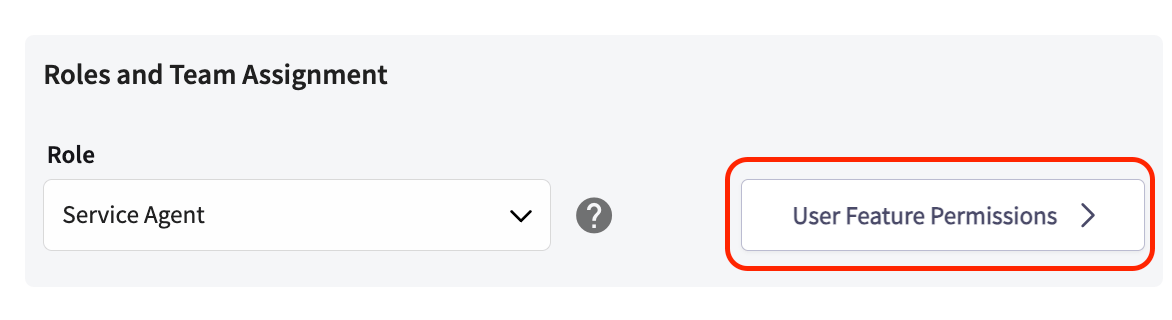
1. Select **User Feature Permissions**, next to the **Role** dropdown.
2. Turn individual capabilities on or off for this person.
Use **User Feature Permissions** on an existing user the same way — open the user, select **Edit**, then select **User Feature Permissions**. See [User Roles and Permissions Details](/settings/users-teams/user-roles) for the full list of what each permission controls.
### Assign a role
Select the person's role. The role sets the person's baseline access to features and company data:
| **Role** | **Who it fits** |
| ------------------- | ------------------------------------------------------------------------------------------------------------------------------------------- |
| **Team Manager** | A team lead. Turn on the **Assign as Company Admin** toggle that appears with this role to give the person administrator access. |
| **Service Agent** | A field technician. |
| **Limited Agent** | Someone who only needs the work assigned to them, through the [FieldPulse mobile app](https://www.fieldpulse.com/features/mobile-app) only. |
| **Assignment User** | A subcontractor or other helper who receives job details by email only, with no app access. |
There is no standalone **Administrator** option in the role dropdown. To make someone an administrator, select **Team Manager**, then turn on **Assign as Company Admin**. See [User Roles and Permissions Details](/settings/users-teams/user-roles) for exactly what each role can do.
### Fine-tune permissions (optional)
1. Select **User Feature Permissions**, next to the **Role** dropdown.
2. Turn individual capabilities on or off for this person.
Use **User Feature Permissions** on an existing user the same way — open the user, select **Edit**, then select **User Feature Permissions**. See [User Roles and Permissions Details](/settings/users-teams/user-roles) for the full list of what each permission controls.
 ### Add the user to a team
1. Go to **Teams Assigned as Team Member**.
2. Select each team this user belongs to.
3. Select **+ Add Team** to assign the user to additional teams.
Every user joins the default team automatically, and you can add the person to other teams as well. See [How to Create a Team](/settings/users-teams/creating-a-team) for how teams organize assignments and scheduling.
### Add the user to a team
1. Go to **Teams Assigned as Team Member**.
2. Select each team this user belongs to.
3. Select **+ Add Team** to assign the user to additional teams.
Every user joins the default team automatically, and you can add the person to other teams as well. See [How to Create a Team](/settings/users-teams/creating-a-team) for how teams organize assignments and scheduling.
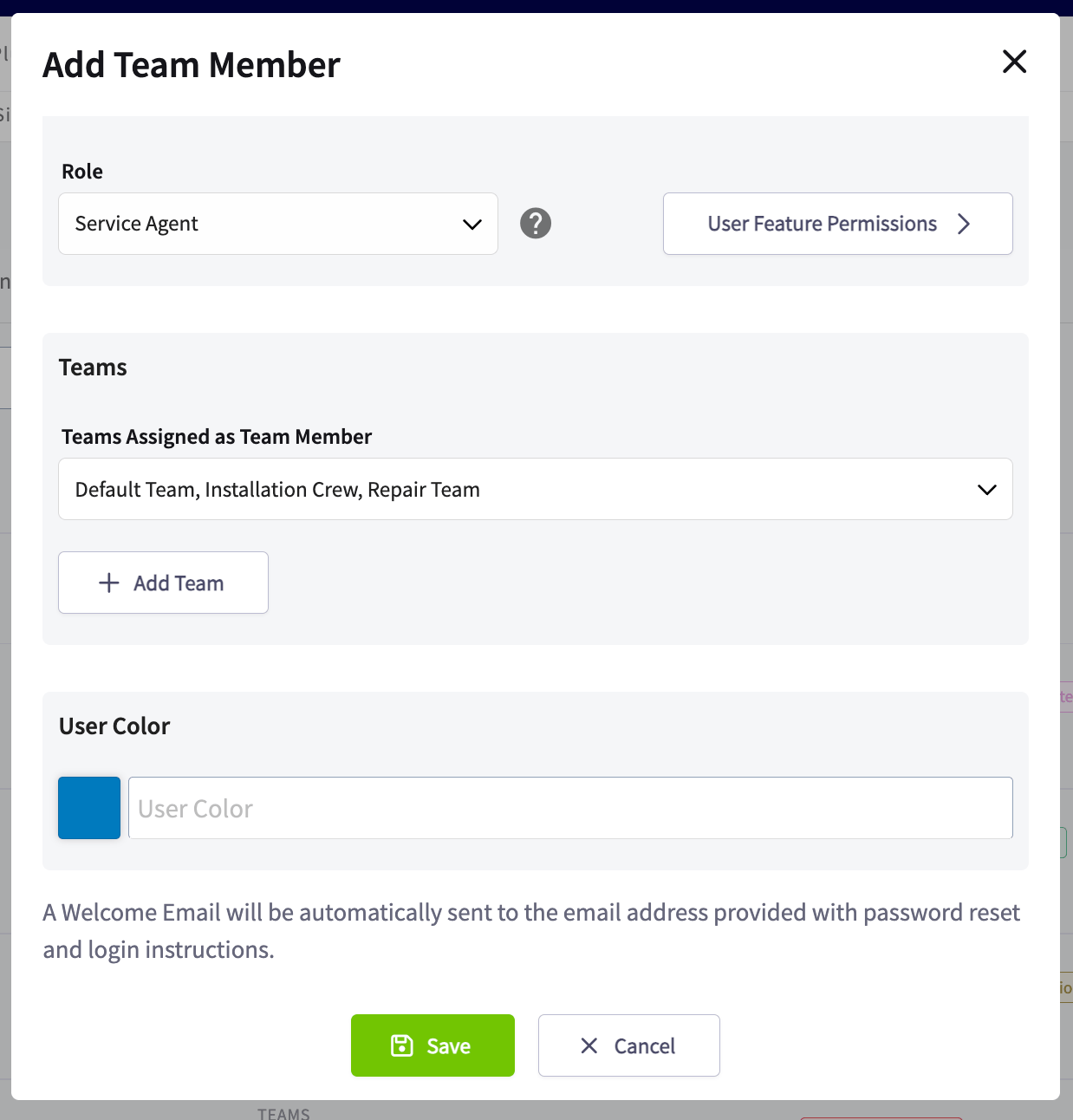 ### Set the user color
1. Under **User Color**, choose the color that represents this user on the schedule and dispatch views.
### Save the account
1. Select **Save**.
FieldPulse creates the account. If you left **Set Password** blank, the new user receives a password reset link at their email address to set their own password; if you set a password yourself, share it with the user directly.
### Set the user color
1. Under **User Color**, choose the color that represents this user on the schedule and dispatch views.
### Save the account
1. Select **Save**.
FieldPulse creates the account. If you left **Set Password** blank, the new user receives a password reset link at their email address to set their own password; if you set a password yourself, share it with the user directly.
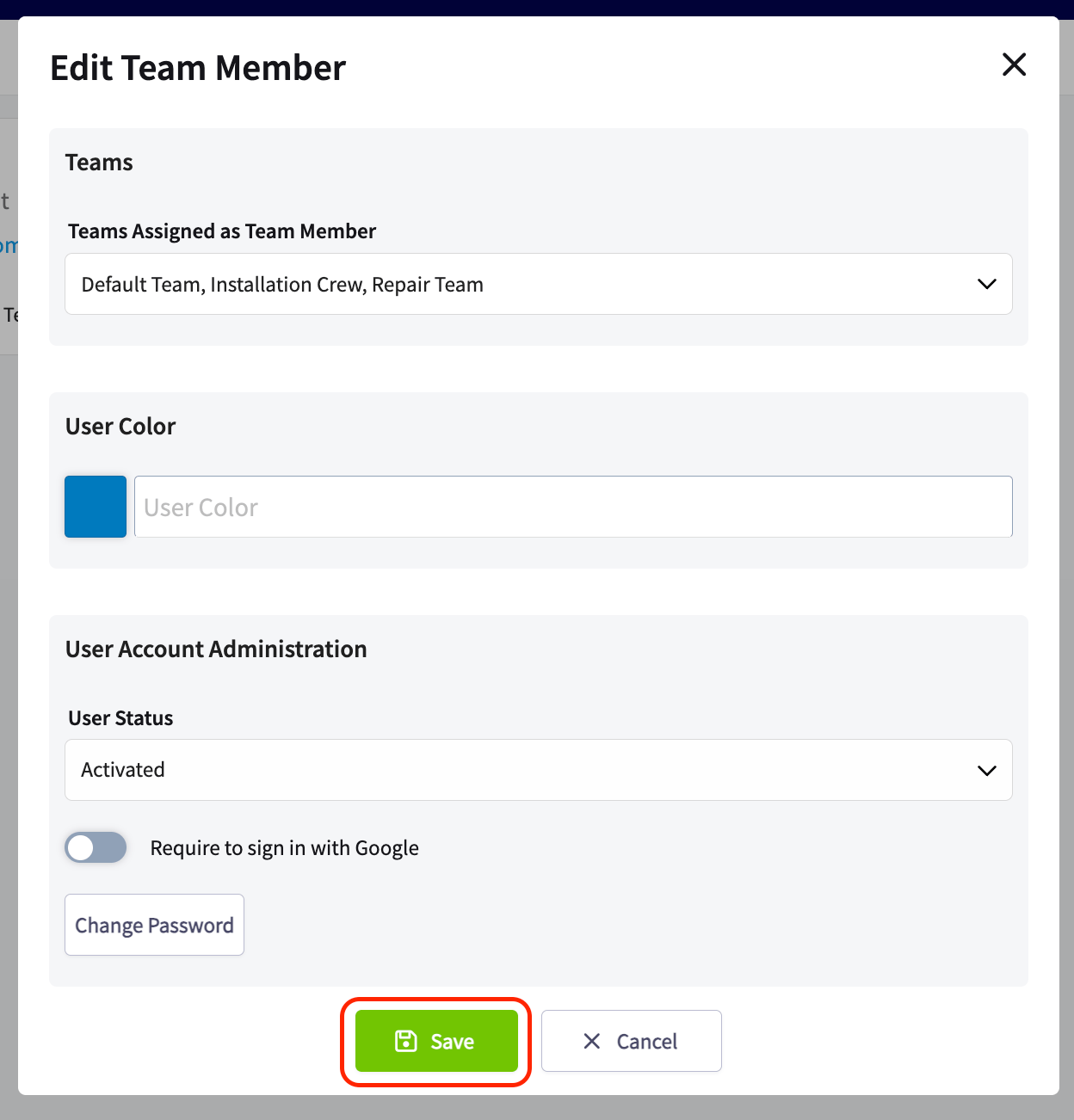 ### Save a permission template
Permission templates save one user's Feature Permission configuration so you can apply it to other users in one click. Instead of working through every toggle and dropdown each time you onboard a technician or a manager, you set the permissions once, save them as a template, and reuse the template as many times as you need.
1. Go to **Company Settings** > **User Accounts** and open the user you want to save the configuration from.
2. Select **Edit**, then select **User Feature Permissions**.
3. Select **Save as Template**.
### Save a permission template
Permission templates save one user's Feature Permission configuration so you can apply it to other users in one click. Instead of working through every toggle and dropdown each time you onboard a technician or a manager, you set the permissions once, save them as a template, and reuse the template as many times as you need.
1. Go to **Company Settings** > **User Accounts** and open the user you want to save the configuration from.
2. Select **Edit**, then select **User Feature Permissions**.
3. Select **Save as Template**.
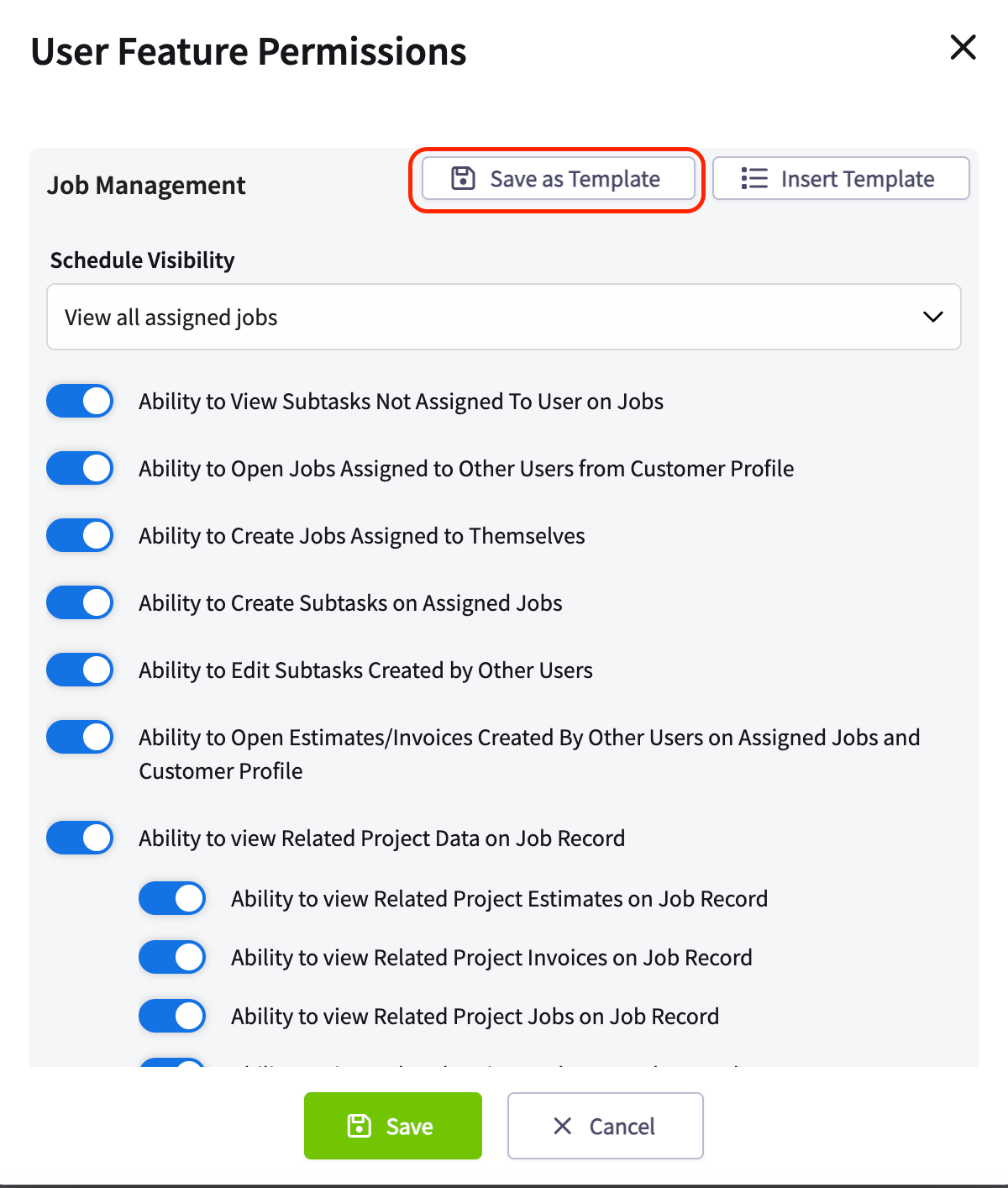 The template saves immediately and becomes available to insert on other users with the same role type.
### Insert a permission template
Once you have at least one template saved, you can apply it to any other user with the same role type.
1. Open a user and select **User Feature Permissions**.
2. Select **Insert Template** to open the dropdown.
3. Select the template name you want to apply.
The template saves immediately and becomes available to insert on other users with the same role type.
### Insert a permission template
Once you have at least one template saved, you can apply it to any other user with the same role type.
1. Open a user and select **User Feature Permissions**.
2. Select **Insert Template** to open the dropdown.
3. Select the template name you want to apply.
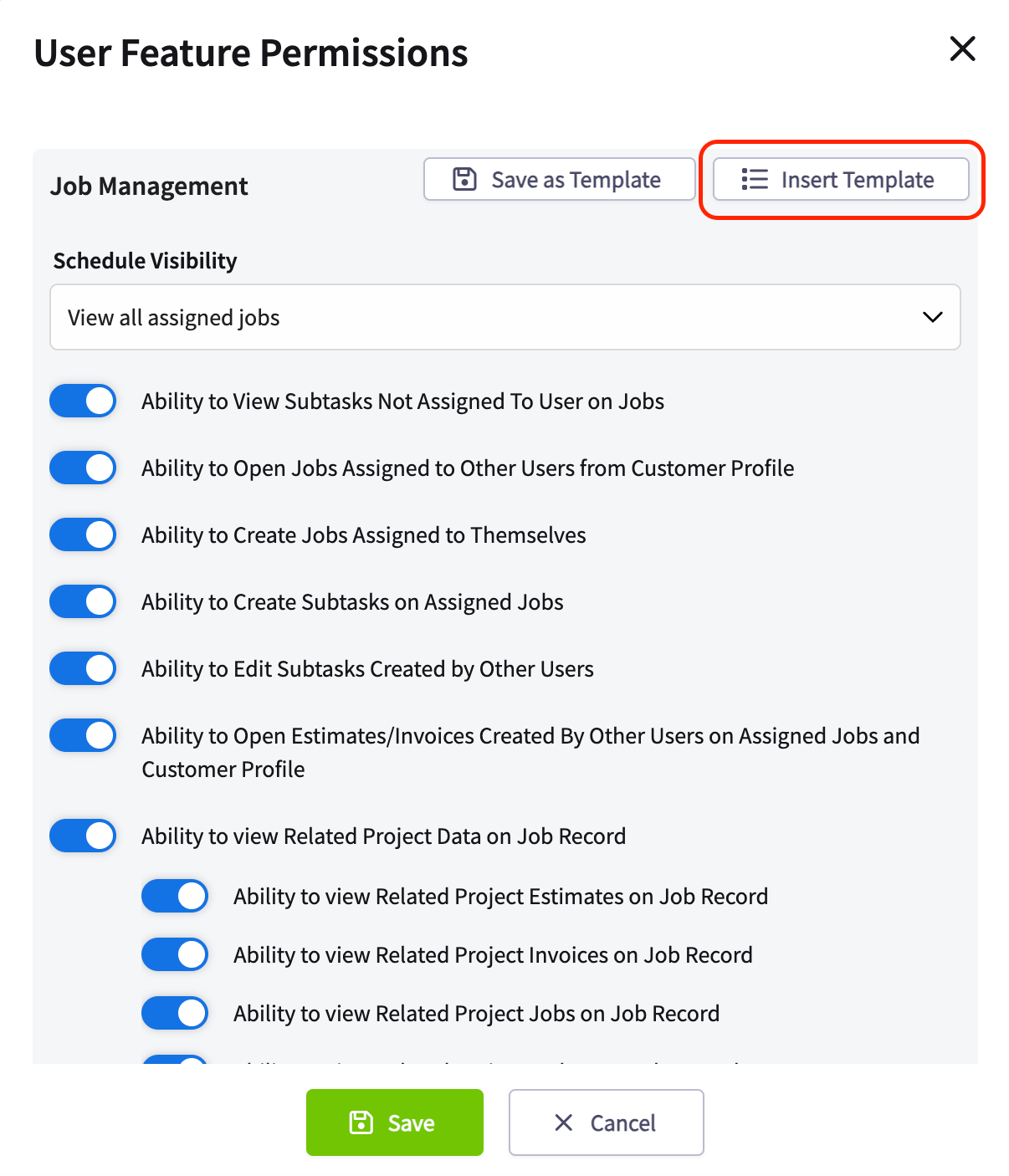 Inserting a template replaces the user's entire current permission state with the saved configuration.
## Where tags show up
Once a user has tags assigned, those tags are visible and searchable everywhere you decide who works a job.
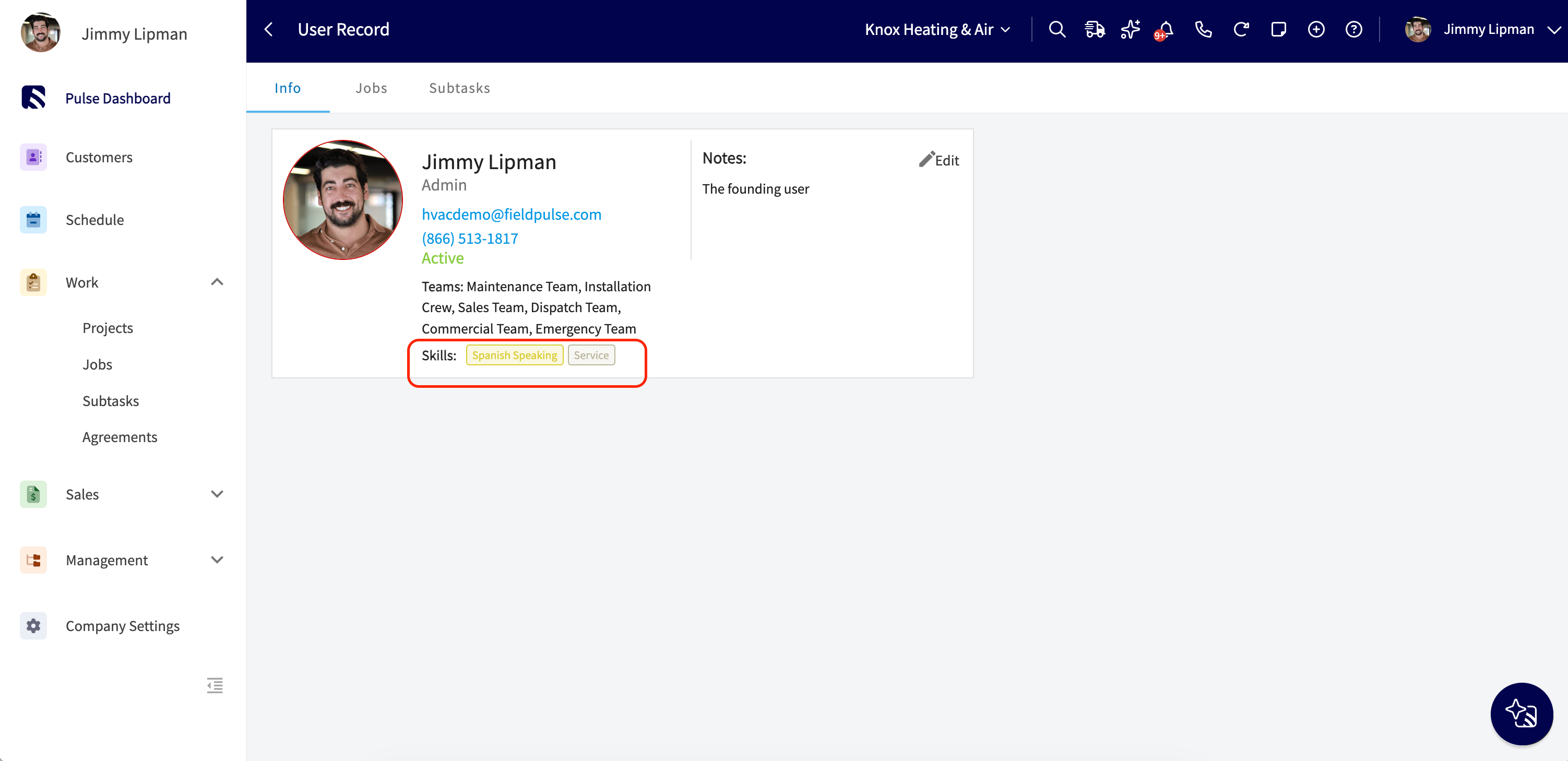
* **User record** — tags display **read-only** under the **Teams** line on the user's **Info** tab.
Inserting a template replaces the user's entire current permission state with the saved configuration.
## Where tags show up
Once a user has tags assigned, those tags are visible and searchable everywhere you decide who works a job.
* **User record** — tags display **read-only** under the **Teams** line on the user's **Info** tab.
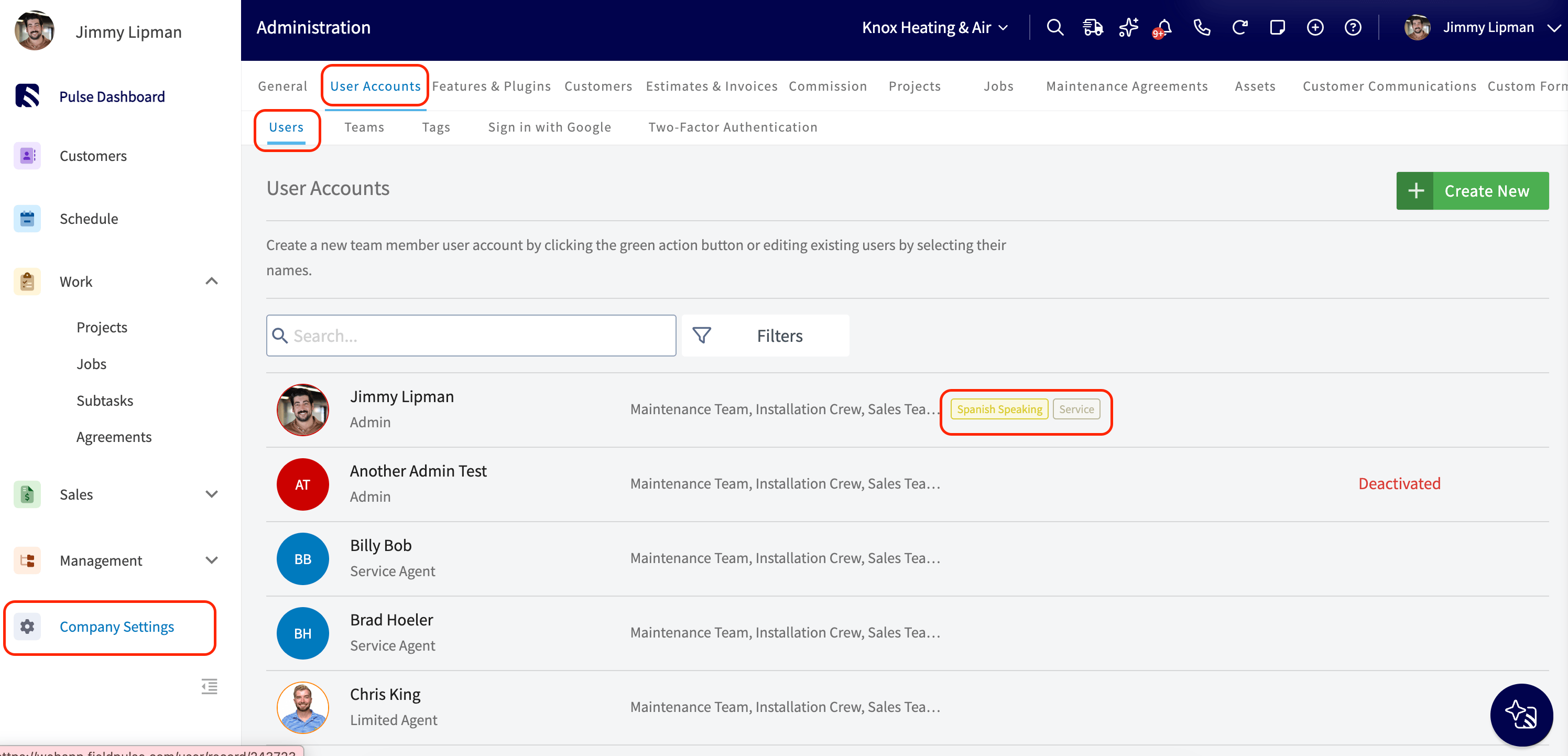
 * **User Accounts list** — a **Tags** column shows each user's tags, and a filter next to the search bar narrows the roster by team, by tag, or by both.
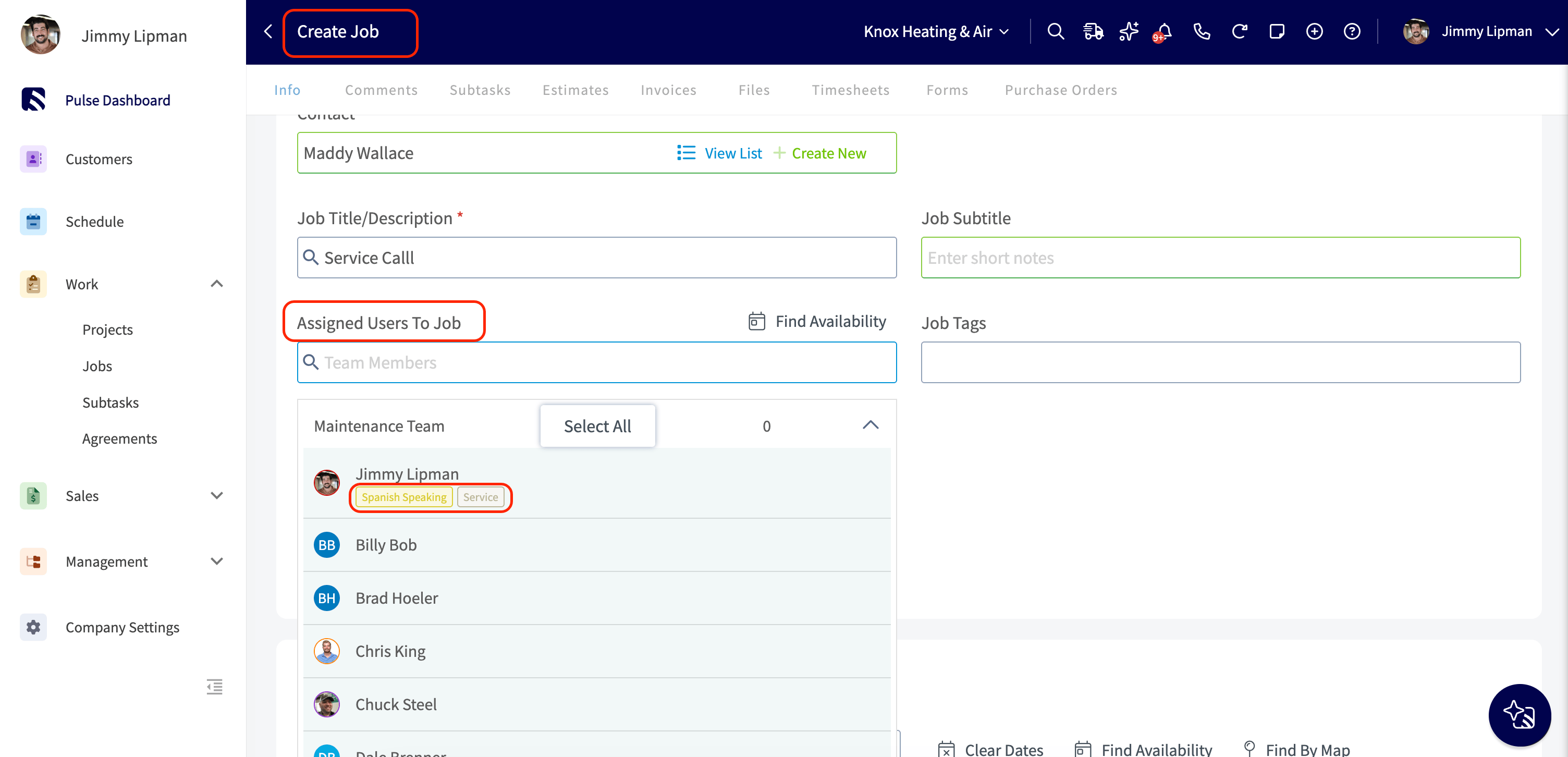
 * **Create Job and Edit Job** — the **Assigned Users to Job** dropdown shows each technician's tags inline, and the search box matches on name or skill, so typing "hvac" surfaces every technician tagged HVAC.
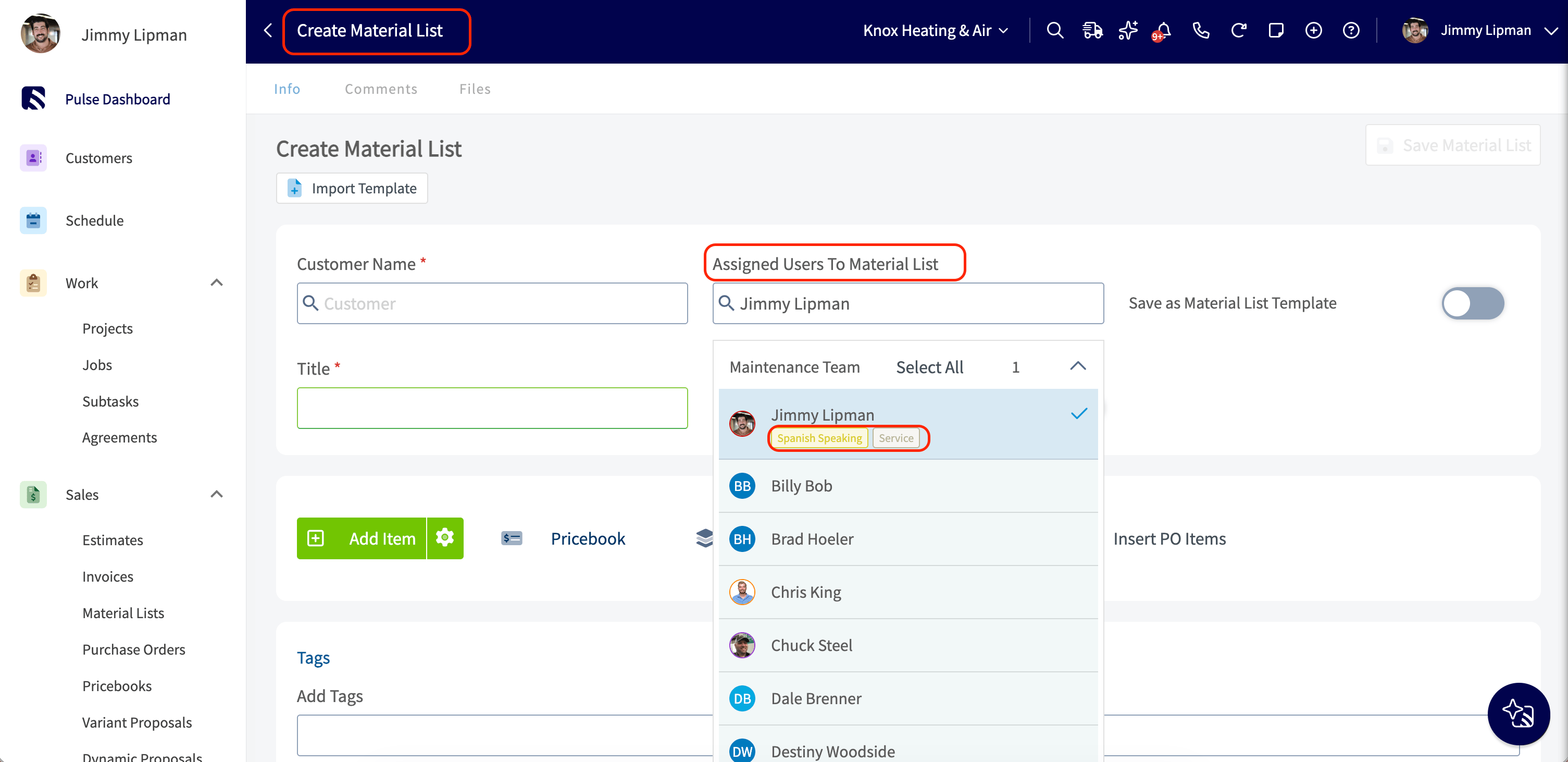
 * **Material lists** — the **Assigned Users to Material List** field works the same way, with tags inline and search by name or skill.
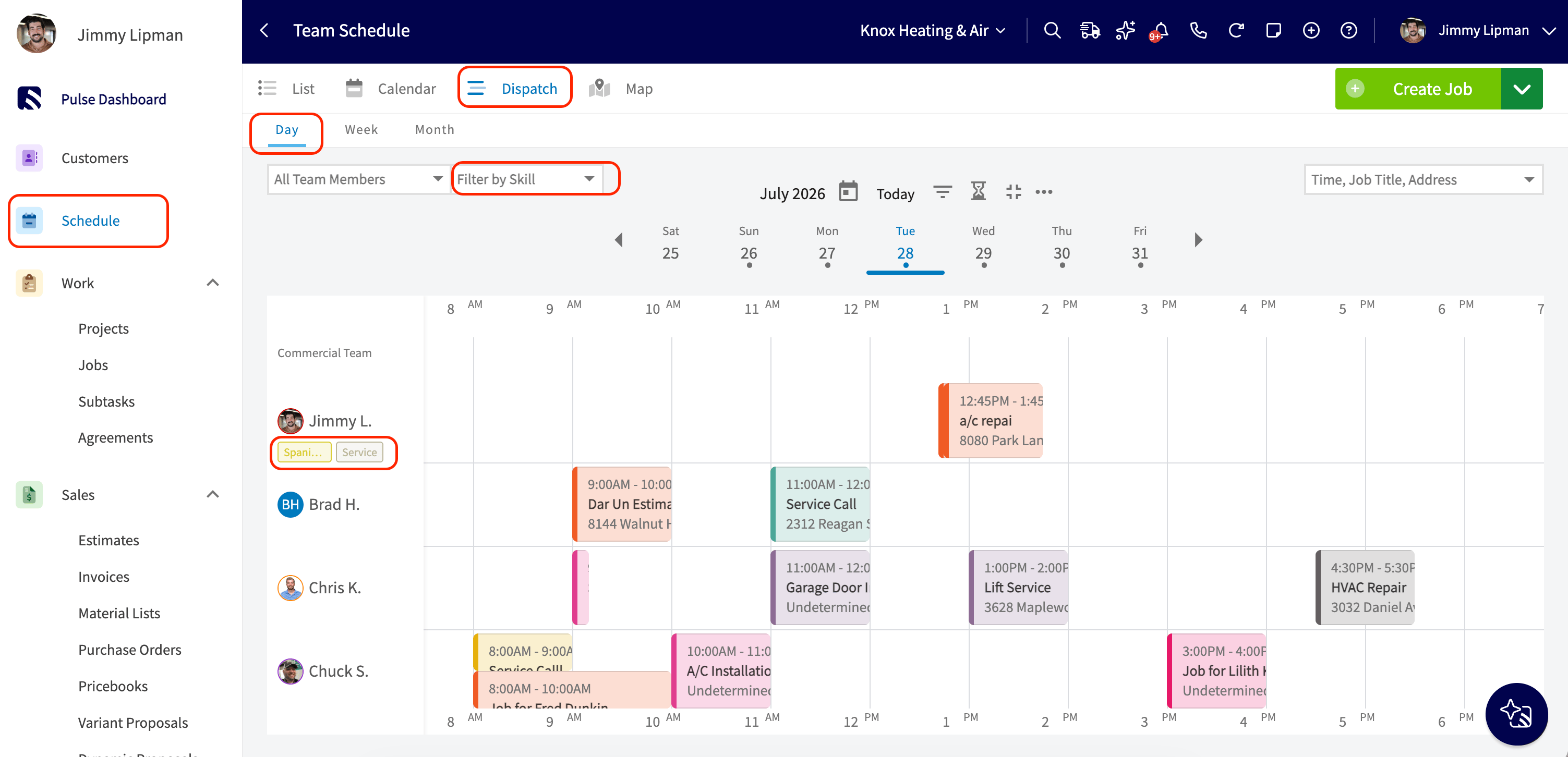
 * **Dispatch Day view** — a **Filter by Skill** control sits beside the team filter, so you can narrow the schedule to only the technicians who carry a required certification.
 These are read-only displays and searches. To add, edit, or remove a user's tags, go to the user's edit view or **Company Settings** > **User Accounts** > **Tags**.
## FAQs
### Can I change a user's email address after the account is created?
Yes, you can update a user's email address at any time in the user's details — see [Fill in the user's details](#fill-in-the-users-details) above. FieldPulse ties each email address to one user account, so you cannot reuse an email that already belongs to another user.
### What if a user forgets their password or cannot log in?
The user can reset their own password from the login screen by selecting **Forgot Password?** and following the prompts sent to their email. An administrator can also reset the password from **Company Settings** > **User Accounts** by selecting the user and then **Edit** — see [User Roles and Permissions Details](/settings/users-teams/user-roles) for who can reach Company Settings.
### Can I search or filter users by tag?
Yes. The **User Accounts** list, the job and material list assignment dropdowns, and the Dispatch Day view all search or filter on tags — see [Where tags show up](#where-tags-show-up) for each place and how it works.
## Still need help?
Reach the [FieldPulse support team](https://www.fieldpulse.com/company/contact-us) at [support@fieldpulse.com](mailto:support@fieldpulse.com) or through the chat feature in the bottom-right corner of your screen.
## Related articles
* [User Roles and Permissions Details](/settings/users-teams/user-roles)
* [How to Create a Team](/settings/users-teams/creating-a-team)
* [How to Check Team Member Locations](/settings/users-teams/checking-team-locations)
You have added the user when the account saves and the person can log in with their email address and password, reaching exactly the features their role allows.
## Related topics
- [User Roles and Permissions Details](/settings/users-teams/user-roles.md)
- [Users, Roles & Teams](/settings/users-teams/index.md)
- [Engage User Roles Details](/add-ons/engage/user-roles.md)
- [Setting Up Your Account](/getting-started/welcome/account-setup.md)
These are read-only displays and searches. To add, edit, or remove a user's tags, go to the user's edit view or **Company Settings** > **User Accounts** > **Tags**.
## FAQs
### Can I change a user's email address after the account is created?
Yes, you can update a user's email address at any time in the user's details — see [Fill in the user's details](#fill-in-the-users-details) above. FieldPulse ties each email address to one user account, so you cannot reuse an email that already belongs to another user.
### What if a user forgets their password or cannot log in?
The user can reset their own password from the login screen by selecting **Forgot Password?** and following the prompts sent to their email. An administrator can also reset the password from **Company Settings** > **User Accounts** by selecting the user and then **Edit** — see [User Roles and Permissions Details](/settings/users-teams/user-roles) for who can reach Company Settings.
### Can I search or filter users by tag?
Yes. The **User Accounts** list, the job and material list assignment dropdowns, and the Dispatch Day view all search or filter on tags — see [Where tags show up](#where-tags-show-up) for each place and how it works.
## Still need help?
Reach the [FieldPulse support team](https://www.fieldpulse.com/company/contact-us) at [support@fieldpulse.com](mailto:support@fieldpulse.com) or through the chat feature in the bottom-right corner of your screen.
## Related articles
* [User Roles and Permissions Details](/settings/users-teams/user-roles)
* [How to Create a Team](/settings/users-teams/creating-a-team)
* [How to Check Team Member Locations](/settings/users-teams/checking-team-locations)
You have added the user when the account saves and the person can log in with their email address and password, reaching exactly the features their role allows.
## Related topics
- [User Roles and Permissions Details](/settings/users-teams/user-roles.md)
- [Users, Roles & Teams](/settings/users-teams/index.md)
- [Engage User Roles Details](/add-ons/engage/user-roles.md)
- [Setting Up Your Account](/getting-started/welcome/account-setup.md)