> ## Documentation Index
> Fetch the complete documentation index at: https://help.fieldpulse.com/llms.txt
> Use this file to discover all available pages before exploring further.
# How to Check Team Member Locations
> Open the map on the Team Members page to see each team member's last known location and when they were last active, pulled from the FieldPulse mobile app.
> **Who uses this:** Administrators — team member locations are gated by the **View team member geolocation tags** permission, which is listed under the Administrator role. **Availability:** All regions. A team member appears on the map only if they use the [FieldPulse mobile app](https://www.fieldpulse.com/features/mobile-app).
Checking team member locations plots each team member's last known position on a map, so you can see whether everyone is where they're supposed to be during the day. When you can't tell where a crew is without calling around, the map answers that in one glance.
## Overview
The team member map shows the last known location of each team member, plotted from their FieldPulse mobile app activity. Each location and timestamp reflects where the team member was the last time they used the mobile app — the map is not a live GPS feed. You reach the map from the **Team Members** page in the FieldPulse web app. For continuous tracking of team members and vehicles, use [Setting Up Pulse Fleet Tracking](/add-ons/fleet/pulse-fleet-tracking) instead.
## Before you begin
* Location data comes from the FieldPulse mobile app, so a team member appears on the map only after they have used the mobile app.
* The map shows each team member's last known position, not their real-time position. A team member who hasn't opened the mobile app recently shows an older last-seen location and timestamp.
## On web
### Open the team member map
1. Select **Team Members** in the left-side menu.
2. Select **Map**.
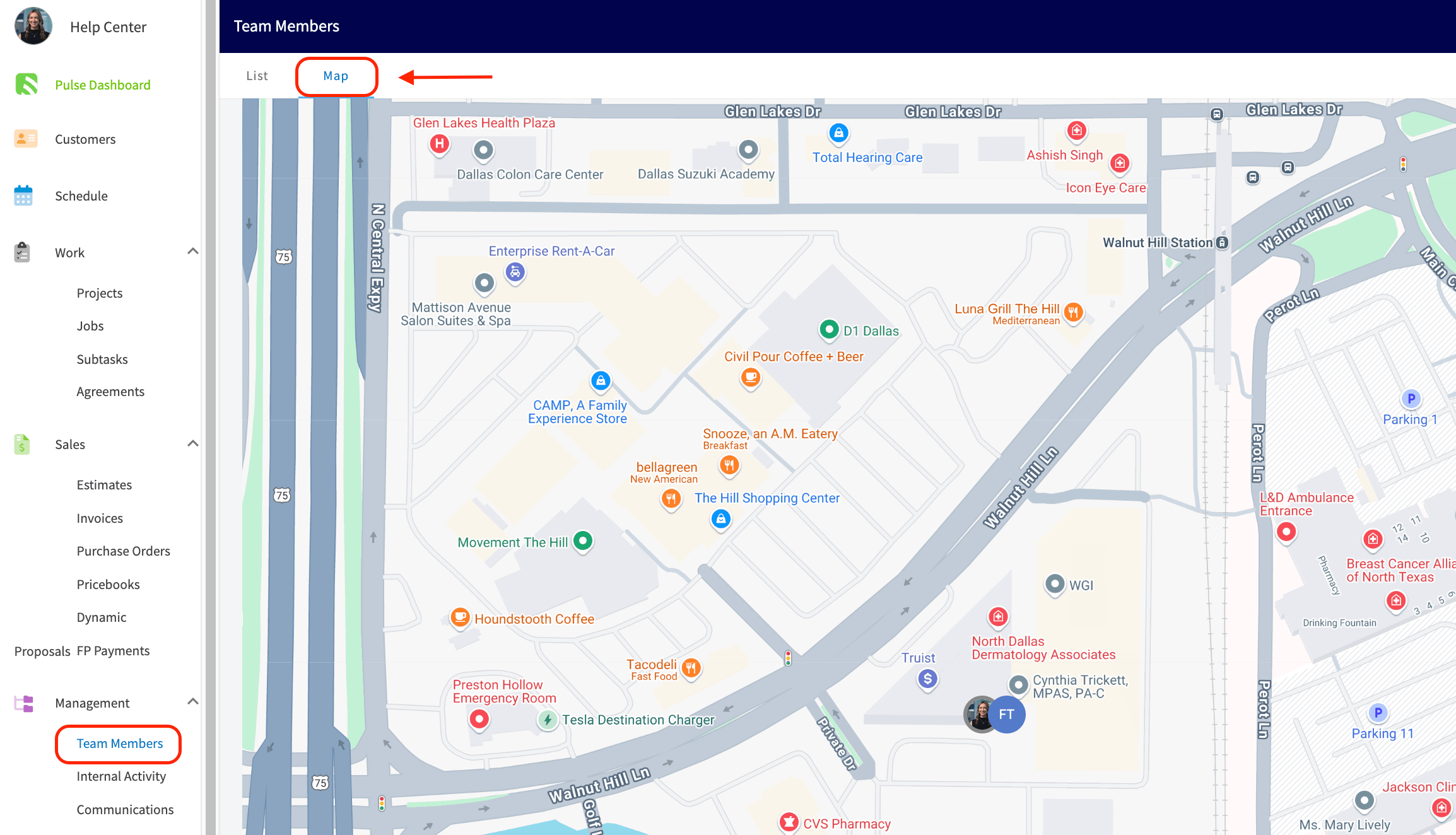 Your team members appear on the map at their last known locations.
### See when a team member was last active
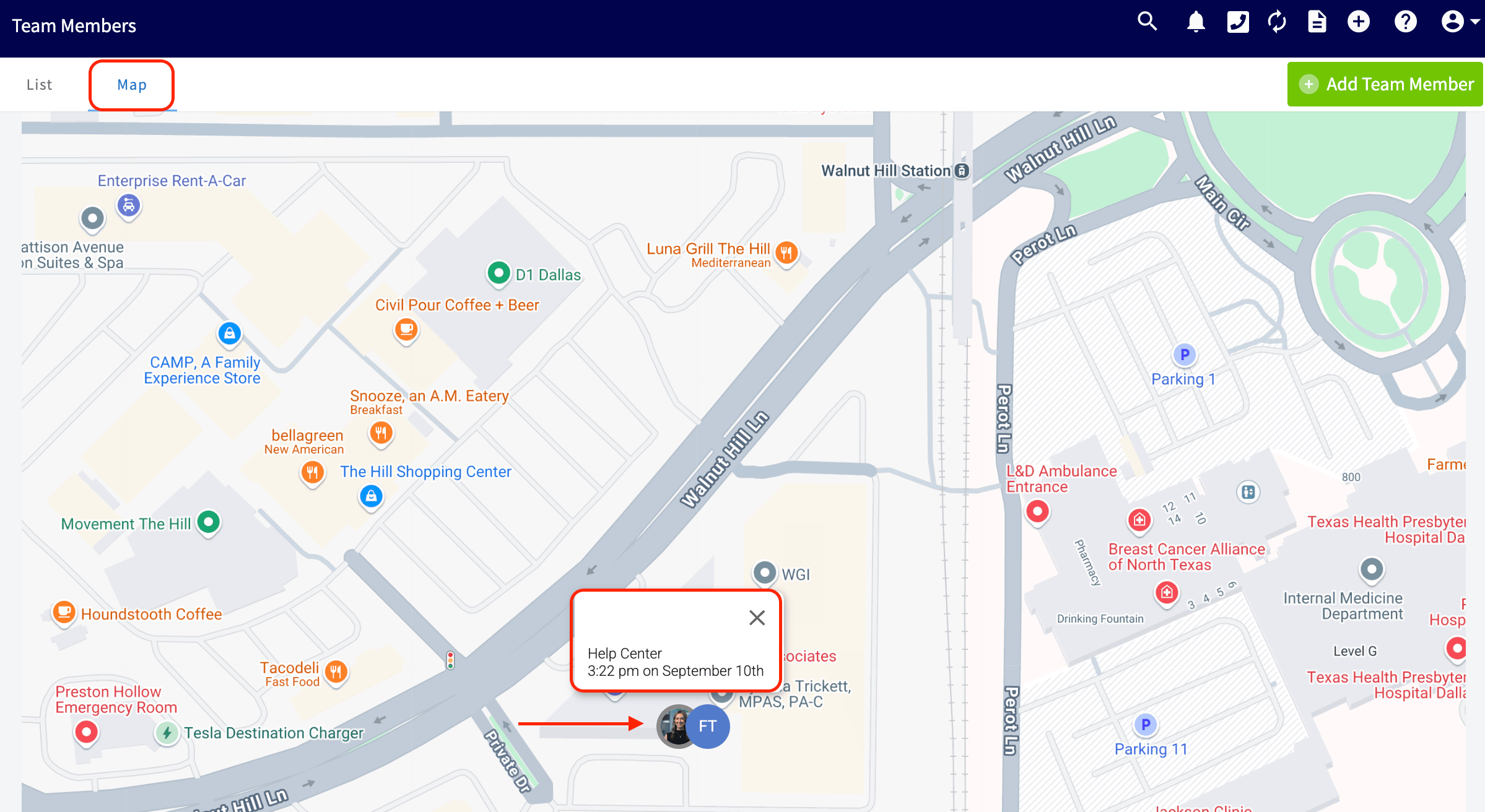
Select a team member on the map to see the time they were last seen. The last known location and timestamp are based on where the team member was the last time they used the FieldPulse mobile app.
Your team members appear on the map at their last known locations.
### See when a team member was last active
Select a team member on the map to see the time they were last seen. The last known location and timestamp are based on where the team member was the last time they used the FieldPulse mobile app.
 ## Related articles
* [Setting Up Pulse Fleet Tracking](/add-ons/fleet/pulse-fleet-tracking)
* [User Roles and Permissions Details](/settings/users-teams/user-roles)
* [How to Add New Users](/settings/users-teams/adding-users)
* [How to Create a Team](/settings/users-teams/creating-a-team)
You're set when the **Team Members** map shows your crew's last known locations and selecting any team member reveals when they were last active.
## Related topics
- [User Roles and Permissions Details](/settings/users-teams/user-roles.md)
- [How to Create a Team](/settings/users-teams/creating-a-team.md)
- [Users, Roles & Teams](/settings/users-teams/index.md)
- [How to Add New Users](/settings/users-teams/adding-users.md)
## Related articles
* [Setting Up Pulse Fleet Tracking](/add-ons/fleet/pulse-fleet-tracking)
* [User Roles and Permissions Details](/settings/users-teams/user-roles)
* [How to Add New Users](/settings/users-teams/adding-users)
* [How to Create a Team](/settings/users-teams/creating-a-team)
You're set when the **Team Members** map shows your crew's last known locations and selecting any team member reveals when they were last active.
## Related topics
- [User Roles and Permissions Details](/settings/users-teams/user-roles.md)
- [How to Create a Team](/settings/users-teams/creating-a-team.md)
- [Users, Roles & Teams](/settings/users-teams/index.md)
- [How to Add New Users](/settings/users-teams/adding-users.md)