> ## Documentation Index
> Fetch the complete documentation index at: https://help.fieldpulse.com/llms.txt
> Use this file to discover all available pages before exploring further.
# Custom Sales Pipeline
> Set up custom pipeline stages and move leads through them so your team sees where every deal stands at a glance.
FieldPulse's Custom Sales Pipeline is a tool that helps you manage your customers and stay organized throughout the entire sales process. Customize your pipeline statuses so your team can easily keep track of new or existing customers.
***
# Enabling Custom Sales Pipeline
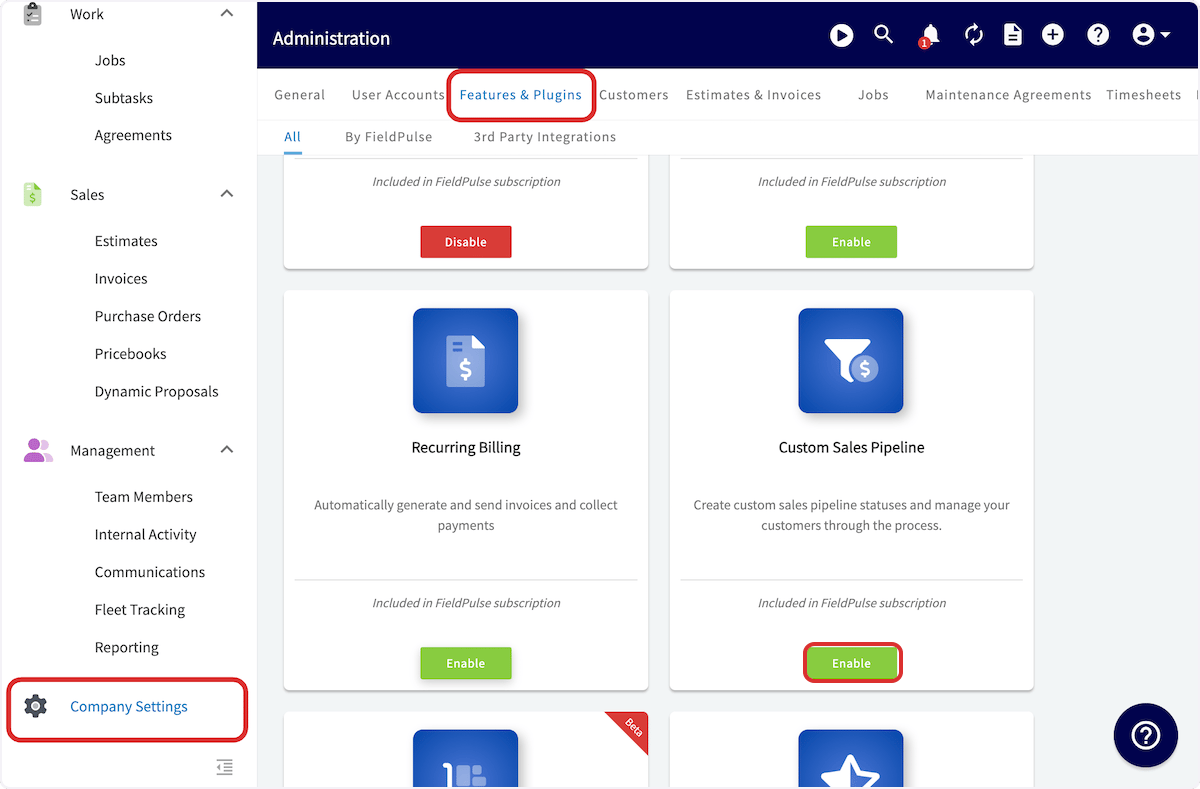
To begin using Custom Sales Pipeline, you'll first need to enable it. Start by clicking on *Company Settings* and selecting *Features & Plugins.* Navigate to *Custom Sales Pipeline* and select *Enable*. Now you're ready to begin customizing and tracking your customers through the process!
 ***
# **Customizing Pipeline Statuses**
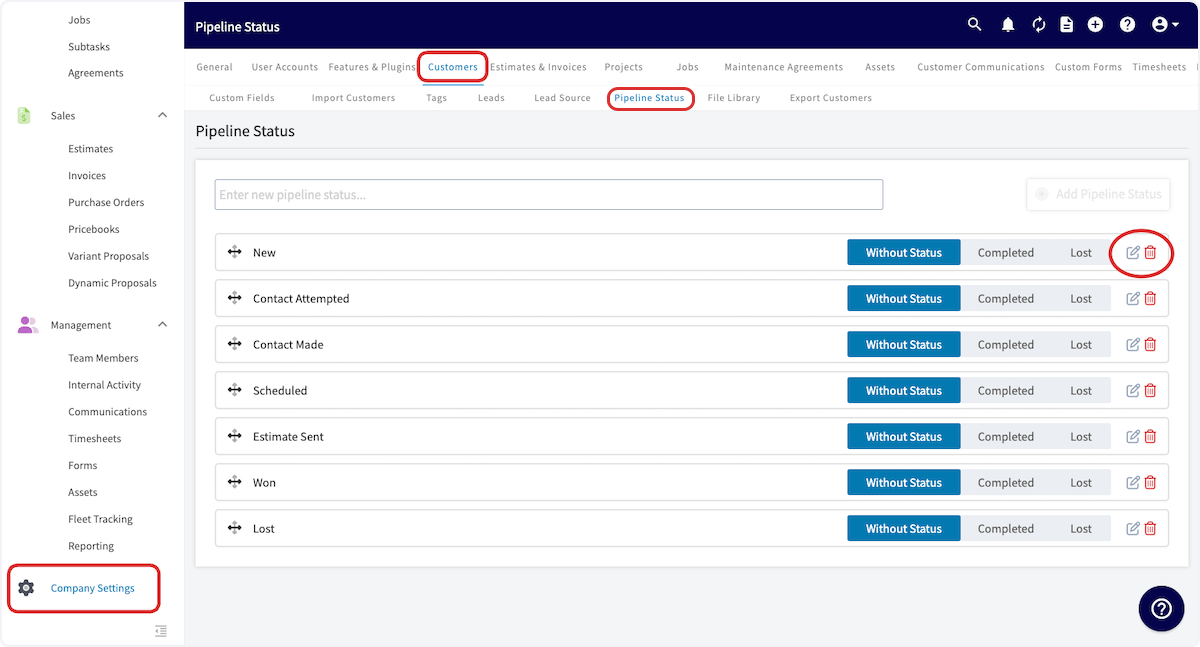
After enabling the Custom Sales Pipeline navigate to the *Customers* tab within *Company Settings* and click on *Pipeline Status*. On this page, you can edit any of the statuses by clicking on the pencil icon or delete any statuses by clicking on the trashcan icon.
***
# **Customizing Pipeline Statuses**
After enabling the Custom Sales Pipeline navigate to the *Customers* tab within *Company Settings* and click on *Pipeline Status*. On this page, you can edit any of the statuses by clicking on the pencil icon or delete any statuses by clicking on the trashcan icon.
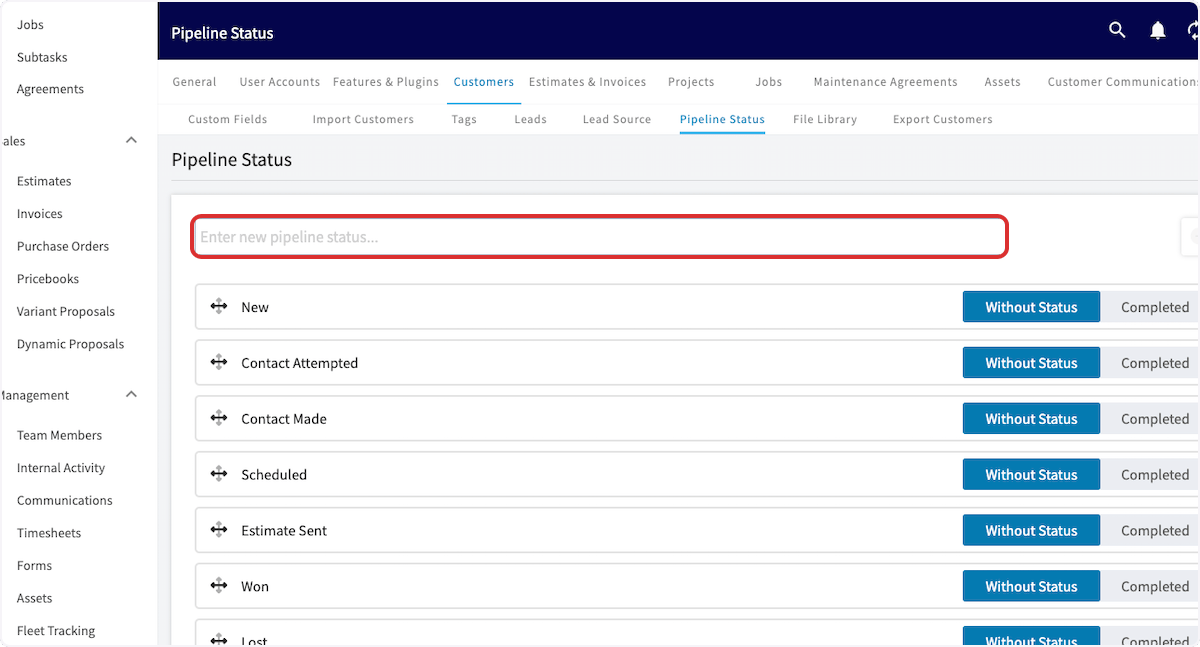
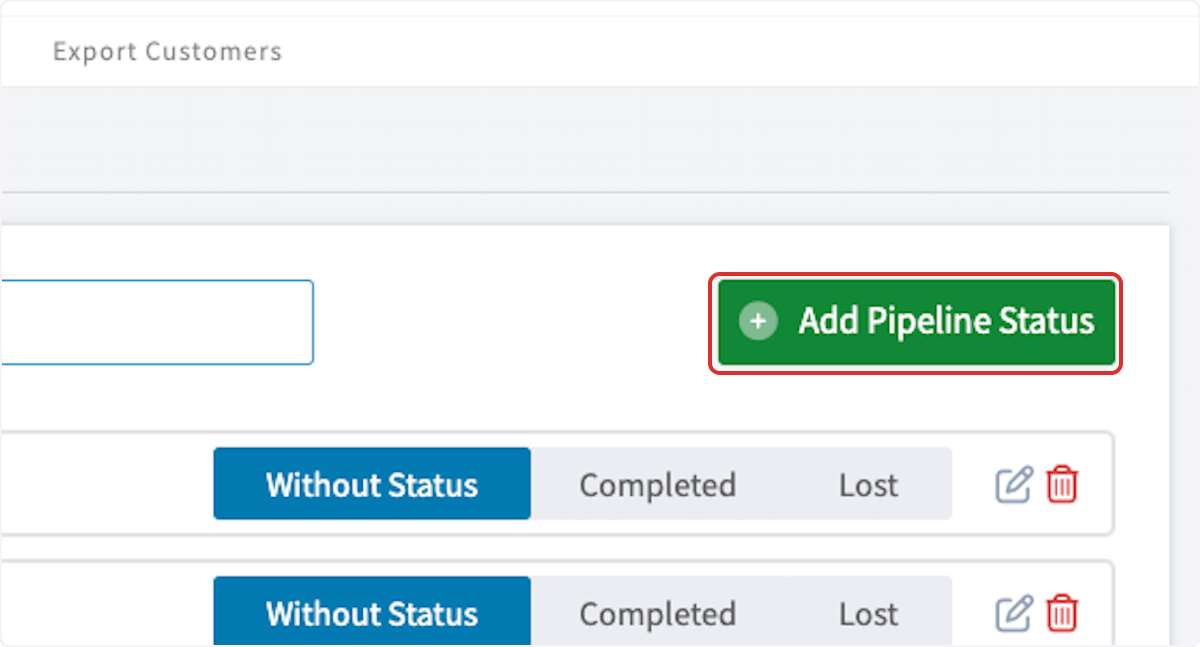
 To create your own status, type in the *Enter new pipeline status* field and select *Add Pipeline Status*.
 ***
# **Adding Statuses to Customers**
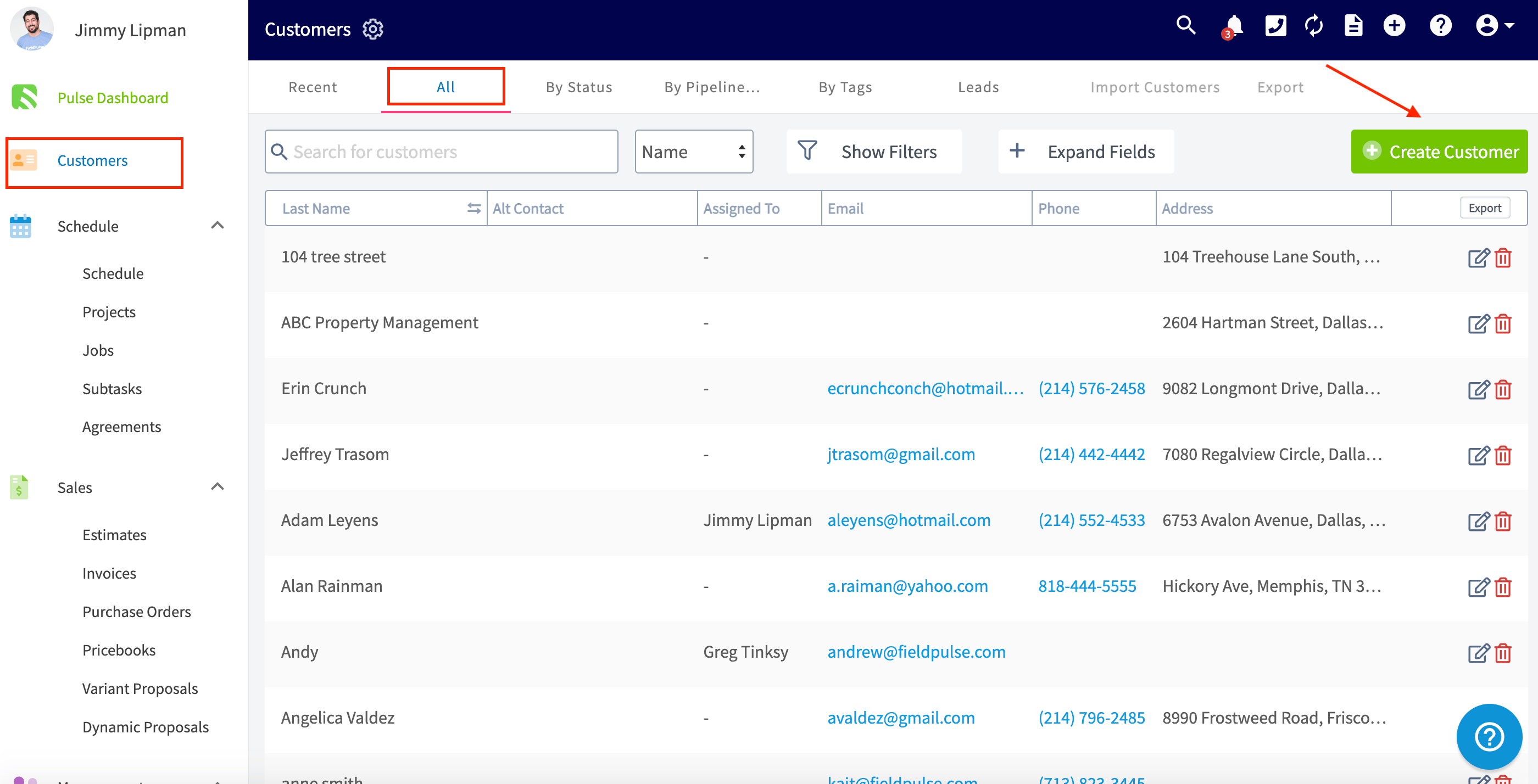
To add statuses to customers, navigate to the *Customers* tab on the left-side of your screen. To add a status to an existing customer, click on the customer's name to open their customer record and press *Edit*.
If the customer does not exist, click *Create Customer* to create a new customer.
***
# **Adding Statuses to Customers**
To add statuses to customers, navigate to the *Customers* tab on the left-side of your screen. To add a status to an existing customer, click on the customer's name to open their customer record and press *Edit*.
If the customer does not exist, click *Create Customer* to create a new customer.
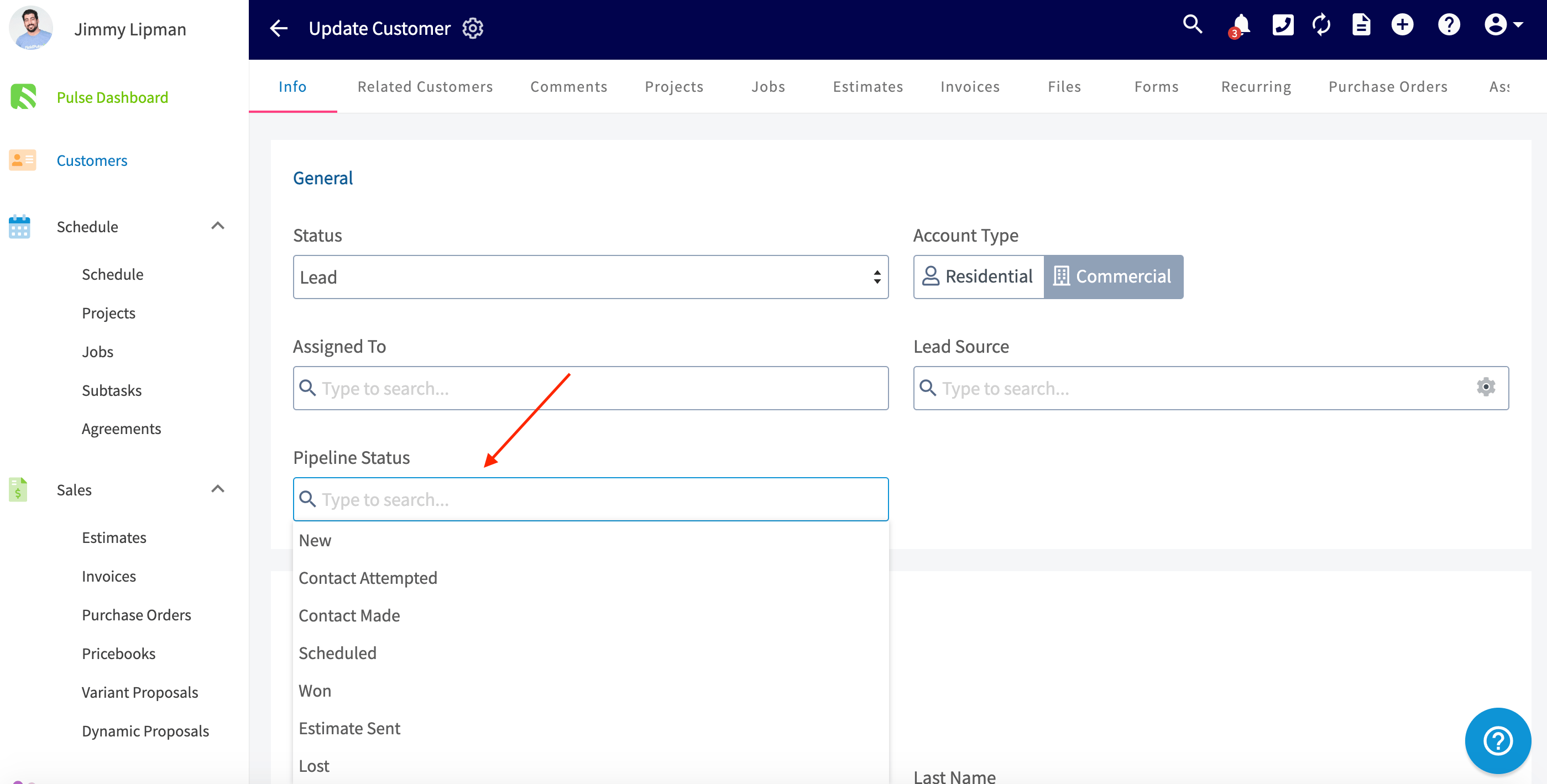
 Then, click on the *Pipeline Status* box to select and add a status to the customer.
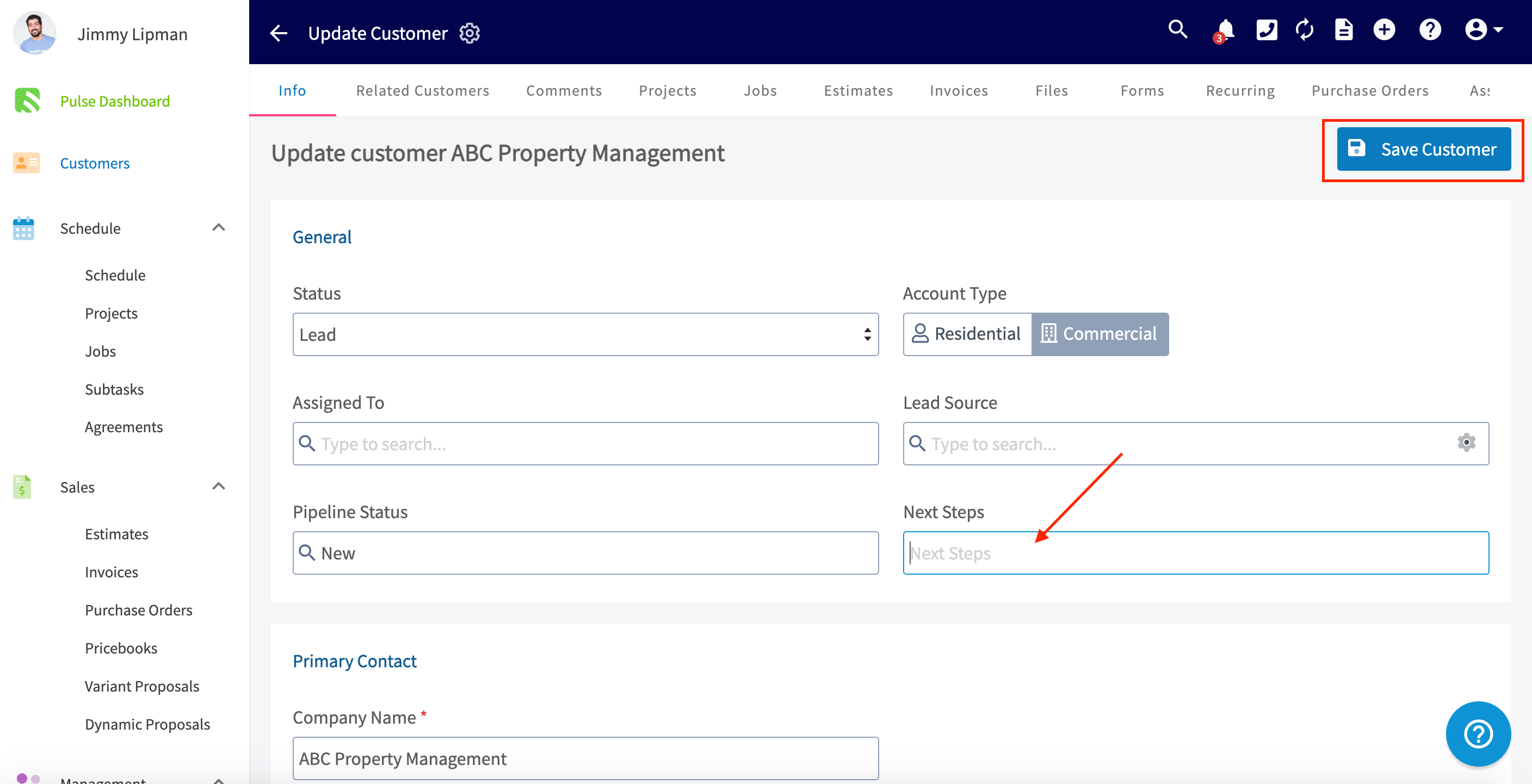
 After selecting the Pipeline Status, add *Next Steps* (if applicable) for this customer and press *Save Customer*.
 ***
# Sorting Customers by Pipeline Status
After adding statuses to your customers, you can manage the pipeline statuses by going to the *Customers* tab and clicking on *By Pipeline*. On this tab, you will see customers sorted by their pipeline status, next steps, and the monetary amount of their most recent estimate.
***
# Sorting Customers by Pipeline Status
After adding statuses to your customers, you can manage the pipeline statuses by going to the *Customers* tab and clicking on *By Pipeline*. On this tab, you will see customers sorted by their pipeline status, next steps, and the monetary amount of their most recent estimate.
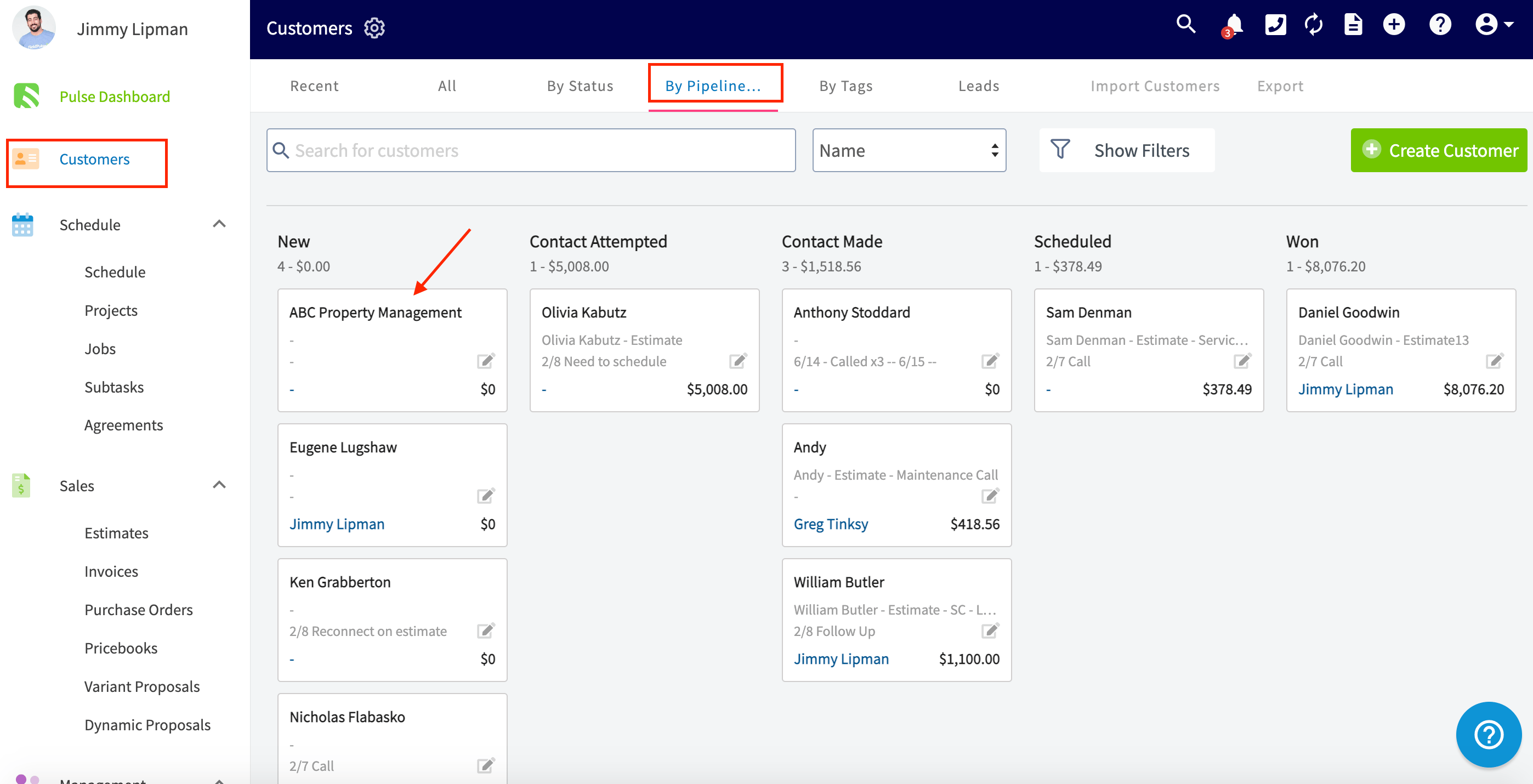 To change the pipeline status for customers, you can easily drag and drop the customer into a new column, automatically changing the pipeline status.
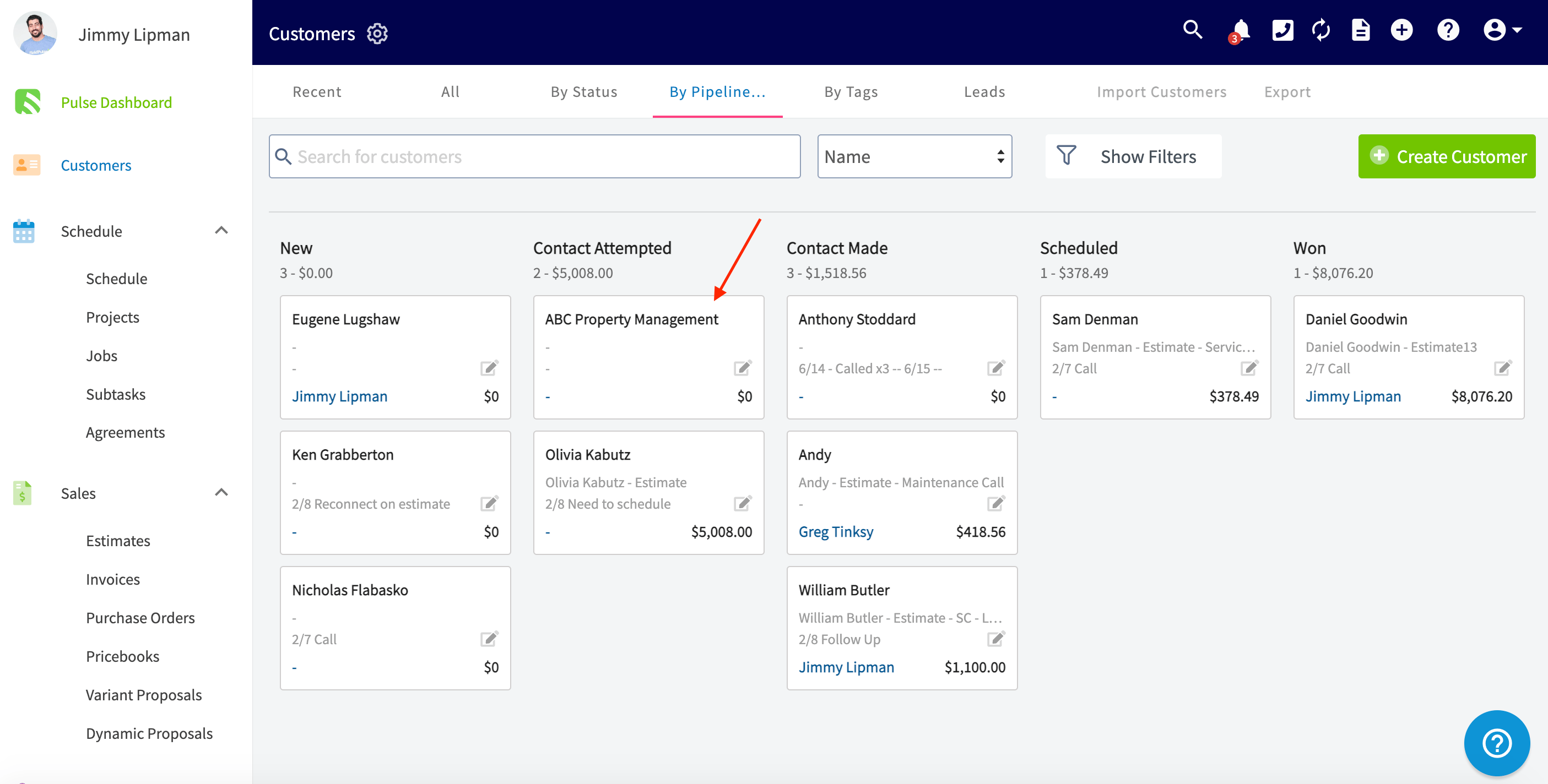 *(**Note:** When a customer has been marked as lost or completed for one week, they will no longer appear on the By Pipeline Status page. However, the status is still stored on their customer record.)*
***
# Video Tutorial
***
**Have additional questions?**
*Contact us at [support@fieldpulse.com](mailto:support@fieldpulse.com) or use the chat feature in the bottom right corner of your screen.*
*(**Note:** When a customer has been marked as lost or completed for one week, they will no longer appear on the By Pipeline Status page. However, the status is still stored on their customer record.)*
***
# Video Tutorial
***
**Have additional questions?**
*Contact us at [support@fieldpulse.com](mailto:support@fieldpulse.com) or use the chat feature in the bottom right corner of your screen.*