> ## Documentation Index
> Fetch the complete documentation index at: https://help.fieldpulse.com/llms.txt
> Use this file to discover all available pages before exploring further.
# Merging Duplicate Customer Records
> Combine two customer records into one and choose which details to keep, so no jobs, invoices, or history are lost.
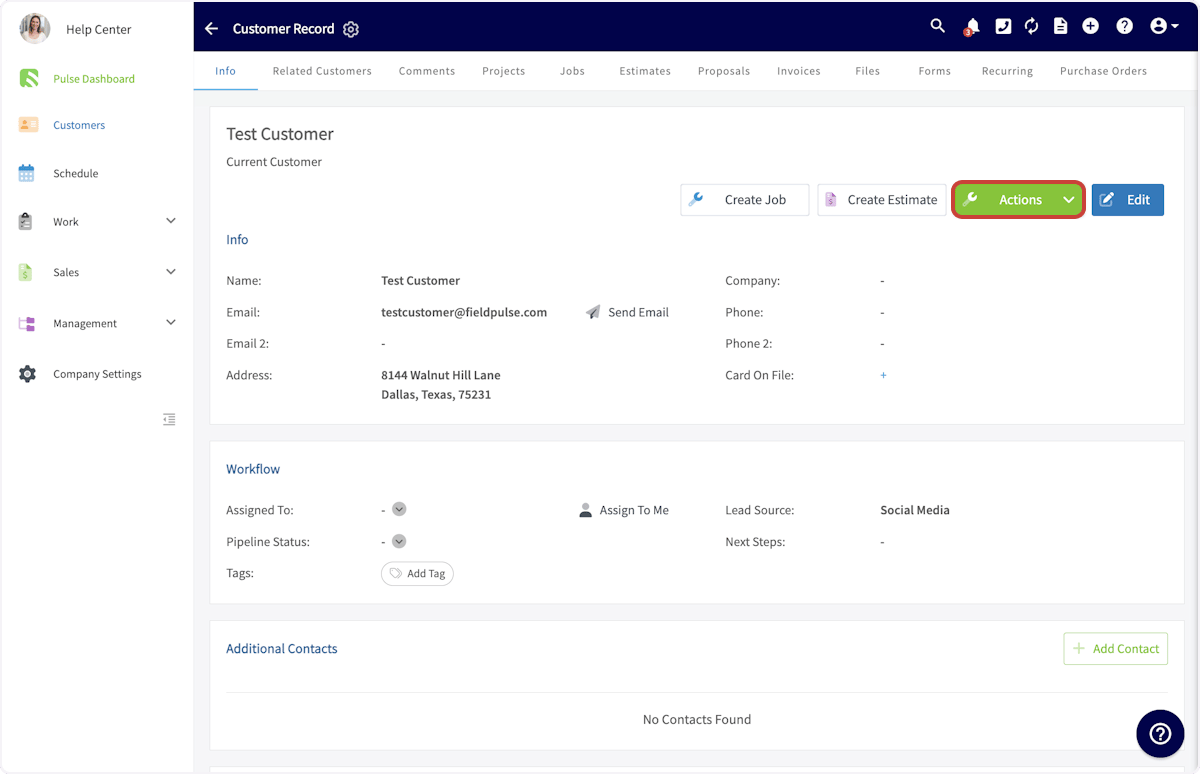
Merge duplicate customers without losing key details in FieldPulse! Begin by navigating to the customer record of a customer you'd like to merge and select *Actions*.
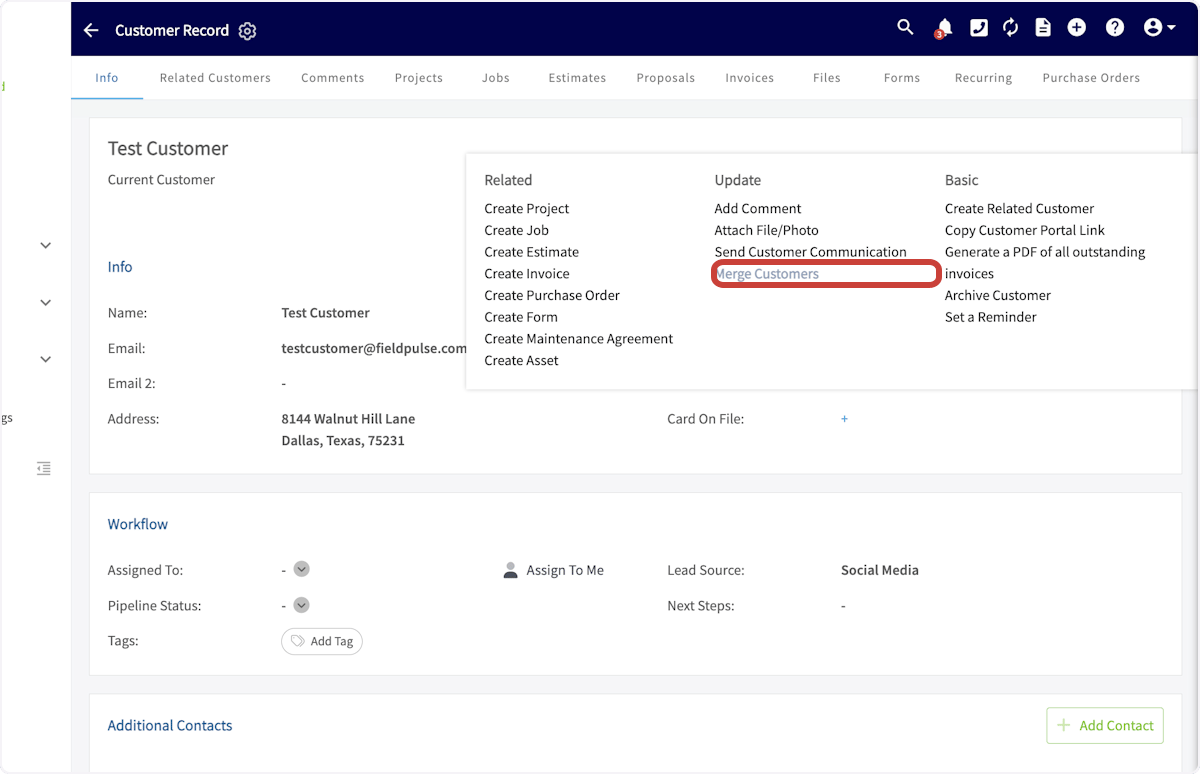
 Then, click *Merge Customers*.
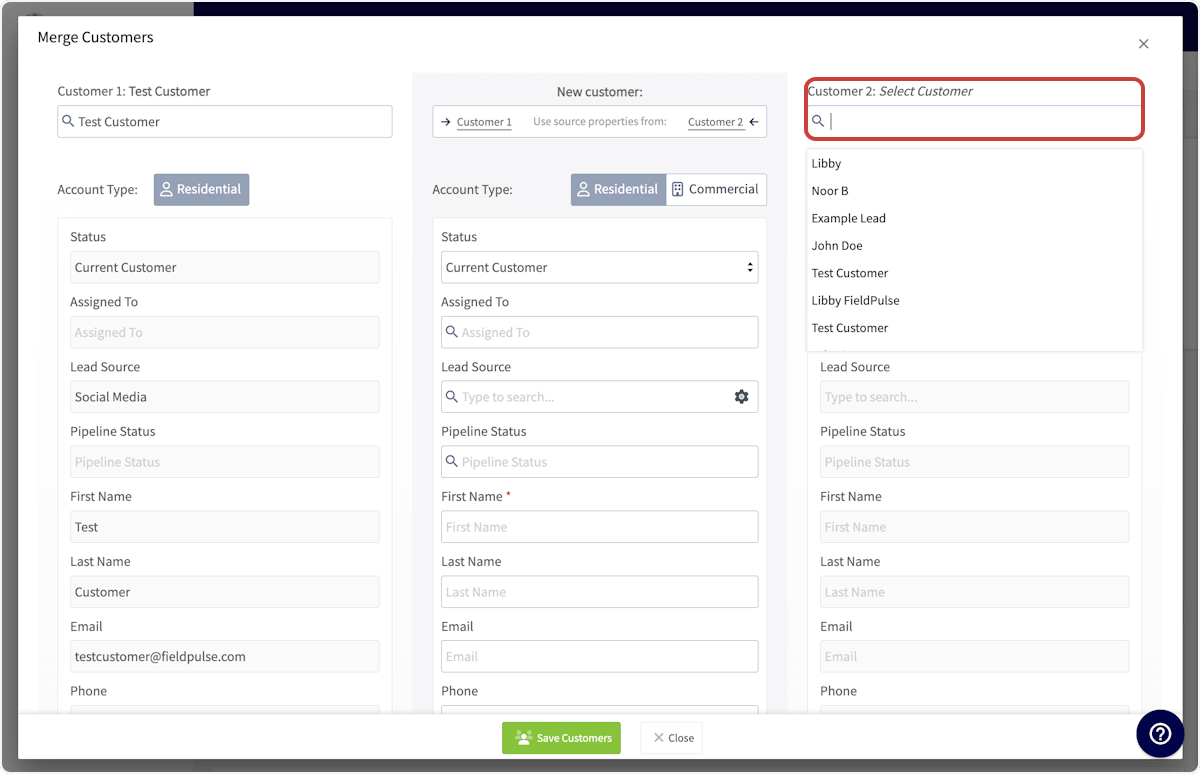
 You can now search for the second customer record you'd like to merge.
 If you'd like to use all the details of a single customer's record, use the *Customer 1* or *Customer 2* buttons at the top of the page.
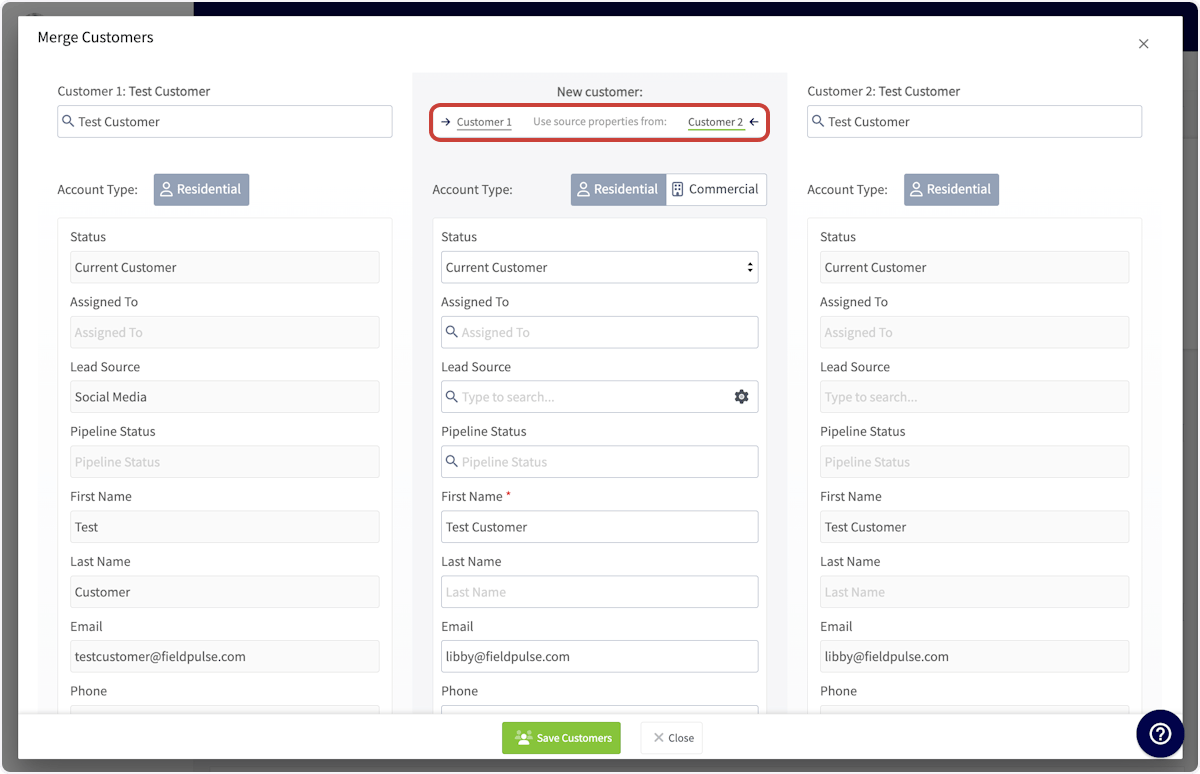 To pull individual details from each customer record, hover over a detail and select the arrow icon to include that detail in the merged customer record.
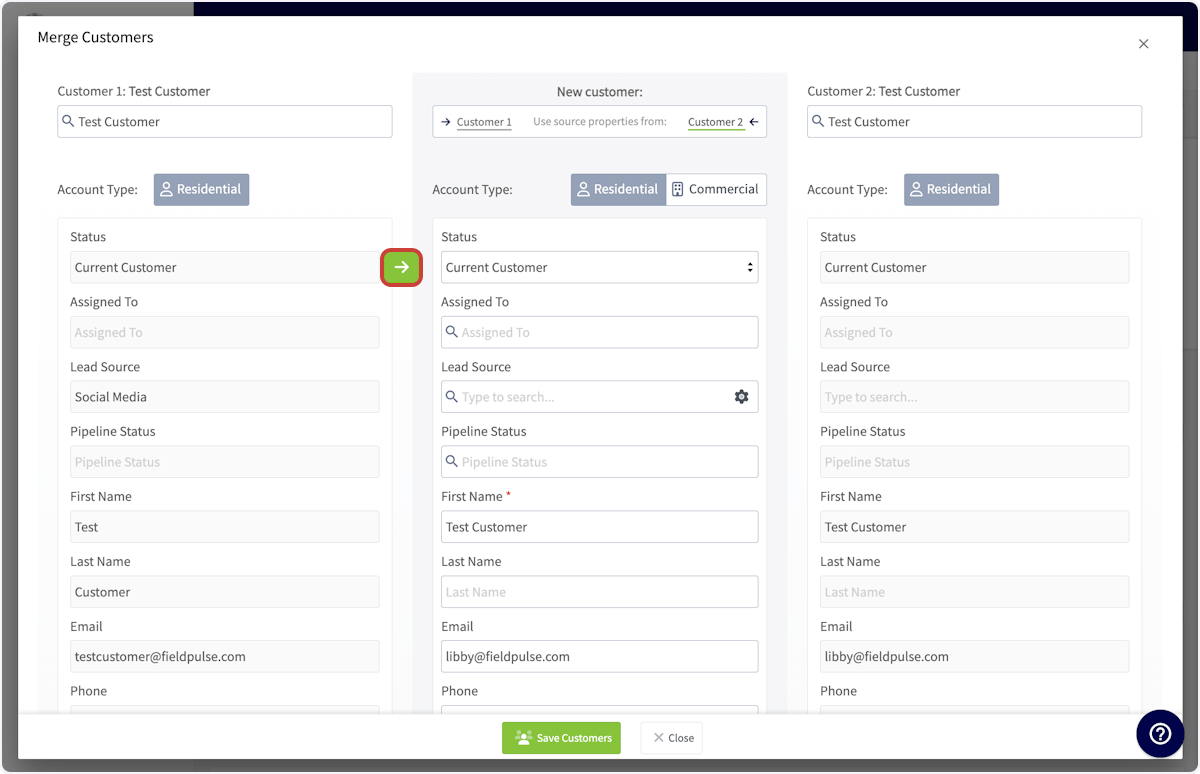 When you're satisfied with your merged customer record, displayed in the center column, press *Save Customers*. Your two customer records will now be merged into a single record, displaying the details you added to the center column.
***
# Video Tutorial
***
**Have additional questions?**
*Contact us at [support@fieldpulse.com](mailto:support@fieldpulse.com) or use the chat feature in the bottom right corner of your screen.*
When you're satisfied with your merged customer record, displayed in the center column, press *Save Customers*. Your two customer records will now be merged into a single record, displaying the details you added to the center column.
***
# Video Tutorial
***
**Have additional questions?**
*Contact us at [support@fieldpulse.com](mailto:support@fieldpulse.com) or use the chat feature in the bottom right corner of your screen.*