> ## Documentation Index
> Fetch the complete documentation index at: https://help.fieldpulse.com/llms.txt
> Use this file to discover all available pages before exploring further.
# Importing Serialized Inventory
> Bulk-load serialized inventory items with the mass import template so they're ready to add to estimates and invoices.
You can easily import your serialized inventory items into FieldPulse for use when creating Estimates and Invoices by utilizing our mass import tool.
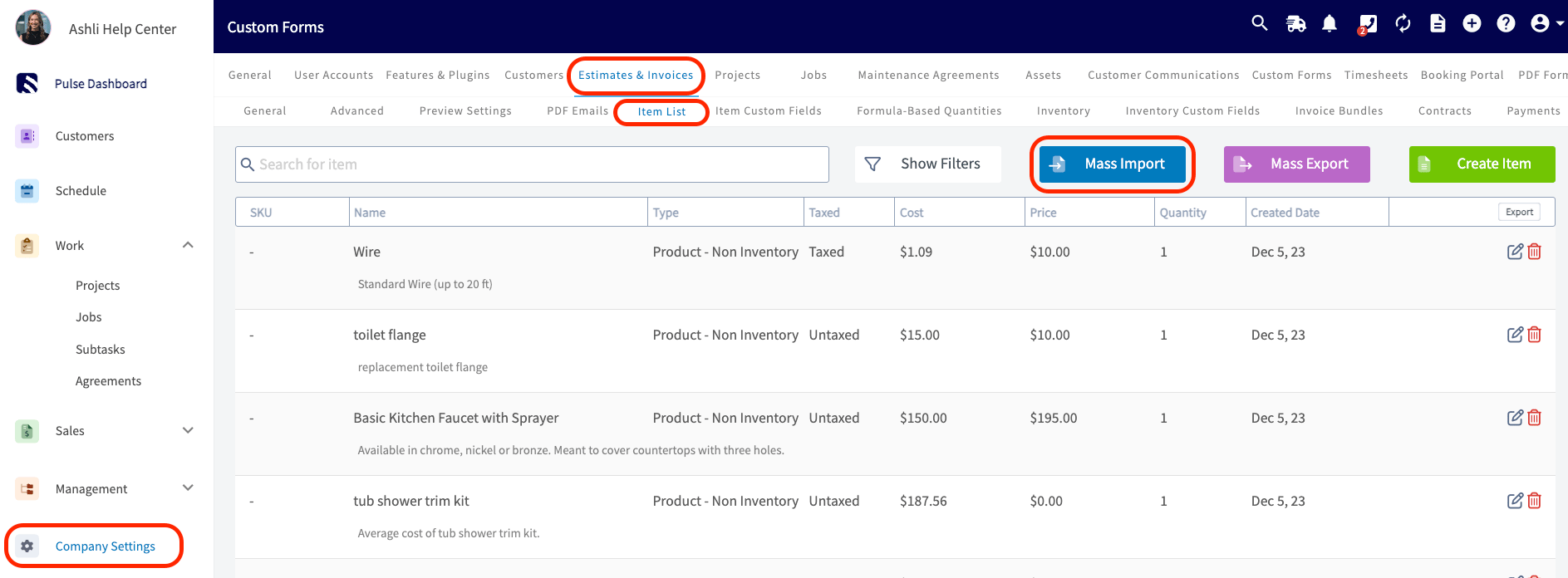
Begin by clicking *Company Settings* in the left-side menu, then click *Estimates & Invoices*. On that page click on *Item List* in the sub-header. From here, select *Mass* *Import*.
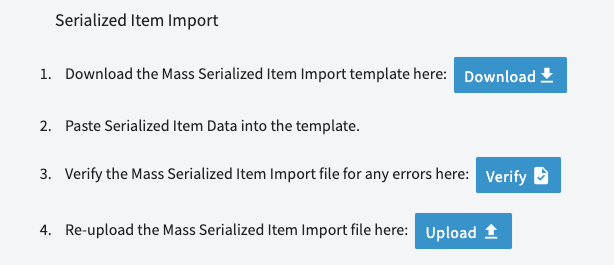
 Follow the on-screen prompts to download the *Mass Serialized Item Import* template. ***(Note: If you do not have Excel, you can always utilize Google Sheets. [the Google Sheets import guide](/using-fieldpulse/data-imports-exports/self-importing-data-with-google-sheets) to learn how)***. You will need to fill in the template, ensuring that you **do not** alter the structure of the form.
 ## **Quick Tips for Success with the Import Sheet:**
* Item names should all be ***unique***
* **Do not** use equations in the 'Unit Cost' or 'Unit Price' Fields
* **Do not** put spaces after the commas in the 'Tags' Field
* Item SKUs must be ***unique*** - they can be alphanumeric
* Make sure to choose whether the item is a 'Product' or a 'Service'
After completing the template, verify the data you are trying to import by clicking the *Verify* button. Our system will flag any errors or missing required information. This step will ensure that the data you enter is accurate from the start, so you don’t waste time trying to troubleshoot issues with multiple reimports.
Fields with errors or missing information will appear in red. In the image below, you can see in the top right corner that out of the two total records I am trying to import, one of the records have invalid or missing information.
## **Quick Tips for Success with the Import Sheet:**
* Item names should all be ***unique***
* **Do not** use equations in the 'Unit Cost' or 'Unit Price' Fields
* **Do not** put spaces after the commas in the 'Tags' Field
* Item SKUs must be ***unique*** - they can be alphanumeric
* Make sure to choose whether the item is a 'Product' or a 'Service'
After completing the template, verify the data you are trying to import by clicking the *Verify* button. Our system will flag any errors or missing required information. This step will ensure that the data you enter is accurate from the start, so you don’t waste time trying to troubleshoot issues with multiple reimports.
Fields with errors or missing information will appear in red. In the image below, you can see in the top right corner that out of the two total records I am trying to import, one of the records have invalid or missing information.
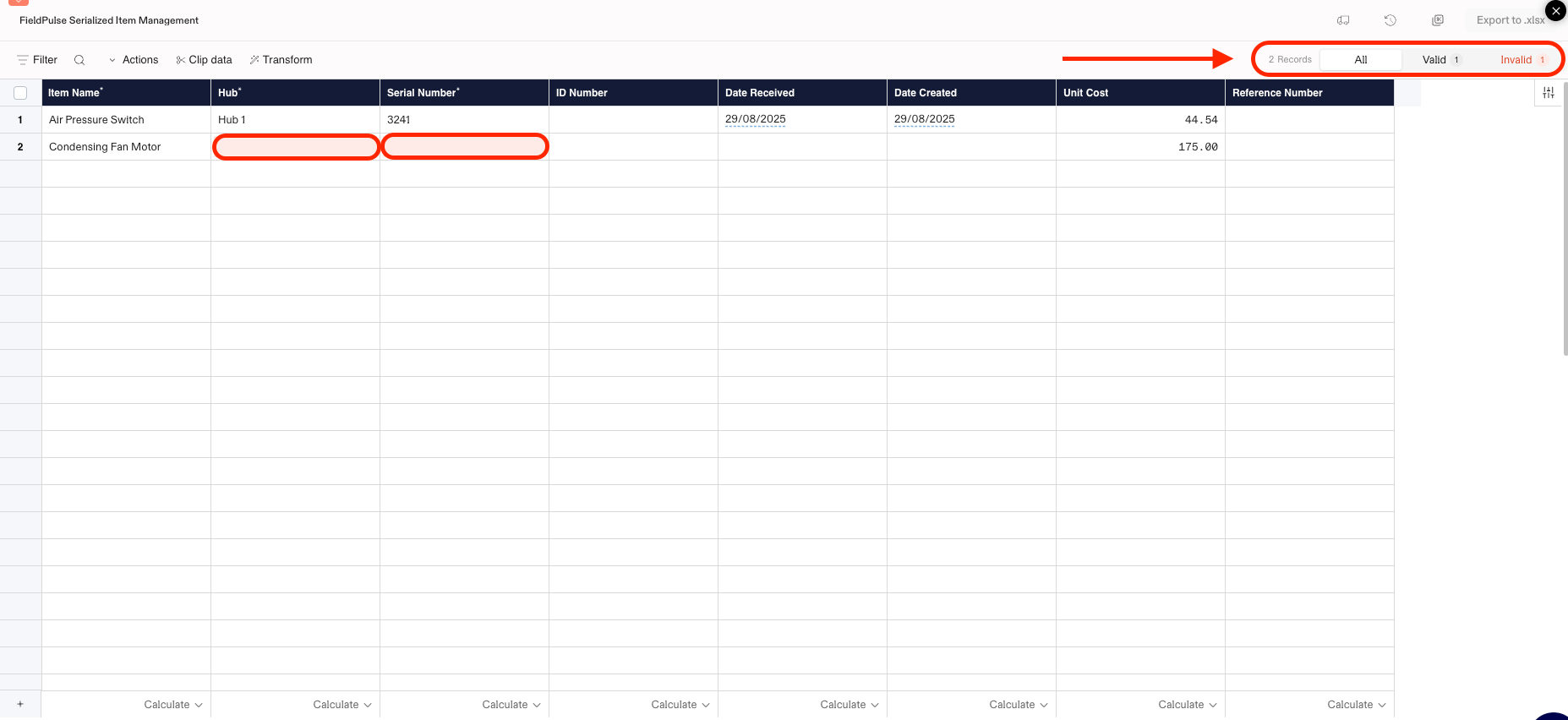 After editing the invalid fields, please ensure that all information is valid and that all records are marked as *Valid* in the top right corner of the screen, as shown in the image below. Once confirmed, you can export the data by clicking the *Export to .xlsx* button.
 After exporting your verified item data, re-upload it into FieldPulse by using the *Upload* button, as shown in step 4 above.
***
**Have additional questions?**
*Contact us at [support@fieldpulse.com](mailto:support@fieldpulse.com) or use the chat feature in the bottom right corner of your screen.*
After exporting your verified item data, re-upload it into FieldPulse by using the *Upload* button, as shown in step 4 above.
***
**Have additional questions?**
*Contact us at [support@fieldpulse.com](mailto:support@fieldpulse.com) or use the chat feature in the bottom right corner of your screen.*