> ## Documentation Index
> Fetch the complete documentation index at: https://help.fieldpulse.com/llms.txt
> Use this file to discover all available pages before exploring further.
# Self-Importing Data with Google Sheets
> Complete the four-step customer, line-item, and custom-field import using Google Sheets when you don't have Excel.
Within FieldPulse their are times when you can self-import information. This can be done for Customers, Line Items, and Custom Fields. You will be prompted to follow four simple steps as shown below.
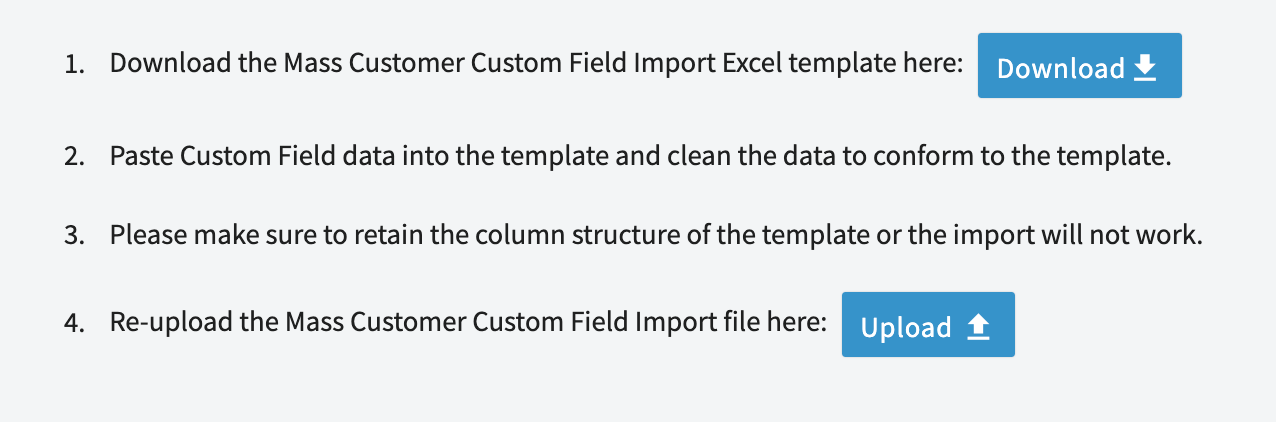 For step one, it asks you to download an Excel template. If you do not have Excel, do not stress! We are going to walk through how to use Google Sheets to complete this same task.
***
# Uploading the Excel Template into Google Sheets
After pressing the blue *Download* button to download the Excel template to your computer, we will then open Google Sheets in a tab on your web browser. Then click on the *Blank Spreadsheet* option to open a new Google Sheet.
For step one, it asks you to download an Excel template. If you do not have Excel, do not stress! We are going to walk through how to use Google Sheets to complete this same task.
***
# Uploading the Excel Template into Google Sheets
After pressing the blue *Download* button to download the Excel template to your computer, we will then open Google Sheets in a tab on your web browser. Then click on the *Blank Spreadsheet* option to open a new Google Sheet.
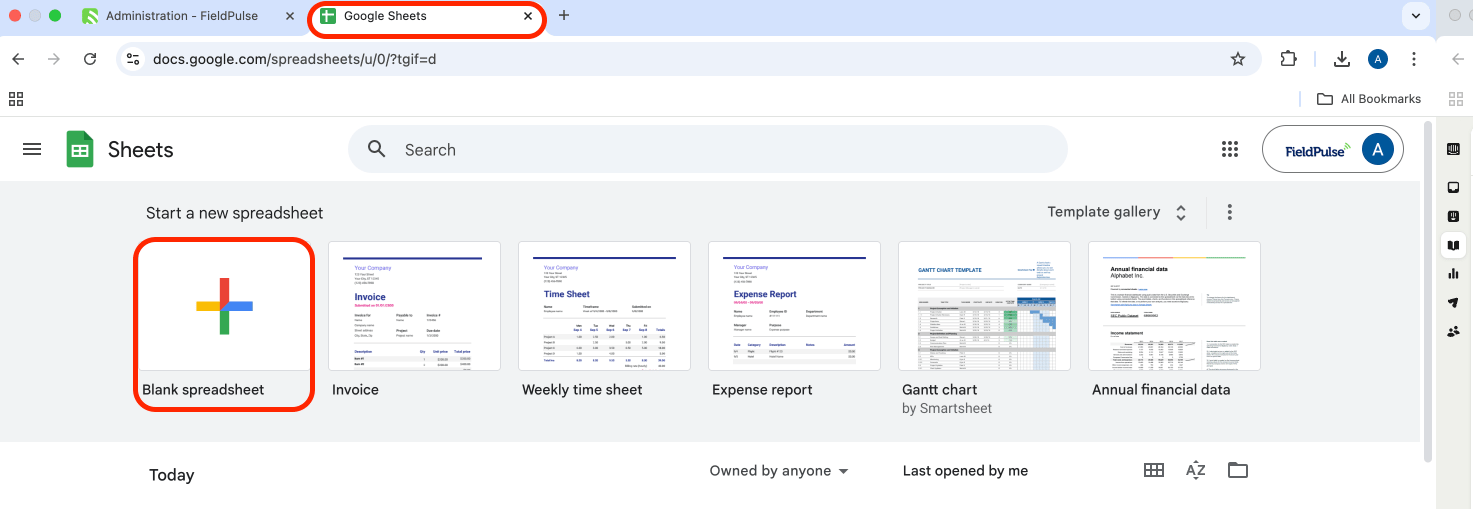 With the new spreadsheet open, go to *File* and then click *Open*.
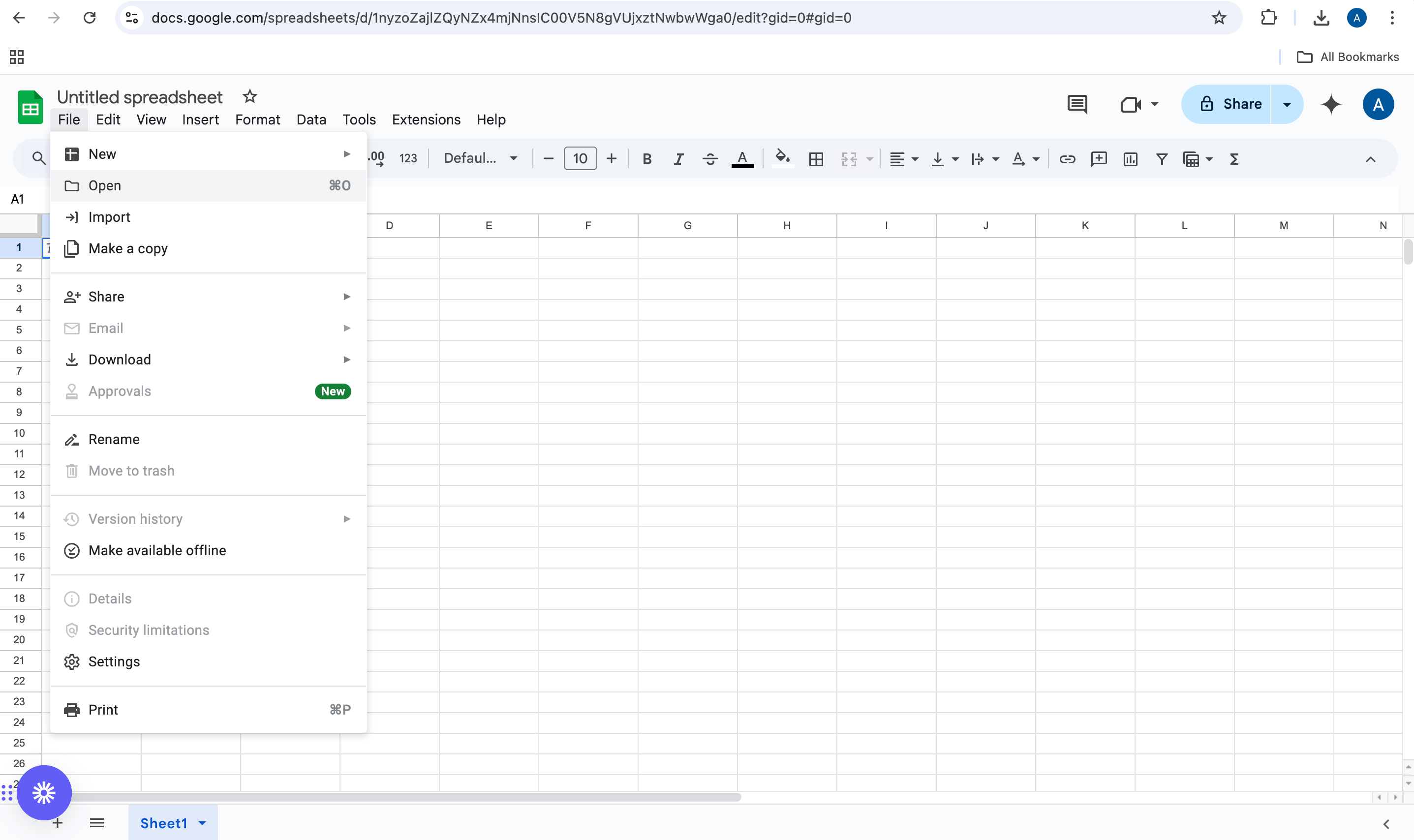 After selecting *Open*, click on *Upload*.
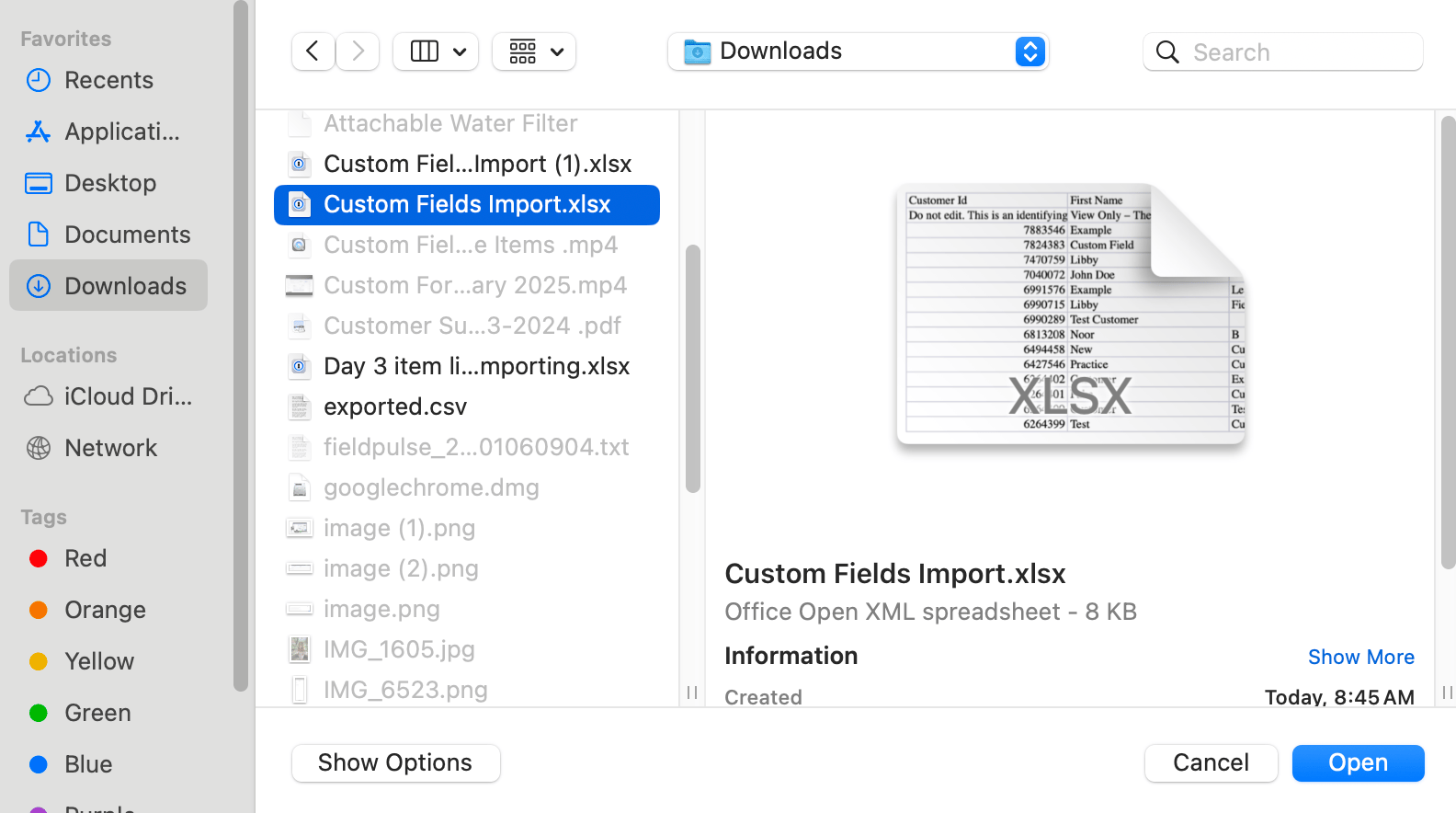
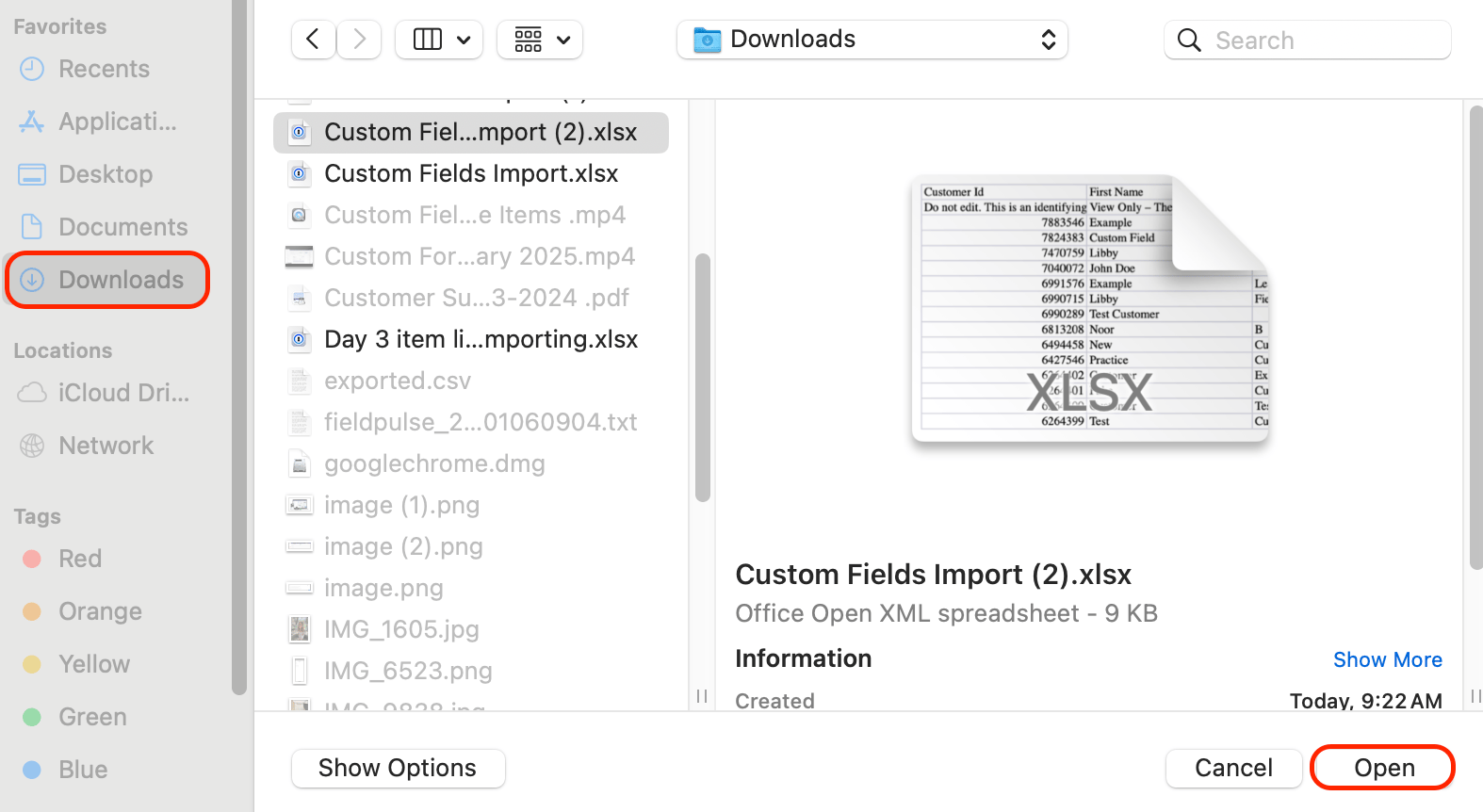
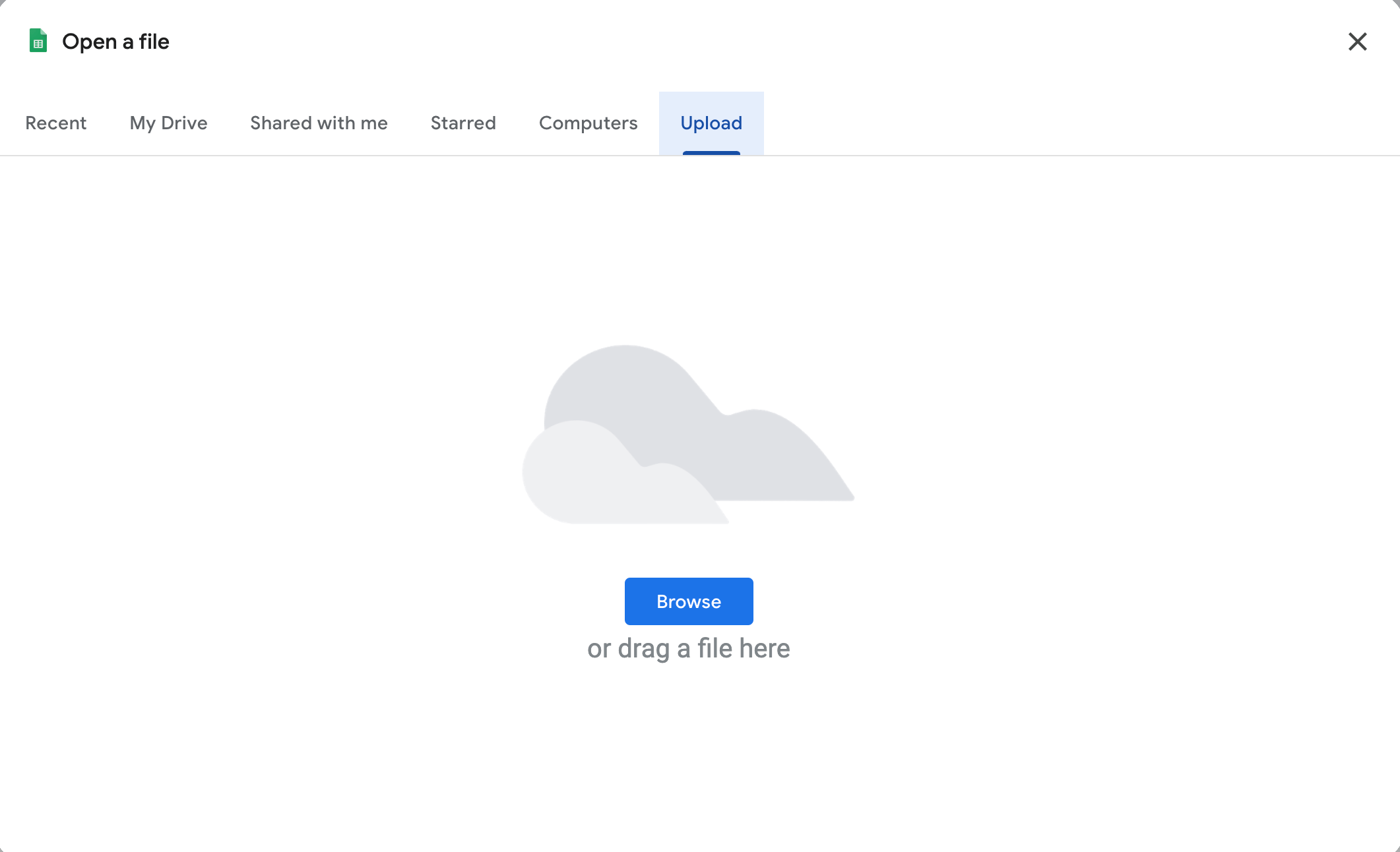 You will then need to search your computer for the Excel template file that we downloaded from FieldPulse in step one. Once you've located the file, press *Open*.
 ***
# Adding to/Editing the Spreadsheet
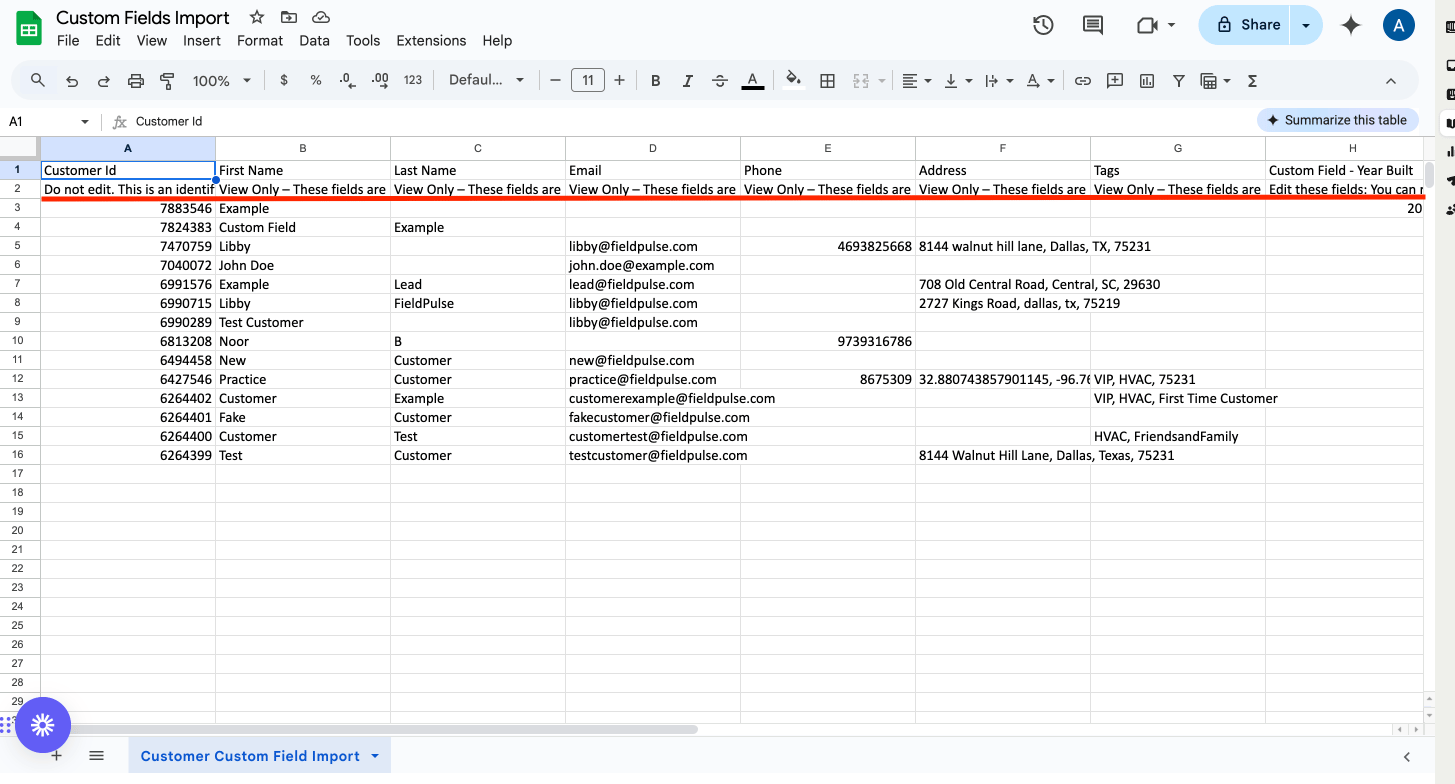
The template has successfully been imported and you are ready to get started! ***Note that the cells above the red line should not be edited.*** Please read the instructions carefully. Go ahead and add/edit necessary information.
***
# Adding to/Editing the Spreadsheet
The template has successfully been imported and you are ready to get started! ***Note that the cells above the red line should not be edited.*** Please read the instructions carefully. Go ahead and add/edit necessary information.
 ***
# Downloading the Spreadsheet then Uploading Again to FieldPulse
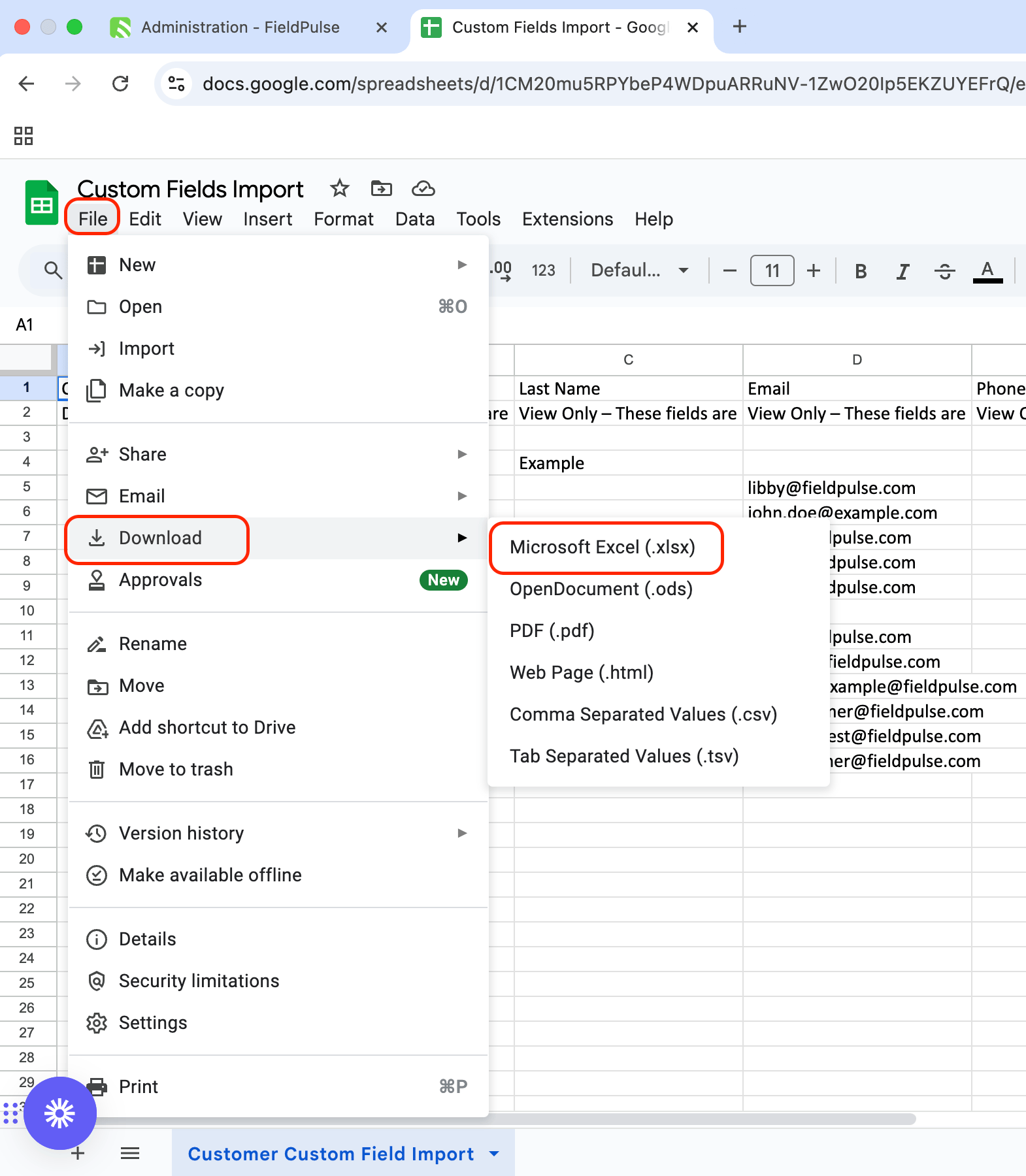
When you are done entering/editing the information on the spreadsheet we will download this form so these changes can be reflected on FieldPulse. Go to *File*, then hover your mouse over where it says *Download*. By doing this it will provide you with choices. In this case, choose *Microsoft Excel (.xlsx)*. This will then initiate the download of this spreadsheet to your computer.
***
# Downloading the Spreadsheet then Uploading Again to FieldPulse
When you are done entering/editing the information on the spreadsheet we will download this form so these changes can be reflected on FieldPulse. Go to *File*, then hover your mouse over where it says *Download*. By doing this it will provide you with choices. In this case, choose *Microsoft Excel (.xlsx)*. This will then initiate the download of this spreadsheet to your computer.
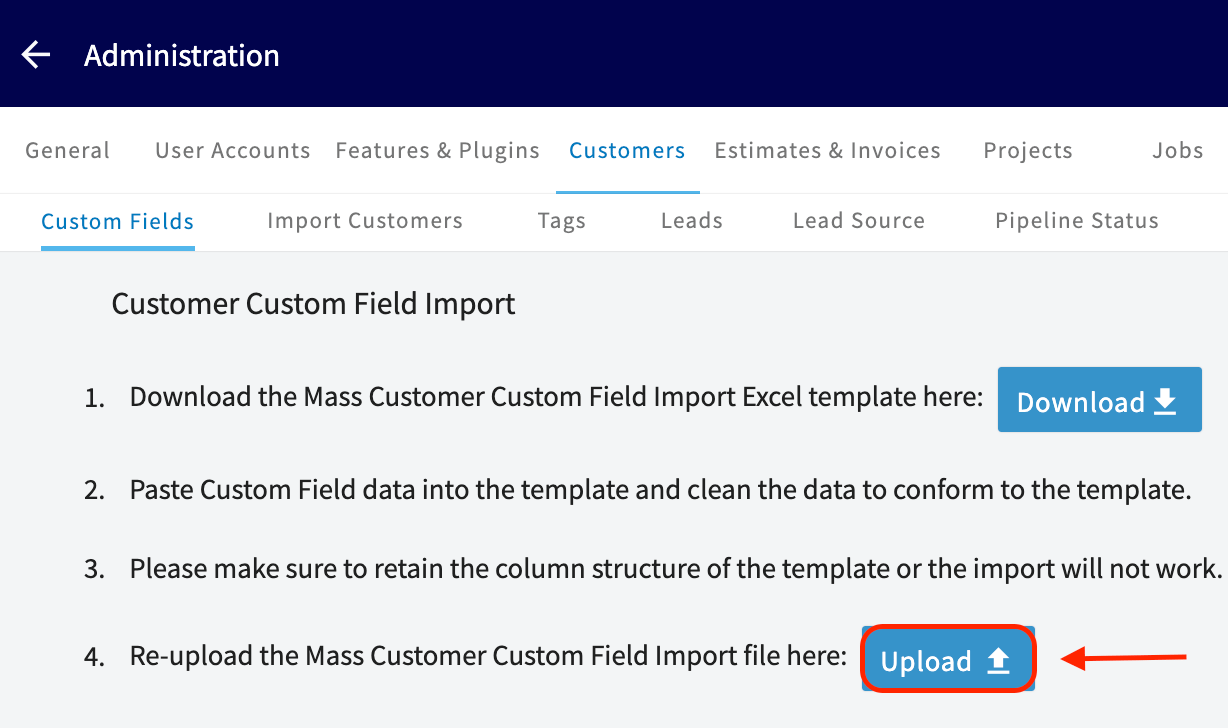
 Head back to your web browser and find the tab where you previously had FieldPulse open. It is now time to upload your spreadsheet back into FieldPulse. Click on the blue *Upload* button.
 Locate the spreadsheet w previously downloaded, click on it, and then press Open.
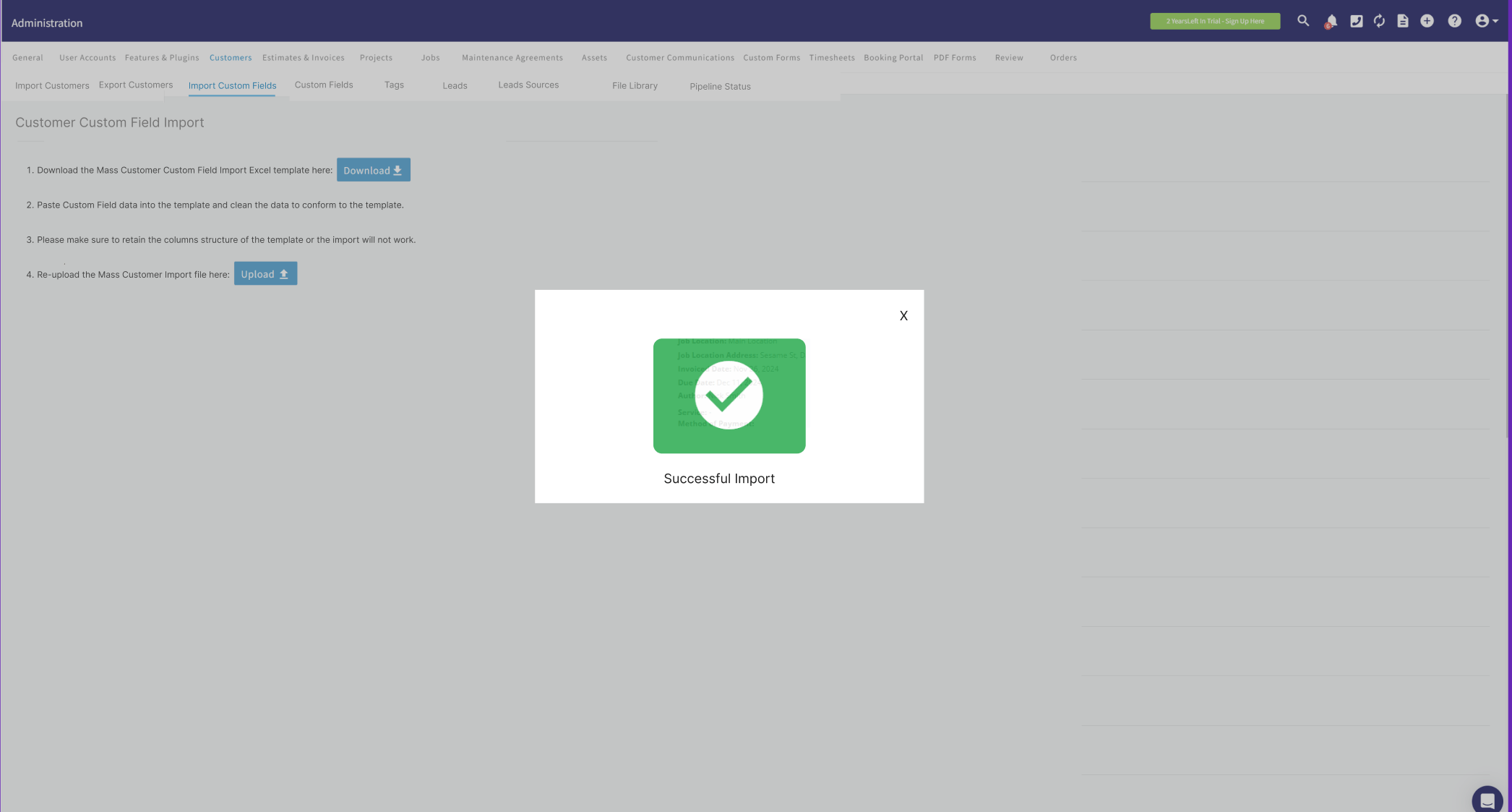
 It may take some time for this to upload onto our system depending on how much data was entered on the spreadsheet. FieldPulse will let you know when everything was successfully uploaded!
 ***
**Have additional questions?**
*Contact us at [support@fieldpulse.com](mailto:support@fieldpulse.com) or use the chat feature in the bottom right corner of your screen.*
***
**Have additional questions?**
*Contact us at [support@fieldpulse.com](mailto:support@fieldpulse.com) or use the chat feature in the bottom right corner of your screen.*