> ## Documentation Index
> Fetch the complete documentation index at: https://help.fieldpulse.com/llms.txt
> Use this file to discover all available pages before exploring further.
# Marking Payments
> Record full or partial payments against an invoice to flip it to Paid or Partially Paid and keep balances due accurate.
# Overview
Once your customer has paid, you can mark their payment on the corresponding invoice record. Payment records are required in order to mark the invoice as *Paid* or *Partially Paid*. This allows you to record full or partial payments made by the customer and automatically keep track of balances due.
If you'd like to collect payments in FieldPulse instead of marking payments, visit the [Collecting Payments article](/using-fieldpulse/payments/how-to/collecting-payments-3-general-methods).
***
# On Web: Admin Experience
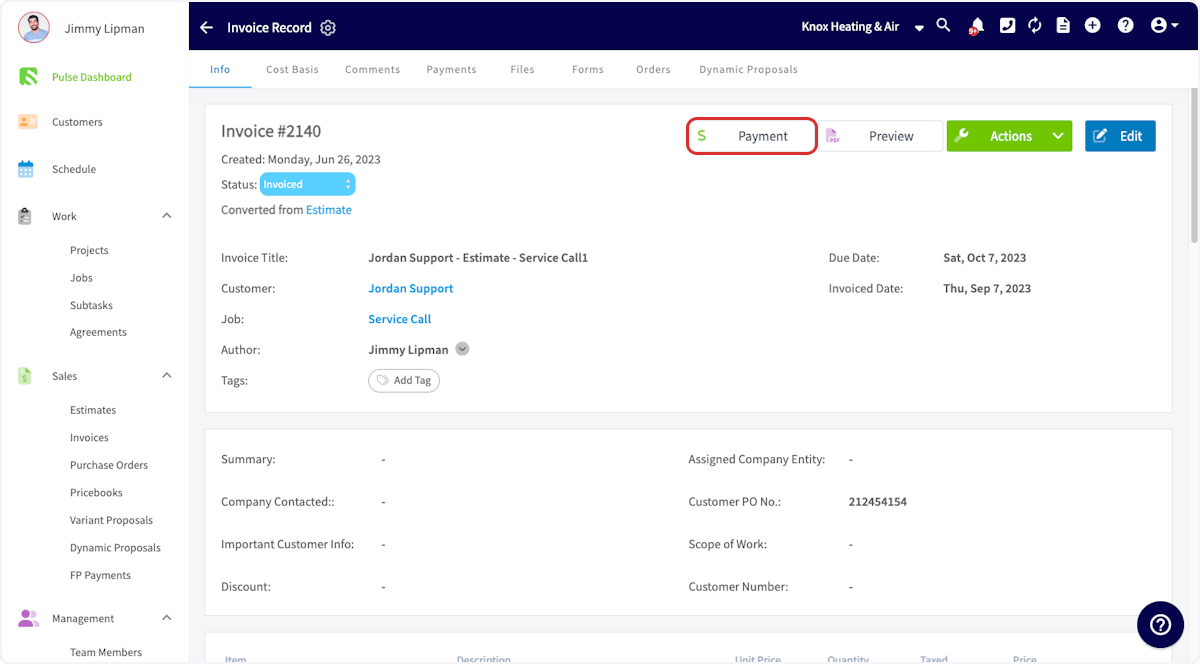
When an invoice has been paid, open the invoice record that you want to apply a payment to. On the invoice record, click *Payment*.
 This will pop up a window where you can process a credit card **if** you're using our built in payments system. To mark a payment manually, click *Mark Payment*.
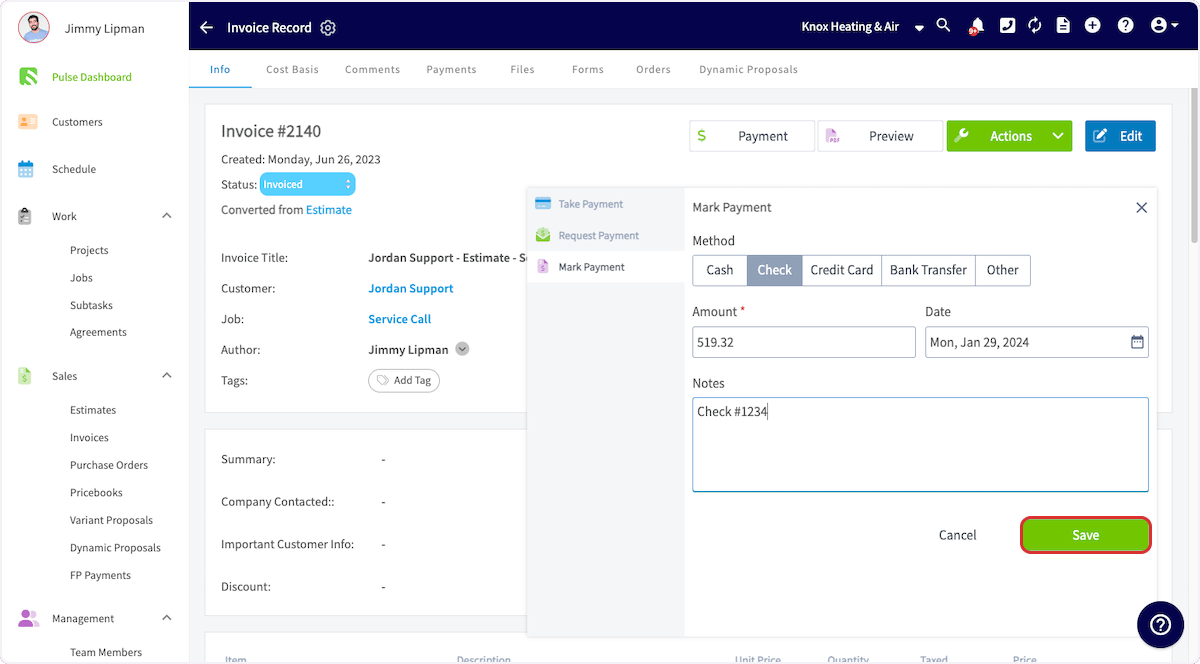
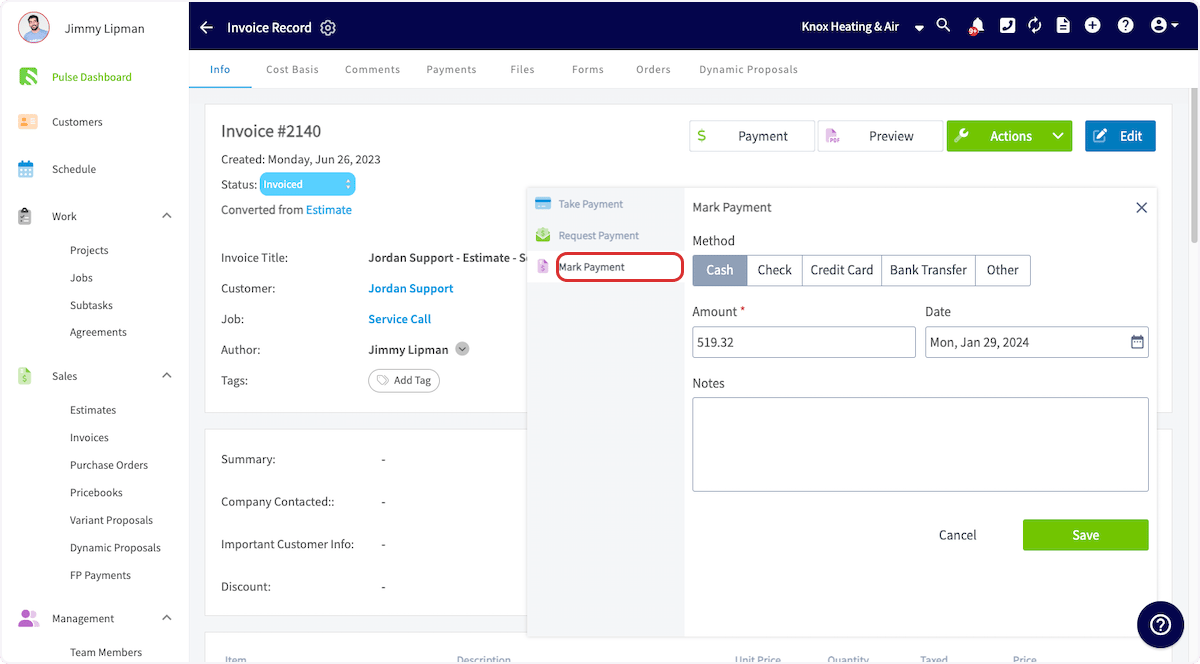 Enter the payment method, confirm the amount and date, and add any notes. Then click *Save*.
 You can find the payment records under the *Payments* tab on the invoice record. Deleting or modifying the payment records will change the invoice status.
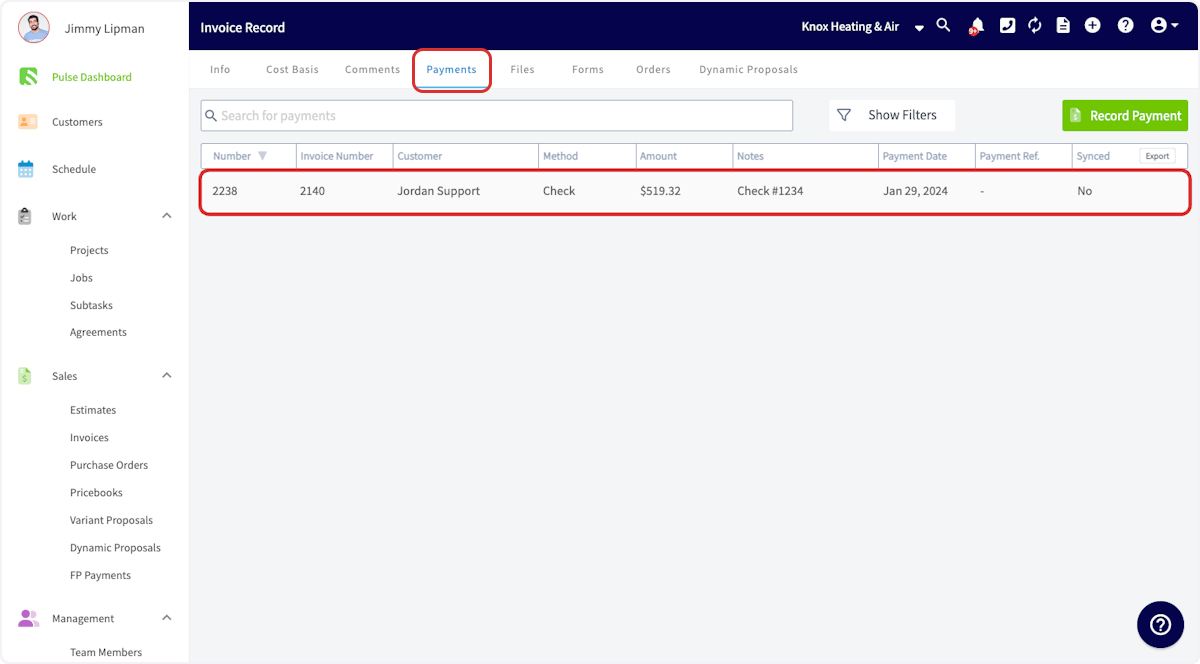 After the full payment record has been attached to the invoice, the invoice will marked as *Paid*. If the payments made are less than the total invoice amount, the status will read *Partially Paid*. If the invoice is moved back to a previous status or marked void, the payment records will be removed automatically.
## Marking Bulk Payments
You can also mark multiple invoices as paid at once. Navigate to your Invoices list, then click the pencil icon. Select each invoice you'd like to mark as paid using the checkbox. You can adjust the payment method, date, and notes before saving the payment record. *(**Note:** This is only used to mark payments, not to collect payments.)*
***
# On Mobile: Field Experience
## Select an Invoice
To begin, select the invoice on which you would like to apply payment. Select the *Sales* tab at the bottom of your screen, then click *Invoices*.
After the full payment record has been attached to the invoice, the invoice will marked as *Paid*. If the payments made are less than the total invoice amount, the status will read *Partially Paid*. If the invoice is moved back to a previous status or marked void, the payment records will be removed automatically.
## Marking Bulk Payments
You can also mark multiple invoices as paid at once. Navigate to your Invoices list, then click the pencil icon. Select each invoice you'd like to mark as paid using the checkbox. You can adjust the payment method, date, and notes before saving the payment record. *(**Note:** This is only used to mark payments, not to collect payments.)*
***
# On Mobile: Field Experience
## Select an Invoice
To begin, select the invoice on which you would like to apply payment. Select the *Sales* tab at the bottom of your screen, then click *Invoices*.
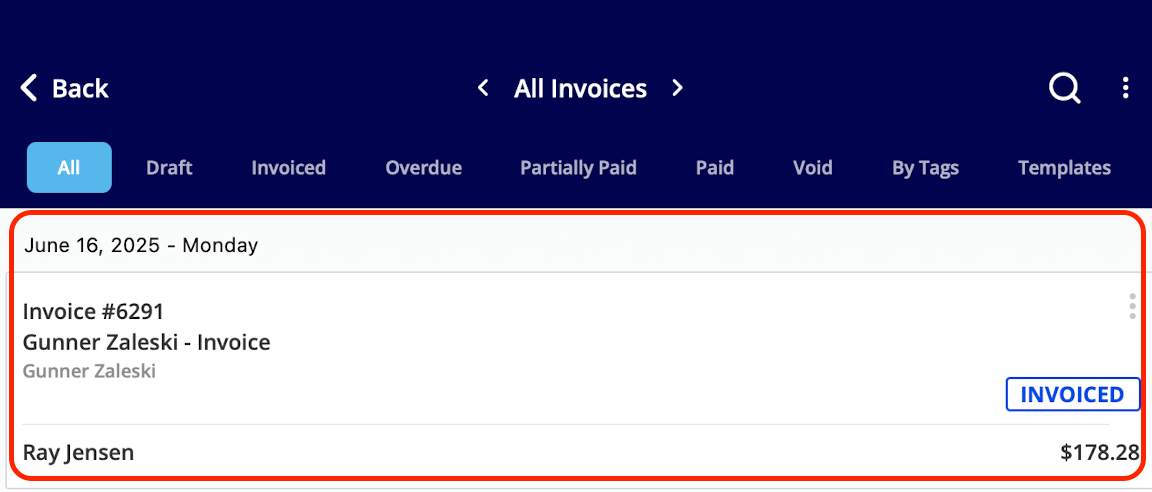
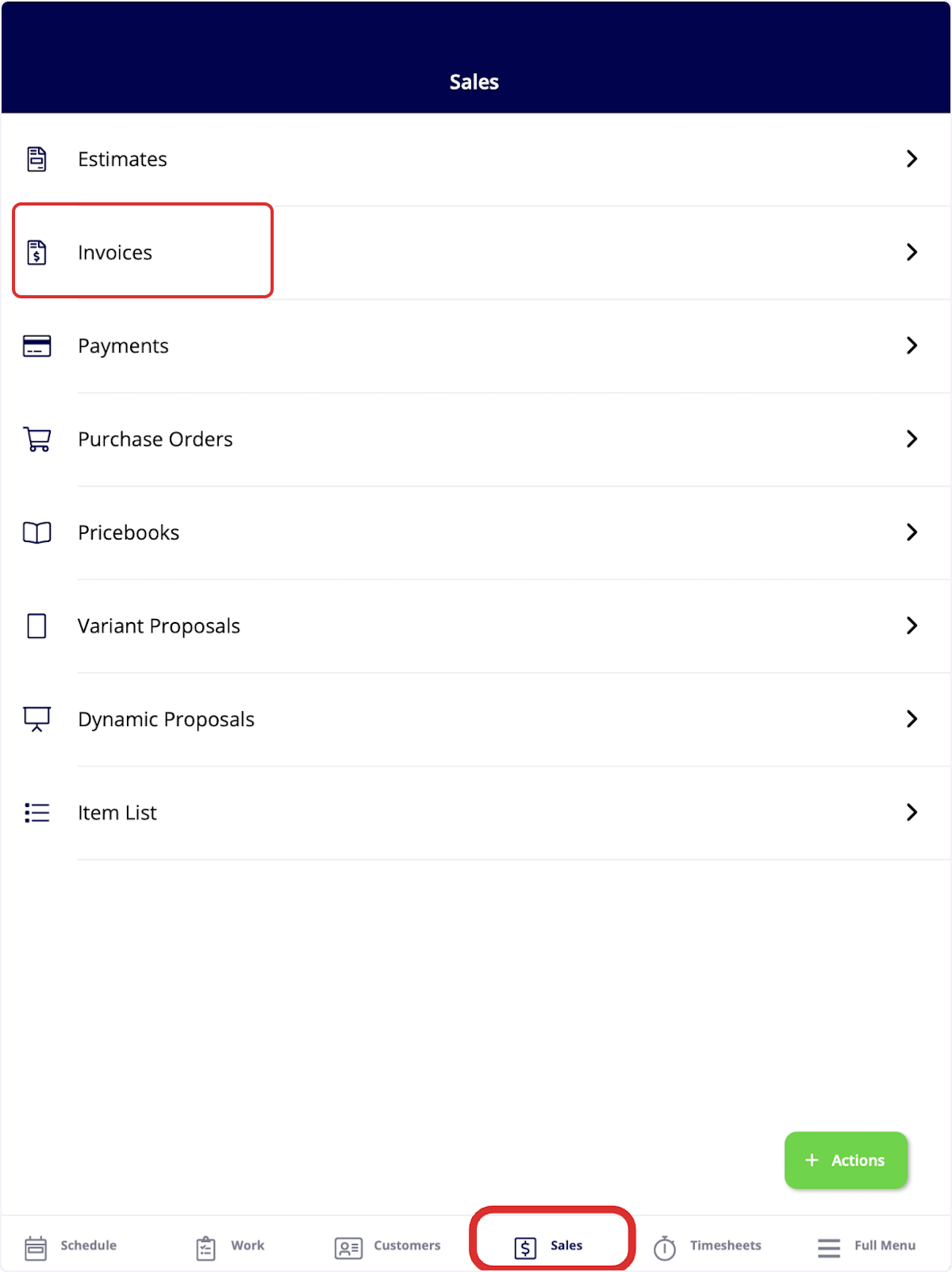 Next, click on the invoice record where you'd like to apply payment.
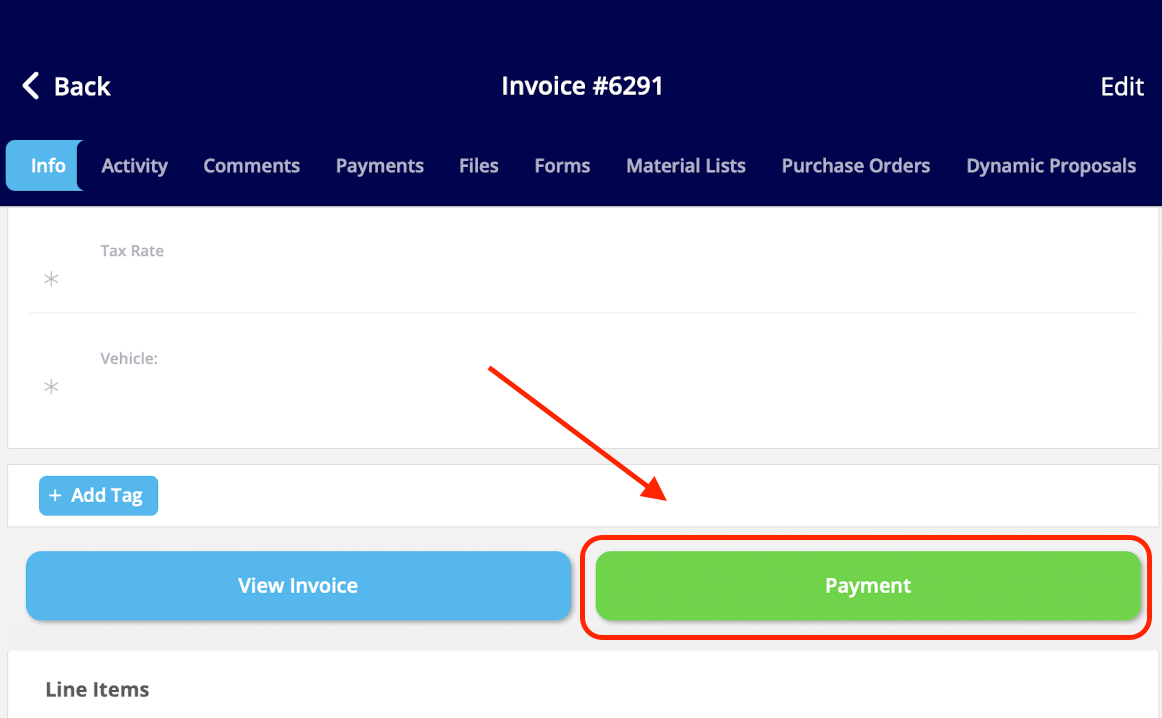
 Once in the invoice record, select *Payment*.
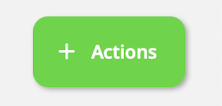
 Or, utilize the green *Actions* button and select *Payment* that way.
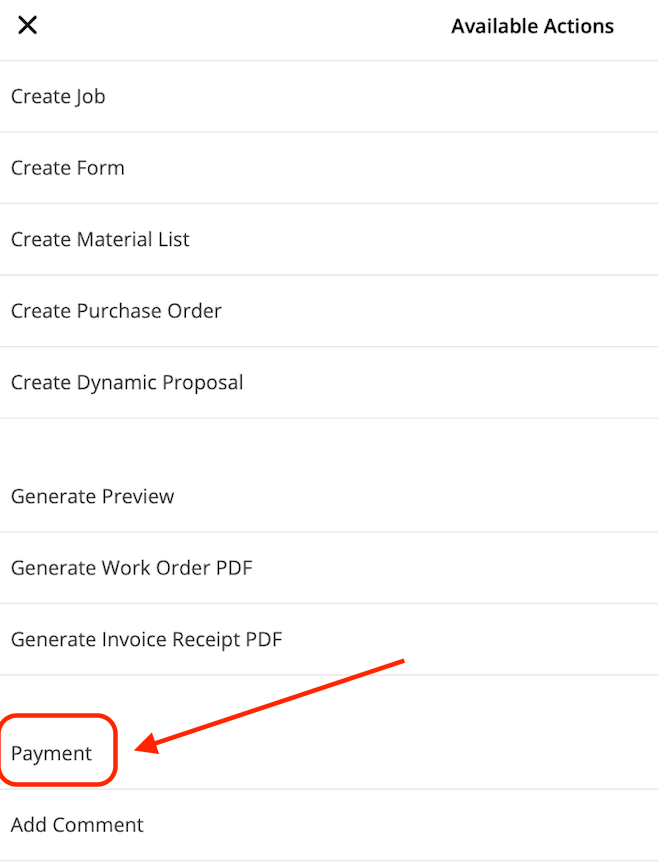 You can now select to *Mark Payment*, *Collect Credit Card Payment*, *Collect ACH Payment* or *Send Payment Request via Email*. As mentioned above, *Collect Credit Card Payment, Collect ACH Payment* and *Send Payment Request via Email* require the use of FieldPulse Payments. To learn more about FieldPulse Payments, [the FieldPulse Payments guide](/using-fieldpulse/payments/start-here/fieldpulse-payments).
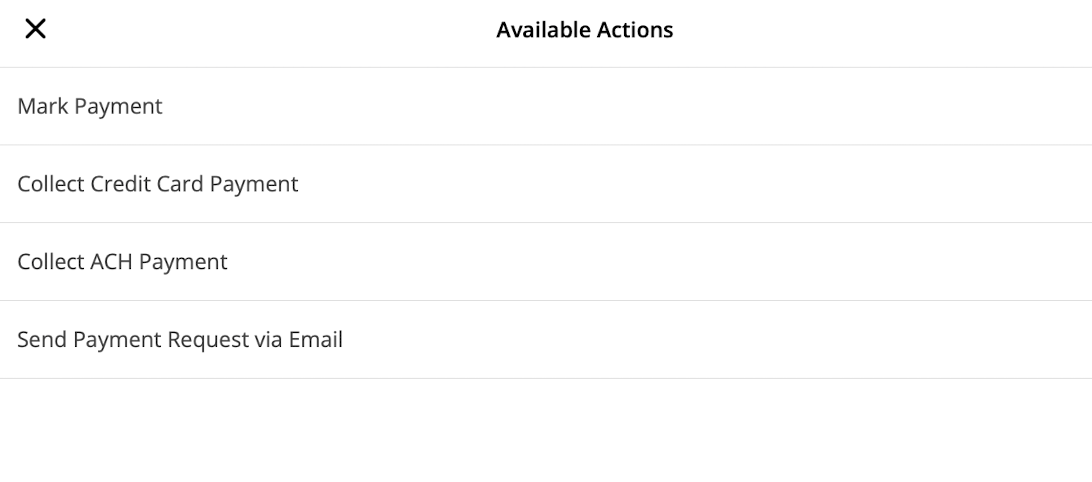 ## **Mark Payment**
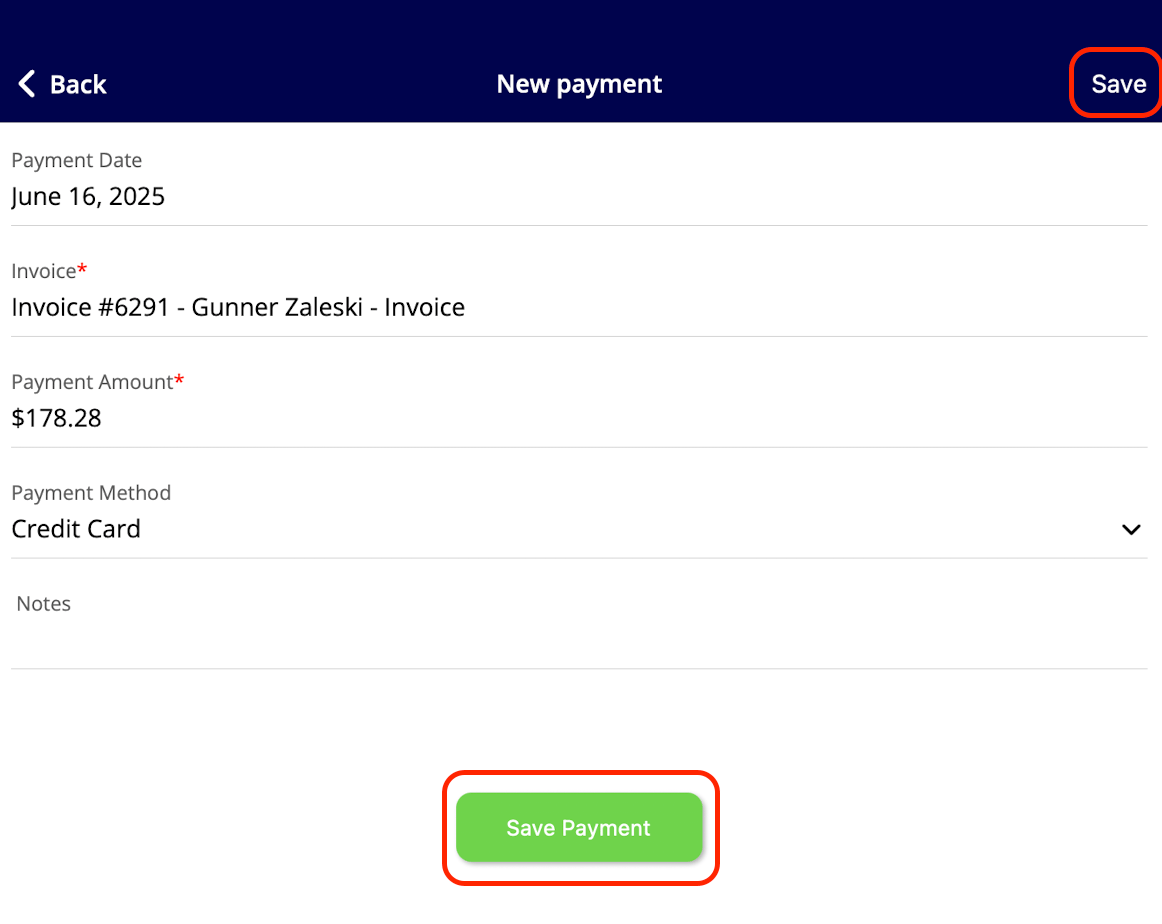
If you select *Mark Payment*, you can adjust the payment amount, the payment method, and include notes. Once you add all necessary details, click *Save Payment* or *Save* to mark the payment in FieldPulse.
## **Mark Payment**
If you select *Mark Payment*, you can adjust the payment amount, the payment method, and include notes. Once you add all necessary details, click *Save Payment* or *Save* to mark the payment in FieldPulse.
 ***
# Video Tutorials
## Web App
## Mobile
***
**Have additional questions?**
*Contact us at [support@fieldpulse.com](mailto:support@fieldpulse.com) or use the chat feature in the bottom right corner of your screen.*
***
# Video Tutorials
## Web App
## Mobile
***
**Have additional questions?**
*Contact us at [support@fieldpulse.com](mailto:support@fieldpulse.com) or use the chat feature in the bottom right corner of your screen.*