> ## Documentation Index
> Fetch the complete documentation index at: https://help.fieldpulse.com/llms.txt
> Use this file to discover all available pages before exploring further.
# Adding New Users
> Create user accounts and assign each the right role, from Administrator to Limited Agent, to control what data and features they reach.
Ready to expand your team? Add new users to your FieldPulse account. *(**Note:** Only the company administrators have the ability to create new user accounts.)*
User accounts use the individual’s email address as their login ID, and a password can either be created by the admin or created by the user after creation. Each user needs a unique name, email, and password. Each user also must be designated as an Administrator, Team Manager, Service Agent, Limited Agent, or Assignment User. The different roles provide different levels of access to the application and company data.
***
# **Creating User Accounts**
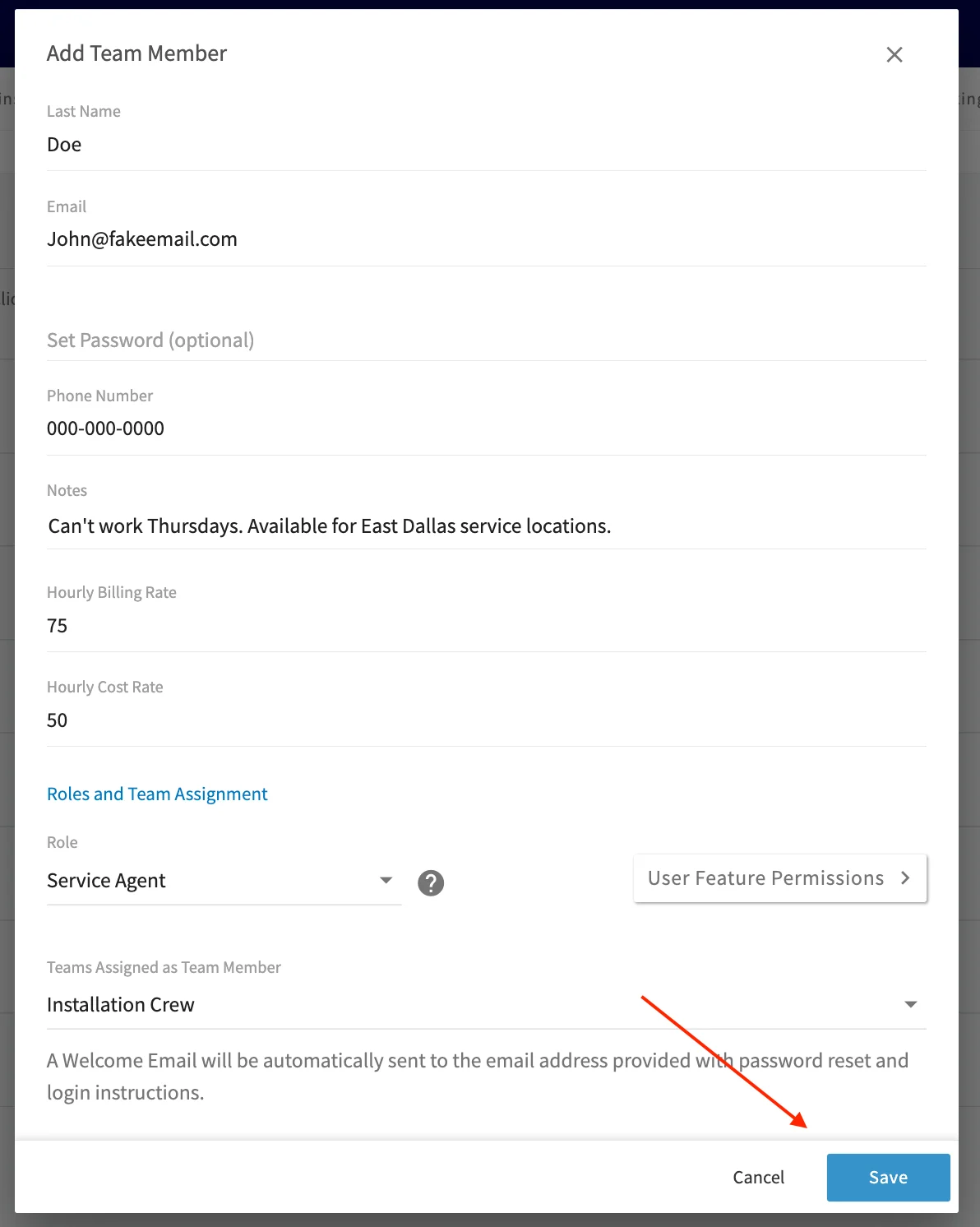
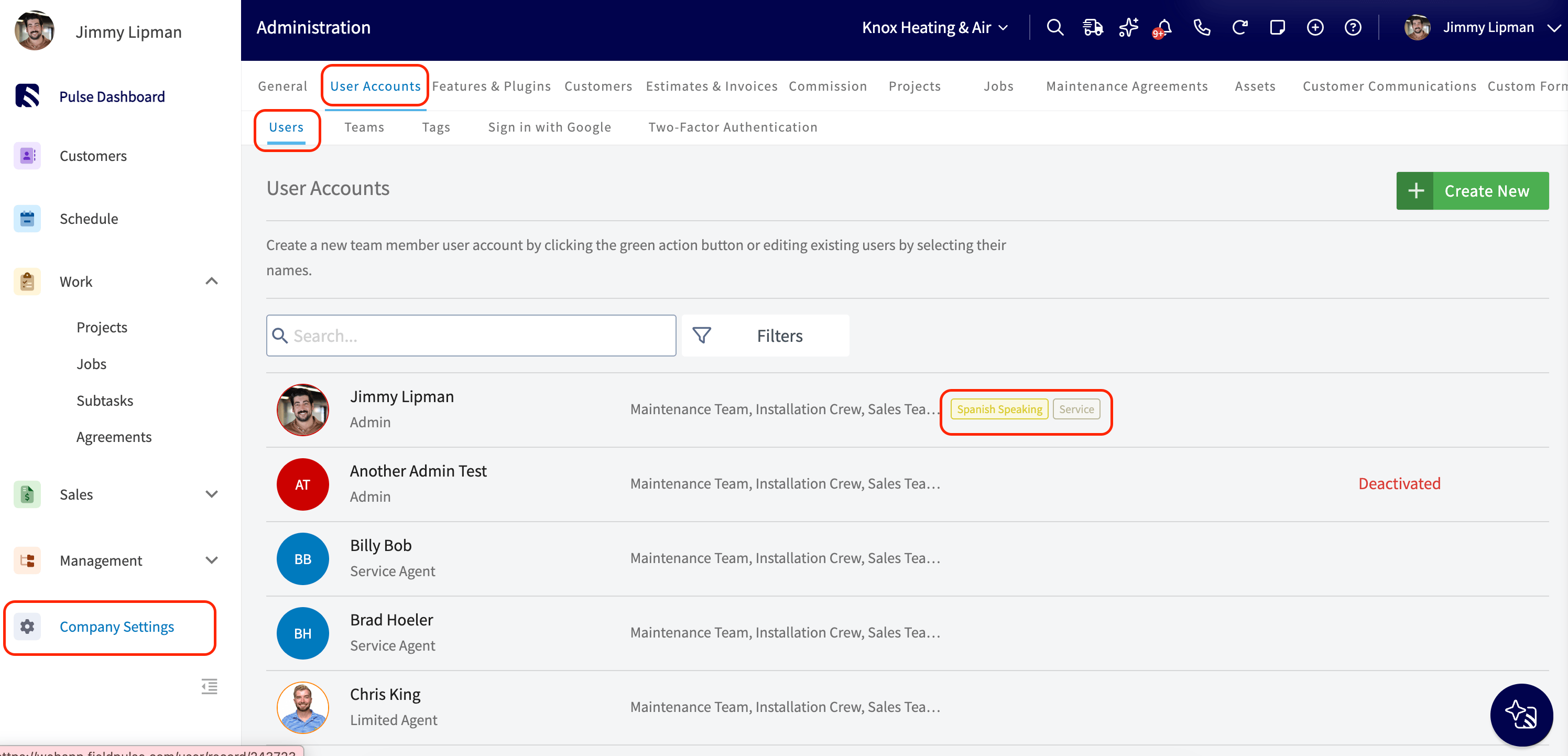
To create a new user, navigate to *Company Settings*, then *User Accounts*, and select *Create New*.
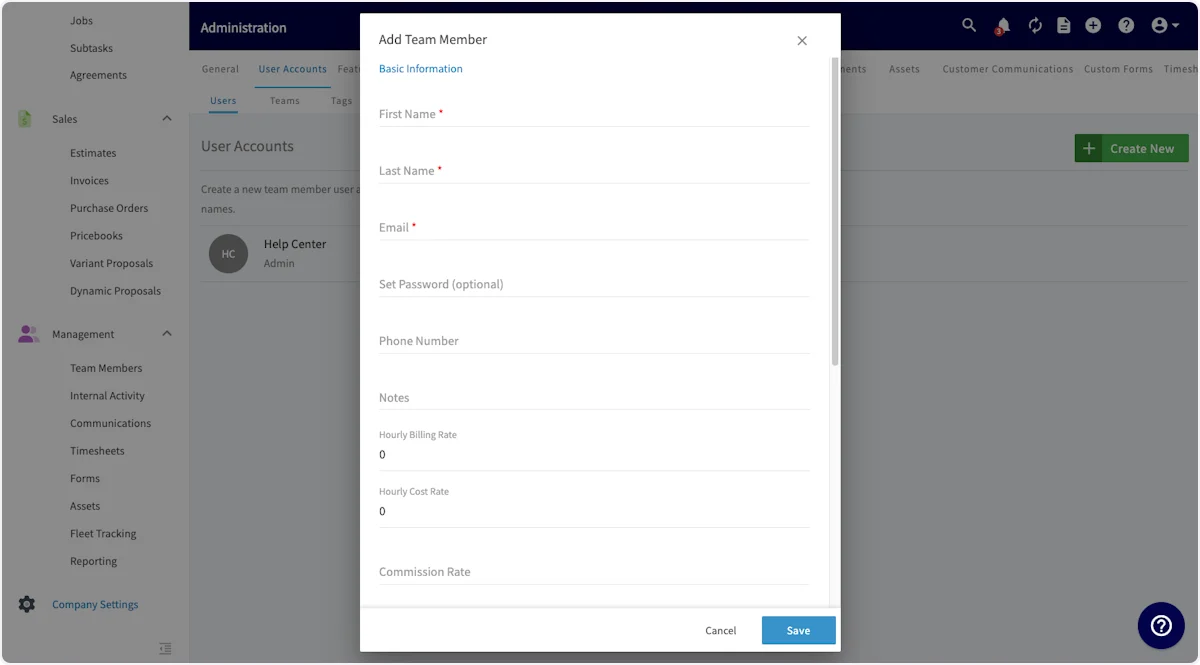
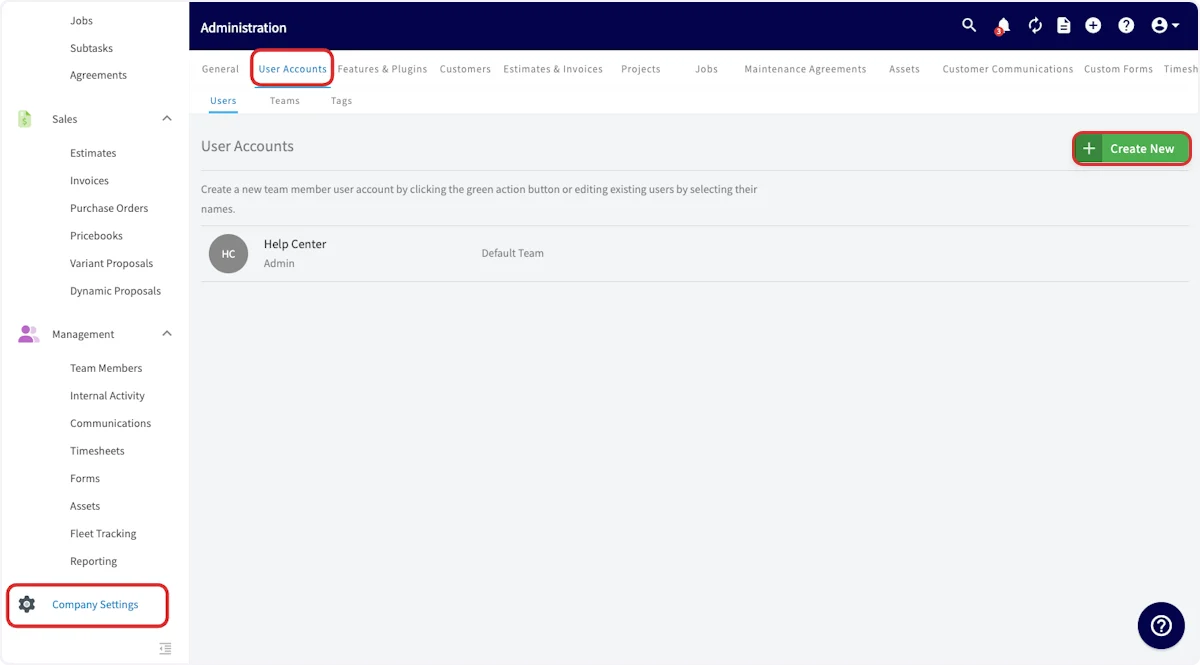 Now you will need to fill out the basic information for the new user:
* **First Name**, **Last Name**, and **Email** are required fields.
* **Set Password** can be left blank, and will automatically send a password reset link to the new user's email address. If you prefer, you can set a standard password for the user.
* **Notes** can include any details you'd like to include on this user. This could include availability, restrictions, license numbers, expiration dates, etc.
* **Hourly Billing Rate** indicates how much your company charges the customer when this user works.
* **Hourly Cost Rate** indicates the hourly cost to your company when this user works.
* [**User Roles**](/using-fieldpulse/users-teams/user-roles)
* Team Manager (can enable as an Admin)
* Service Agent
* Limited Agent
* Assignment User
* **Teams Assigned as Team Member** indicates which teams this user will be part of. The user will automatically be included in the default team, but can be added to other teams as well. [the teams and team member structure guide](/using-fieldpulse/users-teams/teams-team-member-structure#h_b95be1730b) to learn more about teams.
Now you will need to fill out the basic information for the new user:
* **First Name**, **Last Name**, and **Email** are required fields.
* **Set Password** can be left blank, and will automatically send a password reset link to the new user's email address. If you prefer, you can set a standard password for the user.
* **Notes** can include any details you'd like to include on this user. This could include availability, restrictions, license numbers, expiration dates, etc.
* **Hourly Billing Rate** indicates how much your company charges the customer when this user works.
* **Hourly Cost Rate** indicates the hourly cost to your company when this user works.
* [**User Roles**](/using-fieldpulse/users-teams/user-roles)
* Team Manager (can enable as an Admin)
* Service Agent
* Limited Agent
* Assignment User
* **Teams Assigned as Team Member** indicates which teams this user will be part of. The user will automatically be included in the default team, but can be added to other teams as well. [the teams and team member structure guide](/using-fieldpulse/users-teams/teams-team-member-structure#h_b95be1730b) to learn more about teams.
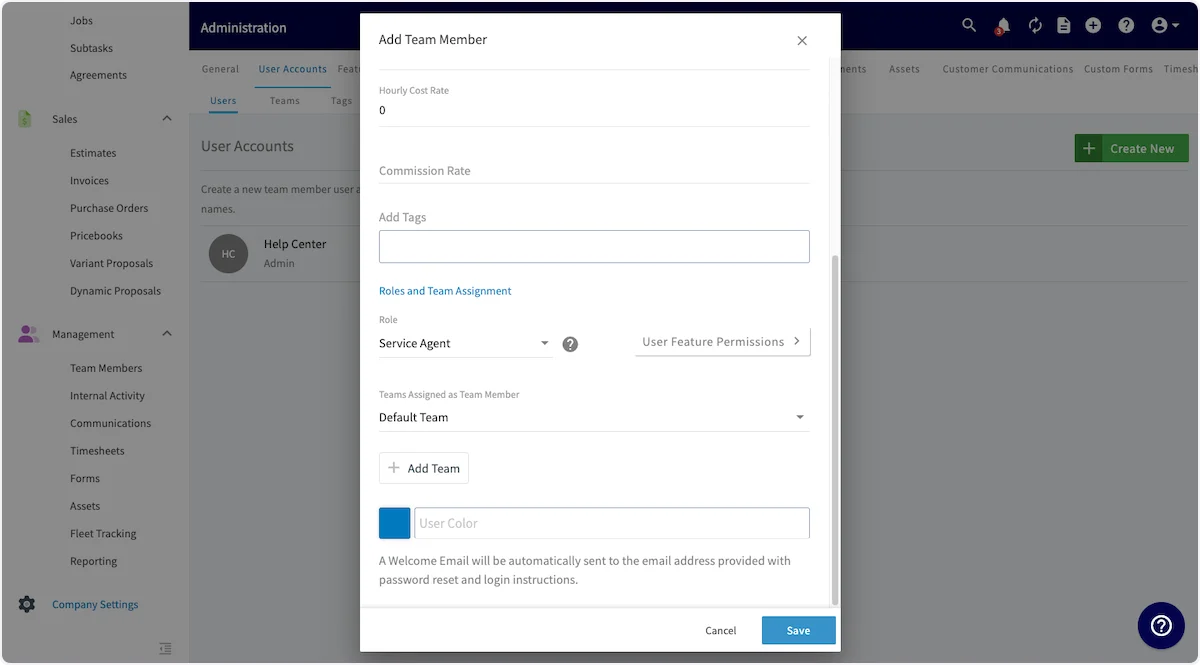 ## User Feature Permissions
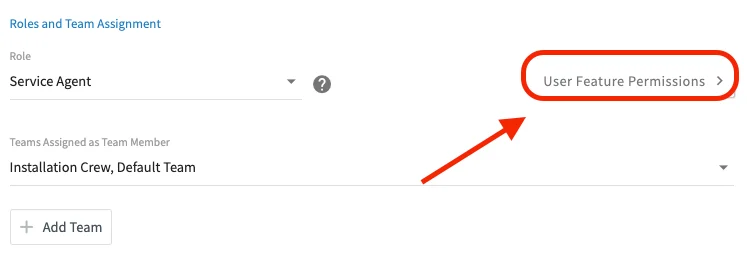
You can also use the *User Feature Permissions* button to further customize the permissions of your new or exisitng user. [the user role permissions guide](/using-fieldpulse/users-teams/user-roles) to learn more about user role permissions.
## User Feature Permissions
You can also use the *User Feature Permissions* button to further customize the permissions of your new or exisitng user. [the user role permissions guide](/using-fieldpulse/users-teams/user-roles) to learn more about user role permissions.
 Once the new user account is ready, click *Save* to save the new account and an automatic welcome email will be sent to the email address for this new user to log into their account.
 ## Where Tags Show Up
Once a user has tags assigned, those tags are visible and searchable everywhere you decide who works a job:
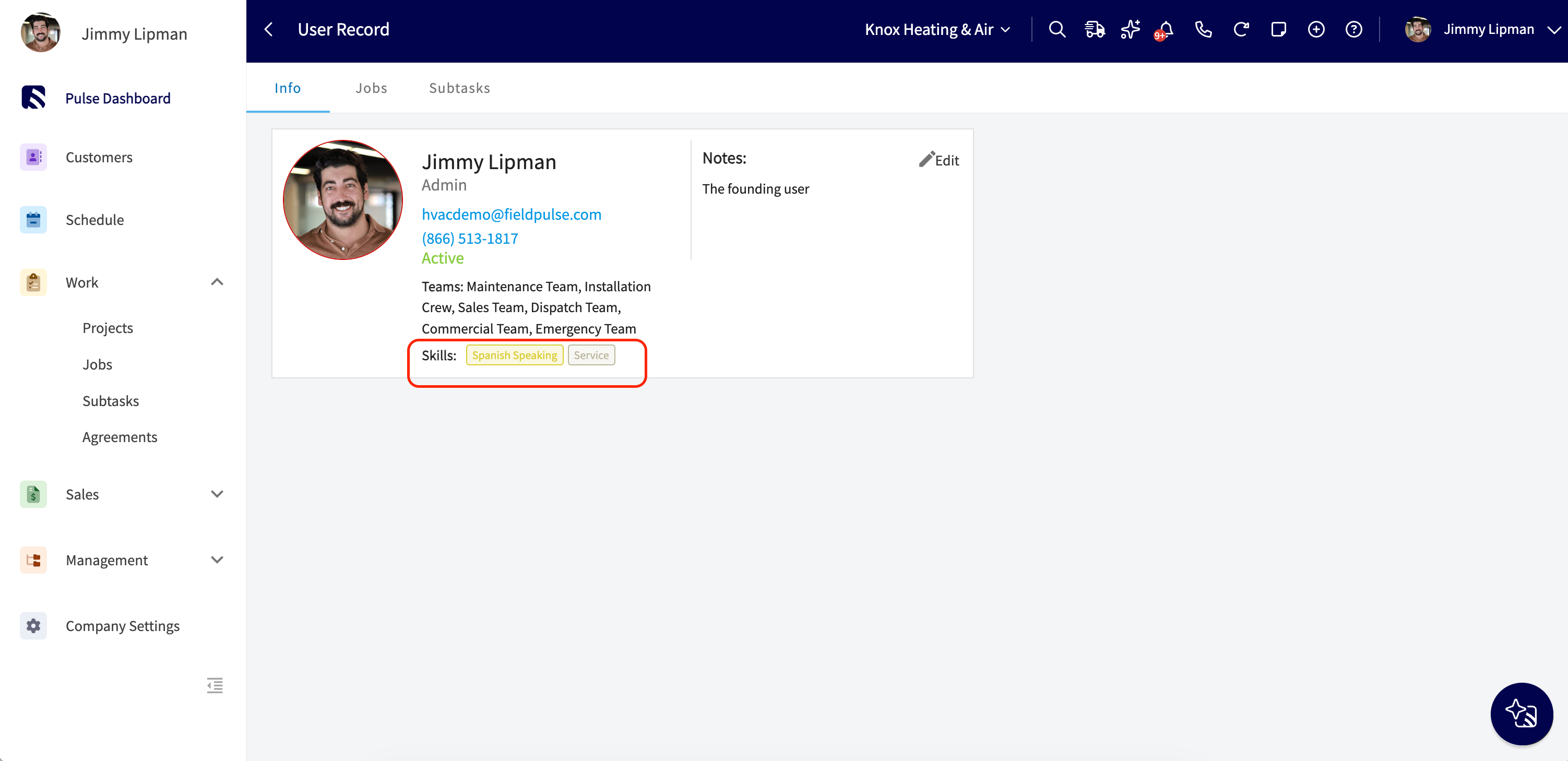
* **User Record:** Tags display read-only under the *Teams* line on the user's Info tab.
## Where Tags Show Up
Once a user has tags assigned, those tags are visible and searchable everywhere you decide who works a job:
* **User Record:** Tags display read-only under the *Teams* line on the user's Info tab.
 * **User Accounts list:** A *Tags* column shows each user's tags, and a filter next to the search bar lets you narrow the roster by team and/or tag.
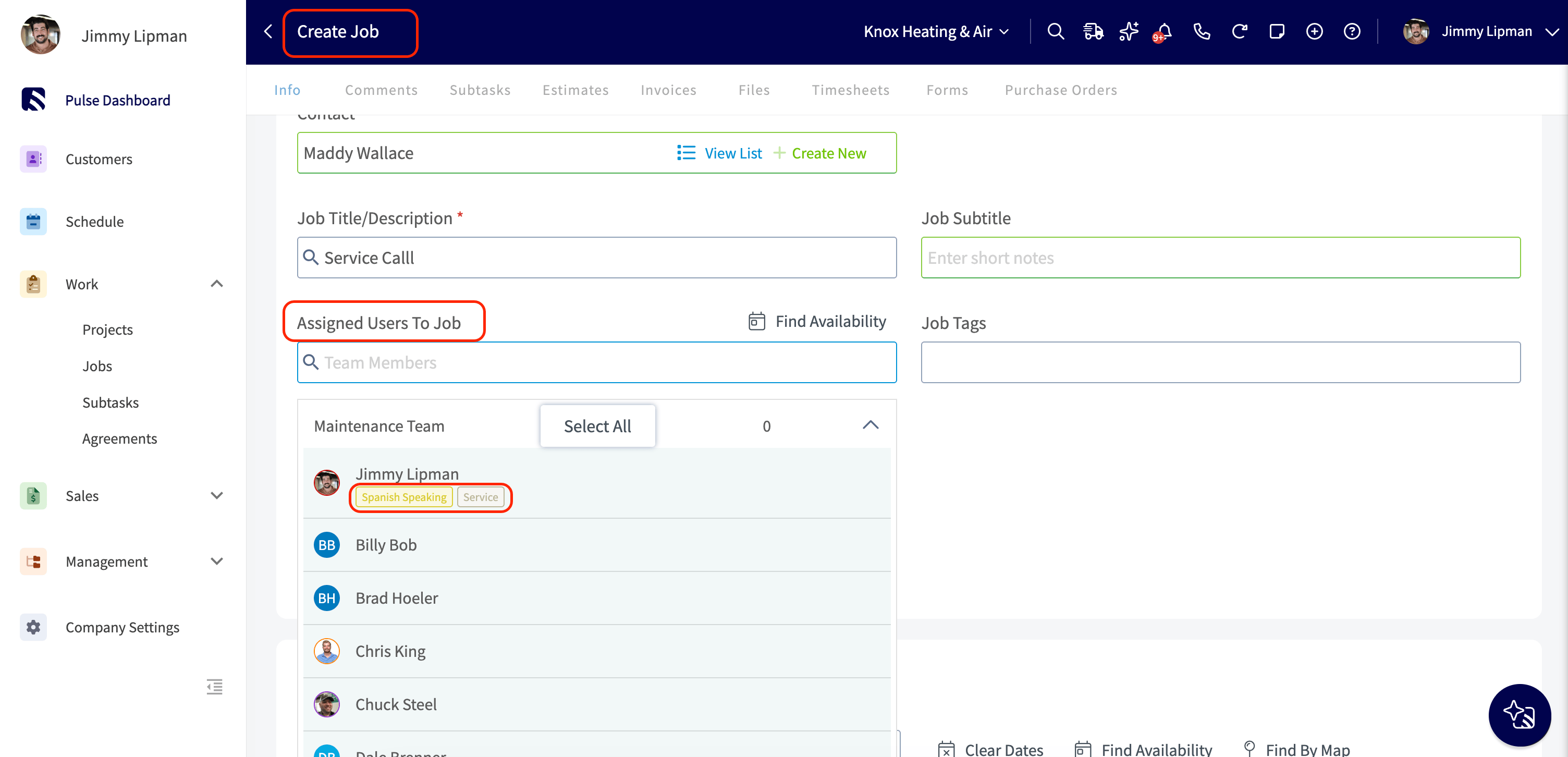
 * **Create Job / Edit Job:** The *Assigned Users to Job* dropdown shows each tech's tags inline, and the search box matches by name or skill (e.g. typing "hvac" surfaces every tech tagged HVAC).
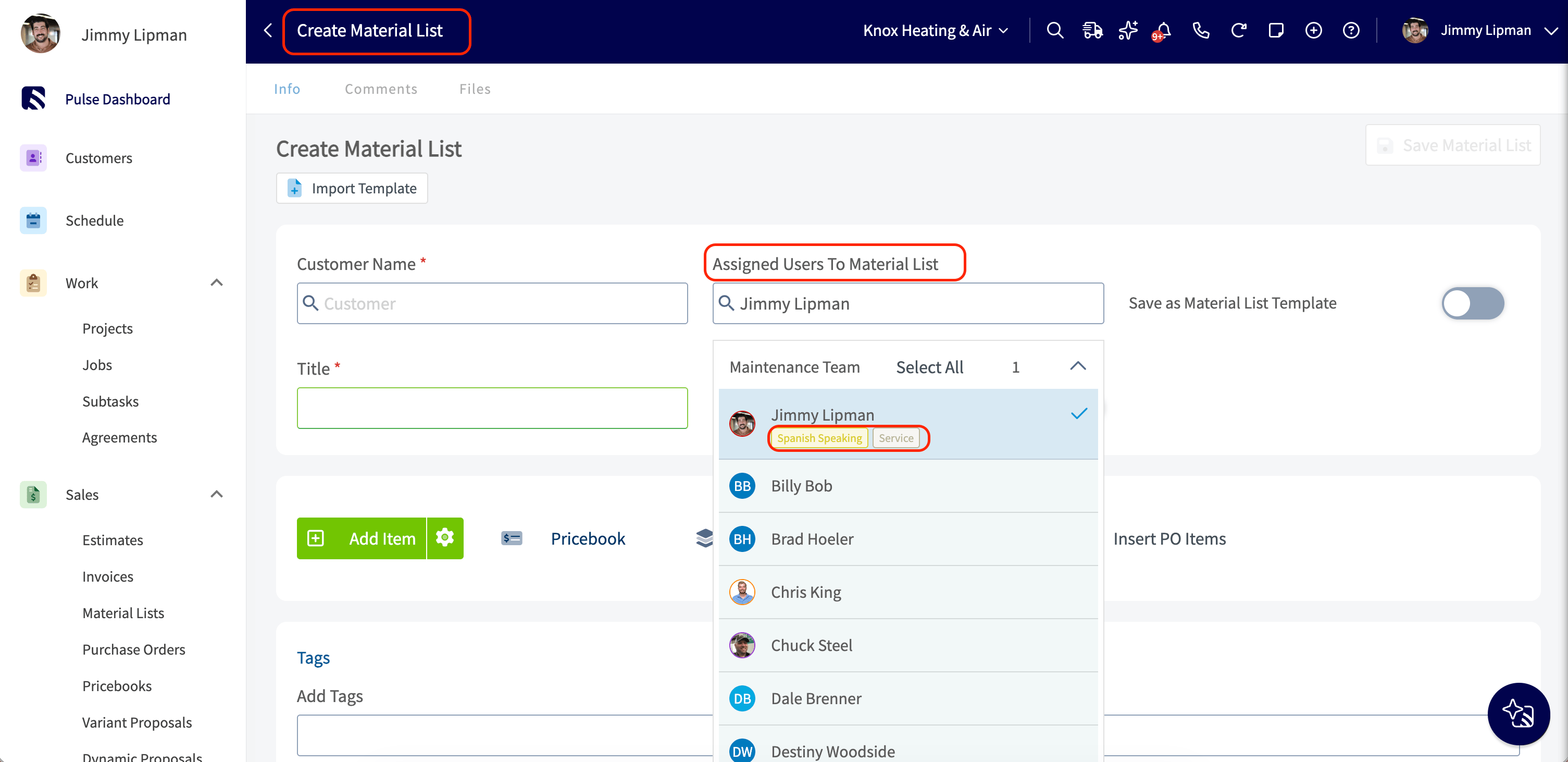
 * **Material Lists:** The *Assigned Users to Material List* field works the same way — tags inline, search by name or skill.
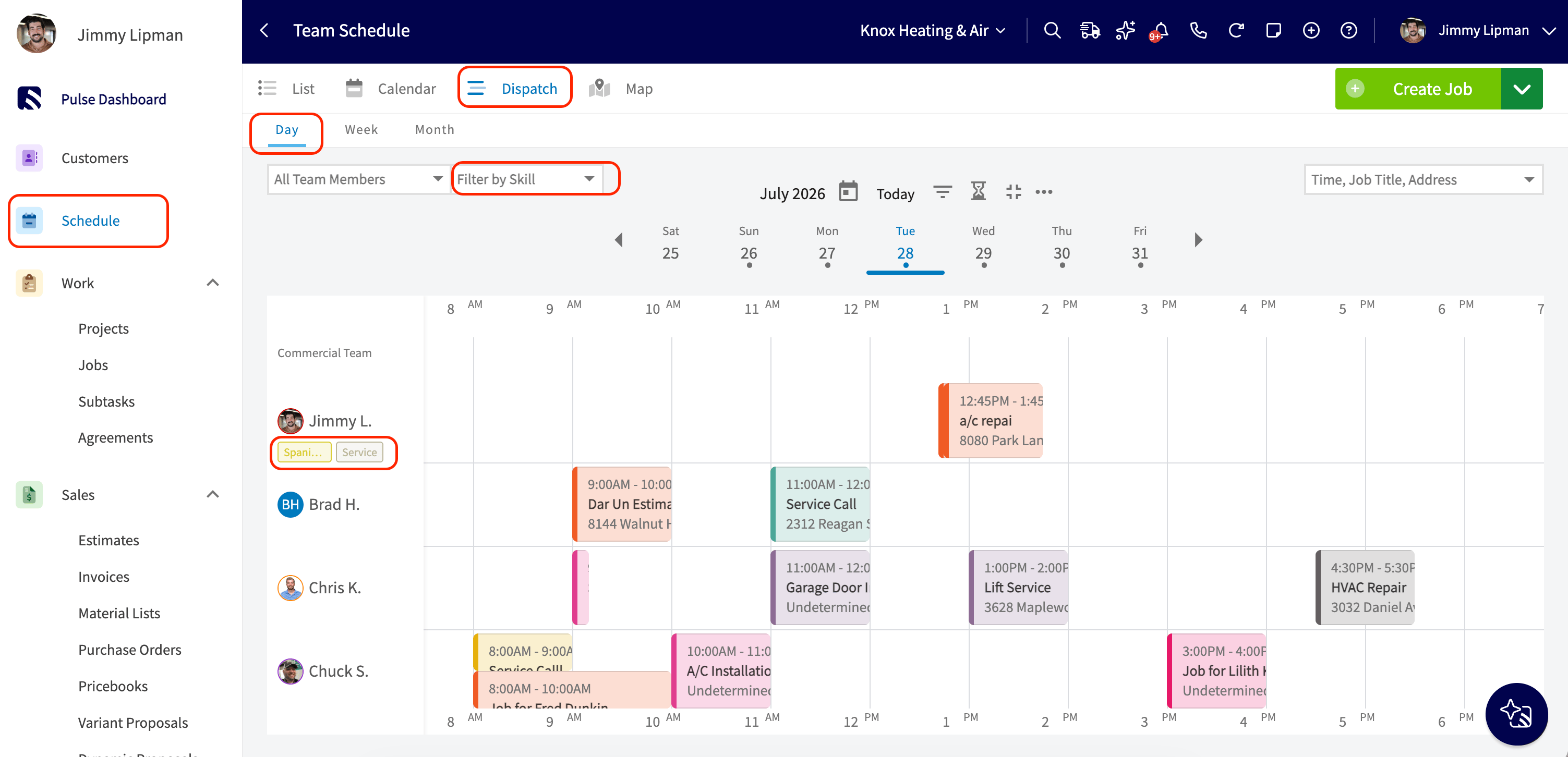
 * **Dispatch Day view:** A *Filter by Skill* control sits beside the team filter, so you can narrow the schedule to only techs who carry a required certification.
 These are read-only displays and searches. To add, edit, or remove a user's tags, go to the user's edit view or Company Settings → User Accounts → Tags.
***
# FAQs
**Can I change a user's email address after their account is created?**
Yes, a user's email address can be updated at any time. Keep in mind that each email address can only be tied to one user account, so you won't be able to reuse an email that's already assigned to another user.
**What if a user forgot their password or can't log in?**
Users can reset their own password anytime from the login screen by selecting *Forgot Password?* and following the prompts sent to their email. Admins can also reset a user's password manually by going to *Company Settings > User Accounts*, selecting the user, and clicking *Edit*.
***
# Video Tutorial
***
**Have additional questions?**
*Contact us at [support@fieldpulse.com](mailto:support@fieldpulse.com) or use the chat feature in the bottom right corner of your screen.*
## Related topics
- [Users & Teams](/using-fieldpulse/users-teams/index.md)
- [FieldPulse360: Employee Management](/training-resources/fieldpulse360/fieldpulse360-archives/fieldpulse360-employee-management.md)
- [User Roles](/using-fieldpulse/users-teams/user-roles.md)
- [Adding Labor to Estimates & Invoices](/using-fieldpulse/estimates-invoices/adding-labor-to-estimates-invoices.md)
- [Get Started as an Owner](/getting-started/get-started-by-role/get-started-as-an-owner.md)
These are read-only displays and searches. To add, edit, or remove a user's tags, go to the user's edit view or Company Settings → User Accounts → Tags.
***
# FAQs
**Can I change a user's email address after their account is created?**
Yes, a user's email address can be updated at any time. Keep in mind that each email address can only be tied to one user account, so you won't be able to reuse an email that's already assigned to another user.
**What if a user forgot their password or can't log in?**
Users can reset their own password anytime from the login screen by selecting *Forgot Password?* and following the prompts sent to their email. Admins can also reset a user's password manually by going to *Company Settings > User Accounts*, selecting the user, and clicking *Edit*.
***
# Video Tutorial
***
**Have additional questions?**
*Contact us at [support@fieldpulse.com](mailto:support@fieldpulse.com) or use the chat feature in the bottom right corner of your screen.*
## Related topics
- [Users & Teams](/using-fieldpulse/users-teams/index.md)
- [FieldPulse360: Employee Management](/training-resources/fieldpulse360/fieldpulse360-archives/fieldpulse360-employee-management.md)
- [User Roles](/using-fieldpulse/users-teams/user-roles.md)
- [Adding Labor to Estimates & Invoices](/using-fieldpulse/estimates-invoices/adding-labor-to-estimates-invoices.md)
- [Get Started as an Owner](/getting-started/get-started-by-role/get-started-as-an-owner.md)