> ## Documentation Index
> Fetch the complete documentation index at: https://help.fieldpulse.com/llms.txt
> Use this file to discover all available pages before exploring further.
# Completing a Job
> Close out jobs from your phone by updating status, logging notes, attaching photos, and tagging teammates before you drive off.
# Overview
Wrapping up a job in the field is more than hitting "done." From the FieldPulse mobile app, you can update job status, log field notes, attach photos and files, and leave team comments as you move through the work.
***
# On Mobile: Field Experience
## Getting Started
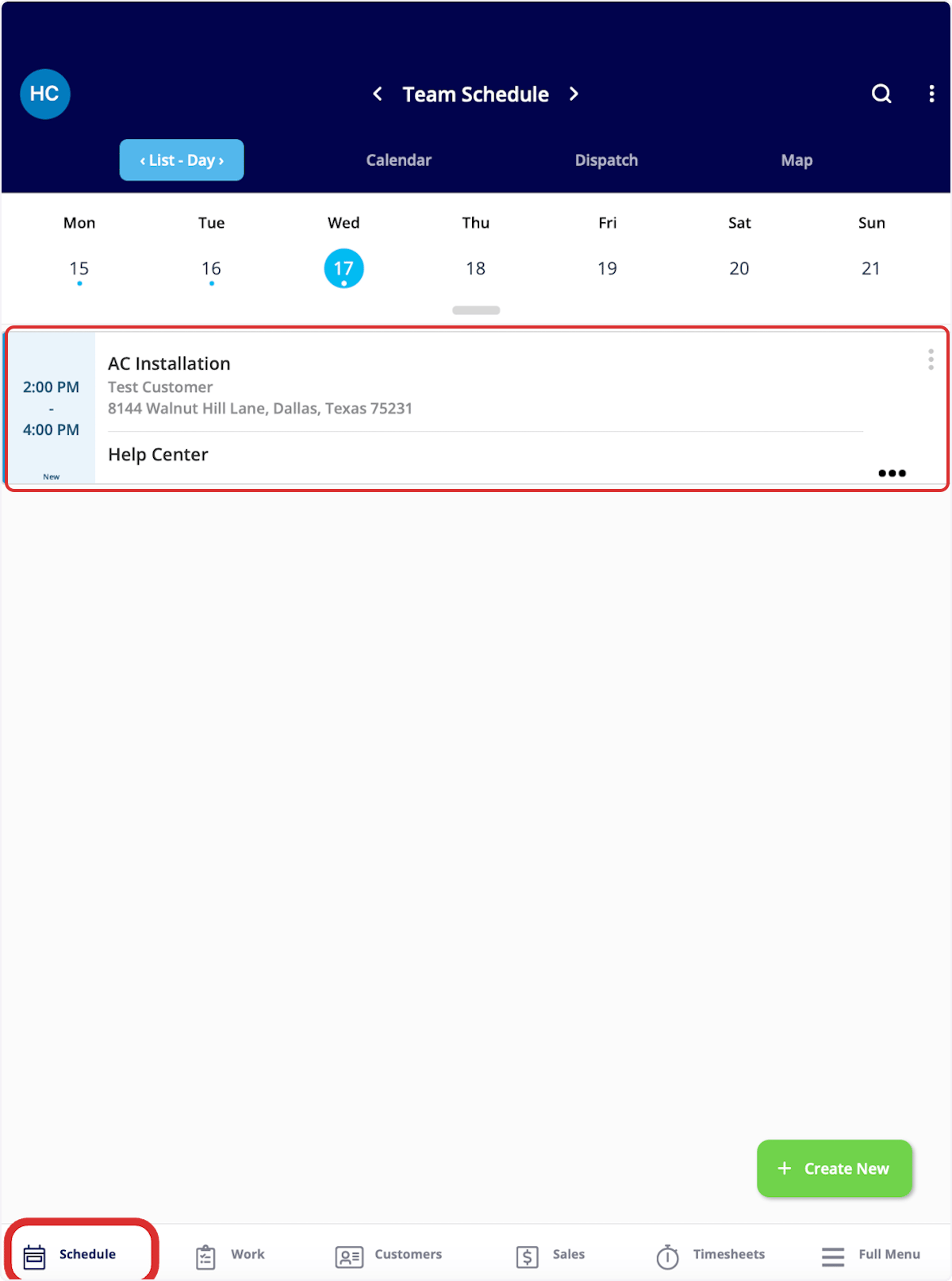
To begin, navigate to your desired job and click on it to see the job record. There are many ways to find your jobs, but for this example we selected the *Schedule* tab in the bottom menu.
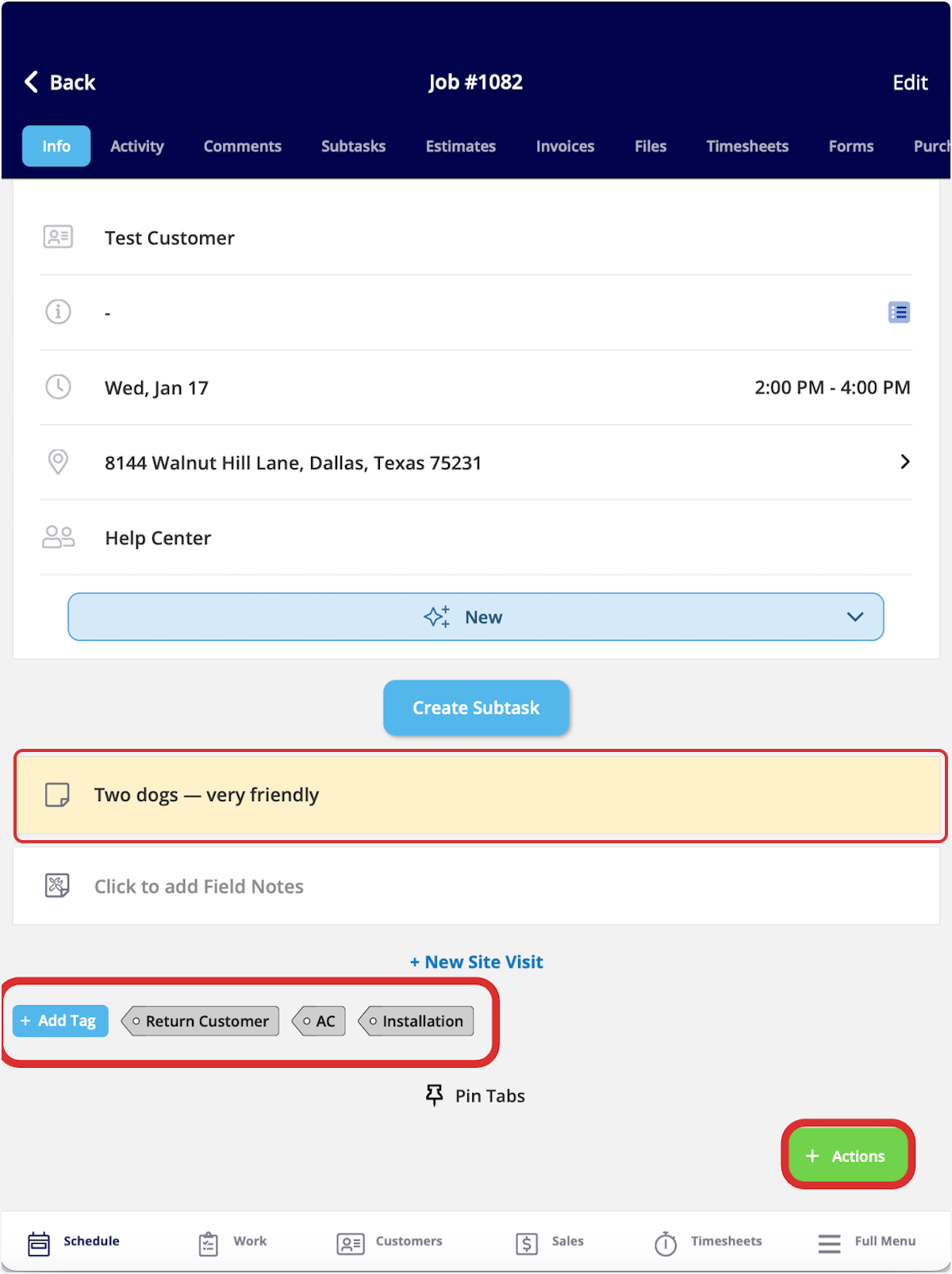
 Once in the job record, you will see the details of the job including:
* ***Customer Details:*** *Customer name and address*
* ***Notes:*** *internal notes highlighted in yellow*
* ***Tags:*** *view existing job tags or add more*
Once in the job record, you will see the details of the job including:
* ***Customer Details:*** *Customer name and address*
* ***Notes:*** *internal notes highlighted in yellow*
* ***Tags:*** *view existing job tags or add more*
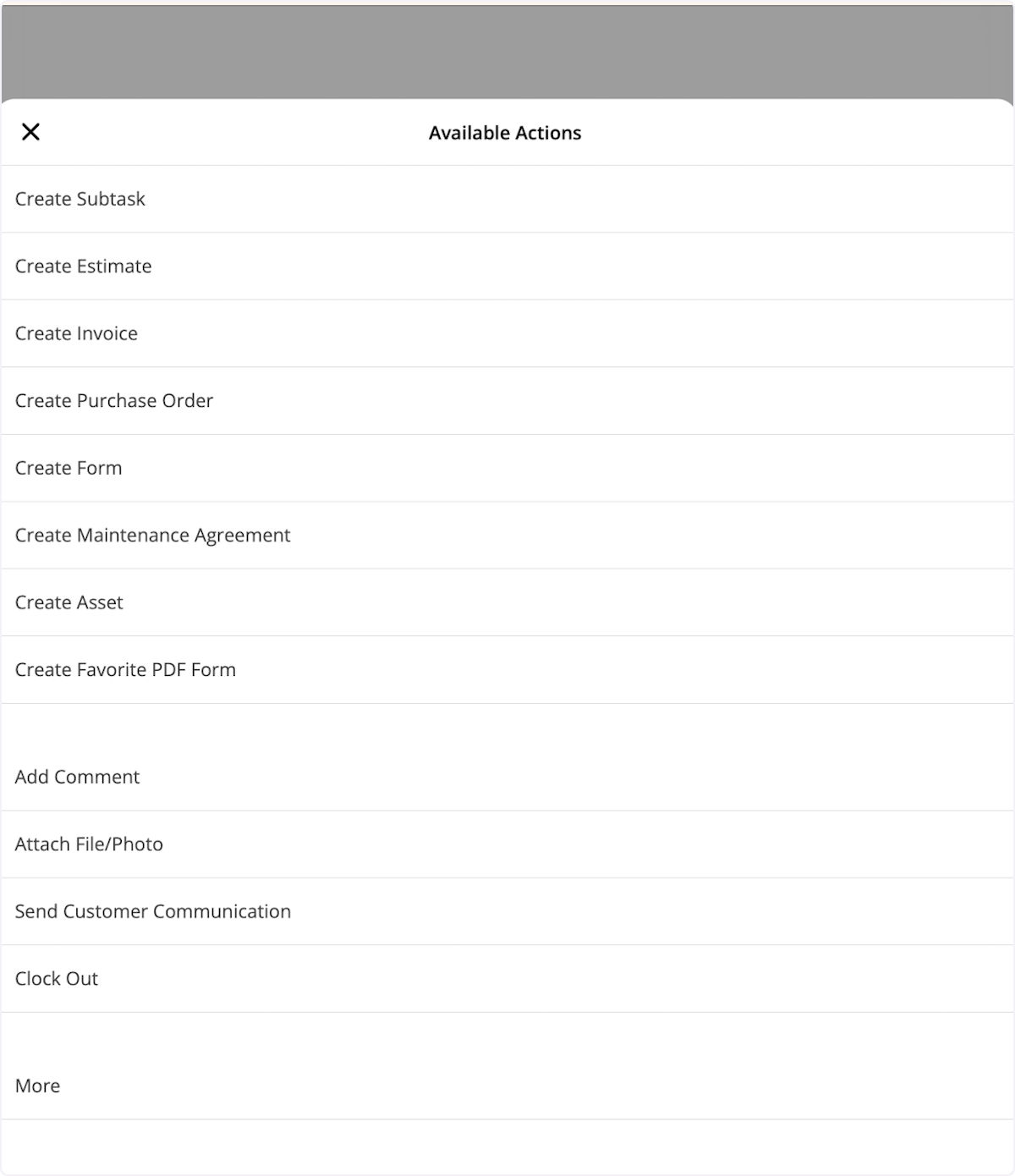
 Select the *Actions* button to view a list of possible actions. You can clock in from this menu. To learn more about clocking in and out, visit the [Timesheets - Mobile App article](/using-fieldpulse/work/employee-timesheets).
 ## Changing Job Status
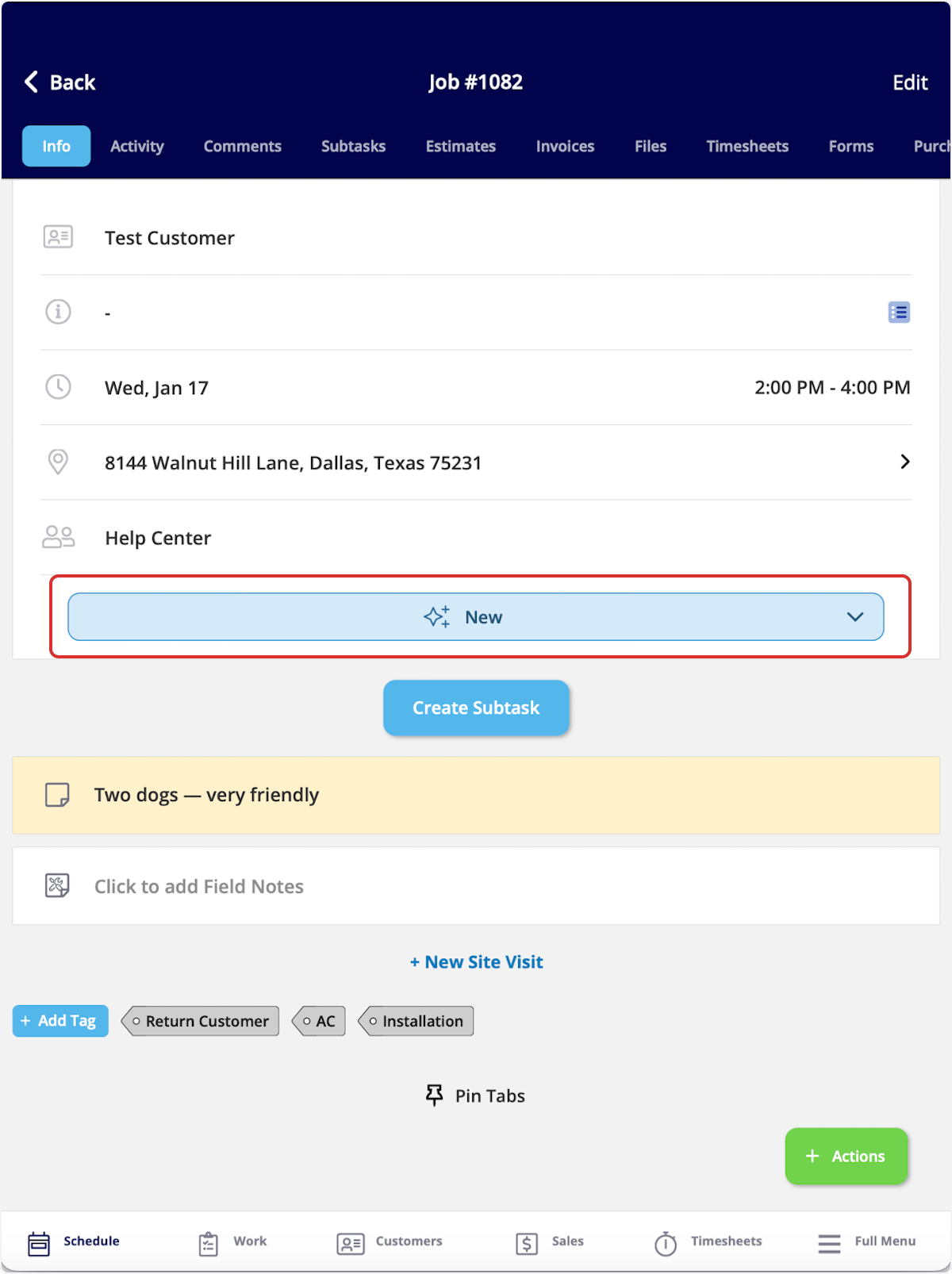
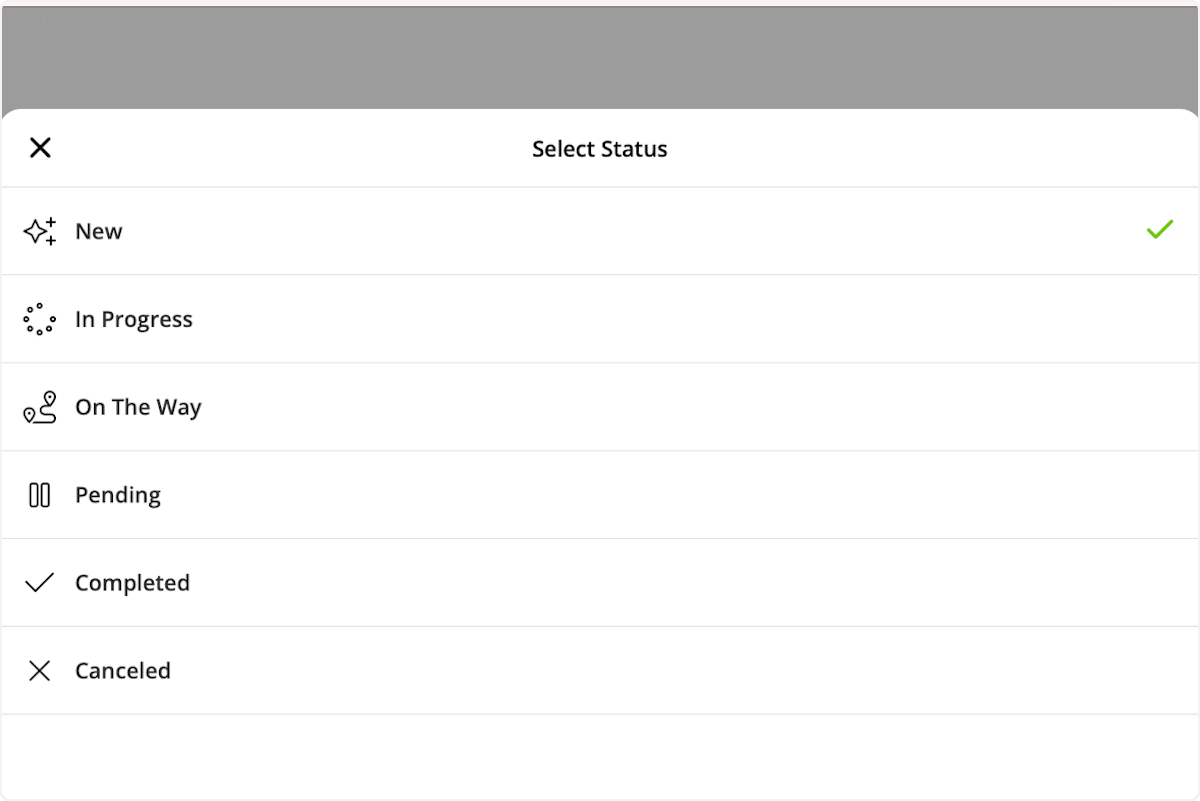
You can always change the status of your job from the *Info* page of the job record. Click on the current status (*New*) to select a new status. FieldPulse will track and record the duration of time spent in each status.
## Changing Job Status
You can always change the status of your job from the *Info* page of the job record. Click on the current status (*New*) to select a new status. FieldPulse will track and record the duration of time spent in each status.
 If you'd like to send automatic communications to your customer based on status changes, you can learn more [customer communications](/using-fieldpulse/communications-notifications/customer-communications). If you prefer to manually communicate to your customer, select *Actions* then *Send Customer Communication* at any time.
## Navigating to Customer Location
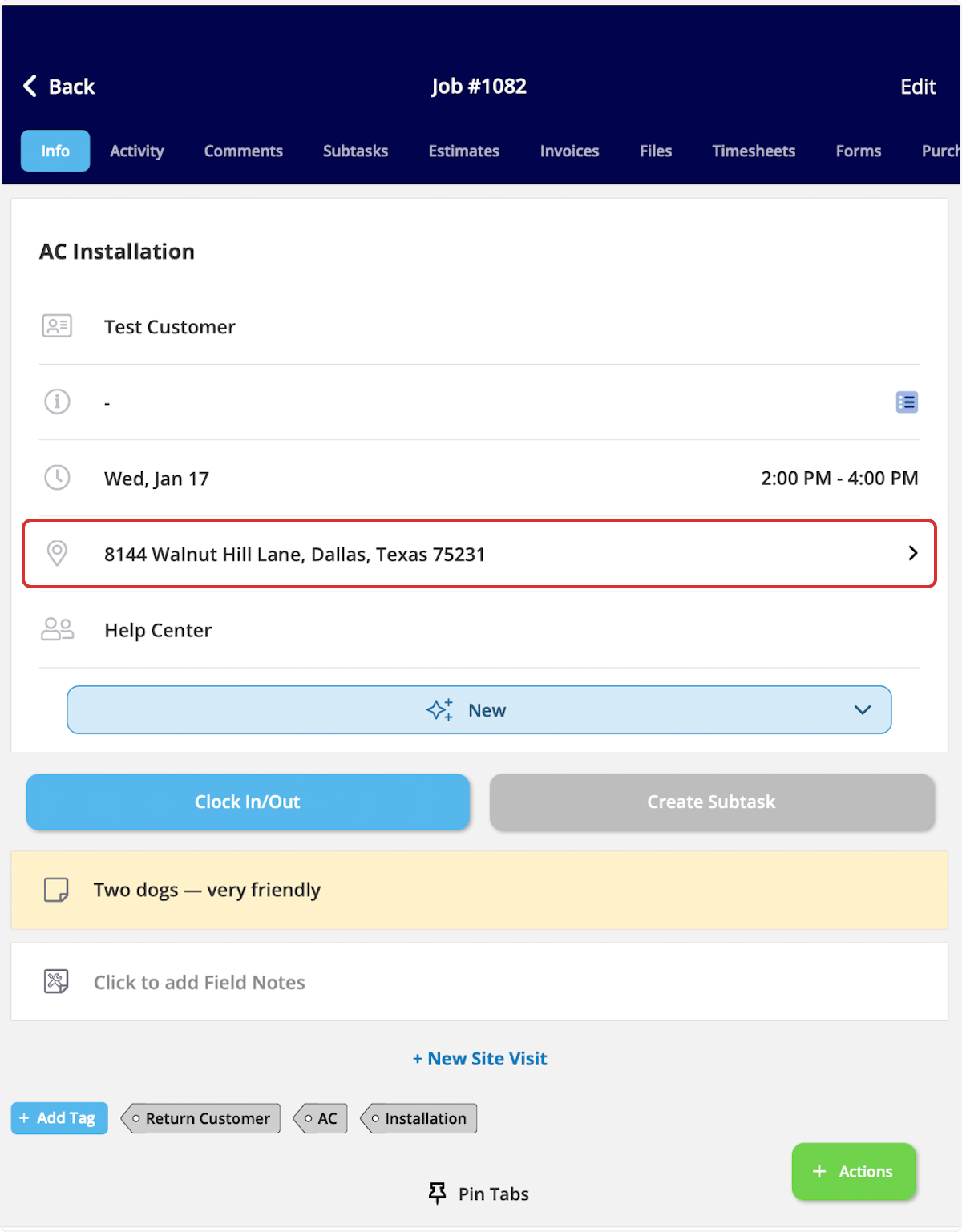
To navigate to your customer's address, begin by clicking on their address.
If you'd like to send automatic communications to your customer based on status changes, you can learn more [customer communications](/using-fieldpulse/communications-notifications/customer-communications). If you prefer to manually communicate to your customer, select *Actions* then *Send Customer Communication* at any time.
## Navigating to Customer Location
To navigate to your customer's address, begin by clicking on their address.
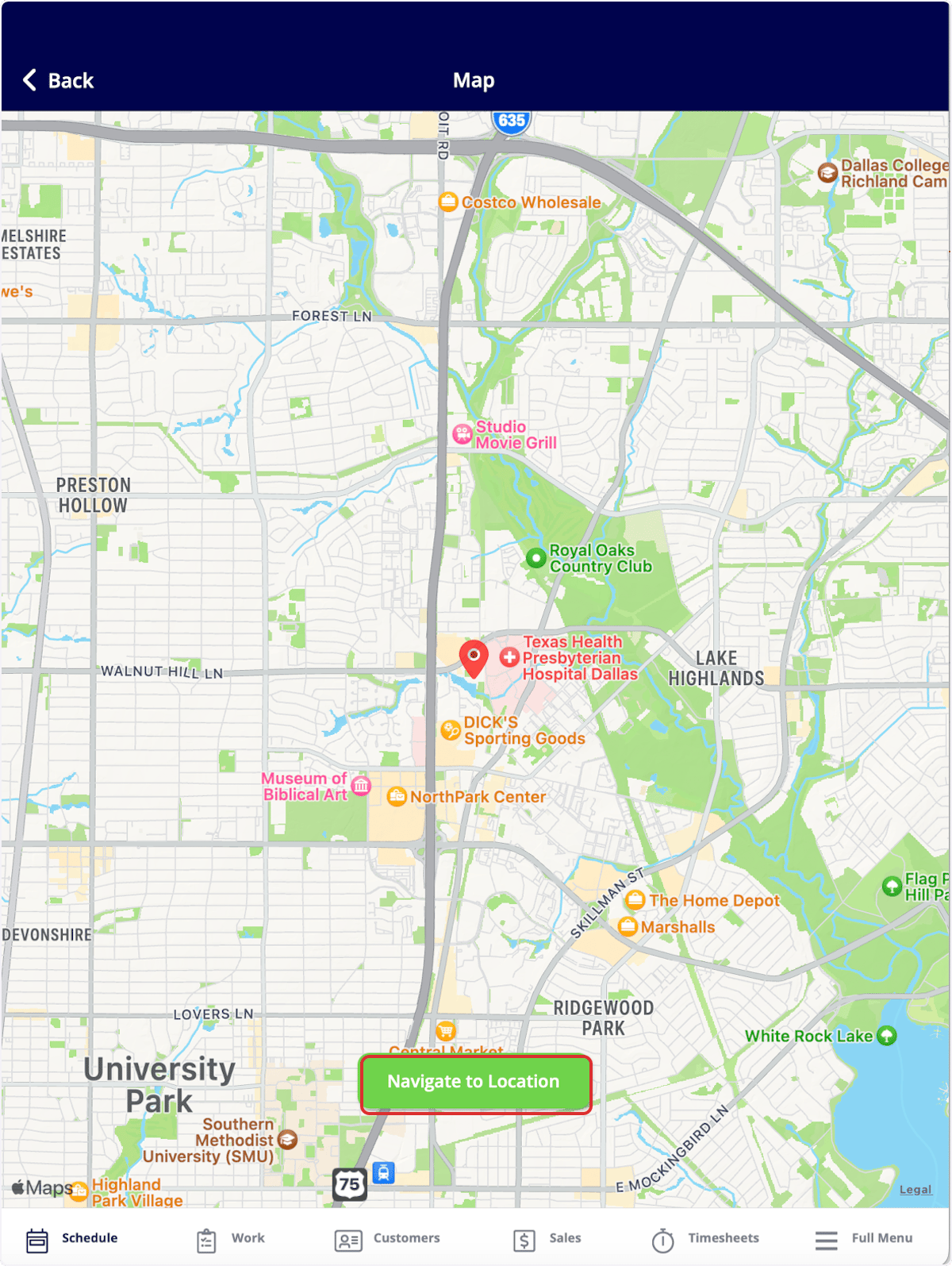
 The address will now appear on a map! Select *Navigate to Location* and select your preferred map application to be directed to your destination.
 ## Adding Details On-Site
Once on the job, you may need to add additional information to the job record.
## Field Notes
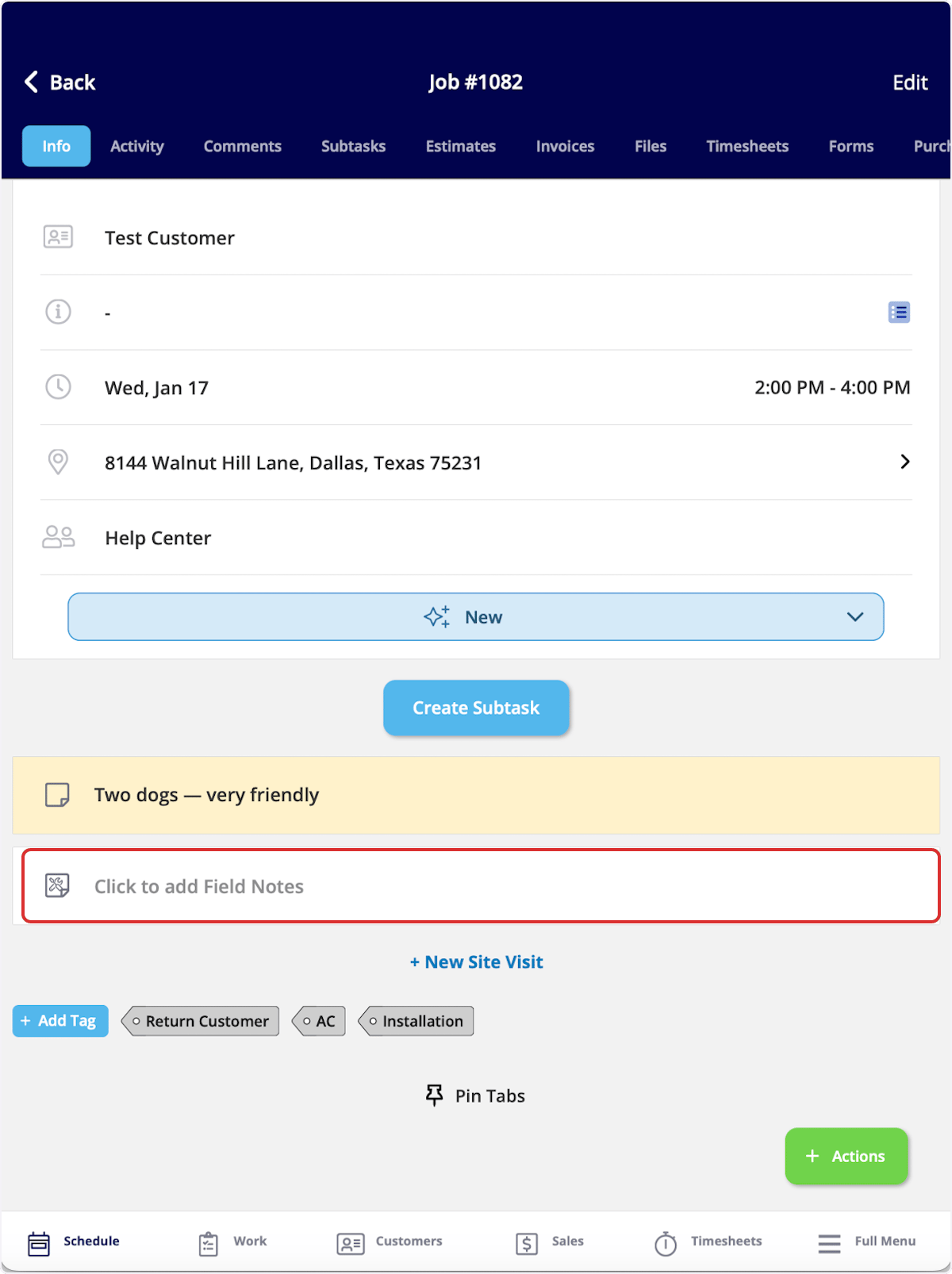
If you'd like to include field notes, select *Click to add Field Notes* on the *Info* page and enter your information.
## Adding Details On-Site
Once on the job, you may need to add additional information to the job record.
## Field Notes
If you'd like to include field notes, select *Click to add Field Notes* on the *Info* page and enter your information.
 ## Files & Images
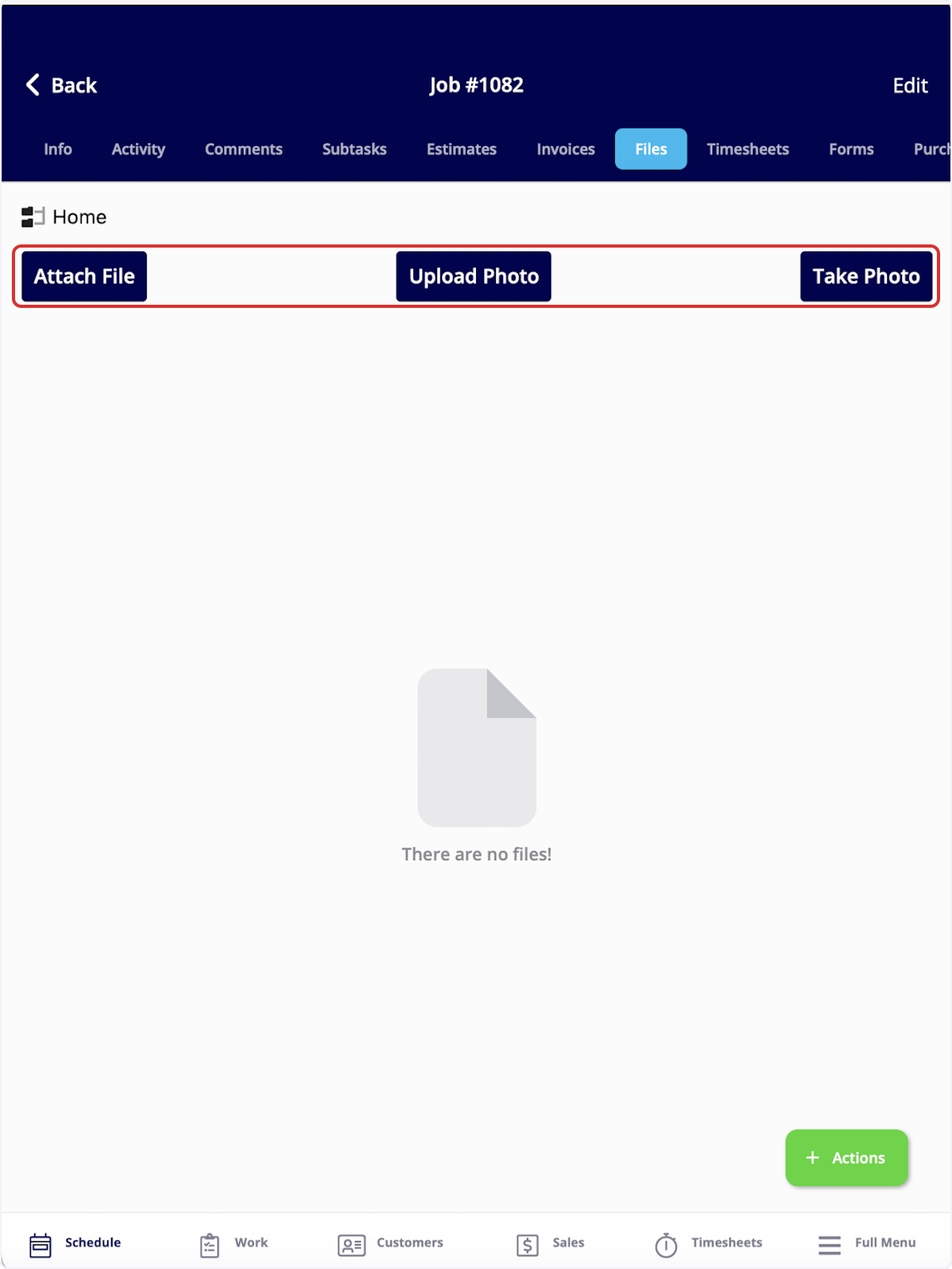
To add files or images, navigate to the *Files* tab in the top menu. You can select *Attach File*, *Upload Photo*, or *Take Photo*. Selecting *Take Photo* will open a camera in FieldPulse, allowing you to take and immediately add photos to the job record.
## Files & Images
To add files or images, navigate to the *Files* tab in the top menu. You can select *Attach File*, *Upload Photo*, or *Take Photo*. Selecting *Take Photo* will open a camera in FieldPulse, allowing you to take and immediately add photos to the job record.
 ## Comments
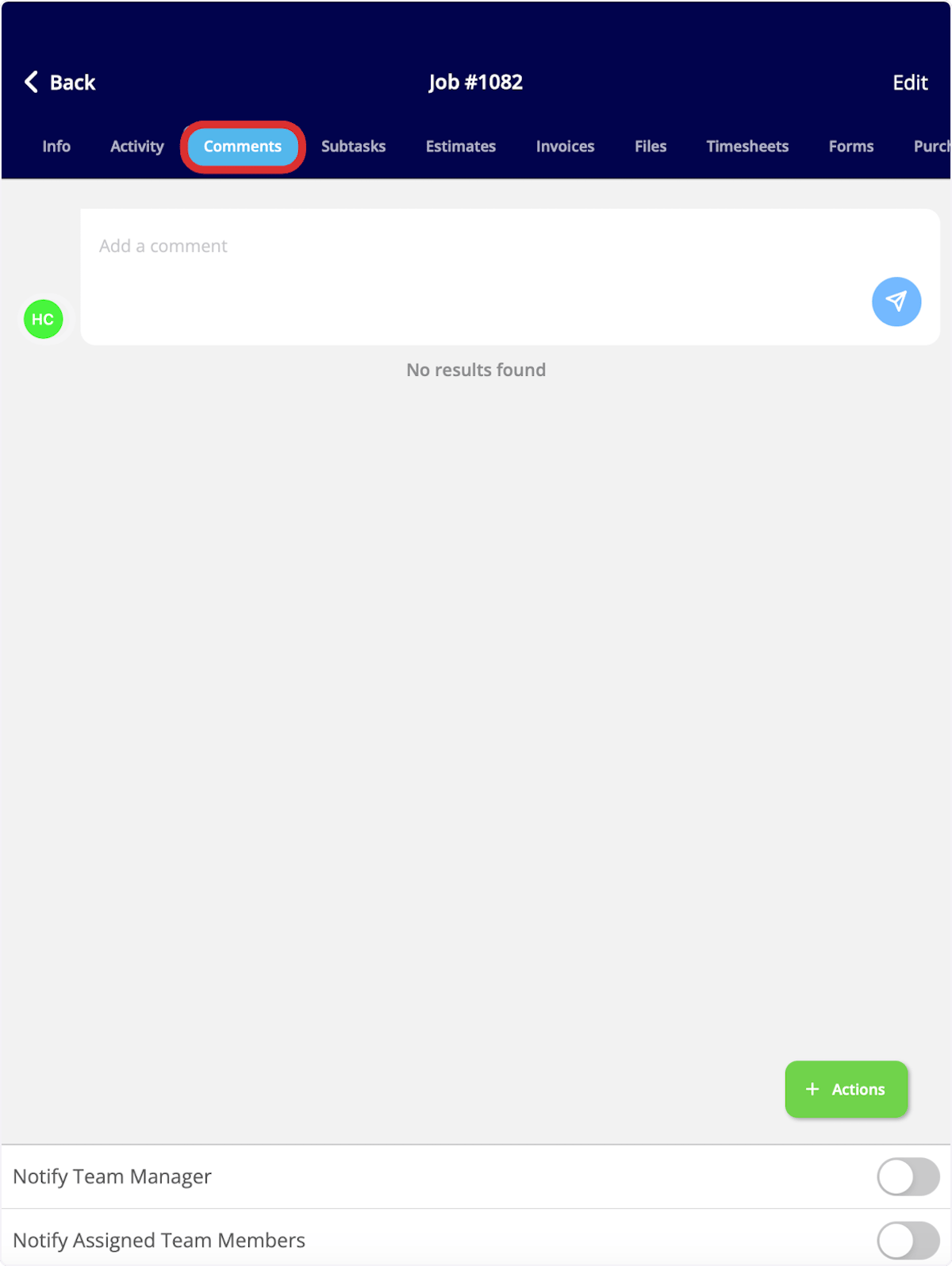
You can also leave comments on the job record by navigating to *Comments* in the top menu. Toggle on/off the notification settings at the bottom of the screen before commenting as needed.
## Comments
You can also leave comments on the job record by navigating to *Comments* in the top menu. Toggle on/off the notification settings at the bottom of the screen before commenting as needed.
 ## Completing a Job
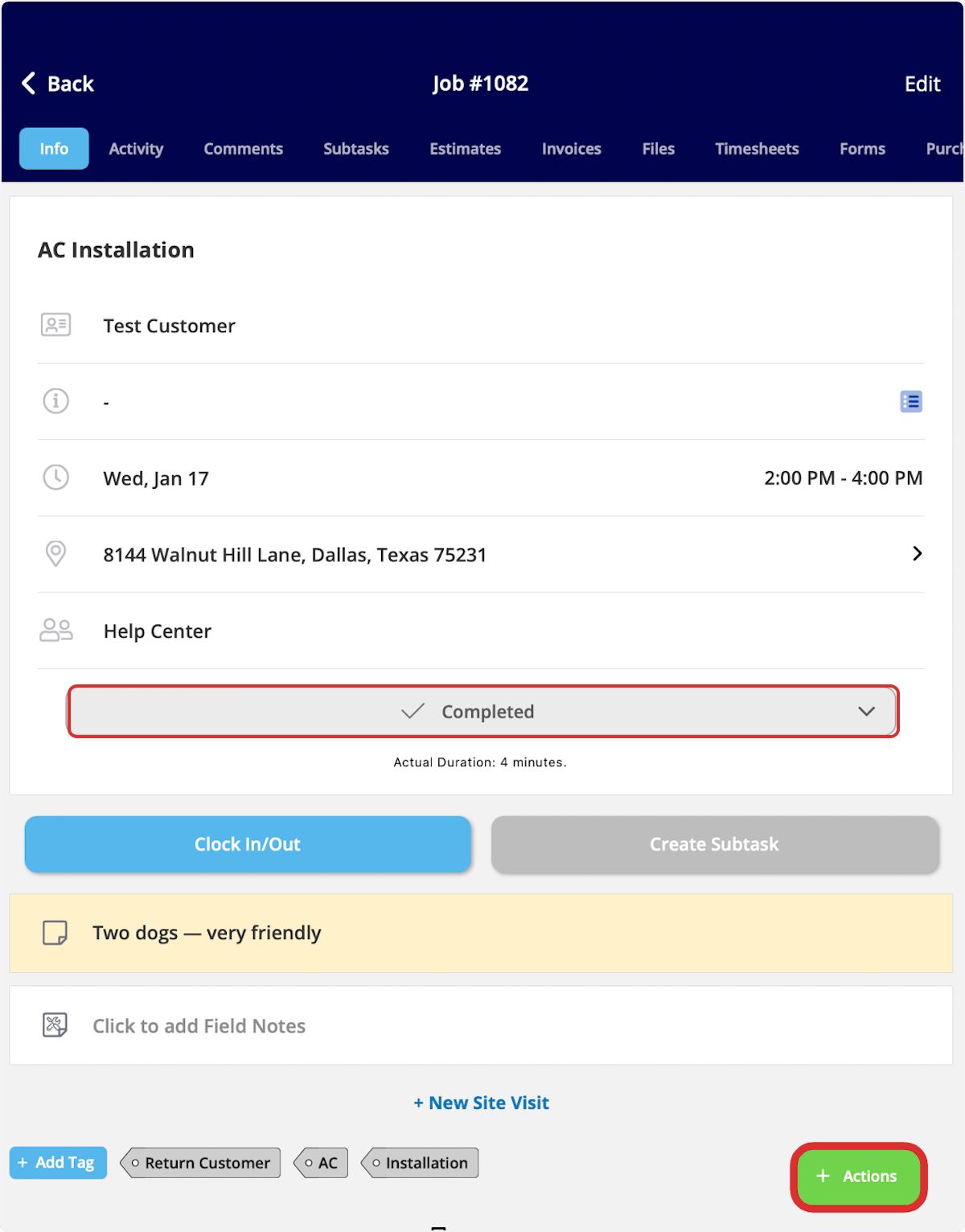
Once a job is finished, you will need to mark the job status as *Completed*, as well as clock-out of the job.
To change the job status to completed, click on the status bar on the *Info* page, then select *Completed*. The job duration will be recorded.
To clock out of the job, select *Actions* then *Clock Out.*
## Completing a Job
Once a job is finished, you will need to mark the job status as *Completed*, as well as clock-out of the job.
To change the job status to completed, click on the status bar on the *Info* page, then select *Completed*. The job duration will be recorded.
To clock out of the job, select *Actions* then *Clock Out.*
 ***
# FAQs
**How do I turn off the "Mark Payment" pop-up that appears when I complete a job?**
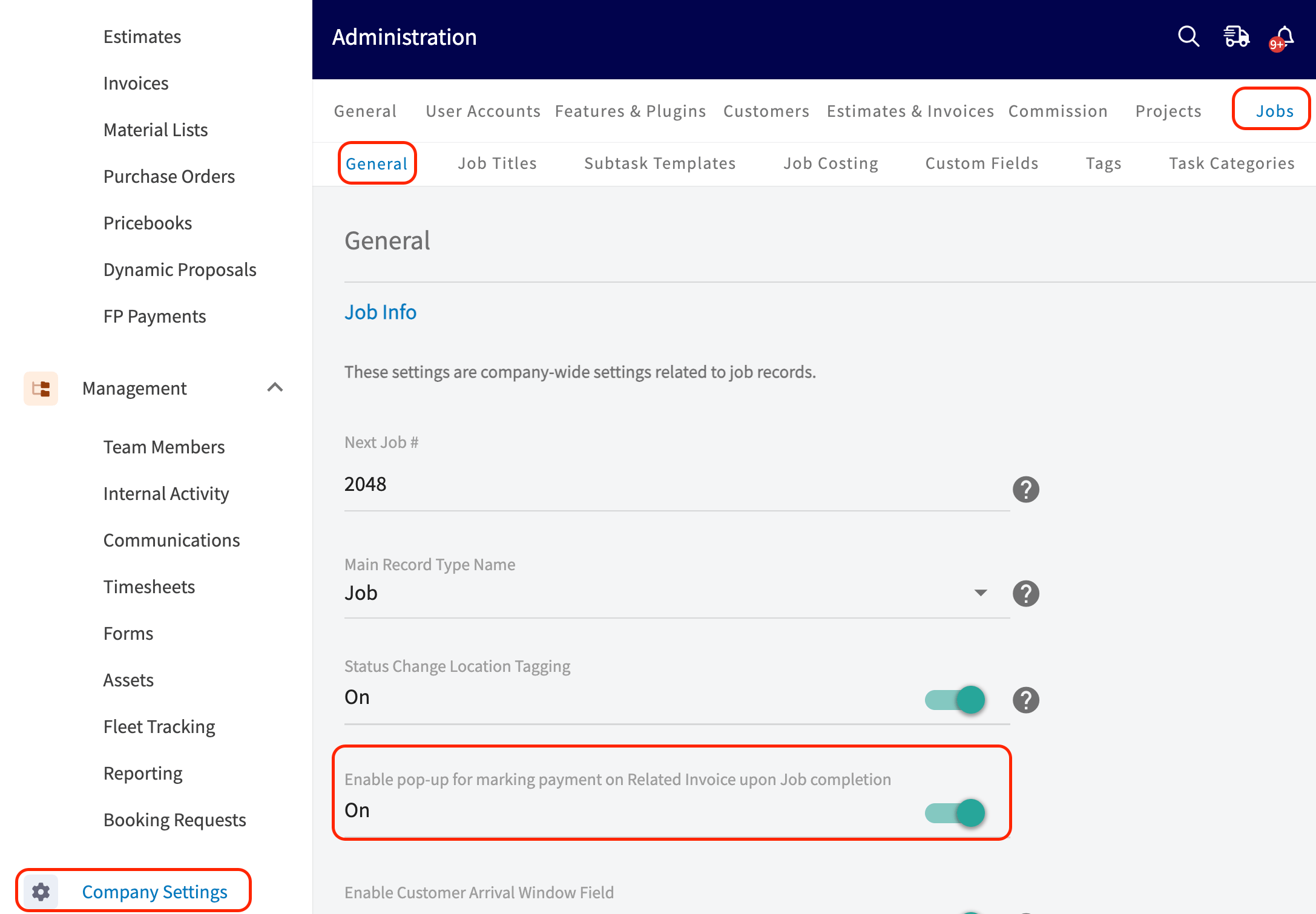
By default, when you mark a job with a related invoice as *Completed*, FieldPulse displays a pop-up asking *"Do you want to mark payment on your invoice?"*. However, you can turn this off. To disable: Navigate to Company Settings > Jobs > General tab and toggle off "Enable pop-up for marking payment on Related Invoice upon Job completion."
***
# FAQs
**How do I turn off the "Mark Payment" pop-up that appears when I complete a job?**
By default, when you mark a job with a related invoice as *Completed*, FieldPulse displays a pop-up asking *"Do you want to mark payment on your invoice?"*. However, you can turn this off. To disable: Navigate to Company Settings > Jobs > General tab and toggle off "Enable pop-up for marking payment on Related Invoice upon Job completion."
 ***
# Video Tutorial
***
**Have additional questions?**
*Contact us at [support@fieldpulse.com](mailto:support@fieldpulse.com) or use the chat feature in the bottom right corner of your screen.*
***
# Video Tutorial
***
**Have additional questions?**
*Contact us at [support@fieldpulse.com](mailto:support@fieldpulse.com) or use the chat feature in the bottom right corner of your screen.*