> ## Documentation Index
> Fetch the complete documentation index at: https://help.fieldpulse.com/llms.txt
> Use this file to discover all available pages before exploring further.
# Custom Tags for Jobs
> Tag and color-code jobs so your schedule is readable at a glance and easy to filter.
You can create custom tags for your jobs to organize and color code them to make the schedule even easier to read at a glance.
***
# Creating Custom Tags
To add a job tag when creating or editing a job, scroll to *Job Tags* and click in the field.
You can type in a custom tag to add a new tag into the system. Click *Enter* after each tag you'd like to use. You can also customize the color of your new tag! You can also select from a previously used tag in the tags list.
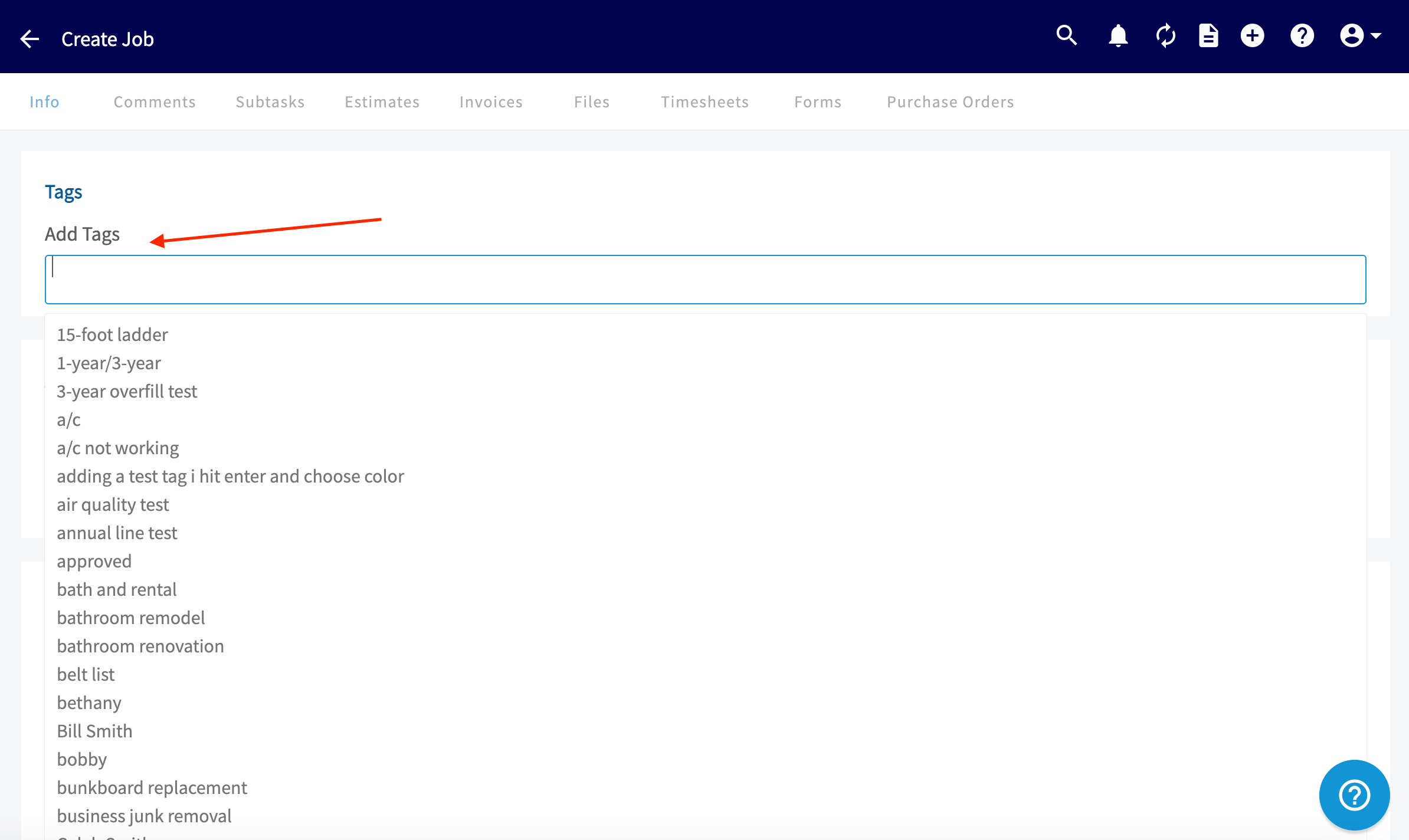 Once you have tagged the job appropriately, scroll down to the bottom of the page and click *Save Job*. Any tags you created on this record will now appear in the previously used tags list on future job records.
You'll see the job tags located alongside the job details:
Once you have tagged the job appropriately, scroll down to the bottom of the page and click *Save Job*. Any tags you created on this record will now appear in the previously used tags list on future job records.
You'll see the job tags located alongside the job details:
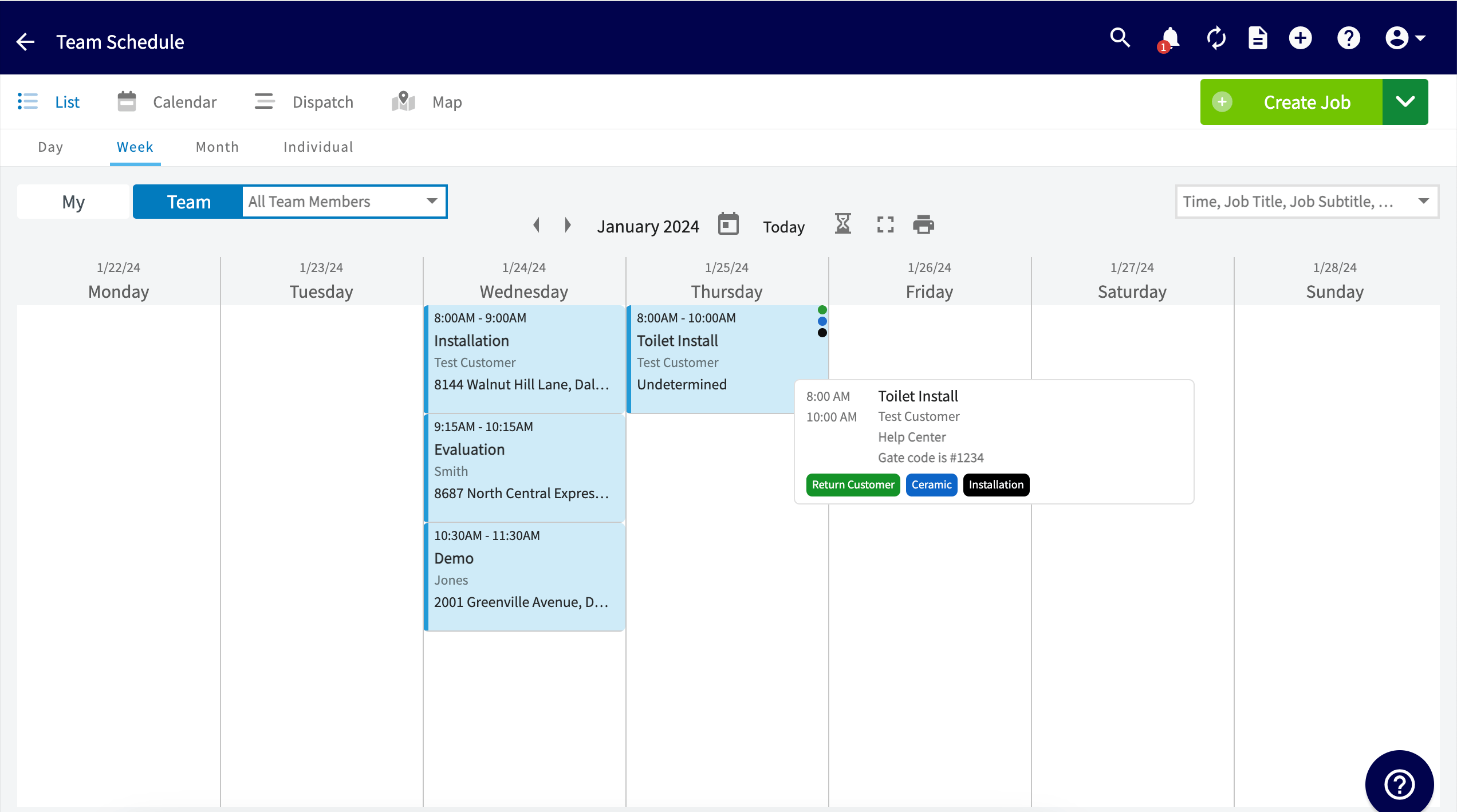
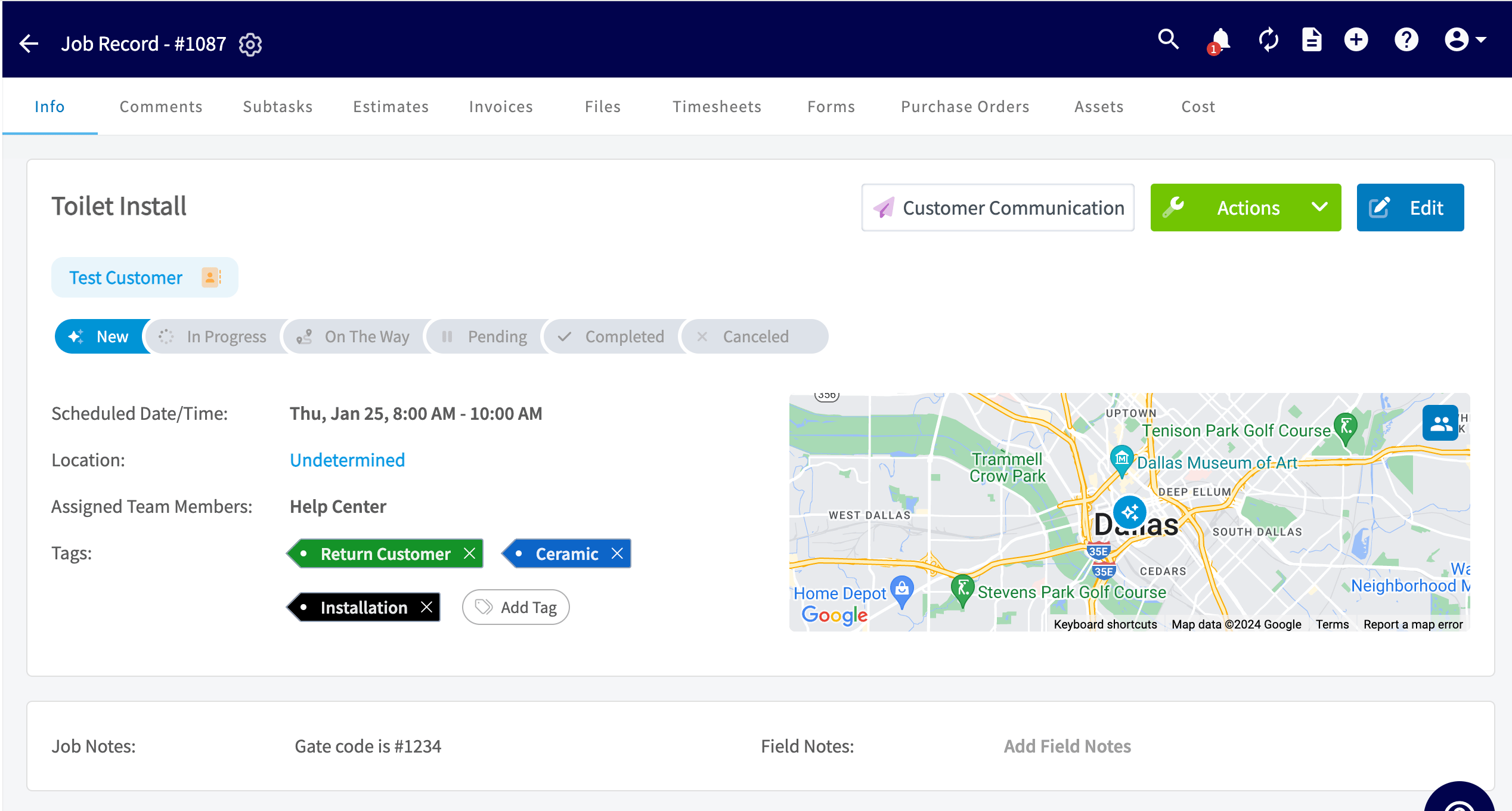 You'll see the job tag and color applied to the job record itself, and as a color coded dots on the schedule.
 ***
# Sorting Your Jobs by Tags
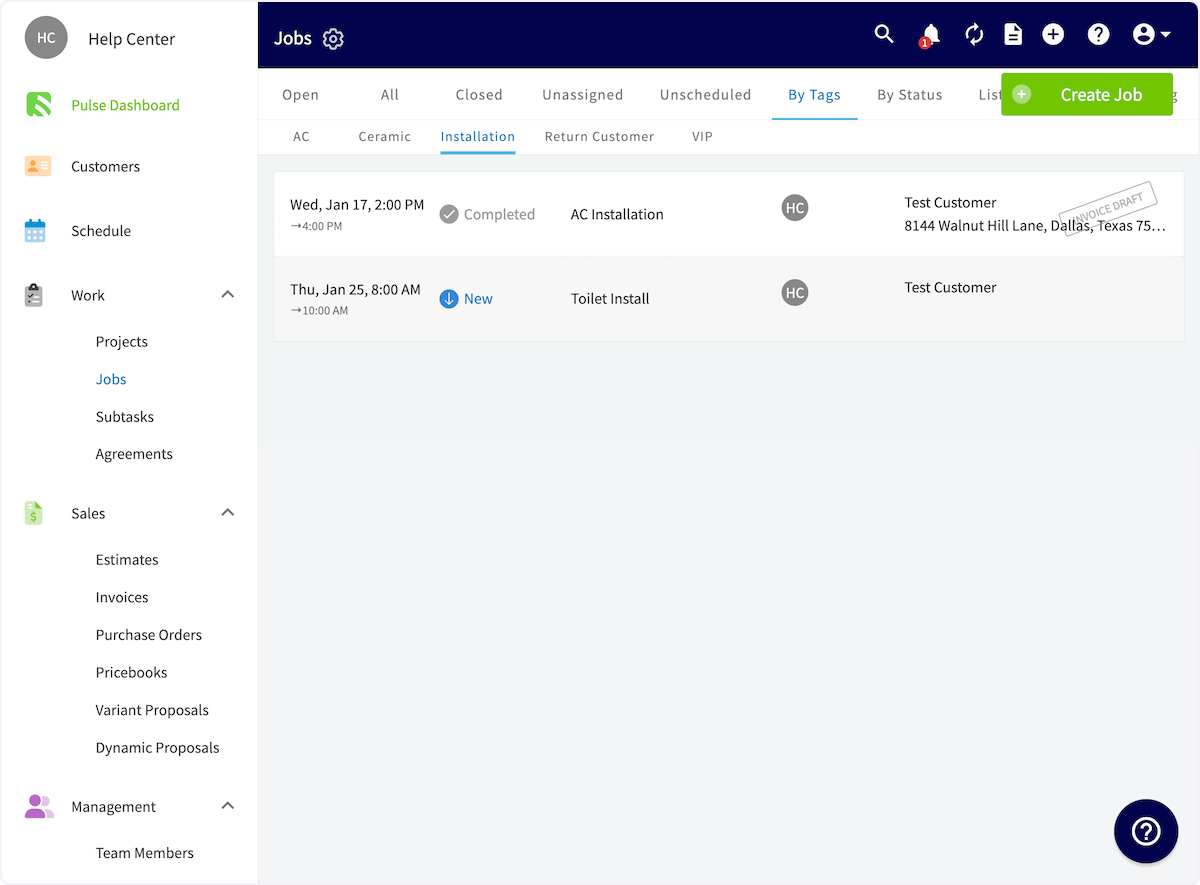
Once you've tagged your jobs, you can view your jobs organized by tags. To do so, go to the *Jobs* page and click *By Tags*. From this list, select the tag you'd like to view.
***
# Sorting Your Jobs by Tags
Once you've tagged your jobs, you can view your jobs organized by tags. To do so, go to the *Jobs* page and click *By Tags*. From this list, select the tag you'd like to view.
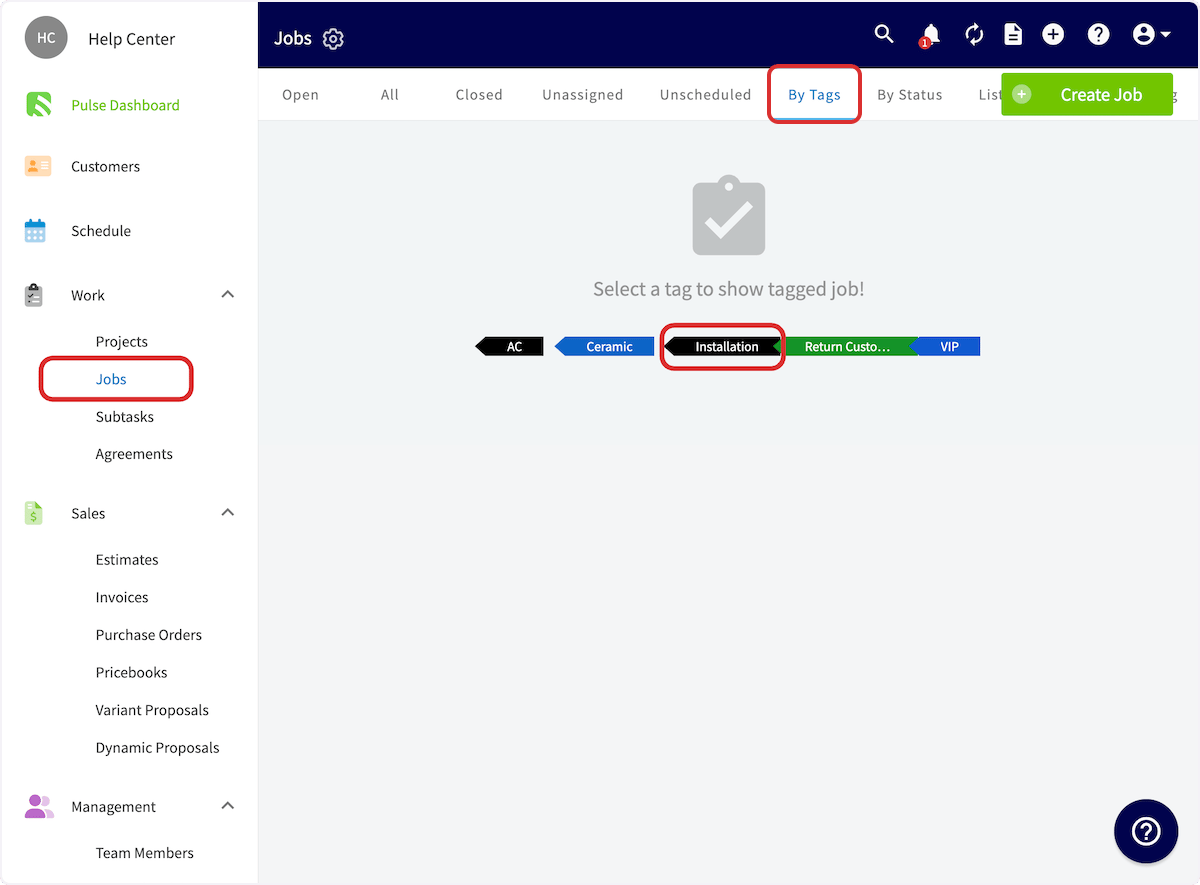 You will now see all of the jobs that carry the selected tag.
 ***
# Deleting a Tag
To delete a tag from the *Job* record, simply click the little "x" that populates by the tag.
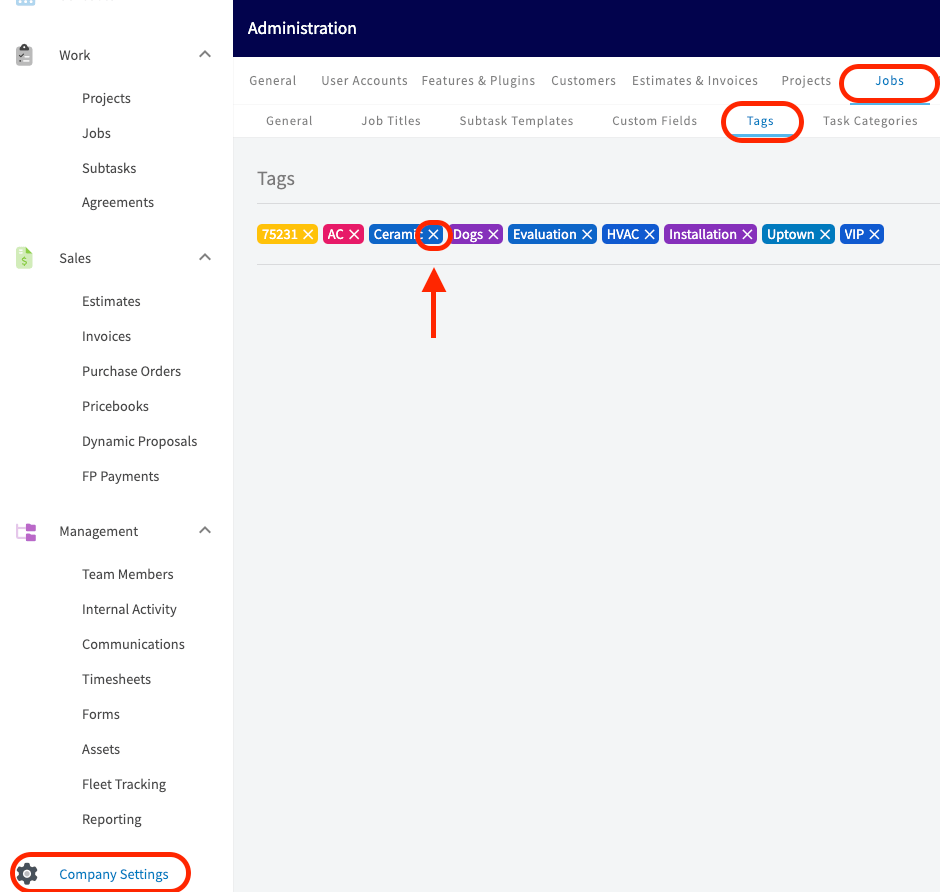
To delete and tag and prevent it from popping up as an option to choose from on future job records you will need to navigate to *Company Settings*. Locate the *Jobs* tab and click on *Tags*. From here you can easily click the little "x" that populates by the tags you wish to delete.
***
# Deleting a Tag
To delete a tag from the *Job* record, simply click the little "x" that populates by the tag.
To delete and tag and prevent it from popping up as an option to choose from on future job records you will need to navigate to *Company Settings*. Locate the *Jobs* tab and click on *Tags*. From here you can easily click the little "x" that populates by the tags you wish to delete.
 ***
# Video Tutorial
***
**Have additional questions?**
*Contact us at [support@fieldpulse.com](mailto:support@fieldpulse.com) or use the chat feature in the bottom right corner of your screen.*
***
# Video Tutorial
***
**Have additional questions?**
*Contact us at [support@fieldpulse.com](mailto:support@fieldpulse.com) or use the chat feature in the bottom right corner of your screen.*