> ## Documentation Index
> Fetch the complete documentation index at: https://help.fieldpulse.com/llms.txt
> Use this file to discover all available pages before exploring further.
# File Management
> Send files to customers from any record, estimate, or invoice, and set which team members can view each one.
# Overview
You can share files from FieldPulse straight from a record, a customer communication, or right inside an estimate or invoice. Pick the file, choose how to send it, and it's in your customer's hands in a few clicks. Behind the scenes, you decide who on your team can see what.
***
# On Web: Admin Experience
## Sharing Files
There are three ways to share files with a customer. Pick the one that fits the job.
## From File
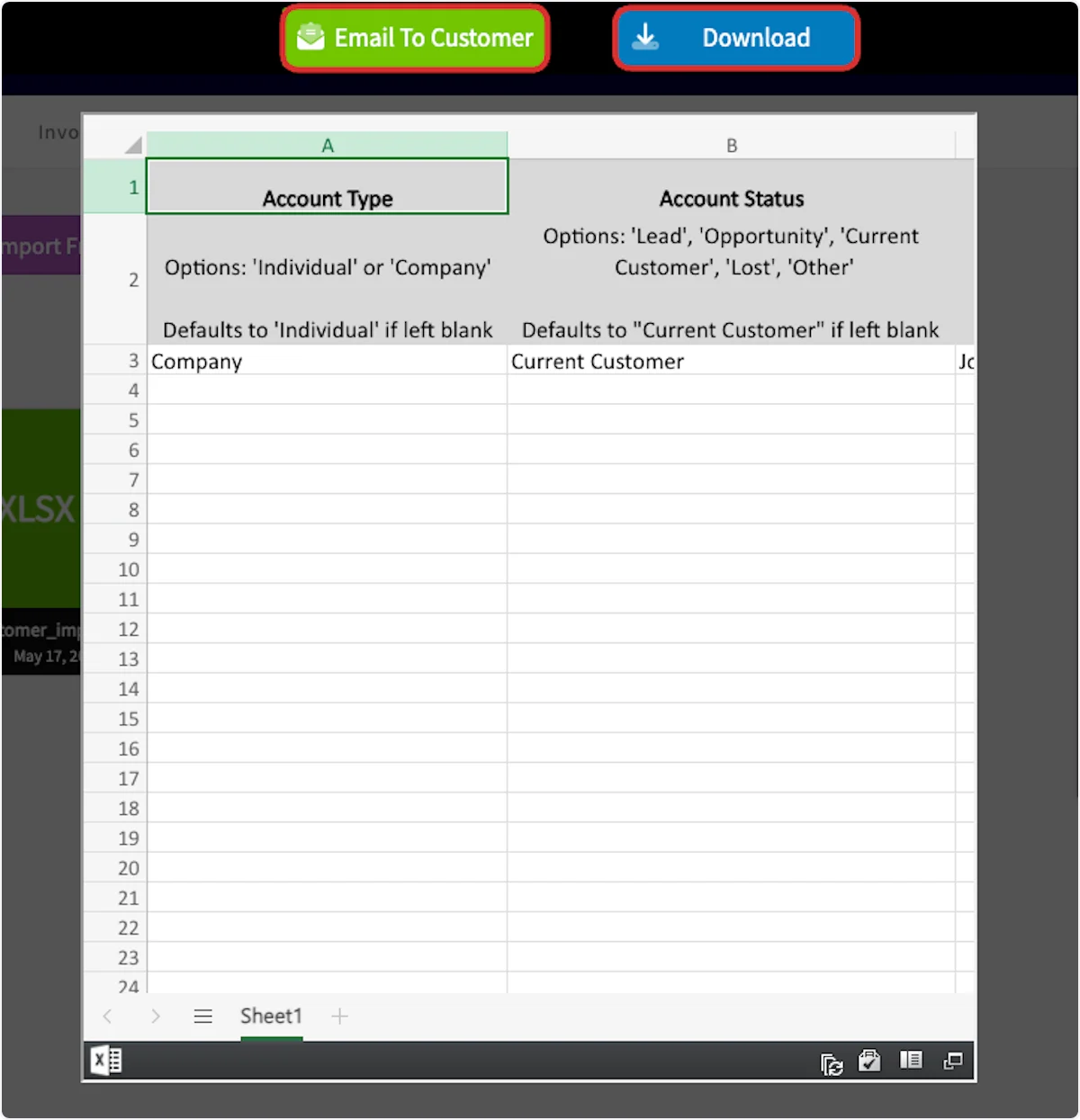
To share a file, begin by clicking on a file. You can now select *Email to Customer* to send this file, or press *Download* to download the file onto your device.
 ## From Customer Communication
To include a file on a customer communication, begin by selecting *Actions* on the related record, then click *Send Customer Communication*.
## From Customer Communication
To include a file on a customer communication, begin by selecting *Actions* on the related record, then click *Send Customer Communication*.
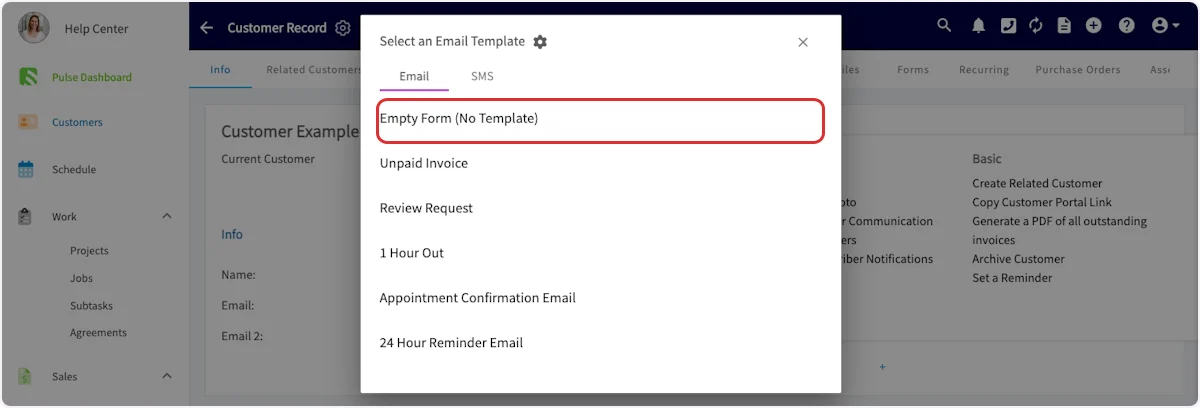
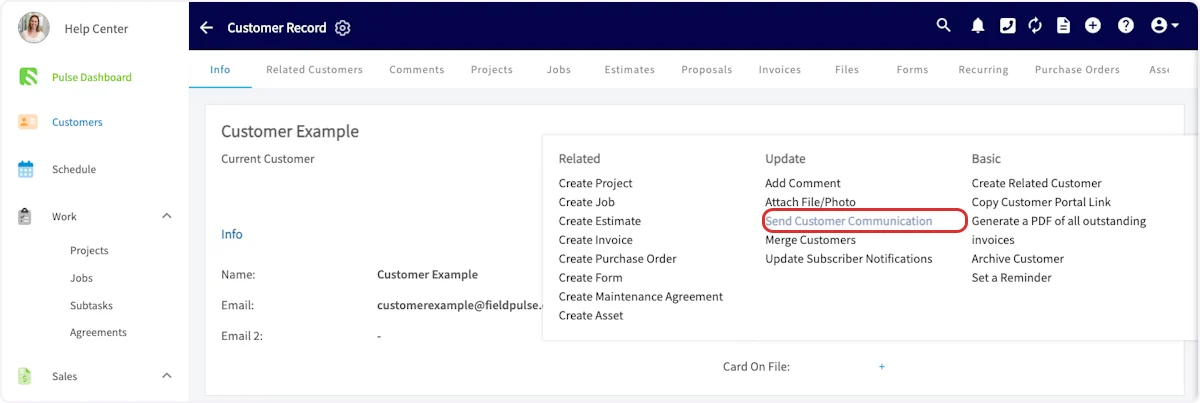 Select the template you'd like to use, or use an empty form.
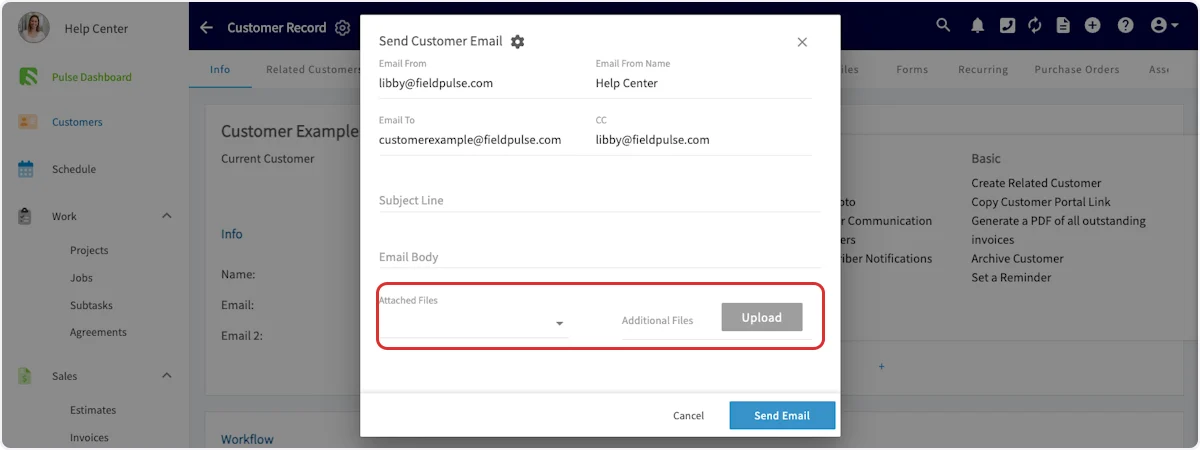
 Click on *Attached Files* to attach files stored in FieldPulse. Click on *Additional Files* to upload files from your device.
 ## From Estimate or Invoice
On an estimate or invoice record, select *Preview*.
## From Estimate or Invoice
On an estimate or invoice record, select *Preview*.
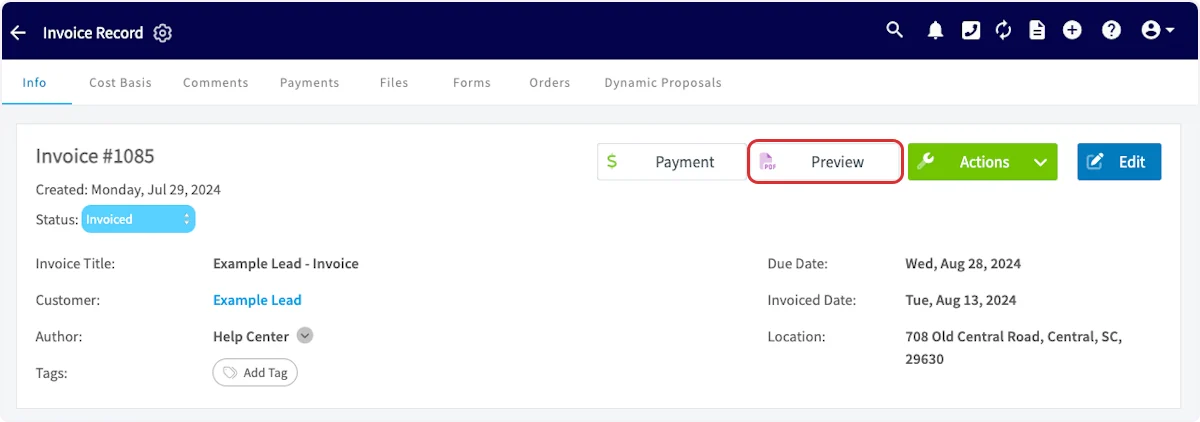 Once previewing the record, click *Email to Customer*.
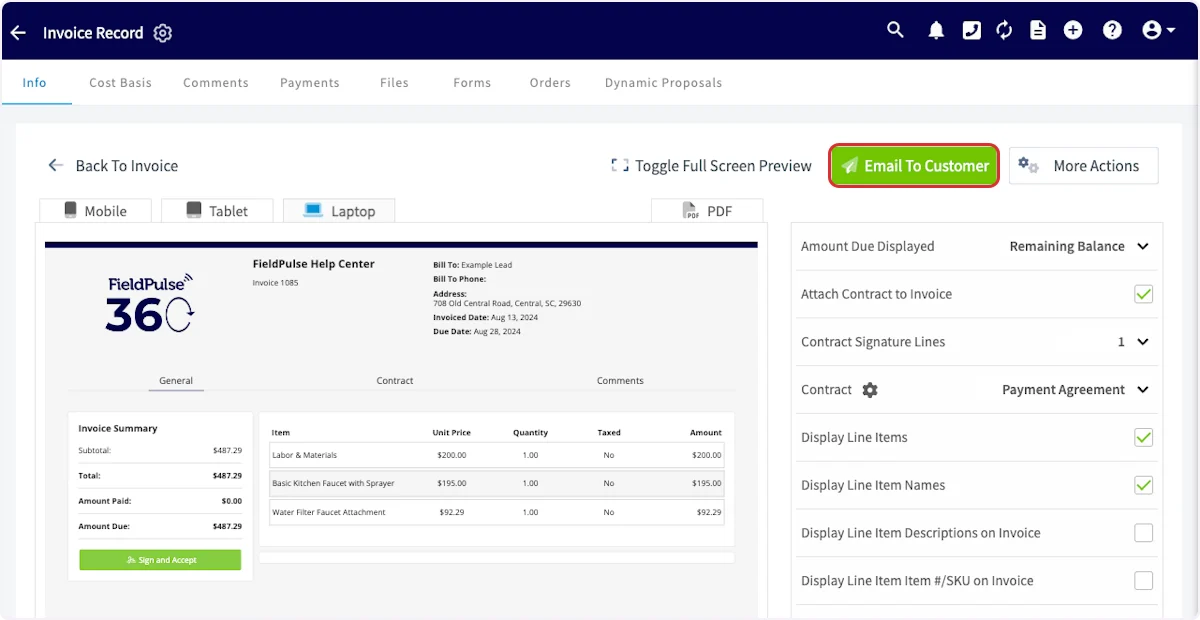 Once here, you can select visible files, email attachments, and upload additional files.
* *Visible Files:* Files stored in FieldPulse will be displayed on the dynamic estimate or invoice
* *Email Attachments*: Files stored in FieldPulse will be attached to the email
* *Upload Additional Files:* Files from your device will be displayed on the dynamic estimate or invoice
Once here, you can select visible files, email attachments, and upload additional files.
* *Visible Files:* Files stored in FieldPulse will be displayed on the dynamic estimate or invoice
* *Email Attachments*: Files stored in FieldPulse will be attached to the email
* *Upload Additional Files:* Files from your device will be displayed on the dynamic estimate or invoice
 ## File Visibility
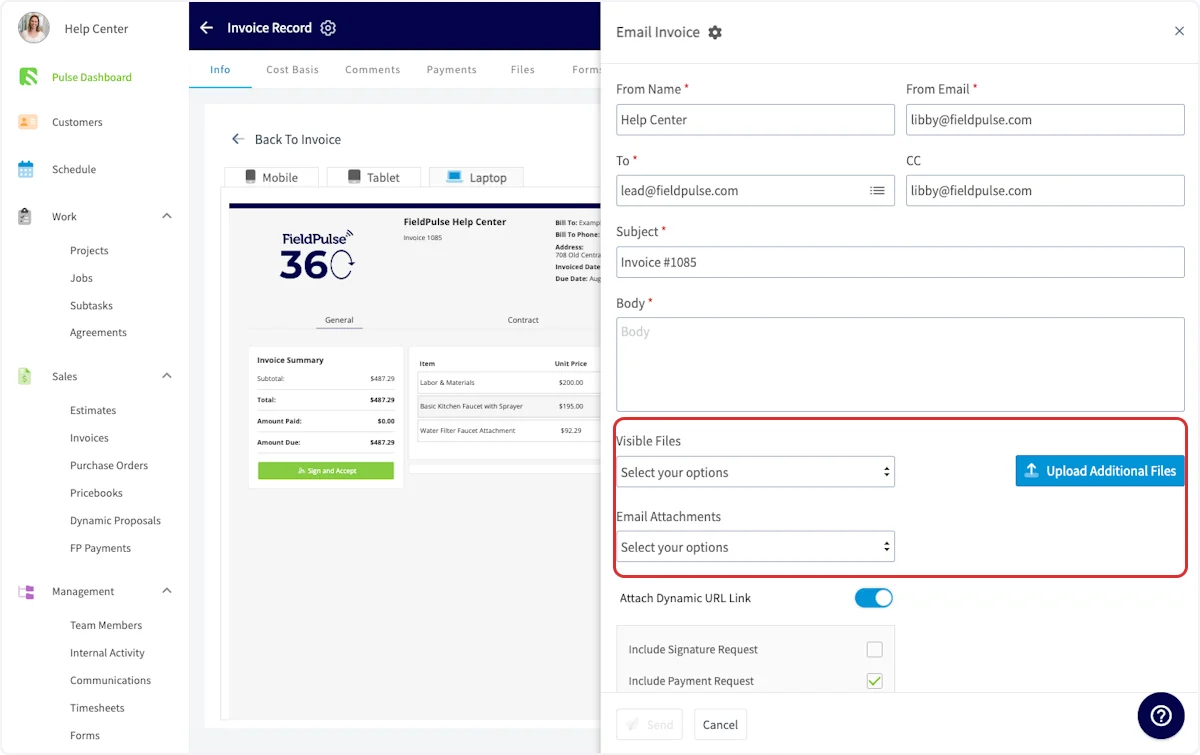
To restrict file visibility, begin by clicking on a file, then select *Edit*. You can toggle on or off *Can Service Agent See File?* as well as *Can Team Manager See File?* Be sure to press *Save* after making changes.
## File Visibility
To restrict file visibility, begin by clicking on a file, then select *Edit*. You can toggle on or off *Can Service Agent See File?* as well as *Can Team Manager See File?* Be sure to press *Save* after making changes.
 ## Moving Files
You can easily move files from a customer record to a job record on the FieldPulse web app. Begin by navigating to the customer record and selecting *Files*. Click *Move Files to FieldPulse Record*, then select the files you'd like to move.
## Moving Files
You can easily move files from a customer record to a job record on the FieldPulse web app. Begin by navigating to the customer record and selecting *Files*. Click *Move Files to FieldPulse Record*, then select the files you'd like to move.
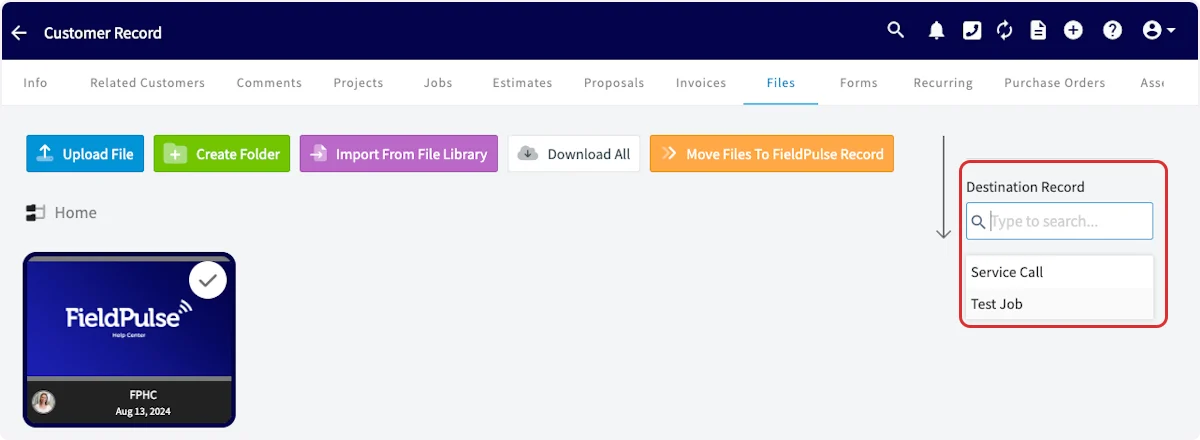
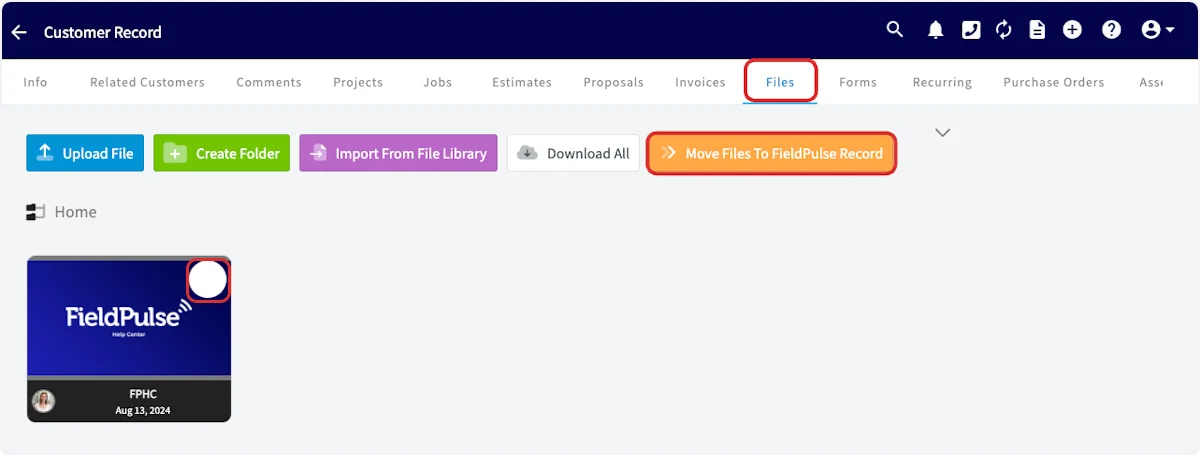 Click in the search box and select the job record where you'd like to transfer the files. *(**Note:** Only jobs linked to this customer will appear.)*
 You can then select to *Duplicate & Transfer Files* or *Move Files Only*.
### **Duplicate & Transfer Files**
This option duplicates the files from the primary record and transfers them to the selected record without creating linked duplicates. (**Note:** When duplicating and transferring files from a customer record to a job record, duplicates of these files will appear on your customer files tab. This is because FieldPulse displays all files associated with related jobs in this tab.)
#### **Move Files Only**
This option removes the files from the primary record and transitions them to the selected record without duplication. (**Note:** When moving files from a customer record to a job record, the files will still appear in the customer record. This is because FieldPulse displays all files uploaded to related jobs on the customer files tab.)
Our recommendation is to select *Move Files Only*, given that any files on job records will appear on the linked customer's record.
***
# On Mobile: Field Experience
## Creating File Folders
To create a file folder on the mobile app, navigate to the *Files* tab on any record and tap the *Create Folder* button.
You can then select to *Duplicate & Transfer Files* or *Move Files Only*.
### **Duplicate & Transfer Files**
This option duplicates the files from the primary record and transfers them to the selected record without creating linked duplicates. (**Note:** When duplicating and transferring files from a customer record to a job record, duplicates of these files will appear on your customer files tab. This is because FieldPulse displays all files associated with related jobs in this tab.)
#### **Move Files Only**
This option removes the files from the primary record and transitions them to the selected record without duplication. (**Note:** When moving files from a customer record to a job record, the files will still appear in the customer record. This is because FieldPulse displays all files uploaded to related jobs on the customer files tab.)
Our recommendation is to select *Move Files Only*, given that any files on job records will appear on the linked customer's record.
***
# On Mobile: Field Experience
## Creating File Folders
To create a file folder on the mobile app, navigate to the *Files* tab on any record and tap the *Create Folder* button.
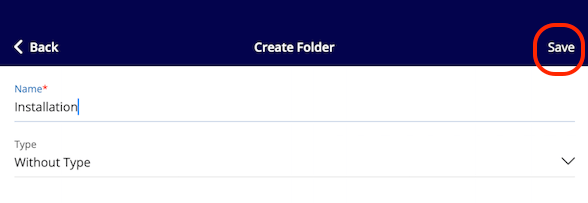
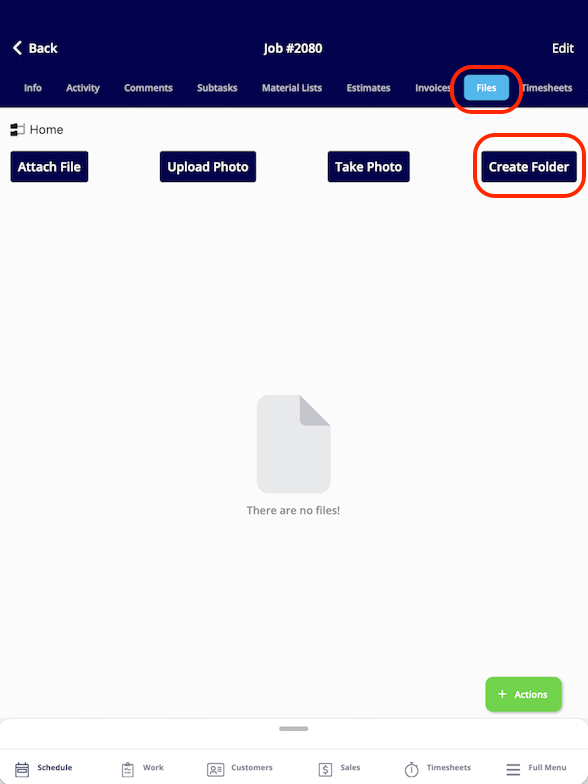 You will be taken to the folder creation screen. Enter a name for your folder in the *File Name* field. This field is required before you can save.
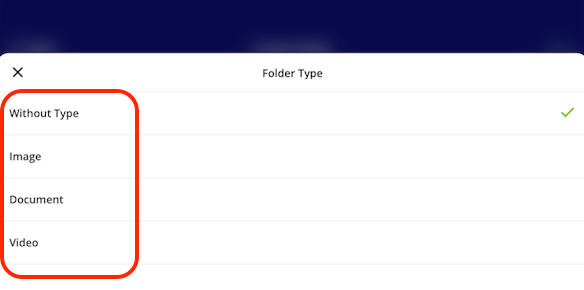
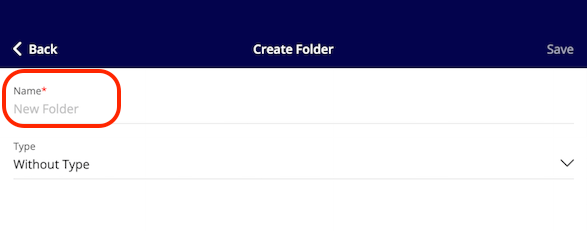 Next, tap the *Type* field to open the selection menu. Choose the type of content this folder will hold:
* *Without a file* (creates an empty placeholder folder)
* *Image*
* *Document*
* *Video*
Next, tap the *Type* field to open the selection menu. Choose the type of content this folder will hold:
* *Without a file* (creates an empty placeholder folder)
* *Image*
* *Document*
* *Video*
 Once you've entered a name and selected a type, tap *Save* to create the folder. To cancel without saving, tap *Exit*. Your new folder will now appear in the *Files* tab.
 ***
# What Your Customer Sees
Files you share land in a few different places depending on the path you take:
* Files emailed from a single file open as a standard email attachment.
* Files attached through *Send Customer Communication* arrive in line with the template you chose.
* *Visible Files* appear inside the dynamic *Estimate* or *Invoice* when the customer opens the link.
* *Email Attachments* attach to the email that delivers the *Estimate* or *Invoice*.
Heads up: customers only see files you explicitly share. Files uploaded to a record stay internal by default.
***
**Have additional questions?**
*Contact us at [support@fieldpulse.com](mailto:support@fieldpulse.com) or use the chat feature in the bottom right corner of your screen.*
## Related topics
- [FieldPulse360: Feature Updates](/training-resources/fieldpulse360/fieldpulse360-archives/fieldpulse360-feature-updates.md)
- [Work](/using-fieldpulse/work/index.md)
- [Project Management](/using-fieldpulse/project-management/project-management.md)
- [Review Management](/using-fieldpulse/win-repeat-business/review-management.md)
***
# What Your Customer Sees
Files you share land in a few different places depending on the path you take:
* Files emailed from a single file open as a standard email attachment.
* Files attached through *Send Customer Communication* arrive in line with the template you chose.
* *Visible Files* appear inside the dynamic *Estimate* or *Invoice* when the customer opens the link.
* *Email Attachments* attach to the email that delivers the *Estimate* or *Invoice*.
Heads up: customers only see files you explicitly share. Files uploaded to a record stay internal by default.
***
**Have additional questions?**
*Contact us at [support@fieldpulse.com](mailto:support@fieldpulse.com) or use the chat feature in the bottom right corner of your screen.*
## Related topics
- [FieldPulse360: Feature Updates](/training-resources/fieldpulse360/fieldpulse360-archives/fieldpulse360-feature-updates.md)
- [Work](/using-fieldpulse/work/index.md)
- [Project Management](/using-fieldpulse/project-management/project-management.md)
- [Review Management](/using-fieldpulse/win-repeat-business/review-management.md)