Who uses this: Anyone with access to Company Settings > Custom Forms builds a form’s fields; your team fills them in on the record. Availability: All regions · Custom Forms must be enabled under Company Settings > Features & Plugins — contact FieldPulse for pricing.This is the reference for the building blocks of a custom form — the field types you drag onto the form, the related-record fields that pull values off the record the form is attached to, the formulas that calculate a number for you, and the conditional logic that shows a field only when it applies.
Overview
You add fields to a form by dragging them from the Drag a field onto the form palette on the right side of the form editor. Most field types collect input directly from the person filling out the form. Related-record fields instead import values that already exist on the linked customer, job, estimate, invoice, project, maintenance agreement, or asset. A Number Field can calculate its own value from a formula, and any field can be set to appear only when an earlier answer matches a condition. For how to create a form and arrange fields on it, see How to Create a Custom Form.For a full breakdown of every setting available on a form — name, font sizes, offline availability, record attachment, permissions, and default email and SMS messaging — see Custom Form Settings Details.
Field types
A custom form supports eleven field types. Each one below shows what it collects and the options you can set on it.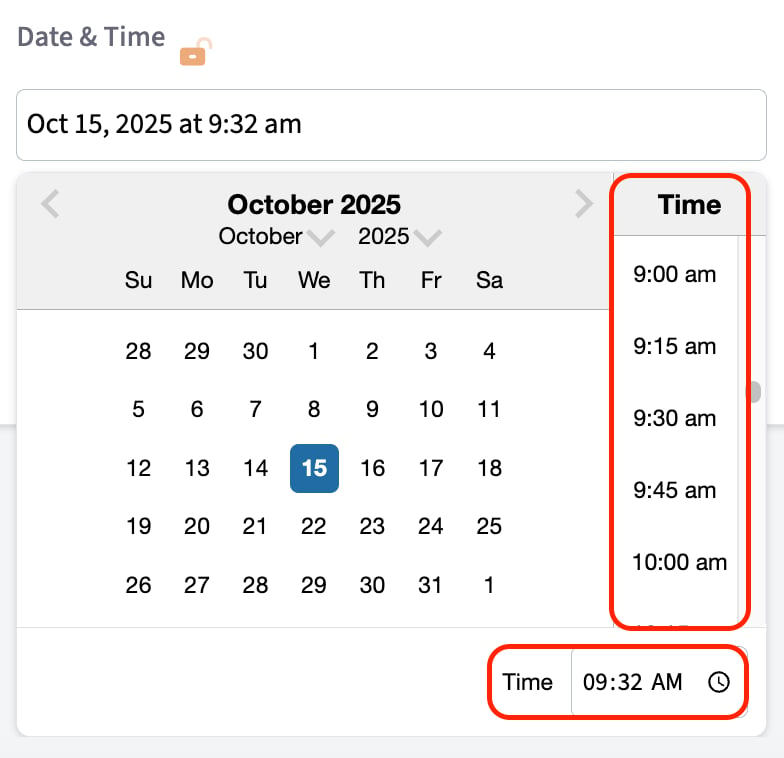
Related-record fields
Related-record fields pull details that already exist on the linked record into the form, so your team does not retype them. If a customer has multiple locations or contacts, you specify which one’s information fills the field.
For more detail on adding related field values to a form, see How to Link Custom Forms to Jobs.
Field formulas
A field formula lets a Number Field calculate its own value from other number fields and constants, so nobody has to work the math out by hand and type the answer in.-
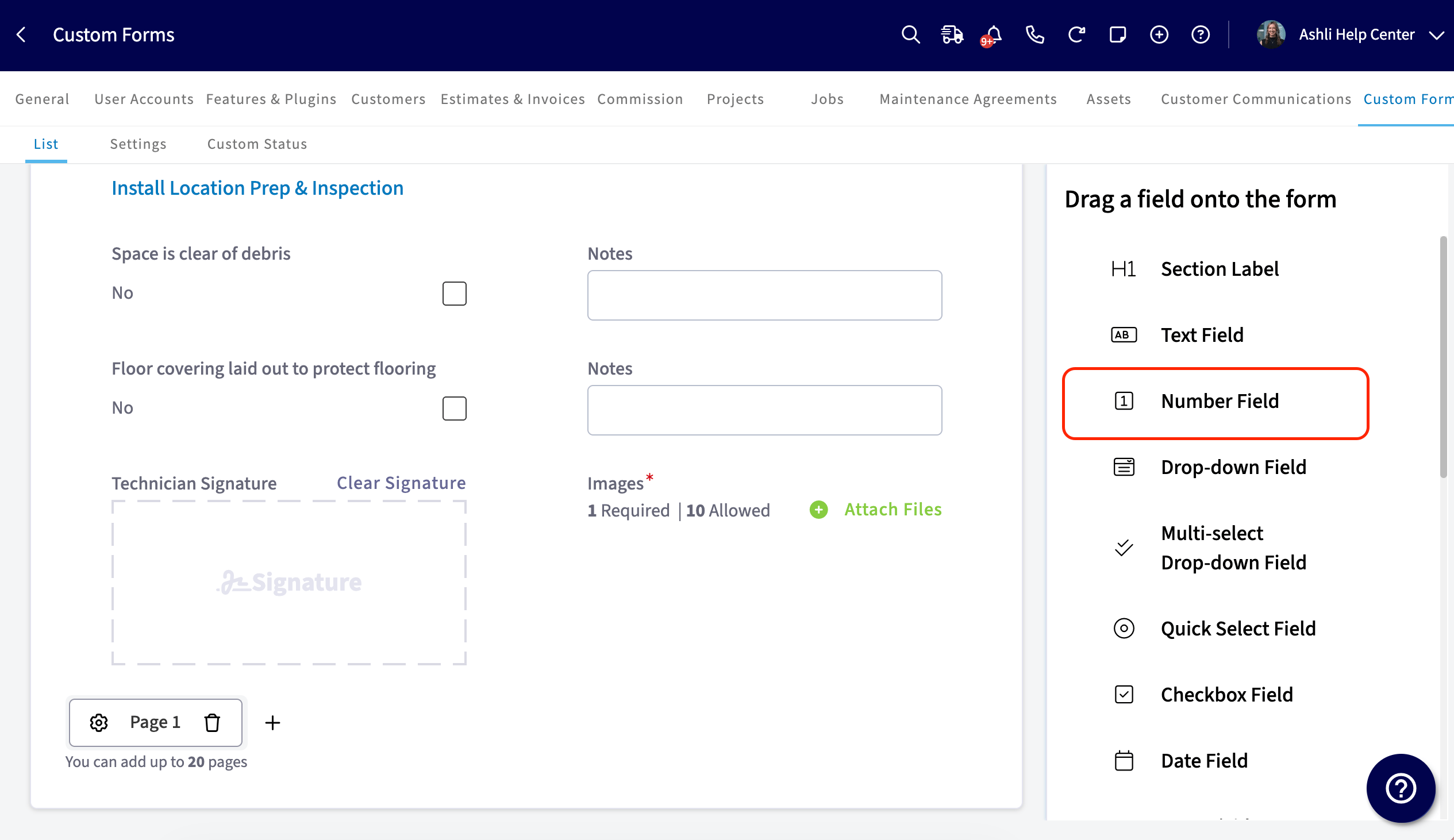
Select a Number Field on your form to open its settings.
-
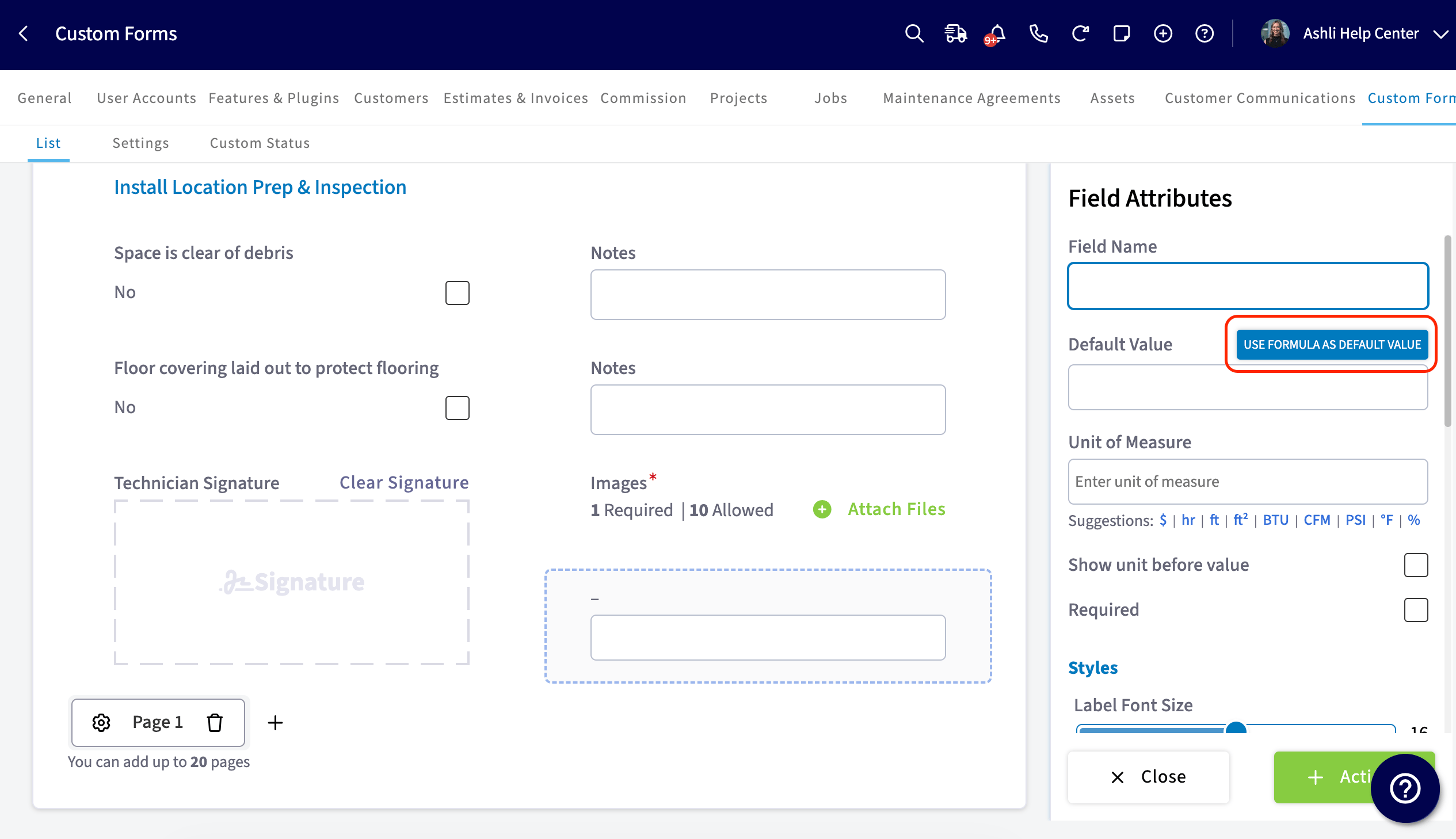
Select Use Formula as Default Value above the Default Value field.
-
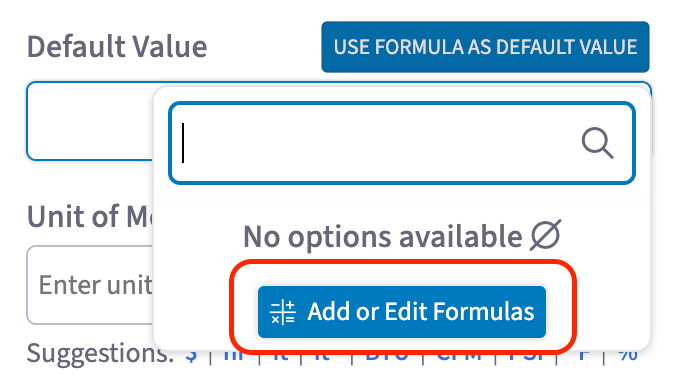
In the Default Value selector, choose an existing formula or select Add or Edit Formulas.
-
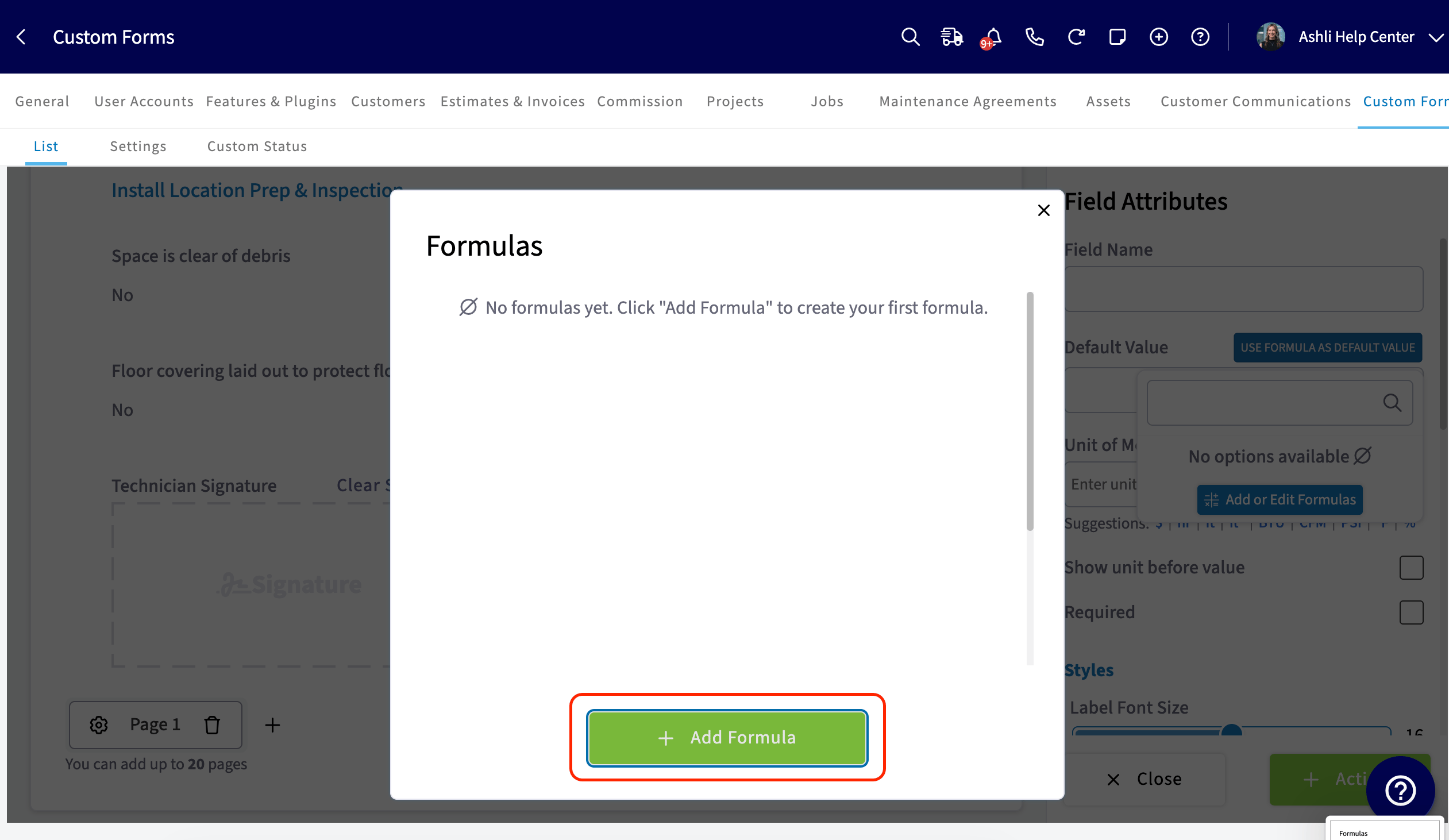
In the Formulas modal, select Add Formula and give the formula a name.
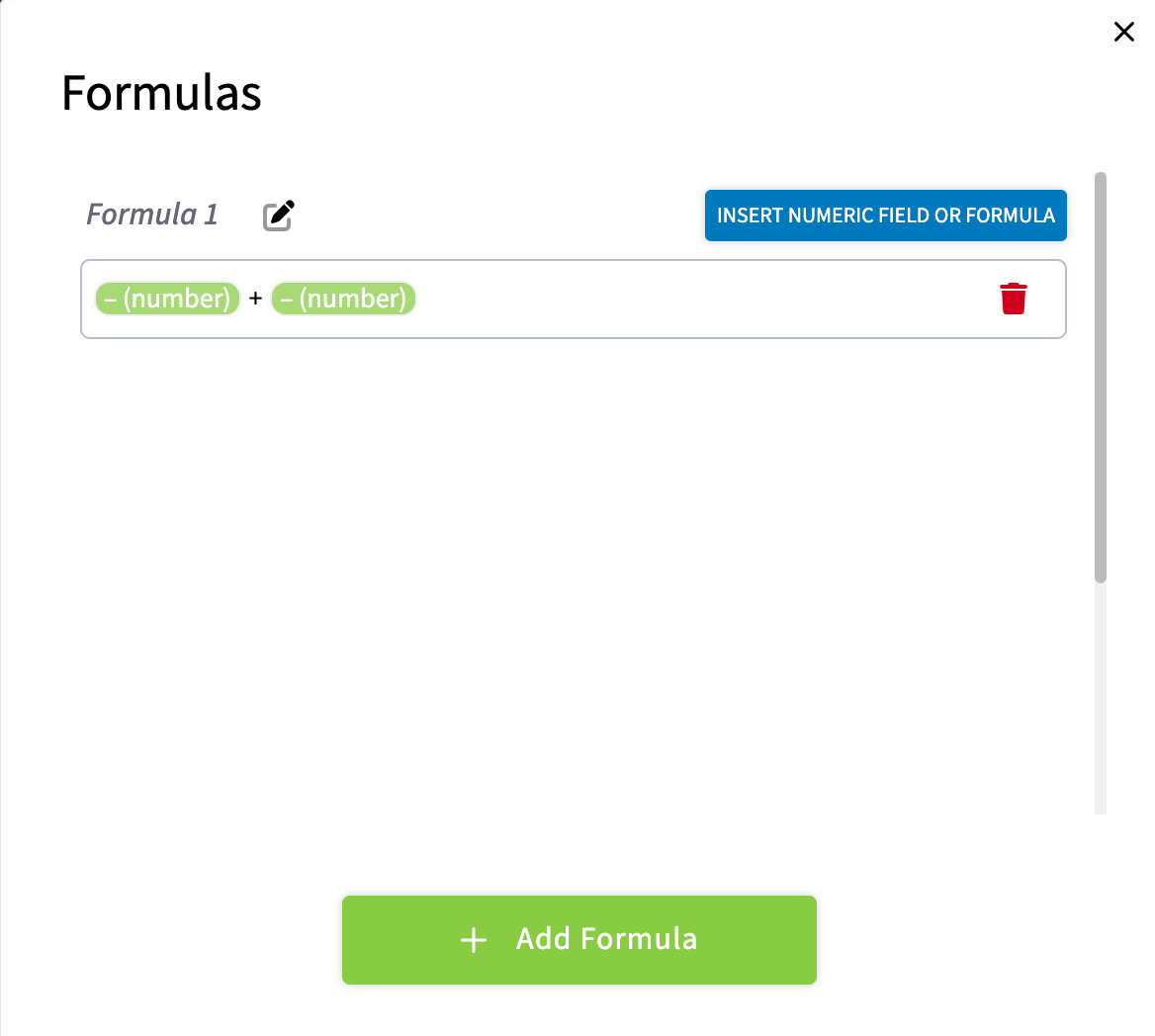
- Select Insert Numeric Field or Formula to bring other number fields or existing formulas in as variables.
-
Connect the variables with arithmetic operators — add, subtract, multiply, divide. You can multiply a field by a set constant, and a formula can reference another formula so calculations build on each other.
- Save the formula and close the modal.
- Select the formula as the Default Value for the field.
Conditional logic
Conditional logic makes a form adapt to the answers a person gives, so one form can replace several versions of the same form. You build rules on a field, and each rule watches other fields on the form. When the rule’s conditions are met, the field changes. For example, a Gate Code field appears only when the Gate Code Required for Entry? checkbox is checked.Only Admins can build rules, and rules are built on the web. People filling out a form with rules on the mobile app see the same behavior as on the web.
Rule types
Each field can carry up to three rules, one of each type. A field can also carry no rules at all.
Display, Disable, and Format work together on the same field. A field can be locked and highlighted at the same time. Rules apply only to the field they are built on. To lock or highlight several fields from the same answer, build a rule on each field.
Rules are checked again every time someone changes an answer, and the order you add them in does not matter.
Add a rule to a field
- Open the form template in Company Settings > Custom Forms and select the field.
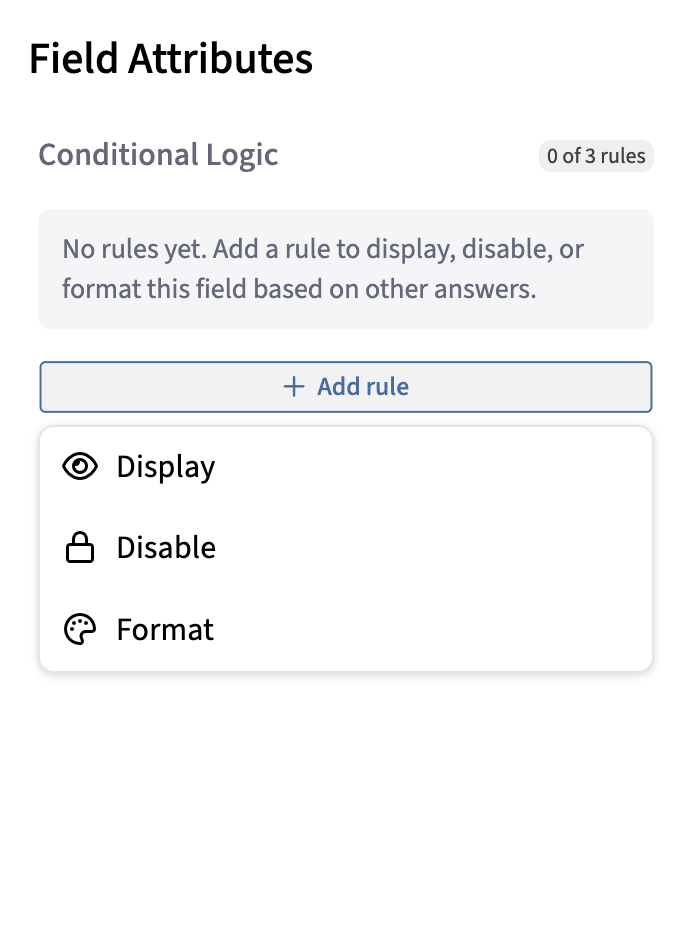
- In the Field Attributes panel, go to the Conditional Logic section and select Add rule.
- Choose Display, Disable, or Format. A rule type already on the field is marked as in use and cannot be chosen again.
- Add a condition. Each condition has three parts: a trigger field, an operator, and a value.
- Select Add new condition to add more, or use the delete control on a row to remove one.
- If the rule has more than one condition, choose AND or OR. The choice applies to every condition in that rule. AND means every condition must be met. OR means any one condition is enough.
- Save the template.
Operators by field type
The operators you can choose depend on the type of the trigger field.
To require several dropdown values at once, add one condition per value and set the rule to AND.
A blank trigger field counts as “not” any value, so an is not condition is met when the trigger field is left empty. For number, text, and date triggers, a blank field never meets a condition.
Display rules
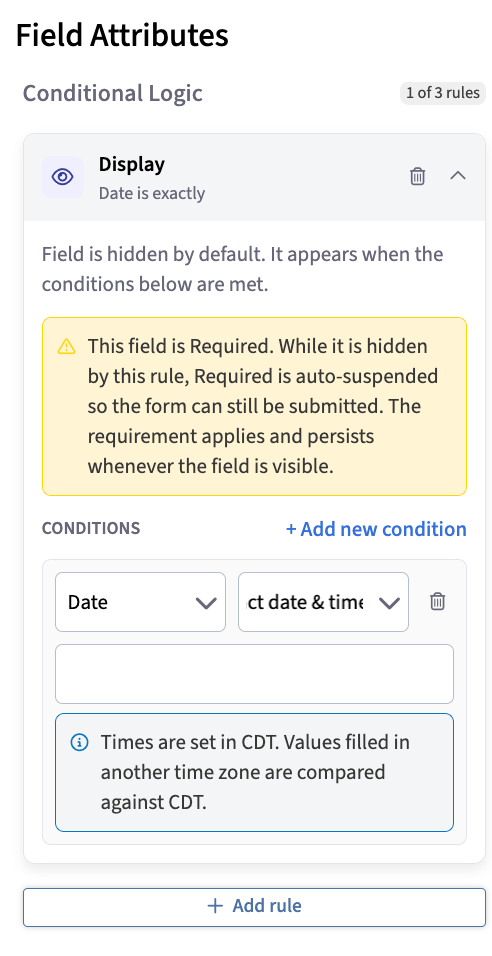
A Display rule hides the field until its conditions are met. The panel reminds you: Field is hidden by default. It appears when the conditions below are met. When a field is hidden, the person filling out the form does not see the field, its label, or its value, and it does not appear on the form PDF. In the builder, a hidden field shows a Hidden placeholder so you can still select and edit it. The placeholder does not appear to the people filling out the form. If a person enters a value, and the conditions then stop being met, the field hides again. If the conditions are met again during the same fill, the value returns. In the builder preview, a field in this state reads Hidden, value retained when its Layout Behavior is set to preserve space.Entered values that have not been submitted are lost if the page is reloaded.
Disable rules
A Disable rule locks the field while its conditions are met. The panel reminds you: Field stays visible but is greyed out and locked when the conditions below are met. Disable rules read in one direction only: disable the field when the conditions are met. The field is editable by default. You can add an optional disclaimer message that appears under the locked field. For example, a Camera Mounting Height under 5 ft can disable the Camera Type field and show “Not available for low mount installs.” A disabled field keeps whatever value it holds, and that value is saved when the form is submitted. A Disable rule works only while the field is visible. If a Display rule is hiding the field, the Disable rule has no effect until the field appears.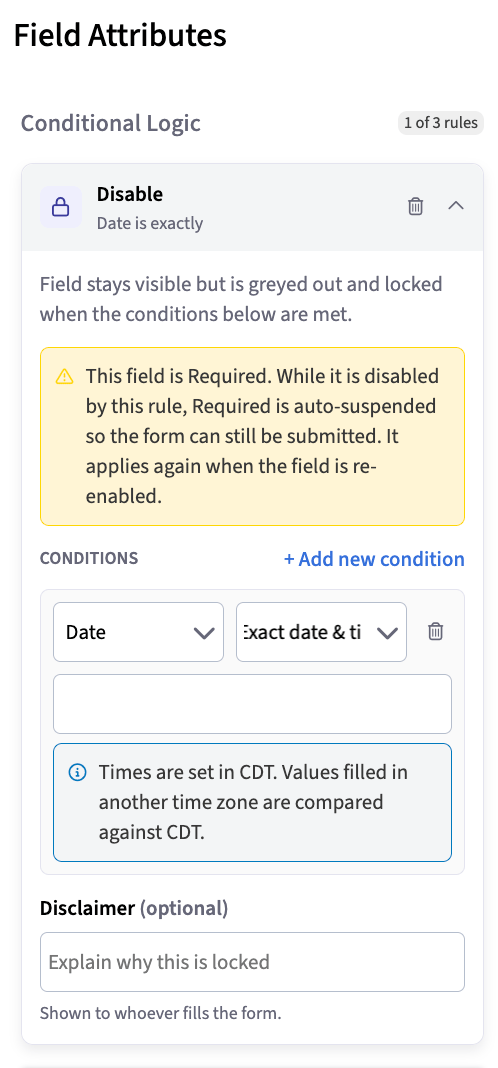
Format rules
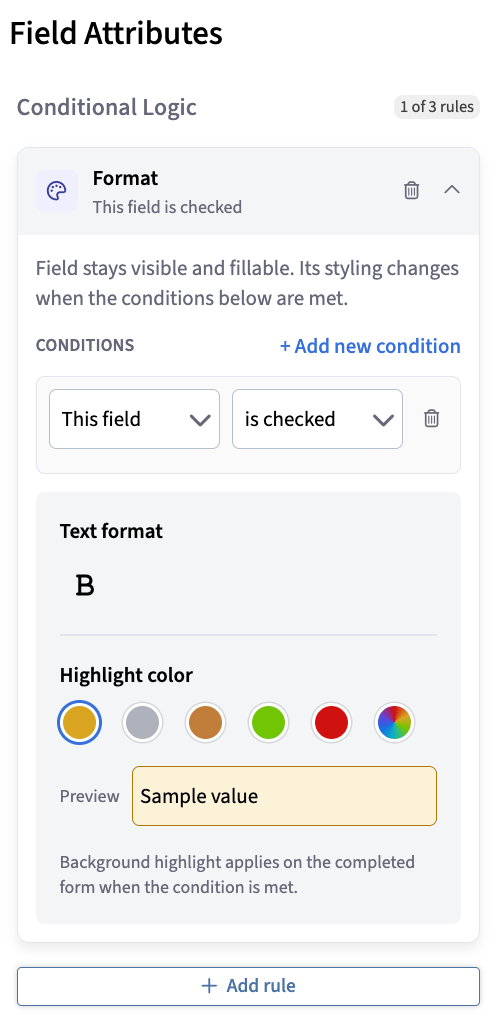
A Format rule changes how the field looks while its conditions are met. The panel reminds you: Field stays visible and fillable. Its styling changes when the conditions below are met. Use it for things like tier colors (gold, silver, bronze) or alerts (red for out of range, green for in range). Choose a highlight color:
To use any other color, select the multicolored swatch to open the color picker. Pick a color from the gradient, enter a hex code (#RRGGBB), switch between HSV and RGB values, or choose from the Basic colors grid. Select OK to apply it or Cancel to discard it.
Then turn on Bold for the text in the field. It is off by default. A live preview in the panel shows the result.
Format rules are the only rules that can use This field as a trigger, so a field can change color based on its own value. Format applies only while the field is visible, and the styling shows on the completed form.
Save custom colors
In the color picker, select the plus button to save the current color into the next open slot of the Custom colors row. The row holds up to eight colors. Saved colors belong to your whole company. Every admin with access to the form editor sees them on every template, on any device. Remove a saved color from its slot when you no longer need it. Removing a color from the palette does not change any rule that already uses it.Notes & limitations
- A custom form holds a maximum of 20 pages. The web app paginates every 10 pages; the mobile app paginates every 4 pages. See How to Create a Custom Form.
- Image/Video fields accept jpg, pdf, mp4, and png files, and each field allows between 1 and 10 files.
- Quick Select holds up to 5 options.
- A Number Field with a formula is read-only while someone fills out the form.
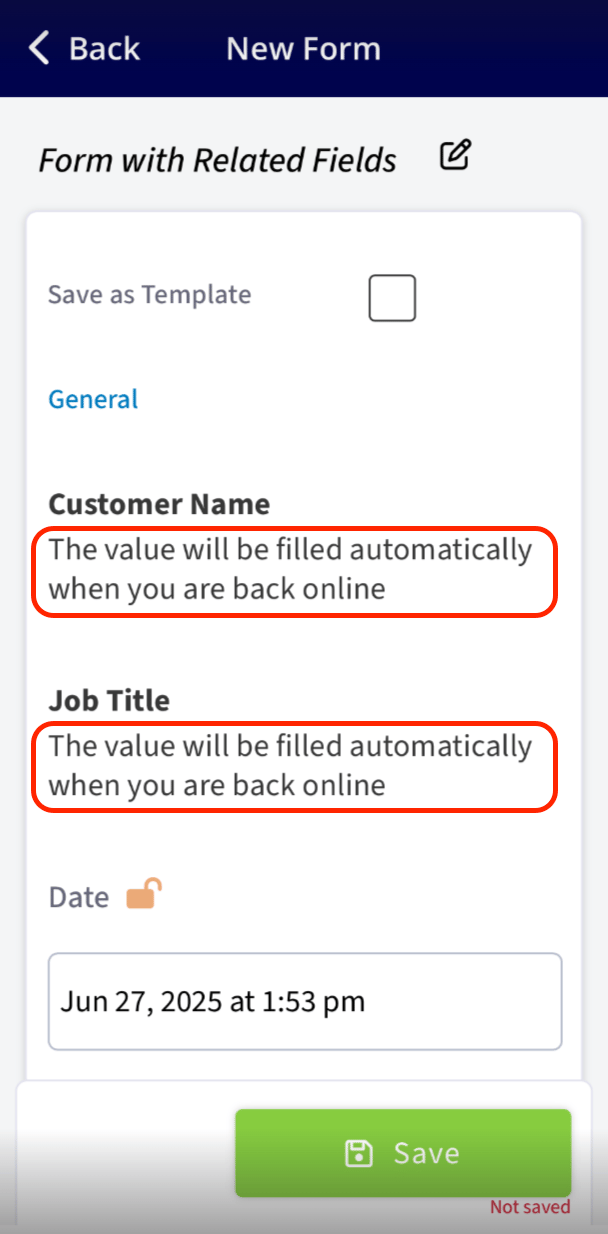
- In Offline Mode, related-record fields do not populate on their own. The field shows the message The value will be filled automatically when you are back online, and the value fills in once the device reconnects. See Custom Forms Offline Mode Details.