

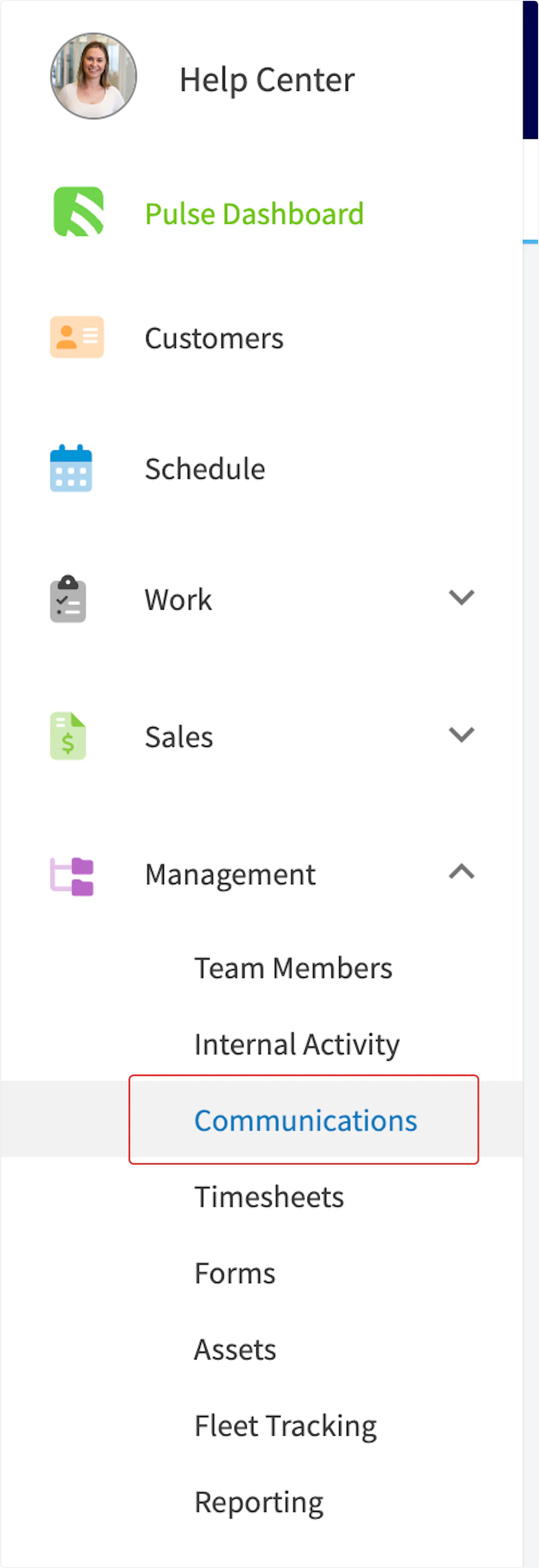
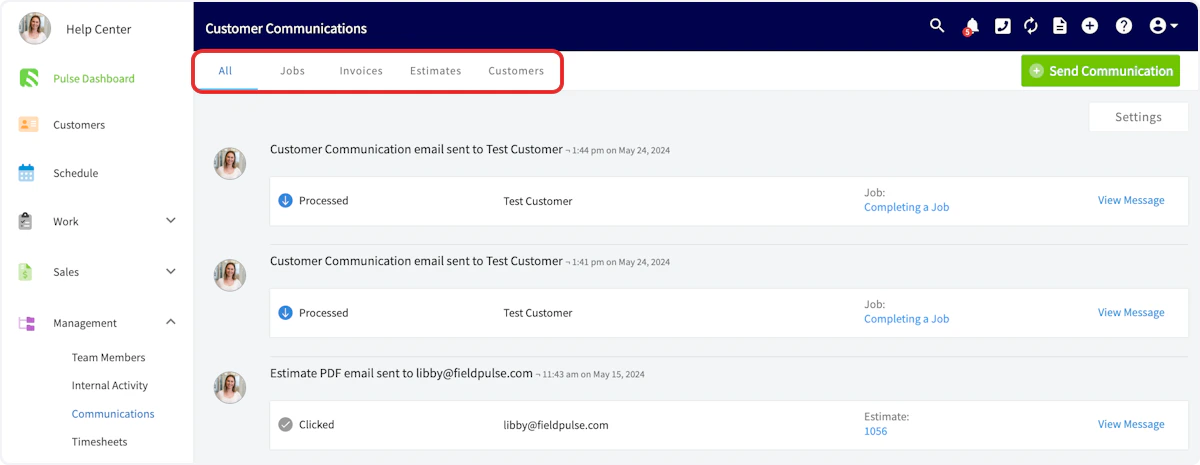
The communications tab allows you to oversee all communications sent from your team, as well as to sort them by record type and view the status of each communication. To access communications, navigate to Management in the left-side menu, then click Communications.Documentation Index
Fetch the complete documentation index at: https://fieldpulse.mintlify.app/llms.txt
Use this file to discover all available pages before exploring further.
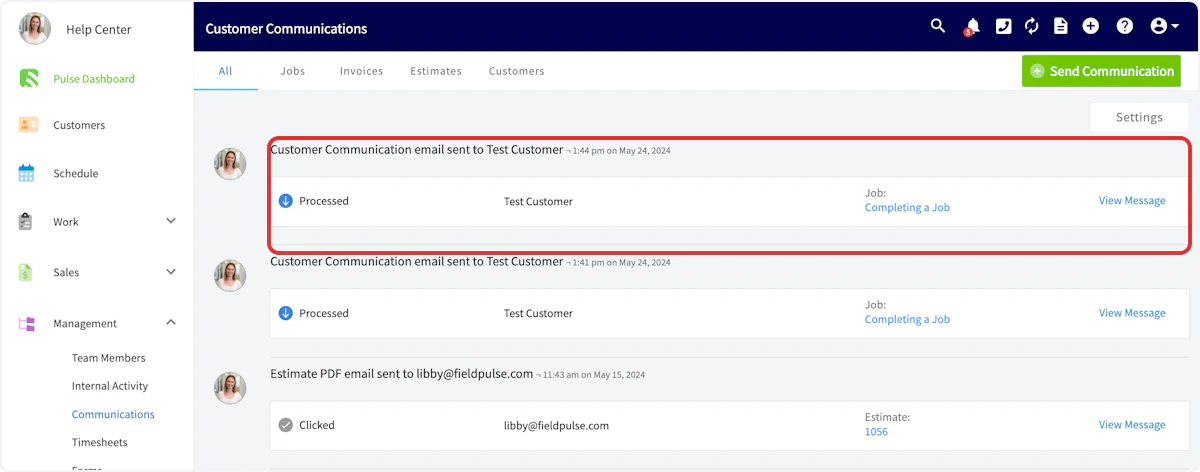
- User who sent the communication
- Sent date and time
- Status
- Customer
- Related record
- Full message
| Status | Meaning |
|---|---|
| Delivered | The message has been successfully delivered to your customer. |
| Clicked | Your customer has clicked on a link in your message. |
| Opened | Your customer has opened your message. |
| Bounced | The message has not reached your customer. The reasons may include that the email address does not exist, or that your customer has previously reported your emails as spam. |
Have additional questions? Contact us at support@fieldpulse.com or use the chat feature in the bottom right corner of your screen.