

Documentation Index
Fetch the complete documentation index at: https://fieldpulse.mintlify.app/llms.txt
Use this file to discover all available pages before exploring further.
Overview
If you lose internet connection while out in the field, you can continue clocking in and out using FieldPulse’s Offline Mode. The app will automatically switch to Offline Mode when your connection becomes unstable. Once you reconnect, all time entries sync automatically with the rest of your FieldPulse data.Prerequisites
Before your technicians can use Timesheets in Offline Mode, make sure the following are in place:- Timesheets are enabled in your account
- The FieldPulse mobile app is installed and up to date
What Gets Cached
Here’s what’s available offline:
- Your timesheet entries for the current day
- General Timesheet and Job Timesheet entry types
- Only your own time entries are accessible in Offline Mode. Other team members’ timesheets are not available until you’re back online (if you have permission to view these).
On Mobile: Field Experience
Lost your signal before you could clock in or out for the day? No problem. FieldPulse detects when you go offline and prompts you to switch to Offline Mode. Here’s exactly what to do:Clocking In from the Timesheets Page
Step 1: If you’re trying to clock in or out via the Timesheets tab and you lose signal, tap to switch to Offline Mode when the prompt appears.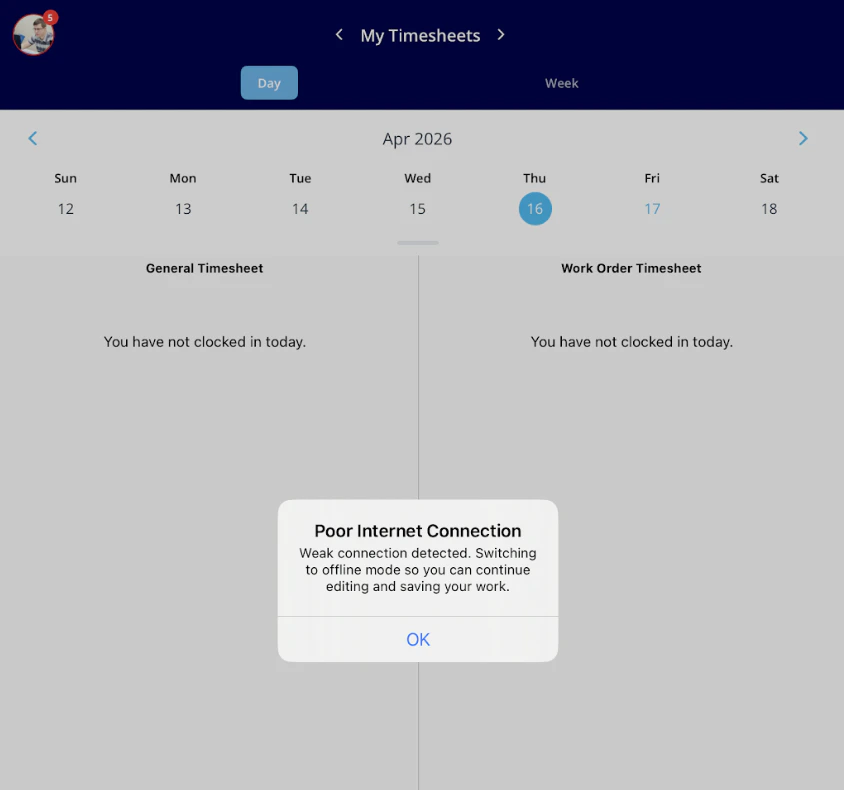
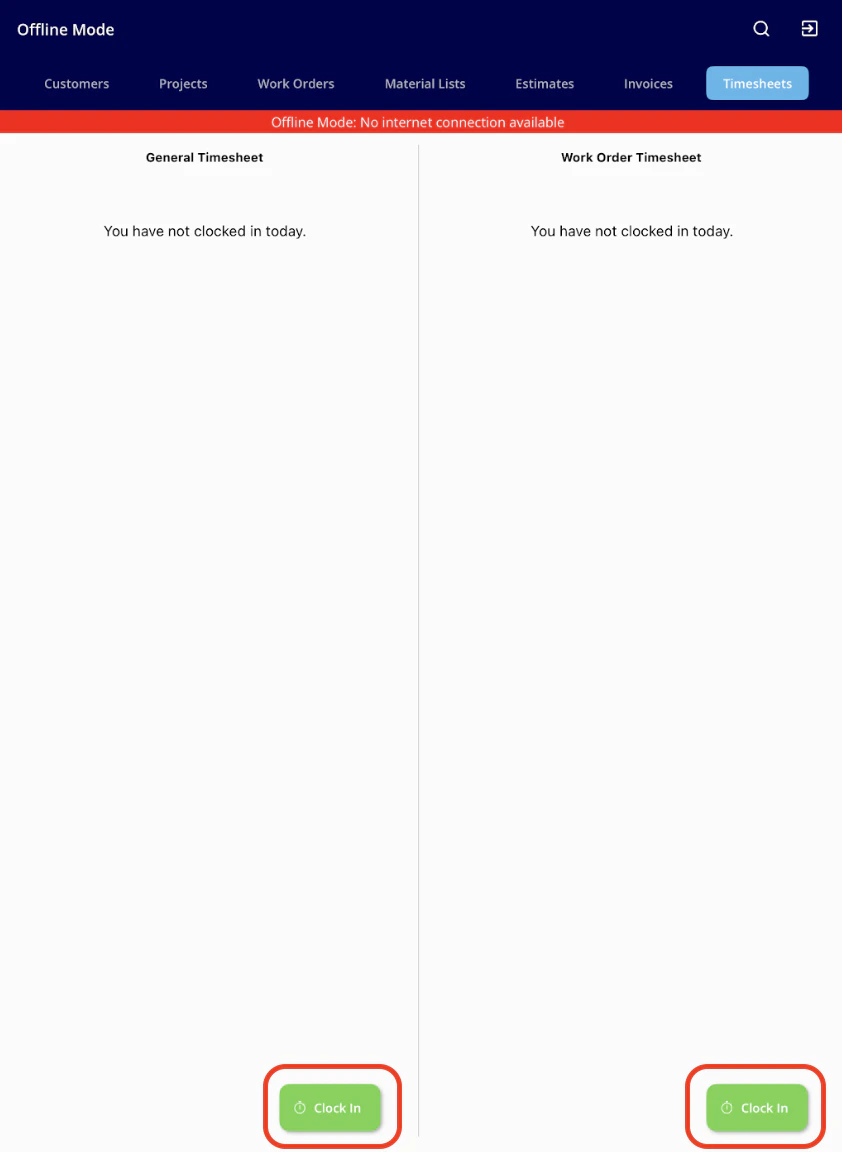
Proceed as normal by tapping the Clock In or Clock Out button under General Timesheet or Job Timesheet.
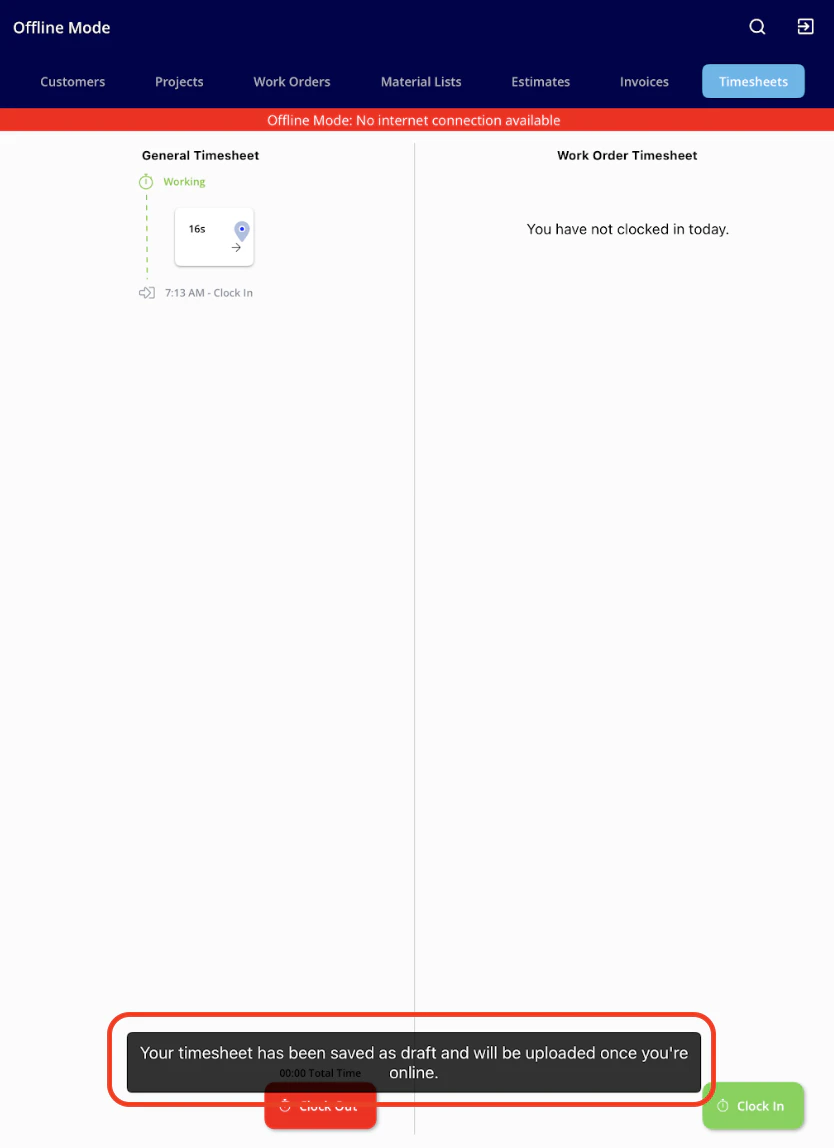
Save your time as usual and rest assured that this will be cached until you regain signal.
Clocking In from a Job Record
Step 1:If you’re trying to clock in or out via a Job record and you lose signal, tap to switch to Offline Mode when the prompt appears.
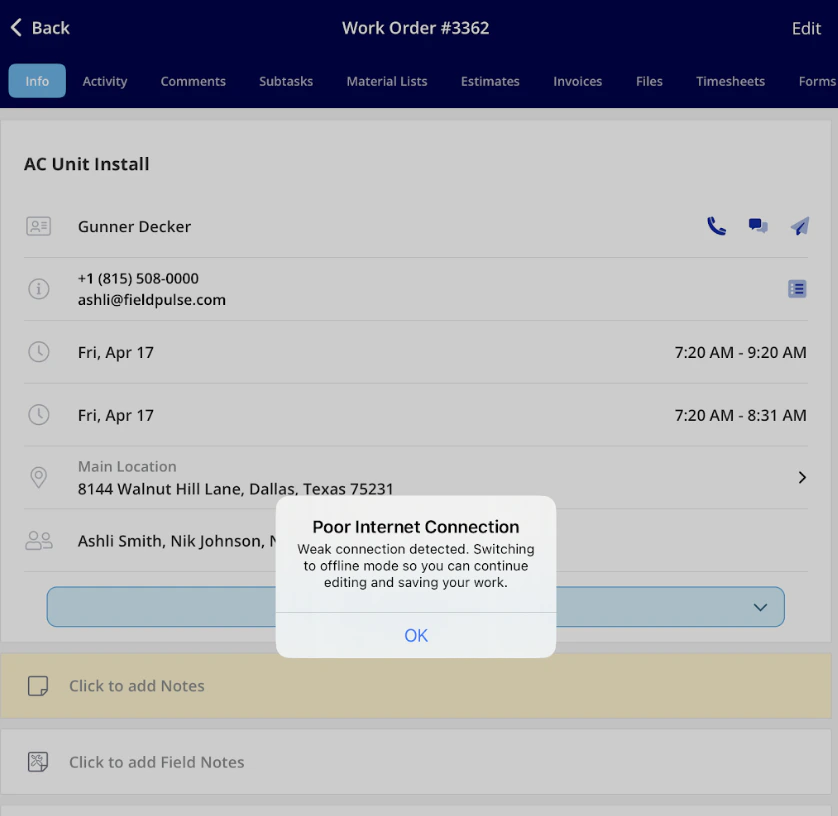
Proceed as normal by tapping the Clock In or Clock Out button on the record. By doing so, this entry links directly to that Job’s timesheet.
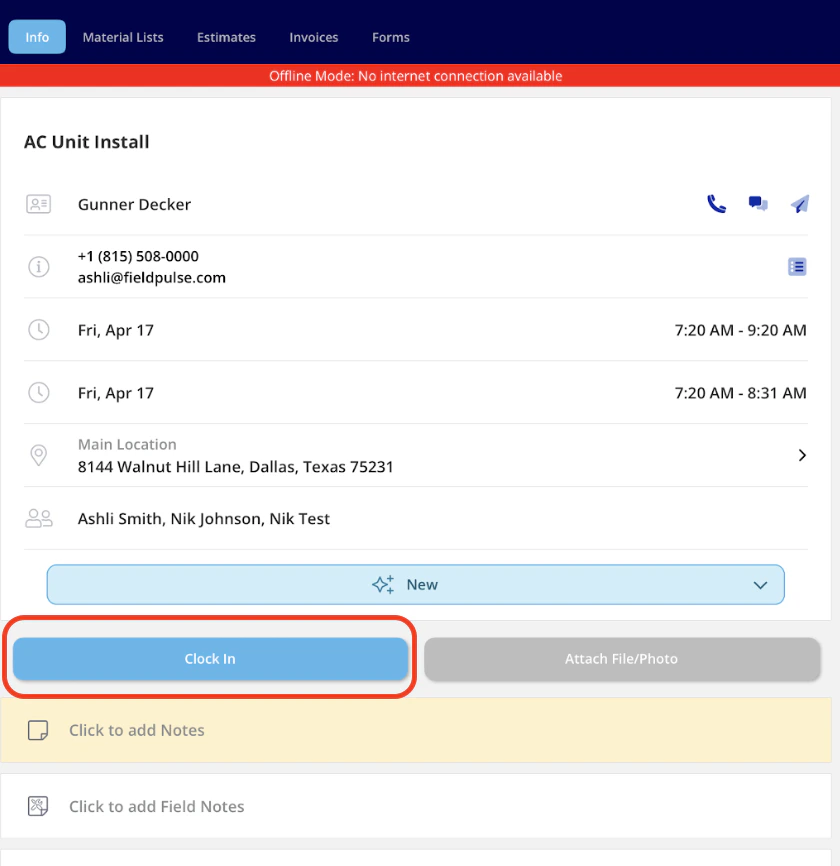
Save your time as usual and rest assured that this will be cached until you regain signal.
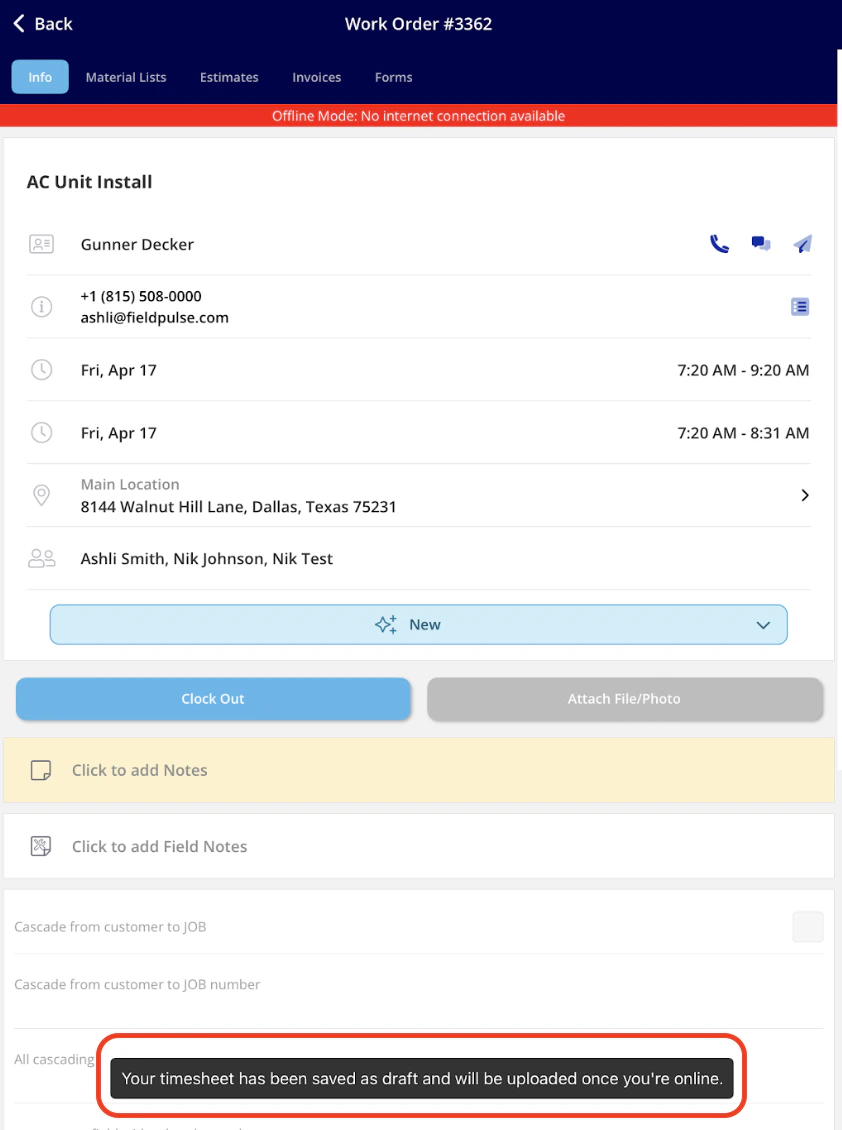
Here’s what you can do offline:
- Clock in and out on a General Timesheet
- Clock in and out on a Job Timesheet
- View your own time entries for the current day
- Link time entries to a Job that is cached for the current day
Video Tutorial
Troubleshooting
Issue Likely Cause Fix Can’t see other team members’ timesheets Only your own entries are accessible in Offline Mode Full timesheet visibility is available when back online if you have the permissions to view these Time entries from yesterday or earlier not visible Only current-day entries are available offline Prior-day entries are accessible when back online Clock-in time not appearing in FieldPulse after returning online Sync still in progress Ensure a stable internet connection and wait for the entries to syncHave additional questions? Contact us at support@fieldpulse.com or use the chat feature in the bottom right corner of your screen.