

There are three primary causes for push notifications not appearing in the FieldPulse WebApp or mobile app. Use the guide below to diagnosis and resolve your push notification issues.Documentation Index
Fetch the complete documentation index at: https://fieldpulse.mintlify.app/llms.txt
Use this file to discover all available pages before exploring further.
Cause: Push notifications aren’t enabled on the WebApp
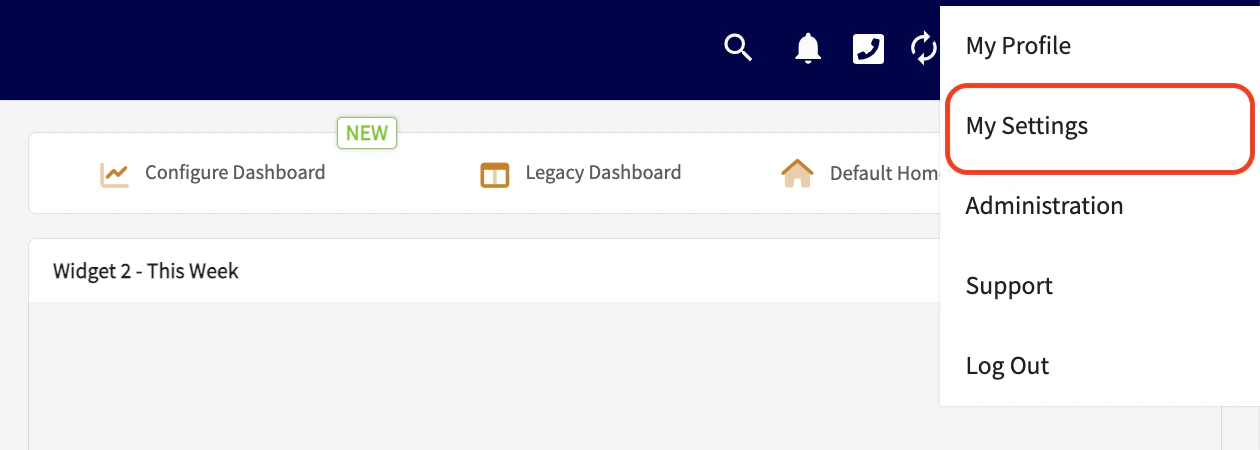
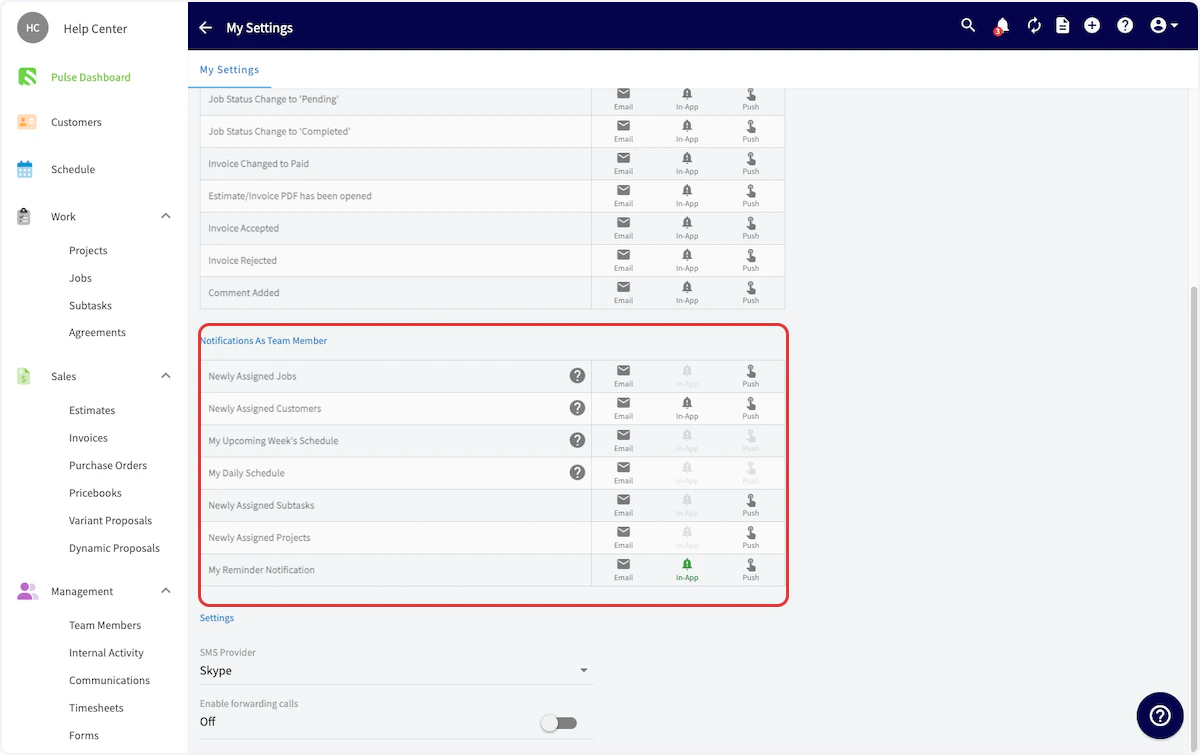
Solution: Have your team member enable the notifications within their own app. Each user has to enable these settings independently. To do so, click on the person icon in the top right corner.
Cause: Push notifications aren’t enabled on the mobile device
Solution: Installing or reinstalling the FieldPulse app generally prompts you to enable push notifications on your phone. To turn on push notifications without reinstalling the FieldPulse app, follow the steps outlined below:iOS Push Notifications
1. Go to the “Settings” app on your Apple device. 2. Scroll down and tap on “Notifications.” 3. Select the FieldPulse App. 4. Toggle the “Allow Notifications” switch to enable push notifications. 5. Customize the notification settings as per your preferences.Android Push Notifications
- Open your device’s Settings app.
- Tap Notifications > App Settings.
- Select the FieldPulse App.
- Turn the app’s notifications on.
- Customize the notification settings as per your preferences.
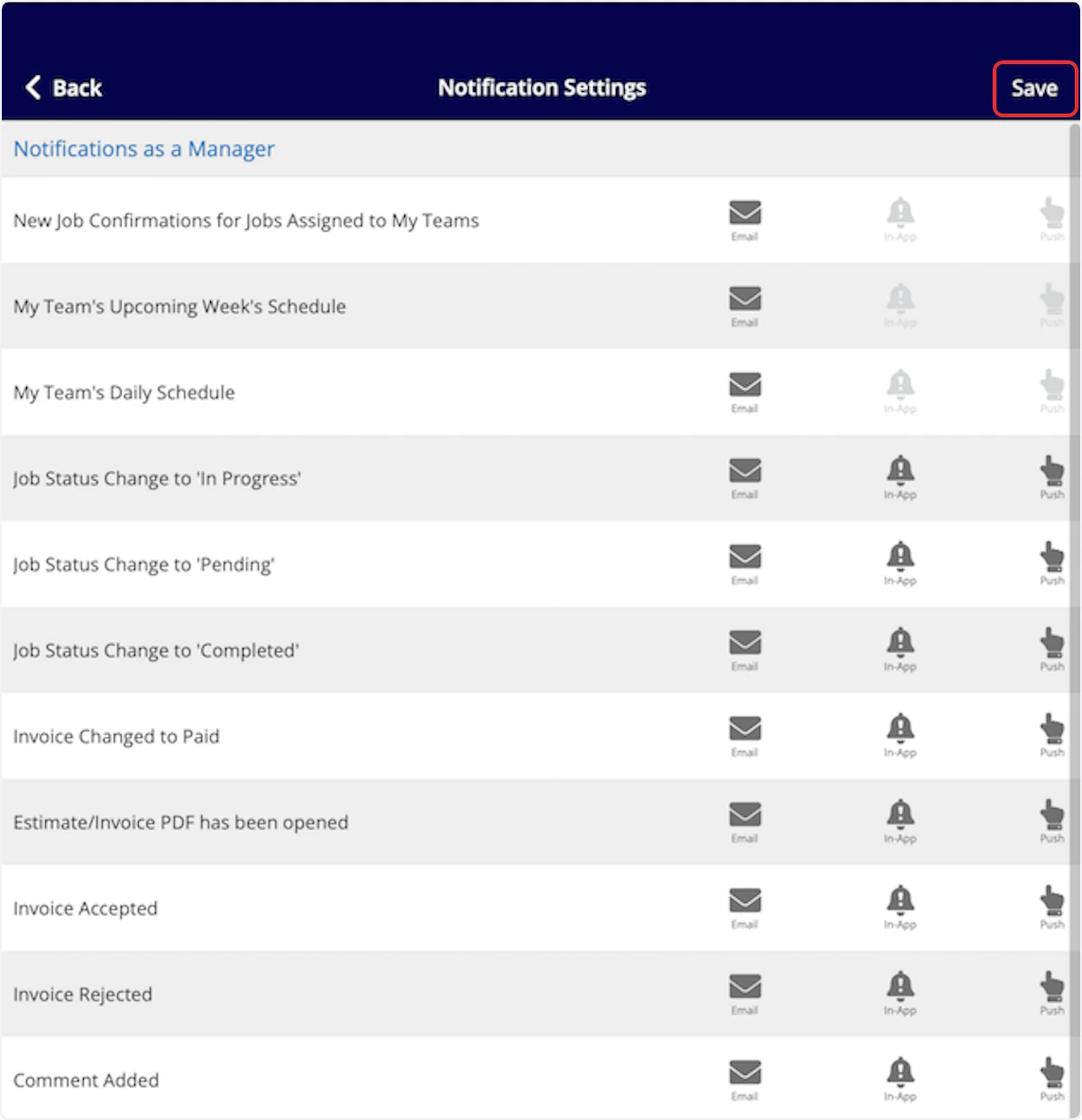
Cause: Push notifications aren’t enabled on the FieldPulse mobile app
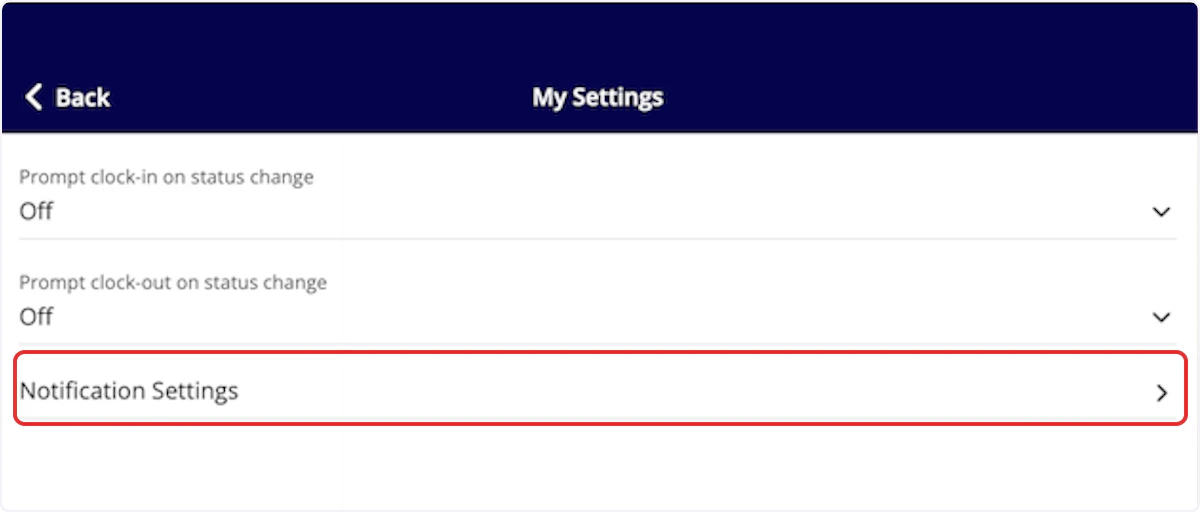
Solution: At the top of your screen, click on the profile icon in the top left corner.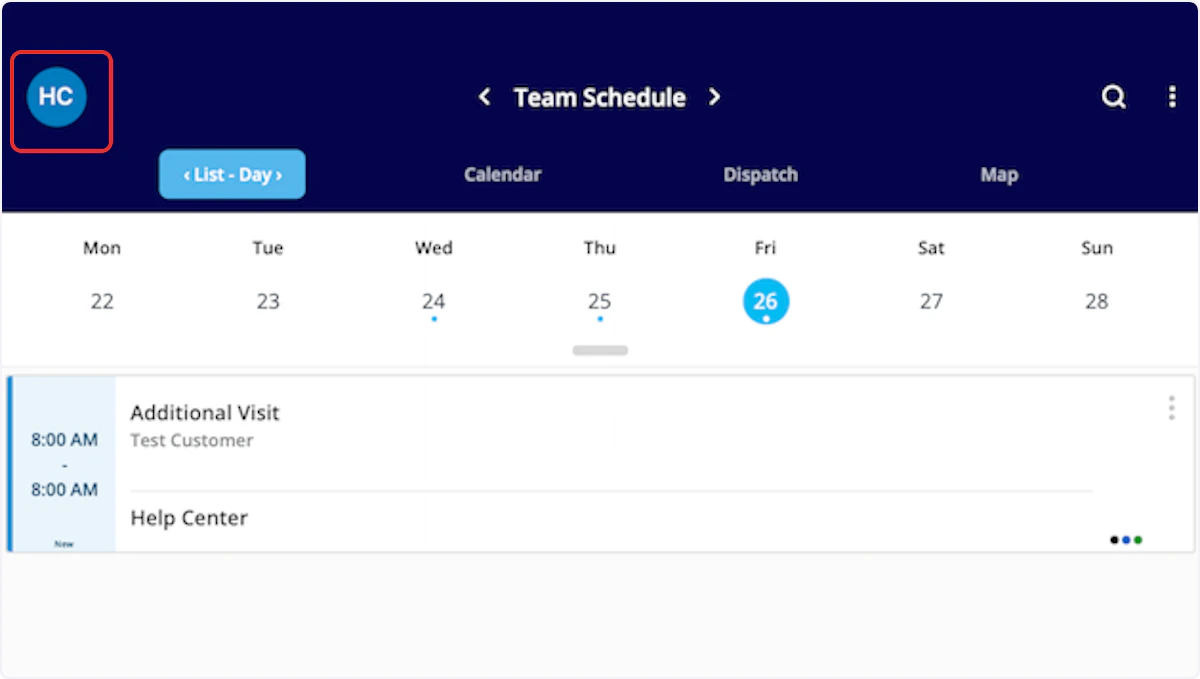

Have additional questions? Contact us at support@fieldpulse.com or use the chat feature in the bottom right corner of your screen.