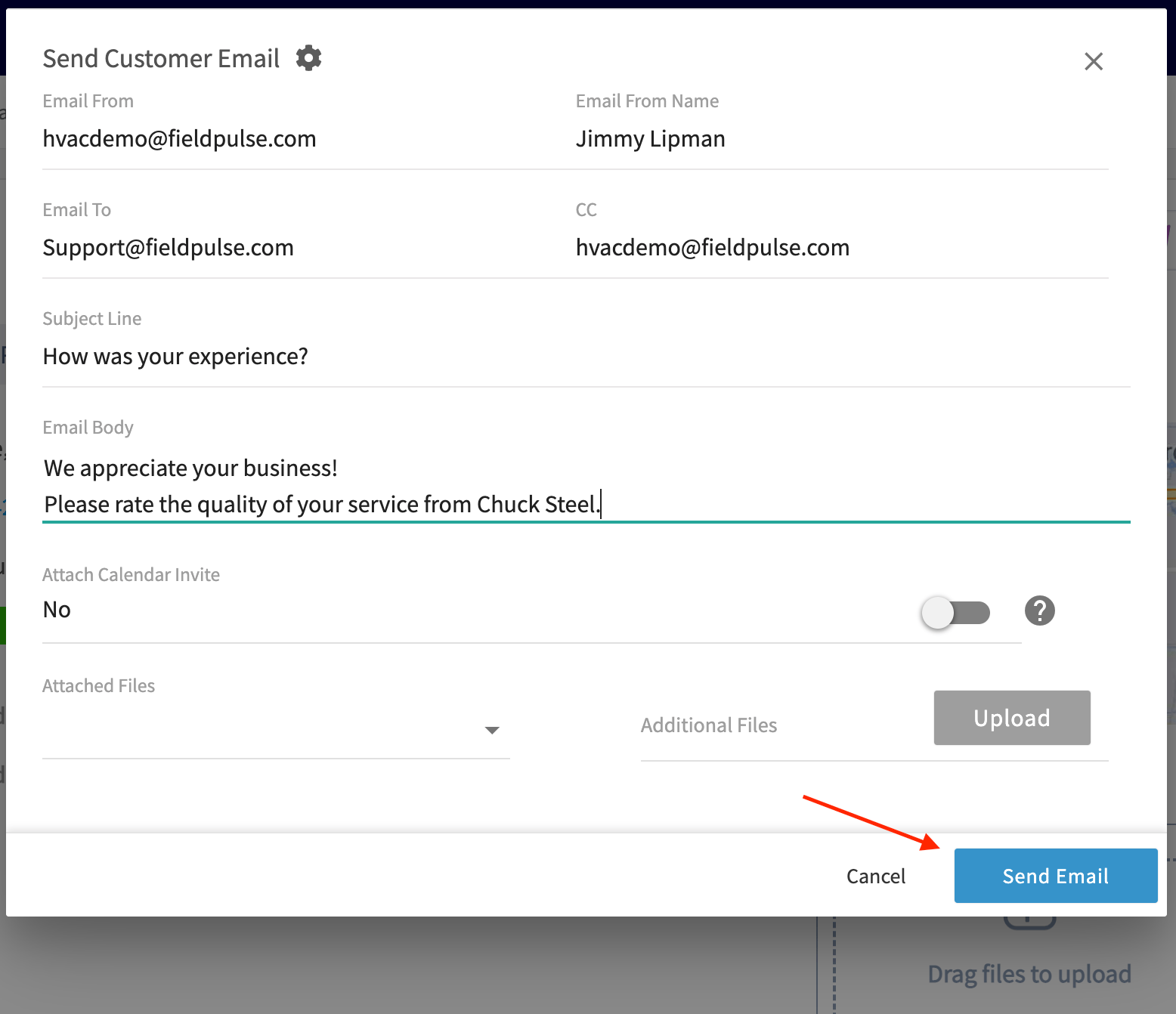
Who uses this: Admins enable Review Management and configure the request emails and triggers in Company Settings. Availability: All regions · included in the FieldPulse subscription. Review Management must be enabled in Company Settings > Features & Plugins.Review Management emails your customers a request for a review after you work with them. It sends two kinds of request: a third-party review request that points the customer to your Google, Yelp, Facebook, or HomeAdvisor page, and an internal feedback request that collects a private rating of your company or the assigned team member. Set both up once in Company Settings, and FieldPulse sends them as customer communications on its own, or you send either one by hand from a job record.
Overview
Review Management sends two kinds of request email:- Third-party review requests point the customer to your public review pages: Yelp, Facebook, Google, or any other site you add. Each site has its own link field and its own on/off control, so you choose which links appear in the email.
- Internal feedback requests ask the customer to rate your company or the team member assigned to the job on a five-star scale and leave written comments. Internal feedback stays in FieldPulse and is never posted publicly.
- Enable the feature in Company Settings > Features & Plugins.
- Set up the third-party review request email.
- Set up the internal feedback email.
- Add a trigger so the right email sends on its own.
Video walkthrough
This video walks through Review Management in FieldPulse.Watch the Review Management walkthrough
Before you begin
- Gather the review page URLs you want customers to use: your company’s Yelp, Facebook, Google, or other review pages.
- Decide the contact email address that should appear on third-party review requests.
- Decide whether internal feedback scores apply to the Company or the Assigned User on the job.
- Set up your customer communication email templates before you build a trigger, since a trigger sends one of those templates. See Customer Communications Overview.
Step-by-step setup
1. Enable Review Management
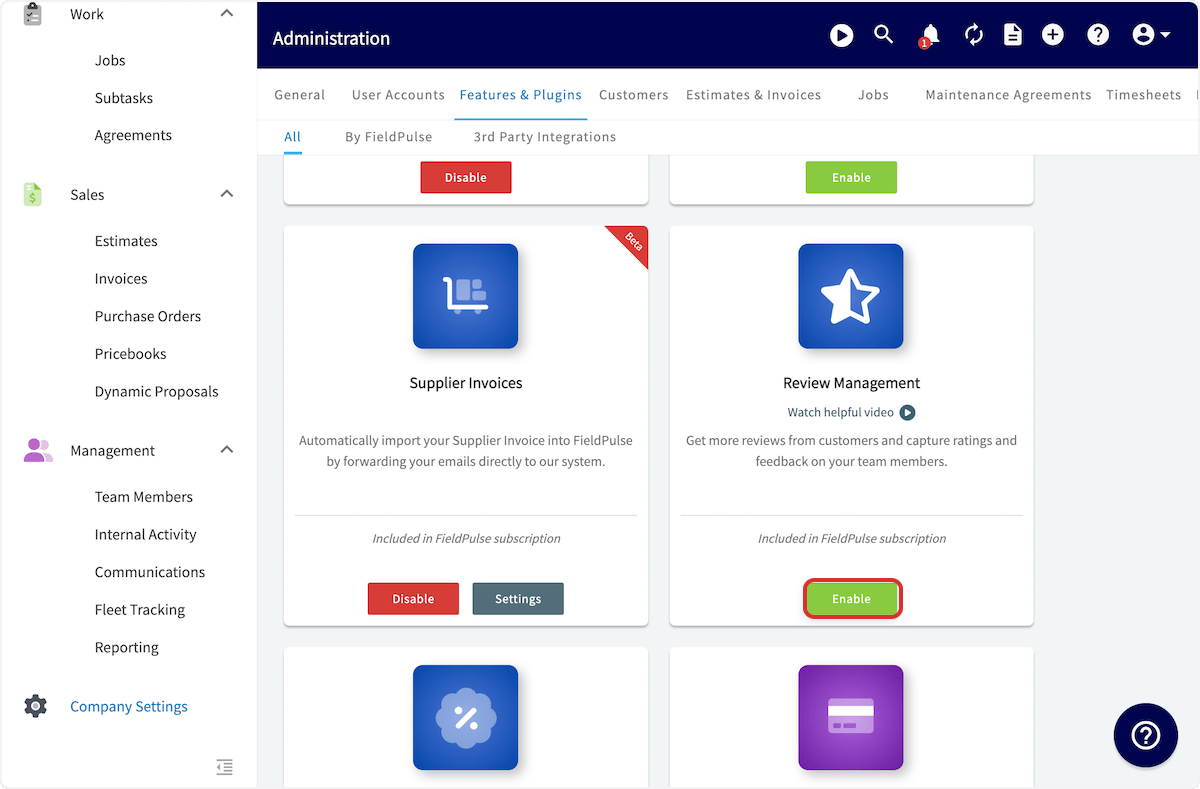
- Go to Company Settings > Features & Plugins.
- Find the Review Management tile and select Enable.
2. Set up third-party review requests
Third-party review requests ask your customer to publish a review on an external site such as Google, Yelp, Facebook, or HomeAdvisor.-
Go to Company Settings > Review and stay on the Review Setup tab.
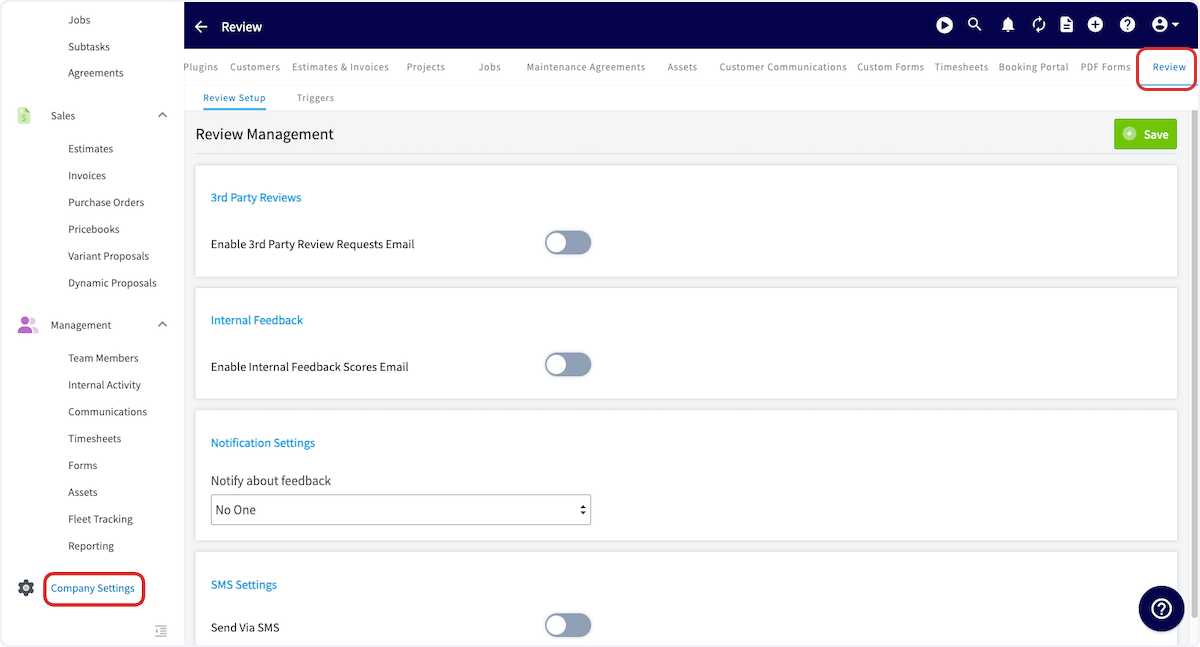
- Turn on Enable 3rd Party Review Requests Email. FieldPulse fills in a standard Email Subject Line and Email Body.
-
Replace the standard subject line and body with your own wording. Both fields are required, and both go out with every review request.
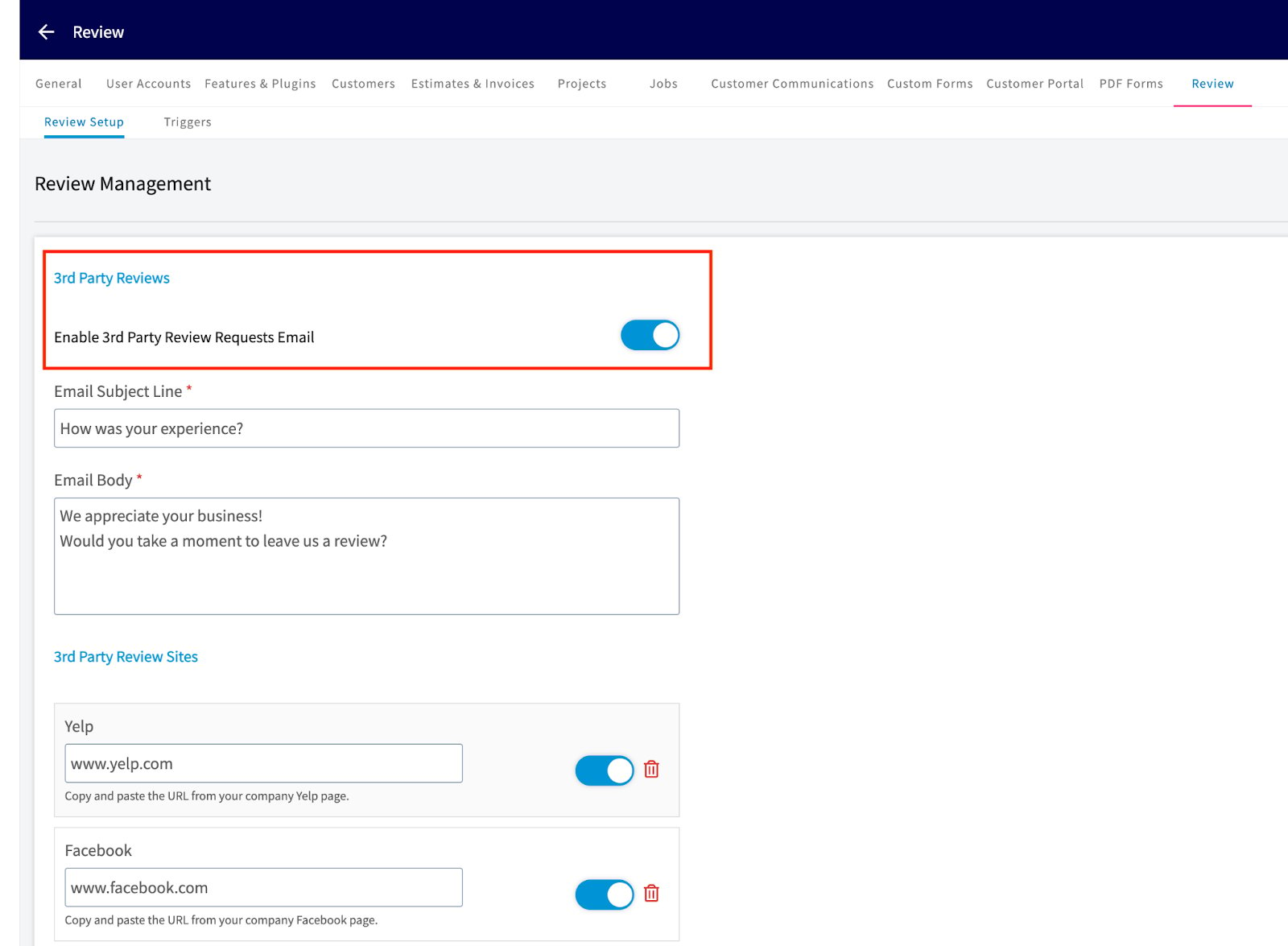
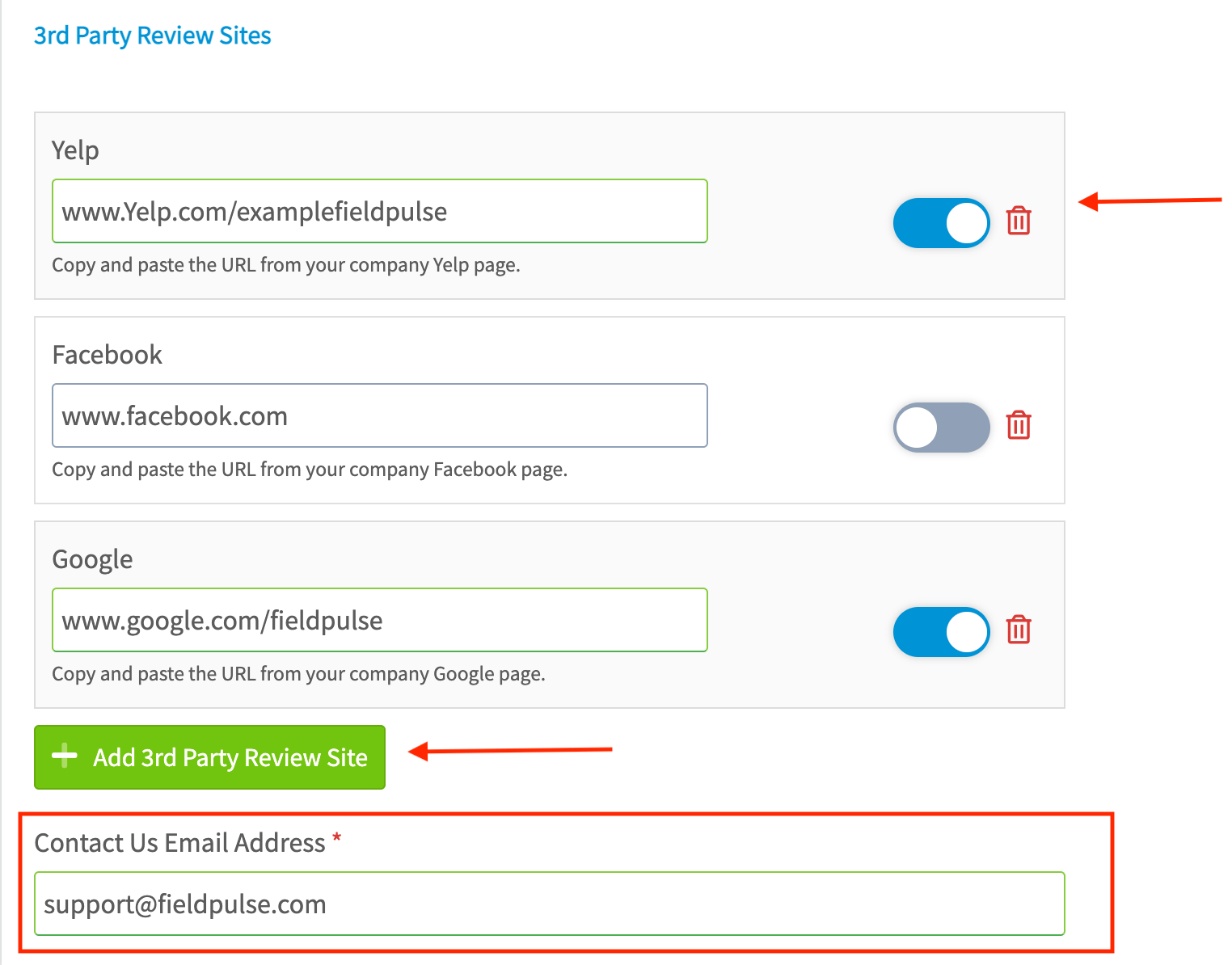
- Under 3rd Party Review Sites, paste the URL of each review page into its field. Yelp, Facebook, and Google each have their own field.
- Turn each site’s toggle on or off to control whether that link appears in the request, or select the trash icon to remove the site.
- Select Add 3rd Party Review Site to add a review site beyond the three listed.
-
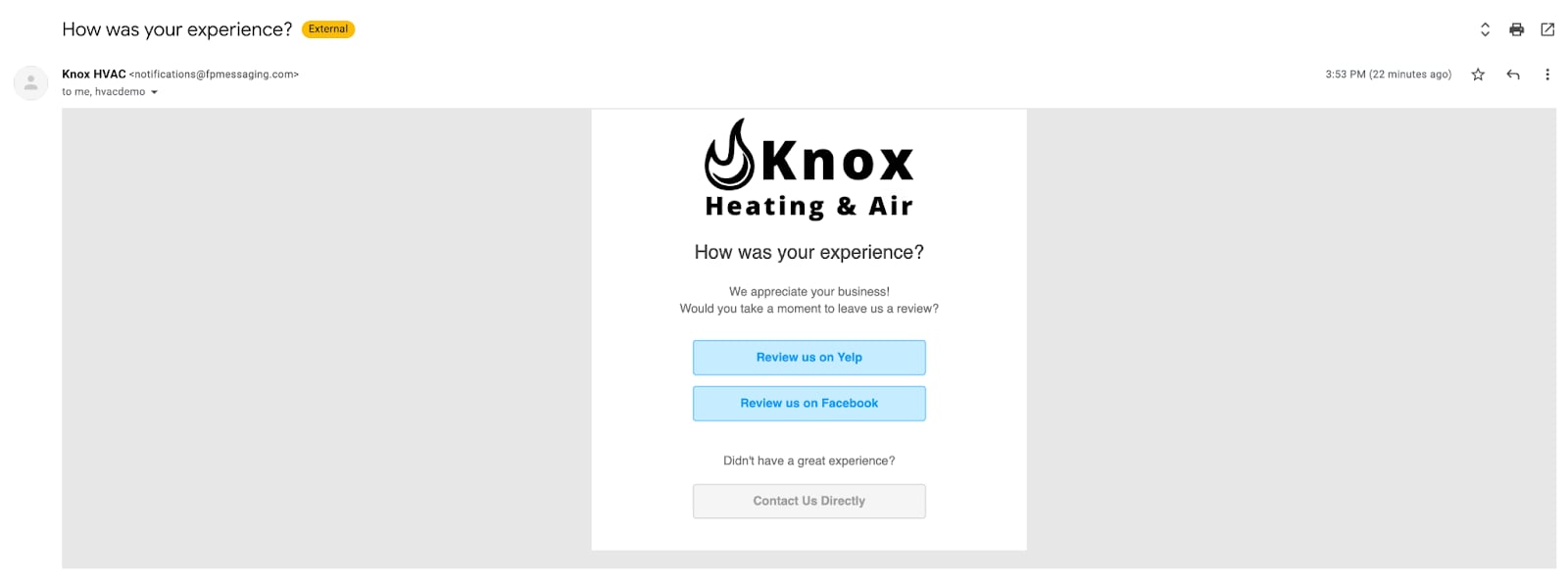
Enter a Contact Us Email Address. This field is required, and the address sits behind the Contact Us Directly button in the request email.
- Select Save.
3. Set up internal feedback
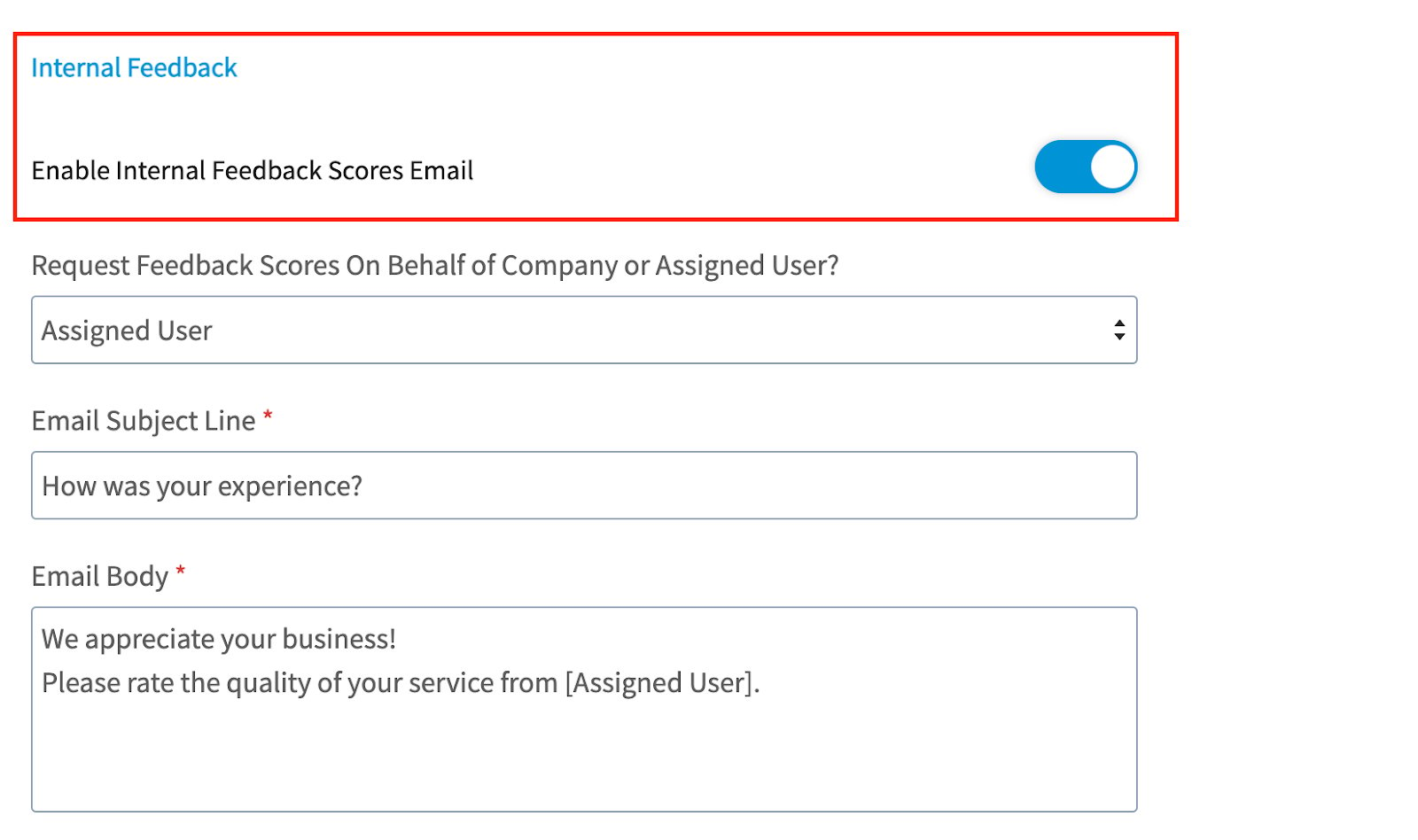
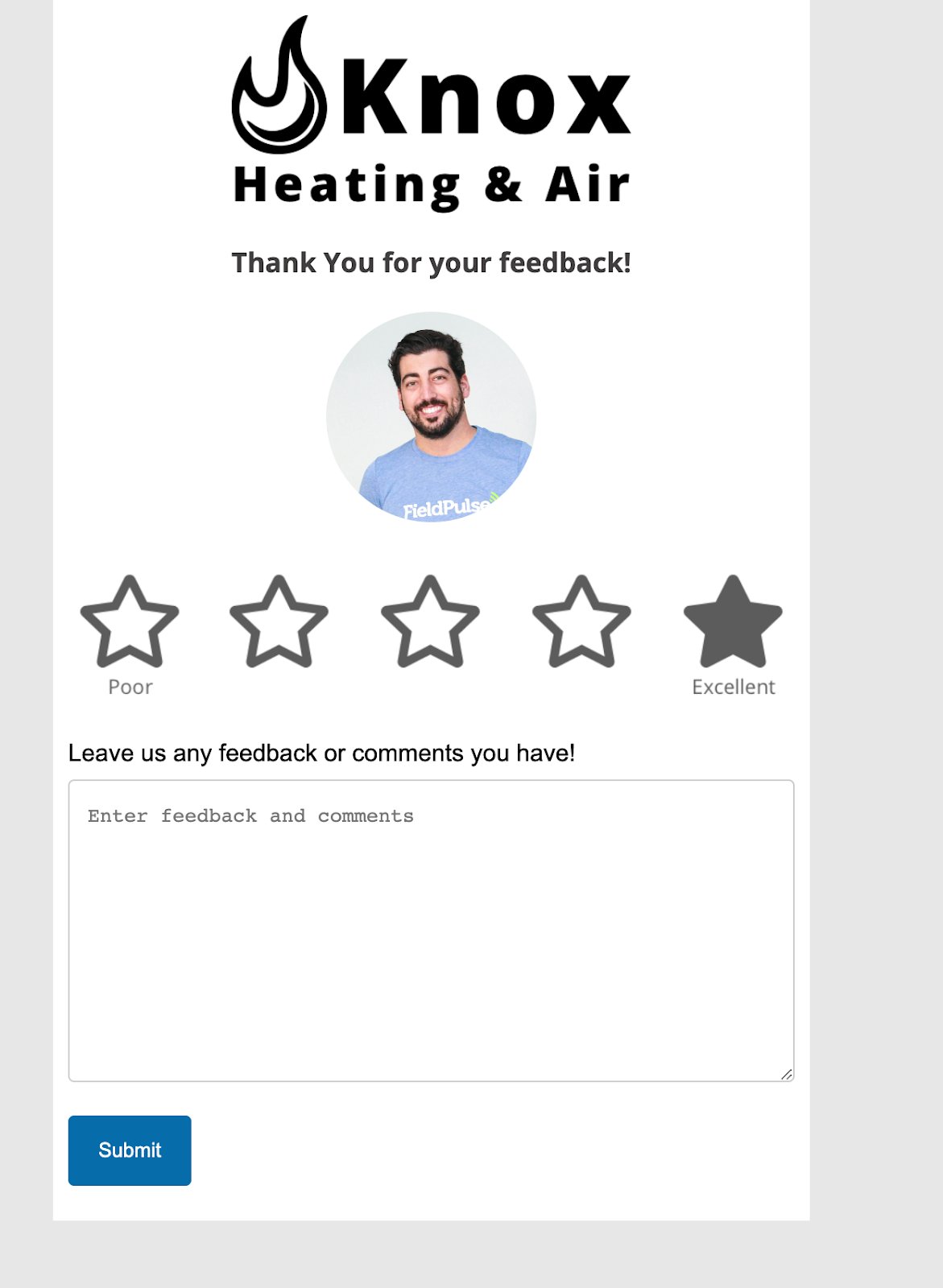
Internal feedback requests ask your customer to rate the service they received so your company and your service agents can improve. The rating stays in FieldPulse and is never posted publicly.- On the Review Setup tab, turn on Enable Internal Feedback Scores Email.
- Set Request Feedback Scores On Behalf of Company or Assigned User? to Company to score the business as a whole, or to Assigned User to score the team member assigned to the related job.
-
Replace the standard Email Subject Line and Email Body with your own wording. Both fields are required, and both go out with every feedback request.
- Select Save.
4. Add an automatic trigger
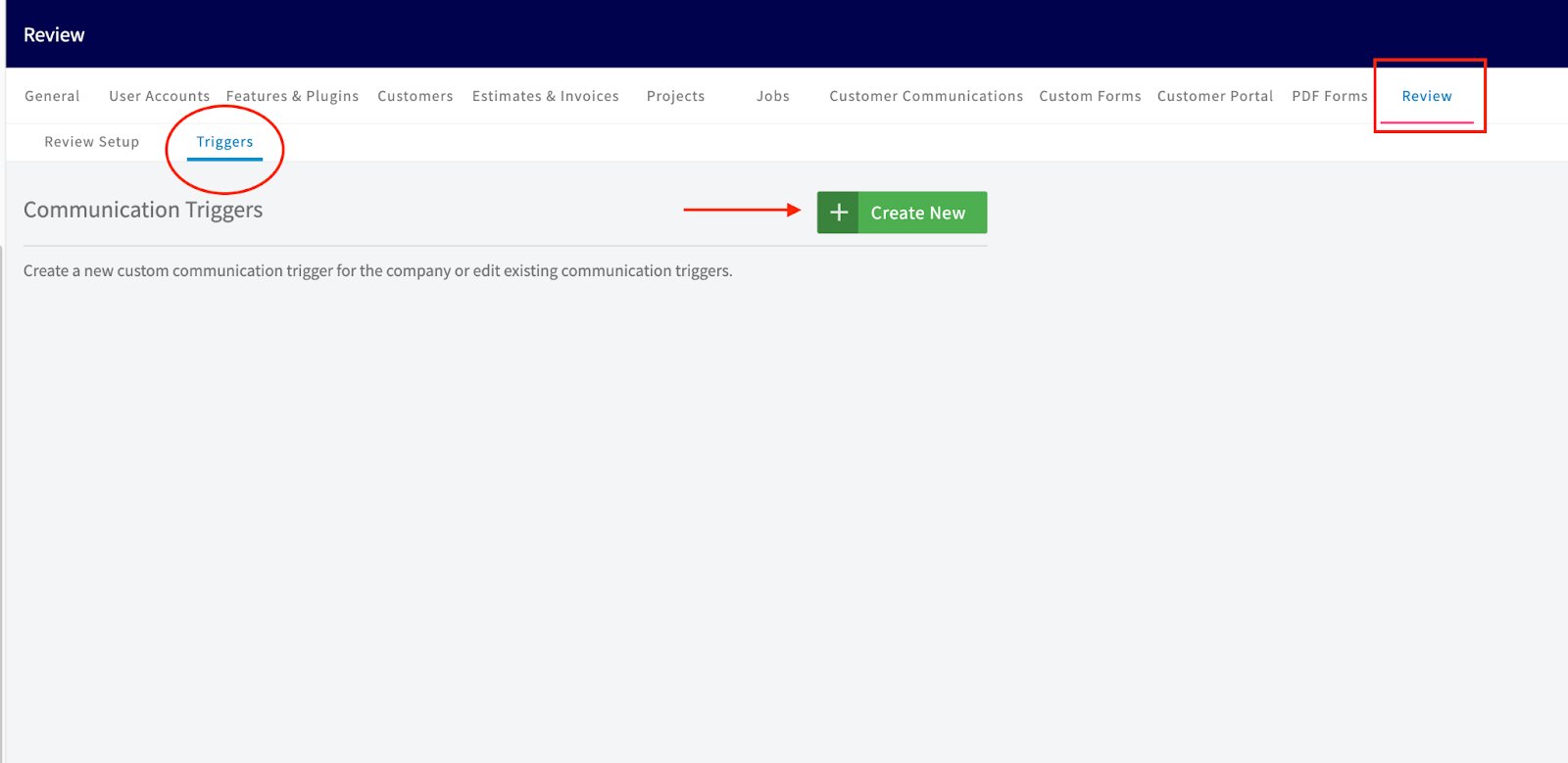
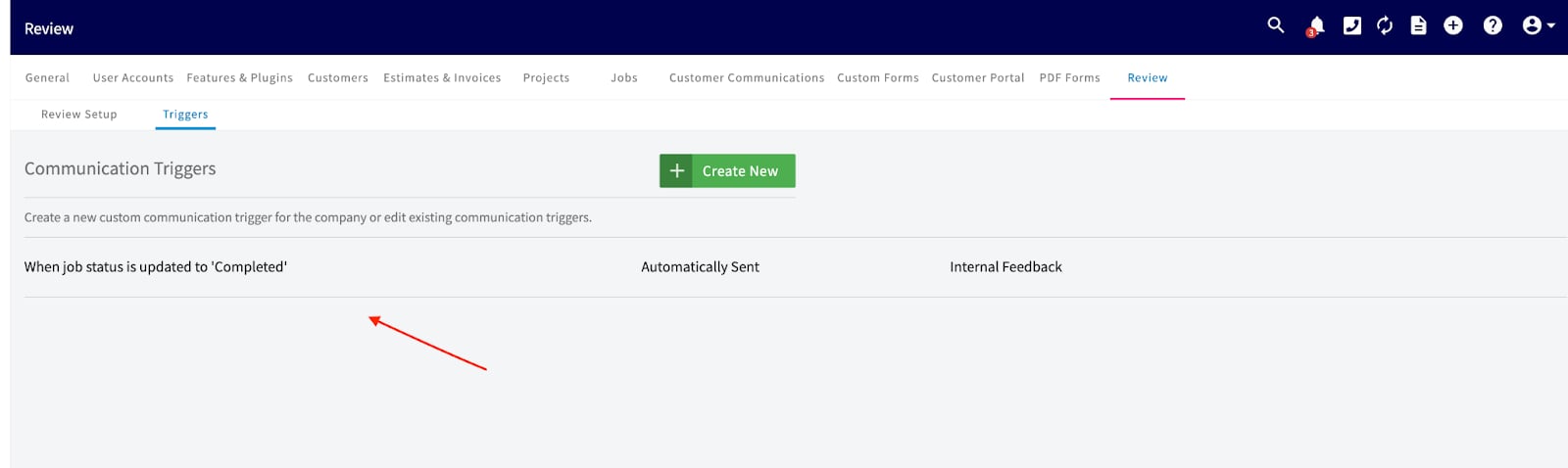
A trigger sends a review or feedback request on its own when something happens on a job, so nobody on your team has to remember to send it.- Go to Company Settings > Review > Triggers.
-
Select Create New.
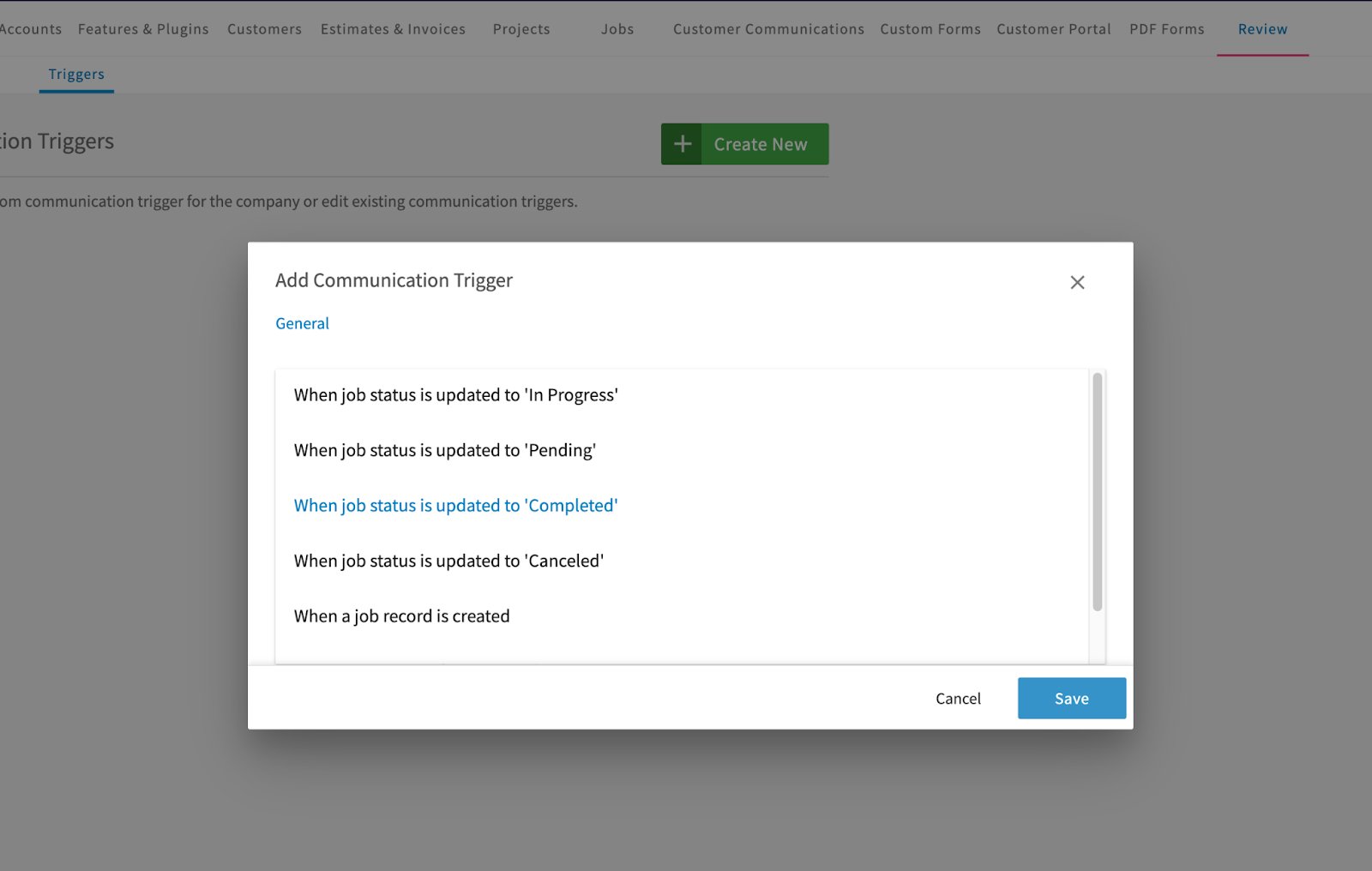
- In Choose Trigger, pick the event that sends the email. The list covers job events such as when a job record is created and when job status is updated to In Progress, Pending, Completed, or Canceled. Pick When job status is updated to ‘Completed’ if you want the request to go out once the work is done.
-
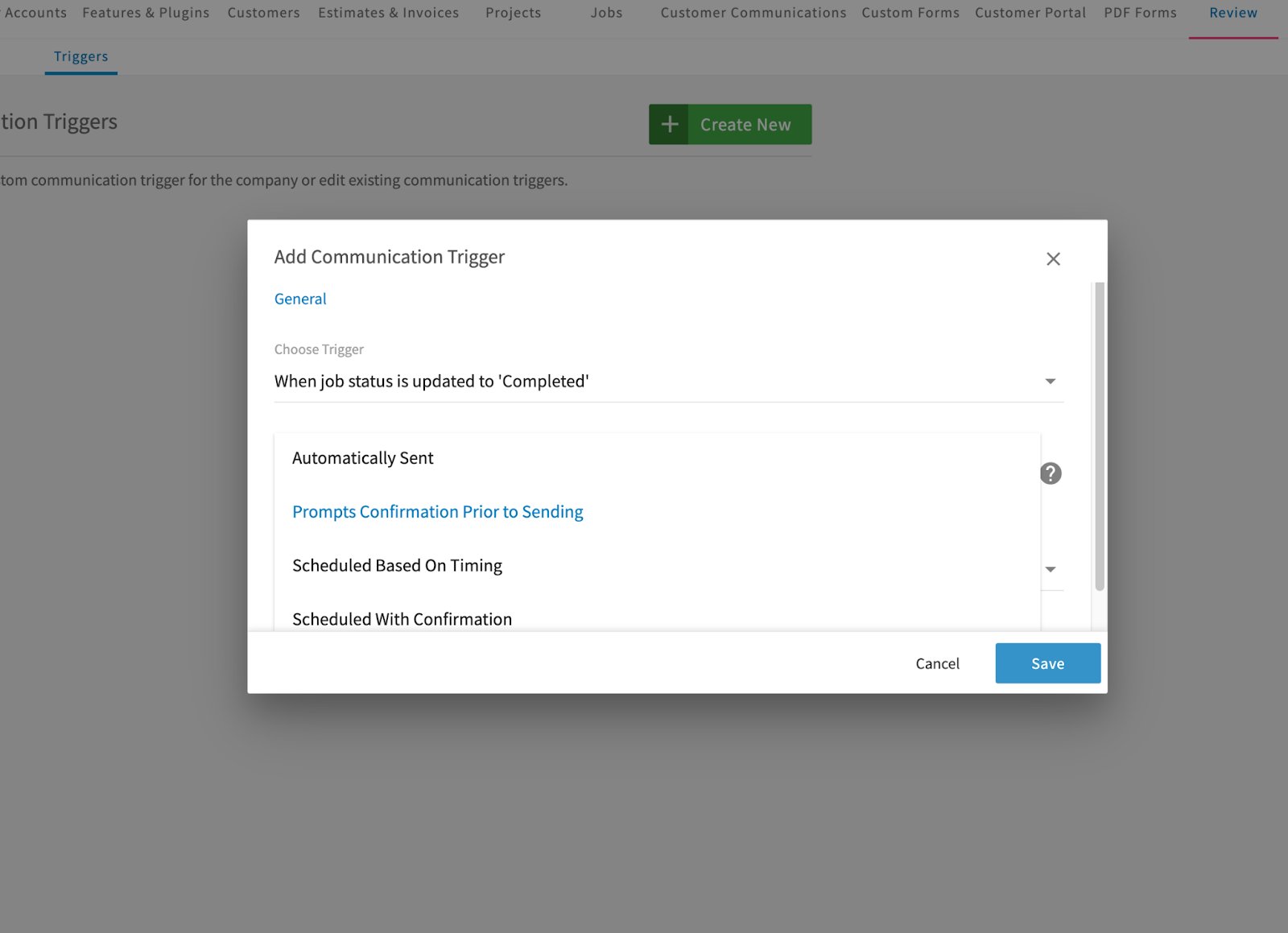
In Choose Trigger Action, pick what happens when the trigger fires. See Trigger actions in the Settings reference for what each option does.
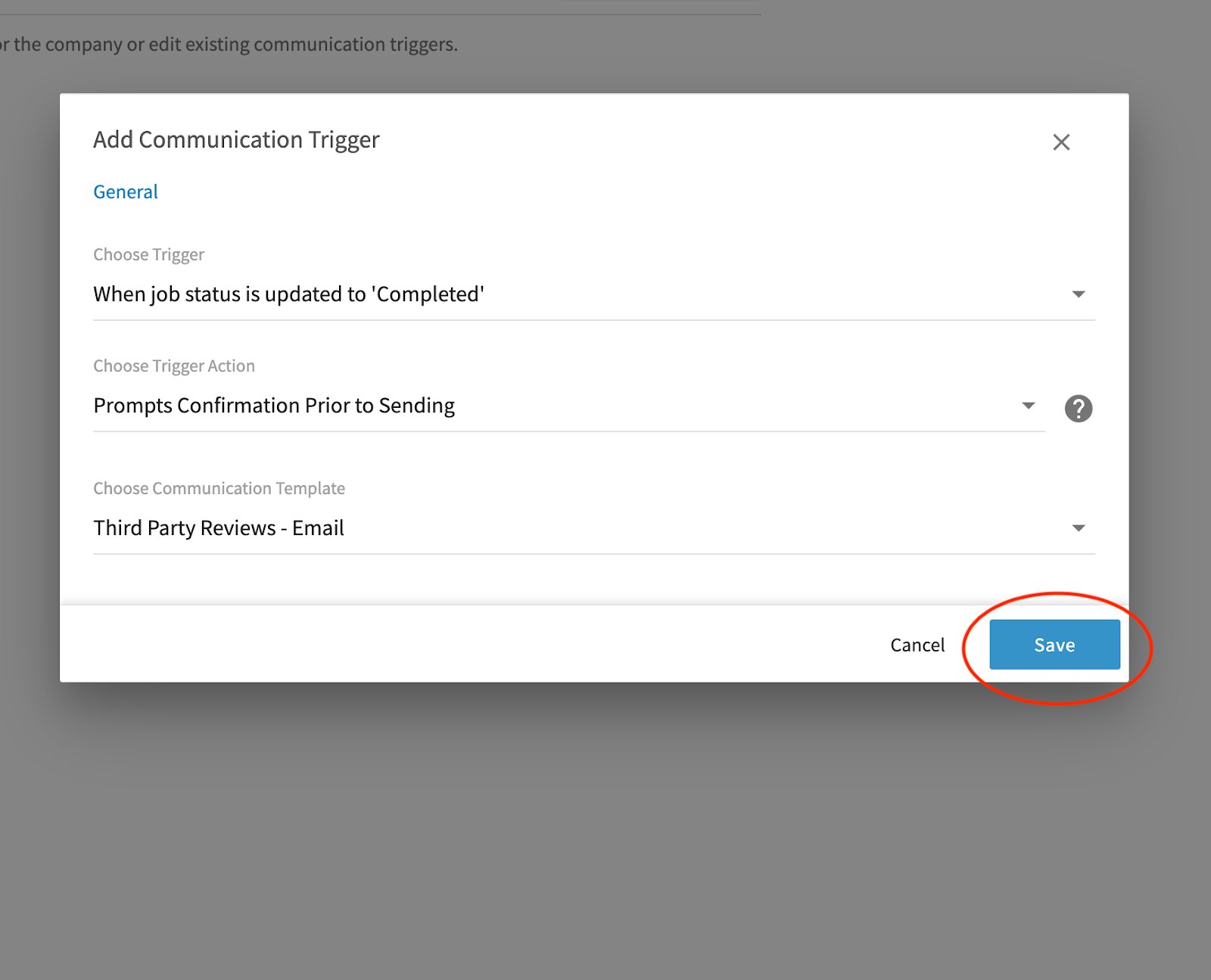
- In Choose Communication Template, pick the review or feedback template this trigger sends.
- Select Save.
Sending a request manually
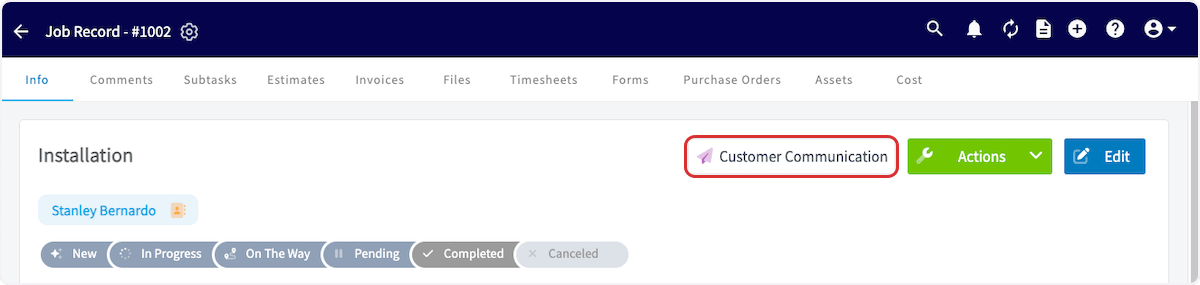
Send a review or feedback request by hand from the job record when you would rather not use a trigger.- Open the job record for a job that has been completed.
-
Select Customer Communication.
-
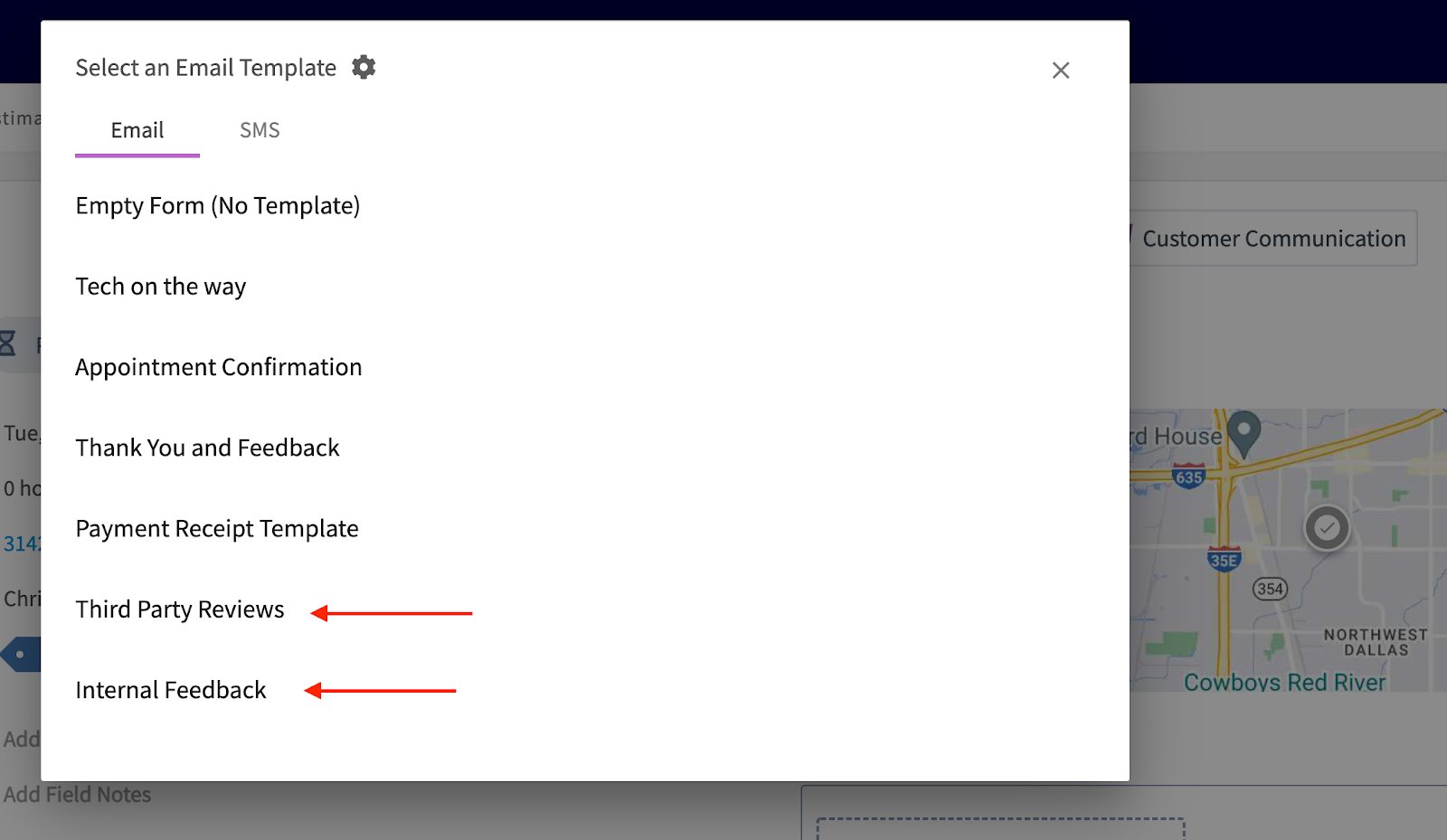
On the Email tab of Select an Email Template, choose Third Party Reviews or Internal Feedback.
- Check the Email To, Subject Line, and Email Body that the template fills in, then select Send Email.