Who uses this: Admins and Team Managers hold the Create & send Estimates/Invoices permission by default, and an Admin can enable it for a Service Agent; changing the template update defaults in Company Settings requires an Admin. Availability: All regions.An estimate or invoice template saves the line items, notes, and files for a recurring job type so your team can reuse them. Build the template once, and every estimate or invoice you start from it opens prefilled — nobody retypes the same line items for the same job each time.
Overview
An estimate or invoice template holds the parts of a document that stay the same from one job to the next: the line items and their groupings, the price and quantity defaults, tags, custom fields, notes, files, and any attached contract. If you use QuickBooks, the template can also save the QuickBooks Class so the class populates automatically on every document built from the template. The steps below build an invoice template. The estimate template process is identical — start under the Estimates tab instead of Invoices.Video walkthrough
Watch the estimate & invoice templates video walkthrough for a demonstration of building a template and importing it into a new document, then follow the written steps below.Before you begin
- Decide which repeat job type this template covers — for example, a basic toilet replacement or a standard maintenance visit.
- Confirm the line items you want to save already exist in your Item List/Repository. See Setting Up Item List & Inventory.
- Confirm your role can create estimates and invoices. Admins and Team Managers have the Create & send Estimates/Invoices permission by default, and an Admin can enable it for a Service Agent — see User Roles and Permissions Details.
Step-by-step setup
-
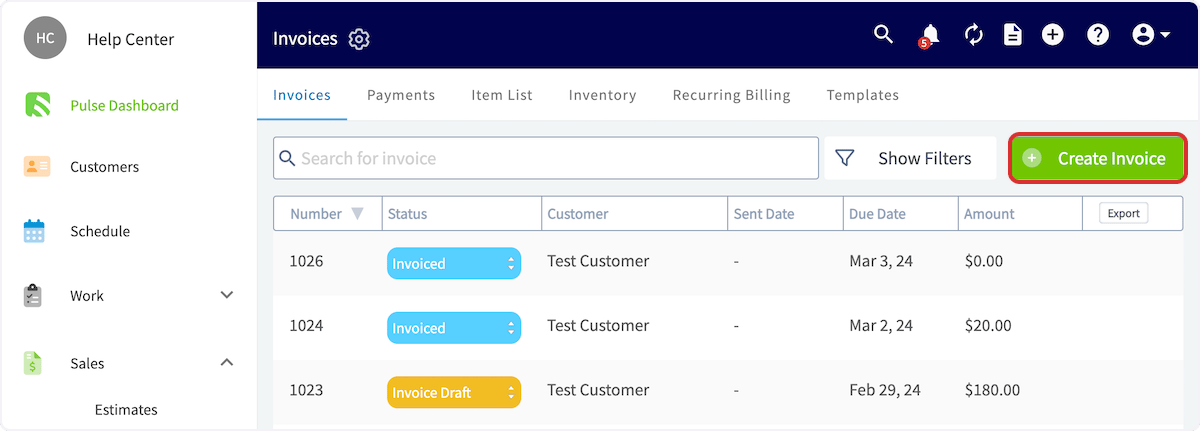
Go to Invoices in the left-side menu, then select Create Invoice.
-
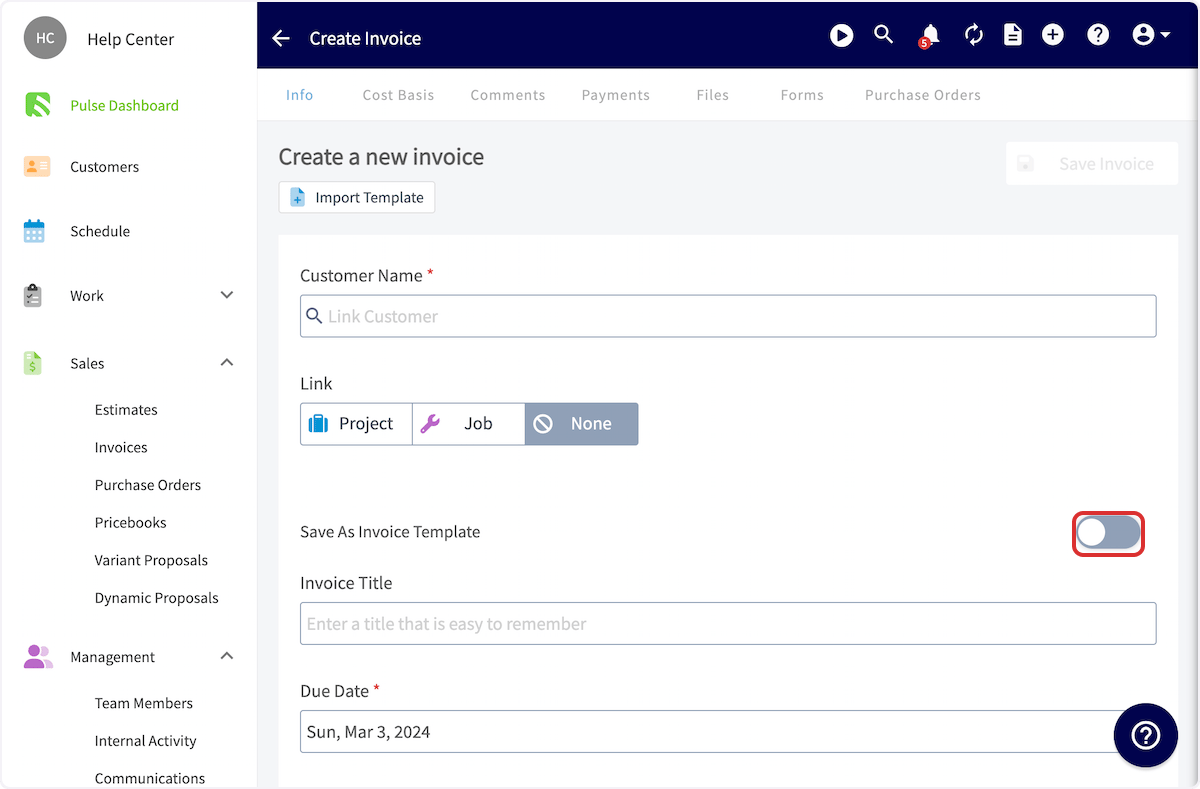
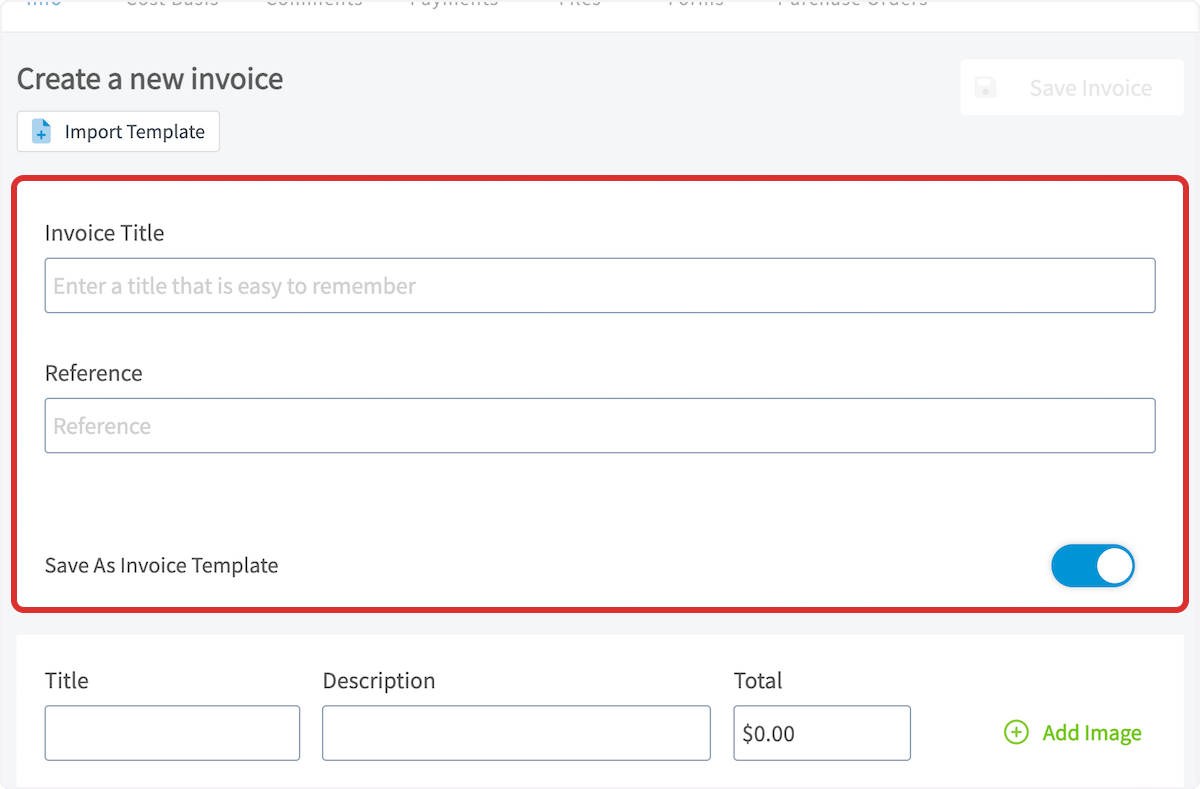
Before entering any information, turn on Save As Invoice Template.
-
Enter a title for the template in Invoice Title.
-
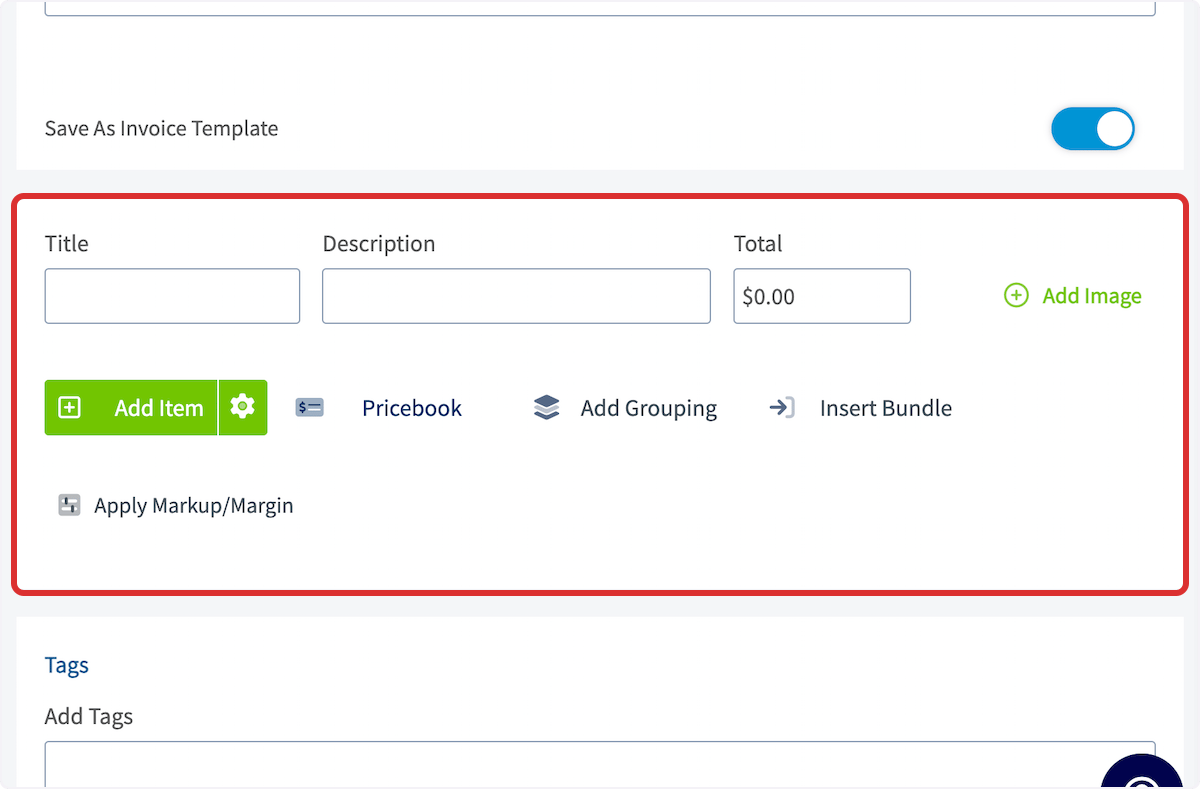
Add the line items you want the template to save, and organize them with How to Use Line Item Bundles & Groupings.
-
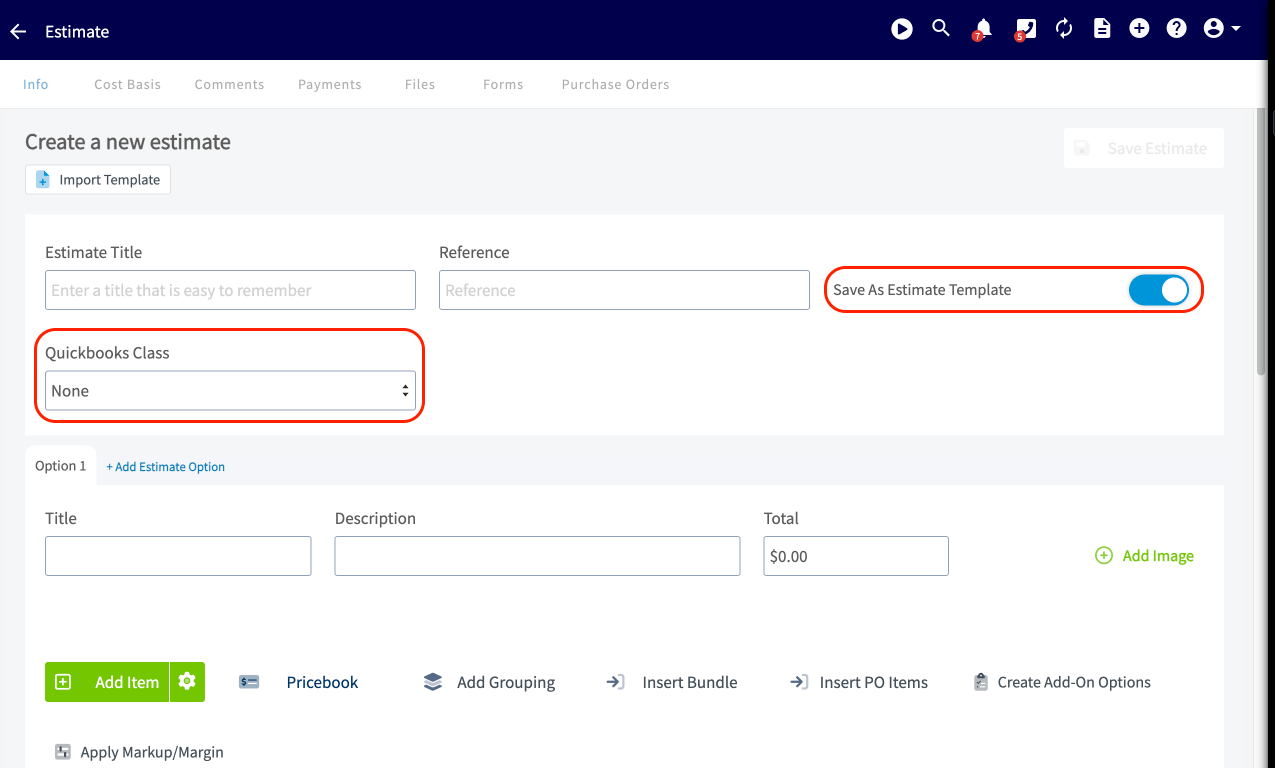
If you use QuickBooks, select the QuickBooks Class to save on the template so the class populates automatically on every document built from the template.
-
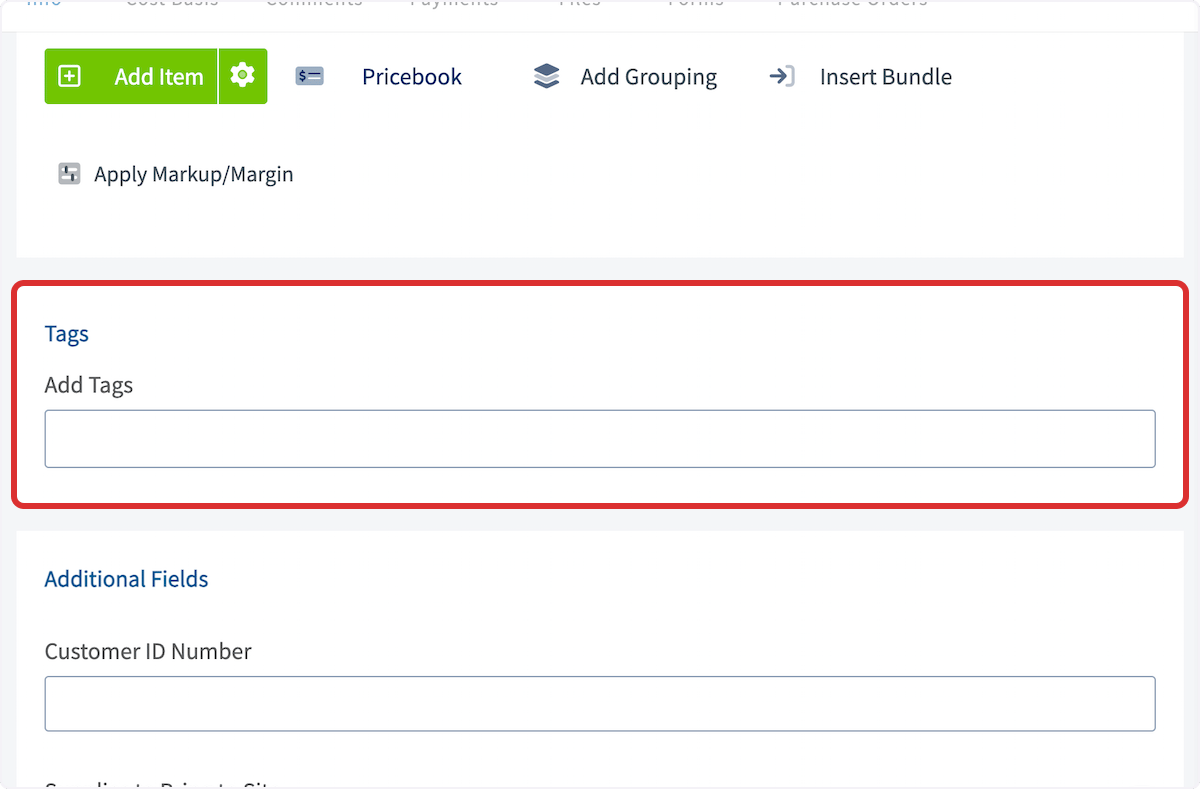
Add any tags and custom fields you want to reuse.
-
Add notes, and attach any files or a contract.
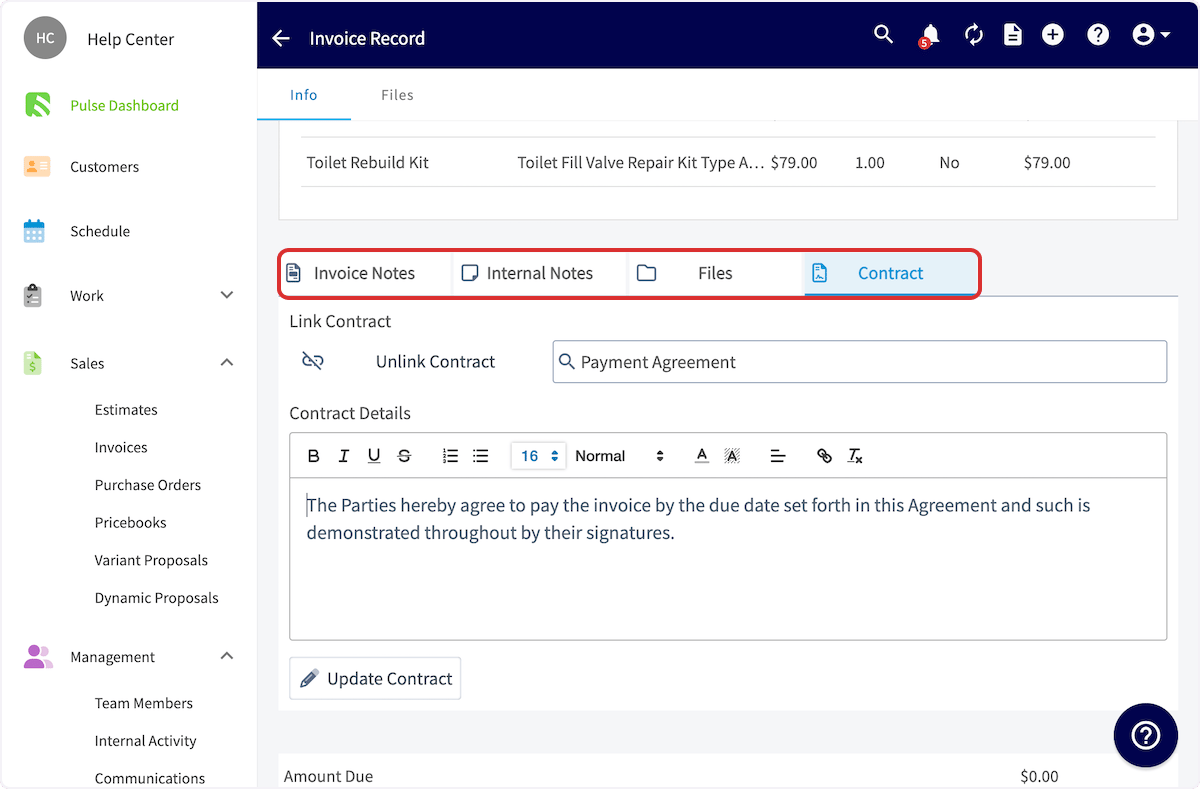
- Select Save. You can also start a template from the Templates tab on the Invoices (or Estimates) page: select Templates > New Invoice and turn on Save As Invoice Template.
Settings reference
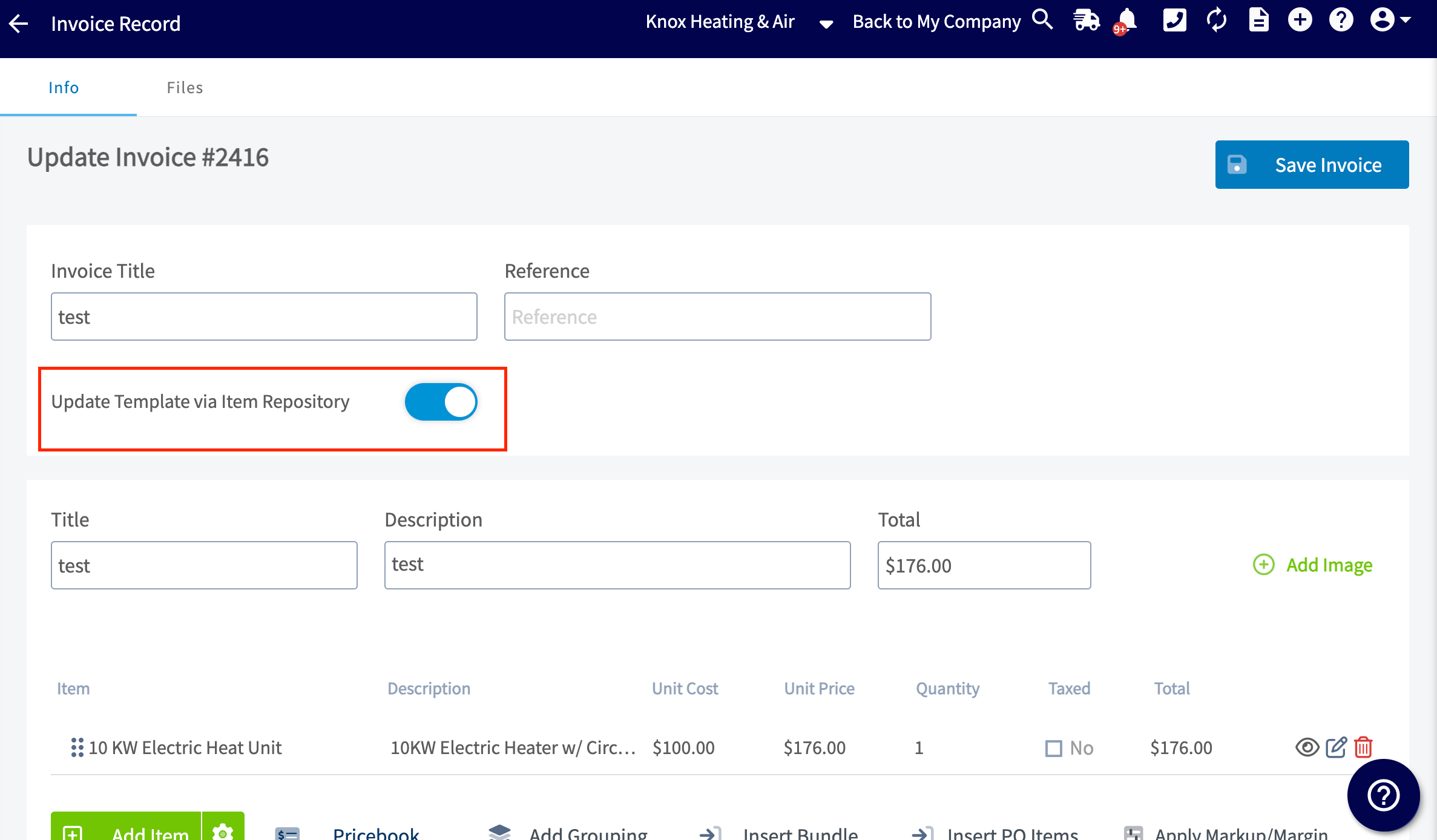
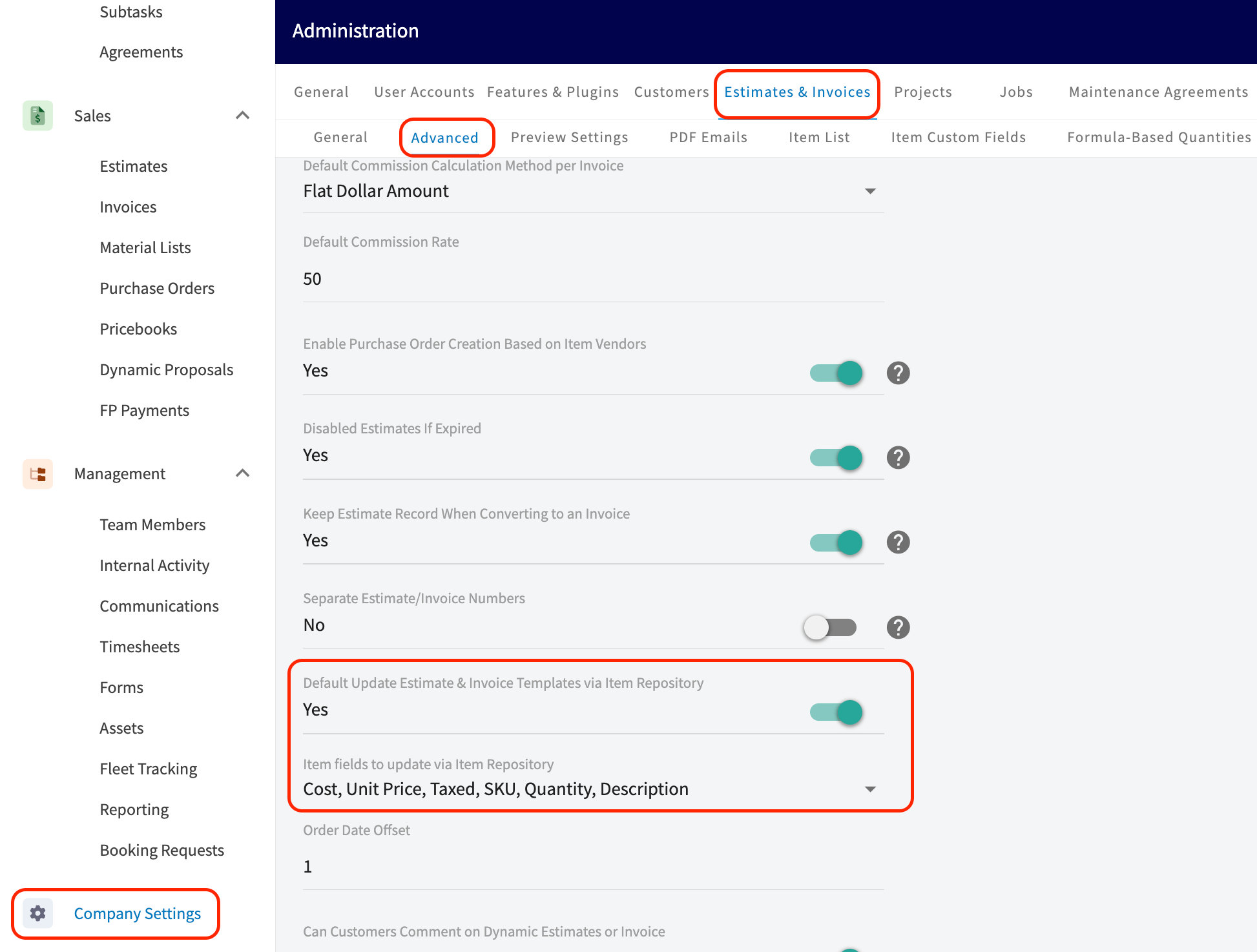
Each estimate or invoice template has an Update Template via Item Repository toggle that keeps the template’s line items in sync with your Item List/Repository, so a price or SKU change there flows into future documents built from that template. Open a saved template to turn the toggle on or off for that template.