Who uses this: Administrators — Google single sign-on is set from Company Settings, which only Administrators can reach. Availability: All regions; each user who signs in with Google needs their own Google account.Google single sign-on (SSO) lets your team access FieldPulse with their existing Google credentials, so they don’t have to remember a separate FieldPulse password. You turn on Google single sign-on from Company Settings > User Accounts, and you can whitelist your company email domains so only the right people get in.
Overview
Google single sign-on is optional by default — once you turn it on, each user can choose to sign in with Google or keep using their FieldPulse email and password. You can tighten access two ways: whitelist your company email domains so only accounts on those domains can sign in with Google, and require specific users to sign in with Google. Both are set from User Accounts in Company Settings.Before you begin
- You need an Administrator account — Google single sign-on is set from Company Settings, and only Administrators can view Company Settings.
- Know the email domain(s) your company uses (for example, companyabc.com) if you plan to whitelist them.
- Each user who signs in with Google needs their own Google account.
Step-by-step setup
Turn on Sign in with Google
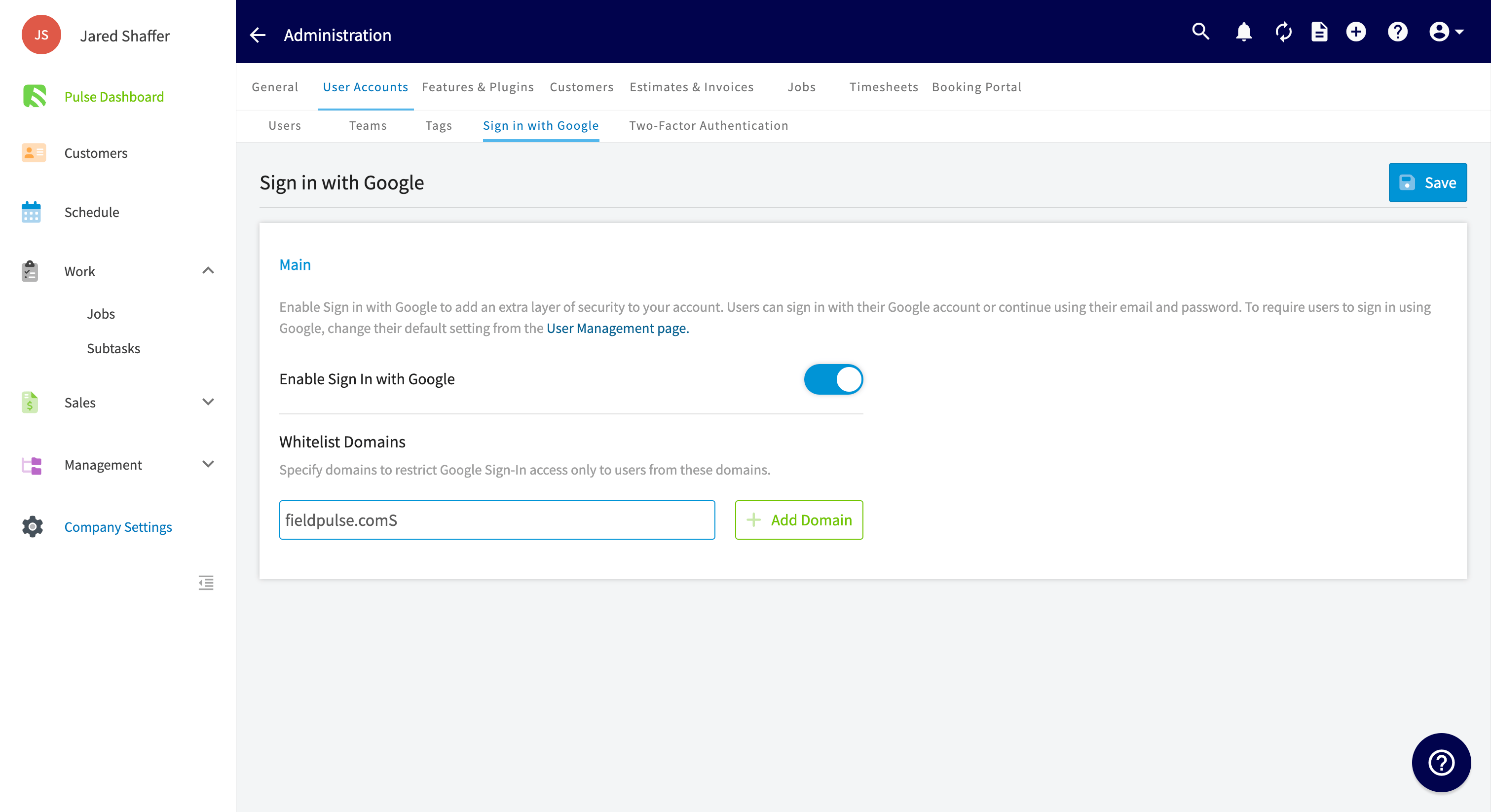
- In the left-side menu, select Company Settings.
- Select User Accounts.
- Select the Sign in with Google tab.
- Toggle on Enable Sign In with Google.
Whitelist your email domains (optional)
Whitelisting restricts which email domains can sign in to your account with Google single sign-on. For example, if everyone at your company has an email address ending in @companyabc.com, whitelist companyabc.com and only users with that email domain can access your account with Google.- On the Sign in with Google tab, enter a domain in the Whitelist Domains field — for example, companyabc.com.
- Select Add Domain.
- Repeat for each domain you want to allow.
Require Google sign-in for a specific user (optional)
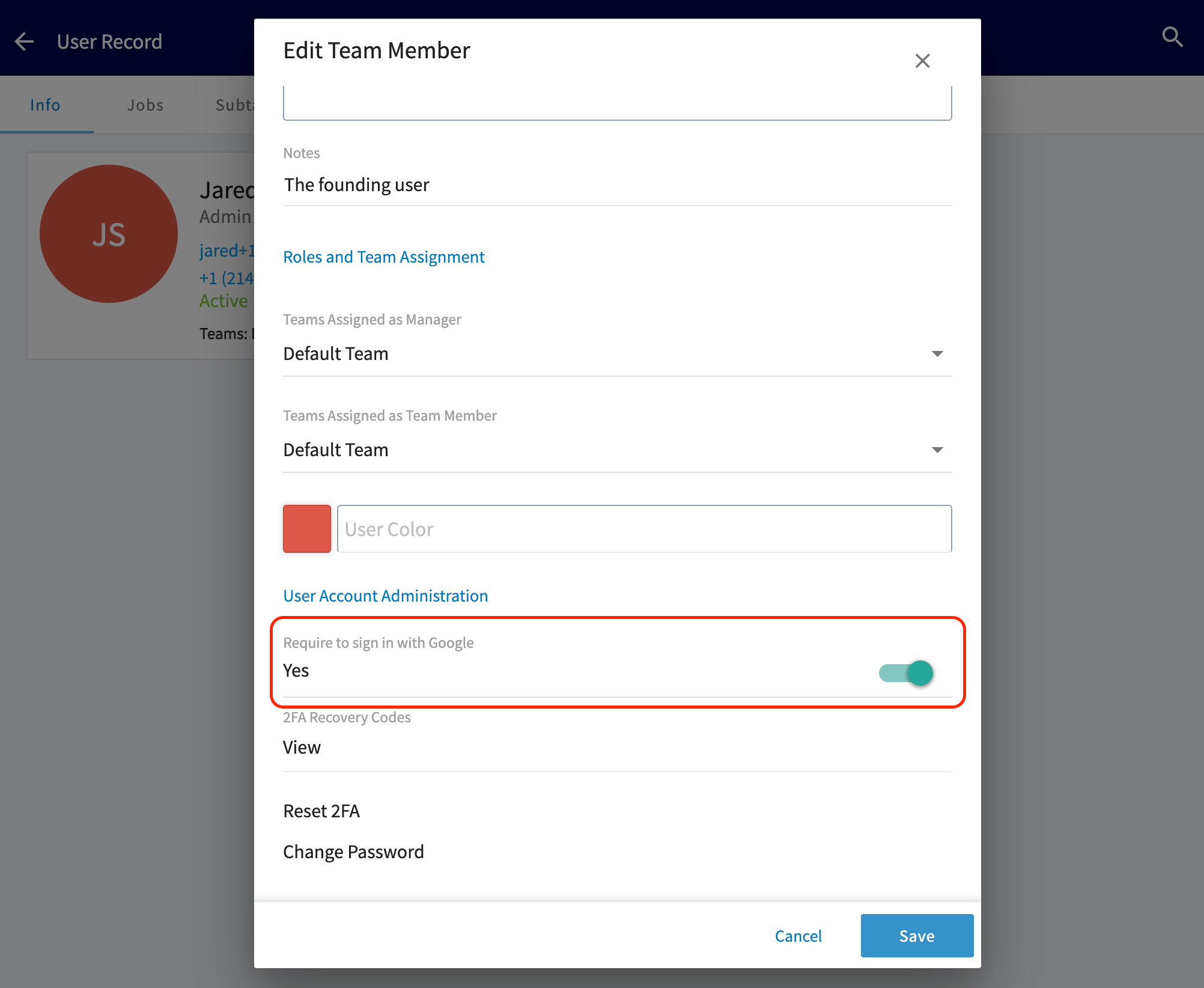
Signing in with Google stays optional for each user unless you require it on their user account:- Go to Company Settings > User Accounts.
- Select the user, then select Edit.
- Under User Account Administration, toggle on Require to sign in with Google.