
Who uses this: Admins, who can view and edit every schedule in the company, and Team Managers, who can view and edit their own team’s schedule. The View & edit all schedules permission is No for Service Agents and Limited Agents — see User Roles and Permissions Details. Availability: All regions.Availability scheduling is how you find open time across your team and book a job onto it. You see which team members have a slot, pick one, and create the job on their calendar without double-booking anyone or leaving a hole in the day. It runs on the Dispatch View of the Team Schedule page, part of scheduling and dispatching in FieldPulse.
Overview
The Dispatch View shows availability across your team members so you can schedule a job around it. There are two starting points:- From the Dispatch View — start on the Dispatch tab of the Team Schedule page when you already know you want to book around your team’s open time.
- From a job record — select Find Availability while you are building the job and let FieldPulse suggest the times for you.
Video walkthrough
Video walkthrough: finding availability and scheduling a job from the Dispatch View
How it works
Scheduling from the Dispatch View
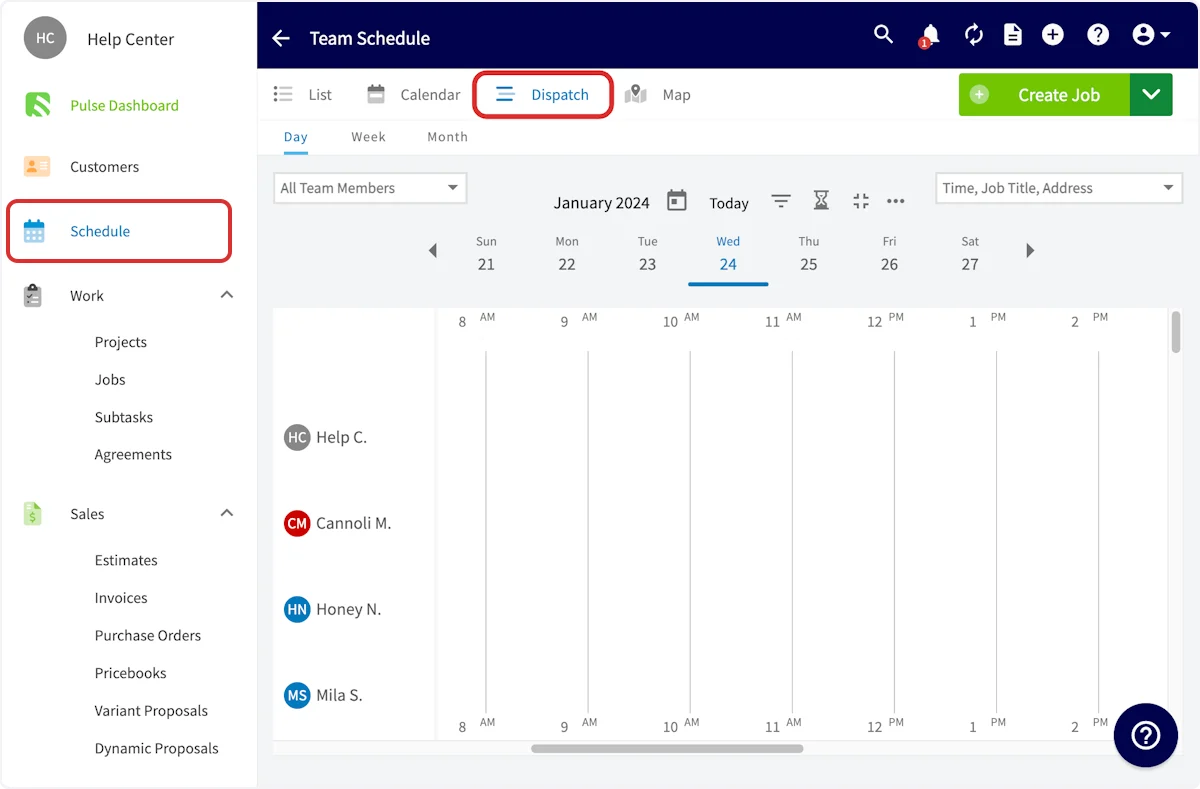
Start on the schedule when you want to see the whole team’s day before you commit to a time.- Select Schedule from the left-side menu.
-
Open the Dispatch tab on the Team Schedule page.
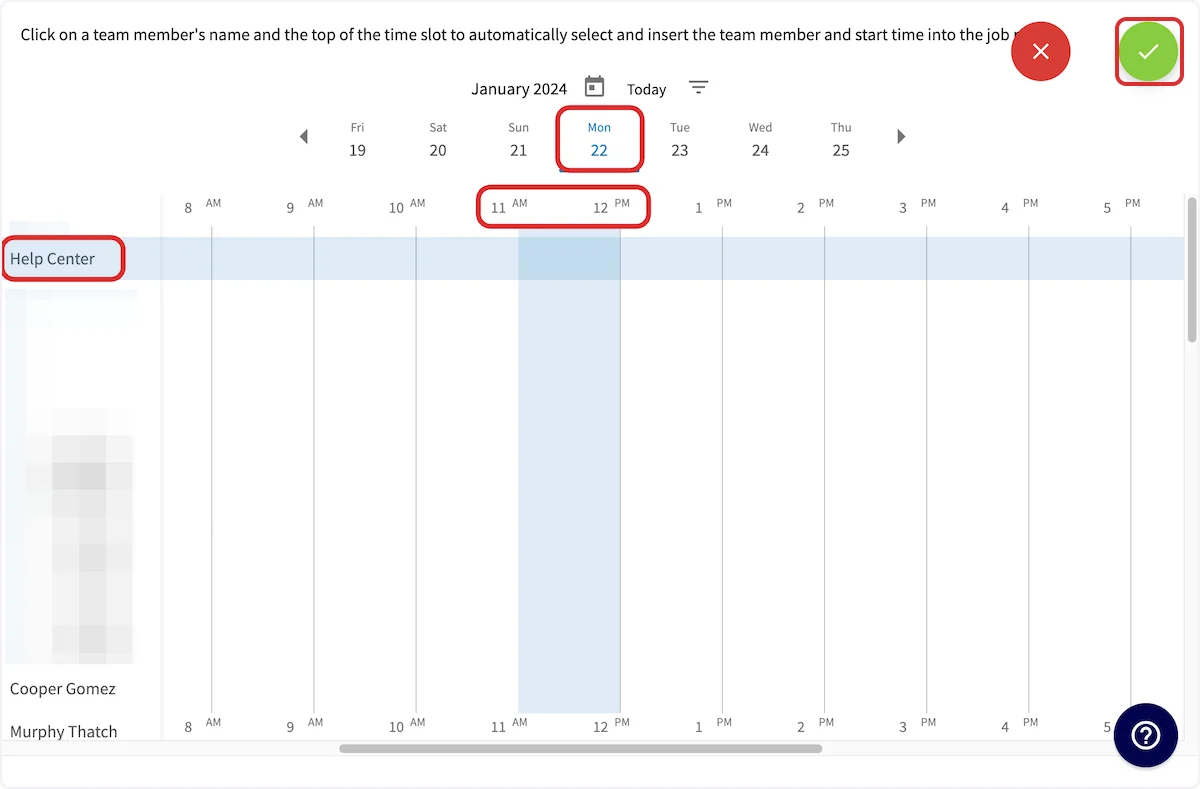
- Once you have found availability for your team member(s), select their name(s) in the left column. Selecting a name highlights that team member’s row in blue.
- Select the top of the time slot you want on the grid to set the job’s start time.
- Select Create Job in the upper right corner.
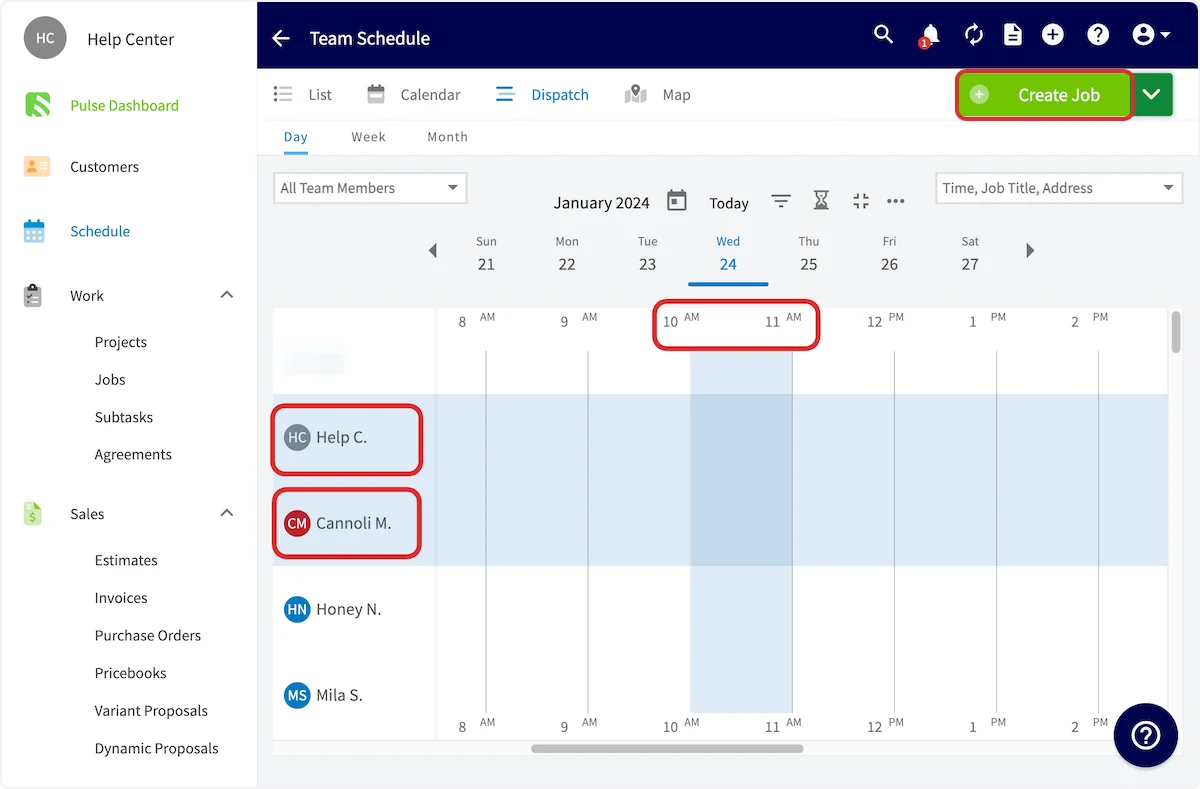
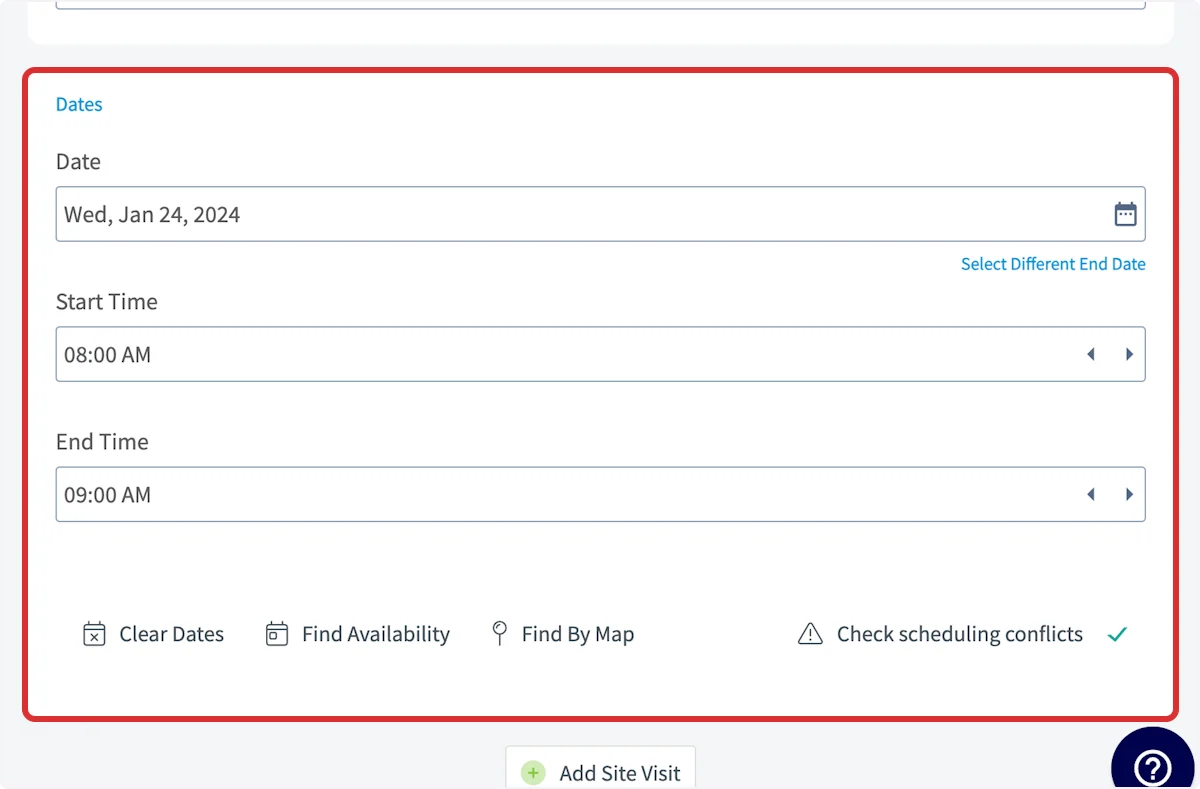
When you select the start time, the job defaults to a 1 hour duration. You can edit the duration on the job record.
Filtering the Dispatch View by team or skill
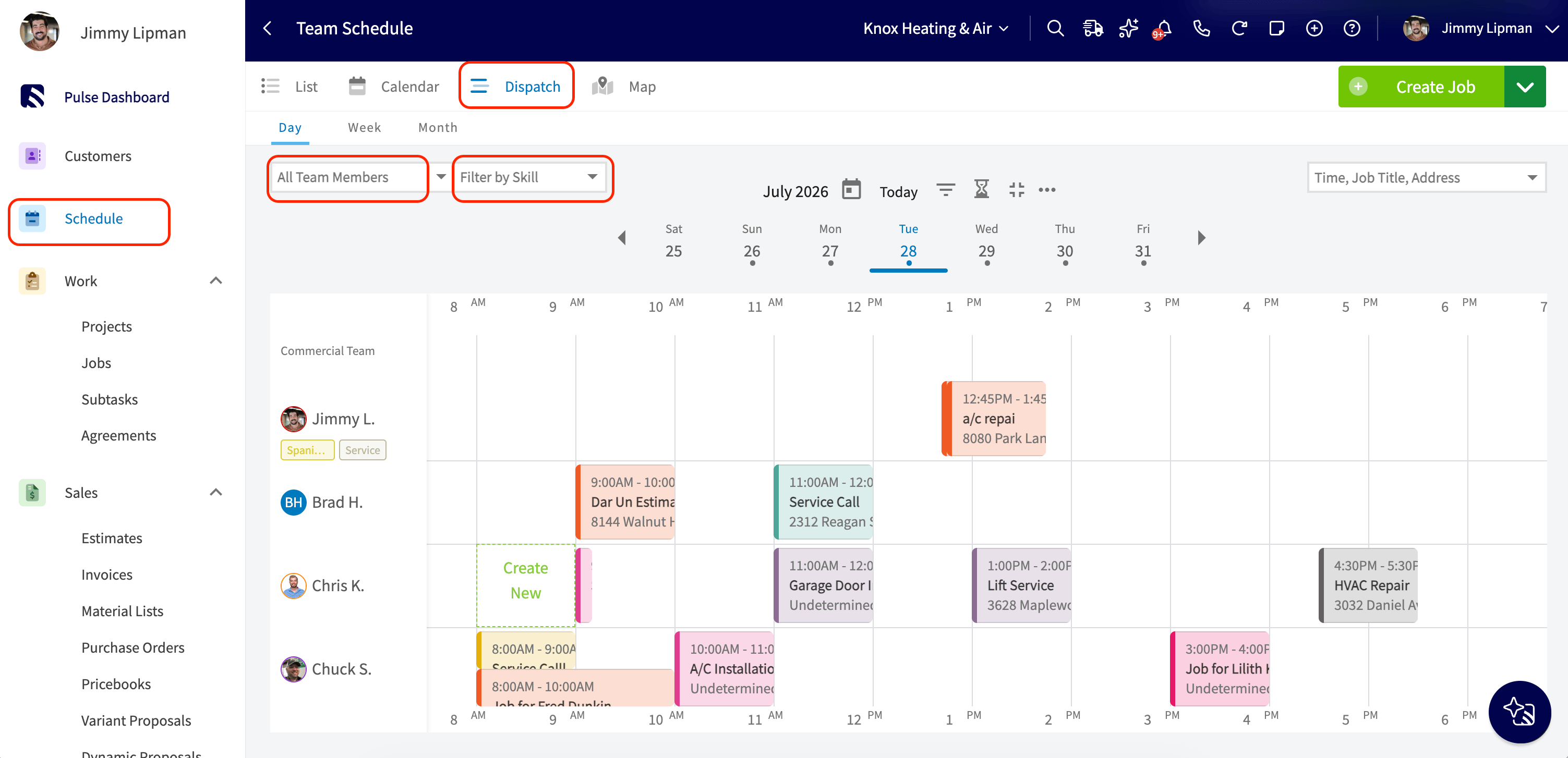
Two dropdowns above the left column of team members narrow who shows up on the schedule.- The All Team Members dropdown narrows the list to members of the selected team(s).
- Filter by Skill is a multi-select dropdown listing every tag in use.
Reordering teams in the Dispatch View
Team rows in the Dispatch View load in the default order set on the Teams tab under Company Settings > User Accounts > Teams. You can move your priority teams to the top for your current session.- Open the All Team Members dropdown above the left column of team members.
- Drag a team up or down by the drag handle beside its name.
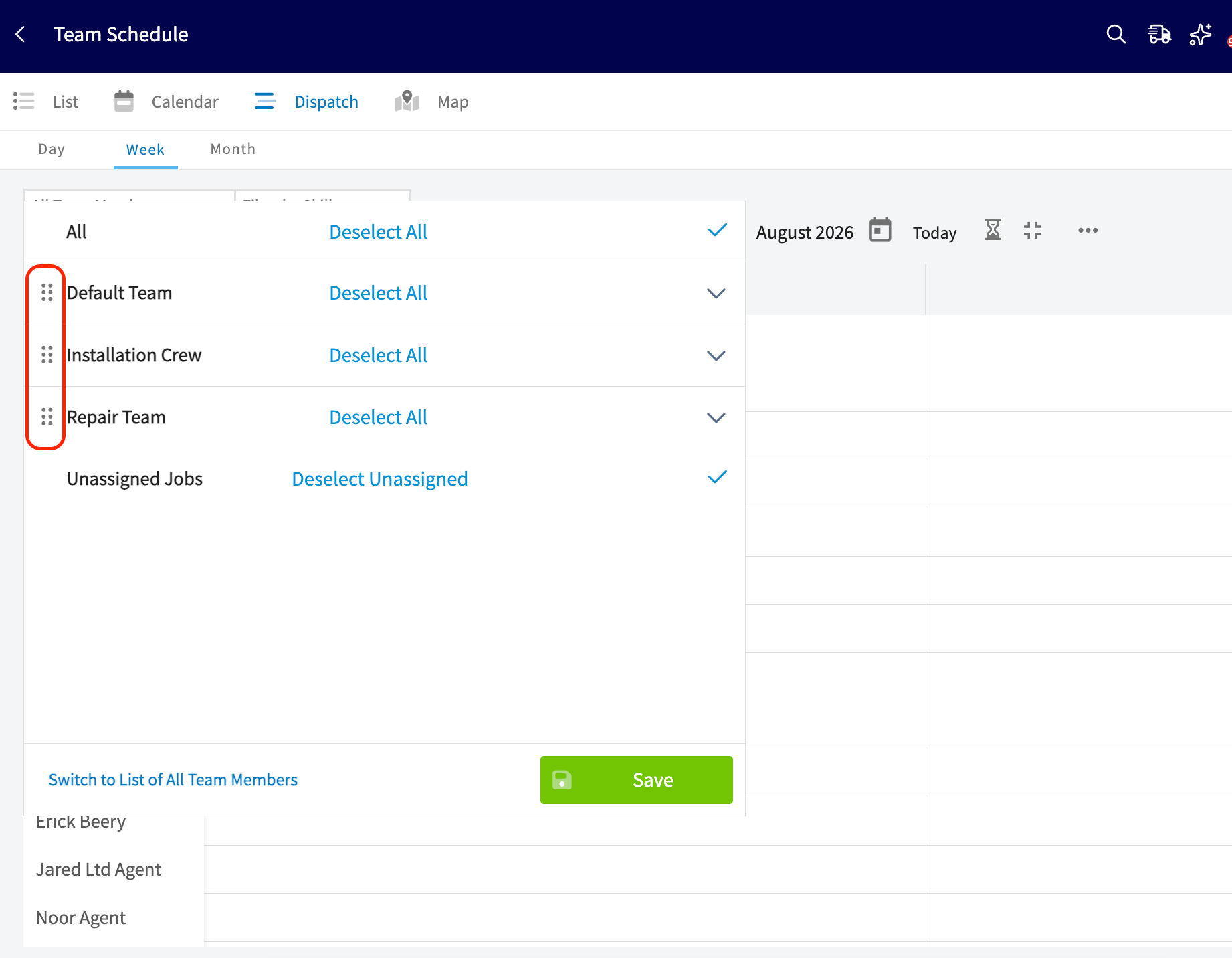
This reorder affects only your own view and does not save. It resets to the default order set on the Teams tab when you refresh the page or clear your browser cache.
Scheduling from a job record
Start from the job when the work is already defined and you want FieldPulse to propose the times.-
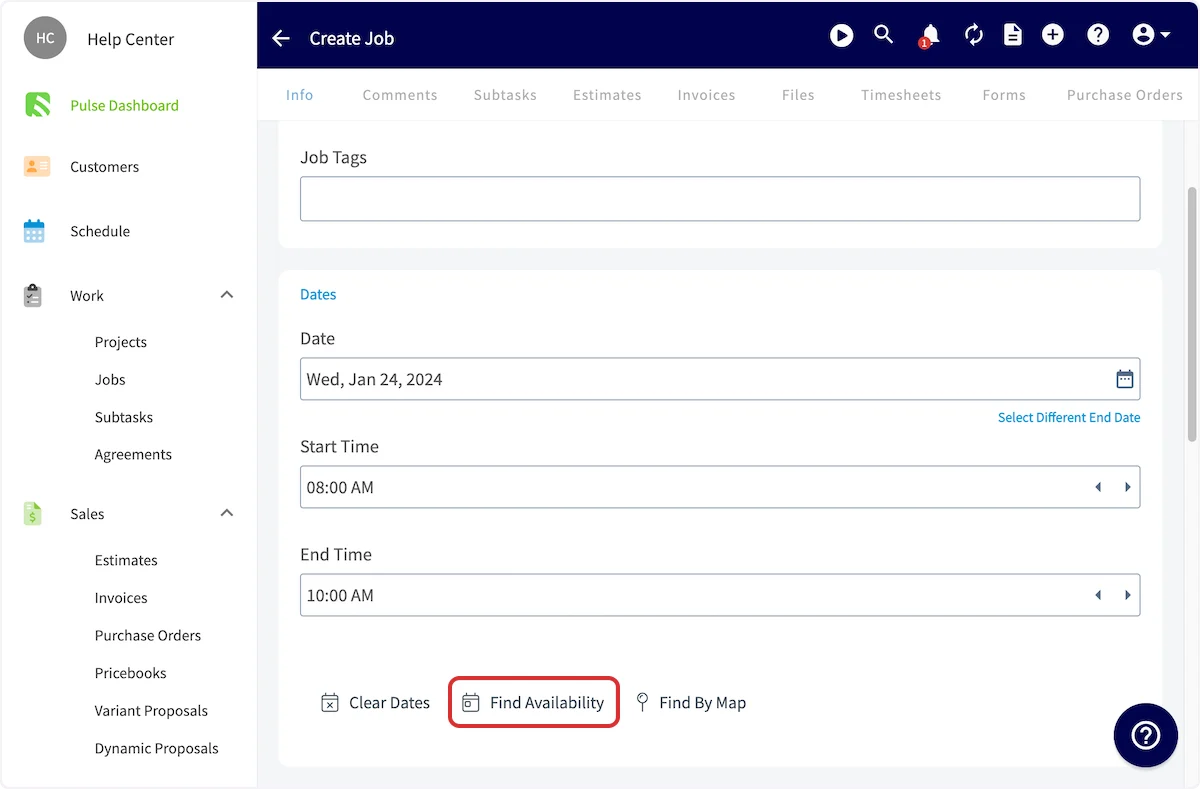
While creating the job record, scroll down to the date/time area and select Find Availability.
-
Review the Scheduling Parameters in the Automatic Time Slot Suggestion panel — Time Slot Duration, Time Slot Buffer Before, Time Slot Buffer After, Starts After, Ends Before, Team Members, Team Members Needed, and Skills (user tags).
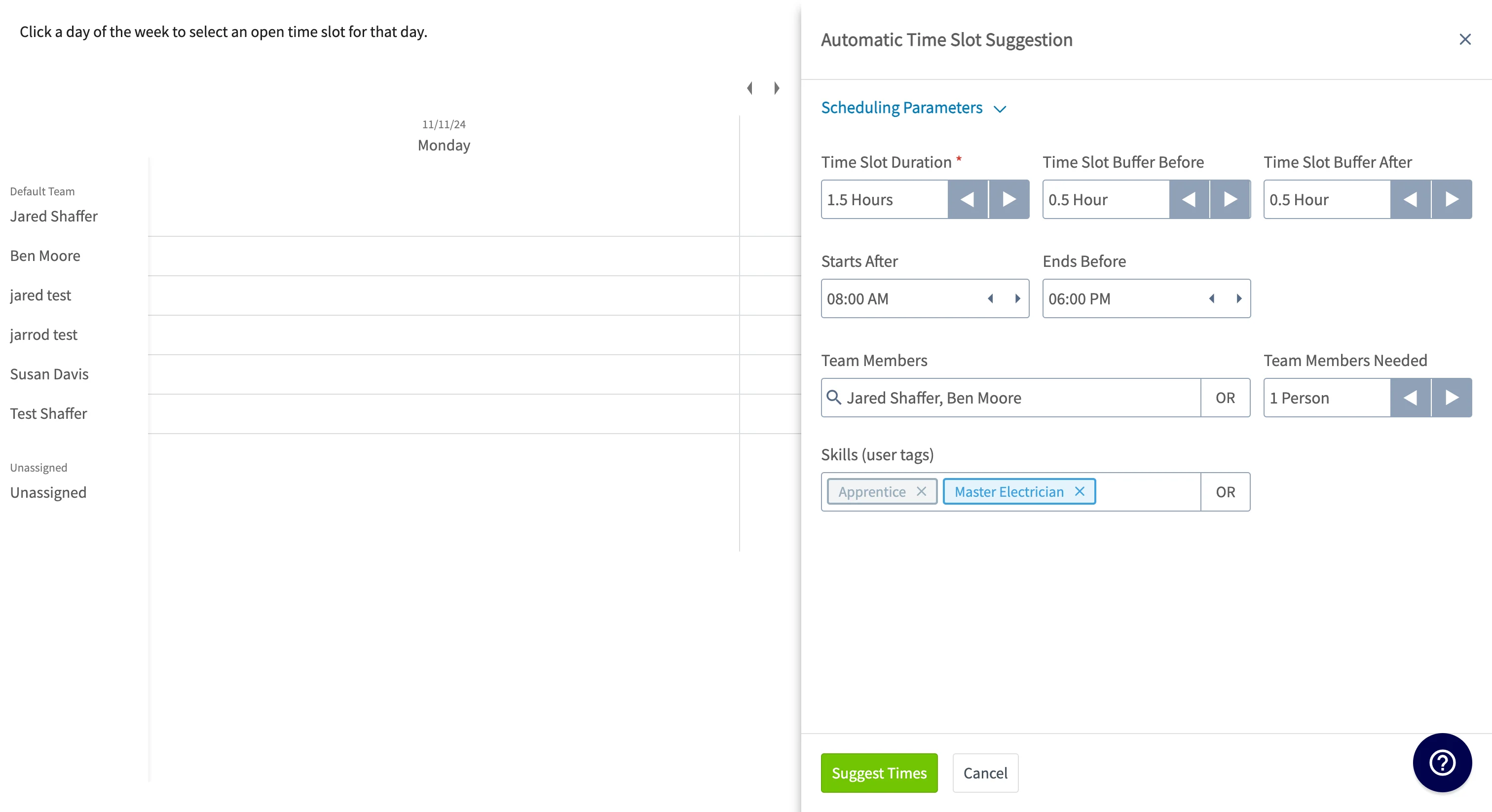
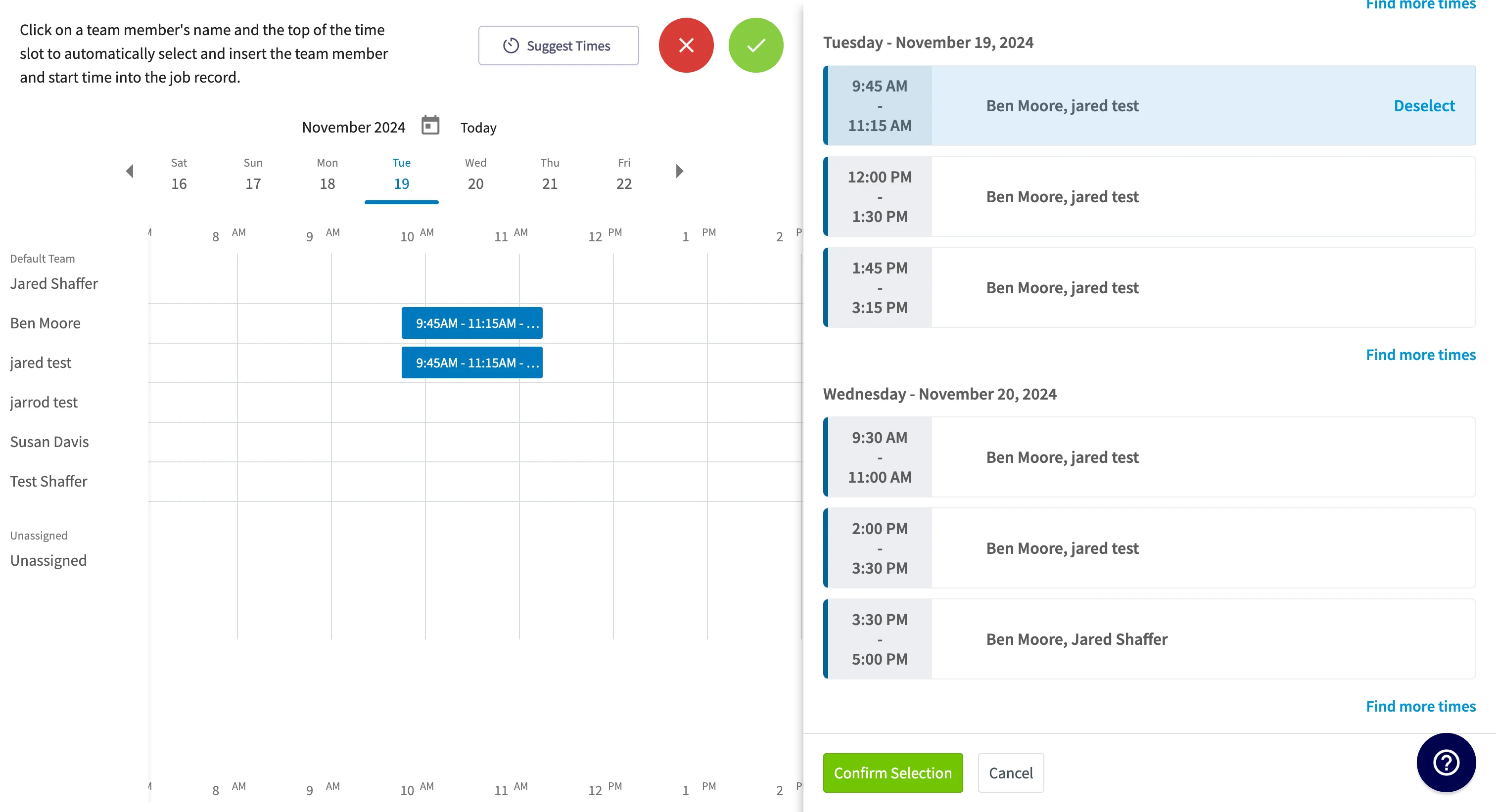
- Select Suggest Times. FieldPulse returns combinations of team members who are available to service the job, grouped by day.
- Select the slot you want and select Confirm Selection. FieldPulse assigns the job to those team members and schedules it at that time.
To set working hours on a job that runs across more than one day, see Setting Up Working Hours for Multi-Day Jobs.
Availability
Availability scheduling runs on the Team Schedule page in FieldPulse. You configure two pieces of it elsewhere:- Booking windows come from your Booking Portal configuration, and Find Availability factors them into its suggestions. See How to Find Availability.
- Schedule visibility decides how much of the schedule a service agent sees, and whether the team members assigned to a job can see that job on their schedule. See Setting Up Schedule Visibility.