Customize and automate communication with your customers.Documentation Index
Fetch the complete documentation index at: https://fieldpulse.mintlify.app/llms.txt
Use this file to discover all available pages before exploring further.
Enabling Customer Communications
To begin using Customer Communications, you’ll first need to enable it. Start by clicking on Company Settings and selecting Features & Plugins. Navigate to Customer Communications and select Enable. Now you’re ready to begin customizing and automating your communications!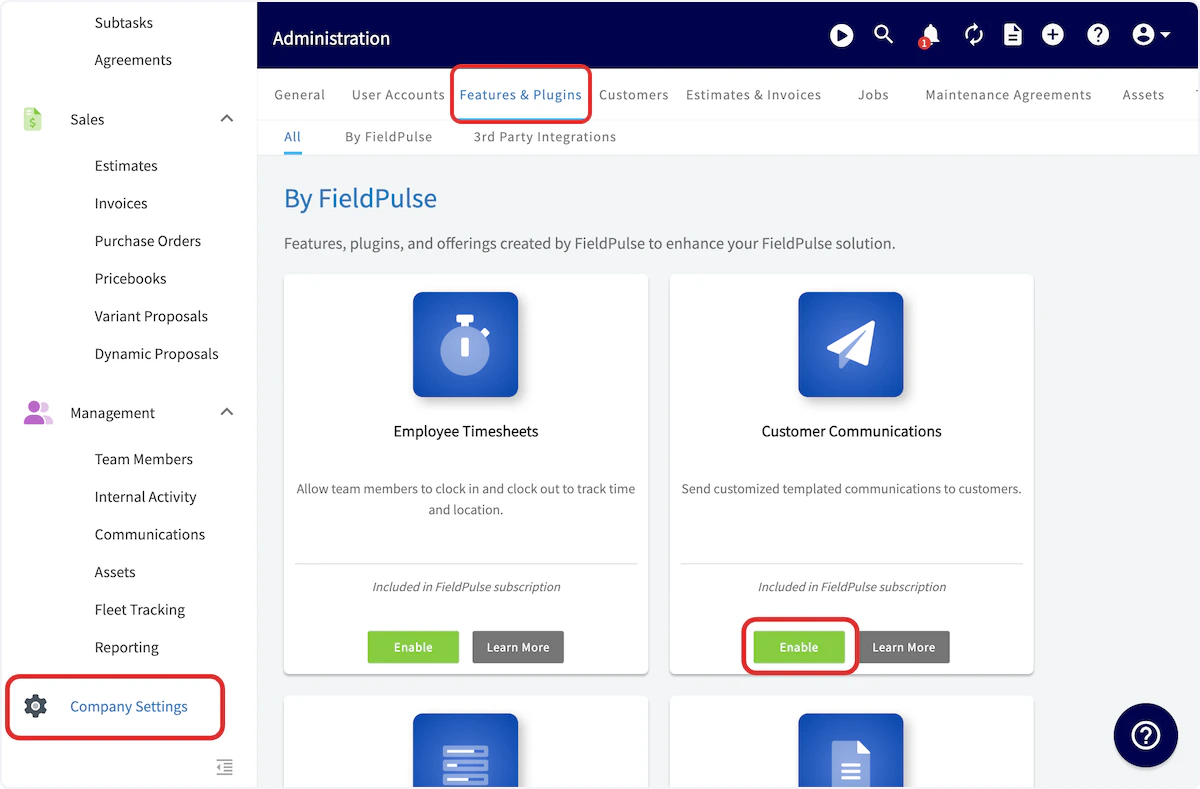
Email Templates
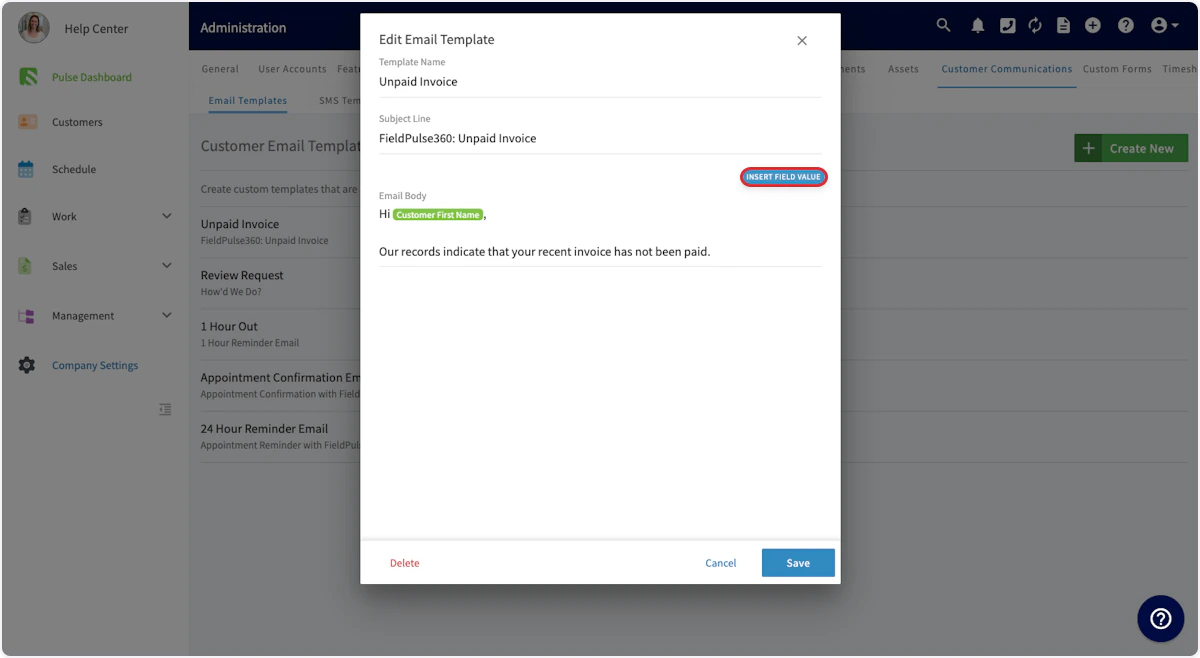
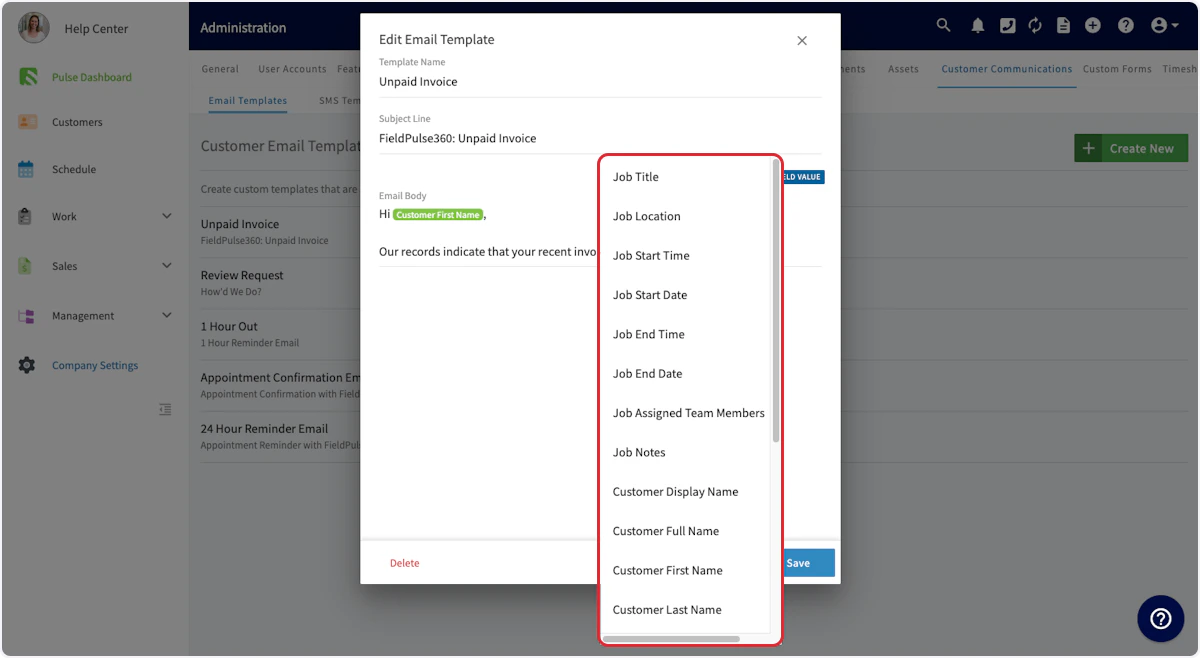
To customize your customer communications, begin by clicking on Company Settings and selecting Customer Communications from the menu at the top of the screen.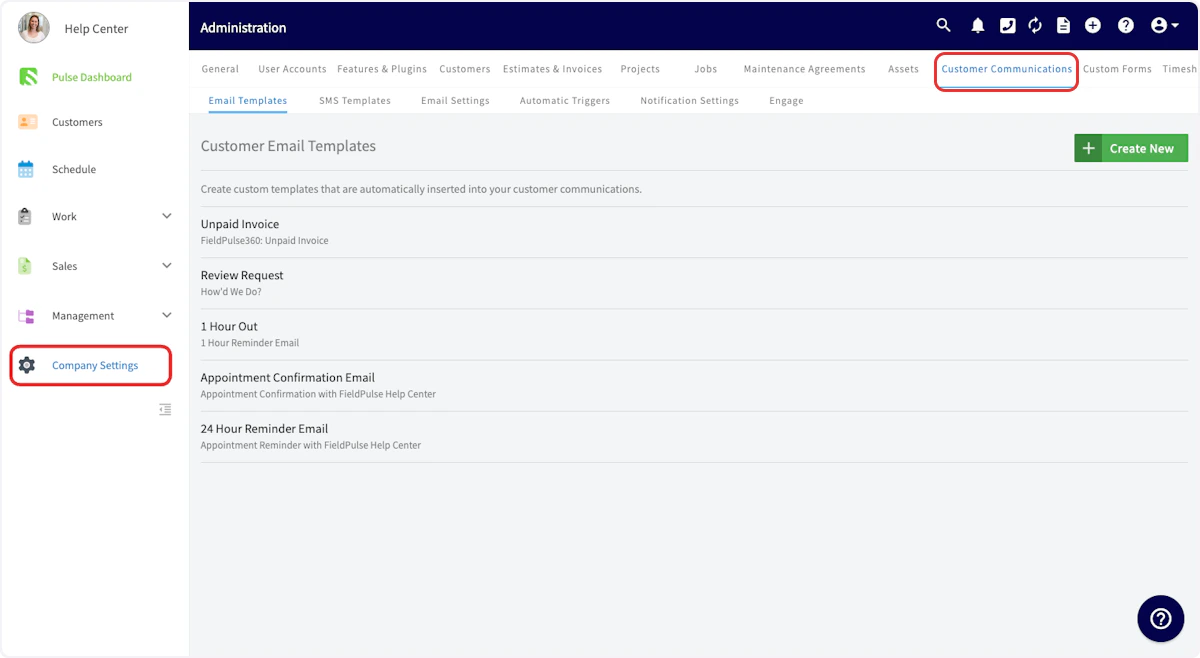
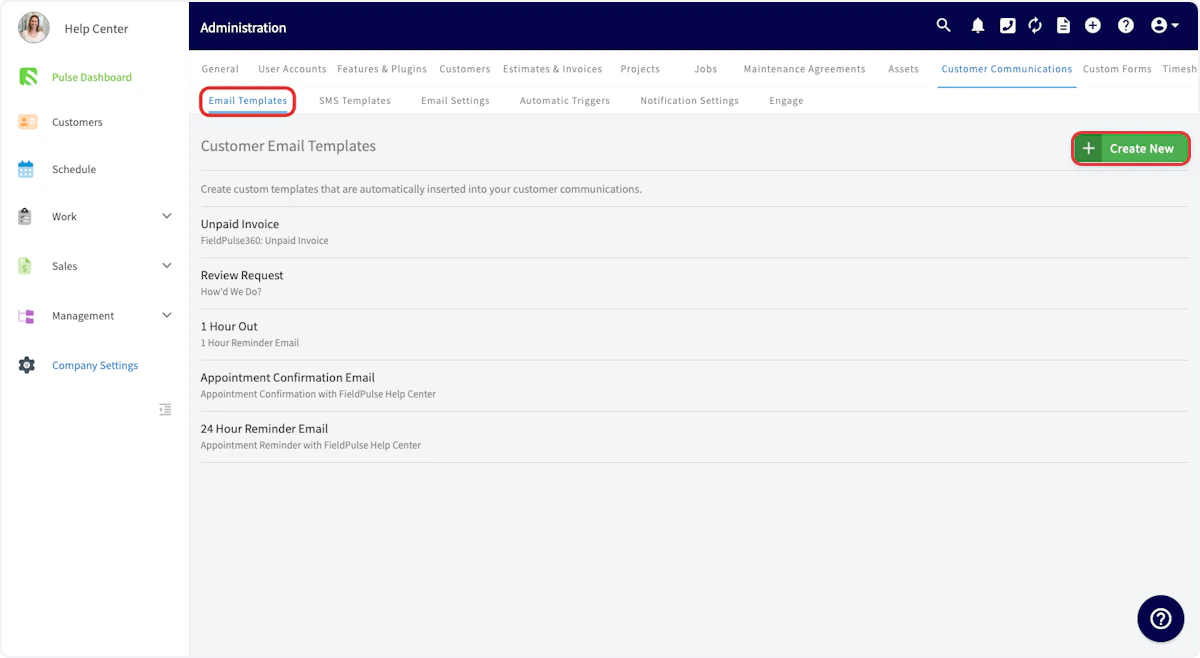
- Feedback requests
- Notification of a technician on their way
- Appointment reminders

Email Settings
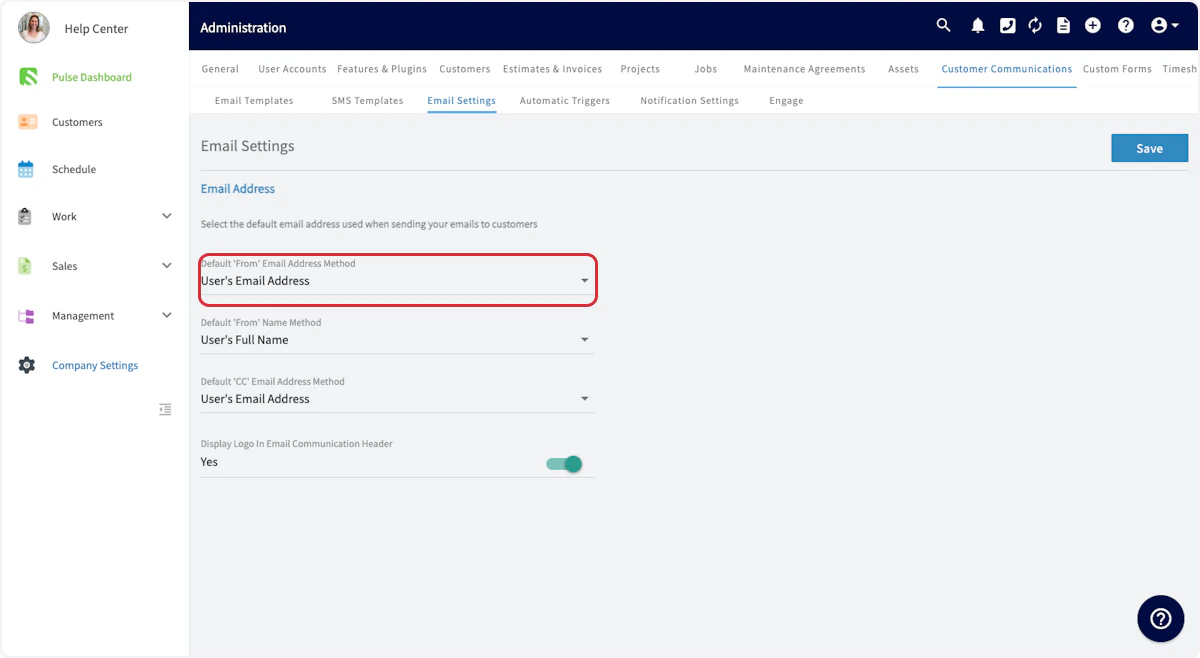
To further customize your customer emails, navigate to Email Settings.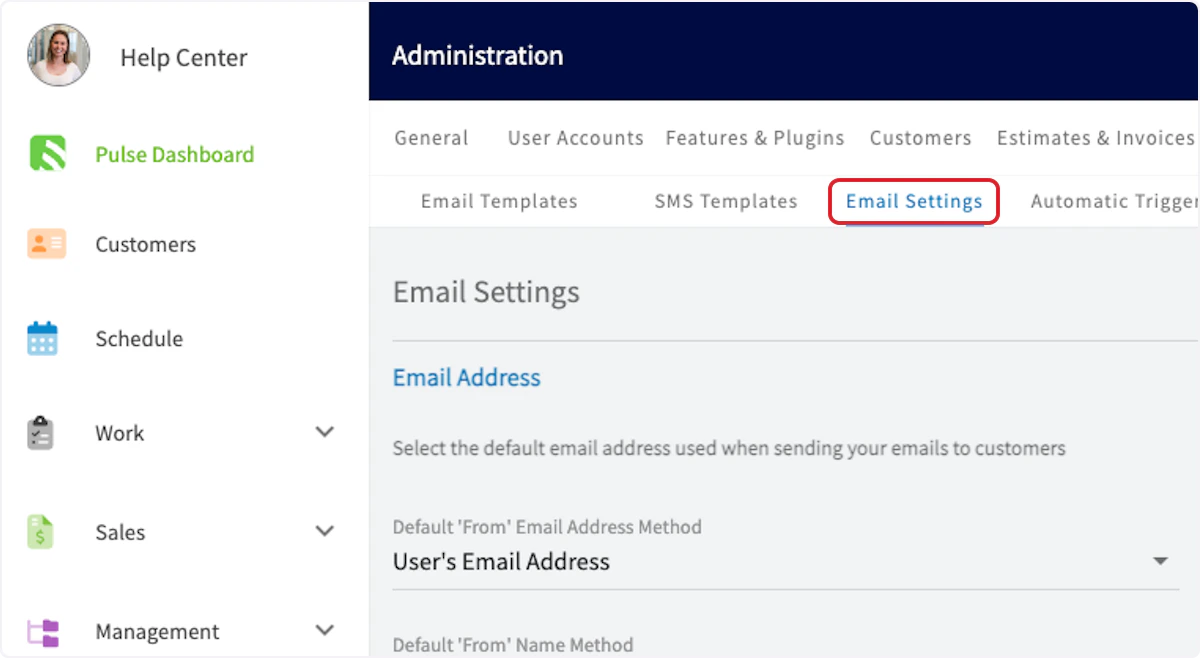
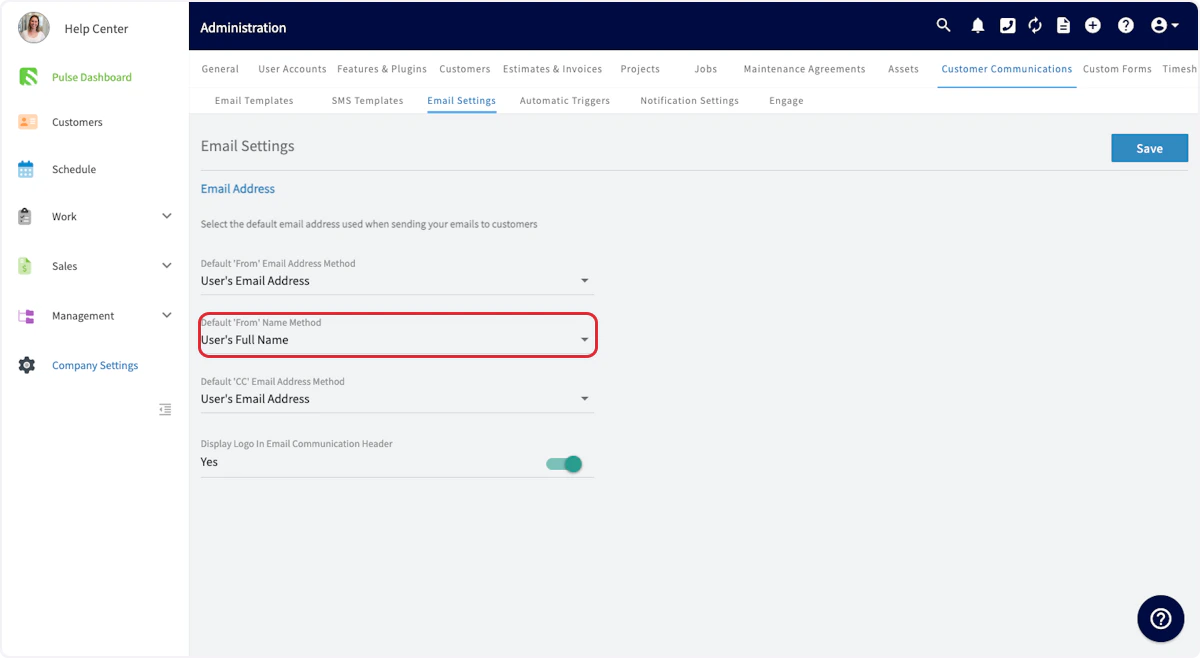
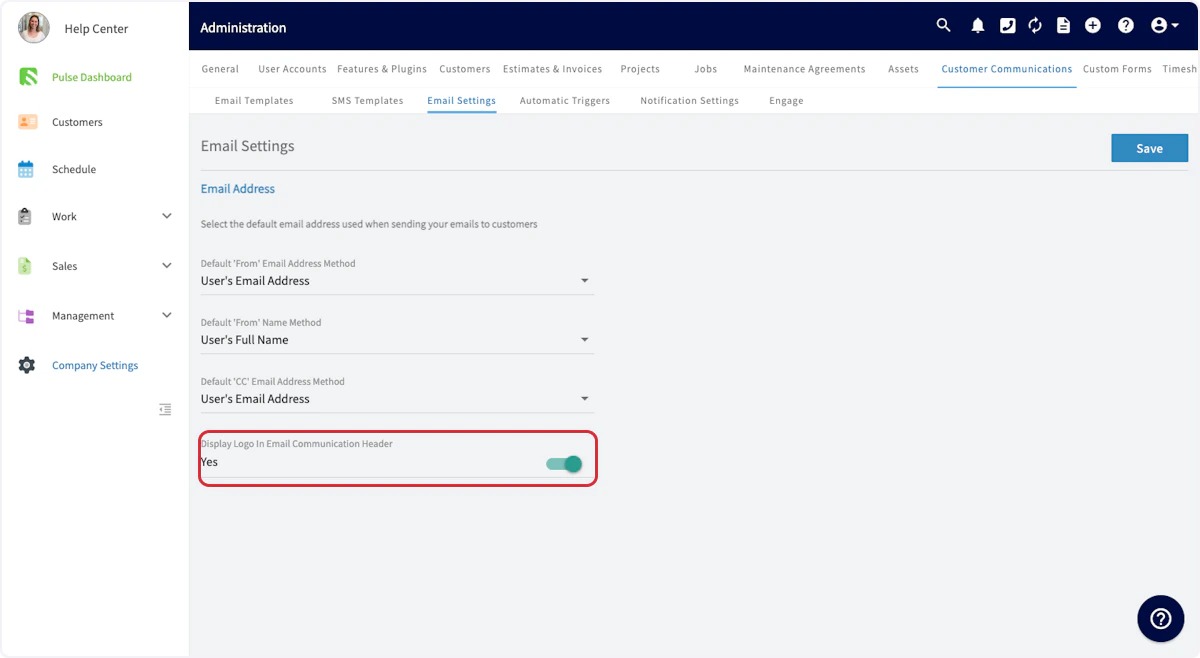
Email Statuses & Notifications
Blocked: This status indicates that the email was not sent to the recipient’s server due to factors such as the sender’s email address being on a blacklist, the content of the email triggering spam filters, or domain-level policies that prevent the email from being delivered. Be sure to have your customer check his/her spam folder. Deferred: A “deferred” email is one that has not been delivered on the first attempt but is temporarily queued for future delivery attempts. This could be due to issues on the recipient’s server, such as a full inbox or a temporarily unavailable server. Email systems will typically retry sending these emails automatically. Sent: The “sent” status means that the email has been successfully transmitted to the recipient’s mail server. However, this does not guarantee that the email has been delivered to the recipient’s inbox as it may still be blocked or filtered at a later stage. Open: This status is used when the recipient has simply opened the email you sent. Clicked: An email marked as “clicked” signifies that the recipient not only opened the email but also clicked on one or more links within the email.SMS Templates
In Customer Communications, you have the option to create email and SMS templates for use with your customers. To create a new SMS Template, select SMS Templates. Then, click Create New.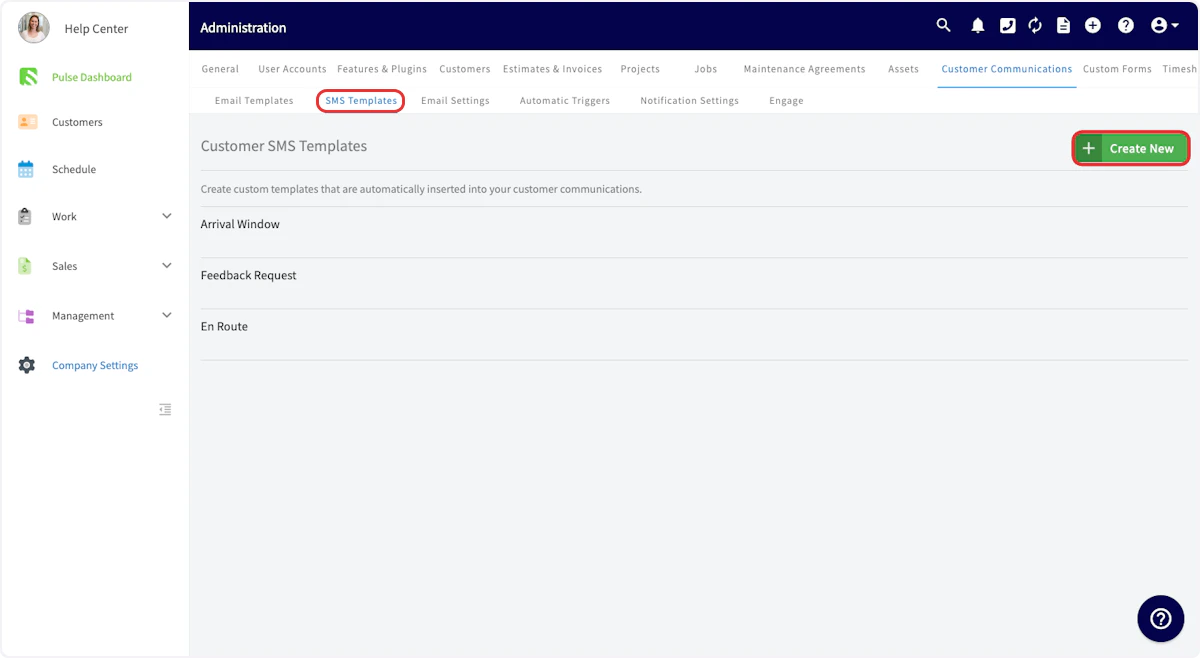
- Feedback requests
- Notification of a technician on their way
- Appointment reminders

Sending Communications to Customers
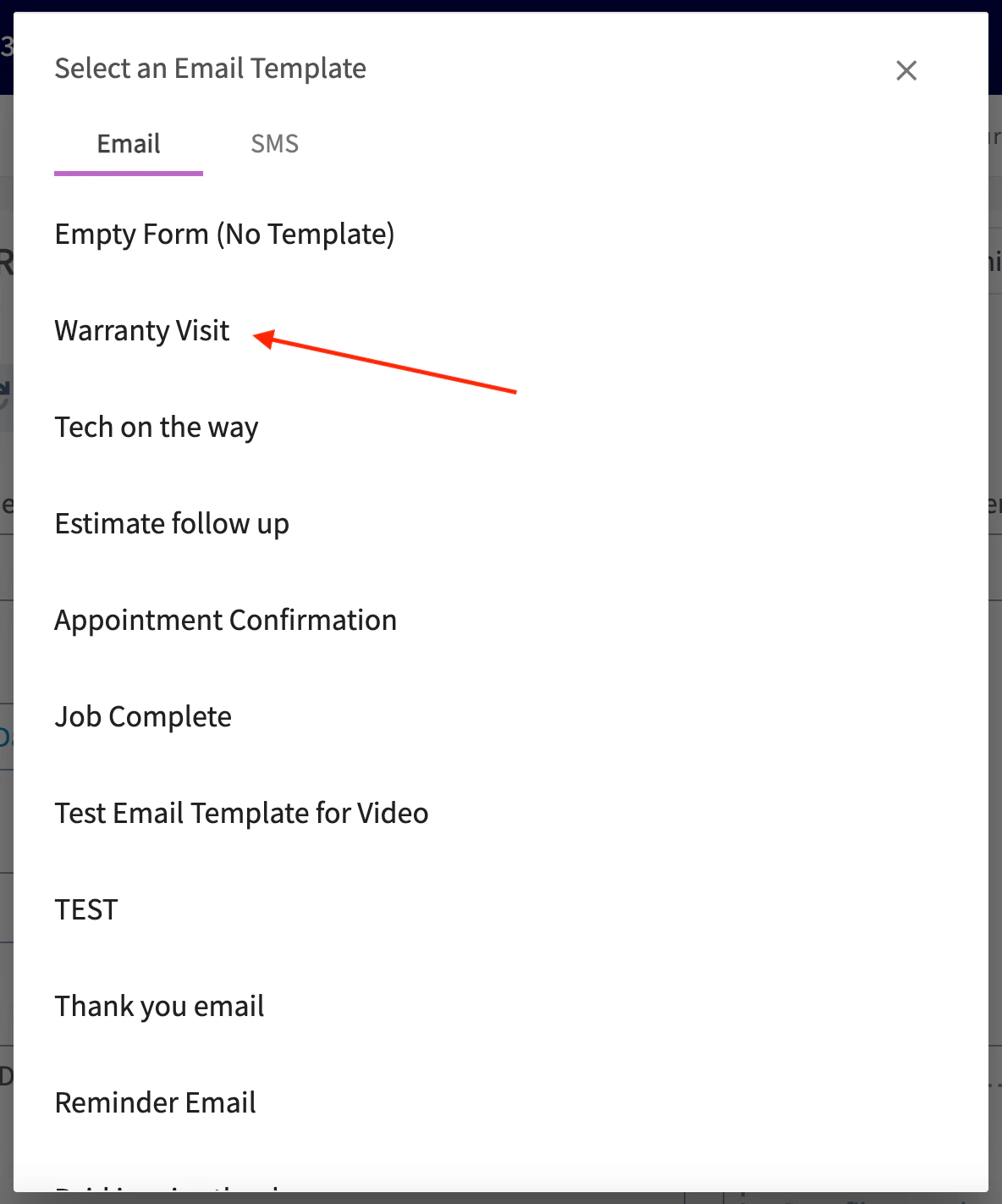
To send emails and/or SMS messages to a customer, navigate to the job or customer record that you want to communicate about, click on the Actions button at top right, and click Send Customer Communication.

Sending Customer Communications with Engage
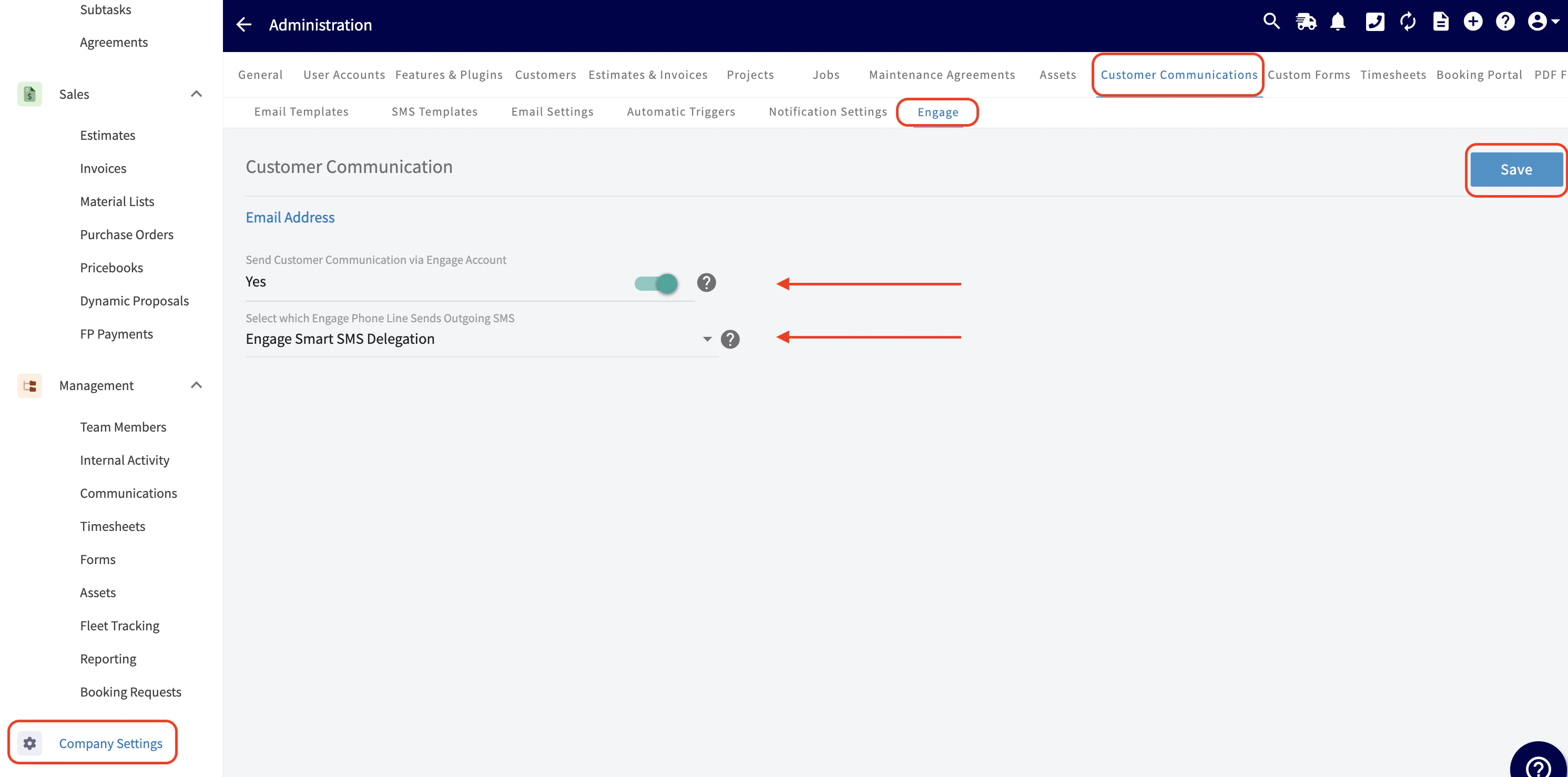
If Engage is enabled and the toggle to Send Customer Communication via Engage Account is on, SMS and email automatic triggers will send via one of the following options of your choosing:- Engage Smart SMS Delegation
-
Our system will auto-select the most relevant phone line based on who’s sending the message.
- If the sender is assigned to an Engage line, their assigned line will be used.
- If the sender is not assigned to an Engage line, the company owner’s assigned line will be used.
- If the sender and owner do not have assigned line, a random available Engage line will be used.
- Custom Phone Line
- Choose one specific phone line for all SMS messages to always be sent from that line.
Sending Customer Communications without Engage
- All email and SMS automatic triggers will be sent through a no reply toll-free number from FieldPulse.
Creating Automatic Triggers
Setting up automatic triggers allows you to automate the email and SMS message sending process and ensure a consistent experience for all of your customers. To begin the process, select Automatic Triggers. To set up your first automatic trigger, select Create New.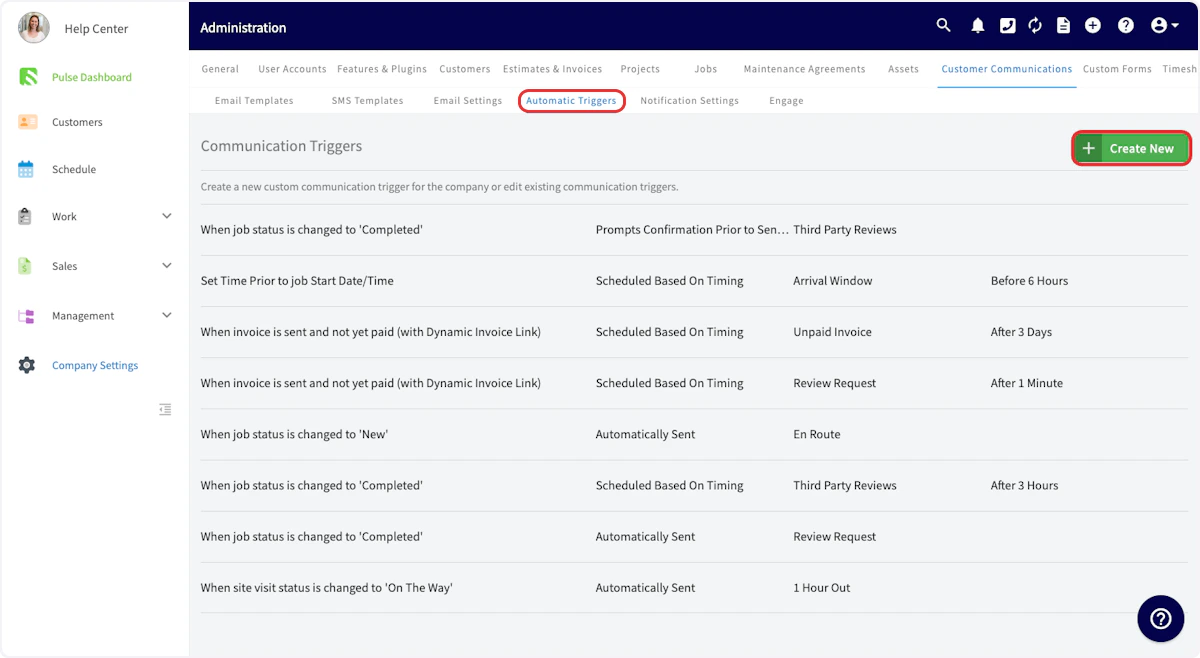
Some trigger options include
| Trigger | When the Communication will be Sent |
|---|---|
| ”When Estimate is sent and not yet accepted (without Dynamic Estimate Link).” | This will send when the estimate is initially sent and has not yet been accepted by the customer. The Dynamic Estimate Link is not included. |
| ”When Estimate is sent and not yet accepted (with Dynamic Estimate Link).” | This will send when the estimate is initially sent and has not yet been accepted by the customer. The Dynamic Estimate Link is included. |
| ”When invoice is sent and not yet paid (with Dynamic Invoice Link).” | This sends on the date the invoice is past due and includes the invoice link. This only sends to invoices in the invoiced status. The Dynamic Invoice Link is included. |
| ”When invoice is overdue and not yet fully paid (with Dynamic Invoice Link).” | This will send on the date an invoice is past due and include the invoice link. This sends for invoices in the invoiced as well as partially paid statuses. The Dynamic Invoice Link is included. |
| ”When the invoice is past due.” | This sends on the date the invoice becomes past due, does not include a Dynamic Invoice Link, and is triggered for any Invoice Status except Paid. |
| ”When an Estimate is Accepted.” | This will send when the Estimate has been accepted by your customer. |
| ”When job is newly created.” | This will send when the Job record is newly created in FieldPulse. |
| ”Set Time Prior to job Start Date/Time.” | This trigger allows you to send communications to your customers at a custom time, set by you, either before or after the job’s start date/time. |
| ”When a payment record is created.” | This will send when a payment record is created in one of the following ways: - Automatically: When a payment is taken/submitted using FieldPulse Payments. - Via Sync: When a payment is received from QuickBooks or another connected accounting system. - Manually: When a payment is manually marked/logged in FieldPulse through the web app or mobile app. |
| ”When job status is changed to [Status]”. | This will send to your customers when the Status of the Job record changes to a Status you specify. |
| ”When site visit status is changed to [Status].” | This will send to your customers when the Status of the Site Visit record changes to a Status you specify. |
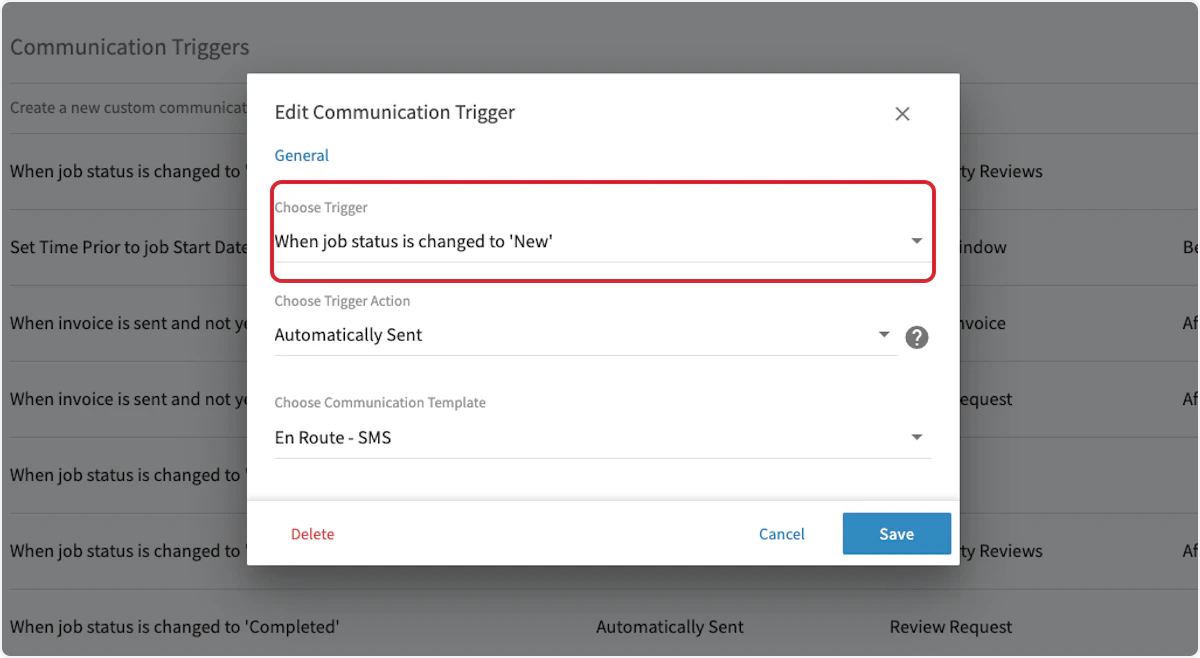
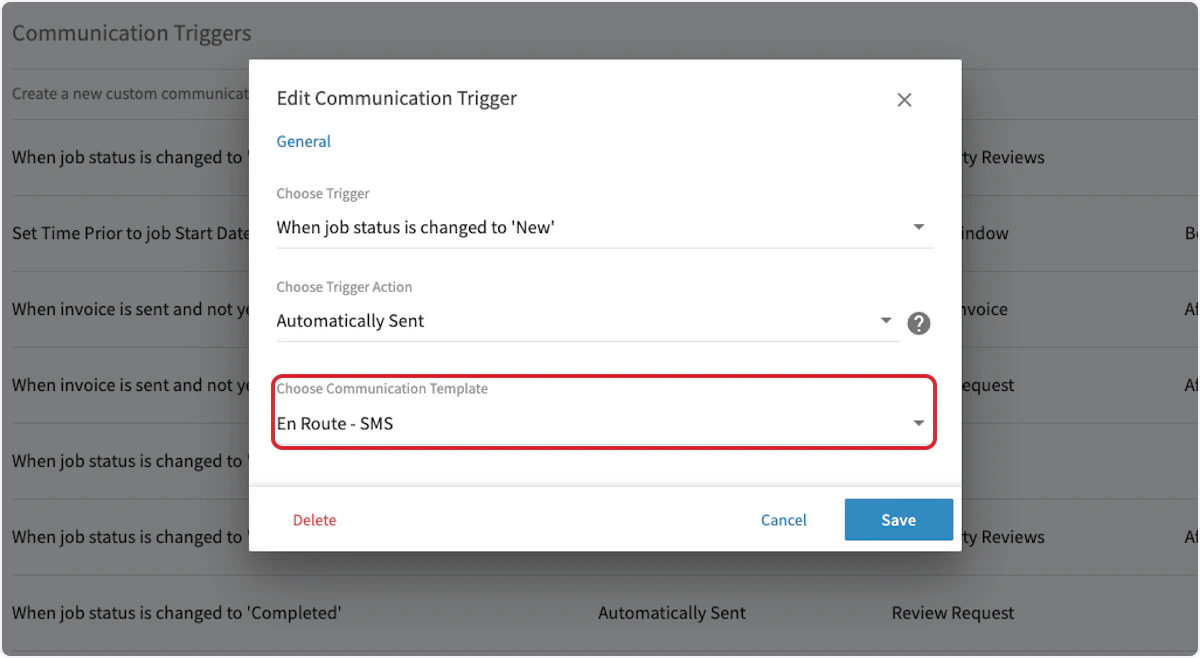
For this example, we’ve selected the trigger When job status is changed to ‘New’
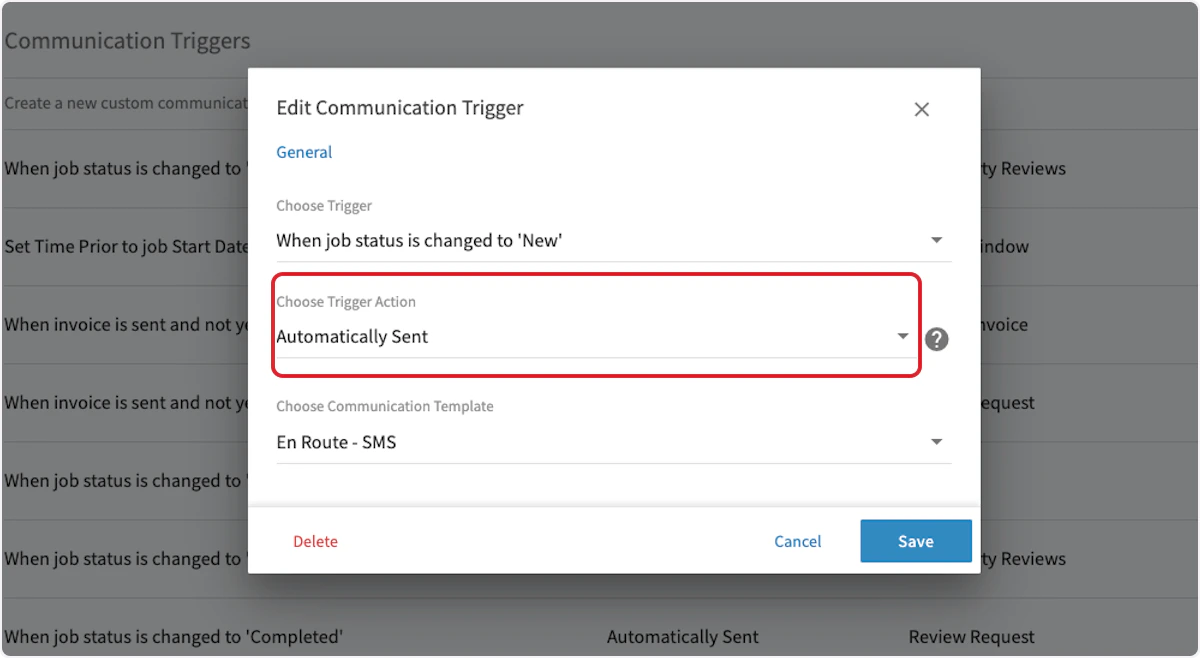
- Automatically Sent - Choosing this option will automatically send the customer communication immediately after the trigger is triggered without a preview or confirmation.
- Prompts Confirmation Prior to Sending - Choosing this option will open a pop-up after the trigger is triggered for you to confirm that you want to send this customer communication prior to sending.
- Scheduled Based On Timing - Choosing this option will automatically send the customer communication based on a scheduled timing sequence that you specify.
Examples