

Engage is a fully-integrated phone system to manage your customer interactions including: phone calls, text messages, voicemails, emails, and more.Documentation Index
Fetch the complete documentation index at: https://fieldpulse.mintlify.app/llms.txt
Use this file to discover all available pages before exploring further.
Engage is available for users in the United States and Canada.
Why Utilize Engage?
- Keep important customer conversations off your personal mobile phone
-
Track all customer communications in one place
- Save all of your customer call history, voicemails, emails, and text messages inside the app
-
Provide managerial oversight
- Managers can see conversations between customers and technicians and participate in the conversation when necessary
Enabling Engage
Contact us at support@fieldpulse.com or use the Chat feature in the bottom right hand corner of your screen to enable Engage. Once Engage has been enabled and your phone number(s) have been connected, you’re ready to begin exploring the application! Engage can be used through the FieldPulse web app or through the Engage by FieldPulse app, available on iOS and Android.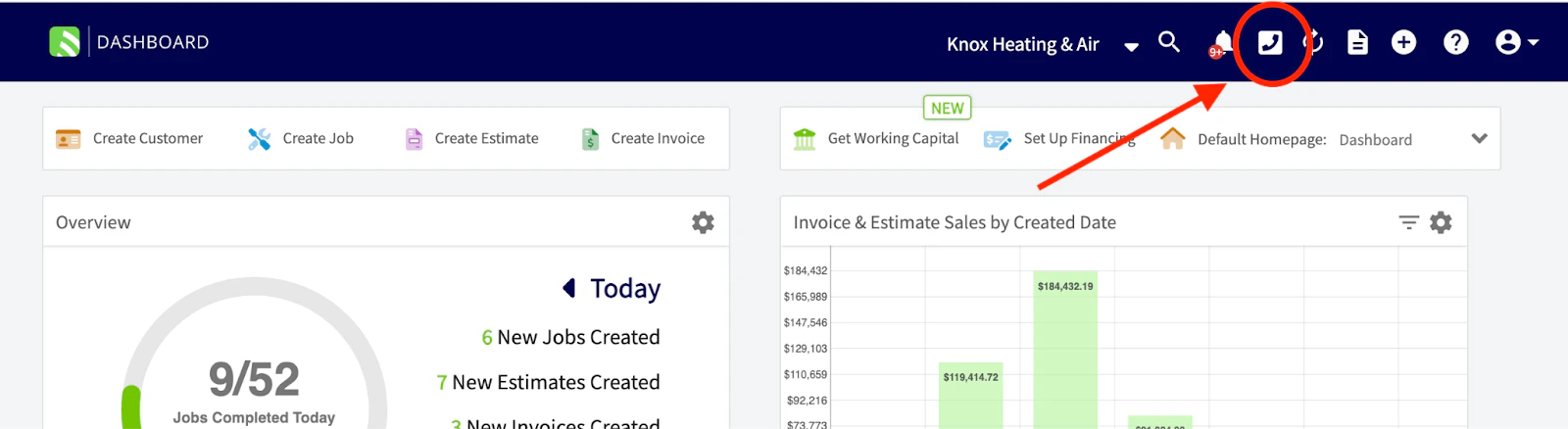
Porting Your Number into Engage
Already have a business number you’d like to keep? No problem. Engage supports porting in both local and toll-free numbers, so you can bring over the number your customers already know and trust. Just reach out to our support team and we’ll guide you through the porting process and handle the heavy lifting on our end. And if you don’t have a number to port in, you can grab a new local or toll-free number directly through FieldPulse to get up and running right away.Important Note: Engage lines do not support verification codes (OTPs)
What’s Possible in Engage
Here are the features included in Engage:- Turn on/off Do Not Disturb
- Put caller on Hold
- Set up a Voicemail
- Add personal Audio Samples for your hold or voicemail settings
- Adjust your Ring Duration
- Set up Working Hours
- Set up Notifications
- Pull Reports
- Connect a Session Initiation Protocol (Landline or Desktop Phone)
- Get 10DLC verified
- Run a Network Diagnosis
- Set up a Caller ID
- Record Calls
- Select an Automatically Designated Lead Source
- Assign Users to a line
- Set up Call Routing through call forwarding, phone tree, or sequential call ring
- Blind Transfers
Access Levels in Engage
Not all user roles have the same level of access in Engage. Here’s a breakdown of what each role can do: Limited Agents — No access to Engage. Service Agents — Can be assigned to one specific phone line (or none). They can handle incoming and outgoing calls on their assigned line, and view incoming activity and their own outgoing activity on that line. Team Managers and Admins— Can be assigned to one phone line or none. If designated as a manager on additional lines, they can manage those lines as well, make incoming and outgoing calls across those lines, and view activity on all lines they manage.Engage Organization
Conversations
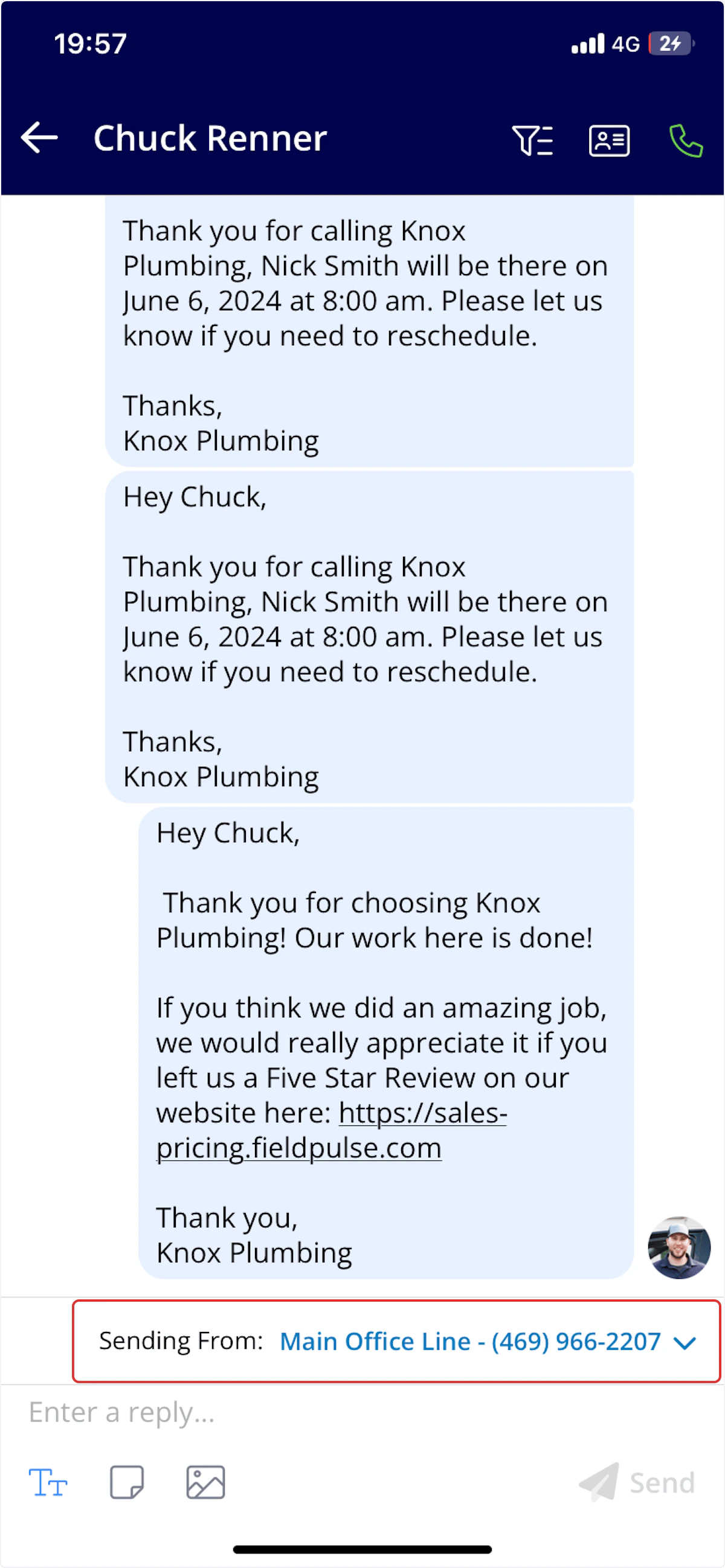
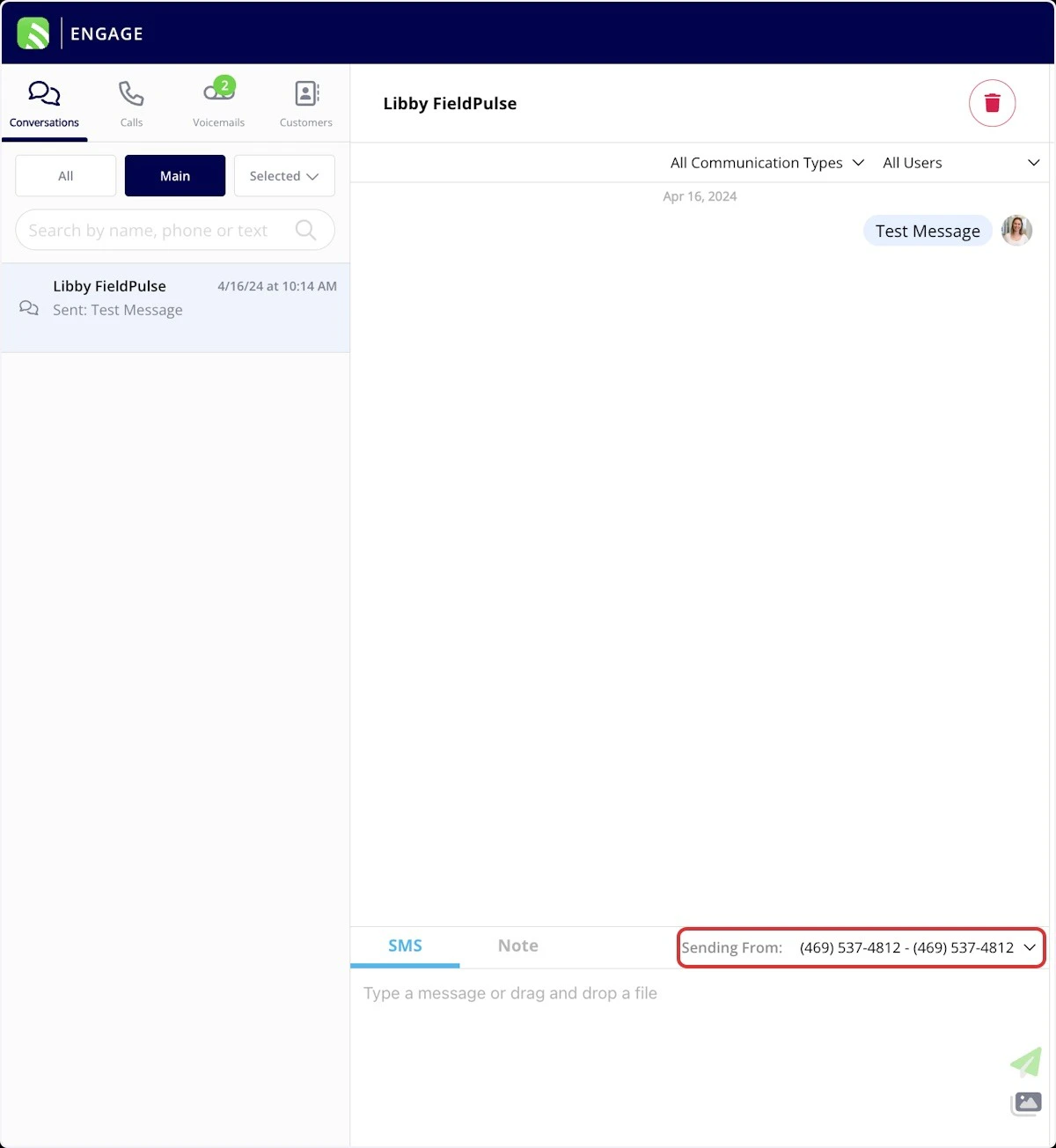
Conversations allow you to text customers and view past customer interactions across all communication methods. Select All to view all text conversations across all Engage phone numbers, Main to view the texts associated with your main phone number, or Selected to select which Engage phone numbers you would like to view text conversations from. Utilize the search feature in the web app to search by name, phone number, or key word and find related conversations easily.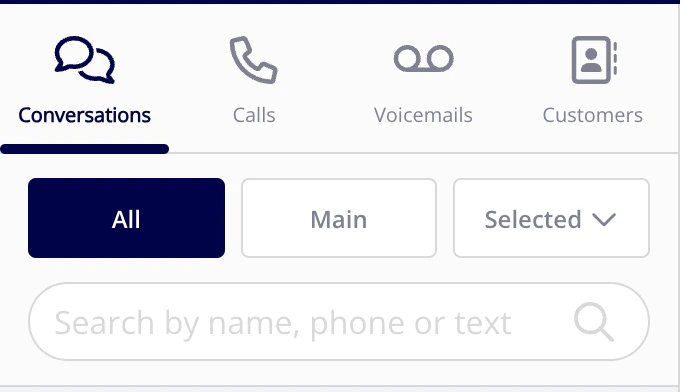
Calls
Calls allow you to call customers and view past customer phone calls. Select All to view all calls across all Engage phone numbers, Main to view the calls associated with your main phone number, or Selected to select which Engage phone numbers you would like to view calls from. Utilize the search feature to search by name or phone number and find related call history easily.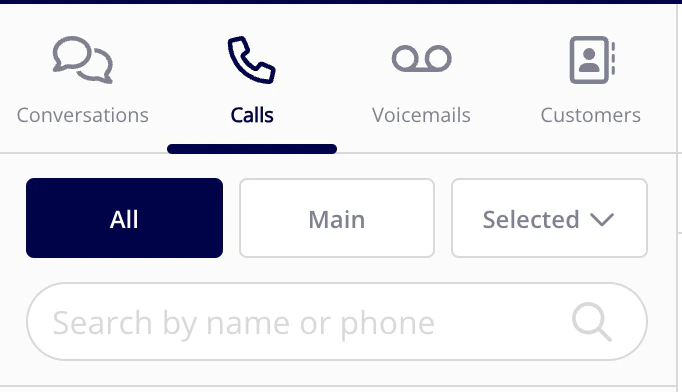
Voicemails
Voicemails allow you to view customer voicemails. Select All to view all voicemails across all Engage phone numbers, Main to view the voicemails associated with your main phone number, or Selected to select which Engage phone numbers you would like to view voicemails from. Utilize the search feature to search by name or phone number and find related voicemails easily.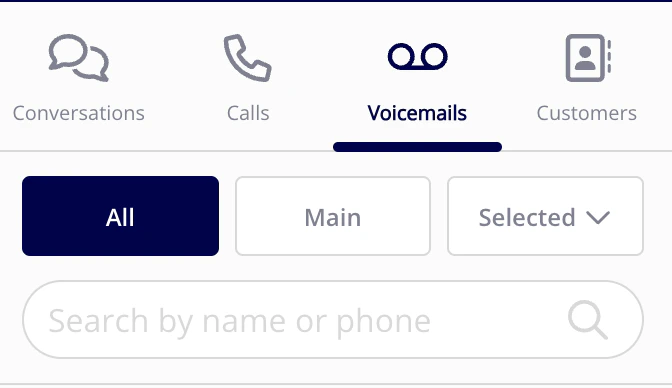
Customers
Customers allows you to view your customers in an organized way. Select Recent to view your most recent customers, All to view all your customers in FieldPulse, or Assigned to Me to view only customers that are assigned to you in FieldPulse. Utilize the search feature to search by name or phone number and find customers easily.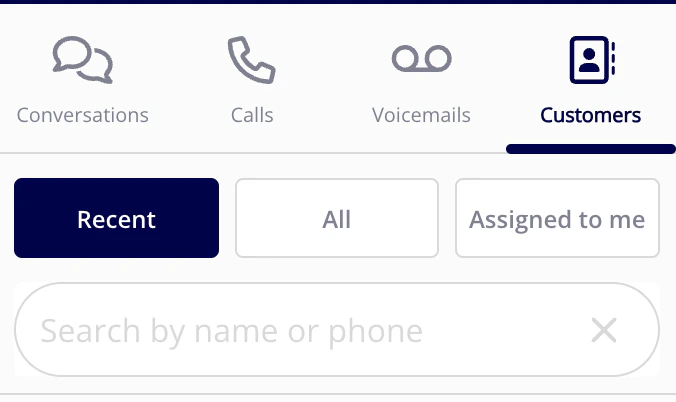
FAQs
Can I restrict my technicians’ access to our customers’ contact information within Engage? Absolutely! This is a user permission setting that you can toggle on or off to control whether technicians have access to customer phone numbers and email addresses.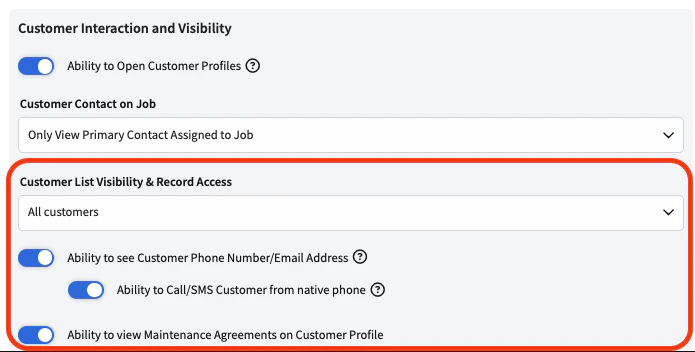
Video Tutorial
Have additional questions? Contact us at support@fieldpulse.com or use the chat feature in the bottom right corner of your screen.