Who uses this: Roles with the Create & edit Customers permission: Yes for Admins, configurable for Team Managers and Service Agents, and No for Limited Agents. Availability: All regions.A customer status marks where a customer sits in their lifecycle with your business, from a first inquiry through to a paying customer. FieldPulse tracks that on a single Status field on the customer record, which you set when you create the customer and update as the relationship moves along.
Overview
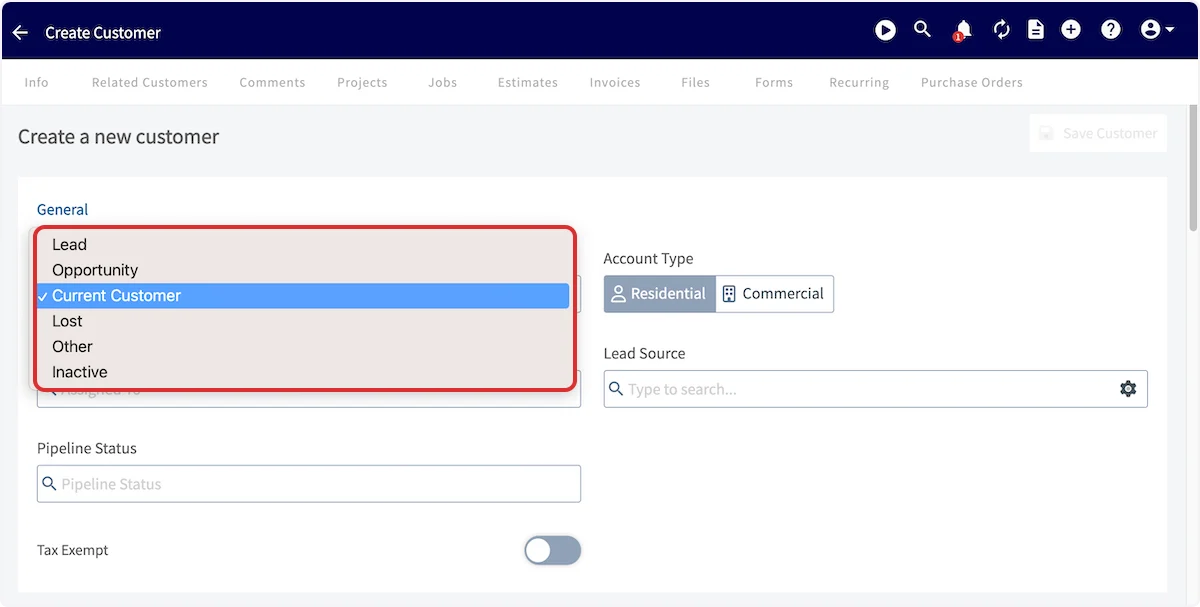
FieldPulse offers six customer statuses: Lead, Opportunity, Current Customer, Lost, Other, and Inactive. You pick one on the Status field while creating the customer, change it on the customer record as the customer moves through your sales process, and use the By Status tab on the Customers page to pull up everyone at the same stage. A customer’s current status appears under their name at the top of the customer record.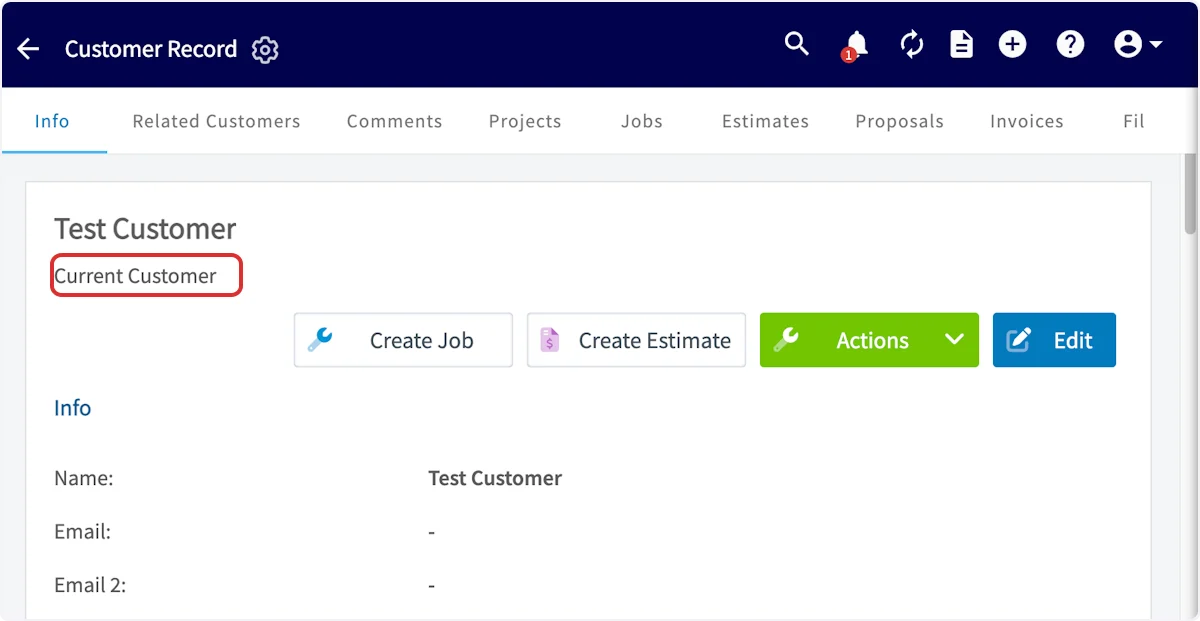
Video walkthrough
Watch a short walkthrough of customer statuses, then follow the written steps below.Video walkthrough: customer statuses in FieldPulse
Before you begin
- Sign in as a user with the Create & edit Customers permission. Admins have it, and an Admin can enable it for a Team Manager or Service Agent.
- Know which field you are setting. Status and Pipeline Status are two separate fields on the customer record. This page covers Status. Pipeline Status is the one you customize in Company Settings, covered in Setting Up a Custom Sales Pipeline.
Step-by-step setup
Set the status on a new customer
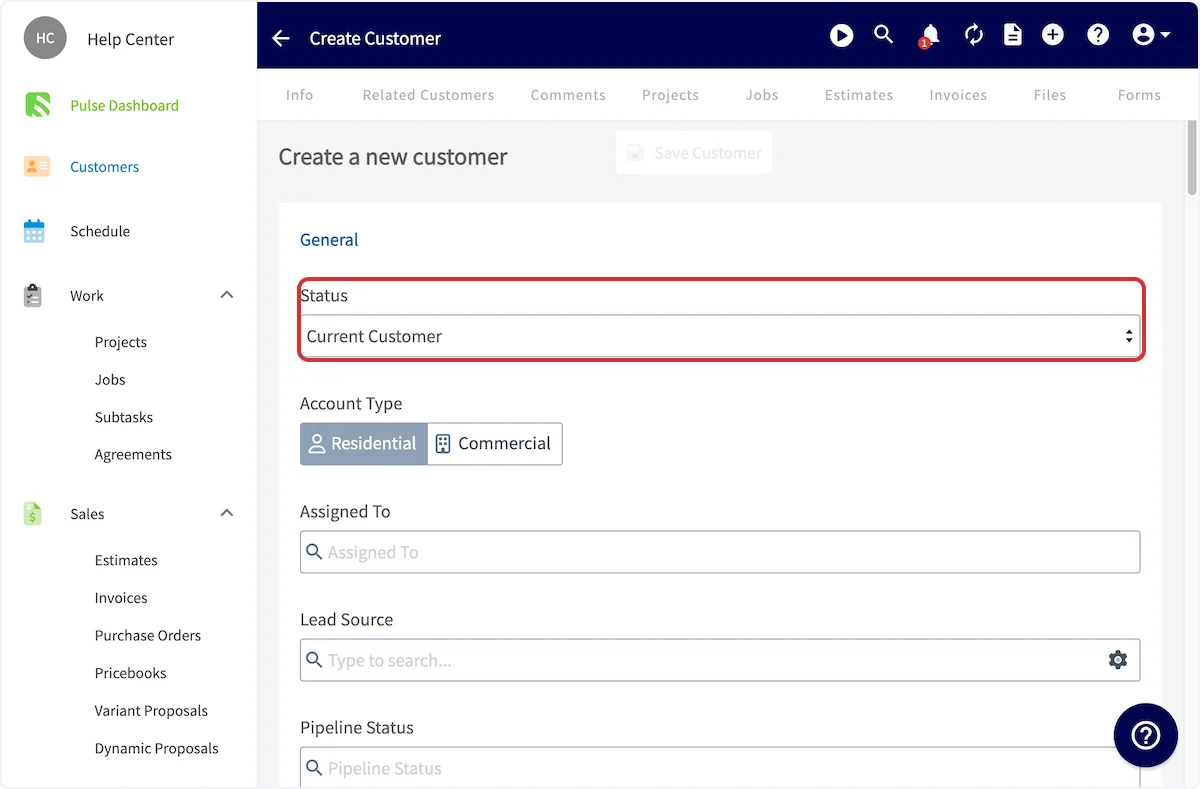
Set the status while you create the customer, on the same form as the rest of the customer’s details.- Go to Customers and select Create Customer.
- In the General section at the top of the form, select the Status dropdown.
- Choose the status that matches where the customer stands: Lead, Opportunity, Current Customer, Lost, Other, or Inactive.
- Finish entering the customer’s details, then select Save Customer.
Change the status on an existing customer
Change the status on the customer record as the relationship changes, for example, from Lead to Current Customer once that customer purchases your services.- Go to Customers and select the customer you want to update.
- On the customer record, select Edit.
- Find the Status section and choose a new status from the dropdown.
- Save the customer record.
Filter customers by status
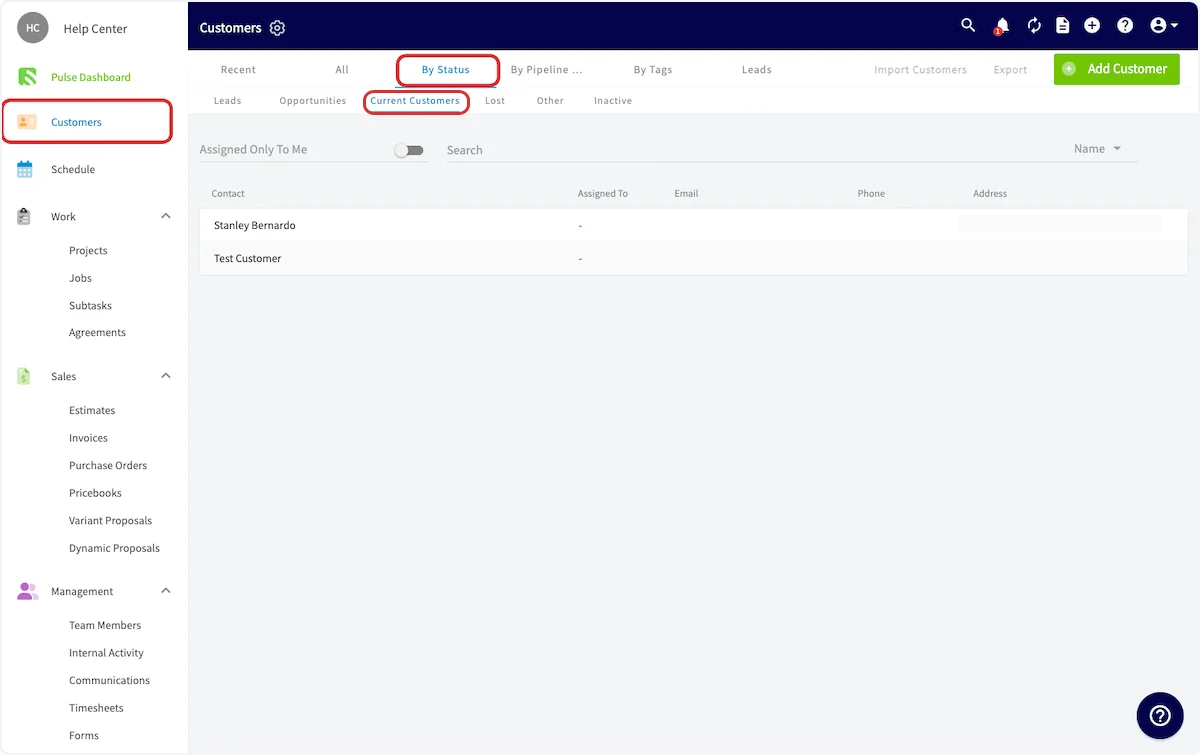
The By Status tab on the Customers page segments your customer list by status, so you can work one stage at a time.- Go to Customers.
- Select the By Status tab.
- Select a status: Leads, Opportunities, Current Customers, Lost, Other, or Inactive.