

Documentation Index
Fetch the complete documentation index at: https://fieldpulse.mintlify.app/llms.txt
Use this file to discover all available pages before exploring further.
Processing Refunds in FieldPulse
Option 1
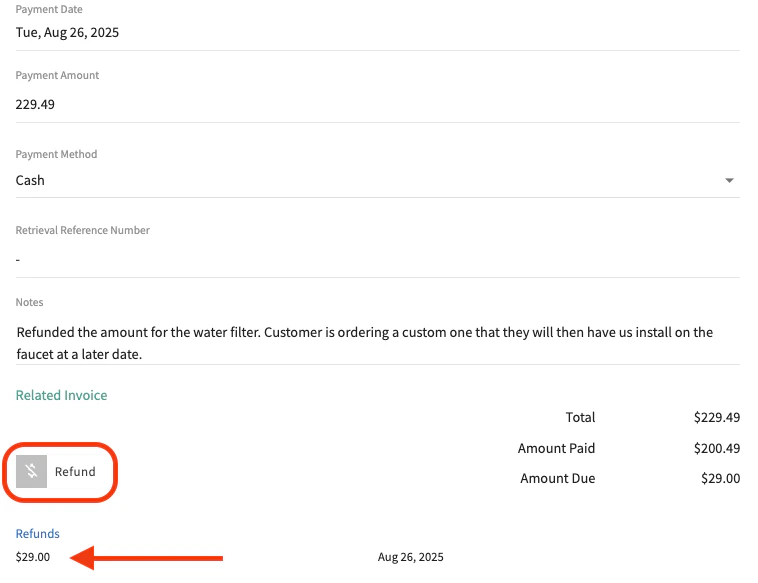
To process a refund, click onto the Invoice Record that you would like to complete the refund for. When on the record, click on the Payments tab from the top menu bar.
Option 2
You can also process a refund directly from the FP Payments tab. Simply click on a payment you’d like to refund and then click the green Refund button in the top right corner.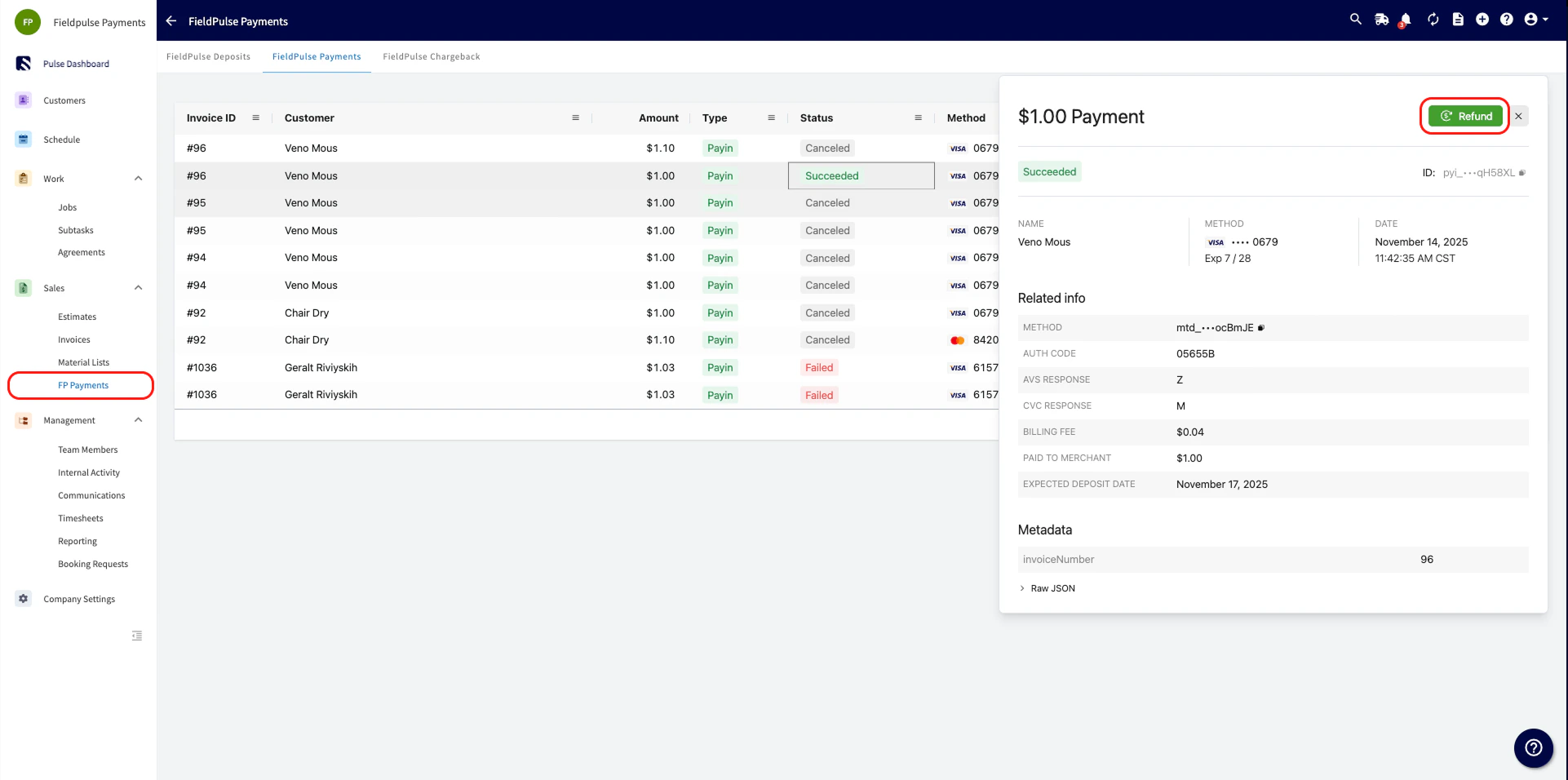
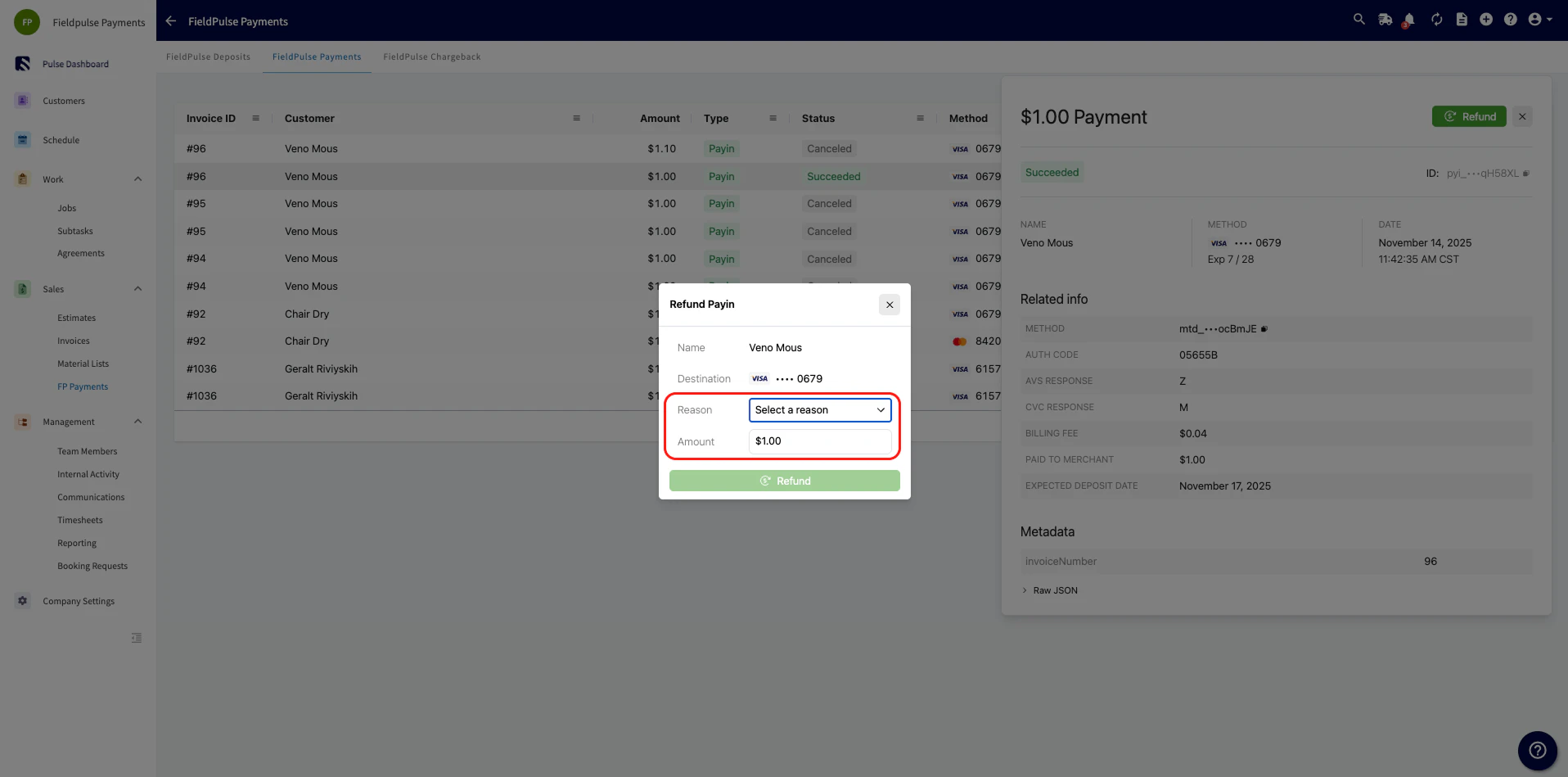
Refund Transaction Line Item
We recognize the importance of providing you with clear insights into your refund activity. The refund transaction line item allows you to easily track how many refunds you process and which specific invoices or payments have refunds applied to them.See it in Action
You will see a separate line item in the payments section each time a refund is processed. Each relevant payment will have corresponding refund line item displayed below it. If a payment has multiple refunds, you will see multiple line items, each marked with a red number to signify the refund. This visual cue makes it easy to identify refunds at a glance, empowering users—especially Admins—to monitor payments and minimize potential losses due to refunds.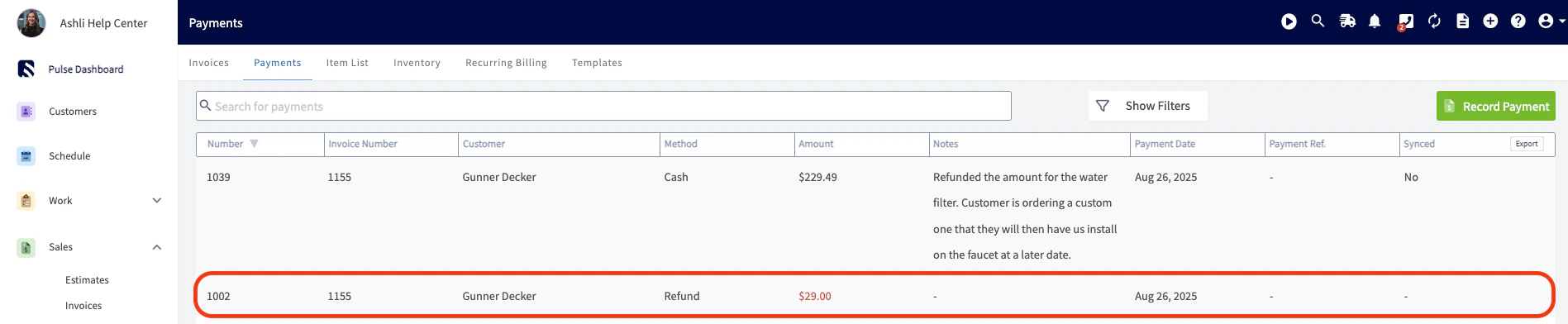
Have additional questions? Contact us at support@fieldpulse.com or use the chat feature in the bottom right corner of your screen.