

Documentation Index
Fetch the complete documentation index at: https://fieldpulse.mintlify.app/llms.txt
Use this file to discover all available pages before exploring further.
Overview
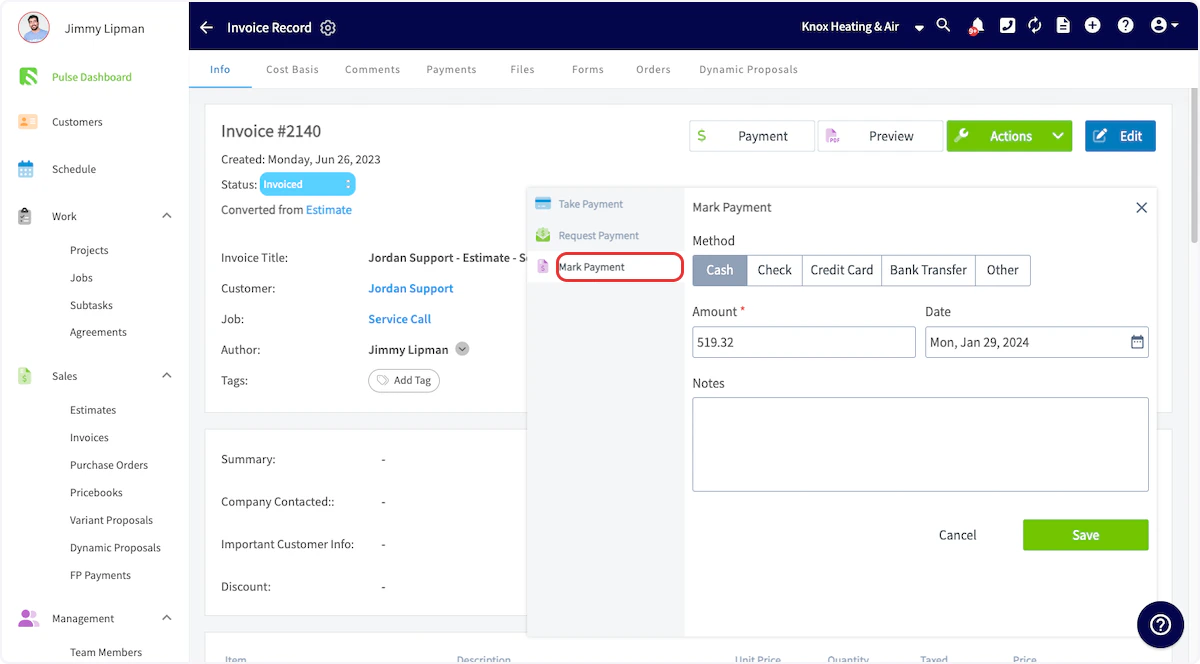
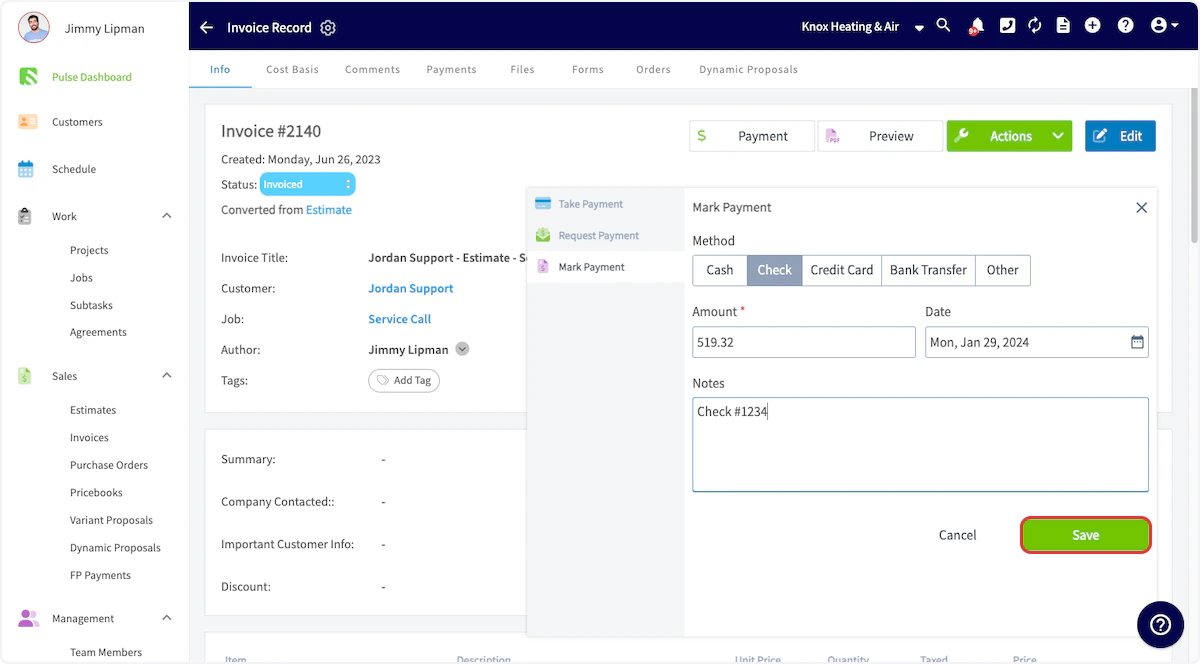
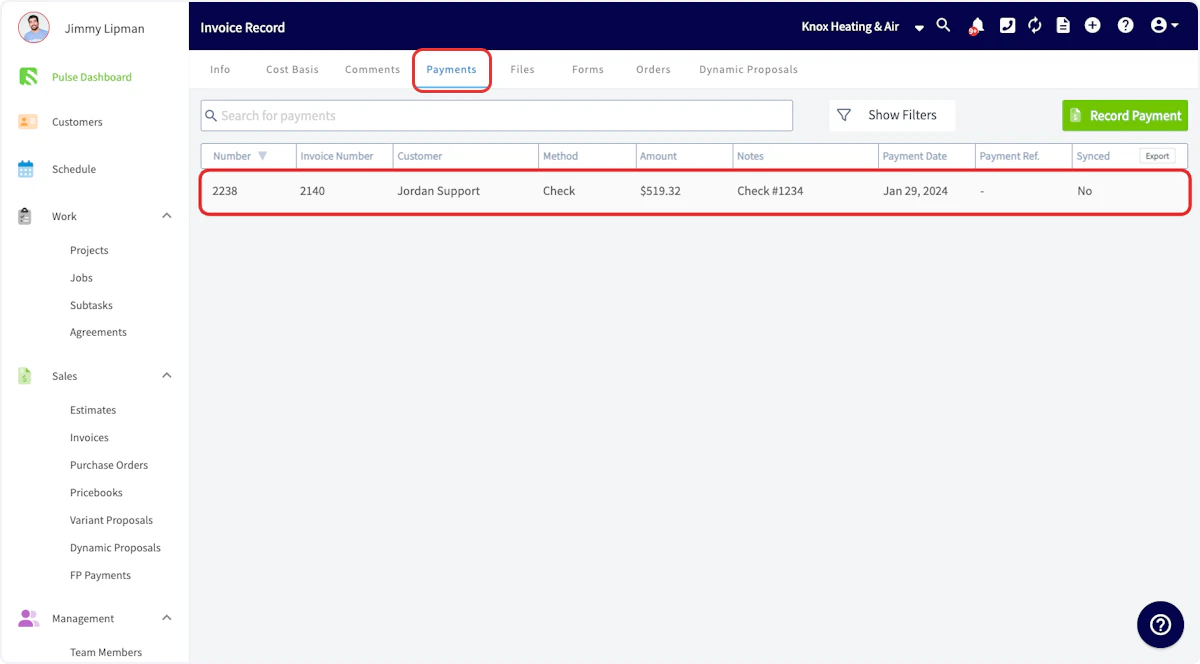
Once your customer has paid, you can mark their payment on the corresponding invoice record. Payment records are required in order to mark the invoice as Paid or Partially Paid. This allows you to record full or partial payments made by the customer and automatically keep track of balances due. If you’d like to collect payments in FieldPulse instead of marking payments, visit the Collecting Payments article.On Web: Admin Experience
When an invoice has been paid, open the invoice record that you want to apply a payment to. On the invoice record, click Payment.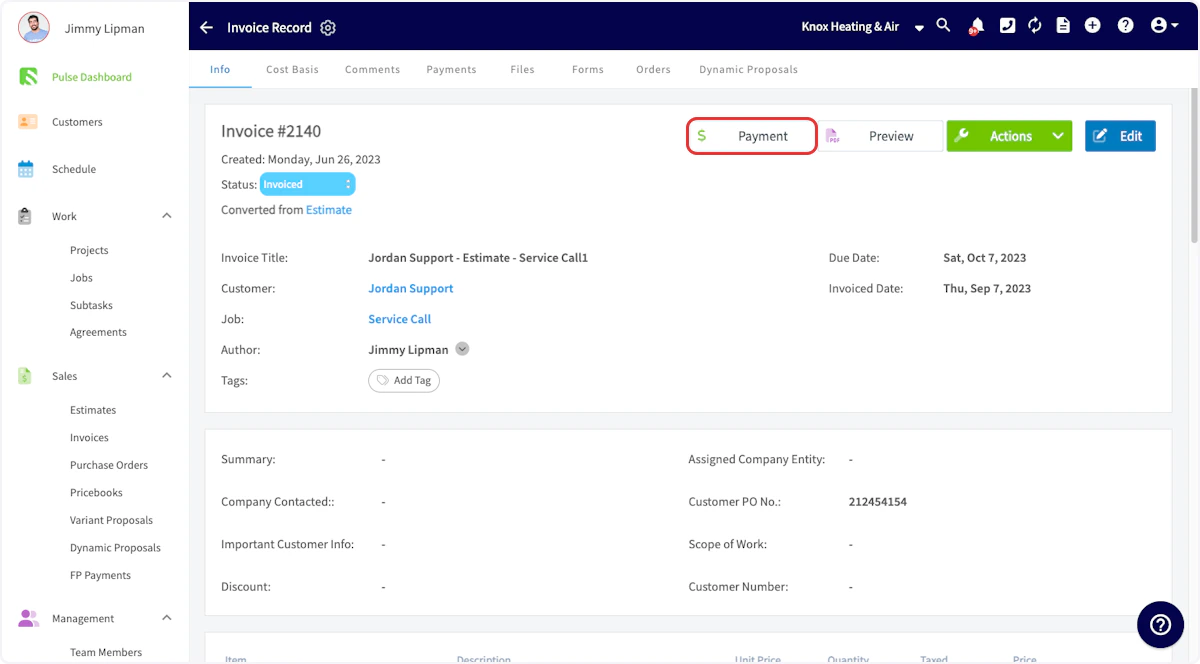
Marking Bulk Payments
You can also mark multiple invoices as paid at once. Navigate to your Invoices list, then click the pencil icon. Select each invoice you’d like to mark as paid using the checkbox. You can adjust the payment method, date, and notes before saving the payment record. (Note: This is only used to mark payments, not to collect payments.)On Mobile: Field Experience
Select an Invoice
To begin, select the invoice on which you would like to apply payment. Select the Sales tab at the bottom of your screen, then click Invoices.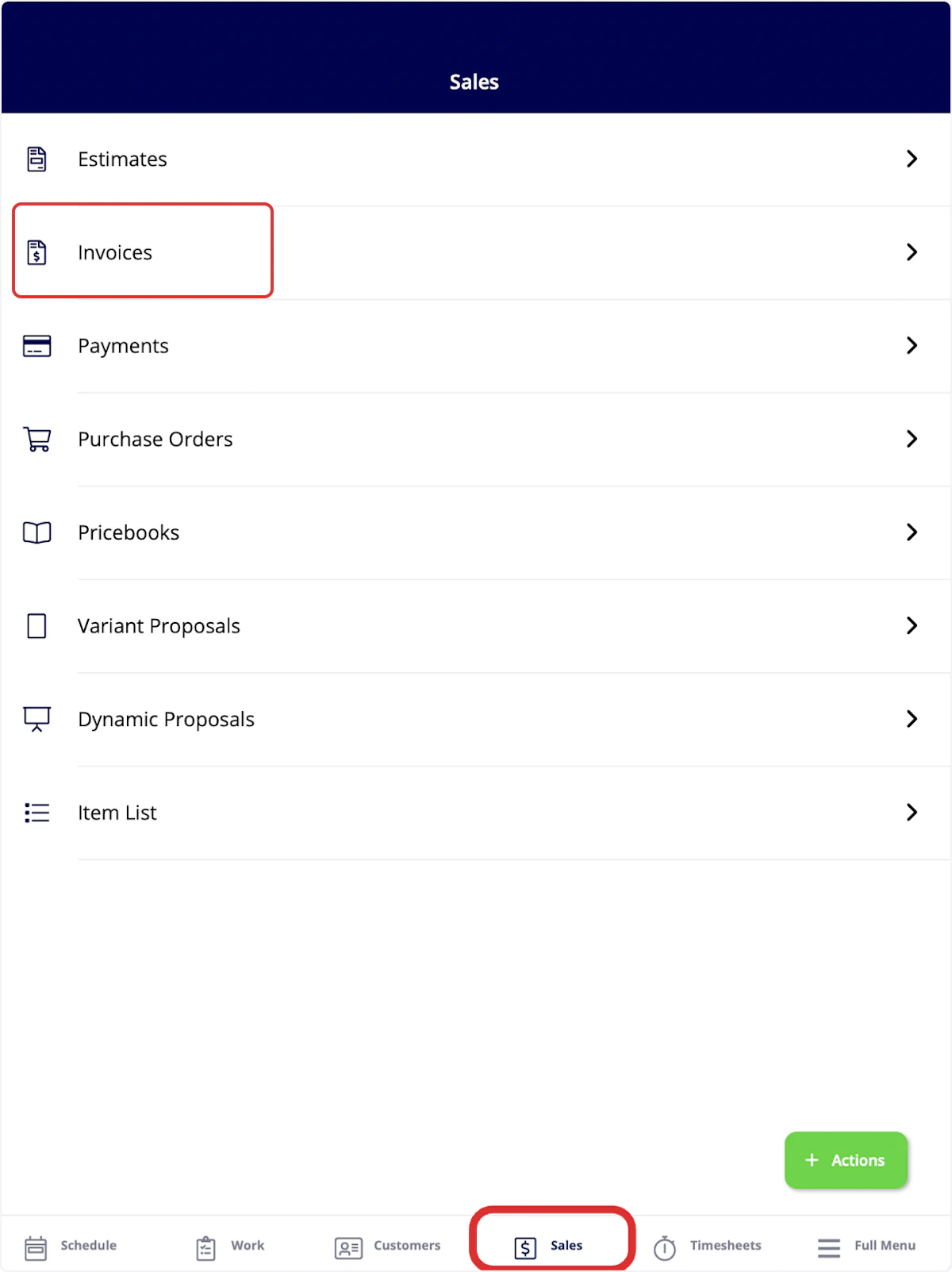

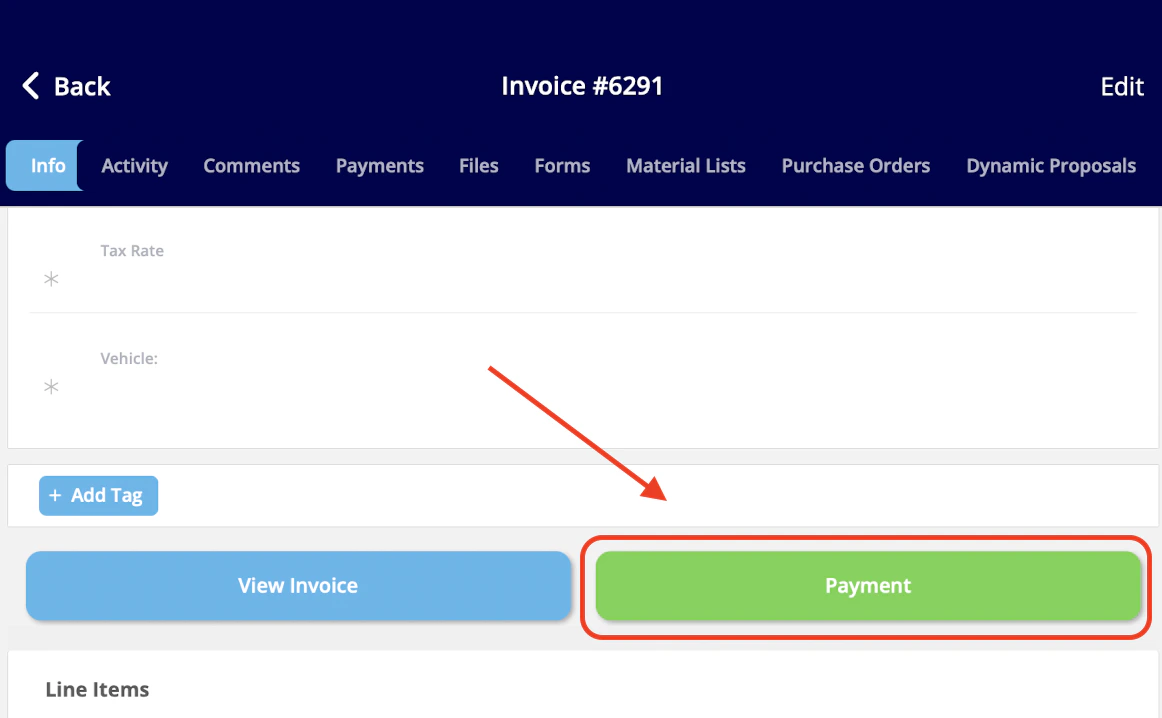
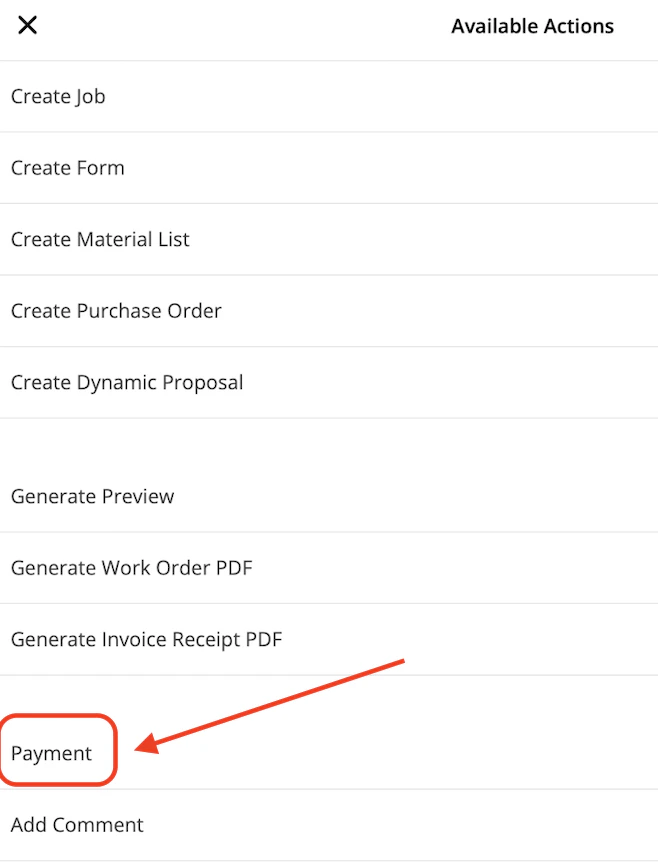
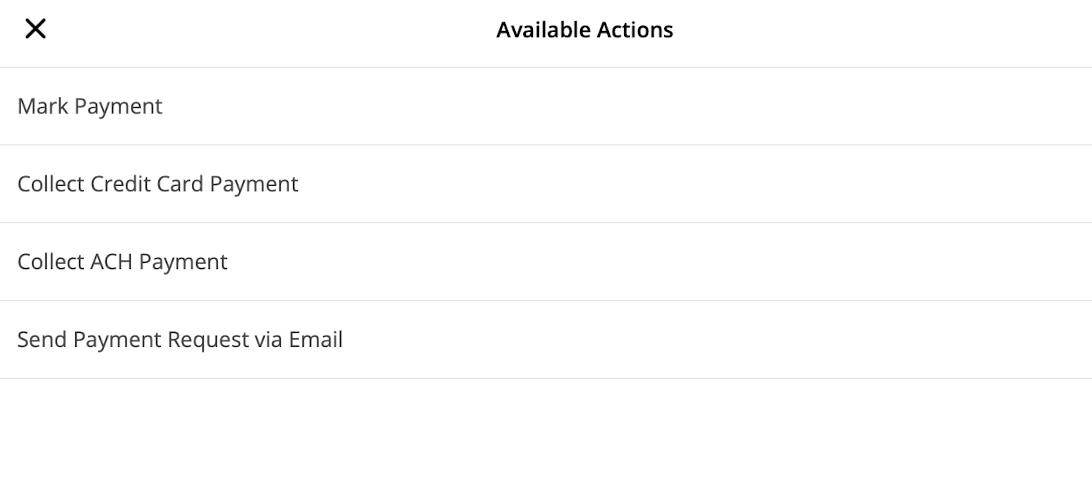
Mark Payment
If you select Mark Payment, you can adjust the payment amount, the payment method, and include notes. Once you add all necessary details, click Save Payment or Save to mark the payment in FieldPulse.
Video Tutorials
Web App
Mobile
Have additional questions? Contact us at support@fieldpulse.com or use the chat feature in the bottom right corner of your screen.