Who uses this: Admins can enable it. Availability: Requires an active CompanyCam account/subscription.Connecting the CompanyCam integration brings your job-site photos and videos into FieldPulse automatically, so the proof of work lives on the customer record instead of scattered across a tech’s phone.
Eager to learn more about our partner? Check them out here.
Overview
The CompanyCam integration links photos and videos captured in CompanyCam to the matching FieldPulse records, so your office and field see the same documented job without switching apps. CompanyCam is a photo-and-video documentation tool built for contractors; the integration connects it to FieldPulse and keeps the two in step.
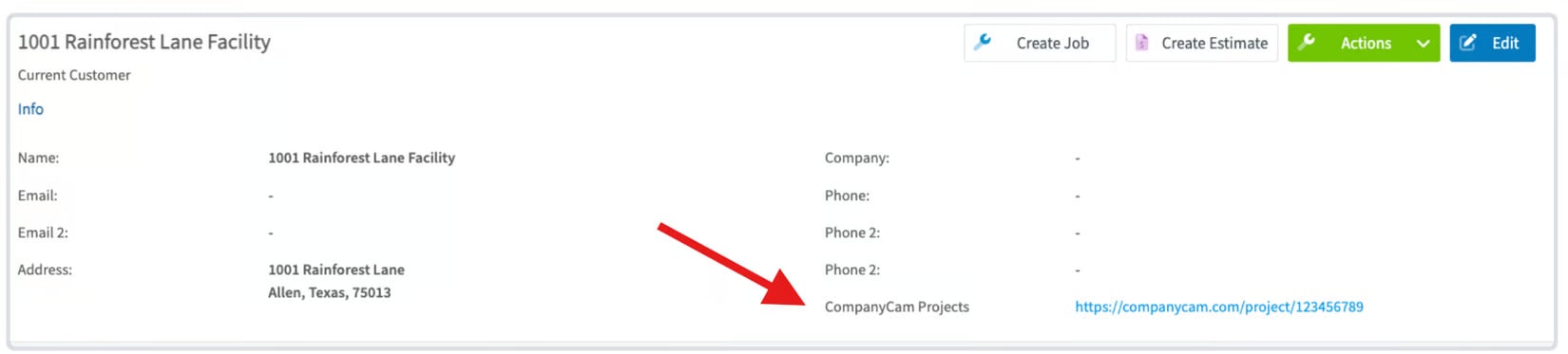
- Photos and videos taken in CompanyCam appear on the matching FieldPulse customer record, linked by the CompanyCam Project address.
- File access — synced files are available directly from FieldPulse Jobs, Projects, Estimates, and Invoices.
- Customer contact information syncs two-way between FieldPulse customers and CompanyCam Projects.
- New photos captured with the Take Photo in CompanyCam button in FieldPulse sync back to your records.
Before you begin
- You need an active CompanyCam account to connect.
- File syncing starts from the moment you connect — historical CompanyCam files are not imported.
- FieldPulse does not store CompanyCam files. It shows a preview linked to the original file, which stays hosted in CompanyCam. The integration is not a file-migration tool — deleting a file in CompanyCam breaks its preview in FieldPulse.
Connect CompanyCam
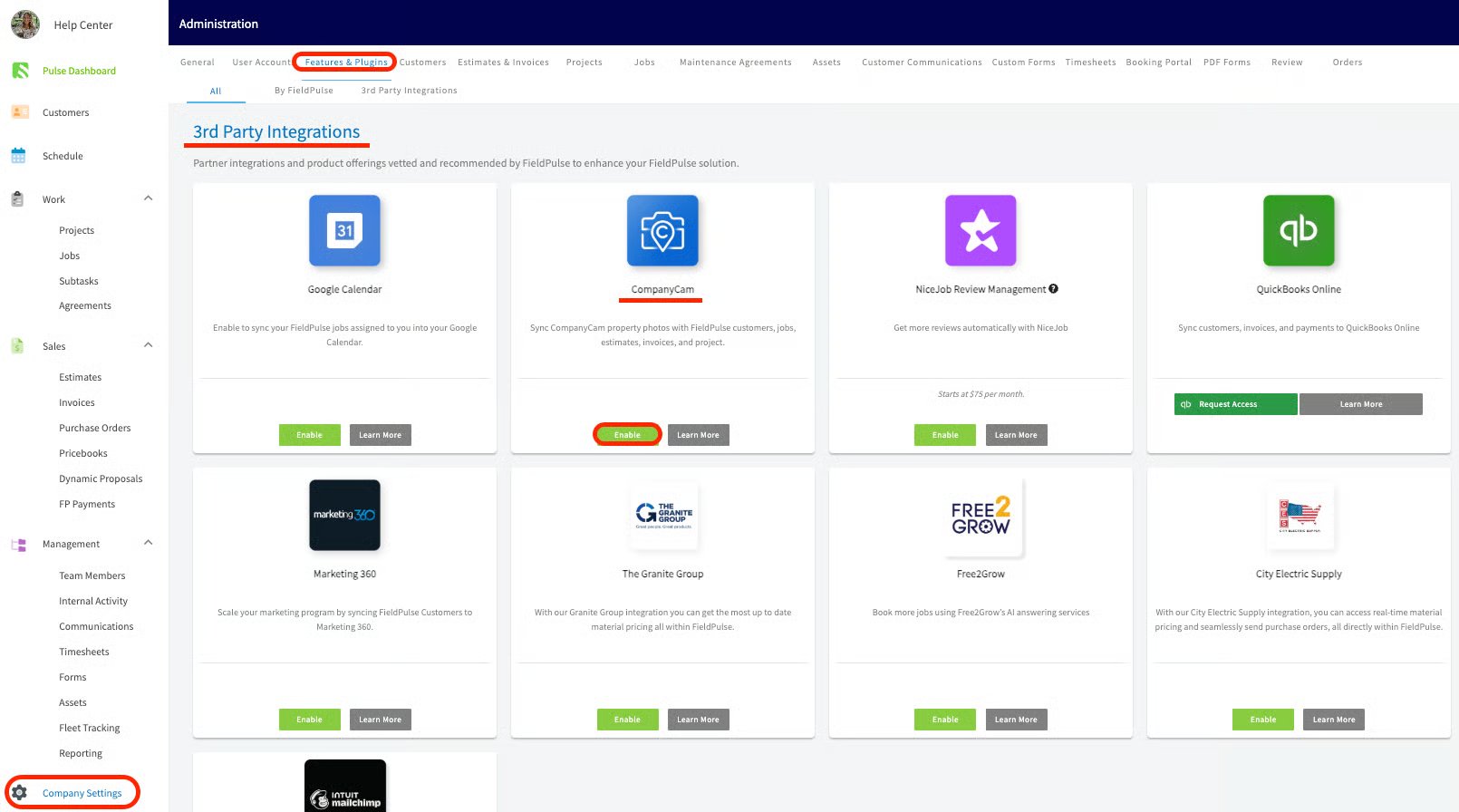
- Go to Company Settings.
- Select Features & Plugins.
-
Find CompanyCam and select Enable.
-
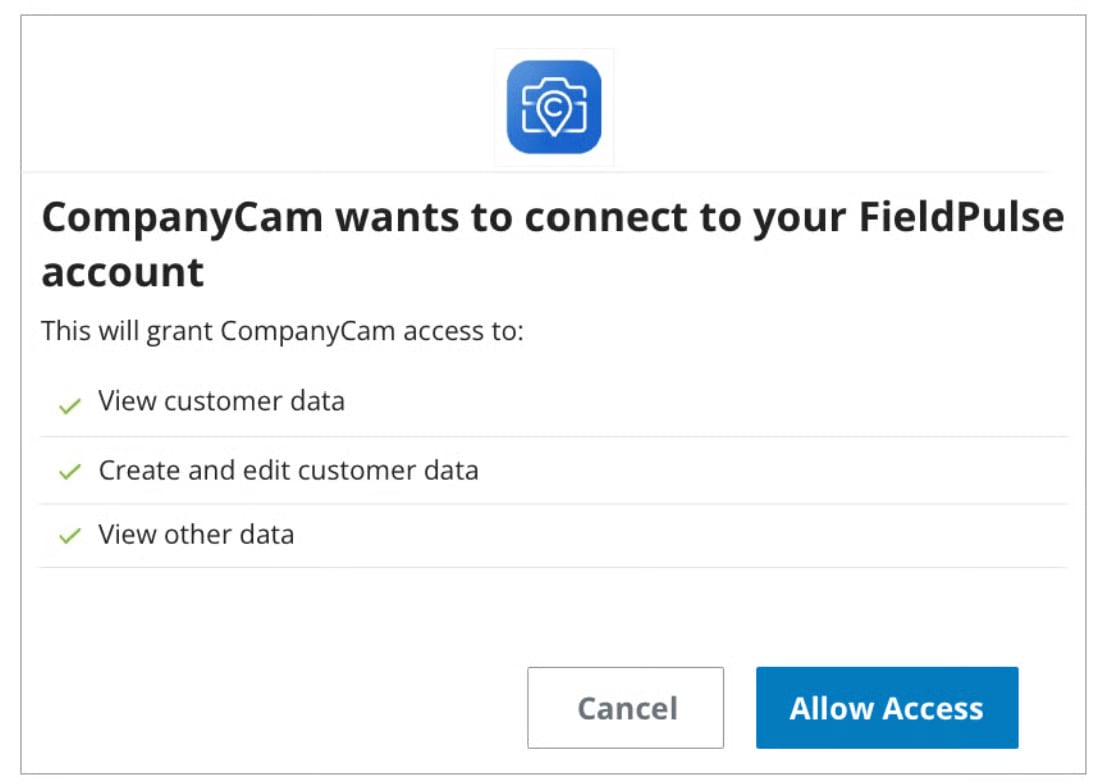
Log in to your CompanyCam account to authenticate the connection.
- Enable the option to sync customer contact information.
What syncs and how
To use synced files:
- Open the Files tab on a FieldPulse record to see thumbnails, timestamps, and links to the originals in CompanyCam.
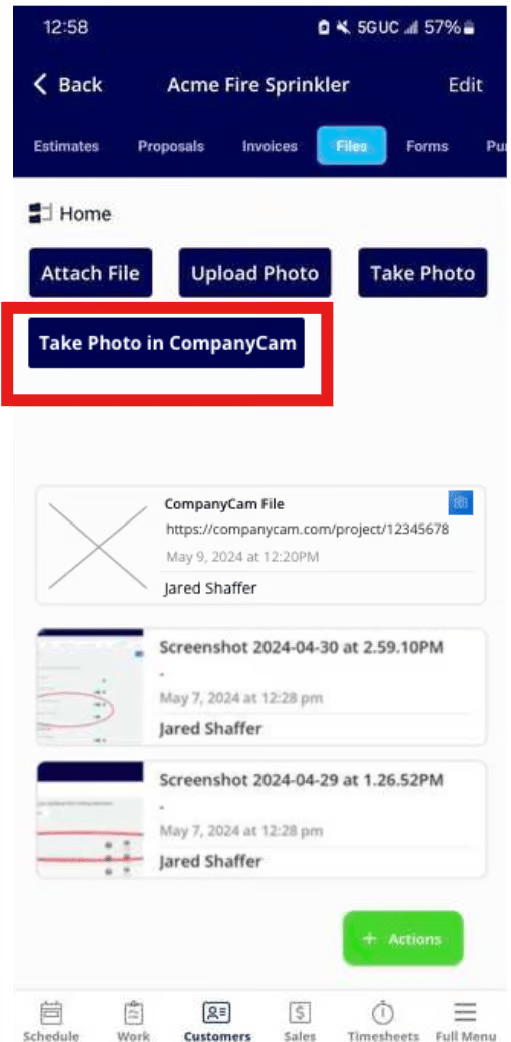
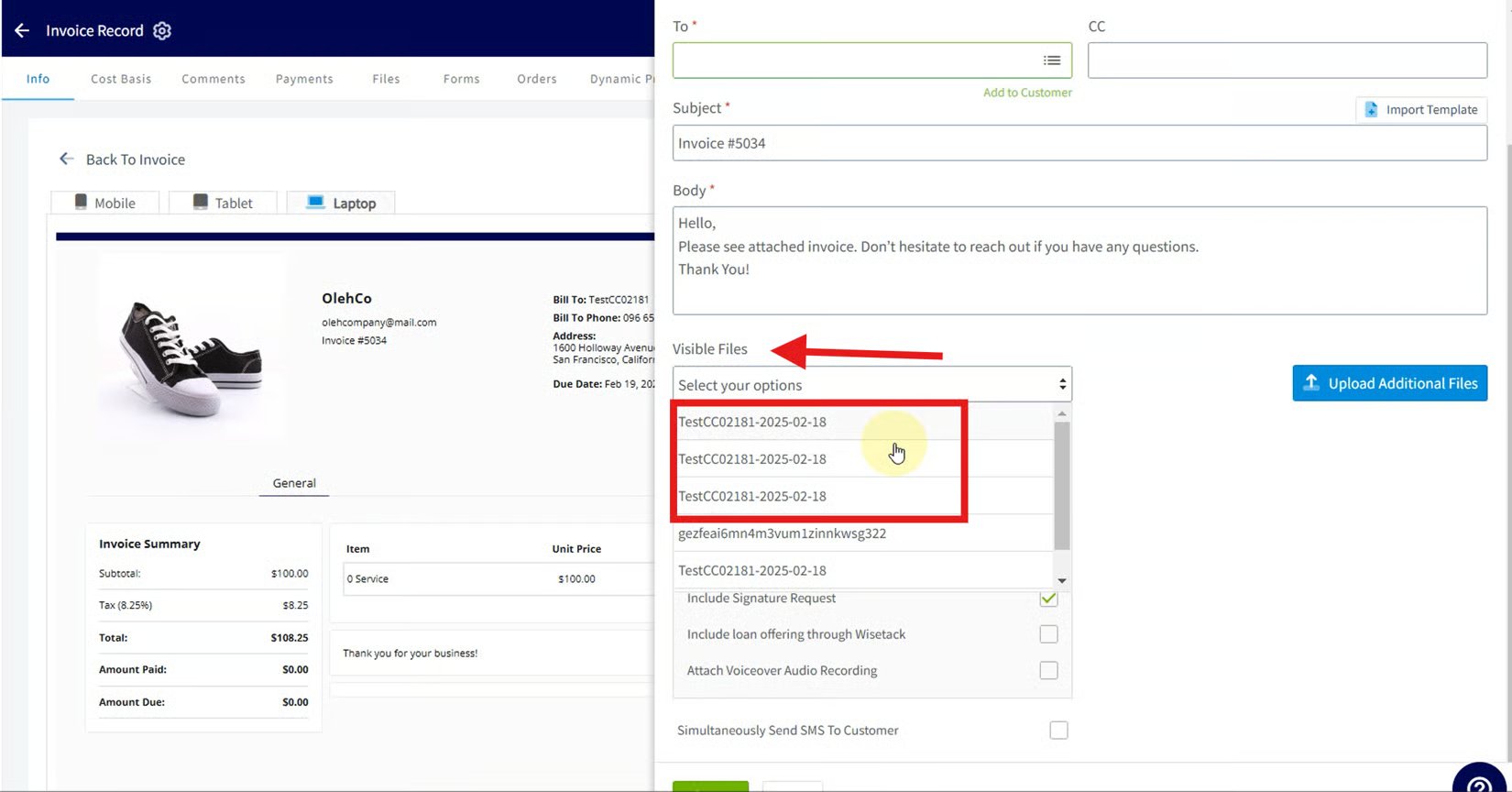
- To send photos to a customer, select them from the Visible Files dropdown when you send an estimate or invoice.