
Who uses this: Admins, Team Managers, and Service Agents building or editing material lists in the FieldPulse mobile app (the roles offline mode is available to). Availability: FieldPulse mobile app only · All regions. Material Lists must be enabled on your account.A material list started in a basement should not be lost when the signal drops. The FieldPulse mobile app switches to offline mode when your connection becomes unstable, keeps the draft you were working on, and syncs every change to your FieldPulse account once you reconnect.
Overview
Offline mode caches a working set of material lists, items, and bundles on the device so you can keep creating and editing material lists with no internet connection. FieldPulse detects when you go offline and prompts you to switch to offline mode; once your connection is restored, everything you did offline syncs automatically with the rest of your FieldPulse data. The mobile app enters offline mode automatically, and your team can also open offline mode manually from the profile icon. See Offline Mode Overview for those steps and how offline mode works across the whole app.Video walkthrough
Video walkthrough: working with material lists in offline mode
Before you begin
- Material Lists are enabled on your account.
- The FieldPulse mobile app is installed and up to date.
What is cached
On mobile
-
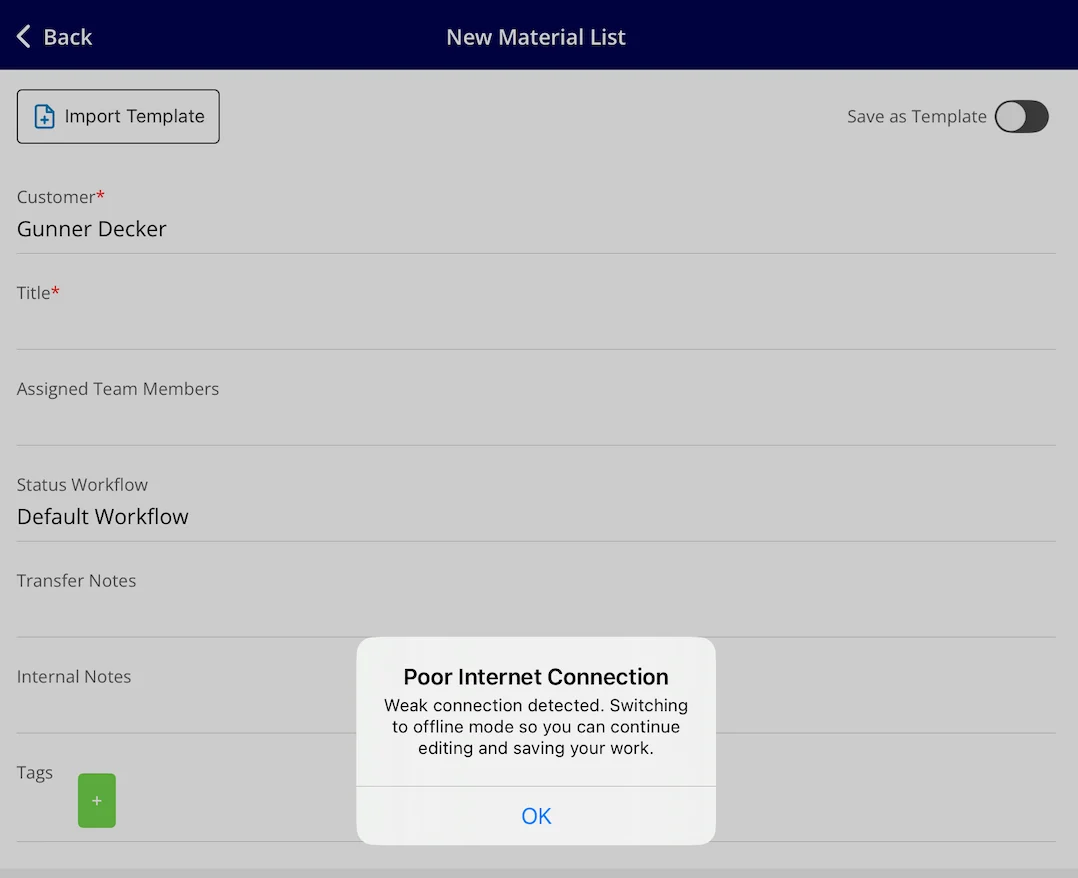
When the prompt appears, tap to switch to offline mode. If you were already working on a material list, your draft carries over automatically. Nothing is lost.
-
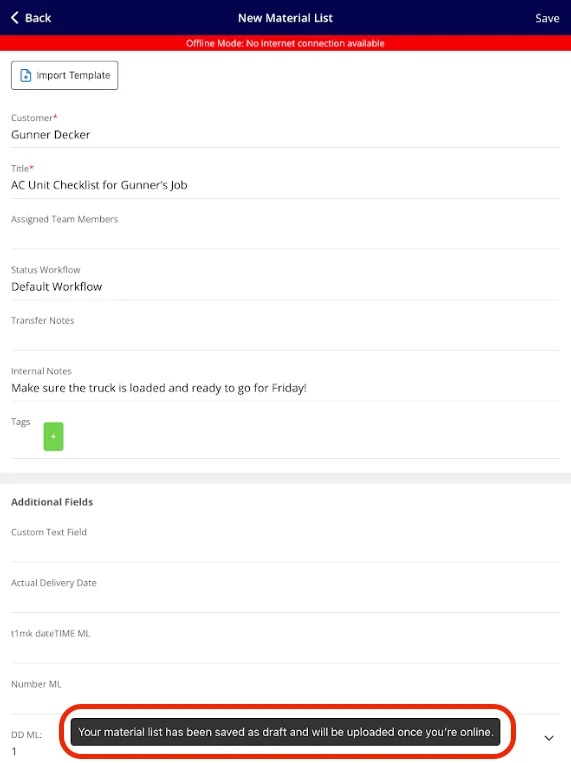
Keep working as normal: add line items, update details, make changes. The banner at the top confirms you are in offline mode, and a saved draft shows a message that it will upload once you are online.
-
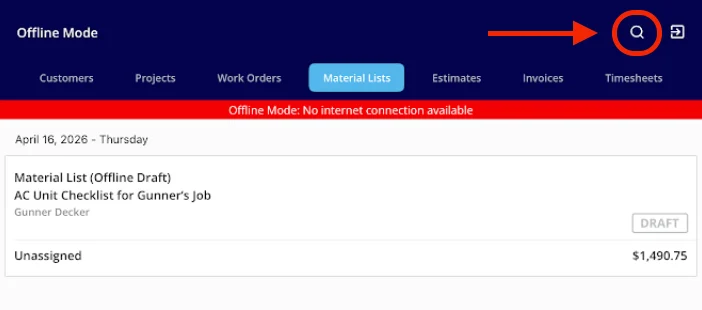
To pull up an existing record, use the search bar in the list view to find it by title, ID, or customer name.
-
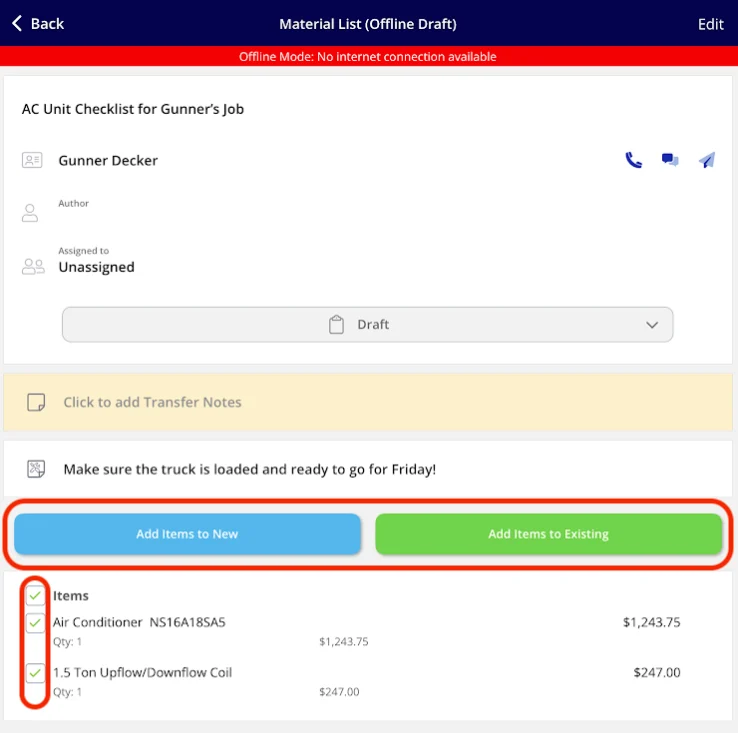
To add material list items to a new or existing estimate or invoice, select the items and tap Add Items to New or Add Items to Existing.
What you can do offline
- Create new material lists linked to cached customers, jobs, or projects.
- Edit up to 300 existing cached material lists.
- Search records by title, ID, or customer name.
- Add Transfer Notes and Internal Notes.
- Add tags to material lists.
- Use up to 10,000 cached line items to build out your material lists.
- Use up to 100 cached bundles.
- Create groupings.
- Import any of your material list templates.
- Update statuses on material lists.
Notes & limitations
- Offline mode is available in the FieldPulse mobile app only.
- Offline mode is available to Admins, Team Managers, and Service Agents. Limited Agents do not have Offline Mode.
- The cache holds up to 300 material lists, 10,000 line items, and 100 bundles, chosen by recent use and by the customers, jobs, and projects on your schedule for the week.
- A record keeps its Offline Draft badge until it has finished syncing after you reconnect.
- Offline changes sync automatically once the connection is restored.